Report Costing Layer Valuation: Difference between revisions
From Fishbowl Advanced
m (Text replacement - "[[File:Report-" to "{{BackToReports}} [[File:Report-") Tag: Reverted |
m (Text replacement - "{{BackToReports}} " to "") Tag: Manual revert |
||
| (3 intermediate revisions by the same user not shown) | |||
| Line 1: | Line 1: | ||
[[File:Report-Costing Layer Valuation.png|right|border|400px|link={{filepath:Report-Costing Layer Valuation.png}}]] This report generates a summary of the quantity and value of all parts currently on hand. This is a LIFO/FIFO based report. Use this report to compare inventory asset value between Fishbowl and the accounting system when running a FIFO or LIFO costing method in Fishbowl. | |||
The {{Button|Modify Report}} allows the following report filters to be customized:<br> | The {{Button|Modify Report}} allows the following report filters to be customized:<br> | ||
{{Spacer}}'''OPTIONAL TAB''' | {{Spacer}}'''OPTIONAL TAB''' | ||
Latest revision as of 21:16, 12 March 2025
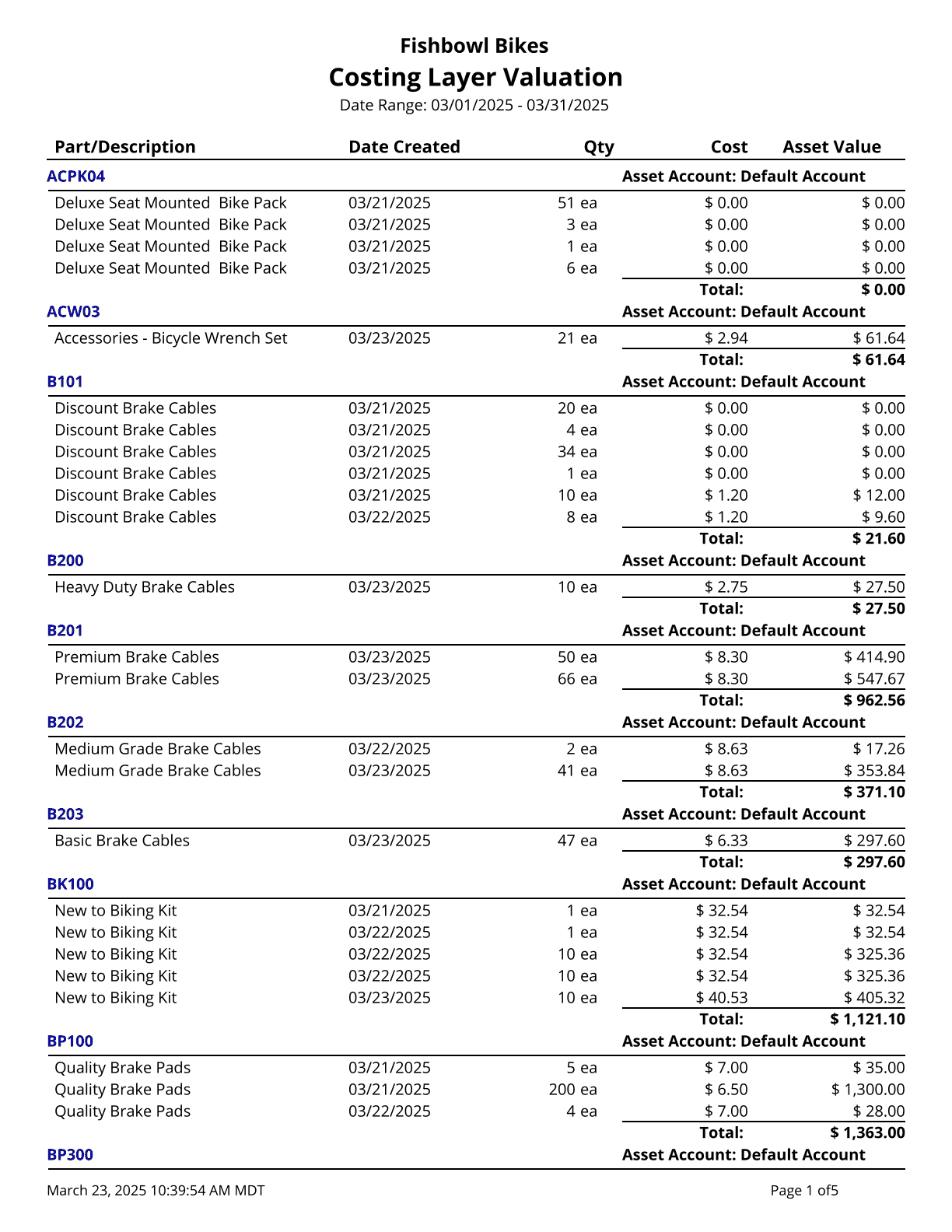
This report generates a summary of the quantity and value of all parts currently on hand. This is a LIFO/FIFO based report. Use this report to compare inventory asset value between Fishbowl and the accounting system when running a FIFO or LIFO costing method in Fishbowl.
The  Modify Report button allows the following report filters to be customized:
- OPTIONAL TAB
- Part Number - Choose a part number to run the report for. Leave this field blank to run for all parts.
- Asset Account - Enter a specific asset account to view information for. Leave this field blank to run for all asset accounts.
- Date Range - Enter the desired date range to see costing layer information for. This date looks at the DateCreated on the COSTLAYER table in the database, meaning the date the costing layer was created by adding initial inventory with a cost or receiving parts in, etc.
- Show Active Costing Layers - Choose to show/hide active costing layers by checking/unchecking this checkbox. This means any costing layers that still have quantity still available.
- Show Fulfilled Costing Layers - Choose to show/hide fulfilled costing layers by checking/unchecking this checkbox. This means any costing layers that have been completely depleted of quantity.
- Show Voided Costing Layers - Choose to show/hide voided costing layers by checking/unchecking this checkbox. This means any costing layer that was created but voided. An example would be receiving inventory in but then voiding the receipt.
- Format Report for Exporting - Removes the page breaks and displays the report on one long page for exporting to CSV, Excel, and other formats.
- Show Historical Data - Choose to show/hide historical data by checking/unchecking this checkbox. This option will show the original quantity and cost when the costing layer was created.
- PRINTER TAB - Allows a default printer to be specified for the report in each location group.