Report RMA Summary: Difference between revisions
From Fishbowl Advanced
m (Text replacement - ".png|right|border|400px|link={{filepath" to ".png|border|800px|link={{filepath") Tag: Reverted |
m (Text replacement - "{{BackToReports}} " to "") Tag: Manual revert |
||
| (2 intermediate revisions by the same user not shown) | |||
| Line 1: | Line 1: | ||
[[File:Report-RMA Summary.png|right|border|400px|link={{filepath:Report-RMA Summary.png}}]] This report generates a summary of RMAs issued during the given date range. Taxes and shipping fees are not included. | |||
The {{Button|Modify Report}} allows the following report filters to be customized:<br> | The {{Button|Modify Report}} allows the following report filters to be customized:<br> | ||
{{Spacer}}'''OPTIONAL TAB''' | {{Spacer}}'''OPTIONAL TAB''' | ||
Latest revision as of 21:16, 12 March 2025
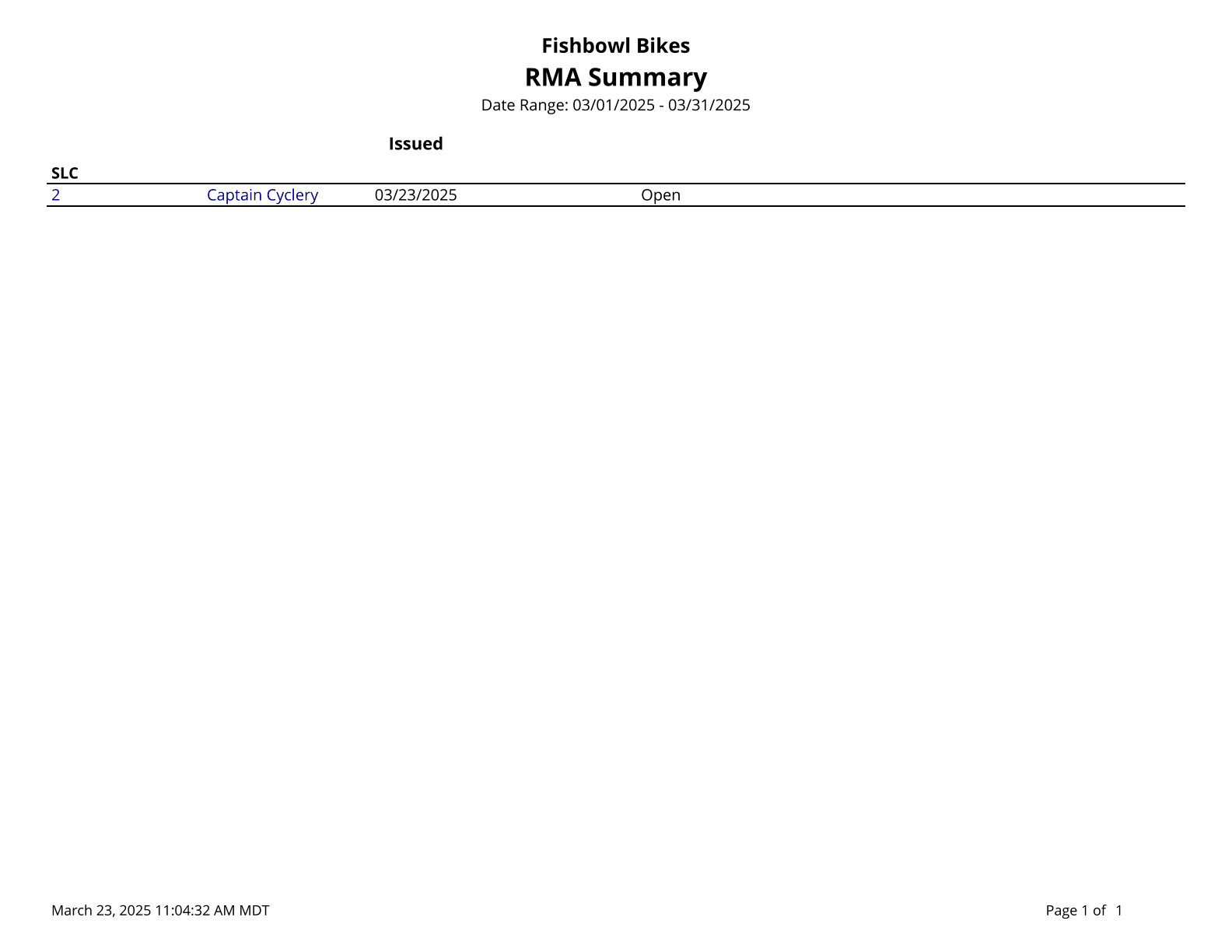
This report generates a summary of RMAs issued during the given date range. Taxes and shipping fees are not included.
The  Modify Report button allows the following report filters to be customized:
- OPTIONAL TAB
- Item Type - Choose what return item types to show on the report: All, Credit, Replacement, Substitution, or Repair.
- RMA Number - Select an RMA number to run the report for. Leave this field blank to run for all RMAs.
- Location Group - Choose a specific location group to run the report for. Leave this field blank to run for all location groups.
- Customer - Choose to run the report for a specific customer. Leave this field blank to run for all customers.
- Product Number - Choose a product number to run the report for. Leave this field blank to run for all products.
- Item Issue - Enter the issue the part is being return for to search for items with that issue selected. Leave this field blank to run for all issues.
- Date Range - Select a date range to run the report for. This date range looks at the DateCreated in the RMA table of the database, meaning the date the RMA was created.
- Order By Customer - Choose to order the RMAs by customer by checking this checkbox.
- Order Status Expired - Choose to show/hide orders that have a status of expired by checking/unchecking this checkbox.
- Order Status Fulfilled - Choose to show/hide orders that have a status of fulfilled by checking/unchecking this checkbox.
- Order Status Open - Choose to show/hide orders that have a status of opened by checking/unchecking this checkbox.
- Format Report for Exporting - Removes the page breaks and displays the report on one long page for exporting to CSV, Excel, and other formats.
- Show RMA Details - Choose to show/hide specific product details on the RMA listing by checking/unchecking this checkbox.
- PRINTER TAB - Allows a default printer to be specified for the report in each location group.