Report Work Order Summary: Difference between revisions
From Fishbowl Advanced
m (Text replacement - ".png|right|border|800px|link={{filepath" to ".png|right|border|400px|link={{filepath") Tags: Manual revert Reverted |
m (Text replacement - "{{BackToReports}} " to "") Tag: Manual revert |
||
| Line 1: | Line 1: | ||
[[File:Report-Work Order Summary.png|right|border|400px|link={{filepath:Report-Work Order Summary.png}}]] This report displays a summary of work orders with their status, date scheduled, date started, and date finished. | |||
The {{Button|Modify Report}} allows the following report filters to be customized:<br> | The {{Button|Modify Report}} allows the following report filters to be customized:<br> | ||
{{Spacer}}'''OPTIONAL TAB''' | {{Spacer}}'''OPTIONAL TAB''' | ||
Latest revision as of 21:16, 12 March 2025
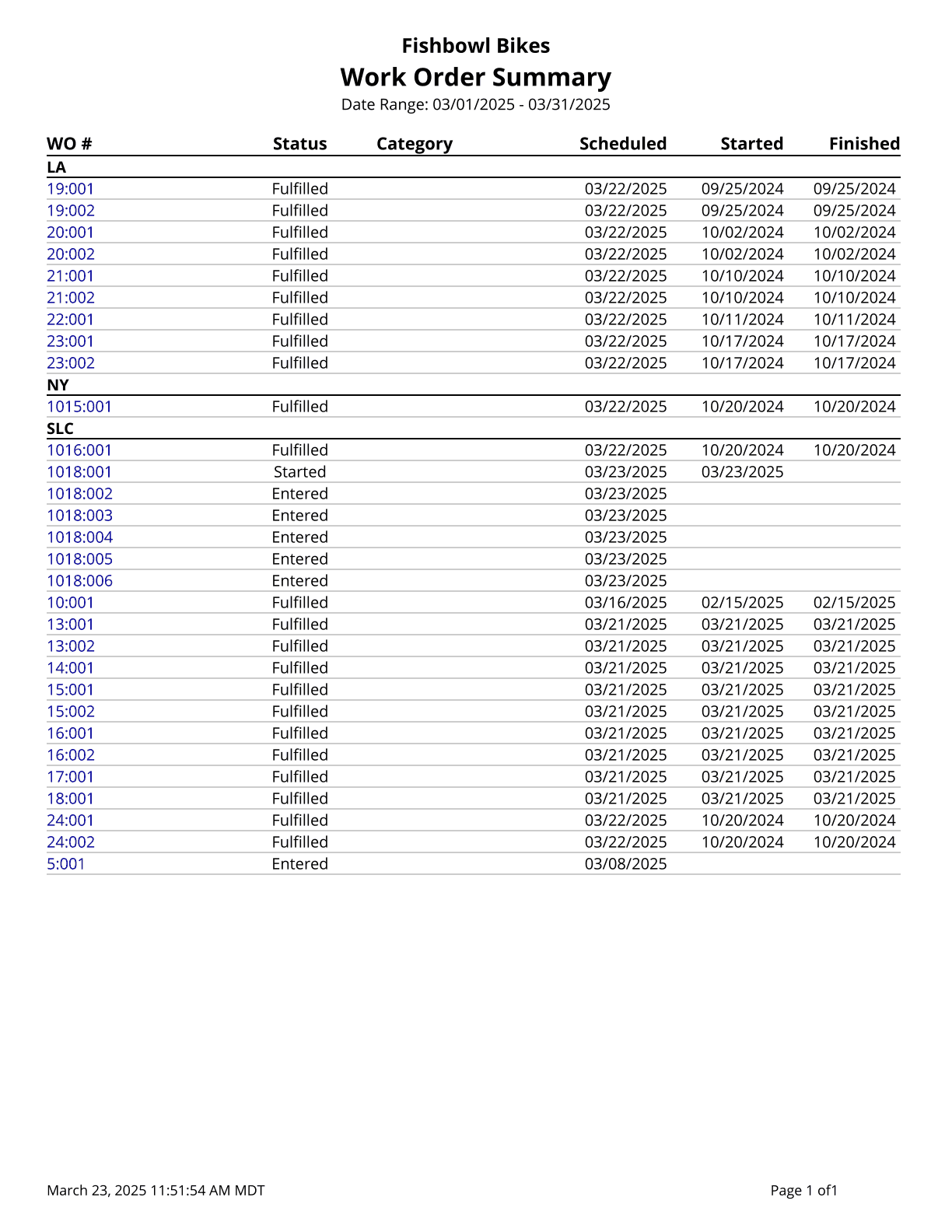
This report displays a summary of work orders with their status, date scheduled, date started, and date finished.
The  Modify Report button allows the following report filters to be customized:
- OPTIONAL TAB
- Apply Date Range To - Choose the date desired for the date range to look at for information: Fulfillment Date, Date Created, Date Started, Date Completed or Date Last Changed.
- Group By - Choose to group by Location Group or Calendar category.
- Search Part Type - Choose Any, Finished Good, Raw Good or Repair. This correlates with the Part Number selection below. If you choose a part to run the report for, choose whether it’s a Finished Good, Raw Good or Repair type on the Work Order. This will then pull up all work orders with that part on it as the type that was chosen.
- Class - Select a class to run the report for. Leave this field blank to run for all classes.
- Location Group - Choose a location group to view turnover for. Leave this field blank to view data for all location groups.
- Part Number - Choose a specific part number to run the report for. Leave this field blank to run for all part numbers.
- Calendar Category - Choose to only show matching calendar categories. The % symbol can be used as a wildcard for any characters. For example, entering %al% in the Calendar Category field would match Alabama, Alaska, California.
- Report Title - Allows the Work Order Summary title at the top of the report to be replaced with custom text.
- Date Range - Choose the date range to pull information for. This date range looks at orders with dates in the option that is selected in the Apply Date Filter To dropdown.
- Entered - Choose to show/hide orders with this status by checking/unchecking this checkbox.
- Fulfilled - Choose to show/hide orders with this status by checking/unchecking this checkbox.
- Issued - Choose to show/hide orders with this status by checking/unchecking this checkbox.
- Started - Choose to show/hide orders with this status by checking/unchecking this checkbox.
- Format Report for Exporting - Removes the page breaks and displays the report on one long page for exporting to CSV, Excel, and other formats.
- Show Category Color - Will show the color of the calendar category next to the name of the category.
- HIDE/SHOW TAB - Choose which columns to show/hide on the report by checking/unchecking the checkbox next to each column name.
- PRINTER TAB - Allows a default printer to be specified for the report in each location group.