Report Work Order Report: Difference between revisions
From Fishbowl Advanced
m (Text replacement - ".png|right|border|800px|link={{filepath" to ".png|right|border|400px|link={{filepath") Tags: Manual revert Reverted |
m (Text replacement - "{{BackToReports}} " to "") Tag: Manual revert |
||
| Line 1: | Line 1: | ||
[[File:Report-Work Order Report.png|right|border|400px|link={{filepath:Report-Work Order Report.png}}]] This report displays specific detailed information for a specified Work Order, such as the customer, SO #, quantity used, and quantity available in inventory. | |||
The {{Button|Modify Report}} allows the following report filters to be customized:<br> | The {{Button|Modify Report}} allows the following report filters to be customized:<br> | ||
{{Spacer}}'''REQUIRED TAB''' | {{Spacer}}'''REQUIRED TAB''' | ||
Latest revision as of 21:16, 12 March 2025
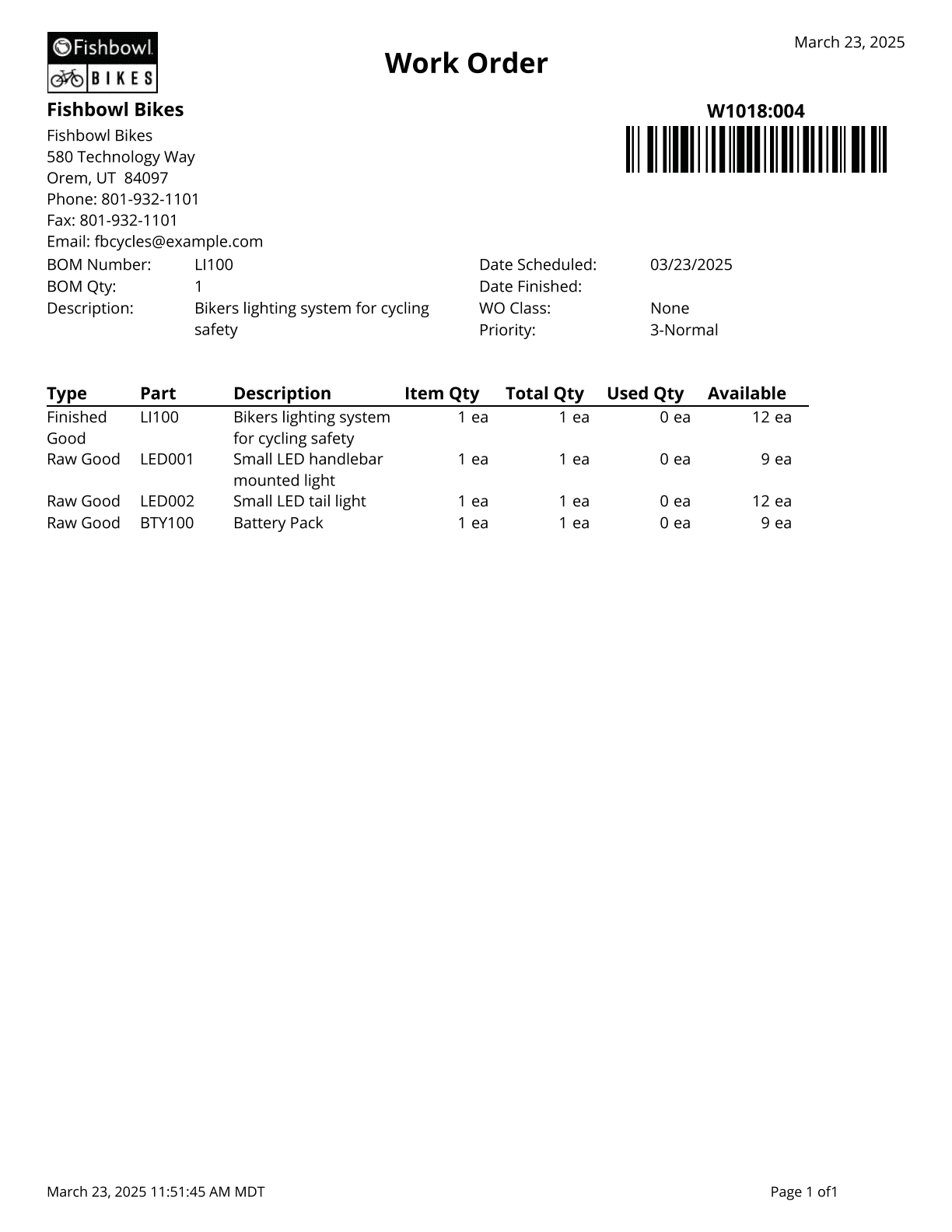
This report displays specific detailed information for a specified Work Order, such as the customer, SO #, quantity used, and quantity available in inventory.
The  Modify Report button allows the following report filters to be customized:
- REQUIRED TAB
- WO Number - Enter a WO number to run the report for.
- OPTIONAL TAB
- Format Report for Exporting - Removes the page breaks and displays the report on one long page for exporting to CSV, Excel, and other formats.
- Show Barcode - Choose to show/hide the barcode on the report by checking/unchecking this checkbox.
- HIDE/SHOW TAB - Choose which columns to show/hide on the report by checking/unchecking the checkbox next to each column name.
- PRINTER TAB - Allows a default printer to be specified for the report in each location group.