Update Fishbowl: Difference between revisions
From Fishbowl Advanced
No edit summary |
m (Mostly capitalization fixes and periods at the end of bullet points.) |
||
| Line 1: | Line 1: | ||
Updated versions of Fishbowl are typically released once a month and include new features and improvements. It only requires a few minutes to update Fishbowl and take advantage of the latest changes. Fishbowl also has the ability to push critical updates and patches in the middle of a release cycle. In this case, you will see an update window when starting the Fishbowl | Updated versions of Fishbowl are typically released once a month, and they include new features and improvements. It only requires a few minutes to update Fishbowl and take advantage of the latest changes. Fishbowl also has the ability to push critical updates and patches in the middle of a release cycle. In this case, you will see an update window when starting the Fishbowl Server. | ||
<noinclude>__NOTOC__</noinclude> | <noinclude>__NOTOC__</noinclude> | ||
* Most major updates require a current support contract. | * Most major updates require a current support contract with Fishbowl. | ||
* In most cases, backup files are not needed, but it is still highly recommended to copy critical files to the | * In most cases, backup files are not needed, but it is still highly recommended to copy critical files to the desktop or another safe location. | ||
*# Follow the steps to [[FAQs#How_do_I_backup_my_Fishbowl_database.3F|create a backup of the MySQL database]]. | *# Follow the steps to [[FAQs#How_do_I_backup_my_Fishbowl_database.3F|create a backup of the MySQL database]]. | ||
*# Browse to C:\Program Files\Fishbowl\data\backups and copy the most recent backup file to the | *# Browse to C:\Program Files\Fishbowl\data\backups and copy the most recent backup file to the desktop. | ||
*# Copy C:\Program Files\Fishbowl\plugins to the | *# Copy C:\Program Files\Fishbowl\plugins to the desktop. | ||
*# Copy C:\Program Files\Fishbowl\database\images to the | *# Copy C:\Program Files\Fishbowl\database\images to the desktop. | ||
*# Copy C:\Program Files\Fishbowl\server\reports to the | *# Copy C:\Program Files\Fishbowl\server\reports to the desktop. | ||
* The auto update settings can be customized in the [[Fishbowl Server Administration]] by right-clicking the Fishbowl Server tray icon and selecting '''Options'''. <br>[[File:Auto update settings.png]] | * The auto-update settings can be customized in the [[Fishbowl Server Administration]] by right-clicking the Fishbowl Server tray icon and selecting '''Options'''. <br>[[File:Auto update settings.png]] | ||
==Auto update== | ==Auto update== | ||
| Line 18: | Line 18: | ||
# Alternatively, right-click the Fishbowl Server tray icon, select '''Check For Updates''', and then click '''Update Fishbowl'''.<br>[[File:Check version2.png]] | # Alternatively, right-click the Fishbowl Server tray icon, select '''Check For Updates''', and then click '''Update Fishbowl'''.<br>[[File:Check version2.png]] | ||
# Restart the server by right-clicking the Fishbowl Server tray icon and selecting '''Exit'''.<br>[[File:Server restart.png]] | # Restart the server by right-clicking the Fishbowl Server tray icon and selecting '''Exit'''.<br>[[File:Server restart.png]] | ||
# | # Start the Fishbowl Server from the desktop or the list of programs.<br>[[File:Server shortcut.png]] | ||
# When the server restarts, click '''Yes''' to apply the updates.<br>[[File:Applying_update.png|class=noinvert]] | # When the server restarts, click '''Yes''' to apply the updates.<br>[[File:Applying_update.png|class=noinvert]] | ||
# Click '''OK''' to start the database update.<br>[[File:Database update.png]] | # Click '''OK''' to start the database update.<br>[[File:Database update.png]] | ||
# All client computers will update automatically when connecting to the updated Fishbowl Server. | # All client computers will update automatically when connecting to the updated Fishbowl Server. | ||
# If the auto update fails, follow the instructions [[Getting_Started#1._Install_Fishbowl|here]] to manually download and install Fishbowl into the same directory where Fishbowl is currently installed.<br>[[File:Installation directory2.png]] | # If the auto update fails, follow the instructions [[Getting_Started#1._Install_Fishbowl|here]] to manually download and install Fishbowl into the same directory where Fishbowl is currently installed.<br>[[File:Installation directory2.png]] | ||
Revision as of 11:42, 5 April 2023
Updated versions of Fishbowl are typically released once a month, and they include new features and improvements. It only requires a few minutes to update Fishbowl and take advantage of the latest changes. Fishbowl also has the ability to push critical updates and patches in the middle of a release cycle. In this case, you will see an update window when starting the Fishbowl Server.
- Most major updates require a current support contract with Fishbowl.
- In most cases, backup files are not needed, but it is still highly recommended to copy critical files to the desktop or another safe location.
- Follow the steps to create a backup of the MySQL database.
- Browse to C:\Program Files\Fishbowl\data\backups and copy the most recent backup file to the desktop.
- Copy C:\Program Files\Fishbowl\plugins to the desktop.
- Copy C:\Program Files\Fishbowl\database\images to the desktop.
- Copy C:\Program Files\Fishbowl\server\reports to the desktop.
- The auto-update settings can be customized in the Fishbowl Server Administration by right-clicking the Fishbowl Server tray icon and selecting Options.
File:Auto update settings.png
Auto update
With the auto update, there is no need to run an installer, and in most cases, only a few small files will be downloaded to complete the update. Plugins are automatically updated when Fishbowl is updated to the latest version.
- Fishbowl will display a notification in the client when an update is available. Click Start Server Download to download the update.

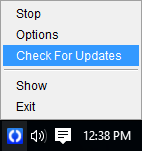
- Alternatively, right-click the Fishbowl Server tray icon, select Check For Updates, and then click Update Fishbowl.
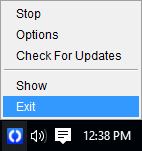
- Restart the server by right-clicking the Fishbowl Server tray icon and selecting Exit.
- Start the Fishbowl Server from the desktop or the list of programs.

- When the server restarts, click Yes to apply the updates.

- Click OK to start the database update.
File:Database update.png - All client computers will update automatically when connecting to the updated Fishbowl Server.
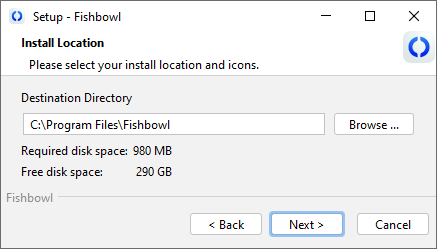
- If the auto update fails, follow the instructions here to manually download and install Fishbowl into the same directory where Fishbowl is currently installed.