Report Work Order Cost: Difference between revisions
From Fishbowl Advanced
m (Text replacement - ".png|right|border|800px|link={{filepath" to ".png|right|border|400px|link={{filepath") Tags: Manual revert Reverted |
m (Text replacement - "{{BackToReports}} " to "") Tag: Manual revert |
||
| Line 1: | Line 1: | ||
[[File:Report-Work Order Cost.png|right|border|400px|link={{filepath:Report-Work Order Cost.png}}]] This report displays the work order cost amounts and work order items. Costs of unfulfilled work orders are based on your database costing method. Fulfilled work order costs are your historical cost for the work order. | |||
The {{Button|Modify Report}} allows the following report filters to be customized:<br> | The {{Button|Modify Report}} allows the following report filters to be customized:<br> | ||
{{Spacer}}'''REQUIRED TAB''' | {{Spacer}}'''REQUIRED TAB''' | ||
Latest revision as of 22:16, 12 March 2025
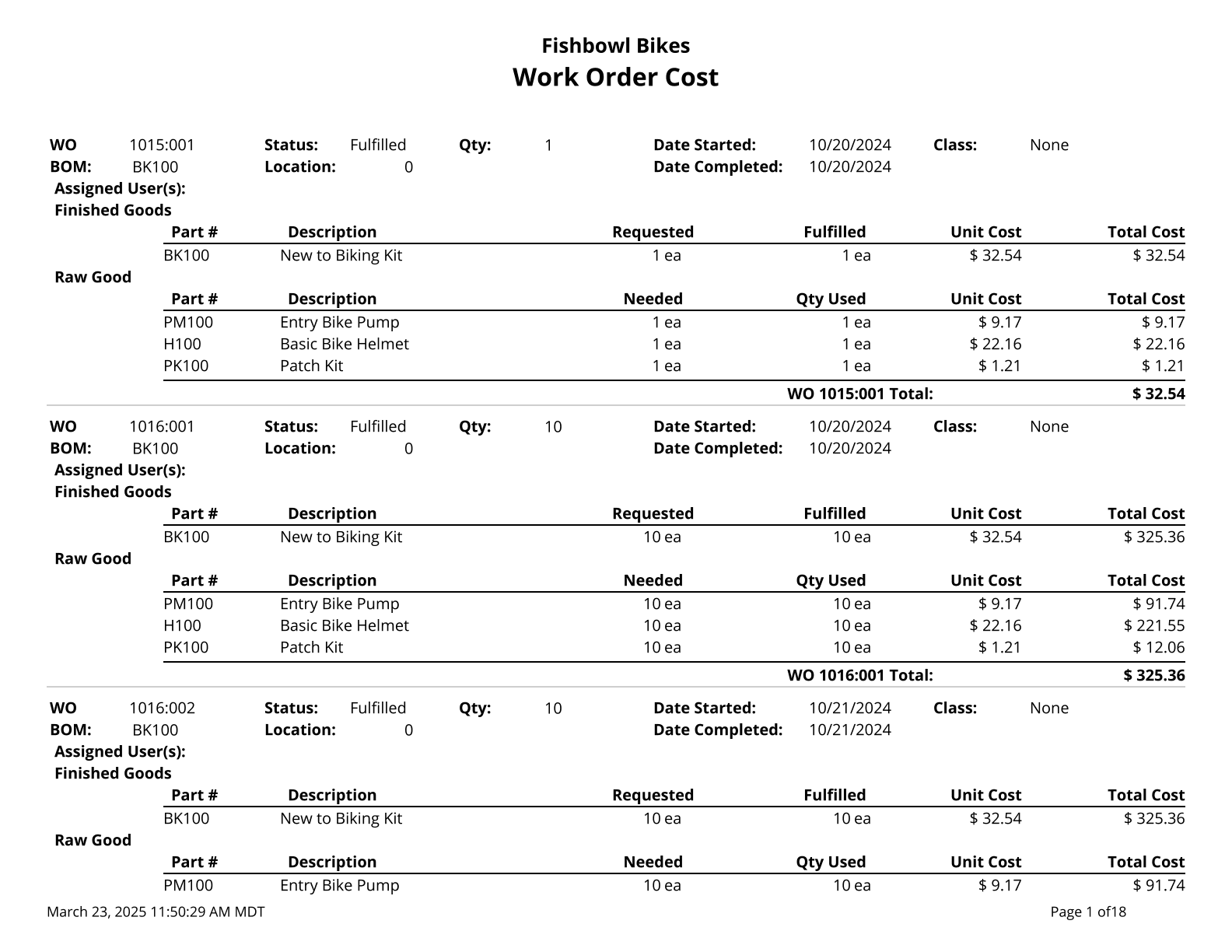
This report displays the work order cost amounts and work order items. Costs of unfulfilled work orders are based on your database costing method. Fulfilled work order costs are your historical cost for the work order.
The  Modify Report button allows the following report filters to be customized:
- REQUIRED TAB
- WO Status - Choose the status of WOs to display on the report: All, Fulfilled, Started, Issued or Entered.
- OPTIONAL TAB
- Apply Date Range To - Choose the date desired for the date range to look at for information: Date Scheduled, Date Started or Date Finished.
- Location Group - Choose a location group to view turnover for. Leave this field blank to view data for all location groups.
- WO Number - Choose a specific WO Number to run the report for. Leaving it blank will run the report for all WOs.
- Date Range - Choose the date range to pull information for. This date range looks at orders with dates in the option that is selected in the Apply Date Filter To dropdown.
- Format Report for Exporting - Removes the page breaks and displays the report on one long page for exporting to CSV, Excel, and other formats.
- Show Details - Choose to show/hide the BOM raw goods information by checking/unchecking this checkbox.
- PRINTER TAB - Allows a default printer to be specified for the report in each location group.