Template:Taxes: Difference between revisions
Template page
No edit summary Tag: Reverted |
No edit summary Tag: Manual revert |
||
| Line 5: | Line 5: | ||
::* '''Use Fishbowl Tax''' - Select a Fishbowl tax rate that will be used to calculate the order tax in Fishbowl. Tax calculations done by Fishbowl may differ from those done in {{{1}}}. | ::* '''Use Fishbowl Tax''' - Select a Fishbowl tax rate that will be used to calculate the order tax in Fishbowl. Tax calculations done by Fishbowl may differ from those done in {{{1}}}. | ||
::** '''Import {{{1}}} tax as line item note''' - Import the {{{1}}} tax as a line item note in Fishbowl. | ::** '''Import {{{1}}} tax as line item note''' - Import the {{{1}}} tax as a line item note in Fishbowl. | ||
Latest revision as of 16:44, 30 September 2022
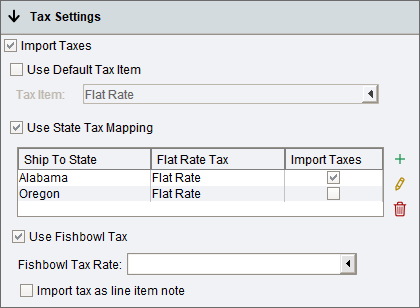
- Import Taxes - When selected, the tax amount from the {{{1}}} order will appear on the Fishbowl sales order as a flat rate line item. The flat rate amount can be set to $0 in the
 Tax Rate module and then the correct total tax amount will be set when the order is imported from {{{1}}}. If taxes are not imported, the Fishbowl payment will equal the order total before tax.
- Use Default Tax Item - With this option selected, the same tax item will be used for all orders.
- Use State Tax Mapping - This option allows different tax items to be used based on the Ship To state/province. If this option is enabled, the plugin will give an error when trying to import an order with a state that has not been mapped.
- Use Fishbowl Tax - Select a Fishbowl tax rate that will be used to calculate the order tax in Fishbowl. Tax calculations done by Fishbowl may differ from those done in {{{1}}}.
- Import {{{1}}} tax as line item note - Import the {{{1}}} tax as a line item note in Fishbowl.
- Import Taxes - When selected, the tax amount from the {{{1}}} order will appear on the Fishbowl sales order as a flat rate line item. The flat rate amount can be set to $0 in the
