Template:Install: Difference between revisions
Template page
m (1 revision imported) |
No edit summary |
||
| Line 1: | Line 1: | ||
# On the {{{1|server}}} computer, download the latest version of the [ | # On the {{{1|server}}} computer, download the latest version of the [[Release_Notes#Download|Fishbowl installer]]. | ||
# [[Getting_Started#1._Install_Fishbowl|Install Fishbowl]] on the {{{1|server}}} computer. | # [[Getting_Started#1._Install_Fishbowl|Install Fishbowl]] on the {{{1|server}}} computer. | ||
# On the '''Installation Mode''' step of the installer, select '''Current Fishbowl User''' and select '''Server with Client'''.<br>[[File:Installation Mode.png]] | # On the '''Installation Mode''' step of the installer, select '''Current Fishbowl User''' and select '''Server with Client'''.<br>[[File:Installation Mode.png]] | ||
Latest revision as of 21:59, 7 December 2022
- On the server computer, download the latest version of the Fishbowl installer.
- Install Fishbowl on the server computer.
- On the Installation Mode step of the installer, select Current Fishbowl User and select Server with Client.

- On the Select Destination Directory step of the installer, change the destination directory to Fishbowl Sandbox.
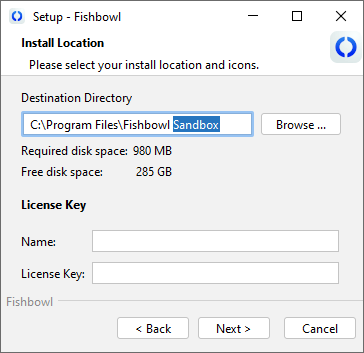
- Enter your license key and proceed through the installation wizard.
- On the final step, make sure Run Fishbowl is selected and then click Finish.

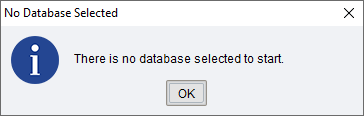
- If you get a message saying that there is no database yet, you can skip the first three steps in the next section.