Fishbowl Payments: Difference between revisions
From Fishbowl Advanced
No edit summary |
No edit summary |
||
| Line 16: | Line 16: | ||
* After your account is approved, please review the available options on the '''Settings''' tab.<br>{{anchor|Settings}}[[File:Fishbowl Payments Settings.png]] | * After your account is approved, please review the available options on the '''Settings''' tab.<br>{{anchor|Settings}}[[File:Fishbowl Payments Settings.png]] | ||
* Credit card and ACH [[Sales_Order#Take_a_payment|payments]] will now be processed using the '''Fishbowl Payments''' gateway. If '''Use Card on File''' is enabled on the [[#Settings|Fishbowl Payments '''Settings''' tab]], cards can be securely remembered by selecting '''Store Card on File''' after entering the card details.<br>[[File:Fishbowl Payments payment.png]] | * Credit card and ACH [[Sales_Order#Take_a_payment|payments]] will now be processed using the '''Fishbowl Payments''' gateway. If '''Use Card on File''' is enabled on the [[#Settings|Fishbowl Payments '''Settings''' tab]], cards can be securely remembered by selecting '''Store Card on File''' after entering the card details.<br>[[File:Fishbowl Payments payment.png]] | ||
* Stored cards can be viewed on the '''Card on File''' tab of the {{Module|Customer}} and can be selected as the '''Method''' when processing | * Stored cards can then be viewed on the '''Card on File''' tab of the {{Module|Customer}} and can be selected as the '''Method''' when processing payments.<br>[[File:Fishbowl Payments stored card.png]] | ||
* You can also generate [[#Payment links|payment links]] to send to your customers, or include on invoices and reports. | * You can also generate [[#Payment links|payment links]] to send to your customers, or include on invoices and reports. | ||
Revision as of 13:51, 6 February 2023
Fishbowl Payments allows credit cards and ACH payments to be processed from within Fishbowl Advanced. Additionally, payment links can be included in emails and invoices.
Getting started
- Expand the Integrations module group and then open the
 Payment Gateway module.

- The first time you open the module, you will have the option to create a new account or use an existing account.

- If you already have an active Fishbowl Payments account, click Enter credentials here and skip to the Approved section below.
- If you don't have a Fishbowl Payments account, click the big blue button to get started.
- If needed, modify the pre-populated data in the form and then click Sign Up.

- Click Reset your password near the bottom of the browser window that opens.
- Type your email address that was entered previously and then click the Send Email button.
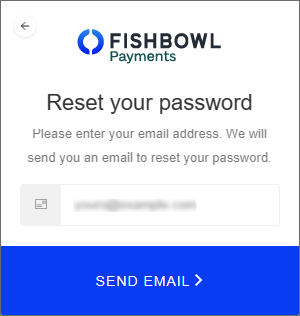
- You will then receive an email that allows you to create a new password and begin your application.
- The current status of your application will be displayed on the Gateway tab where you can click a link to provide the requested information.

- When the Underwriting Status is Approved and the Account Status is Active, you're ready to continue.


Approved
- After your account is approved, please review the available options on the Settings tab.

- Credit card and ACH payments will now be processed using the Fishbowl Payments gateway. If Use Card on File is enabled on the Fishbowl Payments Settings tab, cards can be securely remembered by selecting Store Card on File after entering the card details.

- Stored cards can then be viewed on the Card on File tab of the
 Customer module and can be selected as the Method when processing payments.

- You can also generate payment links to send to your customers, or include on invoices and reports.


Payment links
- To enable payment links, open the Payment Gateway module, click the Tools menu at the top, select Module Options, and then verify that Enable Payment Links is checked.
File:Stax Module Options.png- Allowed Payment Methods - Users can define what type of payment methods their customers can use when a payment is taken online.
- Allow Partial Payments - Users can allow their customers to make partial payments on the online payment page. This gives the customer the flexibility to pay at different times.
- Allow Tips - Users can allow their customers to add a tip to their payment.
- Time of Day - Users can select a specific time of day that they want payment data retrieved from the payments portal and imported into Fishbowl Advanced. Users can also manually run the scheduled task in the
 Schedule module at any time.
- Payment Method for Imported Payments - All imported payments will be classified as the selected payment method in Fishbowl Advanced.
- To generate a payment link, open an issued sales order and click the
 Payment Link button at the top of the module. A Pay Online button will then be added to the bottom of the Sales Order Report.

- The text of the Pay Online button can be customized on the Field Titles tab of the Sales Order Report.
- There is a setting on the Optional tab of the Sales Order Report to hide or show the Pay Online button.
- The payment link can also be copied and manually sent to customers.


