Unit of Measure: Difference between revisions
From Fishbowl Advanced
No edit summary |
m (Quite a few minor changes.) |
||
| Line 1: | Line 1: | ||
{{Module Introduction|Unit of Measure|Setup}} allows UOMs to be created and modified. This module is often referred to as the '''UOM''' module. Fishbowl has several standard UOMs with the ability to | {{Module Introduction|Unit of Measure|Setup}} allows UOMs to be created and modified. This module is often referred to as the '''UOM''' module. Fishbowl has several standard UOMs with the ability to create as many additional UOMs as necessary. | ||
==Create a unit of measure== | ==Create a unit of measure== | ||
| Line 19: | Line 19: | ||
The unit of measure conversion allows you to convert to a smaller or larger unit; for example, Dozens to Each, or Inches to Feet. '''Both UOMs''' must '''already exist''' in Fishbowl in order to create conversions. | The unit of measure conversion allows you to convert to a smaller or larger unit; for example, Dozens to Each, or Inches to Feet. '''Both UOMs''' must '''already exist''' in Fishbowl in order to create conversions. | ||
# In the Unit of Measure module, double click the UOM you would like to create a conversion for. | # In the '''Unit of Measure''' module, double-click the UOM you would like to create a conversion for. Then click the '''Conversions''' tab.<br>[[File:Add new UOM conversion.png]] | ||
# Click the {{Icon Button|New|Add Conversion}} on the component toolbar. | # Click the {{Icon Button|New|Add Conversion}} on the component toolbar. | ||
# A UOM Conversion wizard will be brought up to take you through the conversion process. | # A '''UOM Conversion''' wizard will be brought up to take you through the conversion process. | ||
# Select which UOM you are converting to. Click Next. | # Select which UOM you are converting to. Click '''Next'''. | ||
# Select whether your first UOM is greater than or less than the UOM you are converting to. Click Next.<br>[[File:Add new UOM conversion define relationship.png]] | # Select whether your first UOM is greater than or less than the UOM you are converting to. Click '''Next'''.<br>[[File:Add new UOM conversion define relationship.png]] | ||
# Enter | # Enter the correct ratio between the units. Click '''Next'''. | ||
# The next screen will show a summary of | # The next screen will show a summary of the UOM conversion. If this is correct, click '''Next'''. If changes need to be made, click the '''Back''' button. | ||
UOM conversions can also be created using the [[Imports_and_Exports#List_of_imports_and_exports|import]]. | UOM conversions can also be created using the [[Imports_and_Exports#List_of_imports_and_exports|import]]. | ||
| Line 34: | Line 34: | ||
# Double-click the UOM in the search panel. | # Double-click the UOM in the search panel. | ||
# Click | # Click the '''Conversions''' tab. | ||
# Highlight a conversion and click the {{Icon Button|Edit}} on the component toolbar to the right. | # Highlight a conversion and click the {{Icon Button|Edit}} on the component toolbar to the right. | ||
# Edit the conversion factor and then click '''OK'''. | # Edit the conversion factor and then click '''OK'''. | ||
| Line 42: | Line 42: | ||
# Double-click the UOM in the search panel. | # Double-click the UOM in the search panel. | ||
# Click | # Click the '''Conversions''' tab.<br>[[File:UOM_conversions_subtab.png]] | ||
# Highlight a conversion and click the {{Icon Button|Delete}} on the component toolbar to the right. | # Highlight a conversion and click the {{Icon Button|Delete}} on the component toolbar to the right. | ||
# Click the '''Save''' button on the module toolbar. | # Click the '''Save''' button on the module toolbar. | ||
Latest revision as of 11:38, 5 April 2023
 The Unit of Measure module, located in the
 Setup group, allows UOMs to be created and modified. This module is often referred to as the UOM module. Fishbowl has several standard UOMs with the ability to create as many additional UOMs as necessary.
Create a unit of measure
Follow the steps below to create a UOM.
- Click the
 New button in the UOM module.
- Select what the new UOM will measure and click Next.
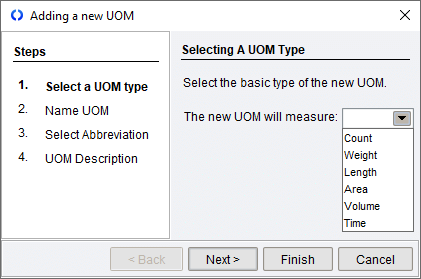
- Enter a name for the UOM and click Next.
- Enter an abbreviation for the UOM and click Next.
- Enter an optional description for the UOM and click Finish to complete the wizard.


UOMs can also be created using the import.
Edit, delete, or inactivate a unit of measure
- To edit a unit of measure, double-click the unit of measure in the search pane, make any changes, and then click the
 Save button located in the module toolbar.
- To delete a unit of measure, double-click the unit of measure in the search pane and then click the
 Delete button located in the module toolbar.
- A unit of measure cannot be deleted if it is in use by other modules. In this case, a unit of measure can be inactivated by unchecking the Active checkbox and then clicking the Save button in the module toolbar. To view an inactive unit of measure, click the Advanced Search button and select Inactive in the Active dropdown.


Create a unit of measure conversion
The unit of measure conversion allows you to convert to a smaller or larger unit; for example, Dozens to Each, or Inches to Feet. Both UOMs must already exist in Fishbowl in order to create conversions.
- In the Unit of Measure module, double-click the UOM you would like to create a conversion for. Then click the Conversions tab.
- Click the
 Add Conversion button on the component toolbar.
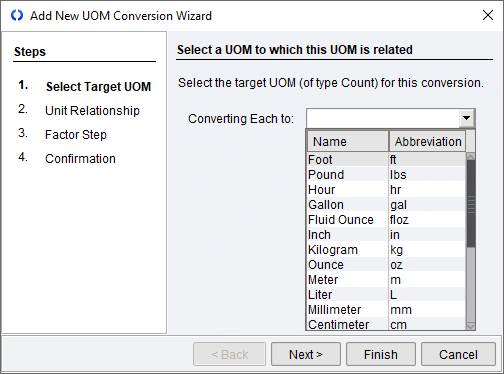
- A UOM Conversion wizard will be brought up to take you through the conversion process.
- Select which UOM you are converting to. Click Next.
- Select whether your first UOM is greater than or less than the UOM you are converting to. Click Next.

- Enter the correct ratio between the units. Click Next.
- The next screen will show a summary of the UOM conversion. If this is correct, click Next. If changes need to be made, click the Back button.


UOM conversions can also be created using the import.
Edit or delete a unit of measure conversion
Follow the steps below to edit a UOM conversion.
- Double-click the UOM in the search panel.
- Click the Conversions tab.
- Highlight a conversion and click the
 Edit button on the component toolbar to the right.
- Edit the conversion factor and then click OK.
- Click the Save button on the module toolbar.

Follow the steps below to delete a UOM conversion.
- Double-click the UOM in the search panel.
- Click the Conversions tab.

- Highlight a conversion and click the
 Delete button on the component toolbar to the right.
- Click the Save button on the module toolbar.

