Report Service Order: Difference between revisions
From Fishbowl Advanced
(Created page with "right|border|400px|link={{filepath:Report-Service Order.png}} This report is similar to the Sales Order report with the addition of a section for service parts used on the order. If a product on the sales order has a $0 price, it will be placed in the '''Parts Used''' section. The {{Button|Modify Report}} allows the following report filters to be customized:<br> {{Spacer}}'''REQUIRED TAB''' ::* '''SO Number''' - Select the sales order nu...") |
m (Text replacement - "[[File:Report-" to "{{BackToReports}} [[File:Report-") Tag: Reverted |
||
| Line 1: | Line 1: | ||
[[File:Report-Service Order.png|right|border|400px|link={{filepath:Report-Service Order.png}}]] This report is similar to the Sales Order report with the addition of a section for service parts used on the order. If a product on the sales order has a $0 price, it will be placed in the '''Parts Used''' section. | {{BackToReports}} [[File:Report-Service Order.png|right|border|400px|link={{filepath:Report-Service Order.png}}]] This report is similar to the Sales Order report with the addition of a section for service parts used on the order. If a product on the sales order has a $0 price, it will be placed in the '''Parts Used''' section. | ||
The {{Button|Modify Report}} allows the following report filters to be customized:<br> | The {{Button|Modify Report}} allows the following report filters to be customized:<br> | ||
{{Spacer}}'''REQUIRED TAB''' | {{Spacer}}'''REQUIRED TAB''' | ||

Revision as of 20:35, 12 March 2025
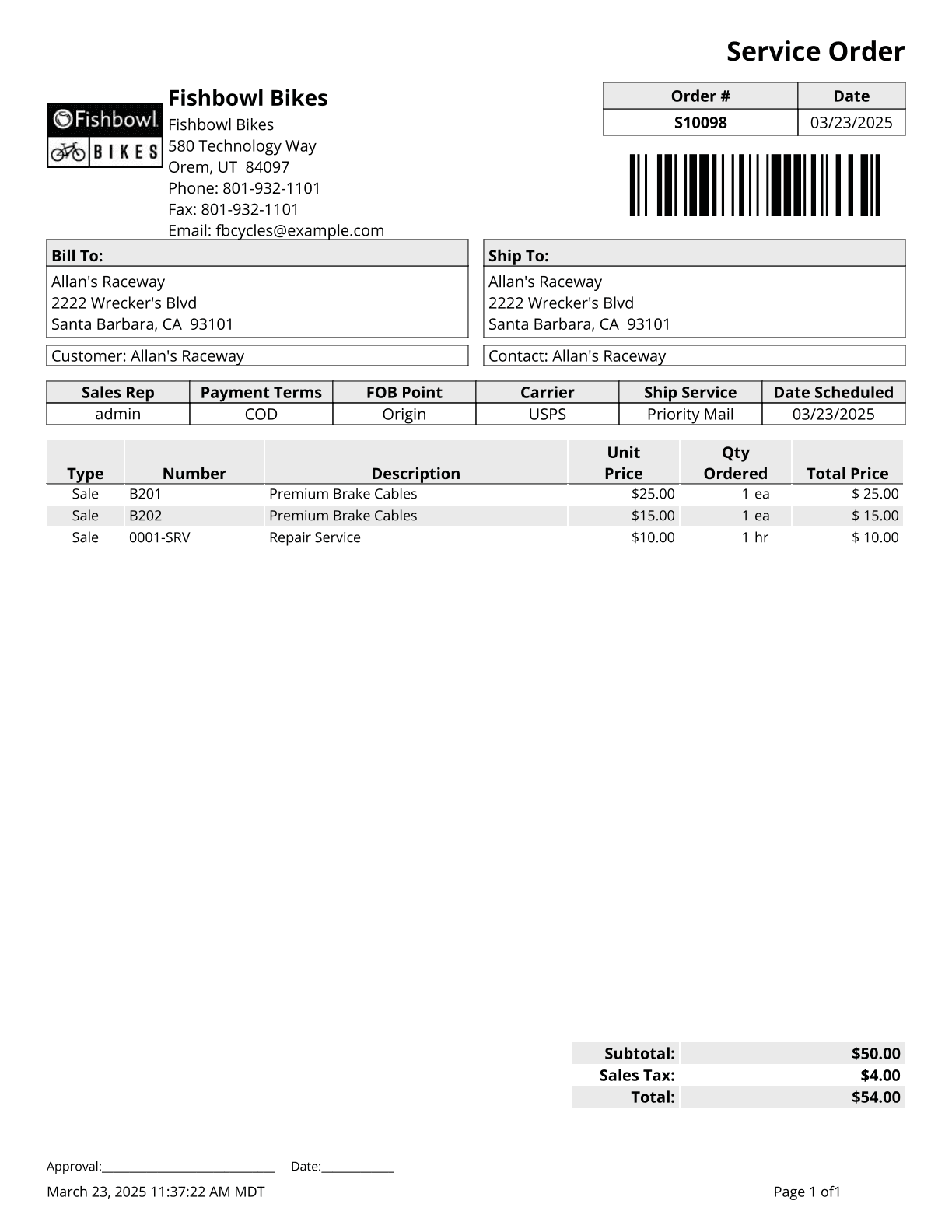
This report is similar to the Sales Order report with the addition of a section for service parts used on the order. If a product on the sales order has a $0 price, it will be placed in the Parts Used section.
The  Modify Report button allows the following report filters to be customized:
- REQUIRED TAB
- SO Number - Select the sales order number to run the report for.
- OPTIONAL TAB
- Display Seller - Select whether to display the sellers name as their username, first name or full name.
- Show Date - Select the date that should be displayed on the order. Options include Issued, Completed, Created, First Ship, Last Modified, Revision, and Today.
- Format Report for Exporting - Removes the page breaks and displays the report on one long page for exporting to CSV, Excel, and other formats.
- Include Customer Part Numbers - Choose to show/hide customer part numbers by checking/unchecking this checkbox.
- Only Show BOM Price Adjustments - Choose to show only items on the BOM that have price adjustments by checking this checkbox. Uncheck this checkbox to show all items. This option correlates with the Show BOM On WO Items checkbox.
- Show Adjustment Amounts - Choose to show/hide the adjustment amounts for items with a BOM by checking/unchecking this checkbox. This option requires that Show BOM on WO Items be checked.
- Show BOM On WO Items - Choose to show/hide the bill of materials of items being manufactured by checking/unchecking this checkbox.
- Show Barcode - Choose to show/hide the barcode on the report by checking/unchecking this checkbox.
- Show Bill To Email - Choose to show/hide the bill to email on the bill to address by checking/unchecking this checkbox.
- Show Bill To Fax - Choose to show/hide the bill to fax on the bill to address by checking/unchecking this checkbox.
- Show Bill To Phone Number - Choose to show/hide the bill to phone on the bill to address by checking/unchecking this checkbox.
- Show Company Address - Choose to show/hide your company address in the top left hand corner of the report by checking/unchecking this checkbox.
- Show Country - Choose to show/hide the country on all addresses by checking/unchecking this checkbox.
- Show Credit Card Number - Choose to show/hide the last 4 digits of the credit card number by checking/unchecking this checkbox. This option requires that Show Payments be checked.
- Show Currency Totals - Choose to show/hide the totals in the order's currency by checking/unchecking this checkbox.
- Show Description on WO Items - Choose to show/hide the description of raw goods by checking/unchecking this checkbox. This option requires that Show BOM on WO Items be checked.
- Show Home Currency - Choose to show/hide the home currency rate for payments by checking/unchecking this checkbox.
- Show Home Currency Totals - Choose to show/hide the totals in the home currency by checking/unchecking this checkbox.
- Show Line Item Notes - Choose to show/hide line item notes by checking/unchecking this checkbox.
- Show Memos - Choose to show/hide memos by checking/unchecking this checkbox.
- Show Payments - Choose to show/hide payments received for this order by checking/unchecking this checkbox.
- Show Products With Zero Dollar Value - This option will add a section for service parts used on the order. If a product on the sales order has a $0 price, it will be placed in the Parts Used section.
- Show Revision - Choose to show/hide the revision number of the order by checking/unchecking this checkbox. This revision number is pulled from the Details tab of the
 Sales Order module.
- Show Status - Choose to show/hide the orders status under the report title by checking/unchecking this checkbox.
- HIDE/SHOW TAB - Choose which columns to show/hide on the report by checking/unchecking the checkbox next to each column name.
- PRINTER TAB - Allows a default printer to be specified for the report in each location group.