Report Shipping Invoice: Difference between revisions
m (Text replacement - ".png|right|border|800px|link={{filepath" to ".png|right|border|400px|link={{filepath") Tags: Manual revert Reverted |
m (Text replacement - "{{BackToReports}} " to "") Tag: Manual revert |
||
| Line 1: | Line 1: | ||
[[File:Report-Shipping Invoice.png|right|border|400px|link={{filepath:Report-Shipping Invoice.png}}]] If the order has not yet been shipped, the report will display '''Proforma'''. Otherwise, the report displays shipped products and their prices. It also displays all other items (discounts, subtotals, credits, etc.) that are fulfilled at the time of the shipment. This is especially useful for partial shipments because it allows the customer to be accurately invoiced for just the items that have shipped. For example, if a $100 order (2 items for $50) has a 10% discount, a $5 discount will be displayed on the first shipping invoice, and the remaining $5 will be applied when the second item ships. If [[Currency|currency conversion]] is enabled, the prices can be displayed in the alternate currency. | |||
The {{Button|Modify Report}} allows the following report filters to be customized:<br> | The {{Button|Modify Report}} allows the following report filters to be customized:<br> | ||
{{Spacer}}'''REQUIRED TAB''' | {{Spacer}}'''REQUIRED TAB''' | ||
Latest revision as of 21:16, 12 March 2025
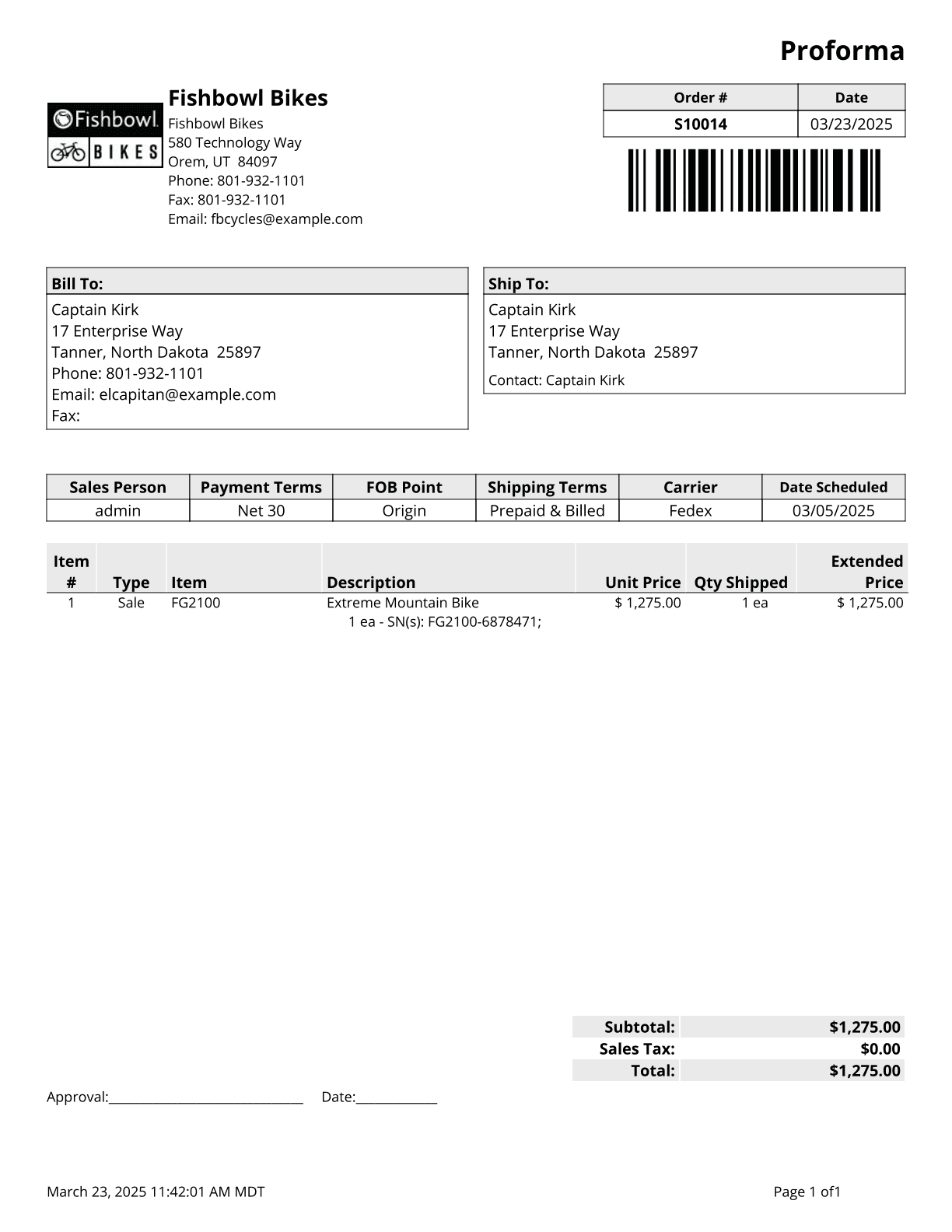
If the order has not yet been shipped, the report will display Proforma. Otherwise, the report displays shipped products and their prices. It also displays all other items (discounts, subtotals, credits, etc.) that are fulfilled at the time of the shipment. This is especially useful for partial shipments because it allows the customer to be accurately invoiced for just the items that have shipped. For example, if a $100 order (2 items for $50) has a 10% discount, a $5 discount will be displayed on the first shipping invoice, and the remaining $5 will be applied when the second item ships. If currency conversion is enabled, the prices can be displayed in the alternate currency.
The  Modify Report button allows the following report filters to be customized:
- REQUIRED TAB
- Shipping Number - Enter a fulfilled order number to run the report for.
- OPTIONAL TAB
- Logo Alignment - Select whether your company logo is displayed above your address or to the left of your address.
- Order Number - Choose whether to show the Customer PO Number or the SO Number as the Order Number on the report.
- Show Pay Online button - If payment links are enabled, customers can click the Pay Online button at the bottom of the report to immediately pay for an order. The text on the button can also be customized on the Field Titles tab.
- Format Report for Exporting - Removes the page breaks and displays the report on one long page for exporting to CSV, Excel, and other formats.
- Include Kits In Item Numbering - Kits will not be included in line item numbering when this box is checked.
- Show Carton Info - Choose to show the carton information by checking this box.
- Show Delivery Signature - Choose to show the delivery signature by checking this box.
- Show Note - Choose to show the order notes by checking this box.
- Show Barcode - Choose to show the barcode on the report by checking this box.
- Show Company Name - Choose to show the company name at the top of the report by checking this box.
- Format Report for Exporting - Removes the page breaks and displays the report on one long page for exporting to CSV, Excel, and other formats.
- Show Bill To Email - Choose to show the bill to email on the bill to address by checking this box.
- Show Bill To Fax - Choose to show the bill to fax on the bill to address by checking this box
- Show Bill To Phone - Choose to show the bill to phone on the bill to address by checking this box
- Show Country - Choose to show the country on the Ship To and Bill To addresses by checking this checkbox
- Show Total Qty - Choose to show the sum of the qty ordered column by checking this box
- Show Totals - Choose to show totals on the report by checking this box
- CUSTOM FIELDS TAB
- The Shipping Invoice report can display up to 6 order custom fields and 3 line item custom fields. To see a custom field, open the Modify Report window and enable Show SO Custom Fields at the top and Display field for each field that should be displayed on the report.

- The Shipping Invoice report can display up to 6 order custom fields and 3 line item custom fields. To see a custom field, open the Modify Report window and enable Show SO Custom Fields at the top and Display field for each field that should be displayed on the report.
- FIELD TITLES TAB - This tab allows several fields to be renamed on the report. For example, Total could be changed to Amount.
- HIDE/SHOW TAB - Choose which columns to show/hide on the report by checking/unchecking the checkbox next to each column name. For example, you can show or hide the custom footer text.
- PRINTER TAB - Allows a default printer to be specified for the report in each location group.
