Report Sales Order Tracking: Difference between revisions
From Fishbowl Advanced
m (Text replacement - ".png|right|border|800px|link={{filepath" to ".png|right|border|400px|link={{filepath") Tags: Manual revert Reverted |
m (Text replacement - "{{BackToReports}} " to "") Tag: Manual revert |
||
| Line 1: | Line 1: | ||
[[File:Report-Sales Order Tracking.png|right|border|400px|link={{filepath:Report-Sales Order Tracking.png}}]] This report generates a list of tracking values associated with items on a sales order. | |||
The {{Button|Modify Report}} allows the following report filters to be customized:<br> | The {{Button|Modify Report}} allows the following report filters to be customized:<br> | ||
{{Spacer}}'''OPTIONAL TAB''' | {{Spacer}}'''OPTIONAL TAB''' | ||
Latest revision as of 21:16, 12 March 2025
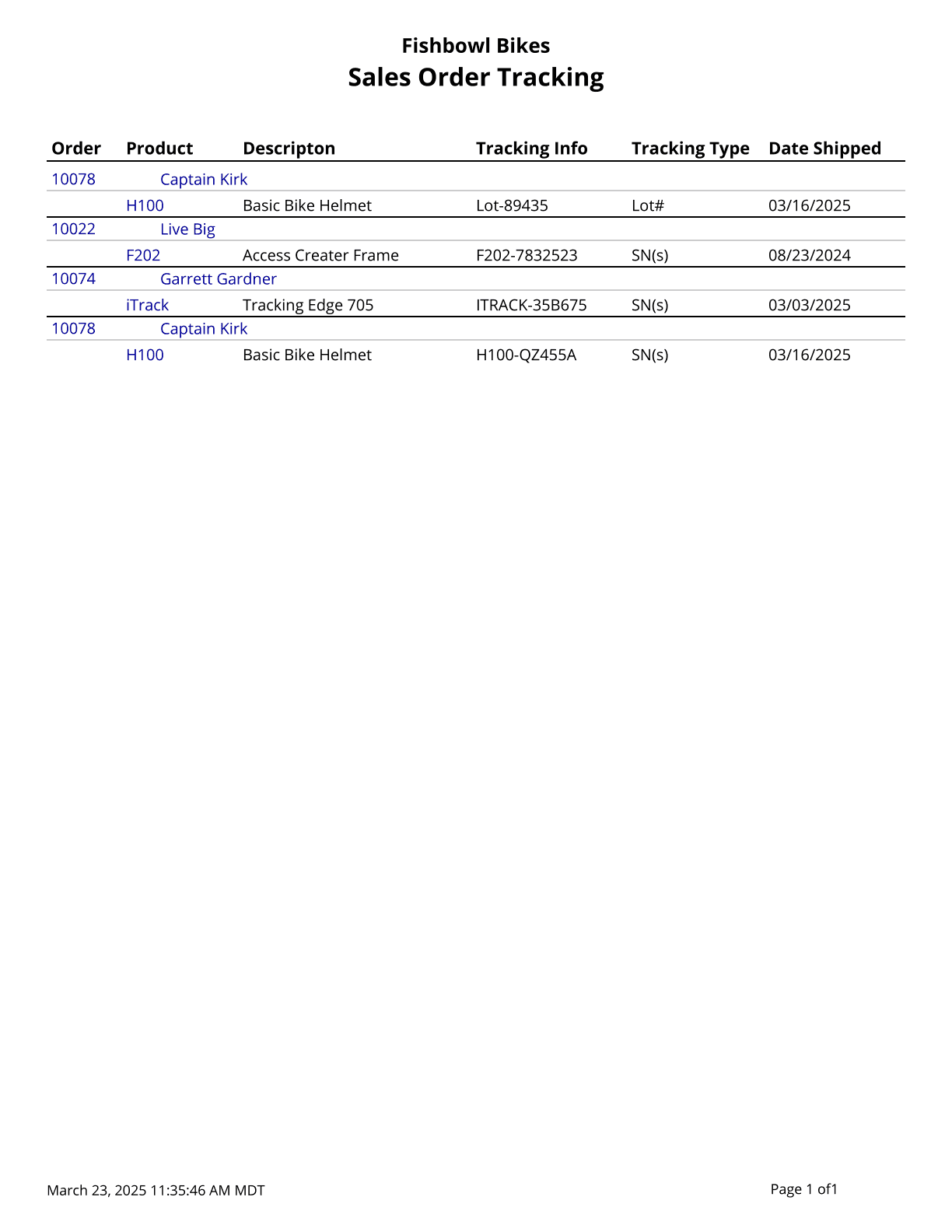
This report generates a list of tracking values associated with items on a sales order.
The  Modify Report button allows the following report filters to be customized:
- OPTIONAL TAB
- Search Type - Choose whether the Tracking Value field searches in Lot/Revision/Serial type tracking or Expiration tracking. When Lot/Revision/Serial is selected, use the Tracking Value field to filter the report by a specific lot number, revision level or serial number. When Expiration is selected, use the Tracking Date field to filter the report by a specific expiration date.
- Customer - Choose to run the report for a specific customer. Leave this field blank to run for all customers.
- SO Number - Select the sales order number to run the report for. Leave this field blank to run for all sales orders.
- Tracking Value - Enter the number/value to run the report for. This field correlates with the Search Type dropdown above; it is only used if Lot/Revision/Serial is selected. Leave this field blank to run for all.
- Date Range - Choose a date range to run the report for. The date range looks at the DateLastFulfillment on the SOITEM table in the database, meaning, if a line item with a quantity greater than 1 is partially shipped, the most recent fulfilled date (when a partial quantity was shipped) is what will be used for all quantity fulfilled so far. Backdated shipments will show up correctly. Partial shipments of a specific product will show up on the latest fulfilled/shipped date for that item.
- Tracking Date - Enter the expiration date to filter the report by. This field correlates with the Search Type dropdown above; it is only used if Expiration is selected. Leave this field blank to run for all.
- Format Report for Exporting - Removes the page breaks and displays the report on one long page for exporting to CSV, Excel, and other formats.
- PRINTER TAB - Allows a default printer to be specified for the report in each location group.