Report Auto PO: Difference between revisions
From Fishbowl Advanced
m (Text replacement - "{{BackToReports}} " to "") Tag: Manual revert |
No edit summary |
||
| Line 1: | Line 1: | ||
[[File:Report-Auto PO.png|right|border|400px|link={{filepath:Report-Auto PO.png}}]] This report generates a list of parts below reorder tolerance. This report runs the Auto-PO code and can take a few minutes to generate. The '''Needed''' column is calculated using the numbers in the other columns as follows. '''Needed=Order Up To – On Order – On Hand + Allocated''' | [[File:Report-Auto PO.png|right|border|400px|link={{filepath:Report-Auto PO.png}}]] This report generates a list of parts below reorder tolerance. This report runs the Auto-PO code and can take a few minutes to generate. The '''Needed''' column is calculated using the numbers in the other columns as follows. '''Needed=Order Up To – On Order – On Hand + Allocated''' | ||
'''Note:''' On Hand subtracts any '''Not Available''' inventory. For example, if you have 100 of an item in stock, but 20 are in a location marked as '''Not Available''', then this report will display '''On Hand''' = 80. | |||
The {{Button|Modify Report}} allows the following report filters to be customized:<br> | The {{Button|Modify Report}} allows the following report filters to be customized:<br> | ||
{{Spacer}}'''OPTIONAL TAB''' | {{Spacer}}'''OPTIONAL TAB''' | ||
Revision as of 12:26, 13 March 2025
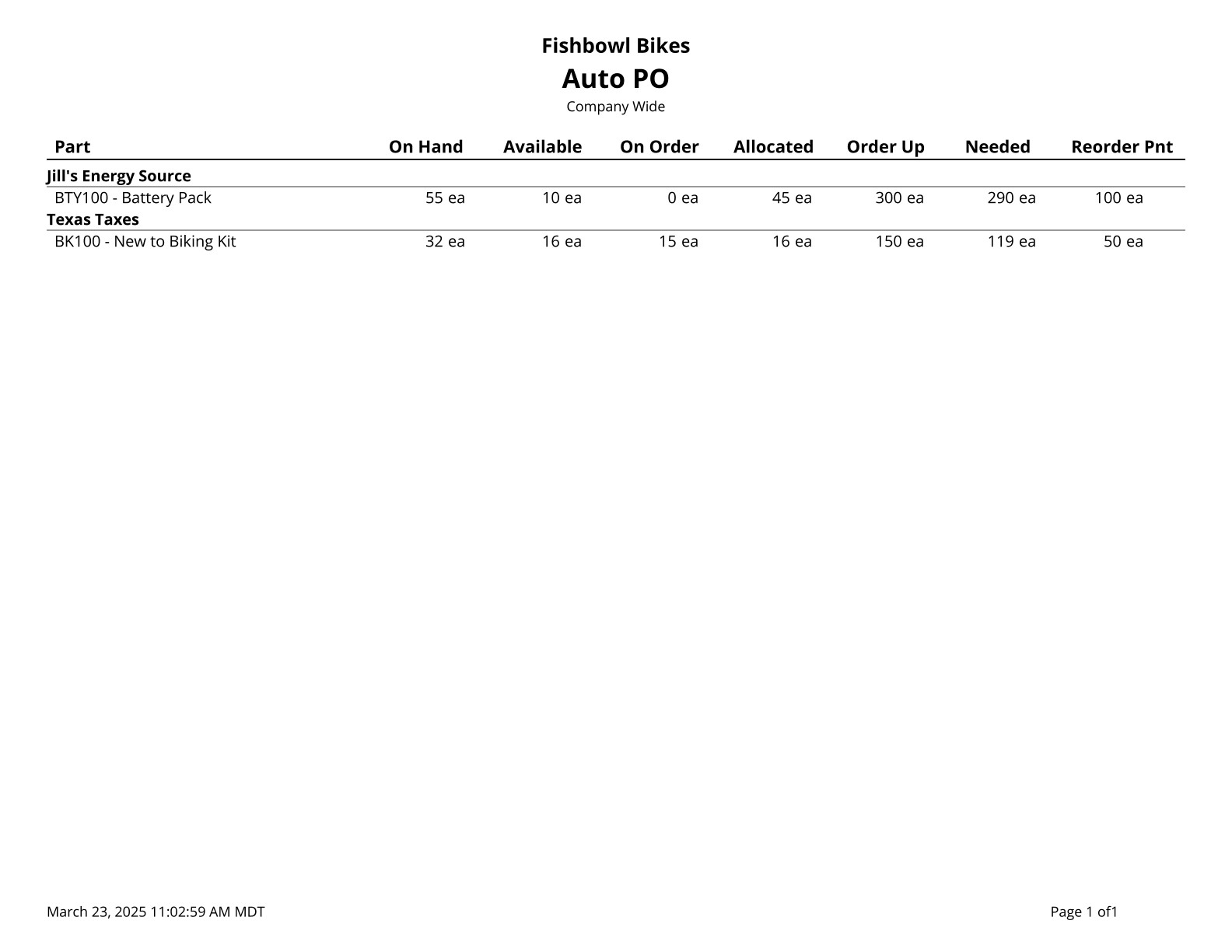
This report generates a list of parts below reorder tolerance. This report runs the Auto-PO code and can take a few minutes to generate. The Needed column is calculated using the numbers in the other columns as follows. Needed=Order Up To – On Order – On Hand + Allocated
Note: On Hand subtracts any Not Available inventory. For example, if you have 100 of an item in stock, but 20 are in a location marked as Not Available, then this report will display On Hand = 80.
The  Modify Report button allows the following report filters to be customized:
- OPTIONAL TAB
- Class - Select a class to run the report for. Leave this field blank to run for all classes.
- Location Group - Choose a specific location group to run the report for. Leave this field blank to run for all location groups.
- Vendor - Choose a specific vendor to run the report for. Leave this field blank in for to run the report for all vendors.
- Date Range - Select the date range to run the report for. This date range looks the DateScheduledFulfillment on the POITEM, XOITEM, SOITEM tables in the database, meaning the fulfillment date set per line item. It also looks at the DateScheduled on the WO table, meaning the date the work order is scheduled for.
- Format Report for Exporting - Removes the page breaks and displays the report on one long page for exporting to CSV, Excel, and other formats.
- Include No ROP/OUL - Choose to show/hide parts that do not have Reorder Points or Order Up To Levels set by checking/unchecking this checkbox.
- Include When Short/Always Create/Build To Order - Choose to show/hide parts with attached BOMs that have an auto create status of When Short, Always Create, or Build To Order by checking/unchecking this checkbox.
- Show Vendor Part Number - Choose to show/hide the vendor part number by checking/unchecking this checkbox.
- PRINTER TAB - Allows a default printer to be specified for the report in each location group.