Template:Restore
Template page
- On the server computer, double-click the Fishbowl Server icon in the system tray and then click the Stop button.

- When the server is fully stopped, the Server Status window will automatically close.

- Click the Tools menu and select Options.

- Click the Restore tab and then click the
 Find File button.
If the Find File button is disabled, close the window to make sure the Fishbowl Server is fully stopped and then try again.
- Browse to the location of the backup file, select the file, and then click Open.

- In the Database field, change the database name to Sandbox.
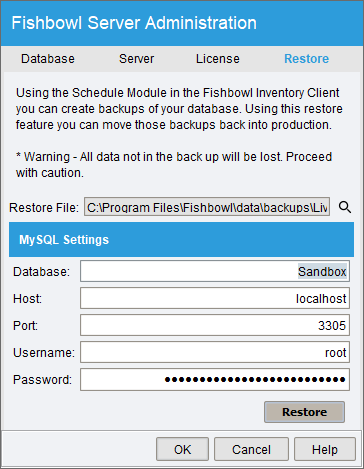
- Click the Restore button and then click Yes to confirm that the process may take a few minutes.

- Once the Sandbox database has been created, click OK in the confirmation window.

- Click the Database tab and make sure the Sandbox database is selected and then click OK.

- After you get a message that the database has been changed to the Sandbox database, click OK.

- Click the Start button.

- When the server is fully started, the Server Status window will automatically close.

- Close the Fishbowl Server window.


