Report Packing List
From Fishbowl Advanced
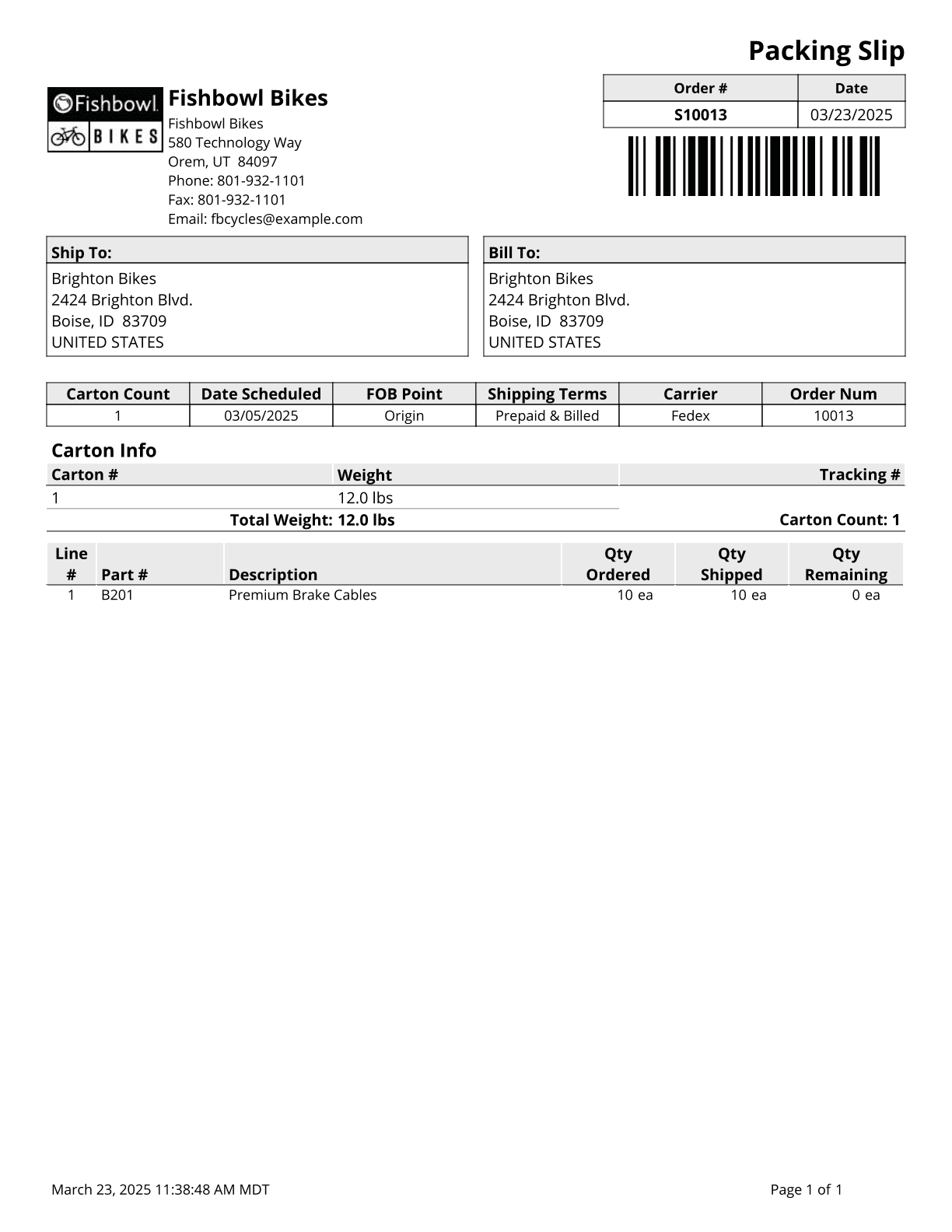
This report prints out a Packing List for a selected order. This packing list includes backordered items.
The  Modify Report button allows the following report filters to be customized:
- REQUIRED TAB
- Shipping Number - Enter the order number to run the report for.
- OPTIONAL TAB
- Contact To Show - Choose which contact to show on the report. The choices are Address Name or SO Contact.
- Layout Format - Choose which packing list layout to print. The choices are Standard, By Carton or By Location.
- Logo Alignment - Select whether your company logo is displayed above your address or to the left of your address.
- Order Number - Choose whether to show the Customer PO Number or the SO Number as the Order Number on the report.
- Show Back Order Items - Choose to show back order items are displayed by checking this box.
- Show Kit Headers - Choose to show the Kit products headers by checking this box.
- Show Historical Qty Remaining - Choose to show historical qty remaining by checking this box.
- Show Total Qty - Choose to show a total quantity column.
- Show Tracking - Choose to show part tracking information by checking this box.
- Show Country - Choose to show the country on the Ship To and Bill To addresses by checking this box.
- Show Carton Info - Choose to show the carton information by checking this box.
- Show Delivery Signature - Choose to show the delivery signature by checking this box.
- Show Order Notes - Choose to show the order notes by checking this box.
- Blind Shipment - Choose to hide The company logo, name, and address at the top of the report by checking this box.
- Show Barcode - Choose to show the barcode on the report by checking this box.
- Show Company Name - Choose to show the company name at the top of the report by checking this box.
- Show Unique Ship Numbers - Choose to show unique ship numbers (from partial shipping) by checking this box.
- Format Report for Exporting - Removes the page breaks and displays the report on one long page for exporting to CSV, Excel, and other formats.
- CUSTOM FIELDS TAB
- The Packing List Report can display up to 6 order custom fields and 3 line item custom fields. To see a custom field, open the Modify Report window and enable Show SO Custom Fields at the top and Display field for each field that should be displayed on the report.

- The Packing List Report can display up to 6 order custom fields and 3 line item custom fields. To see a custom field, open the Modify Report window and enable Show SO Custom Fields at the top and Display field for each field that should be displayed on the report.
- FIELD TITLES TAB - This tab allows several fields to be renamed on the report. For example, Total could be changed to Amount.
- HIDE/SHOW TAB - Choose which columns to show/hide on the report by checking/unchecking the checkbox next to each column name.
- PRINTER TAB - Allows a default printer to be specified for the report in each location group.
