Report Work Order Flag
From Fishbowl Advanced
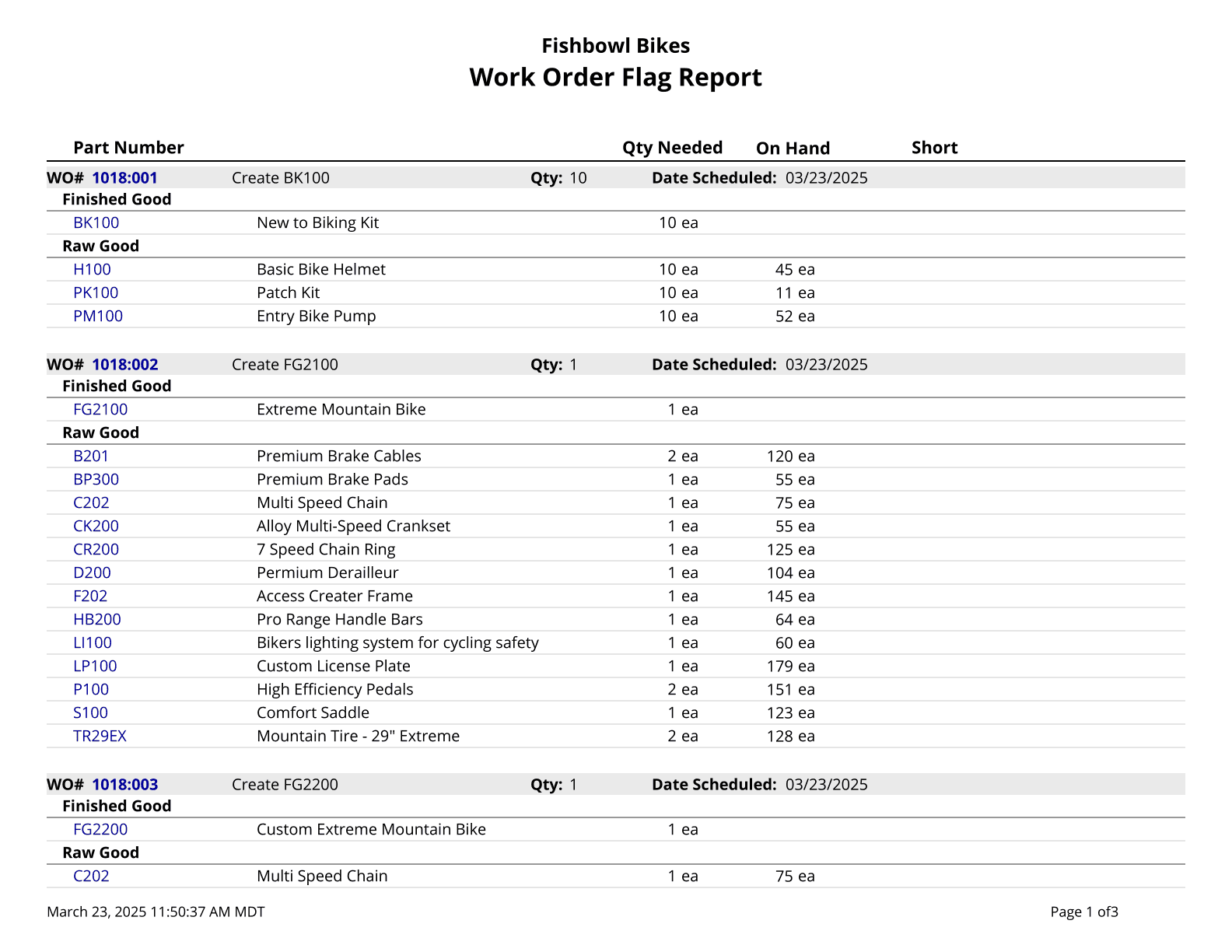
This report generates a list of work orders that have been issued and not started. Use % for wild card search in the WO Number field.
The  Modify Report button allows the following report filters to be customized:
- OPTIONAL TAB
- Sort By - Choose whether to sort by WO Number, Date Scheduled, or Calendar Category. Add additional sorts that apply in sequence by clicking on the green Add More Sorting Options button. Also, choose Ascending or Descending order by clicking on the blue arrow icon.
- Location Group - Choose a location group to view turnover for. Leave this field blank to view data for all location groups.
- WO Number - Enter a WO number to run the report for. Leave this field blank to run for all WOs.
- Add Header - Enter text to display at the top of the report.
- Calendar Category - Choose to only show matching calendar categories. The % symbol can be used as a wildcard for any characters. For example, entering %al% in the Calendar Category field would match Alabama, Alaska, California.
- Report Title - Allows the Work Order Flag Report title at the top of the report to be replaced with custom text.
- Date Range - Choose the date range to pull information for. This date range looks at the DateScheduled on the WO table of the database, meaning the date the work order is schedule for.
- Show Category - Will show the name of the calendar category.
- Show Category Color - Will show the color of the calendar category if Show Category is enabled.
- Show Purchase Order - Adds a PO column for associated purchase orders.
- Format Report for Exporting - Removes the page breaks and displays the report on one long page for exporting to CSV, Excel, and other formats.
- PRINTER TAB - Allows a default printer to be specified for the report in each location group.