QuickBooks Online: Difference between revisions
| Line 277: | Line 277: | ||
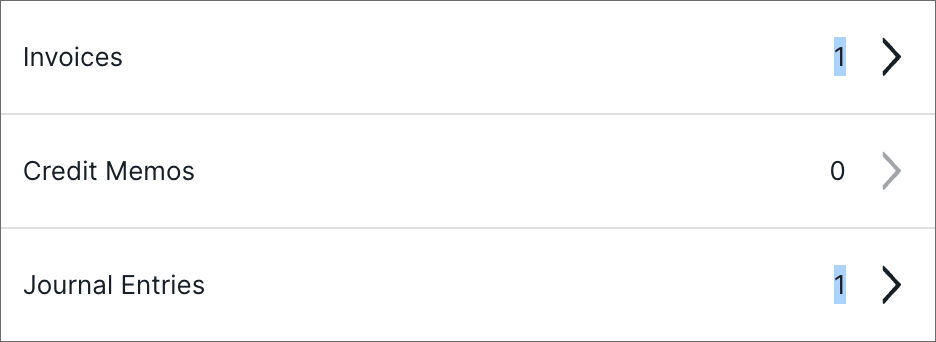
* '''Mark Selected Transactions As Posted''' - Fishbowl Drive also allows individual transactions to be marked as posted by clicking the '''>''' on the transaction category. Currently, you must find all related transactions and mark them as posted as well. In the example below, you can see that there are two transactions related to | * '''Mark Selected Transactions As Posted''' - Fishbowl Drive also allows individual transactions to be marked as posted by clicking the '''>''' on the transaction category. Currently, you must find all related transactions and mark them as posted as well. In the example below, you can see that there are two transactions related to Sales Order 1020: An '''Invoice''' (1 debit and 1 credit) and a '''Journal Entry''' (1 debit and 1 credit). If you mark one transaction as posted, you will also need to manually mark as posted the corresponding transaction.<br>[[File:Mark As Posted Multiple Transactions.png|468px]] | ||
:* [[File:Mark As Posted Invoice.png|468px]]<br>[[File:Mark As Posted Invoice COA.png|468px]]<br><br> | :* [[File:Mark As Posted Invoice.png|468px]]<br>[[File:Mark As Posted Invoice COA.png|468px]]<br><br> | ||
:* [[File:Mark As Posted Journal Entry.png|468px]]<br>[[File:Mark As Posted Journal Entry COA.png|468px]] | :* [[File:Mark As Posted Journal Entry.png|468px]]<br>[[File:Mark As Posted Journal Entry COA.png|468px]] | ||
{{Wistia|0uyln8y5be|QuickBooks Online overview}} | {{Wistia|0uyln8y5be|QuickBooks Online overview}} | ||
Revision as of 10:41, 22 May 2024

- Fishbowl integrates with QuickBooks Online Plus and QuickBooks Online Advanced.
- To connect to QuickBooks Online, open the Integrations market and click the green Connect to QuickBooks button to approve the integration with your QuickBooks Online account.
- After completing the integration, the QuickBooks Online module will be added to the Accounting group.
- The QuickBooks Online module will display the transactions that are ready to export to QuickBooks Online as well as a history of previous exports.
- To select the QuickBooks Online accounts used by Fishbowl Drive, click Account Mapping.
- To export the current transactions, click the blue EXPORT button.
- Transactions that are Mark As Posted will not be exported to QuickBooks Online. This should only be done after consulting with an accountant.
- Fishbowl Drive supports LIFO, FIFO, Average, and Actual costing methods. For more information, see Costing Methods.
Fishbowl Drive can export transactions to QuickBooks Online. Information from Fishbowl orders is then stored in the accounting system as well in the form of invoices, bills, credit memos, etc. Adjustments are also recorded in the associated accounts, such as Cost of Goods Sold, Sales Retail, Inventory Asset, or Accounts Receivable. This page provides several examples of Fishbowl transactions and how they affect the accounts in the accounting system. If you have mapped Fishbowl to different accounts than the default settings, your journal entries may vary slightly from the examples given below.
Account mapping
The following are suggested mappings between Fishbowl Drive and QuickBooks Online. Also, the list of QuickBooks Online Account Names you can select from will change depending on which filter you use.
| Fishbowl Drive Account Name | QuickBooks Online Account Type Filter | QuickBooks Online Account Name | Description |
|---|---|---|---|
| Accounts Payable | Accounts Payable | Accounts Payable (A/P) | This account records outstanding bills owed by your business to another entity. |
| Accounts Receivable | Accounts Receivable | Accounts Receivable (A/R) | This account records money owed to your business, including invoices for which you have not yet received payment. |
| Cost of Goods Sold | Cost of Goods Sold | Cost of goods sold | The amount of money you paid for items you held in inventory and then sold. On a profit and loss report, QuickBooks Online subtracts the total cost of goods sold from your total income to provide a gross profit before other expenses. |
| Discount Expense | Other Expense | Discount Expense | This account tracks expenses associated with discounts applied to Sale type items. |
| Discount Income | Income | Discount Income | This account tracks the amount of money associated with discounts charged to customers (e.g., for returns or restocking fees). |
| Holding | Other Current Liability | Holding | This temporary asset account is used to reserve funds for an upcoming bill or for goods received but not yet reconciled. |
| Inventory Adjustment | Cost of Goods Sold | Inventory Adjustment | This account is used to track cycle-count adjustments to inventory. |
| Inventory Asset | Other Current Asset | Inventory Asset | This account tracks the current value of your inventory. |
| Labor | Expense | Labor | This account tracks labor costs, such as payroll, bonuses, and overtime. |
| Miscellaneous Expense | Other Expense | Miscellaneous | All costs associated with Miscellaneous type items will be tracked in this account. |
| Non-Inventory | Expense | Non-Inventory | All costs associated with Non-Inventory type items will be tracked in this account. |
| Overhead | Other Expense | Overhead | This account tracks fixed costs, such as utilities, debt repayment, and rent. |
| Sales Retail | Income | Sales | This account tracks income from the resale of inventory items. |
| Sales Tax Payable | Other Current Liability | Sales tax to pay | This account is used to reserve funds to pay sales taxes from transactions to the appropriate tax agencies. |
| Scrap Inventory | Cost of Goods Sold | Scrapped Inventory | This account is used when inventory is scrapped (e.g., adjustments go down due to damage, theft, spoilage, etc.). |
| Service | Expense | Service | All costs associated with Service type items will be tracked in this account. |
| Shipping Accrual | Other Current Liability | Shipping Accrual | This account tracks your shipping expenses owed instead of showing them in Accounts Payable. The QuickBooks Online account should be a Current Liability type. |
| Shipping Expense | Expense | Shipping Expense | This account keeps track of vendor charges for shipping to your company. |
| Shipping Income | Income | Shipping Income | This account keeps track of customer charges for shipping. |
| Undeposited Funds | Bank | Cash | This account tracks payments made in Fishbowl that are waiting to be deposited in the bank. |
To create new accounts in Fishbowl Drive, go to the Chart of Accounts module.
You can map each item’s accounts for each kind of transaction it’s in under the General tab of the Items module. The Income account can be set up in the Sale Items tab of the Items module.
To change what the Account Names are called within Fishbowl Drive, go to the Account Mapping section of the Settings module. Click the EDIT button and select a different option from the dropdown menu next to each Account Name.
Waiting to export
The Waiting to Export section shows how many adjustments, credits, debits, etc. that have not yet been sent over to your QuickBooks Online file from Fishbowl Drive. They are under the following categories:
- Inventory Adjustments - Increases or decreases in the number of units of items in stock. This can be the result of a cycle count, initial inventory, sale, purchase, return, and/or scrap.
- Purchase Order Fulfillments - Purchase orders that have been received from vendors.
- Sales Order Fulfillments - Sales orders that have been delivered to customers.
- Payments - Money payable to a vendor or other entity in exchange for items, services, and more.
- Credit Memos - Documents that reduce the amount of money owed from buyers with a discount.
- Journal Entries - Records that balance your debits and credits in various accounts in QuickBooks Online to reflect transactions.
- Vendor Credits - Money payable to your company from a vendor for a credit return purchase order.
- Invoices - Records of transactions between your organization and buyers. If an invoice is unpaid, this will be added to your Accounts Receivable account.
- Item Receipts - Records of incoming items that increase both your Inventory Asset and Accounts Payable accounts.
Click the red DISCONNECT button to remove the integration between your Fishbowl Drive and QuickBooks Online accounts.
Accounting basics
Accounting transactions are recorded in two columns: Debits on the left and Credits on the right. This is sometimes visualized as a large letter T.

It is important to note that debit/credit is not necessarily the same as positive/negative. Depending on the account type, a debit can increase or decrease the account balance, as can a credit.
With double-entry accounting, the total debits will always equal the total credits. A debit to any account must be offset by one or more credits to another account. The matching totals at the bottom of these charts reflect the sum of debits and credits for the transaction, which is not the same as the order total.
Click the following links for a glossary of accounting terms or a free Accounting course.
You can see adjustments to various accounts, as well as their balances, in the Chart of Accounts module.
All accounting transactions in Fishbowl Drive can be divided into three main categories:
- Inventory adjustments
- Sales orders
- Purchase orders
Inventory adjustments
Cycle count up
The quantity is manually increased by 1 for an inventory item with a cost of $100.

Cycle count down
The quantity is manually decreased by 1 for an inventory item with a cost of $100.

Scrap inventory
The quantity is manually decreased by 1 by scrapping an inventory item with a cost of $100.

Add initial inventory
During initial setup, existing inventory is manually added (instead of purchased).

Sales orders
Inventory item sold
An inventory item with a cost of $100 is sold for $200.


Customer payment
A customer payment is received for an order.

Received credit return item
A customer returns an item, and it is received back into inventory.


Customer payment refunded
A customer payment is refunded.

Non-inventory item sold
A non-inventory item with a cost of $100 is sold for $200.


Discounted item sold
A $200 inventory item is discounted and sold for $150.


Drop ship item sold
An inventory item is purchased from a vendor for $100, sold for $200, and then drop-shipped directly to the customer.


Shipping expense
An inventory item is shipped, which accrues an expense paid by your company.

Purchase orders
Inventory item purchased
An inventory item is purchased for $100 and received into inventory.

Inventory item returned on credit return purchase order
A $100 inventory item is shipped back to the vendor.

Non-inventory item purchased
A non-inventory item is purchased for $100 and received.

Previous export
The following information is contained in a table about the most-recent export that was attempted in this module:
- Date - The month, day, and year (MM/DD/YYYY) that the most-recent export to QuickBooks Online was completed.
- Time - The hour, minute, and second (HH:MM:SS AM/PM) that the most-recent export to QuickBooks Online was completed.
- Details - A brief description of the ledger being exported.
- Type - The category the export falls into, such as Adjustment.
- Results - A brief description of the success or failure of the export.
- Status - The condition of the most-recent export, whether successful or not.
History
The following information is contained in a table about every previous export that was attempted in this module:
- Date - The month, day, and year (MM/DD/YYYY) that a previous export to QuickBooks Online was completed.
- Time - The hour, minute, and second (HH:MM:SS AM/PM) that a previous export to QuickBooks Online was completed.
- Status - The condition of a previous export, whether successful or not.
Mark As Posted
Transactions that are Mark As Posted will not export to QuickBooks Online. This should only be done after consulting with an accountant as there is no way to re-post an item that has been marked as posted. If you are planning to manually create transactions in QuickBooks Online, please ensure that you manually create all of the related journal entries as well.
- Mark All Transactions As Posted - Clicking Mark As Posted at the bottom of the list will mark ALL pending transactions as posted.
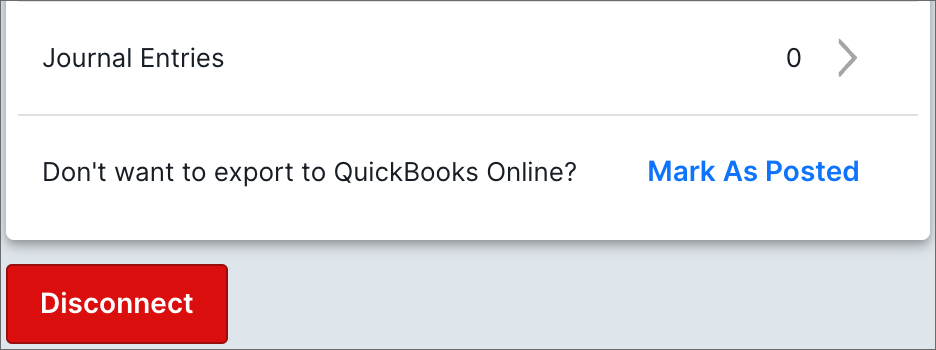

- Mark Selected Transactions As Posted - Fishbowl Drive also allows individual transactions to be marked as posted by clicking the > on the transaction category. Currently, you must find all related transactions and mark them as posted as well. In the example below, you can see that there are two transactions related to Sales Order 1020: An Invoice (1 debit and 1 credit) and a Journal Entry (1 debit and 1 credit). If you mark one transaction as posted, you will also need to manually mark as posted the corresponding transaction.