Purchase Orders: Difference between revisions
No edit summary |
No edit summary |
||
| Line 64: | Line 64: | ||
** '''PurchaseOrderItem-ExchangeCurrencyName*''' | ** '''PurchaseOrderItem-ExchangeCurrencyName*''' | ||
** '''PurchaseOrderItem-ExchangeRate''' | ** '''PurchaseOrderItem-ExchangeRate''' | ||
{{Send Email}} | |||
<onlyinclude>{{Wistia|uvc0l1jadg|Purchase Order overview}}</onlyinclude> | <onlyinclude>{{Wistia|uvc0l1jadg|Purchase Order overview}}</onlyinclude> | ||
Revision as of 11:34, 28 October 2022

- The Purchase Order module allows items to be purchased from vendors.
- To create a new purchase order, click the
 New button. Each existing purchase order is displayed in the search area on the left.
- After all items have been added to the order, click the ISSUE button in the action bar at the top of the order.
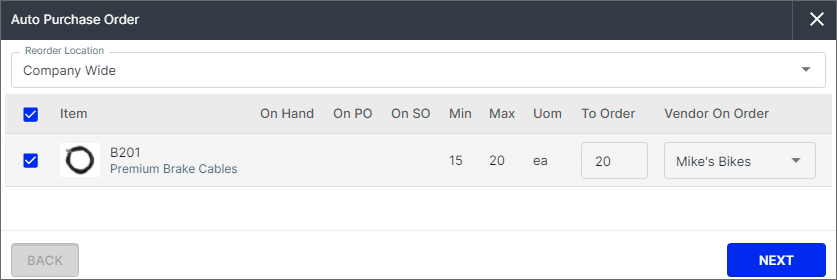
- Click the AUTO ORDER button to automatically create purchase orders based on reorder points.
- To import orders from a spreadsheet or CSV file, click the
 More button at the top of the item list and choose Import Orders.
- To create a template file with the correct column headers, click Export Orders.
- The suggested order of CSV imports for new databases can be found here.
- For a step-by-step tutorial on working with CSV files, check out the CSV video here.
- Below is a list of the CSV columns. All column headers are required. Columns with an asterisk must contain data.
- PurchaseOrder-Number*
- PurchaseOrder-VendorName*
- PurchaseOrder-DateScheduled
- PurchaseOrder-PurchaseOrderStatus - New purchase order gets BID_REQUEST by default
- PurchaseOrder-CustomerSONumber
- PurchaseOrder-VendorSONumber
- PurchaseOrder-BuyerName
- PurchaseOrder-CarrierName*
- PurchaseOrder-CarrierServiceName
- PurchaseOrder-VendorAddressName
- PurchaseOrder-VendorAddressCity
- PurchaseOrder-VendorAddressState
- PurchaseOrder-VendorAddressCountry - For example, US or United States. Click here to see the list of supported countries and codes.
- PurchaseOrder-VendorAddressPostalCode
- PurchaseOrder-ShipToName
- PurchaseOrder-ShipToStreet
- PurchaseOrder-ShipToCity
- PurchaseOrder-ShipToState
- PurchaseOrder-ShipToCountry - For example, US or United States. Click here to see the list of supported countries and codes.
- PurchaseOrder-ShipToPostalCode
- PurchaseOrder-LocationName*
- PurchaseOrder-GrandTotal
- PurchaseOrder-MultiCurrencyGrandTotal
- PurchaseOrder-HomeCurrencyName*
- PurchaseOrder-ExchangeCurrencyName*
- PurchaseOrder-ExchangeRate*
- PurchaseOrder-FobPointName*
- PurchaseOrder-PaymentTermName*
- PurchaseOrder-Contact
- PurchaseOrder-Phone
- PurchaseOrder-Email
- PurchaseOrder-ShippingTermName*
- PurchaseOrder-Url
- PurchaseOrder-DateIssued
- PurchaseOrder-DateFulfilled
- PurchaseOrder-Notes
- PurchaseOrder-VendorResidential - default false
- PurchaseOrder-VendorAddressVerified - default false
- PurchaseOrder-ShipToResidential - default false
- PurchaseOrder-ShipToVerified - default false
- PurchaseOrderItem-ItemName
- PurchaseOrderItem-LineNumber*
- PurchaseOrderItem-Name*
- PurchaseOrderItem-Description
- PurchaseOrderItem-PurchaseOrderItemType*
- PurchaseOrderItem-PurchaseOrderItemStatus*
- PurchaseOrderItem-VendorItemName
- PurchaseOrderItem-CustomerName
- PurchaseOrderItem-Quantity
- PurchaseOrderItem-QuantityReceived
- PurchaseOrderItem-QuantityFulfilled
- PurchaseOrderItem-QuantityPicked
- PurchaseOrderItem-Notes
- PurchaseOrderItem-UnitCost
- PurchaseOrderItem-MultiCurrencyUnitCost
- PurchaseOrderItem-DateScheduled
- PurchaseOrderItem-DateFulfilled
- PurchaseOrderItem-ExchangeCurrencyName*
- PurchaseOrderItem-ExchangeRate


Send Email
While viewing an order, click the  More button and select Send Email to compose an email. The To email auto-populates with the email address you added in the Details tab of the order. In addition, you can click the checkbox next to Send report to attach a PDF of the default report you've created in the Show Report section above.

Currently, if you hit Enter on your keyboard (as long as the required fields are filled in), the email will be sent. So we recommend keeping the message simple and to one paragraph. Don't hit Enter or click the SEND button until you're ready to send it. This issue will be resolved soon.
After you click SEND you will get a confirmation that the email has been sent. If the recipient doesn't receive the email, they will need to check their junk folder and add fishbowl@fishbowlonline.com to their address book so that future emails aren't marked as spam.