Integrations: Difference between revisions
From Fishbowl Drive
No edit summary |
No edit summary |
||
| Line 45: | Line 45: | ||
# Fishbowl Drive will then be displayed inside of a BigCommerce window, or you can just return to fishbowlonline.com | # Fishbowl Drive will then be displayed inside of a BigCommerce window, or you can just return to fishbowlonline.com | ||
# {{E-Commerce Settings|BigCommerce}} | # {{E-Commerce Settings|BigCommerce}} | ||
{{DS}} | {{DS}} | ||
| Line 64: | Line 57: | ||
# After entering your Store URL, paste the token from Step 4 into the '''Auth Token''' field and then click '''Save'''.<br>{{Image|1|Adobe Commerce}} | # After entering your Store URL, paste the token from Step 4 into the '''Auth Token''' field and then click '''Save'''.<br>{{Image|1|Adobe Commerce}} | ||
# {{E-Commerce Settings|Adobe Commerce}} | # {{E-Commerce Settings|Adobe Commerce}} | ||
{{DS}} | |||
==Amazon== | |||
# To connect to Amazon, click the '''Connect''' button.<br>{{Image|Connect|Amazon}} | |||
# Log into your Amazon account and copy the following information into Fishbowl Drive.<br>{{Image|1|Amazon}} | |||
# Click the '''Save''' button. | |||
# {{E-Commerce Settings|Amazon}} | |||
{{DS}} | {{DS}} | ||
Revision as of 11:10, 20 February 2023
The Integrations module allows Fishbowl Drive to integrate with many other platforms. Note that some of these integrations are in Beta.

QuickBooks Online
- To connect to QuickBooks Online, click the Connect button and approve the integration with your QuickBooks Online account.
- After completing the integration, the QuickBooks Online module will be added to the Accounting module group.

Shippo
- To connect to Shippo, click the Connect button.
- Login with your Shippo account and click Allow Access
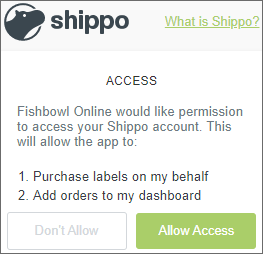
- Proceed through the wizard to configure the Shippo settings and then click Finish.
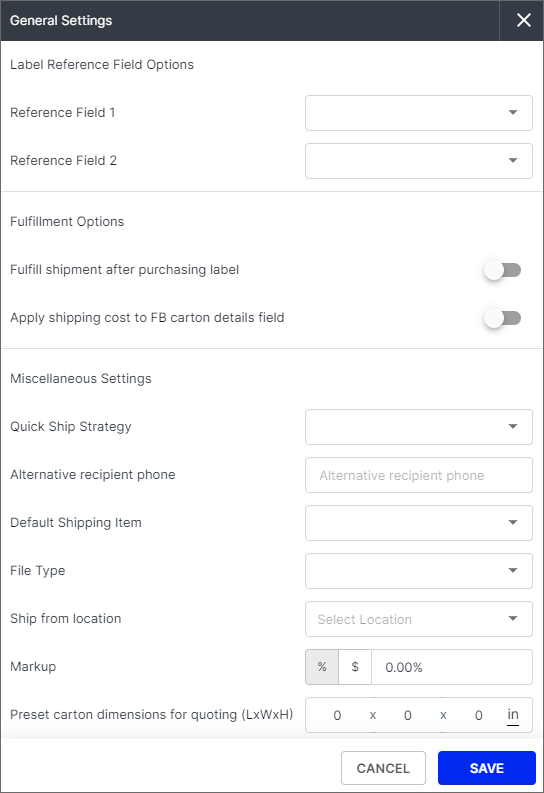
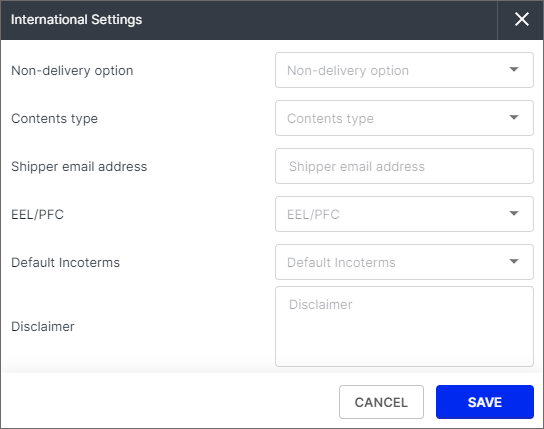
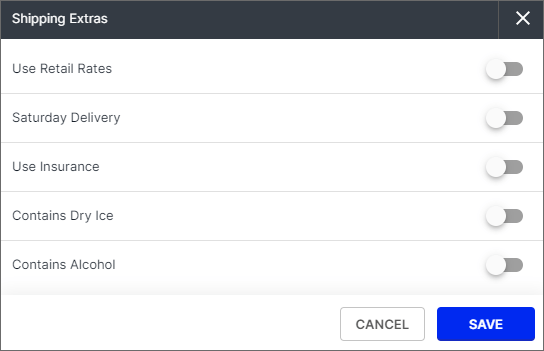
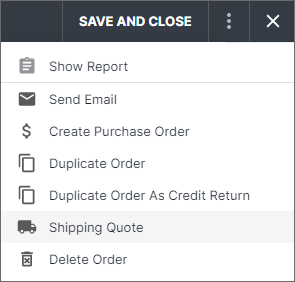
- Sales order will now have the option to generate a shipping quote.
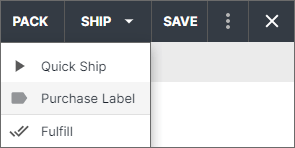
- Shipments will have the option to purchase a label.


ShipStation
- To connect to ShipStation, click the Connect button.
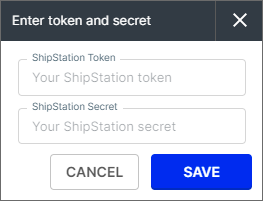
- Log into your ShipStation account and copy the following information into Fishbowl Drive.
- Click the Save button.


Shopify
- To connect to Shopify click the Connect button.
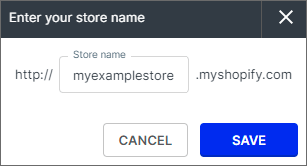
- Enter your Shopify store name to complete the URL and then click the SAVE button.
- You will be redirected to Shopify's website to log into your account.
- Click the Install App button.
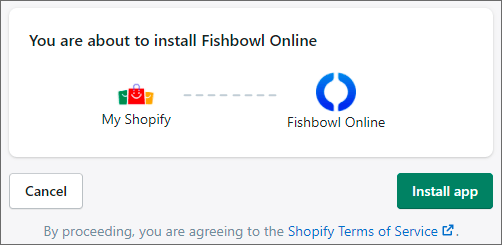
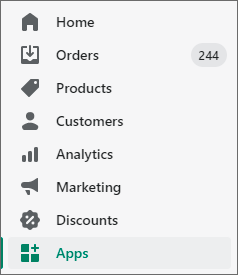
- In your Shopify account, click the Apps button in the side menu and you should see Fishbowl Drive listed as an installed app.
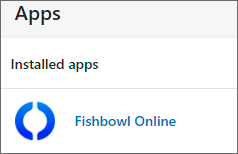
- The settings for the Shopify integration will now be available in Fishbowl Drive by clicking Integrations > E-commerce > Shopify.

- Additional explanations for the Shopify settings in Fishbowl Drive are available in this PDF.


WooCommerce
- To connect to WooCommerce, click the Connect button.
File:FBO WooCommerce Connect.png - Log into your WooCommerce account and copy the following information into Fishbowl Drive.
File:FBO WooCommerce 1.png - Click the Save button.
- The settings for the WooCommerce integration will now be available in Fishbowl Drive by clicking Integrations > E-commerce > WooCommerce.
BigCommerce
- To connect to BigCommerce, click the Connect button.
File:FBO BigCommerce Connect.png - You will be prompted to log into your BigCommerce account.
- Locate Fishbowl Drive in the Marketplace or in My apps and then click Install.
- Fishbowl Drive will then be displayed inside of a BigCommerce window, or you can just return to fishbowlonline.com
- The settings for the BigCommerce integration will now be available in Fishbowl Drive by clicking Integrations > E-commerce > BigCommerce.
Adobe Commerce
Fishbowl Drive integrates with Adobe Commerce (previously called Magento). To complete this integration you will need to create a new API integration in Adobe Commerce and then paste the token into Fishbowl Drive.
- In your Adobe Commerce account, click System > Integrations and then click Add New Integration.
File:FBO Adobe Commerce 2.png - In the Integration Info section, enter a name and your password, and then click the API section.
File:FBO Adobe Commerce 3.png - For Resource Access, select All, and then click Save.
File:FBO Adobe Commerce 4.png - Click the blue Activate link for the new integration, click Allow, and then copy the Access Token.
File:FBO Adobe Commerce 5.png - In Fishbowl Drive click Integrations > Market and then click the Adobe Commerce Connect button.
File:FBO Adobe Commerce Connect.png - After entering your Store URL, paste the token from Step 4 into the Auth Token field and then click Save.
File:FBO Adobe Commerce 1.png - The settings for the Adobe Commerce integration will now be available in Fishbowl Drive by clicking Integrations > E-commerce > Adobe Commerce.
Amazon
- To connect to Amazon, click the Connect button.
File:FBO Amazon Connect.png - Log into your Amazon account and copy the following information into Fishbowl Drive.
File:FBO Amazon 1.png - Click the Save button.
- The settings for the Amazon integration will now be available in Fishbowl Drive by clicking Integrations > E-commerce > Amazon.
Stripe
- To connect to Stripe, click the Connect button.
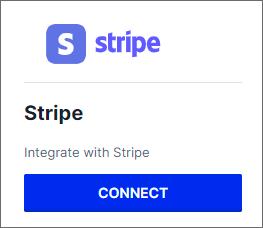
- You will be redirected to Stripe's website to log into your account or to create a new account.
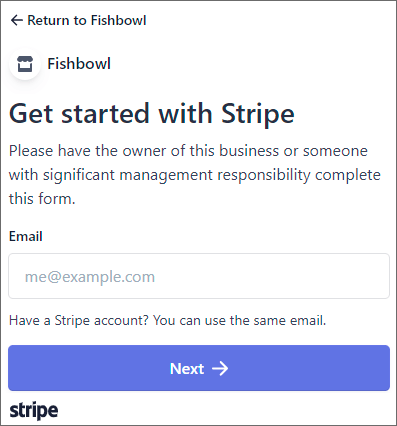
- After completing the required steps on Stripe's website, you will be redirected back to Fishbowl Drive. You can now generate Pay Now links that can be displayed on reports and emailed to customers.


