Mobile app
Fishbowl is developing a new mobile app called Fishbowl Drive Mobile. Currently, it only supports iOS, but it will soon support Android and include the same features as the previous Fishbowl Online Mobile app, which is still available.
Fishbowl Drive Mobile
- Click here or open the App Store on your Apple device and search for Fishbowl Drive.
- Click Install, and then click Open.
- Enter the same credentials you use for fishbowlonline.com, and then click Log in.
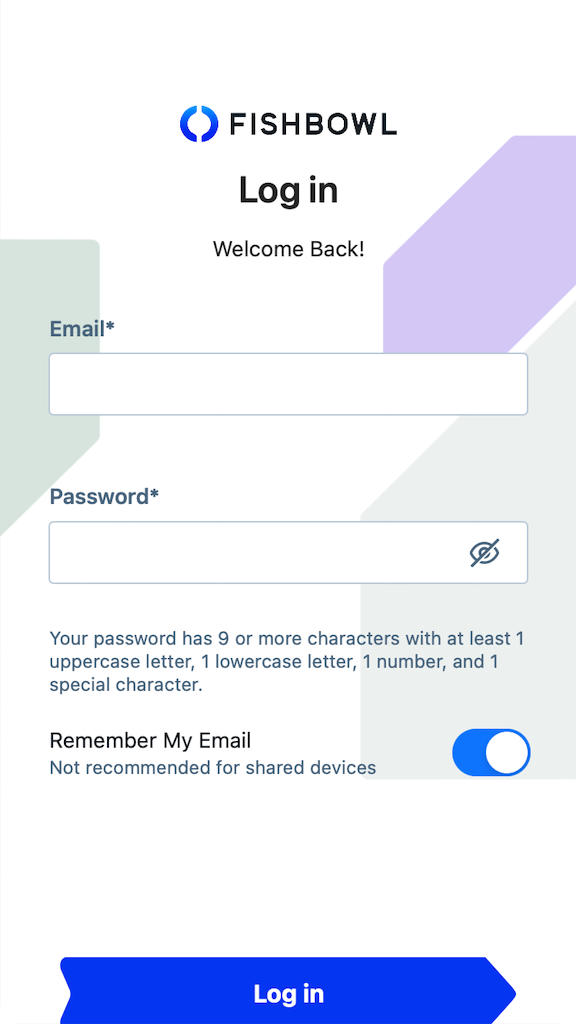
- The mobile app provides access to some of the same great features that are available on fishbowlonline.com.

Items
The Items module displays every item that you have created in Fishbowl Drive. To open an item, click it from the list, click the scan icon on the bottom right to scan its barcode, or enter text in the Search bar and select the option that appears under it.

Item Details
The Item Details screen displays information about the item you selected in the Items module. It shows the item's type and cost above its name and description. It also shows the item's dimensions, weight, and unit of measure. Any tags you have added to it are displayed at the bottom.

Inventory Summary
In the Inventory module, there are two screens you can look at when you click an item. Summary is the default. This screen displays how many units of the item are available, on hand, allocated, committed, and incoming across all of your locations. It also shows the average cost and total cost of the units. Three buttons at the bottom of the screen enable you to adjust quantities up or down, move units between locations, and cycle count the item.

Scanner
When you click the scan icon, it makes use of your mobile device's camera to scan an item's barcode, which then brings up details about that item.

Inventory Locations
In the Inventory module, when you click the Locations tab on the top-right, it brings up a list of all locations where an item is stored. It displays the number of units that are on hand, available, and committed at each location. Three buttons at the bottom of the screen enable you to adjust quantities up or down, move units between locations, and cycle count the item.

Inventory Adjust
When you click the Adjust button at the bottom of the Inventory module, it gives you the option to either add or scrap units of the item.

Inventory Add
Clicking the Add option under the Adjust button brings up a screen to select the location, quantity, and cost of the units you want to add to your inventory. You can also add notes at the bottom to explain why you're adding units or provide other information.

Inventory Scrap
Clicking the Scrap option under the Adjust button brings up a screen to scrap inventory. First, select a location. This will show you how much inventory you have on hand and committed, and how many units are able to be scrapped. Second, enter the quantity to be scrapped. Third, enter any notes you like to explain why the units are being scrapped.

Inventory Move
When you click the Move button at the bottom of the Inventory module, it gives you the option to send units of an item from one location to another. First, select the location that units will be moved from. This will show you how much inventory you have on hand and committed, and how many units are able to be moved. Second, enter the quantity to be moved. Third, select the location that units will be moved to.

Inventory Cycle

Menu

Settings

Sample Data

Fishbowl Online Mobile
Fishbowl Online has been renamed to Fishbowl Drive. The mobile app for Fishbowl Online is still available while we work on the new mobile app for Fishbowl Drive. The mobile app for Fishbowl Online is available for iOS and Android.
- Search your app store for Fishbowl Online, or click the following links to install the app for iOS or Android.
- Open the Fishbowl Online mobile app, enter the same credentials you use for fishbowlonline.com, and then click Log in.
File:Fishbowl Drive Mobile Login.png - The mobile app provides access to some of the same great features that are available on fishbowlonline.com.
File:Fishbowl Drive Mobile App.png

