Items
From Fishbowl Drive
Create New Item
Bundles
Reorder Points
Import CSV

- The Items module stores the parts and products that you purchase, manufacture, and sell.
- To create a new item, click the
 New button. Each existing item is displayed in the search area on the left..
- The following tabs are available for each item: General, Sale Items, Substitute Items, Reorder Points, Tracking, Locations, Vendor Items, and History.
- To sell an item, add the product details to the Sale Items tab.
- For a step-by-step tutorial on creating items, click the video to the right.

Bundles
Bundles
- A bundle is a group of multiple items that can be sold together.
- To create a new bundle, change the item type to Bundle and add items to the Bundle Items tab.
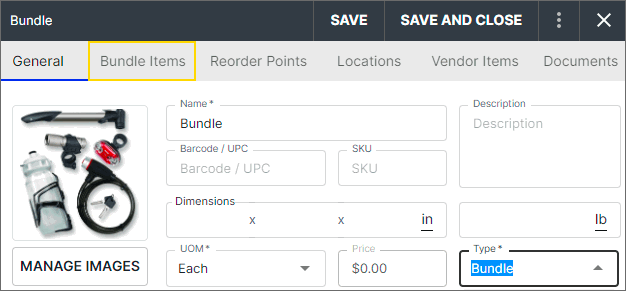
- For a step-by-step tutorial on creating bundles, click the video to the right.

Reorder Points
Reorder Points
- Click the Reorder Points tab in the Items module to set the reorder points for each location and/or company wide.
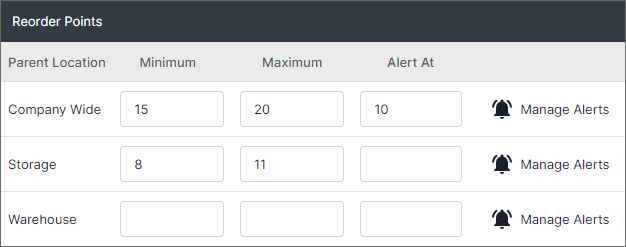
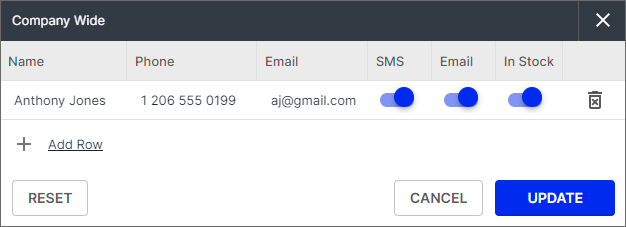
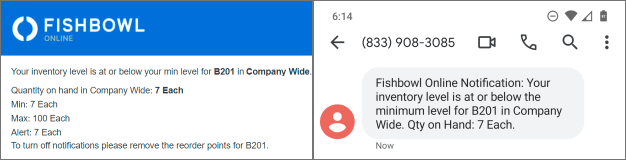
- To receive stock alerts via SMS or email, click Manage Alerts.
- To import reorder points from a spreadsheet or CSV file, click the
 More button at the top of the item list and choose Import Reorder Points.
- To create a template file with the correct column headers, click Export Reorder Points.
- The suggested order of CSV imports for new databases can be found here.
- For a step-by-step tutorial on working with CSV files, check out the CSV video here.
- Below is a list of the CSV columns. All column headers are required. Columns with an asterisk must contain data.
- ReorderPoint-ID
- ReorderPoint-ItemName
- ReorderPoint-ParentLocationName
- ReorderPoint-DailyConsumptionRate
- ReorderPoint-Minimum
- ReorderPoint-Maximum
- ReorderPoint-AlertAt
- ReorderAlert-ContactName - Only if adding alert
- ReorderAlert-Phone
- ReorderAlert-Email
- ReorderAlert-ReceiveSmsNotifications - Only if adding alert


Import items
- To import items from a spreadsheet or CSV file, click the More button at the top of the item list and choose Import Items.
- To create a template file with the correct column headers, click Export Items.
- The suggested order of CSV imports for new databases can be found here.
- For a step-by-step tutorial on working with CSV files, check out the CSV video here.
- Below is a list of the CSV columns. All column headers are required. Columns with an asterisk must contain data.
- Item-Name - Name of the item (e.g. B201)
- Item-Description - Description of the item (e.g. Premium Brake Cables)
- Item-Details - This allows you to leave additional notes about specific items
- Item-Cost - The amount the company pays for this item (e.g. 17.50)
- Item-Upc - This allows you to associate the UPC (Universal Product Code) to an item during the import
- Item-Sku - This allows you to associate the SKU (Stock Keeping Unit) to an item during the import
- Item-Url - This allows you to associate the URL (Uniform Resource Locator) to an item during the import
- Item-ItemType - Inventory, Shipping, Service, Non Inventory, Labor, or Overhead
- Item-DefaultUomName - The UOM (Unit of Measure) for the item (e.g. Each, Pair)
- Item-SalesTaxName - Tax associated with this item
- Item-Length - The length of the item. You can enter in 0 if you do not need/use this information
- Item-Width - The width of the item. You can enter in 0 if you do not need/use this information
- Item-Height - The height of the item. You can enter in 0 if you do not need/use this information
- Item-DimensionUnit - The dimension unit of the item. (e.g. Inches, Feet)
- Item-Weight - The weight of the item. You can enter in 0 if you do not need/use this information
- Item-WeightUnit - The unit of weight for the item (e.g. Ounces, Pounds, Kilograms)
- Item-Taxable - If the item is taxable (e.g. True or False)
- Item-AssetAccountName
- Item-ScrapAccountName
- Item-CostOfGoodsSoldAccountName
- Item-AdjustmentAccountName
- Item-DefaultImageLink
- Item-AccountingClassName
- Item-Tags
- SaleItem-Name - This can be the same name used for Item-Name (e.g. B201)
- SaleItem-Description - This can be the same name used for Item-Description (e.g Premium Brake Cables)
- SaleItem-Details - You can include additional item details for your sale items
- SaleItem-Price - The amount the company sells the item for (e.g. 35)
- SaleItem-Sku - This allows you to associate the SKU (Stock Keeping Unit) to a sale item during the import
- SaleItem-Url - This allows you to associate the URL (Uniform Resource Locator) to a sale item during the import
- SaleItem-DefaultUomName - The UOM (Unit of Measure) for the sale item (e.g. Each, Pair)
- SaleItem-SalesTaxName - Tax associated with this sale item
- SaleItem-Length - The length of the sale item. You can enter in 0 if you do not need/use this information
- SaleItem-Width - The width of the sale item. You can enter in 0 if you do not need/use this information
- SaleItem-Height - The height of the sale item. You can enter in 0 if you do not need/use this information
- SaleItem-DimensionUnit - The dimension unit of the sale item. (e.g. Inches, Feet)
- SaleItem-Weight - The weight of the sale item. You can enter in 0 if you do not need/use this information
- SaleItem-WeightUnit - The unit of weight for the sale item (e.g. Ounces, Pounds, Kilograms)
- SaleItem-DefaultSalesOrderItemType - This determines if the sale item defaults to Sale or Credit Return
- SaleItem-Taxable - If the sale item is taxable (e.g. True or False)
- SaleItem-DefaultFlag - If you have multiple sales items associated to a general item, you can specify if this is the default sales item (e.g. True or False)
- SaleItem-IncomeAccountName
- SaleItem-DefaultImageLink
- SaleItem-AccountingClassName
- SaleItem-Tags
- Tracking-Lot Number - If the item has lot number tracking enabled (e.g. True or False)
- Tracking-Expiration Date - If the item has expiration date tracking enabled (e.g. True or False)
- TrackingSerial-Serial Number - If the item has serial number tracking enabled (e.g. True or False)
Import Item Locations
- To import item locations from a spreadsheet or CSV file, click the More button at the top of the item list and choose Import Item Locations.
- To create a template file with the correct column headers, click Export Item Locations.
- The suggested order of CSV imports for new databases can be found here.
- For a step-by-step tutorial on working with CSV files, check out the CSV video here.
- Below is a list of the CSV columns. All column headers are required. Columns with an asterisk must contain data.
- ItemLocation-ItemName
- Location-ParentName
- Location-PickFrom
- Location-Receive
- Location-PickTo
Import Vendor Items
- To import vendor items from a spreadsheet or CSV file, click the More button at the top of the item list and choose Import Vendor Items.
- To create a template file with the correct column headers, click Export Vendor Items.
- The suggested order of CSV imports for new databases can be found here.
- For a step-by-step tutorial on working with CSV files, check out the CSV video here.
- Below is a list of the CSV columns. All column headers are required. Columns with an asterisk must contain data.
- VendorItem-ID
- VendorItem-ItemName
- VendorItem-VendorItemName
- VendorItem-VendorName
- VendorItem-Cost
- VendorItem-UomName
- VendorItem-LeadTime
- VendorItem-MinQuantity
- VendorItem-Default