BI Editor
From Fishbowl Advanced
 The BI Editor module, located in the
  Reporting group, allows the creation of Business Intelligence (BI) scripts, which are used to display robust HTML reports. Pages can be viewed and printed in the
  BI Report module and in Fishbowl Advanced Mobile. Fishbowl includes several BI reports for free. To purchase a custom BI report, contact reports@fishbowlinventory.com.
View
- Open a
 Page and click the
  Preview button on the component toolbar to the right.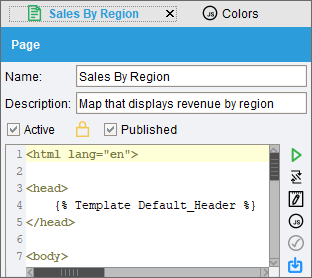
- Pages that have the
 Published checkbox selected will appear in the BI Report module.
 - The buttons at the top of the preview window can be used to
 Refresh,
  Modify,
  Save, or
  Print the current view. The preview can also be refreshed by pressing F5 on the keyboard.
- Click the Modify Parameters button to change the parameter data displayed in the current view.


Edit
- Scripts can be edited by modifying the text in the code area and then clicking the Save button.

- Click the arrow next to the
 New button at the top of the module to add new files. Below is the basic format for referencing these files from within your BI Report files.
- {% Page My_Page %}
- {% Template My_Template %}
- {% Style My_Style %}
- {% Script My_Script %}
- {% Image My_Image %}
- For example, if you wanted to insert a new image into a report, you would click the arrow next to the New button and select New Image. Then drag and drop the image file into Fishbowl and give it a name, like Company Logo. Then inside a report page you can reference the file using HTML syntax and the format listed above. For example:
- <img src={% Image Company_Logo %}>
- Built-in scripts, created by Fishbowl, display a lock icon.

- If a built-in script is modified, the original will be duplicated, prefixed with (FB), and inactivated.

- Inactive scripts can be seen by using the Advanced Search.
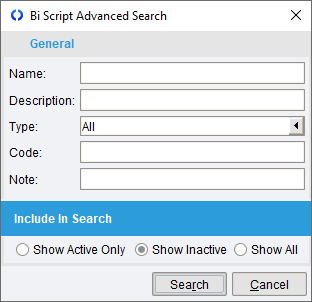
- To find text in a file, select the text and then press Ctrl + F.
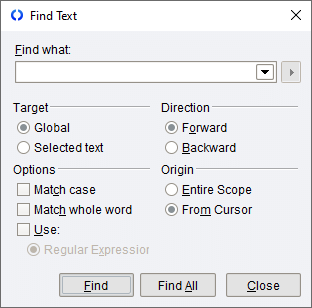
- To replace text in a file, select the text and then press Ctrl + R.

- To see changes that have been made to a file, click the
 History button on the module toolbar, select two versions, and then click the
  Compare versions button.
- To revert to a previous version of a file, click the Compare versions button, then copy and paste the text from a prior version.


Module buttons
The following buttons are located at the top of the module.
 New creates a new Page. Click the dropdown arrow to create a new
  Template,
  Style, or
  Script.
 Import allows BI scripts to be imported from a JSON file.
- Save will save changes to the file that is currently open.
 Delete will delete the file that is currently open.
 Duplicate will create a duplicate of the file that is currently open.
- Print sends the default module report to the printer.
 How To opens this article in a Web browser.
- Refresh reloads whatever is currently open in the module.


Component buttons
The following buttons are located on the component toolbar to the right.

- The Preview page button shows a preview of any Page.
- The
 Include script button inserts the name of a saved Script, Style, or Template.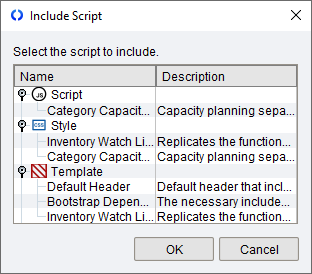
- The
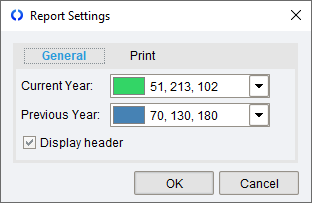
 Insert report setting button inserts parameters and settings.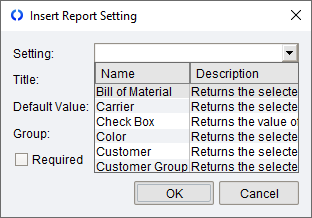
- The
 Include built-in JavaScript button inserts the name of a built-in JavaScript.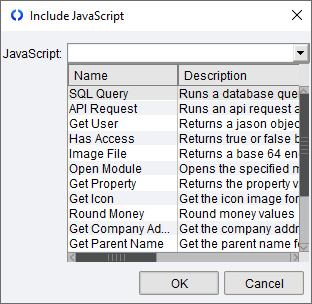
- The
 Lint check button suggests improvements for a JavaScript file.
- The
 Save script to file button saves the file that is currently open as a JSON file.


Tips
- Items on a pie chart can be hidden by clicking the label in the legend.

- Press Ctrl + G to jump to a line of code.

- Press Ctrl + C to copy a line of code or the selected text.
- Press Ctrl + X to cut a line of code or the selected text.
- Press Ctrl + D to duplicate a line of code or the selected text.
- Press Ctrl + Y to delete a line of code.
- To purchase a custom script, contact reports@fishbowlinventory.com.

