Report Customer Purchase History
From Fishbowl Advanced
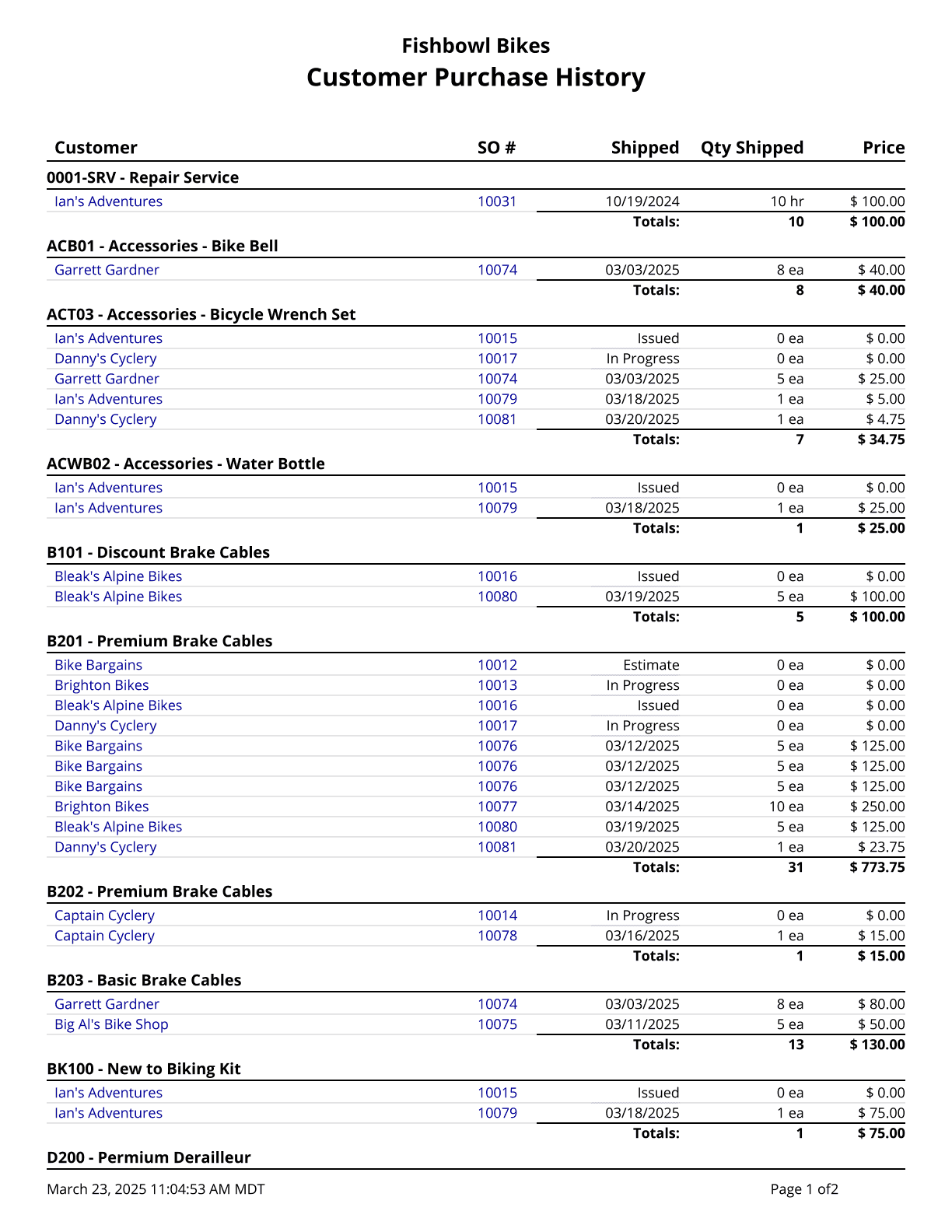
This report generates the purchase history for a customer or product in a given date range. Credit return orders are not included on this report. It also has options to include/exclude shipping and misc sales. Sales Tax is not included.
The  Modify Report button allows the following report filters to be customized:
- REQUIRED TAB
- Group By - Choose whether to group the report by Product or by Customer.
- OPTIONAL TAB
- Apply Date Filter To - Choose the date for the date range to look at. Below are the options and the corresponding field in the database.
- Item Fulfillment Date=soitem.datescheduledfulfillment
- SO Fulfillment Date=so.datefirstship
- Date Created=so.datecreated
- Date Issued=so.dateissued
- Item Date Fulfilled=soitem.datelastfulfillment
- SO Date Fulfilled=so.datecompleted
- Date Last Changed=so.datelastmodified
- Customer Group - Choose a specific customer group to run the report for. Leave this field blank to run the report for all customer groups.
- Product Tree - Choose the product tree category to run the report for. Leave this field blank to run for all product trees.
- Sales Person - Choose which sales person to run the report for. Leave this field blank to run for all sales people.
- Class - Select a class to run the report for. Leave this field blank to run for all classes.
- Location Group - Choose a specific location group to run the report for. Leave this field blank to run for all location groups.
- Customer - Choose to run the report for a specific customer. Leave this field blank to run for all customers.
- Product Number - Choose a specific product to run the report for. Leave this field blank to run for all products.
- Date Range - Choose a date range to run the report for. This date range uses what is selected in the Apply Date Filter option above.
- Closed Short - Choose to show/hide this order status by checking/unchecking this checkbox.
- Estimate - Choose to show/hide this order status by checking/unchecking this checkbox.
- Fulfilled - Choose to show/hide this order status by checking/unchecking this checkbox.
- In Progress - Choose to show/hide this order status by checking/unchecking this checkbox.
- Issued - Choose to show/hide this order status by checking/unchecking this checkbox.
- Order By Customer - Choose to order the report by customer by checking this checkbox. This option is used when the Group By dropdown on the Required tab is set to Product.
- Show Misc Sales - Choose to show/hide miscellaneous sales by checking/unchecking this checkbox.
- Show Shipping Items - Choose to show/hide shipping product items by checking/unchecking this checkbox.
- Voided - Choose to show/hide this order status by checking/unchecking this checkbox.
- Format Report for Exporting - Removes the page breaks and displays the report on one long page for exporting to CSV, Excel, and other formats.
- Show Details - Choose to show/hide specific product or sales order details by checking/unchecking this checkbox.
- PRINTER TAB - Allows a default printer to be specified for the report in each location group.