Report Export Summary
From Fishbowl Advanced
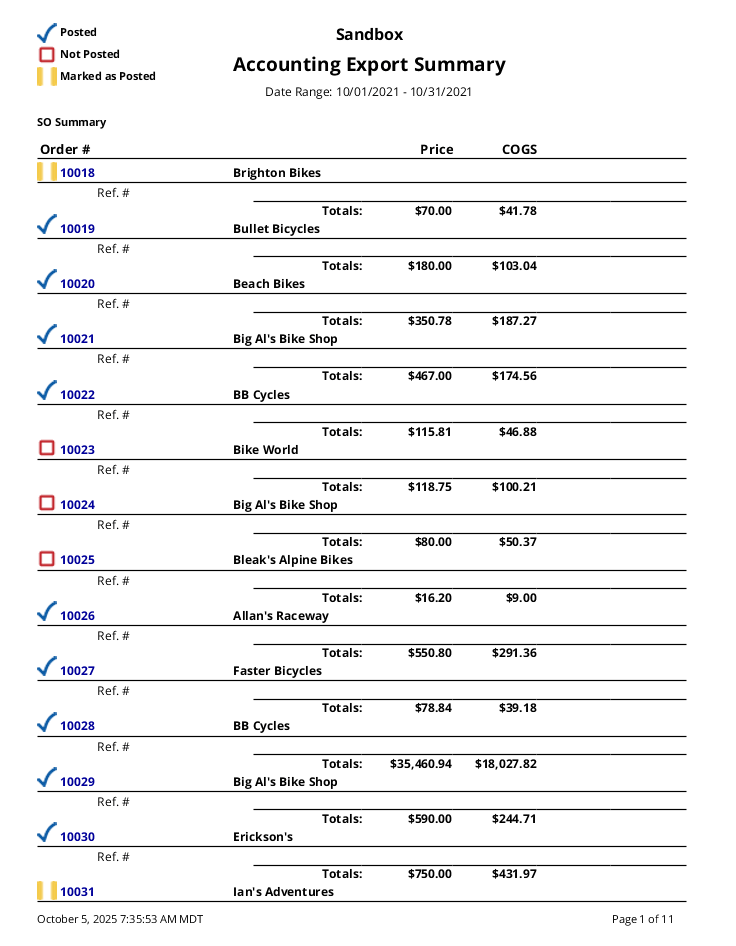
This report displays a list of PO, SO, and WO transactions that have been exported (or are pending export) to the accounting system. Work Order amounts reflect the total adjustments made, not the final cost of the work order. It groups by SO, PO, and WO. It will display the Customer, Vendor, total price, and total COGS per order. It will also display the Ref. # if the order has been exported to the accounting system.
The  Modify Report button allows the following report filters to be customized:
- REQUIRED TAB
- Date Range - Choose the Date Range to run the report for. This date looks at the PostDate for the Sales Order on the POSTSO table in the database, meaning the date the order is shipped, even if you backdate the shipment. It also looks at the PostDate for the Purchase Order on the POSTPO table in the database, meaning the date the order is received (before being reconciled) or the date reconciled/fulfilled, even if you backdate the receipt/reconcile. And finally, it also looks at the PostDate for the Work Order on the POSTWO table in the database, meaning the date the order is finished/fulfilled, even if you backdate the order. Partial shipments, partial receipts/reconciles, or partial finishes of work orders will show up as separate line items, but all parts on the sales order/purchase order/work order will use the first date fulfilled.
- OPTIONAL TAB
- Apply Date Filter To - In addition to the date posted as detailed above, the report can be run using the item date fulfilled.
- BOM Number - Choose a specific bill of materials number to run the report for. Leave this field blank to run for all BOMs.
- SO Product - Select a specific product number to run the report for. Leave this field blank to run for all products.
- PO Number - Enter a specific purchase order number to run the report for. Leave this field blank to run for all purchase orders.
- SO Number - Enter a specific sales order number to run the report for. Leave this field blank to run for all sales orders.
- WO Number - Enter a specific work order number to run the report for. Leave this field blank to run for all work orders.
- PO Part - Choose a specific part to run the report for. Leave this field blank to run for all parts.
- Report Title - This allows the title of the report to be customized.
- Format Report for Exporting - Removes the page breaks and displays the report on one long page for exporting to CSV, Excel, and other formats.
- Show Details - Choose to show/hide the order details by checking/unchecking this checkbox.
- Show Not Posted - Choose to show/hide orders that have not exported to the accounting system by checking/unchecking this checkbox.
- Show Posted - Choose to show/hide orders that have exported to the accounting system by checking/unchecking this checkbox.
- Show Purchase Orders - Choose to show/hide purchase orders on the report by checking/unchecking this checkbox.
- Show Sales Orders - Choose to show/hide sales orders on the report by checking/unchecking this checkbox.
- Show Work Orders - Choose to show/hide work orders on the report by checking/unchecking this checkbox.
- PRINTER TAB - Allows a default printer to be specified for the report in each location group.