Report Inventory Allocated To Work Orders
From Fishbowl Advanced
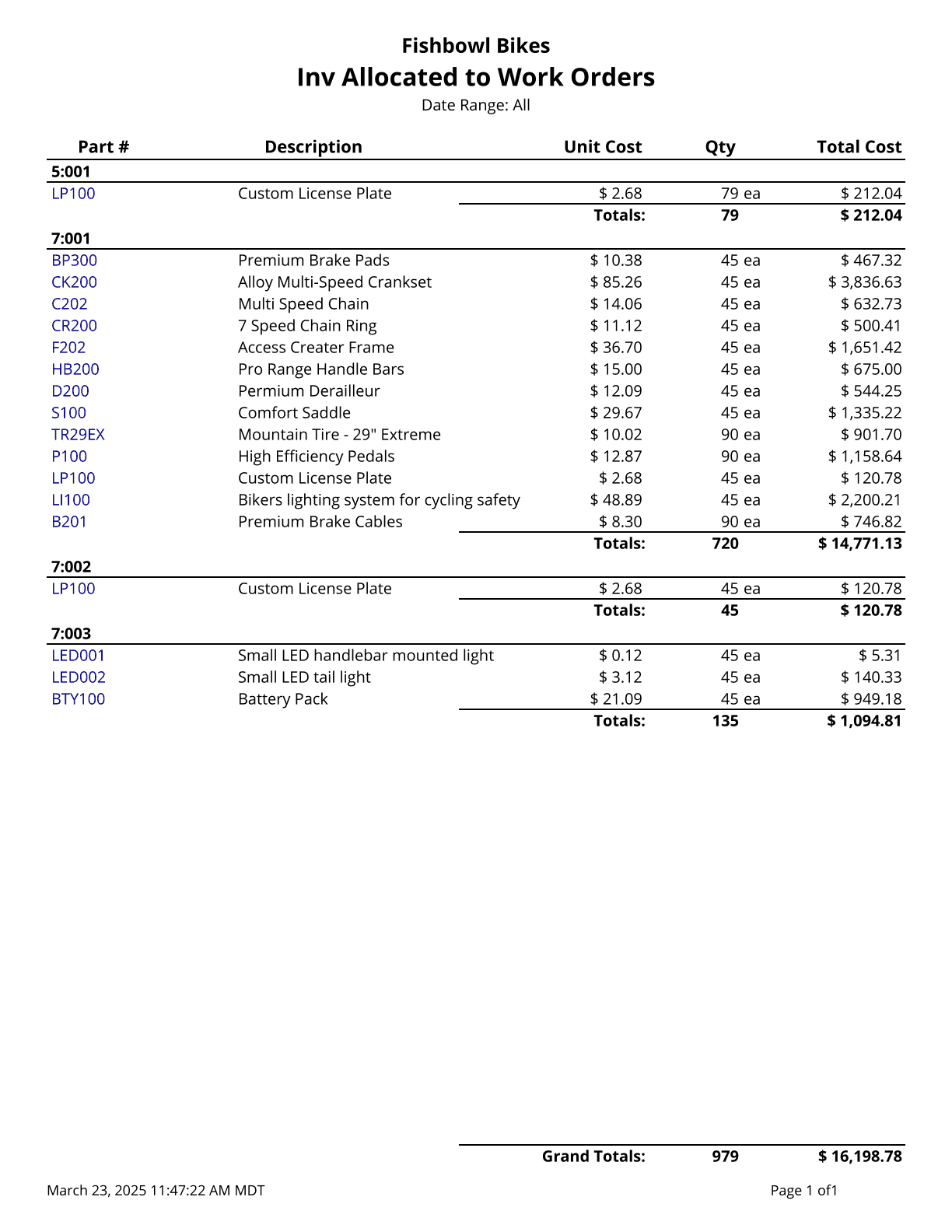
This report creates a list of all inventory currently allocated to outstanding work orders. Cost values are based on today's costs.
The  Modify Report button allows the following report filters to be customized:
- OPTIONAL TAB
- Costing Method - Choose the costing method to display part costs in on the report: Average Cost, Standard Cost, LIFO, FIFO.
- Group By - Choose whether to group by WO or Part.
- Location Group - Choose a location group to view turnover for. Leave this field blank to view data for all location groups.
- WO Number - Choose a specific WO Number to run the report for. Leaving it blank will run the report for all WOs.
- Part Number - Choose a specific part number to run the report for. Leave this field blank to run for all part numbers.
- Date Range - Choose the date range to pull information for. This date range looks at the DateScheduled on the WO table of the database, meaning the date the work order is schedule for.
- Building - Choose to show/hide orders with this status by checking/unchecking this checkbox.
- Entered - Choose to show/hide orders with this status by checking/unchecking this checkbox.
- Fulfilled - Choose to show/hide orders with this status by checking/unchecking this checkbox.
- Issued - Choose to show/hide orders with this status by checking/unchecking this checkbox.
- Show Disassemble - Choose to show/hide disassemble type manufacture order on the report by checking/unchecking this checkbox.
- Show Maintenance - Choose to show/hide maintenance type manufacture orders by checking/unchecking this checkbox.
- Show Manufacture - Choose to show/hide manufacture type manufacture orders by checking/unchecking this checkbox.
- Show Repair - Choose to show/hide repair type manufacture order on the report by checking/unchecking this checkbox.
- Show Service - Choose to show/hide service type manufacture order on the report by checking/unchecking this checkbox.
- Format Report for Exporting - Removes the page breaks and displays the report on one long page for exporting to CSV, Excel, and other formats.
- PRINTER TAB - Allows a default printer to be specified for the report in each location group.