iReport
iReport is a third-party application that can be used to create Fishbowl reports. iReport is not developed or supported by Fishbowl. iReport is a powerful and intuitive visual report builder/designer. This tool allows users to visually edit complex reports with charts, images, and sub reports. In addition to many included reports, Fishbowl also offers custom reports and reports from the Fishbowl Store. If you would like to develop your own report, you may be interested in Fishbowl's  BI Editor module which uses standard web technologies.
FAQs
- What is iReport?
- Does iReport require additional costs?
- How do I integrate Fishbowl and iReport?
- How do I use iReport for Report mods?
- Is iReport similar to Crystal Reports?
- What knowledge do I need to use iReport?
- Can I pay Fishbowl to write a report for me?
Installing iReport
- Click here to download the iReport 5.6.0 installer. It is recommended to install iReport on the same computer as the Fishbowl Server.
- Double-click the iReport-5.6.0-windows-installer.exe that was downloaded, and complete the installer with the default options.

- Double-click the iReport-5.6.0 shortcut that was added to the Desktop.
- If you get a Java error, or the iReport splash screen shows but the program never loads, you need to install Java 7 as described in the following section.

Installing Java 7
Because iReport requires Java 7, a few extra steps are necessary for computers that don't already have Java 7 installed.
- To download the 64-bit version of Java 7 for Windows, click here.
For other versions, click here and scroll down to Java SE Runtime Environment 7u80. Select the appropriate JRE file for your operating system (for example jre-7u80-windows-x64.exe). You may need to create a free Oracle account to complete the download (or remove https://www.oracle.com/webapps/redirect/signon?nexturl= from the URL).
- Double-click the Java 7 installer that was downloaded, and complete the installer with the default options.
- Open the iReport/etc directory (for example, C:\Program Files (x86)\Jaspersoft\iReport-5.6.0\etc), and copy the ireport.conf file to the desktop.
- Use Notepad or another text editor to open the ireport.conf file that is located on the desktop.
- Add the following line to the bottom of the file (adjusting the path as needed).
jdkhome="C:\Program Files\Java\jre7" - Save the file and paste it back into the iReport\etc directory.
- Double-click the iReport-5.6.0 shortcut that was added to the Desktop, and verify that iReport is running.

Set up the classpath
Note: You will need to follow these steps to reconfigure the classpath each time you update Fishbowl.
- Open iReport and click the Tools menu, and then select Options.

- Click the iReport menu button at the top, select the Classpath tab, and then click the Add JAR button.

- Browse to the C:\Program Files\Fishbowl\lib and select all of the JAR files located within that folder.
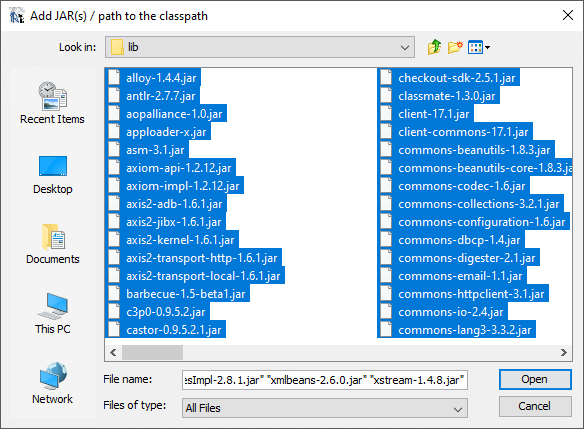
- Click the Open button and then click OK.


Note: You will need to follow these steps to reconfigure the classpath each time you update Fishbowl.
Configure database service
Fishbowl includes a  Data module that can be used to view tables and test queries. iReport also comes with a database service that can do the same. The database service is not required to set up or create a report.
- The following instructions are for MySQL 5.7.
- Because iReport requires Java 7 and the MySQL 8 connector requires Java 8, connecting to a MySQL 8 database in iReport is not officially supported. A database service is not required, so you can still use iReport to create and edit report files for your MySQL 8 database.
- Download the mysql-connector-java-5 zip file by clicking here.
- Unzip the downloaded file and then copy the mysql-connector-java-5.1.39-bin.jar file into the C:\Program Files\Fishbowl\lib\ folder.
- Open iReport and press Ctrl + 5 to open the Services pane.
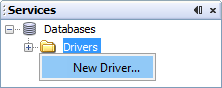
- Expand the Databases section, right-click Drivers, and then select New Driver.
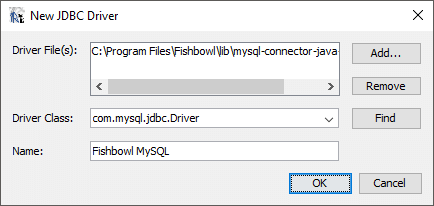
- Click the Add button, select the C:\Program Files\Fishbowl\lib\mysql-connector-java-5... file, and then click Open.
- Enter Fishbowl MySQL in the Name field and then click OK.
- Expand the Drivers folder, right-click Fishbowl MySQL, and then select Connect Using...

- Enter the information shown below.
Host: localhost (or the IP address of the Fishbowl Server)
Port: 3305
Database: Enter the actual database name
Remember password: Yes - Click OK.


Create a datasource
- Click the
 Report datasources button at the top of the screen and then click the New button.
 - Select NetBeans Database JDBC connection and then click Next.

- Enter the database name and then click Test.
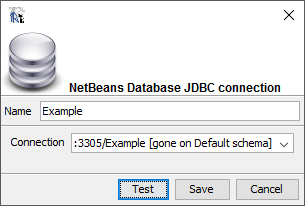
- Click Save.


Using iReport for custom reports
These are the conventions accepted by Fishbowl for JasperReports. Using these conventions ensures that a custom report will be handled as expected and as desired.
iReport versions
- Fishbowl 2015.8 and newer use version 5.6.0
- Fishbowl 2015.0 through 2015.7 uses version 5.1.0
Report basics
- The root report directory is Fishbowl/Server/reports. Custom reports added to this folder or any subdirectory within this folder will be used by Fishbowl.
- The hierarchy/organization of reports in the Report Module matches the file structure of Fishbowl/Server/reports. For example, if a folder named Customer exists in the reports directory, then there will be a Customer folder in the Report Module. Any reports within that folder will appear in the matching folder of Report Module.
- Reports are keyed on path. This means that Fishbowl recognizes a report by where it is physically stored. If a report is moved, then Fishbowl assumes that it is a new report. If a report is copied over an old report, Fishbowl assumes that it is the same report but that it has been modified, and it will update all relevant settings.
- Reports are case sensitive. This means that "FISHBOWL" is not the same as "Fishbowl."
- A report must be compiled (.jasper) in order for it to be accessible within Fishbowl. Additionally, the report should be compiled using Java. Reports compiled using Groovy are not supported.
- If there are parse errors, then the server log should be checked. Misconfigured Fishbowl parameters are a common problem. For example, it may be that one of the listed module names or additional node paths isn't correct, or an additional node path might conflict with another path. These problems will need to be corrected in the reports.
- Deleting or moving a report from the reports directory will remove any record of it from Fishbowl.
Report conventions
- Name the report using camelback convention. Camelback convention is joining multiple words together and capitalizing the first letter of each individual word, e.g., CamelBackConvention. Fishbowl goes through and puts in spaces before every capital letter to make it display properly, e.g., Camel Back Convention. Do this via the Project | Project Options dialog. DO NOT include the word "Report" in the name of the report. It's redundant.
- Name the file the same name as the report name used above.
- Don't include a date range in the query. For reports showing date fields, don't include a date range in the query. Allow Fishbowl to apply the date range using its controls.
- Make the report hyperlink compatible. Make the report hyperlink compatible if you are displaying fields that can be linked.
Hyperlink values
You can link to records within Fishbowl from a report by using a hyperlink reference. The valid options are listed below.
- PartNum
- ProductNum
- SONum
- PONum
- WONum
- MONum
- TONum
- RMANum
- CustomerName
- VendorName
- Report
Parameters
- To access a report's parameters in iReport, go to Report Inspector | Parameters. Using the dialog that appears, you can create new parameters, modify existing parameters, and delete parameters.
- All parameters are optional. The REPORTDESCRIPTION parameter will be the most useful, so it is highly recommended.
Parameter Types
- Special Parameters - Are used to tell Fishbowl to do something special with the report.
- Standard Parameters - Are used to get information from the user or Fishbowl into the report. These can change the display of report or added information to the query.
- Custom Parameters - Are just like standard parameters, except a specific naming/type convention is used to help the user enter the correct type of information into the report.
- Special Parameters - These parameters tell Fishbowl to treat this report a certain way. The user will never see these parameters, but they will see the effects of them.
Parameter Name Class Type Default Value About module java.lang.Object Not Used Used to pull information from Fishbowl. Common uses are: Company Logo and Tracking Information. path java.lang.String Not Used Is populated with the Current Path of the Report. This is needed for any Sub-Reports that the Report uses. The Sub-Reports require the full path to the Sub-Report, which helps to complete that task. currentUser java.lang.Integer Not Used Used to automatically populate the user ID for the person running the report.
- Custom Parameters - These parameters will display additional information to help the user input the correct information.
Parameter Name Class Type Default Value Description About accountID[Title] java.lang.String {Default Account ID} Not Used Provides a Search Option for Accounts. {Boolean Name} java.lang.Boolean {new Boolean(true) or new Boolean(false)} Not Used Displays a simple Checkbox with the Parameter Name. carrier java.lang.String {Default Carrier name} Not Used Displays a list of all Carriers in the system. Returns the Carrier Name. cb[Title] java.lang.String {Default Value Return} {Comma separated choices like this: "Value Return 1, Value Show 1, Value Return 2, Value Show 2".} Allows a list of Items to be displayed. First Value in the list is returned to the Report, the Second Value is displayed in the Combo Box. This allows a Readable Value to be displayed, while a more useful value is passed to the report. ck[Title] java.lang.String {Default Value Return} {Comma separated choices like this: "Value Return 1, Value Return 2".} Allows a Checkbox to be displayed and return a String of One of Two Values. customerID[Title] java.lang.String {Default Customer ID} Not Used Provides a Search Option for Customers. customerGroupID[Title] java.lang.String {Default Customer Group ID} Not Used Provides a Search Option for Customer Groups. Caution! This parameter works differently due to security restrictions. Fishbowl will return a list of Valid Customer Group IDs instead of a '%' if no Customer Group is selected. Example for WHERE Clause: (accountgroup.id IN ($P!{customerGroupID})) {Date Name} java.util.Date {Default Date Value} Not Used Displays Room to enter a Date. Also provides a Button to a Calendar Display. dateRange1[Title] java.util.Date {Default Value for From Date} Not Used Populates 2 Parameters together to provide a Date Range. Gives a Combo Box of common Date choices - Today, This Week, Last Year, etc. Use the same [Title] for dateRange2. dateRange2[Title] java.util.Date {Default Value for To Date} Not Used Does nothing by itself. dateRange1[Title] populates this Parameter. {Double Name} java.lang.Double {Default Double Value} Not Used Displays a standard Form Box to add a Double (Number with Decimals). Checks to makes sure Input is Valid. {Integer Name} java.lang.Integer {Default Integer Value} Not Used Displays a standard Form Box to add an Integer (Number without Decimals). Check to make sure Input is Valid. kitNum[Title] java.lang.String {Default Product Number} Not Used Provides a Search Option for Kit Numbers. locationGroupID[Title] java.lang.String {Default Location Group ID} Not Used Provides a Search Option for Location Groups. Caution! This parameter works differently due to security restrictions. Fishbowl will return a list of Valid Location Group IDs instead of a '%' if no Location Group is selected. Example for WHERE Clause: (locationgroup.id IN ($P!{locationGroupID})) locationID[Title] java.lang.String {Default Location ID} Not Used Provides a Search Option for Locations. moNum[Title] java.lang.String {Default MO Number} Not Used Provides a Search Option for MO Numbers. partNum[Title] java.lang.String {Default Part Number} Not Used Provides a Search Option for Part Numbers paymentMethod[Title] java.lang.String {Default Payment Method ID} Not Used Provides a Search Option for Payment Methods. pickNum[Title] java.lang.String {Default Pick Number} Not Used Provides a search option for Pick Numbers. poNum[Title] java.lang.String {Default PO Number} Not Used Provides a Search Option for PO Numbers. productNum[Title] java.lang.String {Default Product Number} Not Used Provides a Search Option for Product Numbers. productTree1[Title] java.lang.String {Default Product Tree Node ID} Not Used Provides a Product Tree that users can select a node to filter by. Returns a list of the ID of the selected node, plus the ID of its children categories. productTree2[Title] java.lang.String Not Used Not Used Does nothing by itself. When coupled with the productTree1 parameter, it will allow users to view products that are not in the product tree. It returns either % or the selected node ID. Example for WHERE clause: AND ((COALESCE(producttreeid,0) IN ($P!{productTree1})) OR ((COALESCE(producttreeid,0) LIKE $P{productTree2}))) qbClassID[Title] java.lang.String {Default QuickBooks Class ID} Not Used Provides a Search Option for QuickBooks Classes. receiptID[Title] java.lang.String {Default Receipt ID} Not Used Provides a Search Option for a Receipt. Displays the order number to the user, but passes the ID to the report. rmaNum[Title] java.lang.String {Default RMA} Not Used Provides a Search Option for RMAs. salesPerson[Title] java.lang.String {Default Sales Person Name} Not Used Provides a Dropdown of Salespersons. shipID[Title] java.lang.String {Default Ship ID} Not Used Displays the SO/PO Number with the Date, and gives the User a Search for a Ship. Passes the Ship ID to the Report. soNum[Title] java.lang.String {Default SO Number} Not Used Provides a Search Option for SO Numbers. {String Name} java.lang.String {Default String Value} Not Used Displays a standard Form Box to add a String. toNum[Title] java.lang.String {Default TO Number} Not Used Provides a Search Option for TO Numbers. vendorID[Title] java.lang.String {Default Vendor ID} Not Used Provides a Search Option for Vendors. woNum[Title] java.lang.String {Default WO Number} Not Used Provides a Search Option for WO Numbers. colName java.lang.boolean {Default true or false} Not Used Adds a table column to the column selector tab of the reports dialog.
Parameter Fields
Each parameter also has several fields. Below are some of the most commonly used.
- Parameter Name - The name of the parameter. Some specific names will produce different results. A list of special/custom parameters is found above. Use camelCase convention for a better display in Fishbowl.
- Titling - Some parameters have the option of being titled. This means adding onto the name of a custom parameter. The title can be left blank. The title will help to tell the difference if you use more than one of that type of custom parameter. The title will be displayed when Fishbowl asks the user to enter information. EXAMPLE: Parameter Name: partNumBOMPart will ask the user for a part number, but will title it as "BOM Part" instead of the standard "Part Number".
- Parameter Class Type - The special and custom parameters depend on the Class Type you choose. The Parameter Default Expression also depends on the Class Type. java.lang.String is the default and most commonly used.
- For Prompting - All parameters (except special parameters) are displayed to the user when the report is pulled. This field determines whether this parameter is required or optional. If all parameters for the report are optional, then the report will not ask the user for anything and run the report using all defaults for parameters. If there are some required parameters, then, when the report is run from the
 Reports module, Fishbowl will ask the user to enter those parameters.
 - Parameter Description - This field is used by a few custom parameters. It houses additional information that the parameters need. cb, dateRangeDefault, and sort use this field.
- Default Value Expression
This is the default value for your parameter. This is the value that iReport uses when testing your reports. It is also the value that Fishbowl puts in the parameter (uses it for optional parameters. It will not add the default if the parameter is required. It makes the user enter the required information). There are 2 types of default values:- Parameter Class Type java.lang.String - This value is surrounded in quotes. EXAMPLE: "This is a default value for a String".
For many custom parameters, the best way for optional parameters is to follow this template: [FileName] LIKE $P{Parameter}. This is because an optional parameter will return a % to the report. EXAMPLE: part.num LIKE $P{partNum}. This will allow the user to enter a part number or leave it blank. If no part number is entered, it will pull all parts. - Any other parameter class type - This follows standard Java Syntax. EXAMPLE: For a Type java.util.Date with default to Today's Date: new Date(). For a Type java.lang.Integer: new Integer(1).
- Parameter Class Type java.lang.String - This value is surrounded in quotes. EXAMPLE: "This is a default value for a String".
Parameter Properties
The following parameter properties were created to organize and sort parameters inside the Modify Report window of Fishbowl and to display tooltips with further explanations.
- Tab - A new tab will be created with the value entered here. All parameters with the same Tab value will be displayed in that tab.
- Group - All parameters with the exact same Group and Tab value will be displayed together within the tab and surrounded by a thin border.
- Sort - Numeric value. The number indicates the order in which the parameters are listed inside the group or tab.
- Type - Currently, the only type available is Custom Field. This value indicates that the parameter will be a list of relevant custom fields that can be selected and displayed.
- Table - Used with the Custom Field type. Enter the name of the database table that includes the custom fields to appear in the dropdown field. For example, if the value is SO, all sales order custom fields will be shown.
- Alias - This property applies to the Table property. When the table indicated is joined more than once in your query, include the alias of the appropriate joined table here.
- Tooltip - This value will be displayed upon mouseover of the parameter.