Inventory On Hand Report: Difference between revisions
m (I added Group By bullet points under Optional.) |
m (→Optional: I added a link.) |
||
| Line 19: | Line 19: | ||
Under '''Select All Optional''', there are the following options for you to filter results and modify the report: | Under '''Select All Optional''', there are the following options for you to filter results and modify the report: | ||
* '''Location''' - A dropdown menu to only list items at one '''Parent Location''' or '''Child Location'''. By default, all locations will be included on the report. But you can narrow down the results to a single location by selecting one in this field. You can create a new location by entering a name for the location in the textbox and hitting Enter or clicking the '''+ Add''' option. Then fill out the '''New Location''' wizard that pops up. | * '''Location''' - A dropdown menu to only list items at one [[Locations#Parent and child locations|'''Parent Location''' or '''Child Location''']]. By default, all locations will be included on the report. But you can narrow down the results to a single location by selecting one in this field. You can create a new location by entering a name for the location in the textbox and hitting Enter or clicking the '''+ Add''' option. Then fill out the '''New Location''' wizard that pops up. | ||
* '''Item''' - A dropdown menu to only list a single item. You can create a new item by entering a name for the item in the textbox and hitting Enter or clicking the '''+ Add''' option. Then fill out the '''New Item''' wizard that pops up. | * '''Item''' - A dropdown menu to only list a single item. You can create a new item by entering a name for the item in the textbox and hitting Enter or clicking the '''+ Add''' option. Then fill out the '''New Item''' wizard that pops up. | ||
* '''Group By''' - A dropdown menu that enables you to reorganize the items in this report by one of two criteria: | * '''Group By''' - A dropdown menu that enables you to reorganize the items in this report by one of two criteria: | ||
Latest revision as of 08:59, 5 February 2024
The Inventory On Hand report displays a list of items with their current quantity on hand by location.
←Back to list of reports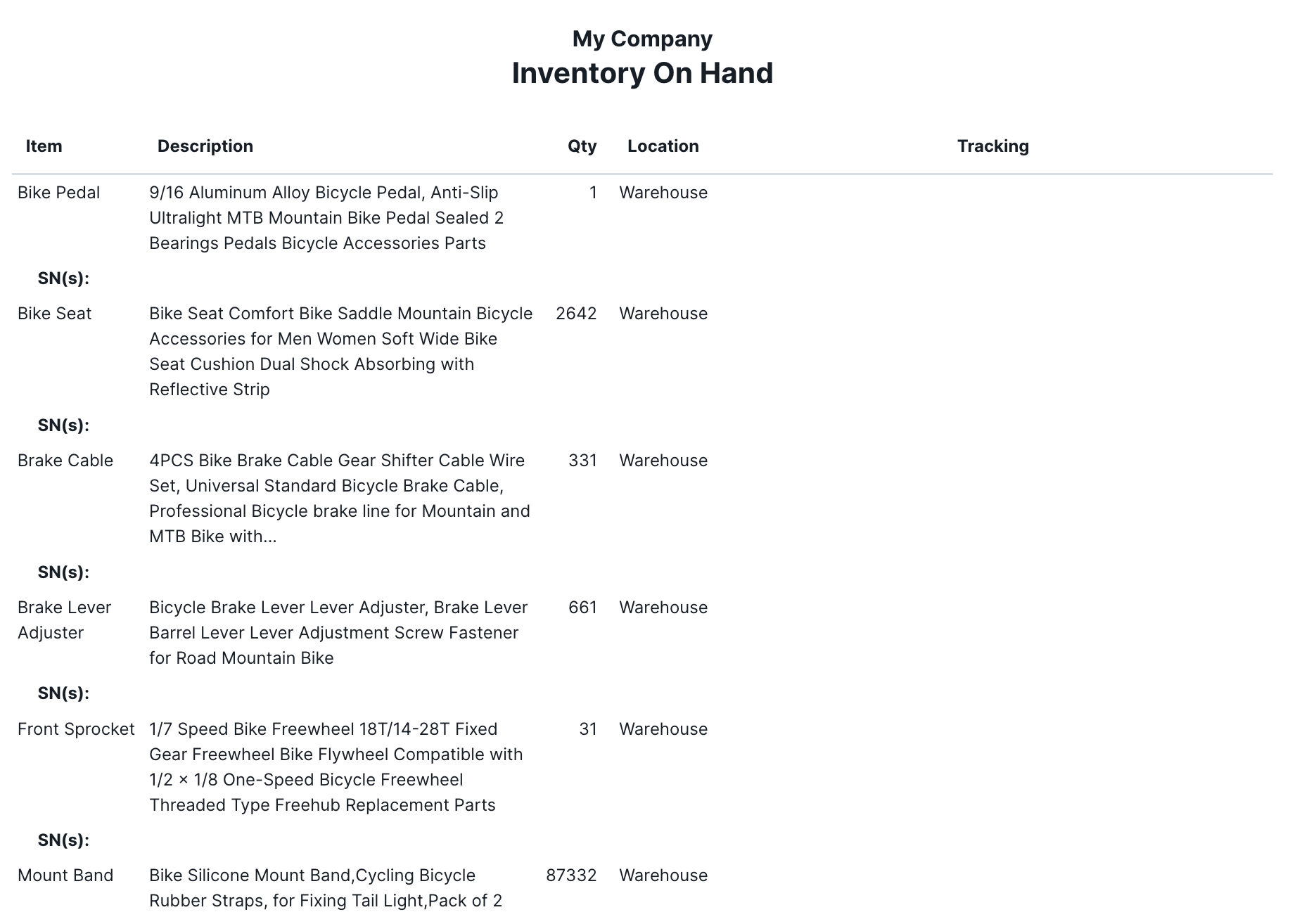
Other than the Reports module, there are three ways to access this report:
- On the main page of the Inventory module, there is a
 More button in the action bar. Click it, and then click Show Report at the top of the dropdown menu to bring up the Inventory On Hand report for all of your inventory items.
- On an individual inventory item in the Inventory module, there is a More button in the action bar. Click it to bring up four report options. Select Inventory On Hand, and it will generate a report for the inventory item you clicked on.
- On an individual item in the Items module, there is a More button in the action bar. Click it to bring up three report options. Select Inventory On Hand, and it will generate a report for the item you clicked on.

The Inventory On Hand report initially has the following columns:
- Item - The identifying designation for the item from the Items module.
- Description - An explanation of what the item is from the Items module.
- Qty - The number or quantity of the item that is in stock in the Inventory module.
- Location - The place within your inventory where the item is located.
In addition, you can add a Tracking column, which contains the tracking information for each item. Click the checkbox next to Show Tracking on the right. You can also click the checkbox next to Select All Optional, and it will have the same effect. Then serial numbers, or SN(s), will be added to the Item column, and a new Tracking column will appear with other tracking criteria, such as expiration dates and lot numbers.
Optional
Under Select All Optional, there are the following options for you to filter results and modify the report:
- Location - A dropdown menu to only list items at one Parent Location or Child Location. By default, all locations will be included on the report. But you can narrow down the results to a single location by selecting one in this field. You can create a new location by entering a name for the location in the textbox and hitting Enter or clicking the + Add option. Then fill out the New Location wizard that pops up.
- Item - A dropdown menu to only list a single item. You can create a new item by entering a name for the item in the textbox and hitting Enter or clicking the + Add option. Then fill out the New Item wizard that pops up.
- Group By - A dropdown menu that enables you to reorganize the items in this report by one of two criteria:
- Item - This organizes all locations where an item is stored under that item’s name. This is the default option for this report.
- Location - This organizes all items under each location where they are stored.
- Tracking Value - A textbox where you can enter a lot number, serial number, or other tracking value to narrow down your search to a specific item or a group of items.
- Show Tracking - A checkbox to add a Tracking column header on the right of the Location column.
If you only choose a location and not an item in the fields above, the report will include all items at that location. If you only choose an item and not a location in the fields above, the report will include all locations where that item is found. But if you choose both a location and an item, the report will only include information about that item at that specific location.
To search for an option in a dropdown menu, click in that field and begin entering text. It will show all options that have that text in them.
To apply your changes and see what they look like in the report, click the GENERATE REPORT button on the bottom-right. And follow the directions at the top of the main Reports article to save your changes to a Preset.