Update Fishbowl
Updated versions of Fishbowl are typically released once a month, and they include new features and improvements. It only requires a few minutes to update Fishbowl and take advantage of the latest changes. Fishbowl also has the ability to push critical updates and patches in the middle of a release cycle. In this case, you will see an update window when starting the Fishbowl Server.
- Most major updates require a current support contract with Fishbowl.
- In most cases, backup files are not needed, but it is still highly recommended to copy critical files to the desktop or another safe location.
- Follow the steps to create a backup of the MySQL database.
- Browse to C:\Program Files\Fishbowl\data\backups and copy the most recent backup file to the desktop.
- Copy C:\Program Files\Fishbowl\plugins to the desktop.
- Copy C:\Program Files\Fishbowl\database\images to the desktop.
- Copy C:\Program Files\Fishbowl\server\reports to the desktop.
- To customize the auto update settings, right-click the Fishbowl Server tray icon and select Options. This will open the Fishbowl Server Administration window. Select the Server tab and click the Auto Updates dropdown.

- If you select Automatically download and apply updates as your auto update option, the server will automatically restart to apply available updates on the day and at the time you specify. The default is Sunday at 1:00 AM.

Auto update
Note: Fishbowl Advanced has supported MySQL 5.7 for many years. With the release of Fishbowl Advanced 23.11, MySQL 8.0 is supported as well.
- If you update to 23.11 using the Auto Update, your existing MySQL 5.7 installation will be used.
- If you update to 23.11 using the Fishbowl Installer, the installer will require a MySQL 8.0 installation. Instructions for installing MySQL 8.0 can be found here.
With the auto update, there is no need to run an installer, and in most cases, only a few small files will be downloaded to complete the update. Plugins are automatically updated when Fishbowl is updated to the latest version.
- Fishbowl will display a notification in the client when an update is available. Click Start Server Download to download the update.

- Alternatively, right-click the Fishbowl Server tray icon, select Check For Updates, and then click Update Fishbowl.
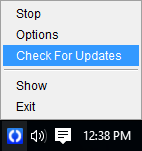
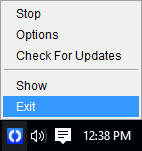
- Exit the server by right-clicking the Fishbowl Server tray icon and selecting Exit.
- Start the Fishbowl Server using the desktop icon or by selecting Fishbowl Server from the list of installed programs.

- When the server restarts, click Yes to apply the updates.

- All client computers will update automatically when connecting to the updated Fishbowl Server.
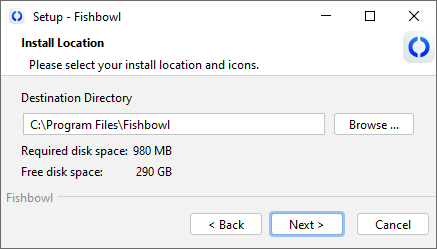
- If the auto update fails, follow the instructions here to manually download and install Fishbowl into the same directory where Fishbowl is currently installed.