Volusion: Difference between revisions
m (1 revision imported) |
m (Text replacement - "=Release Notes=↵{{SeeMasterPlugin}}" to "{{Plugin Release Notes}}") |
||
| Line 68: | Line 68: | ||
* If a Volusion export fails, it may be necessary to reset the export to be able to successfully import orders/products. To reset an export, click the '''Volusion API''' tab mentioned in step 3 of the [[#Setup|setup]]. Click '''Run''' next to the generic export that needs to be reset. Select the date of the export that failed, and then click '''Reset export'''. | * If a Volusion export fails, it may be necessary to reset the export to be able to successfully import orders/products. To reset an export, click the '''Volusion API''' tab mentioned in step 3 of the [[#Setup|setup]]. Click '''Run''' next to the generic export that needs to be reset. Select the date of the export that failed, and then click '''Reset export'''. | ||
{{Plugin Release Notes}} | |||
{{HideH2|2019.7.0X – 8-23-2019 - Fishbowl 2019.7}} | {{HideH2|2019.7.0X – 8-23-2019 - Fishbowl 2019.7}} | ||
Revision as of 10:31, 28 September 2022
 The Volusion module, located in the
 Integrations group, is an add-on module that can be installed from the
 Plugin module. After installing the plugin, a new module is added that integrates with Volusion. The integration requires a Volusion plan with API access (currently Business or Prime plans). Additional connections can also be purchased to connect to multiple Volusion accounts.
Install
The documentation on this page is for the most recent version of the Volusion plugin. To get the most recent version, Update Fishbowl.
- In any Fishbowl Client, open the Plugin module, located in the Integrations group.
- Select the
 Volusion plugin and click Install.
- Completely close all Fishbowl Clients.
- Exit the Fishbowl Server by right-clicking the Fishbowl Server tray icon and selecting Exit.
- After re-opening the Fishbowl Server, the admin user can access the Volusion module from any Fishbowl Client by opening the Integrations group.
- To grant access to additional users, assign the Volusion-View access right to the appropriate groups in the
 User Group module.
Setup
Complete the steps below to configure the Volusion integration.
- Log in to the Volusion store administration page.
- Click the Inventory menu at the top and then select Import/Export.

- Click the Volusion API tab and then click Run button next to Generic\Orders.

- Click the Run button at the top of the page.

- Copy the values as shown in the following image.

- Click the
 Settings button on the module toolbar of the Volusion module and paste the Store Url, Username, and Password from the previous step.

- Click the
 Test Connection button and verify that the connection to the Volusion website is working.
- Click the Save button at the bottom of the window to save the Volusion settings.


TABS
Several plugins in Fishbowl have a standardized layout. Some of the images below show the options that are most common between all plugins. Any additional  Volusion options or notes are included at the bottom of each section.
Order Import

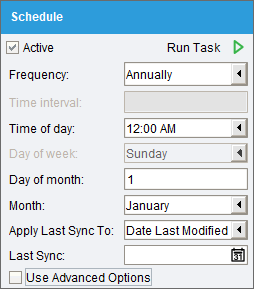
- Schedule - Select the
 Active checkbox to import orders on a set schedule. Click the
 Run task button to run the scheduled task right now. Data that has changed since the Last Sync date will be synchronized. This date will be updated automatically after a sync, or it can be manually edited to adjust which data will be synchronized. If additional options are available, they can be enabled by selecting Use Advanced Options at the bottom of the Schedule section.


Order Settings

Additional order data will be imported and displayed on the Details tab of the  Sales Order module.
- Order field mapping - Use the mapping table to map Volusion order fields to Fishbowl order fields. If no field is mapped to the Fishbowl Order Number, then it will be generated by Fishbowl. If no date field is mapped to the Fishbowl Date Scheduled, then it will be set to the date of import.
- Salesperson - Sales orders will be created using this salesperson.
- Accounting Class - If there is no class mapped from Volusion, sales orders will be created using this class as the sales order class.
- Payment Terms - If there are no payment terms mapped from Volusion, sales orders will be created using this payment term.
- Shipping Terms - If there are no shipping terms mapped from Volusion, sales orders will be created using these shipping terms.
- Priority - The default priority to be set on imported orders.
- Use customer properties - Pull customer properties to the order such as salesperson, class, payment terms, shipping terms, and priority. If available, these will override the default values selected above.
- Order Number Prefix - Define a short prefix that will be applied to the imported order numbers. The prefix will not be added if the Fishbowl Generated SO Number is being used as the order number.
- Discount Item - Select the flat rate discount type that will be added as a line item to imported orders.
 Additional Volusion information
- Combine All Discounts - Enabling this option will sum up all of the line item discounts and apply them as one order discount.
- Add Discount Code To Notes - Enabling this option will add the discount code to the line item notes.
Order Item Settings

- Item field mapping - Use the mapping table to map Volusion order item fields to Fishbowl order item fields. If the Fishbowl price is not mapped, then the price from the Fishbowl product will be used and any applicable pricing rules applied. If the Fishbowl description is not mapped, then the description from the Fishbowl product will be used.
- Shipping item - Select the shipping type product that will be added as a line item to orders when applicable. It will contain the shipping price to be paid by the customer.
- Ignore miscellaneous items - If this option is selected, Volusion order items that are not related to an actual Volusion product record will be ignored and no Fishbowl line item will be created.
- Enable order import product linking - Volusion order items will be matched to Fishbowl products based on the defined field mapping. If the Volusion product has been linked by ID to a Fishbowl product, that will take precedence.
- Product field - The Fishbowl product field that will match the selected Volusion item field.
- Volusion item field - The Volusion order item field that will match the selected Fishbowl product field.
- Additional Volusion information
- Ignore shipping amount - Enabling this option may lead to order disparities for totals and payments.

Order Status Settings
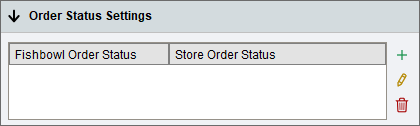
- Use the table to assign Volusion order statuses to Fishbowl order statuses. The Order Import task will only import orders from Volusion that are in a status assigned to a Fishbowl order status. If the Fishbowl order status is set to Historical, the order will be imported into Fishbowl, but it will not affect inventory or accounting. At least one active status mapping is required to use the Order Import task.

Location Group Settings

- Use default location group - Select a default location group for imported orders.
- Use order ship-to state mapping - This option allows orders to be imported into Fishbowl Location Groups according to the ship-to state. If the state is not mapped to a location group, the default location group specified above can be used.
- Use order carrier mapping - This option allows orders to be imported into Fishbowl Location Groups according to the shipping carrier. If the carrier is not mapped to a location group, the default location group specified above can be used.
- Use location group class as order class - This option will set the class for the order to the location group's class.

Customer Settings
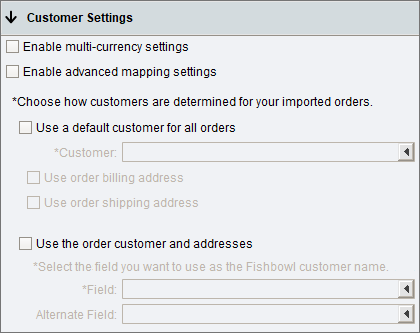
- Use the options below to determine how customers are created in Fishbowl and what information is imported into Fishbowl.
- Enable multi-currency settings - Order prices will be converted from the channel order currency to the Fishbowl currency assigned to the mapped customer. Requires Fishbowl currency conversion to be enabled.
- Enable advanced mapping settings - Opens up additional customer mapping options and control over customer creation.
- Use a default customer for all orders - This option will associate all imported sales orders with the customer selected in the Customer field. This could be used with a generic Fishbowl customer such as Volusion Customer.
- Use order billing address - Use the billing address from the Volusion order instead of the address for the default customer.
- Use order shipping address - Use the shipping address from the Volusion order instead of the address for the default customer.
- Use the order customer and addresses - This option will import the addresses and customer from the Volusion order instead of using a generic customer.
- Field - Select the Volusion field that contains the customer name that should be imported into Fishbowl.
- Alternate Field - An alternate field mapping when the primary mapping does not contain data.

Address Settings

- Ship to address mapping - Use the table to choose which Volusion fields are imported into the Fishbowl Ship To Name and Street Line fields.
- Bill to address mapping - Use the table to choose which Volusion fields are imported into the Fishbowl Bill To Name and Street Line fields.
- Coalesce addresses - If one address is missing, use the existing address for both the shipping and billing address.
- Create missing states - Automatically create missing states.
- Mark addresses residential - Import all shipping addresses as residential.

Carrier Settings
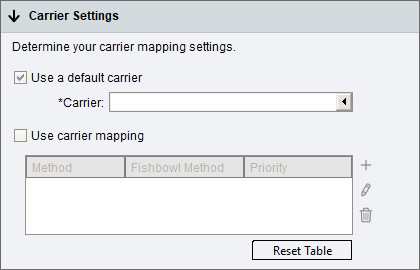
- Use a default carrier - When selected, all orders imported from Volusion will use the selected carrier. If this option is unchecked, carriers can be mapped between Fishbowl and Volusion. Each mapping will also set the Sales Order Priority so that Fishbowl users can identify orders with express shipping that need to be picked and shipped quickly.
- Use carrier mapping - When selected, the table can be used to map carriers between Volusion and Fishbowl.

Payment Settings
-
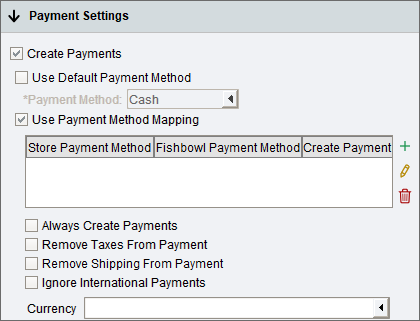
- Create payments in Fishbowl - When selected, payments from the Volusion transaction will be shown in the
 Payment Viewer module.
- Use a default payment method - When selected, all orders imported from Volusion will use the selected payment method.
- Use payment method mapping - When selected, the table can be used to map payment methods between Volusion and Fishbowl.
- Always create payments - If no payment data exists for the order from Volusion, this option will always create a payment in Fishbowl equaling the order total. If payment mapping is enabled, orders without payment data will show "None" as the payment method type.
- Remove taxes from payment - When selected, the tax amount will be deducted from the payment total.
- Remove shipping from payment - Enabling this option may lead to order disparities between Volusion and Fishbowl for totals and payments.
- Ignore international payments - Payments will not be created for orders placed outside the United States. This setting is only available if Use Currency Conversion is enabled in the
 Currency module.
- Currency - Select the currency type you accept in Volusion. This is a required setting if Use Currency Conversion is enabled in the Currency module.
- Create payments in Fishbowl - When selected, payments from the Volusion transaction will be shown in the

Tax Settings
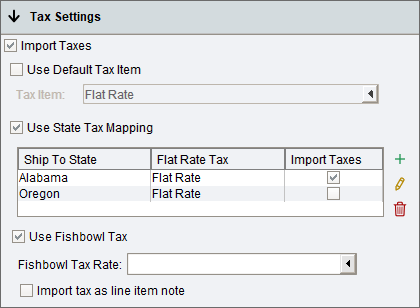
- Import Taxes - When selected, the tax amount from the Volusion order will appear on the Fishbowl sales order as a flat rate line item. The flat rate amount can be set to $0 in the
 Tax Rate module and then the correct total tax amount will be set when the order is imported from Volusion. If taxes are not imported, the Fishbowl payment will equal the order total before tax.
- Use Default Tax Item - With this option selected, the same tax item will be used for all orders.
- Use State Tax Mapping - This option allows different tax items to be used based on the Ship To state/province. If this option is enabled, the plugin will give an error when trying to import an order with a state that has not been mapped.
- Use Fishbowl Tax - Select a Fishbowl tax rate that will be used to calculate the order tax in Fishbowl. Tax calculations done by Fishbowl may differ from those done in Volusion.
- Import Volusion tax as line item note - Import the Volusion tax as a line item note in Fishbowl.
- Import Taxes - When selected, the tax amount from the Volusion order will appear on the Fishbowl sales order as a flat rate line item. The flat rate amount can be set to $0 in the

Fulfillment Export

- Schedule - Select the Active checkbox to export orders on a set schedule. Click the Run task button to run the scheduled task right now. Data that has changed since the Last Sync date will be synchronized. This date will be updated automatically after a sync, or it can be manually edited to adjust which data will be synchronized.
- The Fulfillment Export task will export order fulfillment information to Volusion based on fulfilled Fishbowl sales orders.
- Update order status - When selected, Volusion orders will be updated after the product(s) on the order have been shipped in Fishbowl. Shipment tracking information will also be sent from Fishbowl to Volusion.
- Check order status - When selected, the Volusion order status will be checked prior to attempting to send fulfillment information. If the Volusion order status has changed, no fulfillment information will be sent. This will increase the time required to complete the order fulfillment task.
Product Import

- Schedule - Select the Active checkbox to import products on a set schedule. Click the Run task button to run the scheduled task right now. Data that has changed since the Last Sync date will be synchronized. This date will be updated automatically after a sync, or it can be manually edited to adjust which data will be synchronized.
- NOTE: When setting up the Volusion integration for the first time, you will want to adjust the Last Sync to a date before any of your products were created (for example, setting the year to 2000) so that all of the products on your website will be imported.
The Product Import task imports products into Fishbowl from Volusion. A product link is created by storing the Volusion product ID in Fishbowl.
- Link Existing Products will match existing products in Fishbowl and Volusion where data matches in the selected fields.
- Import Products will import products from Volusion into Fishbowl, creating them based on the field mapping and settings below.
Product Export

- Schedule - Select the Active checkbox to export products on a set schedule. Click the Run task button to run the scheduled task right now. Data that has changed since the Last Sync date will be synchronized. This date will be updated automatically after a sync, or it can be manually edited to adjust which data will be synchronized.
- Product Create Settings - Enable Export New Products and then map the fields that should be exported from Fishbowl to Volusion.
- If the Weight UOM or Size UOM are specified, the Fishbowl product UOMs will be converted to the selected UOMs before the values are exported.
- If the Product Tree Filter is used, only the products in the selected product tree category will be exported. If the product tree filter is left blank, all products will be included in the export.
- Product Update Settings - Enable Update Linked Products and then map the fields that should be exported from Fishbowl to Volusion. This section has the same options as the Product Create Settings section above. After the initial product export, only the selected fields will be updated.
Inventory Update

- Schedule - Select the Active checkbox to export inventory levels to Volusion on a set schedule. Click the Run task button to run the scheduled task right now. Data that has changed since the Last Sync date will be synchronized. This date will be updated automatically after a sync, or it can be manually edited to adjust which data will be synchronized.
- NOTE: When setting up the Volusion integration for the first time, you will want to adjust the Last Sync to a date before any of your products were created (for example, setting the year to 2000) so that it includes all of your products (or any applicable product tree filter) when updating inventory levels.
- Export Company Wide Inventory - Include inventory quantities from all location groups in the inventory sync. If this option is unchecked, selected location groups can be added by clicking the
 Add button.
- Inventory Type - Select the inventory quantity that should be used during the update: Available For Sale, Inventory On Hand, or Available To Pick:
- Available For Sale - The quantity available is calculated as On Hand - Allocated - Not Available + Drop Ship.
- Inventory On Hand - The total amount of inventory in stock.
- Available To Pick - Calculated as On Hand - Committed for inventory in locations that are marked as Pickable.
- Available To Kit - In Fishbowl, kits are comprised of various inventory items, so the kit itself isn't displayed in the
 Inventory module. However, Fishbowl will always export an Available to Kit number to Volusion. The available quantity exported for kits will be the lowest available quantity for any of the items in the kit. For example, a Wheel kit may require 1 rim and 1 tire. If there are 100 rims available, but only 5 tires, then the quantity exported for the Wheel kit will be 5. The available quantity for a configurable kit will be the lowest available quantity for the default kit items.
- Product Tree Filter - The export can be limited to a specific product tree category. If this field is left blank, all products will be included in the export.
- Specify Min/Max Inventory Quantity - With this option enabled, the maximum inventory quantity sent to Volusion can be limited. For example, if there is an available quantity of 4000 in Fishbowl, the quantity in Volusion could be set to 999. If there is an available quantity of 3 in Fishbowl, the minimum quantity field could be used to send a quantity of 10 to Volusion.
- Include Quantities Available To Build - When enabled, this option calculates and includes available-to-build quantities from applicable bills of materials in the inventory update. When a product is sold individually but also used as an input for a bill of materials, both quantities are pushed to the channel when applicable. Please note, this could lead to overselling in the scenario described.

Troubleshooting
- Only new orders are imported. Orders are not updated once they have been imported. Returns and refunds are not imported.
- The attributes and IDs for orders and products can be viewed or modified by clicking the Volusion button at the top of the Sales Order module and the
 Product module.
- To view the scheduled tasks for the Volusion module, open the
 Schedule module.
- A scheduled task can be run manually by double-clicking the task.
- Enter an email address in the Schedule module to receive error notifications.
- To view the history of a scheduled task, including the result/error, click the
 History button in the Schedule module.
- More details about recent errors can be viewed by opening the
 Data module and clicking the
 Server Log button.
- Check for multiple versions of the Volusion.jar file in C:\Program Files\Fishbowl\plugins\ or \Applications\Fishbowl\plugins\ on a Mac. If there are two Volusion versions, exit the Fishbowl Server and remove the older version on all client and server computers.
- If a Volusion export fails, it may be necessary to reset the export to be able to successfully import orders/products. To reset an export, click the Volusion API tab mentioned in step 3 of the setup. Click Run next to the generic export that needs to be reset. Select the date of the export that failed, and then click Reset export.


- Improved error messaging
- Fixed bug with the combine all discounts option not saving the setting correctly in the UI
- Separated order notes and order item notes into separate corresponding fields when orders are imported into FB
- General UI fixes
- Fixed product export tab issue for Canadian users of the plugin
- Fixed bug for kit inventory updates for kits with optional items
- Fixed index 0 size o error on fulfillment export task. This error occurred when a SO has a linked PO with no dropship type SO items
- Fixed bug using the check order status option on the order fulfillment task with completed orders still sending up tracking from FB
- Fixed bug in order import task where order note field from Volusion would not bring in notes to sales order notes in Fishbowl
- Added ability for users to select which payment method types to create payments in Fishbowl
- Fixed fulfillment bug for orders with only drop-ship items not sending tracking and fulfilling correctly in the channel
- Fixed pricing bug to use the discounted price on order import
- Fixed issue where taxes were removed from the payment amount incorrectly
**This update will require the user to configure additional settings and mapping tables in the plugin. Contact Fishbowl Plugin Support for assistance**
- General UI enhancements
- Fixed bug on fulfillment for orders with kits
- This update will cause the scheduled tasks to give an error when first loading Fishbowl after updating. Users will need to go into the plugin interface and configure the additional mappings and save settings in order for the scheduled tasks to run properly
- Added ability to link products on order import. Products that were not previously linked using the product import/export tasks can now be linked during the order import task
- Fixed bug in order import when creating a new mapping in Location Group setting's mapping table, shows up blank in the channel Location drop-down
- Added enhancement for inventory sync to have a max qty option
- Added enhancement for inventory update to include "Available to Pick" for inventory type as one of the options
- Added enhancement where order import carrier mapping now has a priority option for "All" that doesn't exist in Fishbowl and causes an error when used for an order
- Added enhancement on order settings and on order items field mapping table including custom fields
- Fixed Typo in the payment panel
- Fixed (for supporting channels)where the image export was not working on the product export task
- Misc items are now supported on order import
- Fixed bug with state tax mapping table giving a bad error when a state was not mapped on an order
- Fixed advanced options error message when enabled and a day of the month wasn't specified
- Fixed advanced options error for order fulfillment task'
- Fixed data mapping error with many to one field mappings on product export
- Added ability to map Volusion's hyphenated order statuses
- Fixed product import bug with the product price mapping
- Fixed bug where orders would import without items
- On first load, a data migration task will run migrating carrier and payment mapping table data from the previous version
- On first load, existing scheduled tasks will be removed and need to be recreated by Saving the plugin
- Fixed bug where mapping validation error window appeared
- Fixed bug where smaller screens would cut off data in the Plugin UI
- Added UPC field as a mappable product field for product linking task
- Added option to use a tax mapping table on the order import task
- Fixed bug where the fulfillment task wasn't sending up the shipment tracking
- Various AU version fixes
- Added enhancement option to always record payments on incoming orders even when there is no payment data from the Channel
- Fixed bug when customer PO number did not populate correctly when the user did not have "Assign Channel Name order number to Customer PO field" checked
- Importing order taxes is now optional. With the option to create taxes disabled, if a payment is created the total will reflect the order total without tax
- Fixed bug where order import option to add on order number prefix was not saving
- Fixed bug when using the default payment method
- Changed so create taxes option is set by default
**Please note, this update will require you to re-enter the order status mapping table data when first loading the plugin**
- Added ability to choose whether to sync on hand vs. available to sale inventory quantity
- Improved status mapping error messages during order import using advanced options and the order status hasn't been mapped
- In the order import tab when using the customer matching option, we now provide an alternative mapping option if the first mapping option does not contain data from the cart
- Fixed bug to reenable editing of existing order status mapping
- Updated POS Import customer settings panel to have the same mapping options as the standard order import
- Updated Test Connection success/fail dialog box
- Added a popup window to notify users about status mapping tables being cleared
- On the Inventory Update tab the location group drop down box is now replaced with a checkbox called "Sync all Location Groups"
- When unchecked, a user-defined table gives ability to define which location group(s) will be used to sync to the Channel
- Added ability to map the SO contact, phone, and email fields when using the "Use default customer" option on the Order Import task
- Added option to add a custom prefix to the shopping cart order number on order import
- If the create payment option is enabled and not payment data comes through with the order, the order now imports rather than fails
- Fixed bug where the wrong inventory quantity was synced in the following scenario:
- When not using a location group (LG) filter and multiple LG's exist in the FB database and
- When one of the LG's has more inventory allocated than inventory available for all LG's combined
Do not skip this version unless installing the plugin for the first time. If you’re planning to update to a later version of Fishbowl, install 18.10 first, update your plugins, and open them so the data migrator (described below) can run. Then update Fishbowl to the desired version.
- Fixed bug where inventory updates all linked products instead of the first linked product in the list in FB
- Channel data, such as product IDs, variant IDs, etc. will no longer be stored in custom fields. New database tables will be created for this purpose. Data from your custom fields will be automatically migrated to the database the first time you open the plugin after updating. Data will still remain in the custom fields for reference. The custom fields can be deactivated.
- New version number system to match Fishbowl.
- Schedule task now gives a count of the items that were imported/exported. Error message will list items that failed.
- Will now use the account specified on the payment type (instead of the default) during order import.
- Fixed a bug regarding taxes in the Fishbowl Canada version.
- Ability to select which date field the Last Sync Date references.
- Shipping tax now accounted for in Fishbowl Australia version.
- Bug Fixes
- Updated for compatibility with Fishbowl version 2018.7
- Product import tab redesign. Now includes an order sync for situations where all products exist in both Fishbowl and the webstore.
- Product export tab redesign. Export and update have been separated. It’s now possible to update item fields in the webstore without doing a full product export.
- Settings have been relocated. They are now in a new tab.
- Added the ability to map a carrier service to an order priority in Fishbowl.
- Fixed a bug that was causing settings to not save.
- Volusion logo has been updated throughout the plugin.
- Redesigned Customer section in Order Import tab. **Reconfiguration of the customer settings will be required when you update to this version or beyond.
- Addition of a new order status mapping table. You can now import multiple statuses at the same time.
- Changed background color on headers in the Order Import tab when using the dark theme for better visibility.
- Payment import now pulls in currency rate if “Use Currency Conversion” is turned on in Fishbowl.
- Reworked to have the same functionality as the other “mastered plugins”.
- Added the ability to check if orders have been completed or cancelled before attempting to fulfill.
- Payment is not imported to Fishbowl for $0 orders.
- Payment terms are now pulled from the UI drop down instead of customer.
- Fixed issue with syncing inventory quantities that aren't whole numbers
- Compatibility fixes for 2017.6 version of Fishbowl
- Fixed a bug when a product exists in both FB and Volusion when syncing the product id custom field in FB did not update correctly.
- Fixed tax functionality for Australia and Canada versions of Fishbowl
- Issue: Product sync only allowed 100 items to sync at a time.
- Resolution: All products now sync correctly
- Issue: Cancelled orders import into FB.
- Resolution: Cancelled orders are no longer imported into FB.
- Issue: Sync failed if only one product is synced
- Resolution: Single products now sync
- Issue: Syncing product from FB to Volusion didn't return the product id to FB
- Resolution: Product ID is now stored in the product id custom field in FB
- Issue: Discount items not importing correctly
- Resolution: Discount items now import correctly on FB SO
- Issue: Order export does not add store group number to query causing orders to fail when pushed to Fishbowl.
- Resolution: Store group number is now included and order sync is working properly.