QuickBooks Online: Difference between revisions
No edit summary |
|||
| (14 intermediate revisions by 2 users not shown) | |||
| Line 1: | Line 1: | ||
The information listed below is specific to QuickBooks Online. General accounting information is available in the {{Module|Accounting Integration}}. | |||
==FAQs== | ==FAQs== | ||
*'''Which versions of QuickBooks Online are supported by Fishbowl?''' | *'''Which versions of QuickBooks Online are supported by Fishbowl?''' | ||
:Fishbowl integrates with QuickBooks Online '''Plus''' | :Fishbowl integrates with QuickBooks Online '''Plus''' and '''Advanced'''. Only these versions of QuickBooks Online [https://quickbooks.intuit.com/partners/irp/qbo/?cid=irp-32292 have the necessary features] (purchase orders, inventory journal entries, etc.). Fishbowl also supports [[System_Requirements#Supported_QuickBooks_versions|international versions of QuickBooks Online]]. | ||
* '''Should I use the Automated Sales Tax feature in QuickBooks Online?''' | |||
:With the release of Fishbowl Advanced 25.3, Fishbowl now supports the '''Automated Sales Tax''' feature in QuickBooks Online. Another option is to use [[Avalara|AvaTax]]. | |||
*'''Does QuickBooks Online work on a Mac and on Linux?''' | *'''Does QuickBooks Online work on a Mac and on Linux?''' | ||
:Yes. QuickBooks Online runs in the cloud, independent of the operating system, and the Fishbowl | :Yes. QuickBooks Online runs in the cloud, independent of the operating system, and the Fishbowl Server exports data to QuickBooks Online. The Fishbowl Server and Fishbowl Client can run on [[System_Requirements#Supported operating systems|Windows, Linux, Mac]], or any combination of those operating systems. | ||
*'''How does Fishbowl functionality change when integrated with QuickBooks Online''' | *'''How does Fishbowl functionality change when integrated with QuickBooks Online?''' | ||
:Fishbowl functionality remains the same, regardless of the accounting software that is being used. | :Fishbowl functionality remains the same, regardless of the accounting software that is being used. | ||
*'''When integrated with QuickBooks Online, is my inventory tracked in Fishbowl or QuickBooks Online?''' | *'''When integrated with QuickBooks Online, is my inventory tracked in Fishbowl or QuickBooks Online?''' | ||
:Regardless of the accounting system, Fishbowl keeps track of inventory. Orders exported to the accounting system will show item numbers and amounts and the required journal entries will be created. | :Regardless of the accounting system, Fishbowl keeps track of inventory. Orders exported to the accounting system will show item numbers and amounts, and the required journal entries will be created. | ||
*'''I assigned a specific account to my part in Fishbowl. Why is it still exporting to a different account?''' | |||
:If the part was created in QuickBooks Online first, it will continue to use the account assigned in QuickBooks Online. If the part is created in Fishbowl first, then it will use the account specified in Fishbowl. | |||
* {{Discrepancies|QuickBooks Online}} | |||
==Integration== | ==Integration== | ||
| Line 18: | Line 23: | ||
'''NOTE:''' For security purposes, QuickBooks Online may require these integration steps to be repeated every 90 days. | '''NOTE:''' For security purposes, QuickBooks Online may require these integration steps to be repeated every 90 days. | ||
# Open the {{Module|Accounting Integration}}, click the '''Configure''' tab, and then click the ''' | # Open the {{Module|Accounting Integration}}, click the '''Configure''' tab, and then click the '''QuickBooks Online Connection''' button.<br>[[File:Accounting_Config_subtab.png]] | ||
# Click the '''Connect''' button in the wizard which will open a browser window.<br>[[File:QBO link.png]] | # Click the '''Connect''' button in the wizard, which will open a browser window.<br>[[File:QBO link.png]] | ||
# Log into QuickBooks Online and then click '''Connect'''.<br>[[File:QBO authorize.png]] | # Log into QuickBooks Online and then click '''Connect'''.<br>[[File:QBO authorize.png]] | ||
# Select the QuickBooks Online accounts that Fishbowl should use or click the '''Create''' button to create the [[#Default accounts|default accounts]].<br>[[File:QBO accounts.png]] | # Select the QuickBooks Online accounts that Fishbowl should use, or click the '''Create''' button to allow Fishbowl to create one of the [[#Default accounts|default accounts]] in QuickBooks Online.<br>[[File:QBO accounts.png]] | ||
# Each product and part can also be mapped to [[Part#Accounts_tab|specific accounts]]. The accounts selected in the previous step will be used if | # Each product and part can also be mapped to [[Part#Accounts_tab|specific accounts]]. The accounts selected in the previous step will be used if the [[Part#Accounts_tab|part]] or [[Product#Details_tab|product]] is set to use the '''Default''' accounts. | ||
# Click the '''Finish''' button to complete the integration. | # Click the '''Finish''' button to complete the integration. | ||
| Line 34: | Line 39: | ||
|- | |- | ||
! width="200" | Fishbowl Account Name | ! width="200" | Fishbowl Account Name | ||
! width="200" | | ! width="200" | QuickBooks Online Account Type | ||
! Description | ! Description | ||
|- | |- | ||
| Accounts Receivable | | Accounts Receivable | ||
| Accounts | | Accounts Receivable (A/R) | ||
| The account to record the money owed to the business. For outstanding invoices the company has issued out to the client but has not yet received in cash at balance date. | | The account to record the money owed to the business. For outstanding invoices the company has issued out to the client but has not yet received in cash at balance date. | ||
|- | |- | ||
| Accounts Payable | | Accounts Payable | ||
| Accounts | | Accounts Payable (A/P) | ||
| The account Fishbowl will use to record outstanding bills of the business. For outstanding invoices the company has received from suppliers but has not yet paid at balance date. | | The account Fishbowl will use to record outstanding bills of the business. For outstanding invoices the company has received from suppliers but has not yet paid at balance date. | ||
|- | |- | ||
| Line 83: | Line 88: | ||
| Sales Tax | | Sales Tax | ||
| Other Current Liabilities | | Other Current Liabilities | ||
| Tracks the income from the | | Tracks the income from the sales-tax line items. | ||
|- | |- | ||
| Discount Income * | | Discount Income * | ||
| Line 107: | Line 112: | ||
| Shipping Accrual | | Shipping Accrual | ||
| Other Current Liabilities | | Other Current Liabilities | ||
| Determines the account that shipping cost expense posts against. | | Determines the account that a shipping-cost expense posts against. | ||
|- | |- | ||
| Inventory Asset | | Inventory Asset | ||
| Line 127: | Line 132: | ||
| Cost Variance | | Cost Variance | ||
| Other Current Assets | | Other Current Assets | ||
| This account will only be used if the costing method specified is | | This account will only be used if the costing method specified is Standard costing. It will give you the difference of what your actual cost was compared to the current standard cost. Even if you are not using Standard costing, an account still needs to be selected. | ||
|} | |} | ||
''' *''' Due to a limitation in QuickBooks Online, the ability to modify the accounts for individual discounts is currently disabled in Fishbowl. All discounts will use the default accounts specified during the [[#Integration|integration wizard]]. | ''' *''' Due to a limitation in QuickBooks Online, the ability to modify the accounts for individual discounts is currently disabled in Fishbowl. All discounts will use the default accounts specified during the [[#Integration|integration wizard]]. | ||
| Line 145: | Line 150: | ||
==Export== | ==Export== | ||
To export data from Fishbowl to QuickBooks | To export data from Fishbowl to QuickBooks Online, click the {{Button|Export}} located on the {{ModuleTab|Accounting Integration|General}}. | ||
[[File:QBO tabs.png]] | [[File:QBO tabs.png]] | ||
| Line 162: | Line 167: | ||
! Fishbowl | ! Fishbowl | ||
! {{Arrow|Both}} | ! {{Arrow|Both}} | ||
! QuickBooks | ! QuickBooks Online | ||
|- | |- | ||
| Name | | Name | ||
| Line 200: | Line 205: | ||
! Fishbowl | ! Fishbowl | ||
! {{Arrow|Both}} | ! {{Arrow|Both}} | ||
! QuickBooks | ! QuickBooks Online | ||
|- | |- | ||
| Bill To | | Bill To | ||
| Line 255: | Line 260: | ||
{{JE|{{PAGENAME}}|Fulfilled purchase order with inventory item}} | {{JE|{{PAGENAME}}|Fulfilled purchase order with inventory item}} | ||
{{JE|{{PAGENAME}}|Inventory item returned on credit return purchase order}} | |||
=MODULE OPTIONS= | =MODULE OPTIONS= | ||
Latest revision as of 08:45, 13 March 2025
The information listed below is specific to QuickBooks Online. General accounting information is available in the  Accounting Integration module.
FAQs
- Which versions of QuickBooks Online are supported by Fishbowl?
- Fishbowl integrates with QuickBooks Online Plus and Advanced. Only these versions of QuickBooks Online have the necessary features (purchase orders, inventory journal entries, etc.). Fishbowl also supports international versions of QuickBooks Online.
- Should I use the Automated Sales Tax feature in QuickBooks Online?
- With the release of Fishbowl Advanced 25.3, Fishbowl now supports the Automated Sales Tax feature in QuickBooks Online. Another option is to use AvaTax.
- Does QuickBooks Online work on a Mac and on Linux?
- Yes. QuickBooks Online runs in the cloud, independent of the operating system, and the Fishbowl Server exports data to QuickBooks Online. The Fishbowl Server and Fishbowl Client can run on Windows, Linux, Mac, or any combination of those operating systems.
- How does Fishbowl functionality change when integrated with QuickBooks Online?
- Fishbowl functionality remains the same, regardless of the accounting software that is being used.
- When integrated with QuickBooks Online, is my inventory tracked in Fishbowl or QuickBooks Online?
- Regardless of the accounting system, Fishbowl keeps track of inventory. Orders exported to the accounting system will show item numbers and amounts, and the required journal entries will be created.
- I assigned a specific account to my part in Fishbowl. Why is it still exporting to a different account?
- If the part was created in QuickBooks Online first, it will continue to use the account assigned in QuickBooks Online. If the part is created in Fishbowl first, then it will use the account specified in Fishbowl.
- Why don't the values in my QuickBooks Online accounts match what is in Fishbowl? Why are their discrepancies?
- Below are some of the most common causes of discrepancies between Fishbowl and QuickBooks Online:
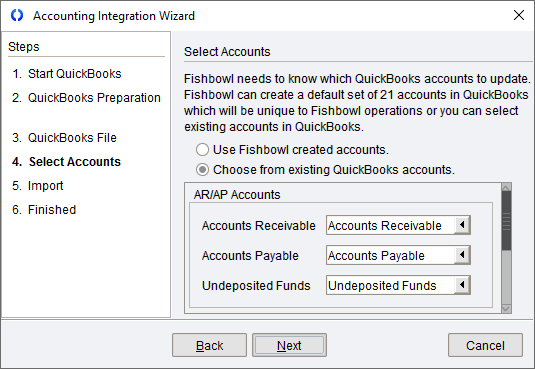
- Default Account Mapping - When you integrate with QuickBooks Online, you select which accounts you want Fishbowl to export to. This is a crucial step, but sometimes customers are in a hurry or don't consult with their accountant. You can review and modify your account mappings at any time by opening the Accounting integration wizard.
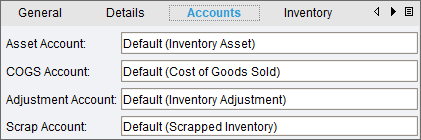
- Specific Part and Product Accounts - In addition to the default accounts mentioned above, each part and product can also be configured in Fishbowl to export to specific accounts in QuickBooks Online. For example, if you assume that all of your parts are using the same COGS account, but a few parts are actually mapped to a different account, then you may think there is a discrepancy because the values are divided among multiple accounts.
- Making changes in QuickBooks Online instead of Fishbowl - In most circumstances, all transactions and changes should be recorded in Fishbowl and then exported to QuickBooks Online. If you manually change a transaction in QuickBooks Online, Fishbowl won't know about it and then the accounts may not match. For example, don't manually change an Item Receipt to a Bill in QuickBooks Online. Instead, reconcile it in Fishbowl and then export it to QuickBooks Online.
- Unauthorized editing - Changes should only be made in QuickBooks Online under the supervision of your accountant. For example, don't give your warehouse workers access to delete journal entries.
- Back dating transactions - When you record a transaction in Fishbowl, there might be a legitimate reason to select a date other than today. Just be aware that frequent back dating, especially for a month that has already closed, can cause discrepancies.
- Accounts didn't match in the beginning - It's important to make sure that the balances in QuickBooks Online match the values in Fishbowl when you go live.
- Skipped reconciliation - Reconciling is an important part of the accounting process. We recommend that you automatically schedule key reports from Fishbowl to be saved every day at the same time that you automatically export to QuickBooks Online. If you have questions at a later date, you can go back to the date in question for more details, or to investigate when the discrepancy first occurred.
- Default Account Mapping - When you integrate with QuickBooks Online, you select which accounts you want Fishbowl to export to. This is a crucial step, but sometimes customers are in a hurry or don't consult with their accountant. You can review and modify your account mappings at any time by opening the Accounting integration wizard.


- So remember...
- Nearly everything should be done in Fishbowl and then exported to QuickBooks Online.
- Make sure that all changes in QuickBooks Online are done under the supervision of an accountant that understands Fishbowl.
- You should not ask Fishbowl employees to make changes in QuickBooks Online.
- If you find yourself in a situation that needs an expert, we can put you in contact with an independent consultant. To get you started, we've compiled a list of some consultants that customers have worked with in the past. These consultants have years of experience as well as many free online resources, such as video tutorials and troubleshooting articles. For example, we asked a consultant to share some tips for reconciling accounting discrepancies, which you can download here.
Integration
Follow the steps below to integrate Fishbowl with QuickBooks Online Plus or Advanced.
NOTE: For security purposes, QuickBooks Online may require these integration steps to be repeated every 90 days.
- Open the Accounting Integration module, click the Configure tab, and then click the QuickBooks Online Connection button.

- Click the Connect button in the wizard, which will open a browser window.

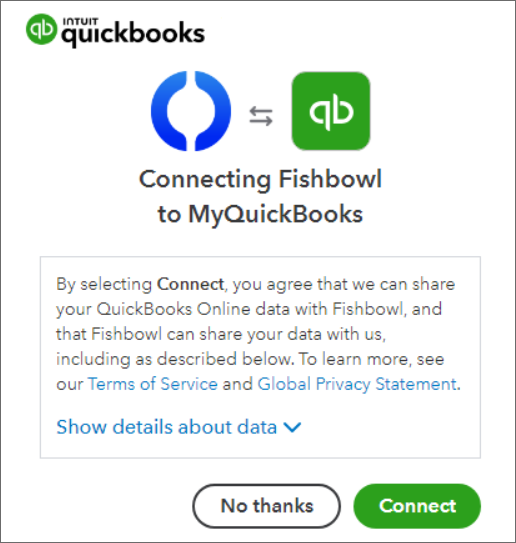
- Log into QuickBooks Online and then click Connect.
- Select the QuickBooks Online accounts that Fishbowl should use, or click the Create button to allow Fishbowl to create one of the default accounts in QuickBooks Online.

- Each product and part can also be mapped to specific accounts. The accounts selected in the previous step will be used if the part or product is set to use the Default accounts.
- Click the Finish button to complete the integration.


When parts are exported from Fishbowl, they are automatically created in QuickBooks Online as Service type items. If Inventory or Non-inventory items already exist in QuickBooks Online prior to the Fishbowl integration, those items should be manually changed to Service type items in QuickBooks Online.
Default accounts
Listed below are the default accounts that Fishbowl can create during the integration.
| Fishbowl Account Name | QuickBooks Online Account Type | Description |
|---|---|---|
| Accounts Receivable | Accounts Receivable (A/R) | The account to record the money owed to the business. For outstanding invoices the company has issued out to the client but has not yet received in cash at balance date. |
| Accounts Payable | Accounts Payable (A/P) | The account Fishbowl will use to record outstanding bills of the business. For outstanding invoices the company has received from suppliers but has not yet paid at balance date. |
| Holding | Other Current Liabilities | The account Fishbowl will use to handle all receipts that have not been fulfilled. This will only be used when parts are received but the bill is not yet reconciled in Fishbowl. |
| Undeposited Funds | Other Current Assets | The account Fishbowl will use to handle all undeposited funds. |
| Capital Equipment | Fixed Assets | All transactions associated with Capital Equipment part types will be tracked in this account. |
| Internal Use | Other Expense | All transactions associated with Internal-Use part types will be tracked in this account. |
| Non-Inventory | Expenses | All transactions associated with Non-Inventory part types will be tracked in this account. |
| Service | Expenses | All transactions associated with Service part types will be tracked in this account. |
| Labor | Expenses | All transactions associated with Labor part types will be tracked in this account. |
| Overhead | Other Expense | All transactions associated with Overhead part types will be tracked in this account. |
| Sales Retail | Income | Tracks the income from the sale of items. |
| Sales Tax | Other Current Liabilities | Tracks the income from the sales-tax line items. |
| Discount Income * | Income | Tracks the amounts associated with discounts charged to customers (for returns, restocking fees, etc.). |
| Discount Expense * | Other Expense | Tracks the amounts associated with discounts given to customers on a sale. |
| Miscellaneous Expense | Other Expense | Tracks the expense from the sale of miscellaneous items. |
| Shipping Income | Income | Keeps track of customer charges for shipping. |
| Shipping Expense | Expenses | Keeps track of vendor charges for shipping to your company. |
| Shipping Accrual | Other Current Liabilities | Determines the account that a shipping-cost expense posts against. |
| Inventory Asset | Other Current Assets | Tracks the current value of your inventory. |
| Cost of Goods Sold | Cost of Goods Sold | The cost of goods and materials held in inventory and then sold. On a profit and loss report, QuickBooks subtracts the total cost of goods sold from your total income to provide a gross profit before expenses. |
| Scrapped Inventory | Cost of Goods Sold | This account is used when inventory is scrapped (adjustments go down due to damage, theft, spoilage, etc.). |
| Inventory Adjustment | Cost of Goods Sold | This account is used to track cycle-count adjustments to inventory. |
| Cost Variance | Other Current Assets | This account will only be used if the costing method specified is Standard costing. It will give you the difference of what your actual cost was compared to the current standard cost. Even if you are not using Standard costing, an account still needs to be selected. |
* Due to a limitation in QuickBooks Online, the ability to modify the accounts for individual discounts is currently disabled in Fishbowl. All discounts will use the default accounts specified during the integration wizard.

Import
To import data from QuickBooks Online to Fishbowl, select the type of information that should be imported, and then click the  Import button located on the General tab of the Accounting Integration module.

In Fishbowl, initial inventory may be added in a few different ways:
- Import Inventory via CSV file - Import Inventory via a CSV (comma separated values) file and Fishbowl's Import Wizard.
- Add inventory in the
 Inventory module - Use the Add inventory or the Cycle count options to add initial inventory, adjust inventory quantities, or scrap inventory. The component toolbar also has buttons that can be used to adjust inventory.
Export
To export data from Fishbowl to QuickBooks Online, click the  Export button located on the General tab of the Accounting Integration module.
Mapping
The following tables show some of the data fields that transfer between Fishbowl and QuickBooks Online.
Customer
- Fishbowl customers can be exported to QuickBooks Online. QuickBooks Online customers can also be imported into Fishbowl.
- A new customer that is created in Fishbowl will be exported to QuickBooks Online when the first order for that customer is exported.
- If a Bill To address doesn't exist in Fishbowl, the Main Office address data will be exported instead.
| Fishbowl | ↔ |
QuickBooks Online |
|---|---|---|
| Name | ↔ |
Company & Display name as |
| Bill To - Main | ↔ |
Phone |
| Bill To - Mobile | ↔ |
Mobile |
| Bill To - Fax | ↔ |
Fax |
| Bill To - Other | ↔ |
Other |
| Bill To - Web | ↔ |
Website |
| Bill To - Email | ↔ |
Address
- If the Ship To or Bill To address types haven't been created in Fishbowl yet, the Main Office address data will be exported as the billing and shipping address.
| Fishbowl | ↔ |
QuickBooks Online |
|---|---|---|
| Bill To | ↔ |
Billing Address |
| Ship To | ↔ |
Shipping Address |
| Name | ↔ |
Line 1 |
| Street | ↔ |
Line 2 & beyond |
| City | ↔ |
City |
| State | ↔ |
State |
| Zip | ↔ |
Zip |
| Country | ↔ |
Country |
Journal entries
Below are some examples of average cost journal entries that are created when exporting to the default accounts in QuickBooks Online. For more examples, see Accounting Journal Entries.
Unpaid sales order with inventory item


Credit return sales order with inventory item


Unpaid sales order with non-inventory item


Paid sales order with inventory item


* Sales receipts can also be split into invoices and payments.
Paid sales order with service item


Add inventory


Received purchase order with inventory item


Fulfilled purchase order with inventory item


Inventory item returned on credit return purchase order


MODULE OPTIONS
Some aspects of the Accounting Integration module can be customized by opening the module, clicking the Tools menu, and then selecting Module Options.

- Attach order item notes to Accounting export
- If this option is checked, any notes on Fishbowl order items will be exported to the accounting system.
- Export part tracking to Accounting
- With this option checked, Fishbowl part tracking information, such as serial numbers, will be exported to the accounting system.
- Create a bill in Accounting after reconciling a receipt
- With this option checked, a bill will be sent to the accounting system after an order is reconciled, even if the order has not yet been received.
- Add the drop ship items to the oldest open invoice
- With this option checked, drop ship items will be added to the oldest open invoice, instead of a creating a new invoice each time.
- Send payment when order is fulfilled
- With this option selected, payments will only be exported after the sales order is fulfilled. Warning: This will prohibit the export of any payments taken on sales orders until they are completely fulfilled and may result in a discrepancy between your financial institution records and your accounting system until orders are properly fulfilled. Please verify this option with your accountant and contact the Fishbowl Support team for additional information if needed.
- Append unique ID to Sales Order number on export
- This only applies to fulfilled Sales Orders with no associated shipments (i.e. all drop ship, service, shipping, and miscellaneous type items).
- Prefix with the product number
- With this option checked, the Fishbowl product number is added to the beginning of the invoice item description in the accounting system.
- Append product UOM when different from the default
- With this option checked, the UOM will be displayed in the item description of the accounting system if the UOM on the sales order is different than the product's default UOM.

After integrating with QuickBooks Online, the integration can be further customized by opening the Accounting Integration module options. With the Accounting Integration module open, click the Tools menu, and then select Module Options.
- Invoice Custom Fields
- Fishbowl can export data to the custom fields of the QuickBooks Online invoice. For each custom field, select from Carrier, Customer PO, Sales Rep, and Vendor PO.
- Use Fishbowl SO number for the QuickBooks Online invoice number
- With this option checked, the invoice number in QuickBooks Online will use the Fishbowl sales order number. With this option unchecked, the invoice number will be set by QuickBooks Online. In both cases, the Fishbowl order number will appear in the memo of the QuickBooks Online invoice.
- Include Fishbowl Number
- This option sends the Fishbowl sales order number as a message on the invoice, a message on the statement, or neither.
- Separate sales receipts into payments and invoices
- With this option checked, sales receipts will not be created. A completed sales order will always be exported as an invoice and a payment.
- "To Be Emailed" to link to "Send Later" on the invoice
- With this option checked, the To Be Emailed field in Fishbowl will be exported to the Send Later field in QuickBooks Online.
- Allow ACH Payment for invoices in QuickBooks Online
- This option allows ACH bank transfers as an available payment method in QuickBooks Online.
- Allow Credit Cart Payment for invoices in QuickBooks Online
- This option allows credit card payments as an available payment method in QuickBooks Online.

The Costing tab displays the costing method being used in the current database. Although the costing method may be viewed, it may not be changed. The costing method is set when a new database is created. It may be possible to change the costing method of an existing database by contacting Fishbowl Support. Individual part costs can be viewed on the Costing tab of the Inventory module. Note: The Costing tab in the Inventory module displays various costs for informational purposes, but only the values in the Current Costing Method will be used. Below is an explanation of the costing methods available in Fishbowl.
| Costing method | Definition |
|---|---|
| Standard cost | Costs are pre-determined for estimating the cost of an order or product. The difference between standard costs and actual costs are recorded as variances and will be reflected in a Cost Variance account. The specified Standard Cost of a part will be used to debit the Cost of Goods Sold account. |
| LIFO cost | Last In, First Out. This method assumes the last inventory purchased will be the first sold. When these goods are sold, the value of the newest inventory will be used to debit the Cost of Goods sold account. |
| FIFO cost | First In, First Out. This method assumes the first inventory purchased will be the first sold. When these goods are sold, the value of the oldest inventory will be used to debit the Cost of Goods sold account. |
| Average cost | The average cost is a simple calculation of total cost divided by inventory quantity. See the table below for an example.
When inventory is purchased, the actual cost of the inventory is added to the total cost, which can result in the average cost changing. When inventory is sold, the current average cost is used, so the total quantity will change, but the average cost will not change as a result of selling an item. LIFO and FIFO use costing layers to store the cost history, so the current cost can change each time an item is sold. With average cost, the item's original cost is included in the average and then when the inventory is sold, only the average cost is used and recorded in the cost of goods sold account. If the inventory quantity ever reaches zero, Fishbowl will temporarily store the last average cost, but when new inventory comes in, the calculation starts over using only the cost and quantity of the new inventory. The average cost can also be manually changed. |
Below is an example of average costing.
| Quantity | Unit cost | Total cost | Total quantity | Average cost |
|---|---|---|---|---|
| +10 initial inventory | $10 | $10 x 10 = $100 | 10 | $100 ÷ 10 = $10 |
| +1 on a purchase order | $21 | $100 + $21 = $121 | 10 + 1 = 11 | $121 ÷ 11 = $11 |
| -1 on a sales order | $11 (average cost) | $121 - $11 = $110 | 11 - 1 = 10 | $110 ÷ 10 = $11 |
| -10 on a sales order | $11 (average cost) | $121 - $121 = $0 | 10 - 10 = 0 | Average will reset |
| +1 on a purchase order | $18 | $18 | 0 + 1 = 1 | $18 ÷ 1 = $18 |