Custom Field
 The Custom Field module, located in the
  Setup group, allows custom fields to be created and modified. Custom fields appear throughout Fishbowl and allow customized data to be stored in several modules.
Create or edit a custom field
Custom fields can be associated with modules and items.
- Open the
 Custom Field module, located in the Setup group.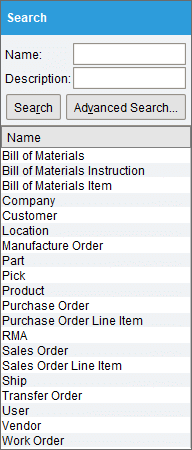
- Double-click a module or item in the search pane to see a list of associated custom fields.
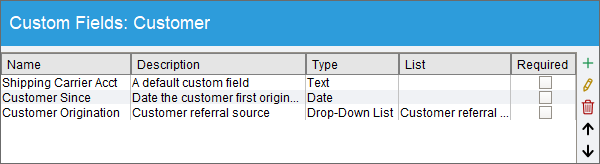
- Double-click an existing custom field to edit it or click the
 Add button located on the component toolbar to the right to create a new custom field.
 - Enter the Name, Description, and Type for the custom field. For Drop-Down lists, specify the List that will be used.
- Choose whether or not the custom field will be Required when an item is created or modified, and then click OK to finish.

Custom fields that are used for orders have an additional option to only allow edits from users who have rights to issue or ship the order.
- To see the new custom field, open the associated module, refresh the view by double-clicking any item in the module search pane, and then click the Custom tab.


Custom fields can also be imported from a spreadsheet.
Custom field types

| TYPE | USE |
|---|---|
| Text | A text field that stores up to 30 characters. |
| Date | A field that allows a date to be typed or selected from a calendar. |
| Money | A field formatted to list entries with a dollar sign, commas, and decimal points. |
| Quantity | A number field that allows a decimal point and automatically inserts commas when needed. |
| Count | A number field that does not allow decimals and does not automatically insert commas. |
| Checkbox | A field that can be checked or unchecked. |
| Drop-down list | All items of a list will be displayed in a dropdown field. |
| Long Text | A text field that stores up to 512 characters. |
| URL | A clickable link to a website, file, or folder. |
Create a list
Lists are used to store each item that is available in a dropdown list.
- To view existing lists, click the
 Lists button at the top of the module.
- New lists can be created by clicking the Add button located to the right of the List section.
- New list items can be created by clicking the Add button located to the right of the List items section.


Search
The search pane on the left of the Custom Field module can be used to search for custom fields by name or description. Note that the search pane displays the module or item containing the custom field. The advanced search can also be used to find custom fields by type, list, required custom fields, inactive custom fields, etc.

Use a custom field with an advanced search
Once a new custom field has been created in a module, the data in the custom field can be searched by using that module's advanced search. To use a custom field in an advanced search, click the Advanced Search button in the search pane for the desired module and then click the Custom tab in the search window.

Matching custom fields
Some custom fields with the same name and type can transfer from one module to another.
- Part custom fields can transfer to Purchase Order Line Item custom fields if the Add custom fields to PO item module option is enabled.
- Product custom fields can transfer to Sales Order Line Item custom fields if the Add custom fields to SO item module option is enabled.
- Sales Order custom fields can transfer to Pick custom fields if the Add custom fields to Pick module option is enabled.
- Pick custom fields can transfer to Ship custom fields if the Add custom fields to Ship module option is enabled.
- The Custom tab in the
 Inventory module displays a read-only version of the part's custom fields.
MODULE OPTIONS
Some aspects of the Custom Field module can be customized by opening the module, clicking the Tools menu, and then selecting Module Options.

- Only show the required custom fields in the wizards
- With this option checked, only required custom fields will be shown in wizards. For example, when creating a new part, only the part custom fields that are marked as Required in the Custom Field module will be displayed, instead of all of the part custom fields.