Fishbowl ShipExpress

Fishbowl ShipExpress is an add-on module that can be installed from the  Plugin module. The plugin connects to Shippo to provide integration with UPS, FedEx, USPS, DHL, and more. After installing the plugin, new buttons are added to the top of the
  Sales Order module and the
  Shipping module. The buttons are used to get shipping quotes, verify addresses, purchase labels, process batch shipments, view labels, view tracking, and refund labels. Shippo settings are configured in the
  Fishbowl ShipExpress module.

Install
The documentation on this page is for the most recent version of the Fishbowl ShipExpress plugin. To get the most recent version, Update Fishbowl.
- In any Fishbowl Client, open the Plugin module, located in the
 Integrations group.
 - Select the
 Fishbowl ShipExpress plugin and click Install.
 - Completely close all Fishbowl Clients.
- Exit the Fishbowl Server by right-clicking the Fishbowl Server tray icon and selecting Exit.
- After re-opening the Fishbowl Server, the admin user can access the Fishbowl ShipExpress module from any Fishbowl Client by opening the Integrations group.
- To grant access to additional users, assign the ShipExpress-View access right to the appropriate groups in the
 User Group module.
List of carriers
Fishbowl ShipExpress automatically integrates with any carrier that is enabled in the Shippo carrier settings.

Listed below are several carriers supported by Shippo. For a complete list, click here.
- USPS
- UPS
- FedEx
- DHL
- APC Postal
- Asendia US
- Australia Post
- AxleHire
- Canada Post
- CouriersPlease
- Deutsche Post
- DHL Express
- DHL Express and DHL eCommerce
- DHL Germany
- Fastway Australia
- FedEx and FedEx SmartPost
- Globegistics
- GLS France
- GLS Germany
- Hermes UK
- LaserShip
- Mondial Relay France
- Newgistics
- OnTrac
- Purolator
- RR Donnelley
- Sendle
- UPS and UPS Mail Innovations
- USPS
Setup
- Open the Fishbowl ShipExpress module and complete the form to sign up for a Shippo account.

- The $.05 label fee that Shippo charges will be waived if the Shippo account is created in Fishbowl, or by using this link.
- If the sign-in window doesn't load, click the
 Save button.
- If you already have a Shippo account, click Log in and enter your Shippo account information.
- Expand each Settings section to configure the integration. Column headers can be clicked to sort the tables.

- In the Ship From Settings, enter at least one Ship From address.
- In the Miscellaneous Settings, select a default shipping item.
- Quotes can't be added to a sales order until carriers are mapped.
- Click the Save button at the top of the module.


Settings
Ship From Settings
- Click the
 Add button to configure which addresses will be used when shipping from each location group.
 - The Ship From Phone Number is used when validating addresses.


Product Settings
- Click the Add button to assign a product's Country of Origin and Tariff # for international shipments. The Customs Item Value and Customs Item Description will be used on the Commercial Invoice when available. If this information has not been entered, the item price and description from the Fishbowl sales order will be used.
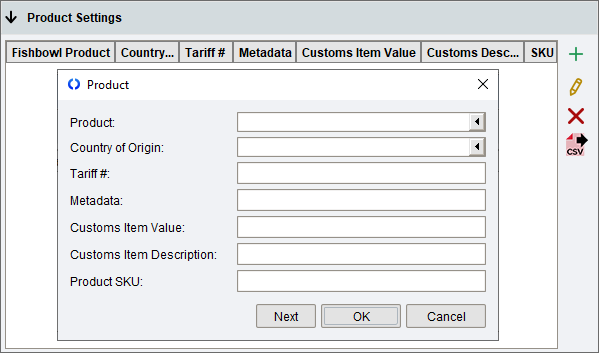

- This information can also be edited by clicking the
 Product Info button in the
  Product module.
 - To batch import product settings, click the
 CSV button, select Export, and add the data in a spreadsheet program.
The data can then be imported by clicking the CSV button and selecting Update Table.
- This information can also be edited by clicking the

Address Settings
- By default, address fields are already mapped between Fishbowl and Shippo, but these mappings can be adjusted if necessary.


Customer Settings
- Click the Add button to configure a customer with their own carrier account numbers, billing preferences, and label reference settings.
This information can also be edited by clicking the Customer Info button in the  Customer module.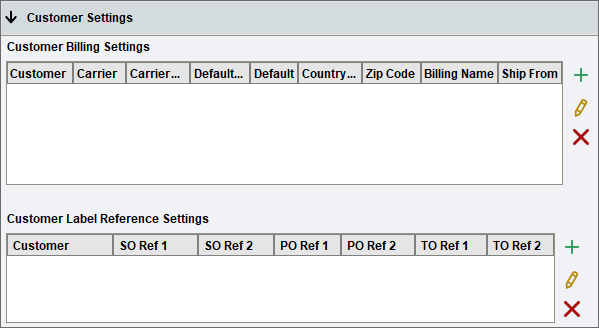

Carrier Settings
- Click the Add button to map Fishbowl carriers and services to Shippo carriers and services.


International Settings
- Shippo can validate international addresses. For pricing, see the Global Address Validation line on Shippo's pricing page.
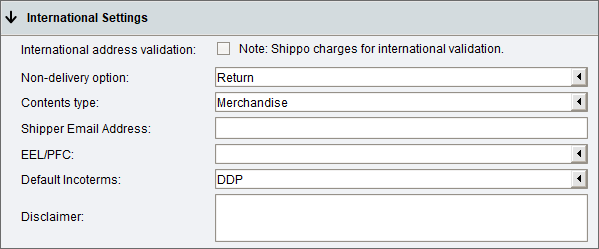
- When purchasing a new label for an international shipment, the fields above will be used as the default values in the customs declaration dialog.
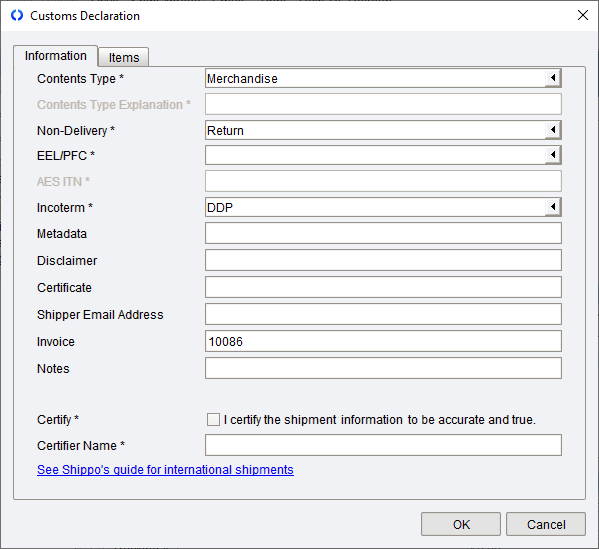
- Customs fees - Shippo supports three options in the Incoterm field. For more information, click here.
- DDU (Delivery Duties Unpaid) - DDU means that your customer, the recipient, will be responsible for paying the customs charges before receiving the package.
- DDP (Delivery Duties Paid) - Choose DDP if you would like to pay all customs fees on behalf of your customer. This is common when sending a gift internationally.
- FCA (Free Carrier) - Free Carrier (FCA) shipments are supported only by FedEx and DHL Express. With FCA, you deliver the goods, cleared for export, at a named place and the shipment can be delivered to a carrier nominated by the buyer.
- EEL/PFC - Choose from the following options in the EEL/PFC field. For more information, click here or here.
- 30.37(a) is for unlicensed merchandise under $2500.
- 30.37(f) is for technology/software exports not needing a license.
- 30.37(h) is for gifts/samples/humanitarian donations.
- 30.36 is for shipments to Canada.
- AES_ITN is for shipments with a value of over $2500, or the goods require a license to export, or is shipping to a restricted country (Iran, Syria, Sudan, Cuba, North Korea).


- A product's Country of Origin and Tariff # are set in the Product Settings table. The Customs Item Value and Customs Item Description will be used on the Commercial Invoice when available. If this information has not been entered, the item price and description from the Fishbowl sales order will be used.
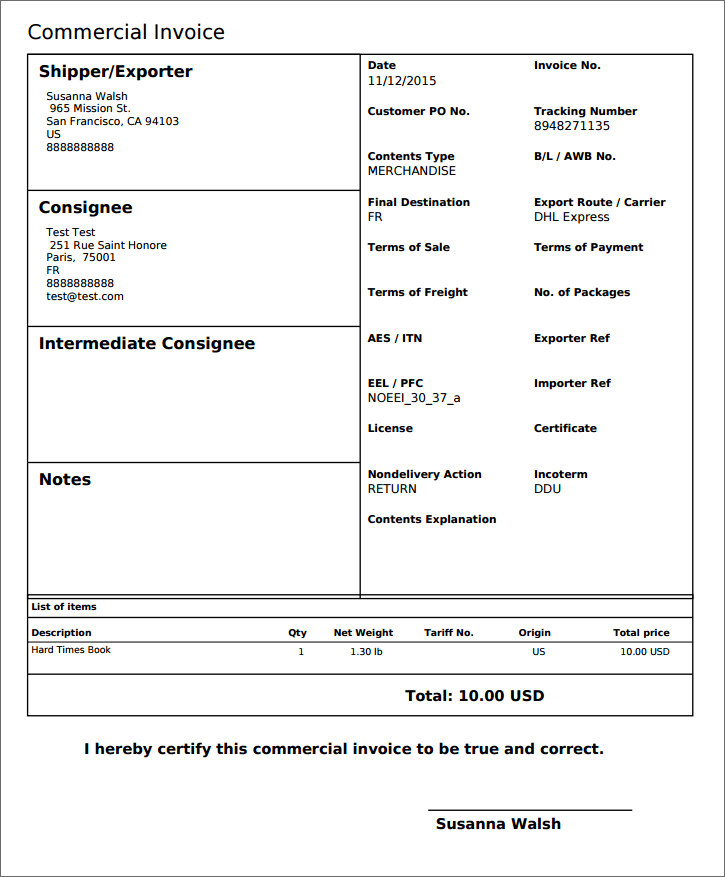
- Commercial Invoice - In most cases, it is not necessary to print a commercial invoice. It will typically be submitted electronically through a process called Paperless Trade where the customs declaration information is sent to the carrier electronically. If the shipment qualifies for paperless commercial invoicing, the shipping label will display EDI near the bottom-right corner. If the shipment doesn't qualify, the additional documents will be included with the label to be printed, or they can be printed directly from Shippo's website. For more information, click here.


Miscellaneous Settings
- Expand the Miscellaneous section to adjust the following settings.


Shipment Extras Settings
- This section stores the defaults for the Shipment Extras inside the Quote window.


Sales Order buttons
Click the  Shippo button at the top of the Sales Order module to access the following features.
Quote
- Click the
 Quote button in the Sales Order module to view rates. Rates will be shown for each applicable carrier that is enabled in the Shippo carrier settings.


- If a USPS account is marked as Test in the Shippo carrier settings, it may show rates in Fishbowl but will not generate labels. Other carriers marked as Test will not be visible in Fishbowl.
- The Weight shown in the quote window is calculated using the details of the products on the sales order.
- Predefined carrier cartons can be selected, or custom carton sizes can be entered. After changing any options, click Get Rates to get updated rates.
- After clicking Add to Sales Order, the rate, carrier, and service will be updated on the sales order.
- Adding a quote does not purchase a label, but it allows the shipping estimate to be added and charged to the sales order customer.
- Click the Shipment Extras button to access additional shipment options.


Verify
- Click the
 Verify button in the Sales Order module to validate addresses for all orders with the selected status.


Return Label
- Click the
 Return Label button in the Sales Order module to generate a return label for credit return items on the sales order.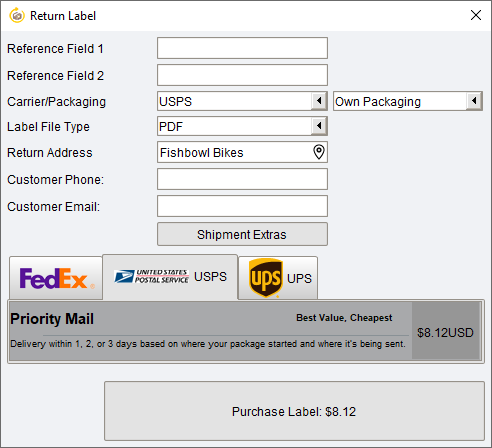


Tracking
- Click the
 Tracking button to view links that will track the packages on the carrier website.


Shipping buttons
Click the ShipExpress button at the top of the Shipping module to access the following features.
Purchase Label
- Click the
 Purchase Label button to view rates and purchase labels.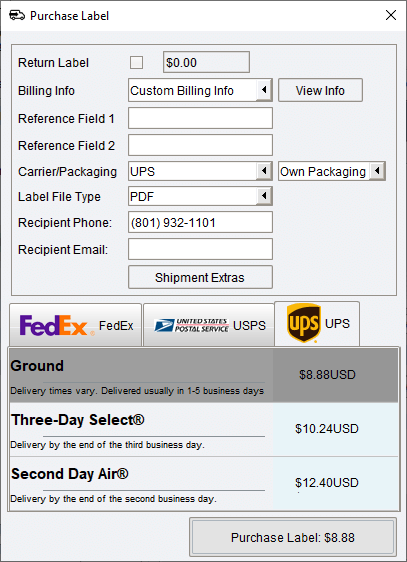


- Please Note - If rates are not displaying as expected when purchasing labels, verify that the Ship From address is correct.
- After changing any fields that affect the rate, the button at the bottom will change to Update Rates.
- If Third Party or Recipient billing is selected in the Customer Settings, the Billing Info field will populate with the associated information.
- Click the Shipment Extras button to access additional shipment options.
Batch Shipping
- Click the
 Batch Shipping button to purchase multiple labels simultaneously.


Quick Ship
- Click the
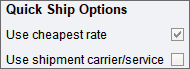
 Quick Ship button to purchase a label with a single click using the Quick Ship Options from the Miscellaneous Settings section.


Verify
- Click the Verify button to validate the shipping address.
View Labels
- Click the
 View Labels button to display any labels that have been purchased for the current shipment.


Tracking
- Click the Tracking button to view links that will track the packages on the carrier website.
Refund Labels
- Click the
 Refund Labels button to request a refund from Shippo for any labels purchased for the selected shipment.


USPS Pickup
- Click the
 USPS Pickup button to send a pickup request to USPS for any shipments that have not been shipped yet. If there are no open transactions for USPS, the shipment list will be empty. For more information on Shippo's pickup requests, click here.


Product and Customer buttons
Product Info
- Click the
 Product Info button in the Product module to edit the ShipExpress settings for the selected product.


Customer Info
- Click the
 Customer Info button in the Customer module to edit the ShipExpress settings for the selected customer.


Troubleshooting
- A Shippo timeout was added due to API timeouts from Shippo when purchasing multiple carton shipments. The timeout value defaults to 300 and can be increased or decreased as needed in the
 Property module.
 - Not getting expected rates back?
- Check the address and validate it using the address validation tool in the Sales Order module. Certain carriers will not return rates when addresses aren't completely correct.
- Make sure you have a phone number listed on the sales order details tab. Certain shipments require a phone number to be provided.
- USPS shipments are limited to a single carton. Multiple-carton shipments will not return rates for USPS.
- For international shipments, ensure the product table is filled out in the plugin settings for each corresponding product on the order. Country of Origin and Tariff Numbers are required for customs when shipping internationally.
- Check out Shippo's support page for more info on how to successfully ship internationally.
- If rates are not displaying as expected when purchasing labels, verify that the Ship From address is correct.
- If a label doesn't show up, or something doesn't work correctly, check the Shippo shipment for errors.

- Some carriers may limit the number of characters that can be printed on each line of a label (for example, 35 characters). Click here for more information.
- You cannot mix packaging types between your packaging and carrier flat rate type packaging.
- More details about recent errors can be viewed by opening the Data module and clicking the Server Log button.
- Check for multiple versions of the ShipExpress plugin in C:\Program Files\Fishbowl\plugins\ or \Applications\Fishbowl\plugins\ on a Mac. If there are two files named shipexpress or fishbowl-shipexpress, exit the Fishbowl Server and all clients, remove the older version of the plugin, and then restart the server.
- If FedEx batch shipping is not working, try turning off the FedEx account in Shippo.
