Fishbowl Time

Fishbowl Time is a web app with functionality for time clocks, overtime, projects, PTO, geolocation, and more. Any device can be used as a terminal for employees to quickly clock in and out. Mobile apps can also be used to scan employee QR codes. When Fishbowl Time is integrated with Fishbowl, work orders are imported and the actual labor time is exported back to Fishbowl. Fishbowl Time can also be used as a standalone product.
Getting Started
- To get started, create a free account at app.FishbowlTime.com.
- Fishbowl Time has several modules that can be accessed from the menu. On larger devices, the menu is displayed on the left. Smaller devices can access the menu by clicking the
 Menu button near the top-right corner.
 - With the menu open, click the
 module and carefully review each tab to customize Fishbowl Time for your business.
 - Fishbowl Time features a simple and intuitive interface. Below is a brief overview of each module. However, the easiest way to learn is to explore using a free account at app.FishbowlTime.com.


User Profile

- Any user can access the User Profile module by clicking their name or photo at the top of the menu. This allows employees to enter their user information, upload a photo, change their password and PIN, etc.
Dashboard

The Dashboard is visible to administrators and managers. It displays the following items.
- Current employee count
- Open payroll
- Open projects
- PTO requests
- Who is currently clocked in and what they are working on
- A timeline of clock-ins and clock-outs along with breaks
- An hours summary listing the total hours recorded for various time periods (today, yesterday, current pay period, last week, etc.)
For non-admin managers, the Dashboard will display information for only those employees assigned to the department the user is a manager of.
Time Clock

The Time Clock module is used by an individual employee to clock in/clock out, go on breaks, switch positions/projects, and edit or manually add time entries. When clocking in, a user can select a position and project if these features are enabled in the company settings.
- Start Break - After starting a break, you can click Resume Shift to resume work.
- Start Lunch - After starting a lunch break, you can click Resume Shift to resume work.
- Start or Switch Project - This allows you to either select a project to start working on or switch from one project to another.
- Finish Project - This will change the status of the current project to Closed.
- Add Shift Note - This allows you to make a note on your current shift that can be viewed on the time log entry in Time Clock or Time Cards.
- With the necessary access rights, you can manually add time logs by clicking the
 Add button, or edit time logs by clicking any line.
 - The filter at the top can be used to modify the results that are shown, and search results can be downloaded to a CSV file by clicking the download button at the top.

Time Entries

The Time Entries module is used to view time entries grouped by date or employee. Admins and managers have the ability to modify time entries.
- With the necessary access rights, you can manually add time logs by clicking the Add button, or edit time logs by clicking any line.
- The filter at the top can be used to modify the results that are shown, and search results can be downloaded to a CSV file by clicking the download button at the top.
Time Card Approval

- At the top of the Time Entries section is an additional tab for time card approval.
- Click the Approve button to approve the time cards in the pay period.
PTO

The PTO module is used by employees to view and submit requests for vacation, sick days, and holidays. In addition to their personal PTO requests, admins and managers can view, approve, deny, or delete the PTO requests of the employees they manage.
- Click the Add button to submit a new PTO request.
- Click the filter button to filter the results.
- Current balances are displayed and will update as requests are approved.
- Admins and managers can use the Employee PTO Requests section to view the time off requests of employees.
- Use the icon buttons to approve, deny, or delete pending requests.
- Balances for each employee are set in the Company Settings.
Projects


The Projects module displays issued work orders from the Fishbowl integration. If Fishbowl Time is being used as a standalone application, work orders can be manually created in the Projects module.
- The project list displays each project's number, name, description, last activity, budgeted hours, actual hours, status, pick status, and BOM category.
- Click the Project Number hyperlink and then click Time Logs to get a detailed view of all time entries that have been logged to this project.
- If your company uses a term other than Projects, use the Project settings tab to modify the name.
- To create a project, click the Add button at the top and enter the Number, Name, Budgeted hours, etc.
- To edit a project, click a line and modify the status or any other fields as needed.
- The Start Date and End Date are used to schedule a project. When integrated with Fishbowl, this information is imported from the Fishbowl work order.
- When integrated with Fishbowl, the Pick Status is updated to reflect inventory availability for the project. When this is set to anything other than Committed or Finished, the project will show a red color status on the Schedule, denoting there is a problem with inventory.
- When integrated with Fishbowl, the BOM Category is pulled in and set on the project. Because the BOM Category can be renamed, it can be used as a custom field for many purposes (e.g., machine, location, etc.).
- When integrated with Fishbowl, the Receive Date is pulled in and set on the project. This date looks at purchase orders for items that have a Short inventory status and returns the date that is furthest in the future. Meaning, the date that all inventory will be received by.
Reports
The Reports module provides the following features.
- Run Payroll

- Employee Time Cards

- Project Details

- Employee QR Code


Schedule
The Schedule module allows projects to be scheduled based on the available labor hours.
- Users can be assigned by dragging and dropping their names onto projects.
- An employee's schedule can be set on the Employees tab of the Company Settings module.
- Displayed below each date are two numbers, such as 6/22 hrs. The first number represents the number of hours scheduled for projects. The second number represents the available hours based on the schedules of all employees.
- Hours of Operation and Holidays are highlighted on the schedule. These are for reference only and can be customized on the Pay tab of the Company Settings module.
- Events can be split into multiple events to accommodate scheduling needs.
- To split an event, open the event and move the Split Event
 switch to ON
- Set the start dates, times, and durations for both of the new events and then click Save to split the event.
- The original event will be deleted and two new events will be displayed. Split events can be deleted, but each project requires at least one calendar event.
- To split an event, open the event and move the Split Event
- Projects on the schedule can have several different color statuses as described below.


 Red indicates that there is an issue. Listed below are possible issues.
- Project hours exceeds daily available total hours
- Pick Status is anything other than Finished or Committed
- Project hours exceeds available hours from assigned user(s)
 Yellow indicates that the project is set to the On Hold status.
 Blue indicates that the project does not have any issues and is ready for employees to be assigned.
 Green indicates that the project does not have any issues and has at least one employee assigned.
 Gray indicates that the project is set to the Closed status.


- Click the Timeline tab at the top to see a timeline chart that displays each project on the left.


Employees
- Click the Add button to add a new employee. Employees can also be imported and exported by using the buttons near the top-right corner.
- Click any line to edit that employee, as well as their image, positions, rates, overtime rules, sick time, vacation time, permissions, PIN, schedule, etc.
- An employee's default schedule is used to calculate the total available hours each day in the Schedule.


Company Settings
The Company Settings module can only be viewed by employees with admin rights. The following tabs are used to configure Fishbowl Time.
Company Details
- This section allows you to enter company details, such as logo, name, website, etc.
- There is also an option to Display dates in DD/MM/YYYY format.

Departments
- Employees can be organized into departments, and each department can have a manager.

Pay
- This section displays your company settings for pay periods, overtime, hours of operation, PIN length, geolocation, time format, rounding, etc.
- All clocking events can be rounded to the nearest 1, 5, 10, or 15 minutes. Rounding is not enabled by default.
- Company hours of operation are used as visual aids in the Schedule.
- Hours outside of the hours specified will be marked in a gray color on the Schedule.

Overtime Settings
- Overtime rules can be created on the Pay tab of the Company settings.

- Employers should use federal and state guidelines to set up overtime rules for the company.
- Rules can be created for weekly overtime, daily overtime, and daily double overtime.
- A rule can include weekly, daily, double overtime, or any combination.
- Standard overtime is calculated at 1 and ½ of an employee’s standard pay rate.
- Each employee can be assigned an overtime rule separate from other employees.
- Weekly overtime is calculated from the week start day on the Pay tab of the Company settings.
- When an overtime rule is created that contains both daily and weekly calculations, the system calculates whether there is more daily or weekly overtime at the end of the week and reports the greater of the two.
- When an overtime rule is created that contains both daily and weekly calculations and the week crosses over a pay period, regular hours are reported for the pay period, but overtime hours for the week will be reported in the following pay period in order to finish the week and allow the system to determine the greater of the two.

PTO Settings
- PTO accrual rules can be created on the Pay tab of the Company settings.


Breaks
- Breaks and lunch breaks can be marked as paid breaks and/or included on Projects.
- The Breaks tab contains the following settings.
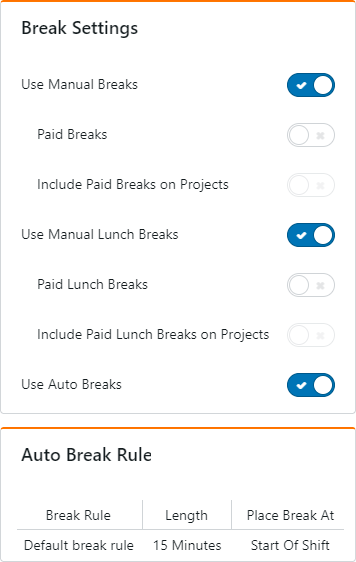
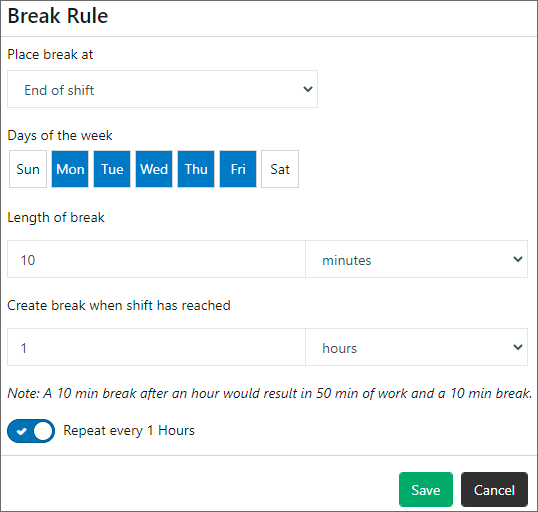
- If Auto Breaks are enabled, click the Default break rule to modify how the break is automatically added.


Holidays
- Holidays will show on the Schedule, blocking out the entire day in a dark gray color.

Notifications
- To receive a notification, click PTO is requested or Shifts exceed flagged time.
- Notifications can be sent as an email or as an SMS text message.
- Use a comma to separate multiple phone numbers or email addresses.

Project / Positions
- Projects are required when integrating with QuickBooks and Fishbowl.
- At least one position is required when integrating with Fishbowl.
- Labor items are imported from Fishbowl by using the Fishbowl Time Plugin.
- After creating the positions, click the Employees tab to enable the applicable positions for each employee.
- The option to Include overtime in Project cost allows daily overtime to be added into the project costs. Weekly overtime cannot be included. Currently, this is not sent to Fishbowl, but it will be added in a future update.
- The term Project can be modified to match the terminology of your company.
- The BOM Category can also be renamed and/or used as a custom field for many purposes (e.g., machine, location, etc.).
- When integrated with Fishbowl, the BOM Category is imported from Fishbowl and set on the project.

Terminals
- This section allows the creation of various webpages that enable employees to clock in and out. Any device can then be used as a dedicated terminal by locking it to that URL.
- IP Address Restrictions - Setting up IP address restrictions makes it so that the terminal can only be accessed when an employee is connected through the approved IP address. This can be used to restrict employees to only access the time clock while they are connected to the internet at their place of work.
- Device Restrictions - Setting device restrictions makes it so that the terminal can only be accessed on devices that have been specifically approved by the account administrator. This can be used to ensure that only specific computers or devices are allowed to access the time clock terminal.

Billing
- This section allows you to update your subscription, enter a payment method, see payment history, etc.

Integrations
QuickBooks Desktop
NOTE: Fishbowl Time does not currently support QuickBooks Desktop 2022. A key feature called QuickBooks Timer was removed that allowed Fishbowl Time to import payroll data. The following instructions will still work for QuickBooks Desktop 2021 and earlier.
- Open your QuickBooks file. Click the Edit menu and select Preferences. Click the Time & Expenses menu on the left and then click the Company Preferences tab. Enable time tracking by selecting Yes in the Time Tracking section.

- Open the Employee Center. Open each employee and click the checkbox that says Use time data to create paychecks (As a new employee is imported with time activities, you will also be asked about setting this option).

- Export the timer lists file by clicking the File menu and then select Utilities > Export > Timer Lists. *Note: You will need to switch to single-user mode in order to export or import files.

- In the Fishbowl Time web app, go to Integrations and select QuickBooks Desktop.

- Click the Connect button.

- Choose the Timer List IIF file you exported from QuickBooks previously and click Confirm.


- To export data to QuickBooks, simply click the Export Data button.

- In QuickBooks, go to File > Utilities > Import > Timer Activities. Select your exported file and then click Open.


- Click OK for the displayed warning.

- Click Yes to use time data.

- On the first sync, and for new employees, you will receive a message to set a payroll item for each employee's time activities. Subsequent imports will skip this step.


- After the import is done, you will receive this message.

- You can then view the report of imported activities.


QuickBooks Online
To connect to QuickBooks Online, click the Connect button and sign into your QuickBooks Online account.
Integrating with QuickBooks Online will enable Projects and require employees to clock into Projects. This will also export all of your current Projects as jobs under the customer Fishbowl Time to QuickBooks Online. If any time logs are not assigned a Project, you will be required to assign a Project before you are able to export to QuickBooks Online.
ATTENTION: Integrating Fishbowl Time with a QuickBooks Online account where Payroll is enabled will cause the integration to fail. The ability to integrate with Payroll is not currently available to the public.
Fishbowl integration
The documentation on this page is for the most recent version of the  Fishbowl Time plugin. To get the most recent version, Update Fishbowl.
- In any Fishbowl Client, open the
 Plugin module, located in the
  Integrations group.
 - Select the
 Fishbowl Time plugin and click Install.
 - Completely close all Fishbowl Clients.
- Exit the Fishbowl Server by right-clicking the Fishbowl Server tray icon and selecting Exit.
- After re-opening the Fishbowl Server, the admin user can access the Fishbowl Time module from any Fishbowl Client by opening the
 Manufacturing group.
 - To grant access to additional users, assign the Fishbowl Time-View access right to the appropriate groups in the
 User Group module.
 - Enter your username and password in the Fishbowl Time module and then click the
 Sync button.
- Click the Sync Settings tab to review the settings for Project Sync and Labor Import.

- If you choose to Sync start and end dates, select which program is in charge of scheduling. For example, by selecting Fishbowl Time, the start and end dates in Fishbowl Time will update those in Fishbowl, or vice versa.
- The hourly rate can use the generic cost from the labor item in Fishbowl or the actual hourly rates from Fishbowl Time.
NOTE: When using the actual hourly rates, the generic hourly rate will still be displayed in reports until the work order is fulfilled. - Click the
 Save button at the top of the module.
 - A
 Schedule button will be added to the top of the
  Sales Order module that opens the schedule in Fishbowl Time.


iOS and Android apps

- The iOS app can be downloaded from here and the Android app can be downloaded from here.
- One of the easiest ways for employees to clock in/out is using QR codes and scanning them with the mobile app. Clocking in/out is easy and just requires the employee to hold their unique QR code in front of the camera on the mobile device.
- Employee QR codes can be printed from the Reports module.
- To lock down an iOS device so that only the Fishbowl Time app can be used, enable Guided Access.
- Fishbowl Time is also accessible in the browser of any mobile device or by entering the URL for one of the terminals.
Release Notes
Enhancements
- Improved Project Detail report filter functionality
- Created filters for Time Clock and Employee Timecard CSV exports
- Created the ability to use unique usernames instead of a unique email as employee credentials
Fixes
- Fixed issue with users unable to log in
- Fixed issues with PTO search filters
Enhancements
- Created the ability to filter the Employee Time Card report by date range
- Employee Time Cards now show shift notes on them
- Created a notification in the iOS mobile app showing when time entries conflict
- Enhanced the iOS mobile app performance allowing for faster load times
- Created the ability to see the history of time entries in the iOS mobile app
Fixes
- Fixed incorrect admin access on the web terminal page
- Corrected an issue with displaying all open time entries on the Dashboard and Time Entries page
- Corrected an issue with project actual hours syncing on the iOS mobile app
- Fixed an issue with Work Order name characters not syncing from Fishbowl
- Corrected an issue with date format for importing employee CSV files
- Improved the iOS mobile app project selection view to show the entire project name
Enhancements
- Improved Time Entry and Employee CSV file downloads to allow more ability to utilize data fields
- Improved the Time Off request dates view to allow for a more-useful view of pending and upcoming PTO by employees
Fixes
- Fixed issues when creating a new account
- Fixed issue with wrong employee being listed on flagged shift notification emails when logged into Time Mobile Terminal
- Resolved issue with Auto Breaks options not showing on some accounts
- Fixed problem with PIN generator only producing 4-digit PINs when 6-digit PINs is selected in settings
Enhancements
- Added the ability to close projects with employees still clocked into the project with the project being updated after the last employee clocks out
- Created random PIN draw feature for logging into the web terminal and mobile terminal
- Enabled the ability to print reports in landscape format
- Added the ability to have auto-breaks be paid or not paid
Fixes
- Fixed issue with time totals on timecard and payroll reports not adding up correctly
- Fixed issue with employee search filter
- Fixed server logout issue
- Resolved issue with modifying or creating new employees
Enhancements
- Added ability to create multiple auto-break rules with the ability to pick specific auto-break rules per employee
- Improved functionality of Payroll Report CSV
- Added option to approve all PTO requests at once
- Created Audit Tables to show history of actions taken
- Created notice warning of how changing hire date affects PTO accruals
- Improved integrations with Fishbowl software
- iOS - created Time Entry Views to include weekly, Pay Period, or List
- iOS - added satellite view on maps
- iOS - added option to clock in/out at designated time
- iOS - added ability to close projects
- iOS - added feature to allow users to view projects by project state
- iOS/Android - new color and design changes
- Android - created indicator for time logs that failed to sync to server
Fixes
- Resolved issue creating new accounts
- Fixed issue with inactive employees having Holiday PTO requests auto-generated
- Resolved issue with Approve Payroll notification notice present on approved payrolls
- iOS - resolved issue with PTO requests disappearing
- Android - fixed bug causing app to crash
Enhancements
- Updated success/error notifications
- Option given after resolving a time log conflict to return to dashboard or stay in time entries
- Time entry issues on the dashboard are now scrollable to allow viewing of all time log issues
Fixes
- Resolved issue with approving PTO and screen display darkening
- Resolved issue with time log conflict link on dashboard not opening the conflicting time log
- Resolved issue with ability to approve flagged time logs
- Simplified the employee start date format for CSV employee import
Enhancements
- Added automatic PTO request for holidays using PTO
- Ability to see and resolve time log conflicts
- Ability to switch or close projects without clocking out
Fixes
- Fixed error with time log creation constraints affecting mobile apps
- Fixed error with payroll report filter
- Resolved issue with payroll reports, including time logs with errors
- Resolved issue with employees allowed to be made inactive with open time logs
- Fixed error with project starts and end date being on the same date
Fixes
- Fixed unknown error issue with employee import
- Fixed unknown error issue with PTO requests
- Fixed flagged hours notification that was being sent for other employees
- Resolved issue with geolocation when switching projects
Enhancements
- Ability to create PTO accrual rules
- Ability for employees to accrue PTO
- Ability to approve pay periods within Time Entries
- Billing page now shows a payment status
- Ability to see and resolve time log conflicts
- Ability to receive an SMS or Email notification for flagged shifts exceeding x hours and PTO requests
- Added notification on PTO approval when employee is using holiday hours
- Added a support link in left menu
- Added project number to Time Entries CSV export
- Updated Fishbowl Time logo
Fixes
- Prohibited the ability to edit a project start date to be after the end date
- Fixed an unknown error that would occur when editing an employee email
- Fixed an issue with time zones that would cause auto-breaks to be off by one minute
- Fixed a highlighting issue with filters when selecting pay periods
Enhancements
- Updated Date picker throughout Fishbowl Time
- Rearranged the auto-break fields to hide unneeded options when "Specific Time" is selected
Fixes
- Fixed an issue with auto-break being placed at the wrong time on account of Daylight Savings change
Enhancements
- Added a Holiday Tab to company settings with the ability for admin users to select observed and paid holidays
- Observed and paid holidays now display on the calendar of the Schedule module
- Added Table sorting to the Projects module
- In company settings, "Date formatting" can be changed to DD/MM/YYYY for international users
Fixes
- Fixed an issue where employee emails were not updating correctly
- Fixed an issue with the Run Payroll report where companies with more than 60 employees were getting an unknown error
- Prohibited the ability to delete a department if an employee is assigned to the department
Enhancements
- Added the ability to create a Pay Period Rule
- Added the ability to add the Pay Period Rule to an employee
- A "Subscribe Now" button is now displayed for users on the free trial
- The setting "Flag Shift Exceeding" now works with decimals
Fixes
- Fixed an issue where auto-breaks weren't being displayed because an employee had no Pay Period Rule
- If approved time-off requests were manually deleted by a manager/admin, that time is now added back into the employee's available PTO
Enhancements
- Added the ability to import employees through CSV
- Added a payment history section to Billing, and added the ability to see when a card has been declined
- Added the ability to import projects through CSV
- Managers/Admin can now see open time logs in the Time Clock and Time Entries screens
Enhancements
- Expanded the available filters throughout Fishbowl Time
- Added the ability to see projects in different color statuses in the Schedule module
Fixes
- Fixed overtime calculation issues associated with a week's start date
- Double-clicking "Save" when manually adding a break no longer adds the break twice to the time log
Enhancements
- API refactored to better support the Terminal and Mobile apps
- Moved the employee's tab out of company settings to the side menu
- Renamed "Time cards" to "Time Entries" on the side menu for better clarification
- Added the ability to designate Auto-Breaks
- Moved Break settings from the Pay tab to its own Break tab
Fixes
- Prohibited the ability to manually set a break outside the clock in/out times
- Time logs submitted by the mobile app now display correctly in the Employee Time Card report
Plugin
- Work Order date schedule start and end date/time is sent to the project
- Work Order category is sent to the BOM Category field on the project
- Inventory Receive date is sent when an item is short for the work order
- This is the date that is furthest out, last to be received
Rounding
- All time events can now be rounded to the nearest 1, 5, 10 or 15-minute mark
Paid Breaks
- Breaks and Lunch breaks can now be marked as paid breaks
- If paid breaks are enabled, they can also be marked to be included in the project's time
Hours of Operation
- You can now set up company hours of operation
- This is for reference only in the new Schedule section
Holidays
- Create holidays for reference in the new Schedule section
Employee Schedule
- Set up an employee's default schedule in Employee Settings
- This is used to calculate available hours each day in the new Schedule section
Schedule
- Projects tab - Calendar-style view of time available and projects scheduled
- Timeline Tab - Gantt-style view of time available and projects scheduled
Overtime
- Overtime can now be included in Projects total cost
Projects
- A scheduled start and end date/time can now be set per project
- Receive date
- BOM Category
- Can be renamed
QuickBooks Online
- All customers created for projects will now be jobs under a top-left FishbowlTime customer
- Updated all CSV exports
- Updated Time Cards CSV to include shift notes
- Added ability for Admins/Managers to edit clock-in for active time logs
- Added ability for Admins/Managers to add a clock-out time on active time logs to clock out employees
- Fixed issue with switching projects that causes time overlap
- Updated Project Details report with custom date range
Plugin
- Improved error reporting
- Now sending custom work orders up to Fishbowl Time
- Associated BOMs are no longer required when pushing WOs up to Fishbowl Time. In this scenario, the WO description is used for the project name.
- Added offset for last sync date
- Updated sorting for all dropdown lists
- Updated refresh time on terminals to 60 seconds
Plugin
- Initial release