HubSpot
 The HubSpot module, located in the
  Integrations group, is an add-on module that can be installed from the
  Plugin module. After installing the plugin, a new module is added that integrates with the HubSpot CRM. Additional connections can also be purchased to connect to multiple HubSpot accounts.
HubSpot Professional or HubSpot Enterprise is required for this integration.
Install
The documentation on this page is for the most recent version of the HubSpot plugin. To get the most recent version, Update Fishbowl.
- In any Fishbowl Client, open the Plugin module, located in the Integrations group.
- Select the
 HubSpot plugin and click Install.
 - Completely close all Fishbowl Clients.
- Exit the Fishbowl Server by right-clicking the Fishbowl Server tray icon and selecting Exit.
- After re-opening the Fishbowl Server, the admin user can access the HubSpot module from any Fishbowl Client by opening the Integrations group.
- To grant access to additional users, assign the HubSpot-View access right to the appropriate groups in the
 User Group module.
Setup
Complete the steps below to configure the HubSpot integration.
- Click the
 Settings button on the module toolbar of the HubSpot module.
- Click the large Connect to HubSpot button and then sign into HubSpot.

- Click the
 Import button near the bottom of the Fishbowl Settings dialog and then click Save.


TABS
Several plugins in Fishbowl have a standardized layout. Some of the images below show the options that are most common between all plugins. Any additional  HubSpot options or notes are included at the bottom of each section.
Order Import

- Schedule - Select the
 Active checkbox to import orders on a set schedule. Click the
  Run task button to run the scheduled task right now. Data that has changed since the Last Sync date will be synchronized. This date will be updated automatically after a sync, or it can be manually edited to adjust which data will be synchronized. If additional options are available, they can be enabled by selecting Use Advanced Options at the bottom of the Schedule section.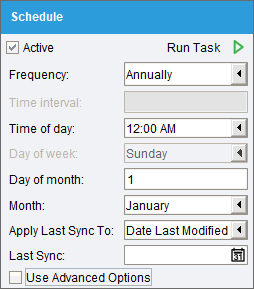


Order Settings

Additional order data will be imported and displayed on the Details tab of the  Sales Order module.
- Order field mapping - Use the mapping table to map HubSpot order fields to Fishbowl order fields. If no field is mapped to the Fishbowl Order Number, then it will be generated by Fishbowl. If no date field is mapped to the Fishbowl Date Scheduled, then it will be set to the date of import.
- Salesperson - Sales orders will be created using this salesperson.
- Accounting Class - If there is no class mapped from HubSpot, sales orders will be created using this class as the sales order class.
- Payment Terms - If there are no payment terms mapped from HubSpot, sales orders will be created using this payment term.
- Shipping Terms - If there are no shipping terms mapped from HubSpot, sales orders will be created using these shipping terms.
- Priority - The default priority to be set on imported orders.
- Use customer properties - Pull customer properties to the order such as salesperson, class, payment terms, shipping terms, and priority. If available, these will override the default values selected above.
- Order Number Prefix - Define a short prefix that will be applied to the imported order numbers. The prefix will not be added if the Fishbowl Generated SO Number is being used as the order number.
- Discount Item - Select the flat rate discount type that will be added as a line item to imported orders.
 Additional HubSpot information
- Combine All Discounts - Enabling this option will sum up all of the line item discounts and apply them as one order discount.
- Add Discount Code To Notes - Enabling this option will add the discount code to the line item notes.
Order Item Settings

- Item field mapping - Use the mapping table to map HubSpot order item fields to Fishbowl order item fields. If the Fishbowl price is not mapped, then the price from the Fishbowl product will be used and any applicable pricing rules applied. If the Fishbowl description is not mapped, then the description from the Fishbowl product will be used.
- Shipping item - Select the shipping type product that will be added as a line item to orders when applicable. It will contain the shipping price to be paid by the customer.
- Ignore miscellaneous items - If this option is selected, HubSpot order items that are not related to an actual HubSpot product record will be ignored and no Fishbowl line item will be created.
- Enable order import product linking - HubSpot order items will be matched to Fishbowl products based on the defined field mapping. If the HubSpot product has been linked by ID to a Fishbowl product, that will take precedence.
- Product field - The Fishbowl product field that will match the selected HubSpot item field.
- HubSpot item field - The HubSpot order item field that will match the selected Fishbowl product field.

Location Group Settings

- Use default location group - Select a default location group for imported orders.
- Use location group mapping - This option is not currently available in the HubSpot plugin.

Order Status Mapping
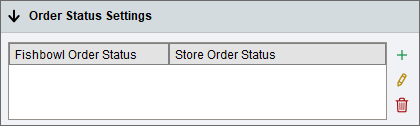
- Use the table to assign HubSpot order statuses to Fishbowl order statuses. The Order Import task will only import orders from HubSpot that are in a status assigned to a Fishbowl order status. If the Fishbowl order status is set to Historical, the order will be imported into Fishbowl, but it will not affect inventory or accounting. At least one active status mapping is required to use the Order Import task.

Customer Settings
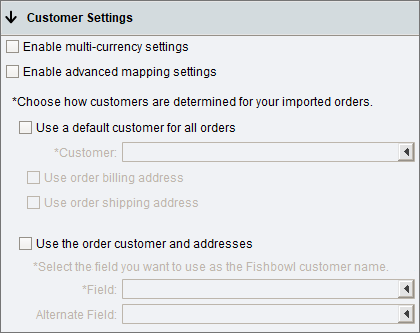
- Use the options below to determine how customers are created in Fishbowl and what information is imported into Fishbowl.
- Enable multi-currency settings - Order prices will be converted from the channel order currency to the Fishbowl currency assigned to the mapped customer. Requires Fishbowl currency conversion to be enabled.
- Enable advanced mapping settings - Opens up additional customer mapping options and control over customer creation.
- Use a default customer for all orders - This option will associate all imported sales orders with the customer selected in the Customer field. This could be used with a generic Fishbowl customer such as HubSpot Customer.
- Use the Deal billing address - Use the billing address from the Company or Contact associated with the HubSpot Deal instead of the address for the default customer.
- Use the Deal shipping address - Use the shipping address from the Company or Contact associated with the HubSpot Deal instead of the address for the default customer.
- Use the Deal customer and addresses - This option will import the addresses and customer from the Company or Contact associated with the HubSpot Deal. The Company/Contact must have a name and address saved for Fishbowl to create an order using this option.
- Field - Select the HubSpot field that contains the customer name that should be imported into Fishbowl.
- Alternate Field - An alternate field mapping when the primary mapping does not contain data.
- Additional HubSpot information
- Coalesce order addresses - If one address is missing, use the existing address for both the shipping and billing address.

Carrier Settings
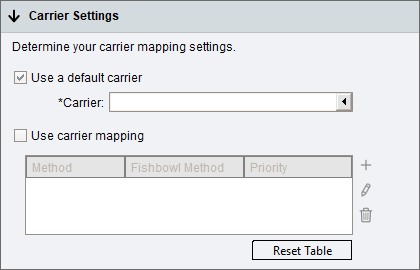
- Use a default carrier - When selected, all orders imported from HubSpot will use the selected carrier. If this option is unchecked, carriers can be mapped between Fishbowl and HubSpot. Each mapping will also set the Sales Order Priority so that Fishbowl users can identify orders with express shipping that need to be picked and shipped quickly.
- Use carrier mapping - This option is disabled in the HubSpot plugin.

Order Export

- Schedule - Select the Active checkbox to export orders on a set schedule. Click the Run task button to run the scheduled task right now. Data that has changed since the Last Sync date will be synchronized. This date will be updated automatically after a sync, or it can be manually edited to adjust which data will be synchronized.
- Expand each section on the Order Export tab to see the mapping options.
Fulfillment Export

- Schedule - Select the Active checkbox to export orders on a set schedule. Click the Run task button to run the scheduled task right now. Data that has changed since the Last Sync date will be synchronized. This date will be updated automatically after a sync, or it can be manually edited to adjust which data will be synchronized.
- This export will update HubSpot deals based on fulfilled Fishbowl sales orders. The deal status and other fields can also be updated based on how the settings are configured.
Product Import

- Schedule - Select the Active checkbox to import products on a set schedule. Click the Run task button to run the scheduled task right now. Data that has changed since the Last Sync date will be synchronized. This date will be updated automatically after a sync, or it can be manually edited to adjust which data will be synchronized.
- NOTE: When setting up the HubSpot integration for the first time, you will want to adjust the Last Sync to a date before any of your products were created (for example, setting the year to 2000) so that all of the products on your website will be imported.
The Product Import task imports products into Fishbowl from HubSpot. A product link is created by storing the HubSpot product ID in Fishbowl.
- Link Existing Products will match existing products in Fishbowl and HubSpot where data matches in the selected fields.
- Import Products will import products from HubSpot into Fishbowl, creating them based on the field mapping and settings below.
Product Export

- Schedule - Select the Active checkbox to export products on a set schedule. Click the Run task button to run the scheduled task right now. Data that has changed since the Last Sync date will be synchronized. This date will be updated automatically after a sync, or it can be manually edited to adjust which data will be synchronized.
- Product Create Settings - Enable Export New Products and then map the fields that should be exported from Fishbowl to HubSpot.
- If the Weight UOM or Size UOM are specified, the Fishbowl product UOMs will be converted to the selected UOMs before the values are exported.
- If the Product Tree Filter is used, only the products in the selected product tree category will be exported. If the product tree filter is left blank, all products will be included in the export.
- Product Update Settings - Enable Update Linked Products and then map the fields that should be exported from Fishbowl to HubSpot. This section has the same options as the Product Create Settings section above. After the initial product export, only the selected fields will be updated.
Inventory Update

- Schedule - Select the Active checkbox to export inventory levels to HubSpot on a set schedule. Click the Run task button to run the scheduled task right now. Data that has changed since the Last Sync date will be synchronized. This date will be updated automatically after a sync, or it can be manually edited to adjust which data will be synchronized.
- NOTE: When setting up the HubSpot integration for the first time you will want to adjust the Last Sync to a date before any of your products were created (for example, setting the year to 2000) so that it includes all of your products (or any applicable product tree filter) when updating inventory levels.
- Custom Field - Fishbowl can export inventory quantities to a product custom field in HubSpot. A custom field can be added by opening HubSpot and going to Settings > Properties and then selecting the object called Product properties.
- Export Company Wide Inventory - Include inventory quantities from all location groups in the inventory sync. If this option is unchecked, selected location groups can be added by clicking the
 Add button.
 - Inventory Type - Select the inventory quantity that should be used during the update: Available For Sale, Inventory On Hand, or Available To Pick.
- Available For Sale - The quantity available is calculated as On Hand - Allocated - Not Available + Drop Ship.
- Inventory On Hand - The total amount of inventory in stock.
- Available To Pick - Calculated as On Hand - Committed for inventory in locations that are marked as Pickable.
- Available To Kit - In Fishbowl, kits are comprised of various inventory items, so the kit itself isn't displayed in the
 Inventory module. However, Fishbowl will always export an Available to Kit number to HubSpot. The available quantity exported for kits will be the lowest available quantity for any of the items in the kit. For example, a Wheel kit may require 1 rim and 1 tire. If there are 100 rims available, but only 5 tires, then the quantity exported for the Wheel kit will be 5. The available quantity for a configurable kit will be the lowest available quantity for the default kit items.
- Product Tree Filter - The export can be limited to a specific product tree category. If this field is left blank, all products will be included in the export.
- Use Max Inventory Quantity - With this option enabled, the maximum inventory quantity sent to HubSpot can be limited. For example, if there is an available quantity of 4000 in Fishbowl, the quantity in HubSpot could be set to 999.

Customer Import

- The Customer Import task imports customers from HubSpot into Fishbowl. A customer link is created by storing the HubSpot customer ID in Fishbowl. Use these settings to determine how your Fishbowl customers are matched to HubSpot.
- Schedule - Select the Active checkbox to import customers from HubSpot on a set schedule. Click the Run task button to run the scheduled task right now. Data that has changed since the Last Sync date will be synchronized. This date will be updated automatically after a sync, or it can be manually edited to adjust which data will be synchronized.
- Link and update existing customers only - Use this option if the customers already exist in Fishbowl and HubSpot and you just want to link them together or update them.
- Import, link, and update customers - Use this option if you want to import customers from HubSpot into Fishbowl and link them together. If the task is set to run on a schedule, linked customers will be updated and new customers will be imported into Fishbowl.
Customer Export

- The Customer Export task can create and update customers in HubSpot. A customer link is created by storing the HubSpot customer ID in Fishbowl. Use these settings to determine how your Fishbowl customers are mapped to HubSpot.
- Schedule - Select the Active checkbox to export customers to HubSpot on a set schedule. Click the Run task button to run the scheduled task right now. Data that has changed since the Last Sync date will be synchronized. This date will be updated automatically after a sync, or it can be manually edited to adjust which data will be synchronized.
- Update linked customers only - Use this option if your customers are already linked in Fishbowl and HubSpot and you just want to export any changes from Fishbowl to HubSpot.
- Create and update customers - Use this option if you want to export customers from Fishbowl to HubSpot and link them together. If the task is set to run on a schedule, any new customers or changes to existing customers will be exported from Fishbowl to HubSpot.
- Filter by included customer group(s) - This filter can be used to export only the customers that are in the selected customer groups.
- Additional HubSpot information
- Fishbowl can export customer information to the Contact fields or to the Company fields in the HubSpot account. Whichever object (Contact or Company) is mapped to the Fishbowl Customer Name, determines which object the other mappings must use. For example:
- If the Fishbowl Customer Name is mapped to the HubSpot Company Name, then the customer's phone number in Fishbowl should be mapped to the Company Phone in HubSpot.
- If the Fishbowl Customer Name is mapped to the HubSpot Contact Name, then the customer's phone number in Fishbowl should be mapped to the Contact Phone in HubSpot.


Troubleshooting
- Only new orders are imported. Orders are not updated once they have been imported. Returns and refunds are not imported.
- The attributes and IDs for orders and products can be viewed or modified by clicking the HubSpot button at the top of the Sales Order module and the
 Product module.
 - To view the scheduled tasks for the HubSpot module, open the
 Schedule module.
 - A scheduled task can be run manually by double-clicking the task.
- Enter an email address in the Schedule module to receive error notifications.
- To view the history of a scheduled task, including the result/error, click the
 History button in the Schedule module.
 - More details about recent errors can be viewed by opening the
 Data module and clicking the
  Server Log button.
 - Check for multiple versions of the HubSpot.jar file in C:\Program Files\Fishbowl\plugins\ or \Applications\Fishbowl\plugins\ on a Mac. If there are two HubSpot versions, exit the Fishbowl Server and remove the older version on all client and server computers.

