TaxJar
 The TaxJar module, located in the
  Integrations group, is an add-on module that can be installed from the
  Plugin module. After installing the plugin, a new module is added that integrates with TaxJar. Fishbowl also provides an integration with Avalara AvaTax. TaxJar manages the many complex tax laws and automatically returns a total tax amount based on the taxable order total and the shipping address.
Install
The documentation on this page is for the most recent version of the TaxJar plugin. To get the most recent version, Update Fishbowl.
- In any Fishbowl Client, open the Plugin module, located in the Integrations group.
- Select the
 TaxJar plugin and click Install.
 - Completely close all Fishbowl Clients.
- Exit the Fishbowl Server by right-clicking the Fishbowl Server tray icon and selecting Exit.
- After re-opening the Fishbowl Server, the admin user can access the TaxJar module from any Fishbowl Client by opening the Integrations group.
- To grant access to additional users, assign the TaxJar-View access right to the appropriate groups in the
 User Group module.
Connect
- Log into your TaxJar account at app.taxjar.com, click the Account dropdown, and then select TaxJar API (requires a TaxJar Pro subscription).
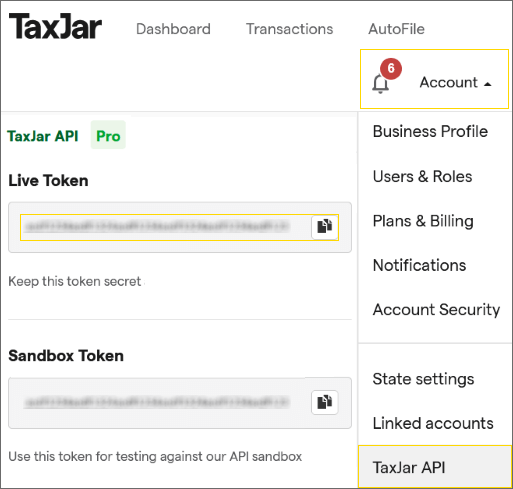
- Paste the Live API token into the TaxJar module. The sandbox token can also be used during testing to avoid TaxJar charges.

- Click the
 Test Connection button to verify that the connection is working.
 - Click the
 Pull Categories button. The TaxJar Category can be viewed on the Custom tab of the
  Product module.
 - Click the Pull Nexus button to import the Nexus states.
- Click the
 Save button in the module toolbar.


Process
- All products must be marked as taxable in Fishbowl or they will not be sent to TaxJar. Non-taxable products should have a non-taxable code assigned, but the taxable checkbox must still be enabled on the Fishbowl product. The taxable checkbox can also be changed on the sales order.
- Each Fishbowl product must also have an assigned category for TaxJar to assign tax codes in determining taxability for State, County, and City tax.
- To calculate tax, click the
 TaxJar button on the Sales Order module toolbar.
- A tax line item will then be added to the bottom of the sales order with the total tax amount.
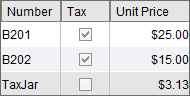
- If any changes are made to the order, the tax line item will need to be deleted and recalculated.
- Automatic tax calculations can also be configured on the Tax Import tab of the TaxJar module.
- If a schedule is enabled on the Fulfillment Export tab of the TaxJar module, Fishbowl will export fulfilled orders to TaxJar transactions.


Tax Import

The Tax Import tab of the TaxJar module can be used to configure a scheduled task that automatically calculates tax for sales orders. This is the same as clicking the  TaxJar button on the Sales Order module toolbar for each order. The tax amount will be calculated by TaxJar based on the products and shipping address.
- Orders with an Estimate or Issued status can be included on the import. Orders that already have an imported tax line will not be included automatically, but can be manually updated with the TaxJar button on the Sales Order module toolbar. Fishbowl orders that are In-Progress will not be included in the import.
- TaxJar will validate the Ship To address when requesting a tax estimate and when the order is shipped. This tab has an option to automatically update the shipping address in Fishbowl with the validated address from TaxJar.
- The Channels section can be used to filter orders based on their source (for example, if the order was imported from Shopify).
Fulfillment Export

- If a schedule is enabled on the Fulfillment Export tab of the TaxJar module, Fishbowl will export fulfilled shipments to TaxJar as transactions.
- The task supports partial shipments and includes any orders that have been updated via the Tax Import scheduled task or via the TaxJar button on the Sales Order module toolbar.
Sync nexus states
- New nexus states can be added in TaxJar by clicking here or by selecting State nexus settings in your TaxJar Account settings.
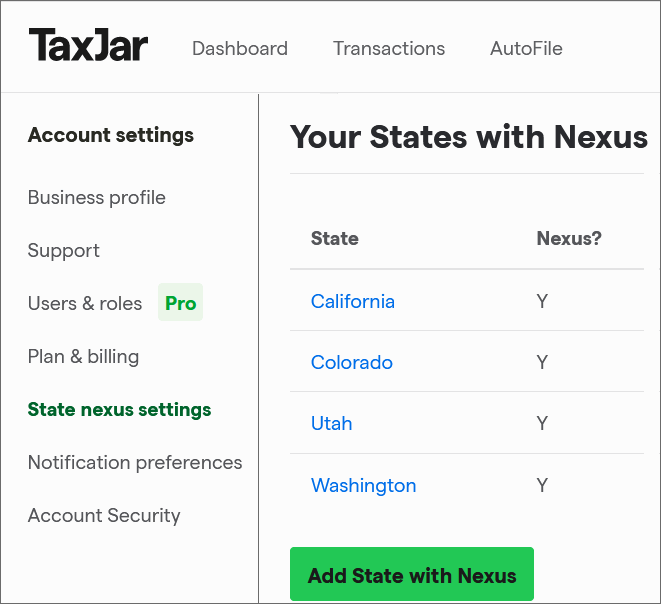
- After adding a nexus state in TaxJar, the list of nexus states needs to be synchronized by opening the TaxJar module in Fishbowl and clicking the Pull Nexus button.
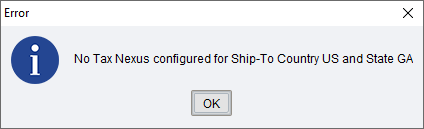
- If Fishbowl displays a No Tax Nexus configured message, the list of nexus states needs to be synchronized by clicking the Pull Nexus button in the TaxJar module.


Notes
When using TaxJar, some orders need to be processed in a specific way to ensure that the correct calculations are made. Below are some notes that apply when using the TaxJar integration.
- USA - TaxJar is not configured for countries outside of the United States.
- Tax codes - Products should have a tax code set on the Custom tab of the Product module.
- Shipping - Taxability is calculated and included in transactions sent back to TaxJar.
- Partial shipments - As items get shipped in Fishbowl, they will be included in the Transactions export. Subsequent fulfillments from the same order will update the original order in TaxJar transactions.
- Drop ship - Drop ship items must be fulfilled in the
 Receiving module in order for them to be included in the transactions sent back to TaxJar.
 - Duplicate - Duplicating a fulfilled sales order will also copy the TaxJar tax line item to the new order. This item should be removed from the new order so that the tax on the new order is recalculated correctly.
- Miscellaneous items - Miscellaneous sale items are supported for tax calculations and exported in the transactions back to TaxJar.
- Service - Service items are supported for tax calculations and exported in the transactions back to TaxJar.
- Return - Credit Return items are not currently supported in the integration at this time.
- Kit items - Kit items are supported for tax calculations and transaction export, but all items in the kit must be fulfilled before the kit gets included in the export of the transaction back to TaxJar.
- Edited Sales Orders - If items are added to an order after tax has been calculated, the original tax line item will need to be deleted and then recalculated.
- In-Progress Orders - Orders that are In-Progress in Fishbowl will not be included in the scheduled task for the Tax calculations import. If the Estimate and Issued orders are enabled on the Tax Import tab, those orders will be included as long as no imported tax line item is already found on the order.