Xero
 Fishbowl can export accounting information to QuickBooks, QuickBooks Online, or to Xero, a provider of online accounting software. The information listed below is specific to Xero. General accounting information is available in the
  Accounting Integration module. Xero provides a free trial and free QuickBooks file conversion, making it easy to experience the power and simplicity of the Fishbowl-Xero integration. Fishbowl integrates with the Growing and Established Xero pricing plans.
FAQs
- How is Xero different from QuickBooks?
- Both Xero and QuickBooks keep track of accounting data. Because Xero is web-based, it provides some additional advantages.
- Does Xero work on a Mac and on Linux?
- Yes. Xero runs in the cloud, independent of the operating system, and the Fishbowl Server exports data to Xero. The Fishbowl Server and Client can run on Windows, Linux, Mac, or any combination of those operating systems.
- Which versions of Xero work with Fishbowl Advanced?
- Fishbowl integrates with the Growing and Established Xero pricing plans.
- How does Fishbowl functionality change when integrated with Xero?
- Fishbowl functionality remains the same, regardless of the accounting software that is being used.
- How does Fishbowl utilize Xero categories?
- Fishbowl exports the name of the Fishbowl class as a category in Xero. This option can be customized in the
 Class module options.
- When integrated with Xero, is my inventory tracked in Fishbowl or Xero?
- In all accounting systems, orders will show item numbers and amounts, and Fishbowl will keep track of the inventory. Below is an example of a Fishbowl order exported to Xero.


- Why don't the values in my Xero accounts match what is in Fishbowl? Why are their discrepancies?
- Below are some of the most common causes of discrepancies between Fishbowl and Xero:
- Default Account Mapping - When you integrate with Xero, you select which accounts you want Fishbowl to export to. This is a crucial step, but sometimes customers are in a hurry or don't consult with their accountant. You can review and modify your account mappings at any time by opening the Accounting integration wizard.
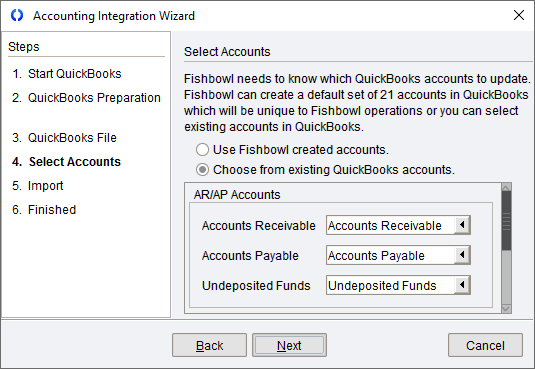
- Specific Part and Product Accounts - In addition to the default accounts mentioned above, each part and product can also be configured in Fishbowl to export to specific accounts in Xero. For example, if you assume that all of your parts are using the same COGS account, but a few parts are actually mapped to a different account, then you may think there is a discrepancy because the values are divided among multiple accounts.
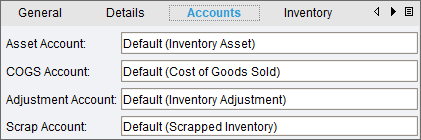
- Making changes in Xero instead of Fishbowl - In most circumstances, all transactions and changes should be recorded in Fishbowl and then exported to Xero. If you manually change a transaction in Xero, Fishbowl won't know about it and then the accounts may not match. For example, don't manually change an Item Receipt to a Bill in Xero. Instead, reconcile it in Fishbowl and then export it to Xero.
- Unauthorized editing - Changes should only be made in Xero under the supervision of your accountant. For example, don't give your warehouse workers access to delete journal entries.
- Back dating transactions - When you record a transaction in Fishbowl, there might be a legitimate reason to select a date other than today. Just be aware that frequent back dating, especially for a month that has already closed, can cause discrepancies.
- Accounts didn't match in the beginning - It's important to make sure that the balances in Xero match the values in Fishbowl when you go live.
- Skipped reconciliation - Reconciling is an important part of the accounting process. We recommend that you automatically schedule key reports from Fishbowl to be saved every day at the same time that you automatically export to Xero. If you have questions at a later date, you can go back to the date in question for more details, or to investigate when the discrepancy first occurred.
- Default Account Mapping - When you integrate with Xero, you select which accounts you want Fishbowl to export to. This is a crucial step, but sometimes customers are in a hurry or don't consult with their accountant. You can review and modify your account mappings at any time by opening the Accounting integration wizard.


- So remember...
- Nearly everything should be done in Fishbowl and then exported to Xero.
- Make sure that all changes in Xero are done under the supervision of an accountant that understands Fishbowl.
- You should not ask Fishbowl employees to make changes in Xero.
- If you find yourself in a situation that needs an expert, we can put you in contact with an independent consultant. To get you started, we've compiled a list of some consultants that customers have worked with in the past. These consultants have years of experience as well as many free online resources, such as video tutorials and troubleshooting articles. For example, we asked a consultant to share some tips for reconciling accounting discrepancies, which you can download here.
Integration
Follow the steps below to integrate Fishbowl with Xero.
- Open the Accounting Integration module and click the Configure tab. Then click the large blue Connect button to open the Xero Integration Wizard.
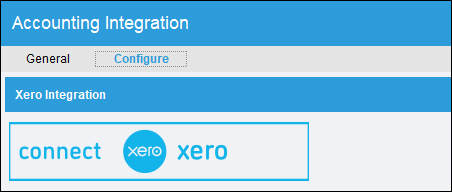
- Click the large blue Connect button and then log into your Xero account.

- When integrating with Xero, Multi-Factor Authentication (MFA) will be automatically enabled in Fishbowl. For additional details, see Multi-Factor Authentication (MFA) in the User module.
- Click Allow Access to allow Fishbowl to connect to your Xero account.

- In the Fishbowl wizard, click Next. Verify that your Company is selected and then click Next.

- Use the drop-down arrows to select existing Xero accounts that Fishbowl should use. If an appropriate account doesn't exist in Xero, click the Create button. For a description each accounts, see Required accounts.

Each part and product can also be mapped to specific accounts. If no account is selected for a specific part or product, the default accounts selected above will be used. - Click Next and select the data you would like to import from Xero.

- Click the Finish button to complete the integration wizard. If you would like to redo the integration wizard, click the
 Disconnect button on the module toolbar and then repeat the steps above.
 - You can now export data to Xero by clicking the Export button in the Accounting Integration module. If you'd like the export to happen automatically, you can open the
 Schedule module and create a scheduled task.


Required accounts
Fishbowl exports to several types of Xero accounts. During the integration, an existing Xero account can be selected or a new account can be created.
- Accounts Receivable - The account Fishbowl will use to record the money owed to the business. For outstanding invoices the company has issued out to the client but has not yet received in cash at balance date.
- Accounts Payable - The account Fishbowl will use to record outstanding bills of the business. For outstanding invoices the company has received from suppliers but has not yet paid at balance date.
- Holding - The account Fishbowl will use to handle all receipts that have not been fulfilled. This is usually a Current Liability account type and will only be used when parts are received but the bill is not yet reconciled in Fishbowl.
- Undeposited Funds - The account Fishbowl will use to handle all undeposited funds. This is usually a Bank account type.
- Capital Equipment - All transactions associated with Capital Equipment part types will be tracked in this account. Usually a Fixed Asset account.
- Internal Use - All transactions associated with Internal-Use part types will be tracked in this account. Usually an Expense account.
- Non Inventory - All transactions associated with Non-Inventory part types will be tracked in this account. Usually an Expense account.
- Service - All transactions associated with Service part types will be tracked in this account. Usually an Expense account.
- Labor - All transactions associated with Labor part types will be tracked in this account. Usually an Expense account.
- Overhead - All transactions associated with Overhead part types will be tracked in this account. Usually an Expense account.
- Sales Retail - Tracks the income from the sale of items. This is usually a Revenue account type.
- Discount Income - Tracks the amounts associated with discounts charged to customers (e.g., for returns or restocking fees). This is usually an Other Income account type.
- Discount Expense - Tracks the amounts associated with discounts given to customers on a sale. This is usually an Expense account type.
- Miscellaneous Expense - Tracks the expense from the sale of miscellaneous items. This is usually an Expense account Type.
- Sales Tax - Tracks the income from the sale of items. This is usually a Current Liability account type.
- Shipping Income - Keeps track of customer charges for shipping. This should be an Other Income account.
- Shipping Expense - Keeps track of vendor charges for shipping to us. This should be an Expense account.
- Shipping Accrual - Determines the account that shipping cost expense posts against. This should be an Other Current Liability account.
- Inventory Asset - Tracks the current value of your inventory. This should be a Current Asset account.
- COGS - The cost of goods and materials held in inventory and then sold. This is a Direct Cost account type.
- Scrapped Inventory - This account is used when inventory is scrapped (e.g., adjustments go down due to damage, theft, spoilage, etc.). This should be a Direct Cost account.
- Inventory Adjustment - This account is used to track cycle-count adjustments to inventory. This should be Direct Cost account type.
- Cost Variance - This is a Current Asset account that will only be used if the costing method specified is Standard Costing. A credit balance in a cost variance account is always favorable.
- Customer Prepayment - This is a Current Liability account that is used when a customer prepays for items.
Import
To import data from Xero to Fishbowl, select the type of information that should be imported, and then click the  Import button located on the General tab of the Accounting Integration module.

In Fishbowl, initial inventory may be added in a few different ways:
Import inventory via CSV file
Import Inventory via a CSV (comma separated values) file and Fishbowl's Import wizard.
CSV files are the most-common import and export format for spreadsheets and databases. CSV files allow information to be imported from spreadsheets. Barcode readers can also be programmed to export this type of file.
Add inventory in the  Inventory module
Use the Add inventory or the Cycle count options to add initial inventory, adjust inventory quantities, or scrap inventory. The component toolbar also has buttons that can be used to adjust inventory.
Export
To export data from Fishbowl to Xero, click the  Export button located on the General tab of the Accounting Integration module.
Journal entries
Below are some examples of average cost journal entries that are created when exporting to the default accounts in Xero. For more examples, see Accounting Journal Entries.
Unpaid sales order with inventory item


Credit return sales order with inventory item


Unpaid sales order with non-inventory item


Paid sales order with inventory item


Paid sales order with service item


Add inventory


Received purchase order with inventory item


Fulfilled purchase order with inventory item


MODULE OPTIONS
Some aspects of the Accounting Integration module can be customized by opening the module, clicking the Tools menu, and then selecting Module Options.

- Attach order item notes to Accounting export
- If this option is checked, any notes on Fishbowl order items will be exported to the accounting system.
- Export part tracking to Accounting
- With this option checked, Fishbowl part tracking information, such as serial numbers, will be exported to the accounting system.
- Create a bill in Accounting after reconciling a receipt
- With this option checked, a bill will be sent to the accounting system after an order is reconciled, even if the order has not yet been received.
- Add the drop ship items to the oldest open invoice
- With this option checked, drop ship items will be added to the oldest open invoice, instead of a creating a new invoice each time.
- Send payment when order is fulfilled
- With this option selected, payments will only be exported after the sales order is fulfilled. Warning: This will prohibit the export of any payments taken on sales orders until they are completely fulfilled and may result in a discrepancy between your financial institution records and your accounting system until orders are properly fulfilled. Please verify this option with your accountant and contact the Fishbowl Support team for additional information if needed.
- Append unique ID to Sales Order number on export
- This only applies to fulfilled Sales Orders with no associated shipments (i.e. all drop ship, service, shipping, and miscellaneous type items).
- Prefix with the product number
- With this option checked, the Fishbowl product number is added to the beginning of the invoice item description in the accounting system.
- Append product UOM when different from the default
- With this option checked, the UOM will be displayed in the item description of the accounting system if the UOM on the sales order is different than the product's default UOM.

After integrating with Xero, the integration can be further customized by opening the Accounting Integration module options. With the Accounting Integration module open, click the Tools menu and then select Module Options.
Fishbowl can export transactions to Xero with an Approved status or with a Draft status.

The Costing tab displays the costing method being used in the current database. Although the costing method may be viewed, it may not be changed. The costing method is set when a new database is created. It may be possible to change the costing method of an existing database by contacting Fishbowl Support. Individual part costs can be viewed on the Costing tab of the Inventory module. Note: The Costing tab in the Inventory module displays various costs for informational purposes, but only the values in the Current Costing Method will be used. Below is an explanation of the costing methods available in Fishbowl.
| Costing method | Definition |
|---|---|
| Standard cost | Costs are pre-determined for estimating the cost of an order or product. The difference between standard costs and actual costs are recorded as variances and will be reflected in a Cost Variance account. The specified Standard Cost of a part will be used to debit the Cost of Goods Sold account. |
| LIFO cost | Last In, First Out. This method assumes the last inventory purchased will be the first sold. When these goods are sold, the value of the newest inventory will be used to debit the Cost of Goods sold account. |
| FIFO cost | First In, First Out. This method assumes the first inventory purchased will be the first sold. When these goods are sold, the value of the oldest inventory will be used to debit the Cost of Goods sold account. |
| Average cost | The average cost is a simple calculation of total cost divided by inventory quantity. See the table below for an example.
When inventory is purchased, the actual cost of the inventory is added to the total cost, which can result in the average cost changing. When inventory is sold, the current average cost is used, so the total quantity will change, but the average cost will not change as a result of selling an item. LIFO and FIFO use costing layers to store the cost history, so the current cost can change each time an item is sold. With average cost, the item's original cost is included in the average and then when the inventory is sold, only the average cost is used and recorded in the cost of goods sold account. If the inventory quantity ever reaches zero, Fishbowl will temporarily store the last average cost, but when new inventory comes in, the calculation starts over using only the cost and quantity of the new inventory. The average cost can also be manually changed. |
Below is an example of average costing.
| Quantity | Unit cost | Total cost | Total quantity | Average cost |
|---|---|---|---|---|
| +10 initial inventory | $10 | $10 x 10 = $100 | 10 | $100 ÷ 10 = $10 |
| +1 on a purchase order | $21 | $100 + $21 = $121 | 10 + 1 = 11 | $121 ÷ 11 = $11 |
| -1 on a sales order | $11 (average cost) | $121 - $11 = $110 | 11 - 1 = 10 | $110 ÷ 10 = $11 |
| -10 on a sales order | $11 (average cost) | $121 - $121 = $0 | 10 - 10 = 0 | Average will reset |
| +1 on a purchase order | $18 | $18 | 0 + 1 = 1 | $18 ÷ 1 = $18 |