UPS Ready: Difference between revisions
From Fishbowl Advanced
m (Text replacement - "==Troubleshooting==" to "=Troubleshooting=") |
m (A few small changes involving bolding and commas.) |
||
| Line 1: | Line 1: | ||
{{r|NOTE:}} The {{Module|UPS Ready}} was removed in Fishbowl 2022.4. The {{Module|Fishbowl ShipExpress}} and the {{Module|ShipStation}} integrate with UPS and nearly all other carriers. Alternatively, Fishbowl can integrate with programs like [[#FedEx integration|FedEx]] and [[#UPS integration|UPS WorldShip]]. For more information, see [[Shipping Integration]]. | {{r|NOTE:}} The {{Module|UPS Ready}} was removed in Fishbowl 2022.4. The {{Module|Fishbowl ShipExpress}} and the {{Module|ShipStation}} integrate with UPS and nearly all other carriers. Alternatively, Fishbowl can integrate with programs, like [[#FedEx integration|FedEx]] and [[#UPS integration|UPS WorldShip]]. For more information, see [[Shipping Integration]]. | ||
{{Module Introduction|UPS Ready|Integrations}} provides the ability to integrate with UPS. UPS features are built into Fishbowl and directly accessible with no additional software required. The UPS integration can be configured by clicking a {{Button|UPS}} in the [[Shipping#UPS|Shipping]] or [[Sales Order#UPS|Sales Order]] module, or by opening the {{Module|UPS Ready}}. | {{Module Introduction|UPS Ready|Integrations}} provides the ability to integrate with UPS. UPS features are built into Fishbowl and directly accessible with no additional software required. The UPS integration can be configured by clicking a {{Button|UPS}} in the [[Shipping#UPS|'''Shipping''']] module or [[Sales Order#UPS|'''Sales Order''']] module, or by opening the {{Module|UPS Ready}}. | ||
* '''Sales Order Rates''' - Rates are created in the {{Module|Sales Order|UPS}}. A rate is an estimate that can be added as a line item on the sales order. It is not necessary to have a UPS account number to get rates. The [[UPS Ready#Modify|Account Type]] will determine the type of rates that are shown. A rate can also be added to the order to charge the customer for shipping. | * '''Sales Order Rates''' - Rates are created in the {{Module|Sales Order|UPS}}. A rate is an estimate that can be added as a line item on the sales order. It is not necessary to have a UPS account number to get rates. The [[UPS Ready#Modify|Account Type]] will determine the type of rates that are shown. A rate can also be added to the order to charge the customer for shipping. | ||
| Line 11: | Line 11: | ||
Follow the steps below to configure the UPS integration. | Follow the steps below to configure the UPS integration. | ||
# Click the '''Integrations''' menu or module group and then open the {{Module|UPS Ready}}. | # Click the '''Integrations''' menu or module group, and then open the {{Module|UPS Ready}}. | ||
# Click the {{Button|New|Setup}}, or click the '''Register''' button. | # Click the {{Button|New|Setup}}, or click the '''Register''' button. | ||
# Scroll to the bottom of the license agreement, check '''I agree''', and then click '''Next'''.<br>[[File:Shipping UPS License Agreement.png]] | # Scroll to the bottom of the license agreement, check '''I agree''', and then click '''Next'''.<br>[[File:Shipping UPS License Agreement.png]] | ||
# Enter the required UPS account information and click '''Next'''.<br>[[File:Shipping UPS Account Information.png]] | # Enter the required UPS account information and click '''Next'''.<br>[[File:Shipping UPS Account Information.png]] | ||
# Enter any additional information that is requested and then click '''Finish''' to complete the wizard. | # Enter any additional information that is requested, and then click '''Finish''' to complete the wizard. | ||
# After the UPS setup has been completed two UPS tabs will be added to the [[Shipping#UPS|Shipping module]], one at the top next to the '''Custom''' tab | # After the UPS setup has been completed, two UPS tabs will be added to the [[Shipping#UPS|'''Shipping''' module]], one at the top next to the '''Custom''' tab and one at the bottom in the '''Carton Details''' pane. | ||
==Modify== | ==Modify== | ||
Latest revision as of 11:49, 5 April 2023
NOTE: The  UPS Ready module was removed in Fishbowl 2022.4. The
 Fishbowl ShipExpress module and the
 ShipStation module integrate with UPS and nearly all other carriers. Alternatively, Fishbowl can integrate with programs, like FedEx and UPS WorldShip. For more information, see Shipping Integration.
The UPS Ready module, located in the  Integrations group, provides the ability to integrate with UPS. UPS features are built into Fishbowl and directly accessible with no additional software required. The UPS integration can be configured by clicking a
 UPS button in the Shipping module or Sales Order module, or by opening the UPS Ready module.
- Sales Order Rates - Rates are created in the
 Sales Order module. A rate is an estimate that can be added as a line item on the sales order. It is not necessary to have a UPS account number to get rates. The Account Type will determine the type of rates that are shown. A rate can also be added to the order to charge the customer for shipping.
- Shipping Quotes - Quotes are created in the
 Shipping module. A quote reflects the actual amount that will be paid to UPS. The Shipping module has buttons to get and accept quotes, create and void shipments, print labels, and return shipments. Shipping amounts will be determined by the negotiated rates associated with the shipper account. To charge a customer for actual shipping charges, see Carton based shipping.
Setup
Follow the steps below to configure the UPS integration.
- Click the Integrations menu or module group, and then open the
 UPS Ready module.
- Click the
 Setup button, or click the Register button.
- Scroll to the bottom of the license agreement, check I agree, and then click Next.
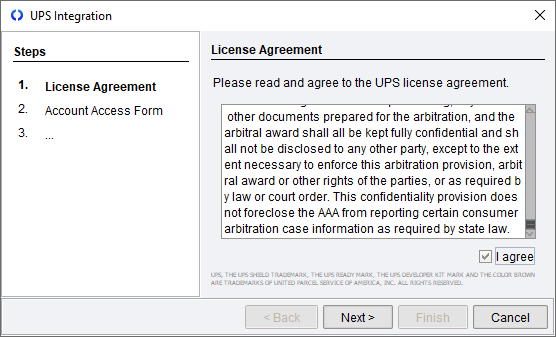
- Enter the required UPS account information and click Next.

- Enter any additional information that is requested, and then click Finish to complete the wizard.
- After the UPS setup has been completed, two UPS tabs will be added to the Shipping module, one at the top next to the Custom tab and one at the bottom in the Carton Details pane.


Modify

- The Account Type dropdown controls what type of rates are shown when getting UPS rates in the Sales Order module. The actual quote generated in the Shipping module will always use the negotiated rates associated with the shipper number.
- UPS accounts can be added and removed by using the buttons on the component toolbar to the right. A default account can also be set.
- The Register button can be used to add a UPS account. The Unregister button will remove all UPS account information from Fishbowl.
Troubleshooting
- The UPS Ready integration is not compatible with Fishbowl Canada.
- Many UPS label fields are limited to 35 characters.