Getting Started: Difference between revisions
m (→Create account: I added a border around the third image.) |
(→Feature comparison: I added checkmarks next to Amazon, BigCommerce, and WooCommerce because Sellware integrates with them, and it's now available in Fishbowl Drive. So I think it's okay to mark them as working with Fishbowl Drive.) |
||
| Line 79: | Line 79: | ||
|Amazon integration | |Amazon integration | ||
|✓ | |✓ | ||
| | |✓ | ||
|- | |- | ||
|ATF report available | |ATF report available | ||
| Line 115: | Line 115: | ||
|BigCommerce integration | |BigCommerce integration | ||
|✓ | |✓ | ||
| | |✓ | ||
|- | |- | ||
|Bill of materials | |Bill of materials | ||
| Line 363: | Line 363: | ||
|WooCommerce integration | |WooCommerce integration | ||
|✓ | |✓ | ||
| | |✓ | ||
|- | |- | ||
|Work orders | |Work orders | ||
Revision as of 12:06, 18 March 2024
Fishbowl Online is now Fishbowl Drive. Fishbowl Drive is designed to make managing your business convenient and intuitive. If you've ever used Fishbowl Advanced, the flow will feel very familiar. A key difference between them is that Fishbowl Advanced is a desktop-based inventory management solution, while Fishbowl Drive is a purely online solution. Below is a feature comparison of Fishbowl Drive and Fishbowl Advanced. After creating a free Fishbowl Drive account, it's easy to familiarize yourself with Fishbowl Drive by enabling the sandbox environment and exploring the layout of all of the modules.

Feature comparison
Fishbowl Advanced and Fishbowl Drive have similar features. New features are being added to Fishbowl Drive, and it is anticipated that it will eventually have feature parity with Fishbowl Advanced.
| Feature | Fishbowl Advanced | Fishbowl Drive |
|---|---|---|
| Installation | Download | None |
| Hardware and IT requirements | Moderate | Minimal |
| Updates and backups | Schedule | Auto |
| Integrations | 31 | 6 |
| Mobile app | Yes | Yes |
| Access from web browser | ✓ | ✓ |
| QuickBooks Desktop integration | ✓ | |
| QuickBooks Online integration | ✓ | ✓ |
| Xero Accounting integration | ✓ | ✓ |
| Internal chart of accounts | ✓ | |
| UOM conversions | ✓ | ✓ |
| Part-specific UOM conversions | ✓ | |
| Address validation | ✓ | ✓ |
| Alert notes | ✓ | ✓ |
| Amazon integration | ✓ | ✓ |
| ATF report available | ✓ | |
| Auto commit | ✓ | ✓ |
| Auto generated purchase orders | ✓ | ✓ |
| Auto order numbering | ✓ | ✓ |
| Auto pack shipments | ✓ | ✓ |
| Auto reorder points | ✓ | ✓ |
| Average costing | ✓ | ✓ |
| Barcodes | ✓ | ✓ |
| BigCommerce integration | ✓ | ✓ |
| Bill of materials | ✓ | |
| Calendar | ✓ | |
| Class tracking | ✓ | ✓ |
| Consignment | ✓ | ✓ |
| Create custom reports | ✓ | |
| Credit card processing | ✓ | ✓ |
| Credit returns | ✓ | ✓ |
| CSV import/export | ✓ | ✓ |
| Custom fields | ✓ | ✓ |
| Custom tags | ✓ | ✓ |
| Cycle count | ✓ | ✓ |
| Dashboard | ✓ | ✓ |
| Developer API | ✓ | ✓ |
| Dropship | ✓ | ✓ |
| Duplicate an item | ✓ | ✓ |
| Duplicate an order | ✓ | ✓ |
| E-commerce integrations | ✓ | ✓ |
| ✓ | ✓ | |
| Forecasting | ✓ | |
| Inventory | ✓ | ✓ |
| Kits | ✓ | ✓ |
| Landed cost | ✓ | ✓ |
| LIFO/FIFO costing | ✓ | ✓ |
| LIFO/FIFO picking | ✓ | ✓ |
| Manufacture orders | ✓ | |
| Multiple currencies | ✓ | ✓ |
| Multiple locations | ✓ | ✓ |
| Parts, products, items | ✓ | ✓ |
| Payment terms | ✓ | ✓ |
| Payments | ✓ | ✓ |
| Picking | ✓ | ✓ |
| Point of sale interface | ✓ | |
| Pricing rules | ✓ | ✓ |
| Purchase orders | ✓ | ✓ |
| Receiving | ✓ | ✓ |
| Reconcile | ✓ | ✓ |
| Reports | ✓ | ✓ |
| Reverse lot history report | ✓ | |
| RMA | ✓ | |
| Sales orders | ✓ | ✓ |
| Salesforce integration | ✓ | |
| Schedule | ✓ | |
| Ship with customer's carrier account | ✓ | ✓ |
| Shipping | ✓ | ✓ |
| Shippo integration | ✓ | ✓ |
| ShipStation integration | ✓ | ✓ |
| Shopify integration | ✓ | ✓ |
| Show markup and margin | ✓ | ✓ |
| SO to PO conversion | ✓ | |
| Standard costing | ✓ | |
| Stripe integration | ✓ | ✓ |
| Tax rates | ✓ | ✓ |
| TaxJar integration | ✓ | |
| Tracking custom criteria | ✓ | ✓ |
| Tracking expiration dates | ✓ | ✓ |
| Tracking lot numbers | ✓ | ✓ |
| Tracking serial numbers | ✓ | ✓ |
| Transfer orders | ✓ | |
| User permissions | ✓ | ✓ |
| Vendor parts and pricing | ✓ | ✓ |
| View database | ✓ | |
| WooCommerce integration | ✓ | ✓ |
| Work orders | ✓ |
Create account
Follow the instructions below to create an account. NOTE: You will only need to create one account per company. Additional users can then be added to the same company in the Users module.
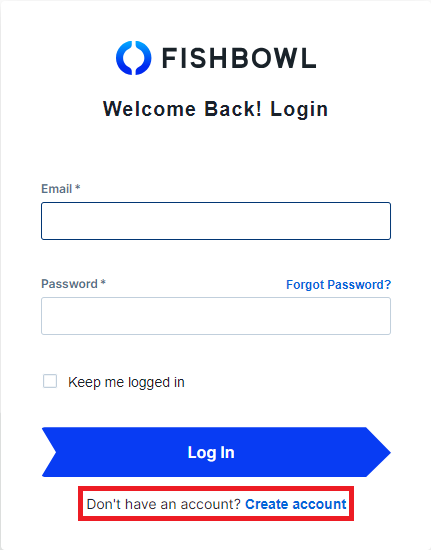
- Visit fishbowlonline.com and click the Create account link near the bottom.
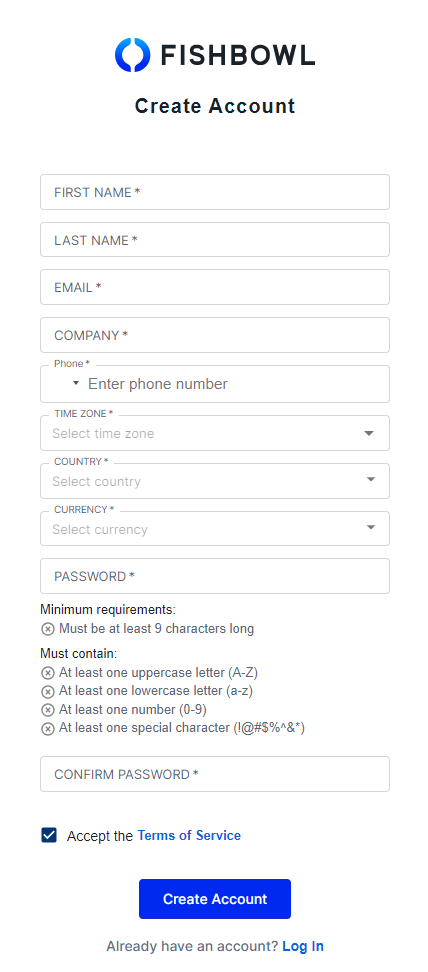
- Enter your name, email, password, etc., and then click the Create Account button.
- Enter your username and password again, and then click the LOG IN button.


Sandbox environment
Sometimes the best way to learn is to explore and try things out, so Fishbowl Drive makes it easy to play around in a sandbox test environment at any time without affecting your production data.
- To get started, log in and click the profile icon near the top-right corner. Then move the View sandbox environment slider.

- Next, click the Sandbox Data section near the bottom-left corner. You can then choose to Populate with sample data to see an example database, or, if you've already added your own data, you can click Populate with my account data to test using a copy of your own data.

- Any changes made in the sandbox environment will not affect your production data. When you're ready to return to your live data, simply move the slider shown in the first step to exit the sandbox environment. Later, if you want to test how something works, just turn the Sandbox Environment back on again.


Layout
Below is the general layout found in most sections of Fishbowl Drive.
- Side nav - The side navigation drawer displays all of the groups and modules of Fishbowl Drive. Click any group to expand it or collapse it. The entire drawer can also be expanded or collapsed by clicking the
 Expand button near the bottom.
- Search list - Use the search field to filter the list of items in the module. Click any item to open it. For more information about wildcard and advanced searches, see the Search section below.
- Action bar - A list of actions to be performed on the open item. Click the
 More button to see additional actions.
- Tabs - Each tab displays different details for the open item.
- Item list - This is where items are added, deleted, sorted, etc. Click the More button to see additional actions for each order item.
- Flow bar - Allows quick navigation to move an order toward fulfillment.


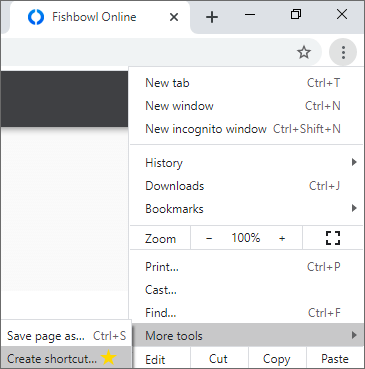
- Many users may wish to make Fishbowl Drive display in its own application window as shown in the image above. To do this in Chrome, click the More button in the top-right corner of the browser, select More Tools, and then click Create Shortcut.
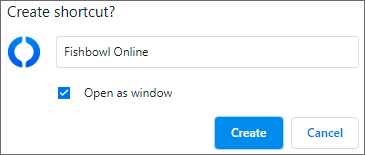
Verify that Open as window is selected, and then click Create. On your desktop there will now be a Fishbowl Drive icon that opens like a traditional desktop application.


Search
- All of the search fields in Fishbowl Drive will filter the table using data from any of the columns. For example, you could search for a partial location name, a sales rep, a vendor, etc.


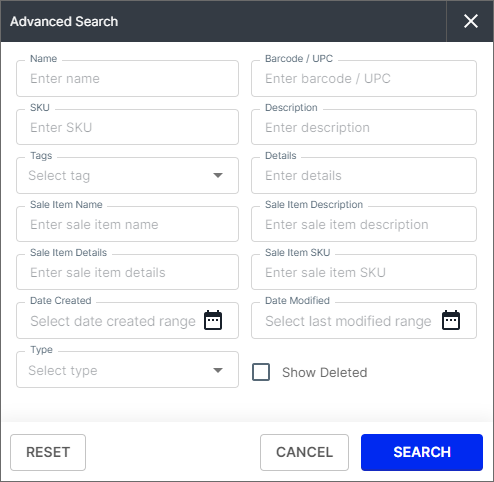
- For more search options, click Advanced on the right-side of the search field. This allows more-specific searches, including item descriptions, date ranges, etc.

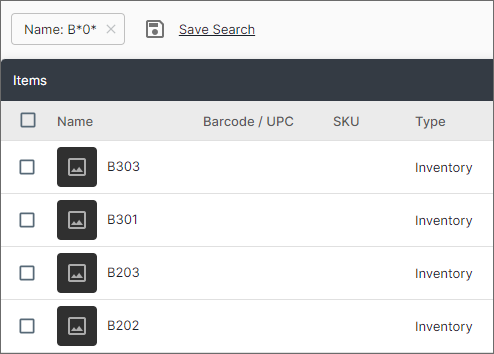
- The advanced search also supports a wildcard search using the * character. For example, searching for B*0* would return B201, B303, etc.

Recommended order of CSV imports
CSV imports are used to add multiple items, customers, or other pieces of information into your Fishbowl Drive account at the same time. If you are creating a new database, we recommend using the imports in a specific order because some of the imports rely on the presence of basic information, such as UOMs, locations, and item names. Thus, it’s a good idea to have everything in place to avoid error messages and failed imports.
With this in mind, here is the order we recommend you add CSV imports:
- UOMs
- Locations
- Items
- Item Locations
- Carriers
- Vendors
- Vendor Items
- Inventory
- Customers
- Reorder Points
- Sales Orders
- Purchase Orders
Click any of the links above to see a detailed explanation for that CSV import.
Modules
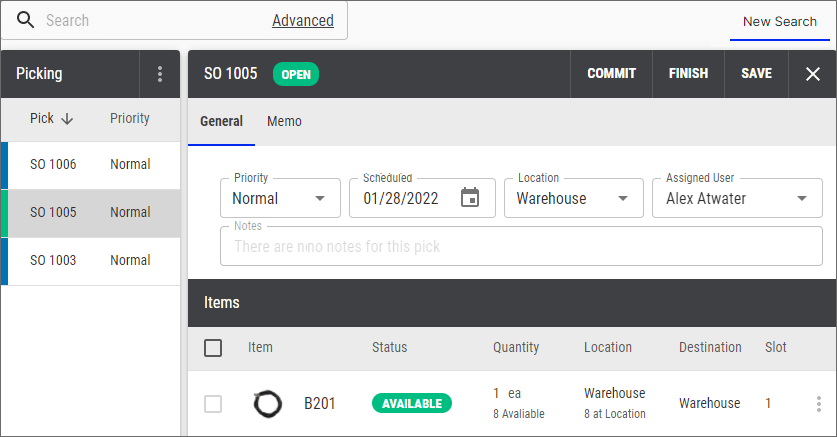
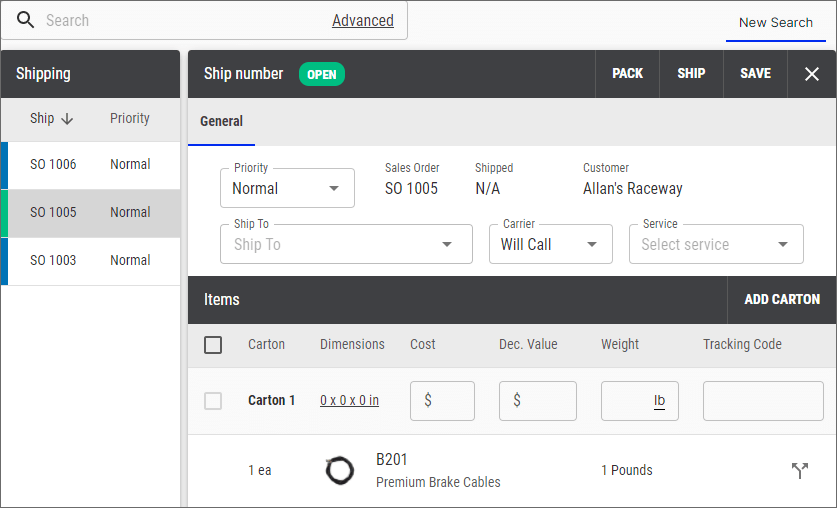
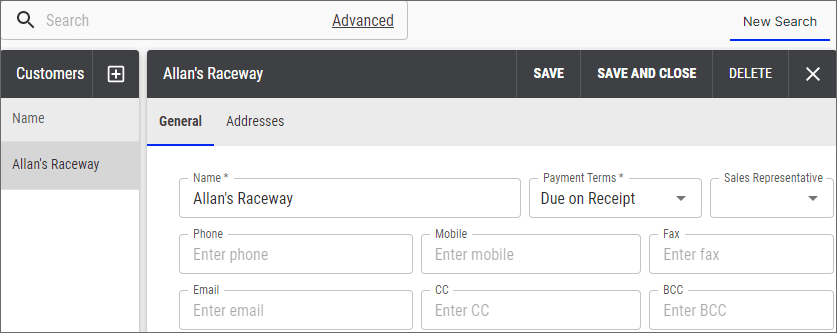
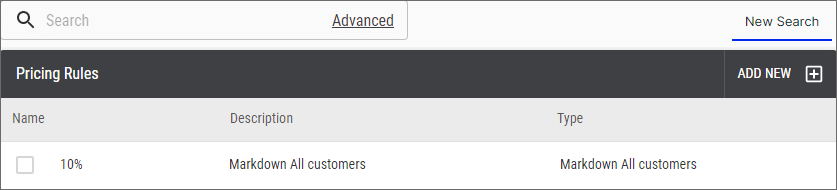
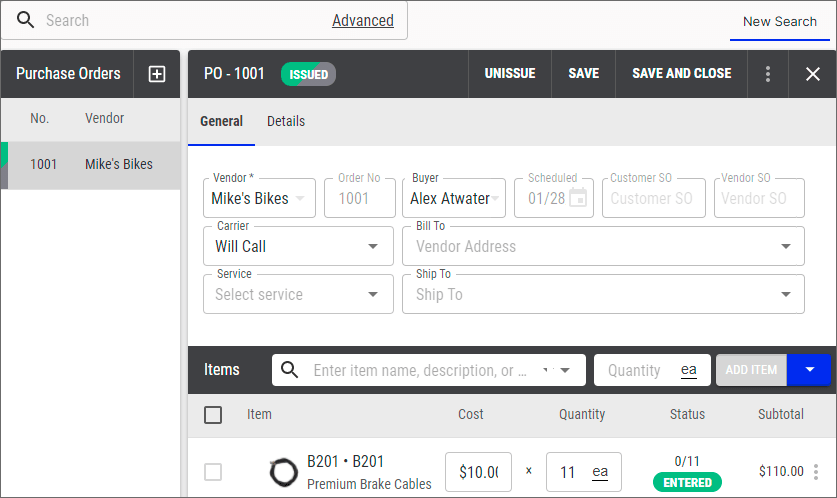
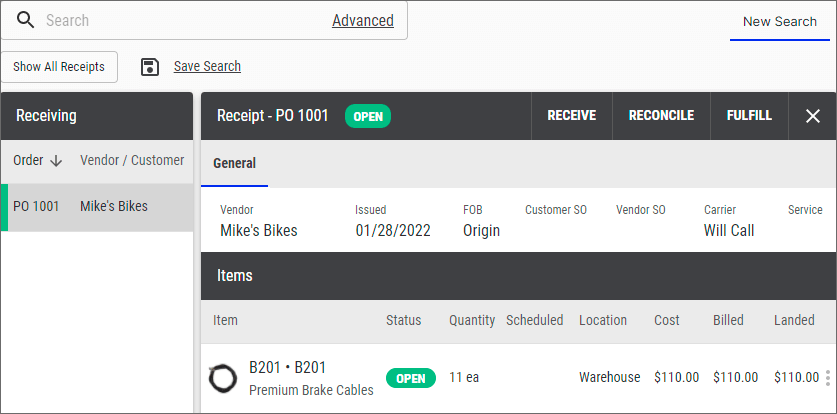
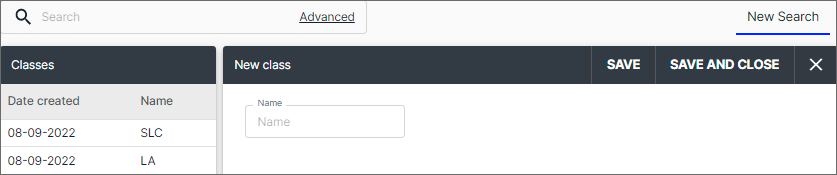
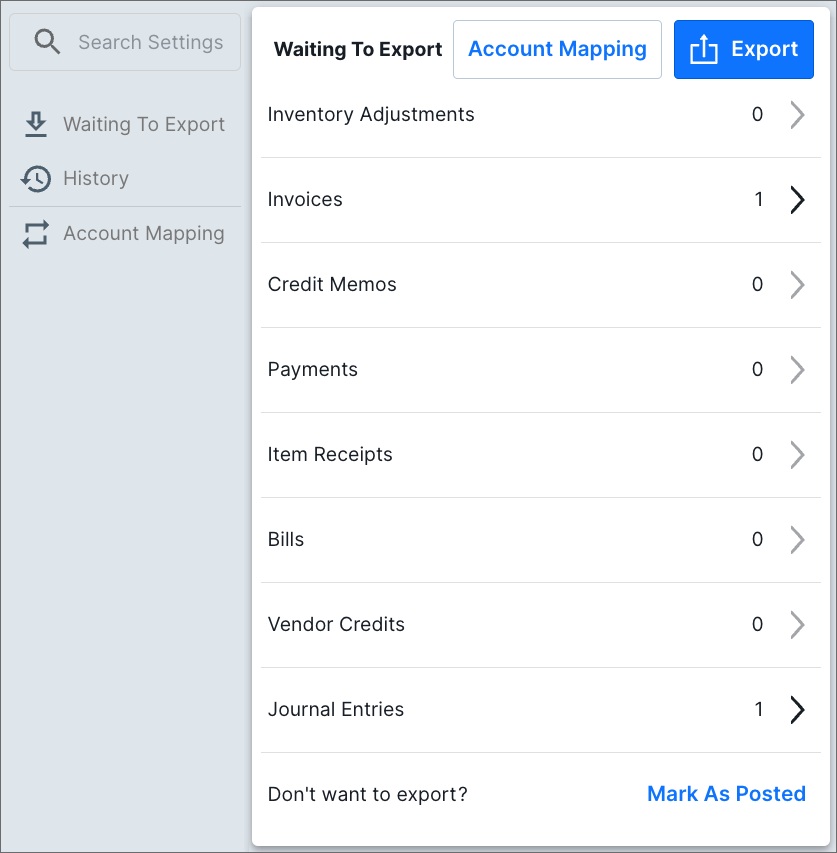
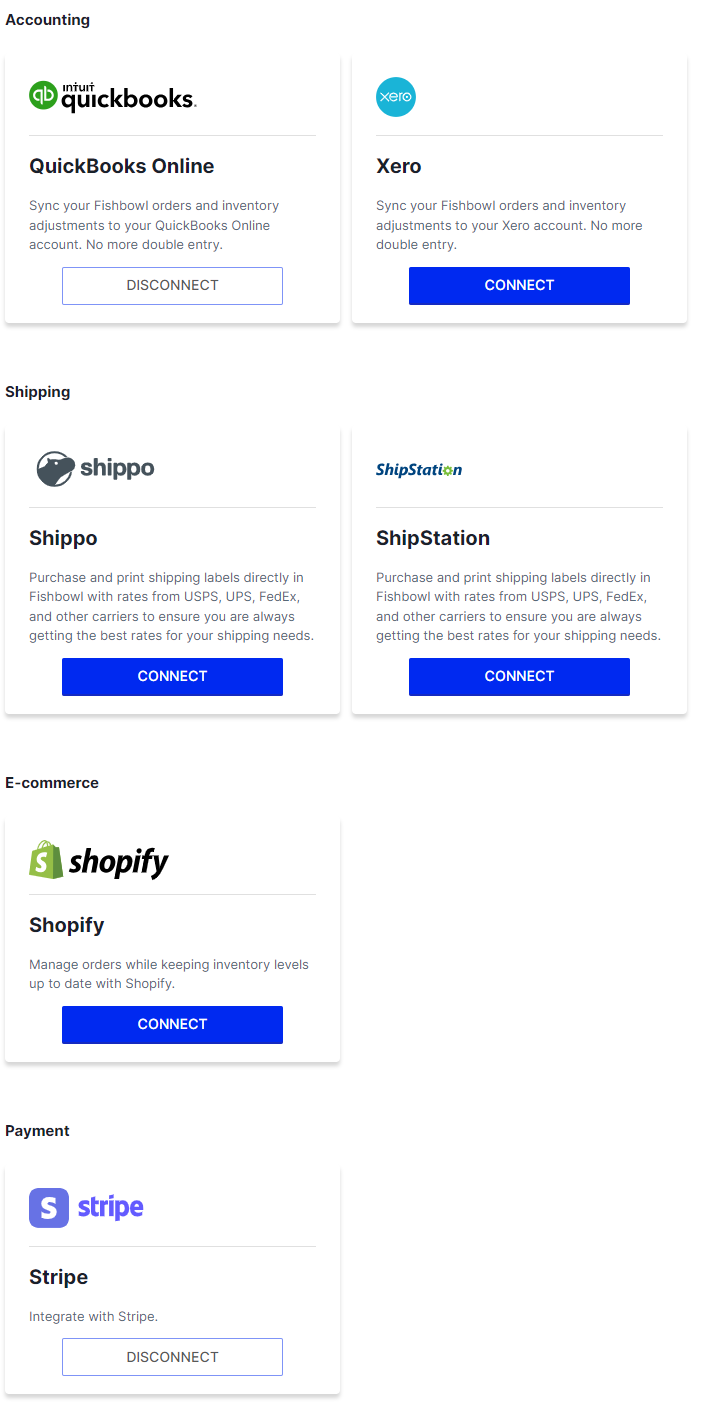
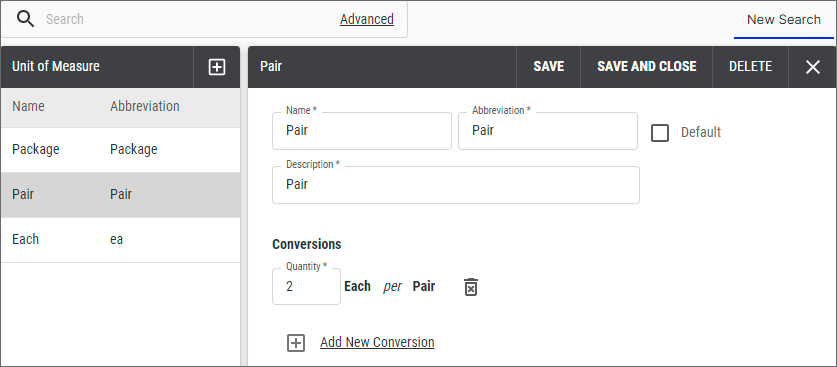
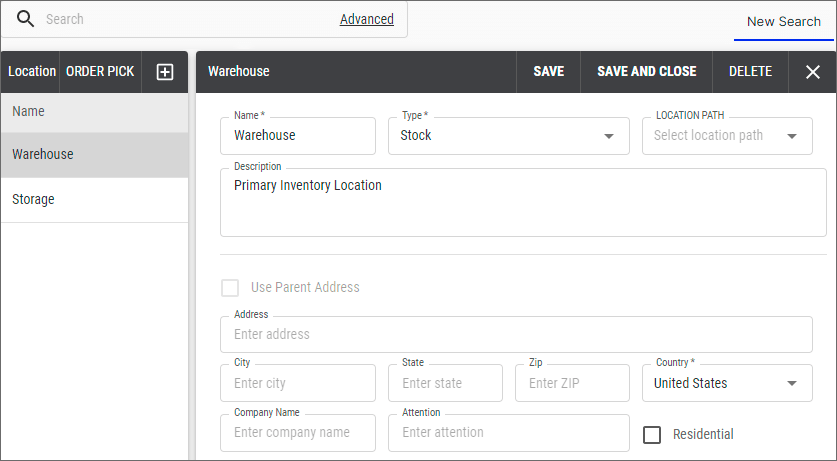
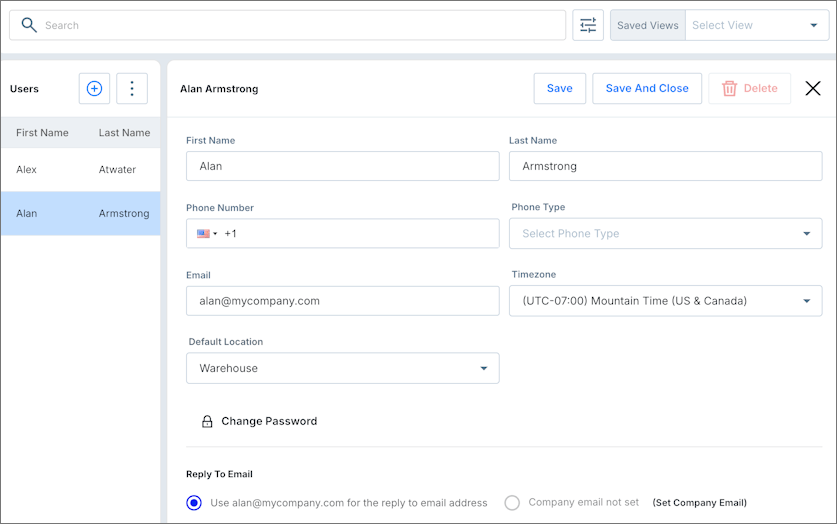
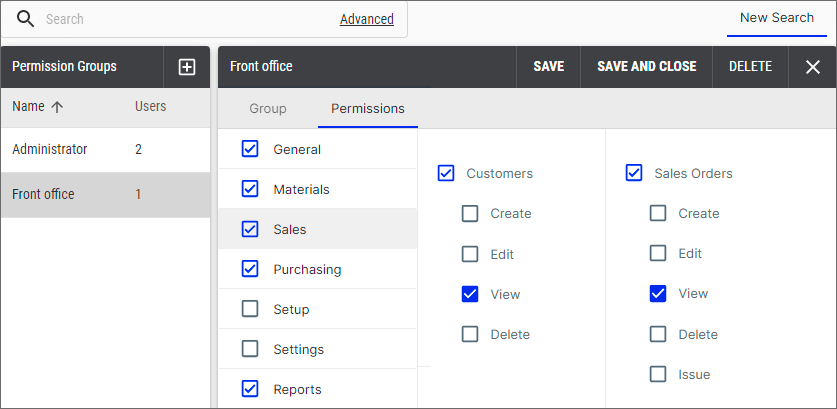
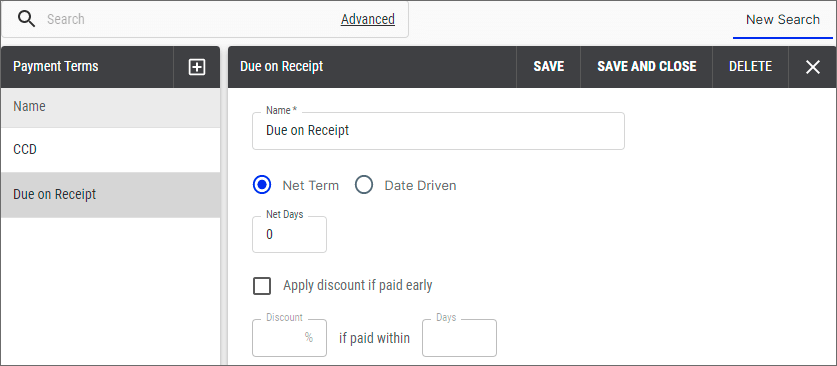
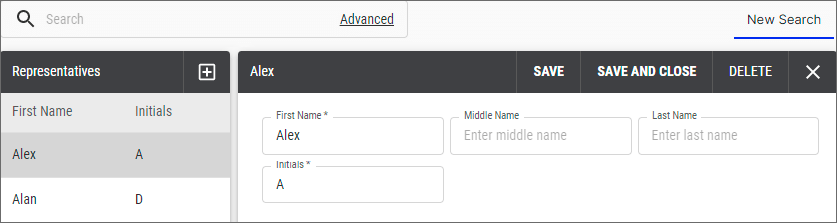
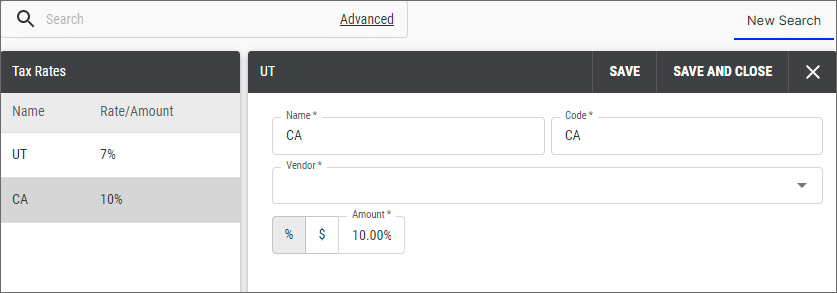
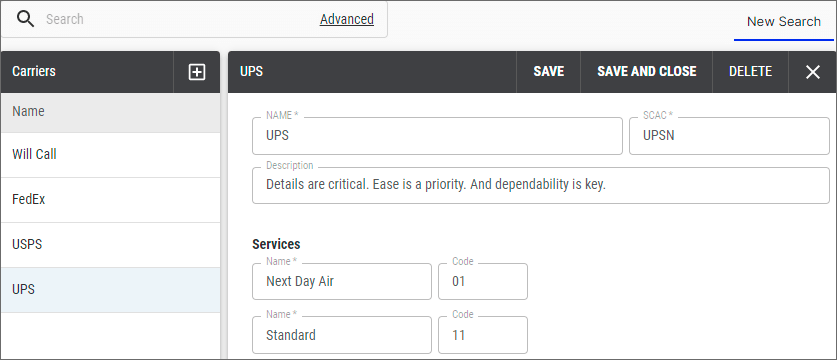
Below is a screenshot of each of the modules in Fishbowl Drive. Click any video or screenshot for more information.






Mobile app
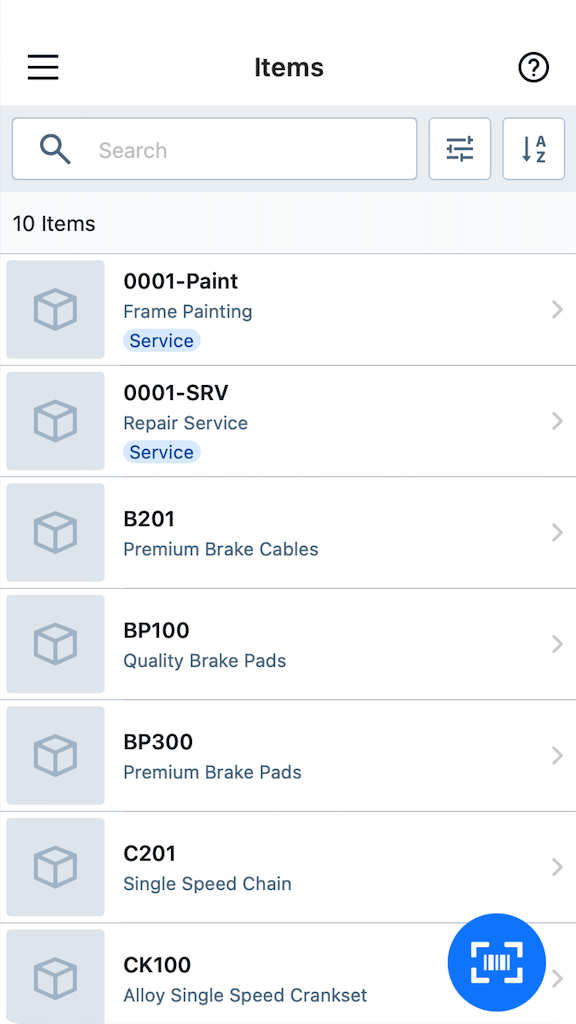
Fishbowl is developing a new mobile app called Fishbowl Drive Mobile. Currently, it only supports iOS, but it will soon support Android and include the same features as the previous Fishbowl Online Mobile app, which is still available.
Now that you've learned a little more about Fishbowl Drive, try it for yourself at fishbowlonline.com. You can also check out our Training Videos and our Release Notes.