|
|
| Line 1: |
Line 1: |
| This article gives a detailed description of included reports and report filters. The <span class="nowrap">{{#ifeq: {{PAGENAME}} | Reports | [[File:Icon.Reports.png|x24px|middle]] [[Reports|<b>Reports</b>]] module | [[File:Icon.Reports.png|x24px|link=Reports#|middle]] [[Reports#|<span title="{{#if:|{{{2}}} in the}} {{#if:Reports|Reports|{{PAGENAME}}}} module"><b>Reports</b> module</span>]]}}</span> provides a more compact list of included reports, as well as information for custom reports, module associations, default printers, and more. In addition to many [[Reports#Included reports|included reports]], Fishbowl also offers [[Reports#Custom reports|custom reports]] and reports from the [https://store.fishbowlinventory.com/ Fishbowl Store].
| | =Included reports= |
|
| |
|
| Any report can be customized by clicking the <span class="nowrap">[[File:Modify Report Button.png|middle]] '''Modify Report'''</span> button. A user can customize the report filters any way and then save them as the default filters by clicking the '''Save Filters''' button. Below is a description of the buttons found at the bottom of the '''Modify Report''' window.
| | Below is a list of the [[Reports|reports]] included with Fishbowl Advanced. Fishbowl also offers [[Reports#Custom reports|custom reports]] and reports from the [https://store.fishbowlinventory.com/ Fishbowl Store]. Click the report title to see more details. |
|
| |
|
| *[[File:Save Icon Button.png]] The '''Save Filters as Default Filters''' button saves the current filters so they will load each time the report is opened.
| | ==Accounting== |
| *[[File:Open Icon Button.png]] The '''Load Default Filters''' button reloads the user saved filters.
| | {{Report|Adjustment Report|Shows inventory adjustments sent to the accounting system}} |
| *[[File:Reset all Filters Icon Button.png]] The '''Reset all Filters''' button temporarily resets all filters to the report's default filters. The filters will be set to how they were when Fishbowl was installed, before the user saved any filters. Next time the report loads, it will revert to the user saved filters.
| | {{Report|COGS By Account Summary|Generates a summary of all COGS values, by account}} |
| *[[File:Delete Saved Filters Icon Button.png]] The '''Delete Saved Filters''' button deletes the user saved filters so that the report's default filters will load each time the report is opened.
| | {{Report|Default Account Mapping|Prints a list of Fishbowl accounts and the default account they tie to in the accounting system}} |
| | {{Report|Export Summary|Prints a list of PO, SO, and WO transactions that have been exported (or are pending) to the accounting system. Work order amounts reflect the total adjustments made, not the final cost of the work order}} |
|
| |
|
| Select a report from the table of contents below to see a detailed description of the report and each report filter.
| | ==Bill of Materials== |
| | {{Report|Bill of Materials Report|Prints a bill of materials with its default options, stages, raw goods, and finished goods. The report calculates an estimated cost of finished goods based on the average cost of either the lowest-level raw material or top-level sub-assembly cost}} |
| | {{Report|BOM Instructions|Prints a list of bills of material and notes for a part}} |
|
| |
|
| =ACCOUNTING= | | ==Customer== |
| | {{Report|Customer Address List|Prints a list of customer addresses}} |
| | {{Report|Customer Details List|Prints a list of customer addresses and contact details}} |
| | {{Report|Customer Price List|This may take a while to produce since it processes each product against all applicable pricing rules to determine a particular customer's price}} |
| | {{Report|Customer Statement|Prints a statement for one or more customers, showing all unpaid sales orders, payments made, and balances remaining}} |
| | {{Report|Dormant Customers|Prints a list of customers who have not purchased within the selected number of months}} |
|
| |
|
| ==Adjustment Report== | | ==Gadgets== |
| [[File:Report-Adjustment Report.png|right|border|400px|link={{filepath:Report-Adjustment Report.png}}]] This report shows a list of inventory adjustments by part number as well as the date the adjustment happened, whether the adjustment has posted to the accounting system, the type of adjustment (add initial inventory, cost change, cycle count, scrap), the quantity adjusted, and the dollar amount.
| | {{Report|Gross Sales By Product Bar Graph|Prints a bar graph of gross sales for the date range specified, ordered from greatest to least. An empty date range will report on gross sales to date}} |
| The {{Button|Modify Report}} allows the following report filters to be customized:<br>
| | {{Report|Gross Sales By Product Pie Chart|Prints a pie chart of gross sales for the date range specified, ordered from greatest to least. An empty date range will report on gross sales to date}} |
| {{Spacer}}'''OPTIONAL TAB''' | | {{Report|Gross Sales By Salesperson Bar Graph|Prints a bar graph of gross sales for the date range specified, ordered from greatest to least. An empty date range will report on gross sales to date}} |
| ::* '''Part Number''' - Choose a specific part number to look up or leave it blank to see all parts.
| | {{Report|Gross Sales By Salesperson Pie Chart|Prints a pie chart of each salesperson's gross sales for the date range specified, ordered from greatest to least. An empty date range will report on gross sales to date}} |
| ::* '''Date Range''' - Select the date range to run the report for. This date looks at the DateCreated for the transaction on the POST table in the database, meaning the date chosen when cycling, scrapping or adding initial even if you backdate a transaction.
| | {{Report|MTD Cumulative Sales|Prints a line graph of cumulative sales for the month to date}} |
| ::* '''Add Initial Inv''' - Choose to show/hide these types of transactions by checking/unchecking this checkbox.
| | {{Report|MTD Sales Bar Graph|Prints a bar graph of total sales for the month to date}} |
| ::* '''Cost Change''' - Choose to show/hide these types of transactions by checking/unchecking this checkbox.
| | {{Report|Turnover Bar Graph|Displays the number of times inventory is turned over, in a bar graph, during the given date range}} |
| ::* '''Cycle Count''' - Choose to show/hide these types of transactions by checking/unchecking this checkbox.
| | {{Report|Turnover Pie Chart|Displays the number of times inventory is turned over, in a pie chart, during the given date range}} |
| ::* '''Scrap''' - Choose to show/hide these types of transactions by checking/unchecking this checkbox.
| |
| ::* '''Format Report for Exporting''' - Removes the page breaks and displays the report on one long page for exporting to CSV, Excel, and other formats.
| |
| ::* '''Show Not Posted''' - Choose to show/hide adjustments that haven’t posted to the accounting system yet by checking/unchecking this checkbox.
| |
| {{Spacer}}'''PRINTER TAB''' - Allows a default printer to be specified for the report in each location group. | |
| {{Clear}}
| |
|
| |
|
| ==COGS By Account Summary== | | ==Inventory== |
| [[File:Report-COGS By Account Summary.png|right|border|400px|link={{filepath:Report-COGS By Account Summary.png}}]] This report shows a summary of COGS value, per COGS account, and then is broken down by part and sales order number. It then totals per COGS account and also gives a grand total at the end.
| | {{Report|Aging Report|Displays the age of inventory}} |
| The {{Button|Modify Report}} allows the following report filters to be customized:<br>
| | {{Report|Asset Valuation By Account|Generates a summary of the quantity and total value of all parts currently on hand, broken down by Inventory Asset account}} |
| {{Spacer}}'''OPTIONAL TAB''' | | {{Report|Consumption Report|Displays inventory that has been consumed using the Scrap function}} |
| ::* '''Product Number''' - Select a specific product number to run the report for. Leave this field blank to run for all products.
| | {{Report|Costing Layer Valuation|Generates a summary of the quantity and value of all parts currently on hand. This is a LIFO/FIFO based report}} |
| ::* '''COGS Account''' - Enter a specific COGS Account to run the report for. Leave this field blank to run for all products.
| | {{Report|Cycle Count List|Prints a list of all parts and current quantities organized by location group and location. There is a blank line where you can write in the actual quantities as you make a physical count of your inventory. This is also known as a Physical Inventory Worksheet}} |
| ::* '''Date Range''' - Select the date range to run the report for. This date looks at the PostDate for the Sales Order on the POSTSO table in the database, meaning the date the order is shipped. If you backdate the shipment, it will show up on that date. Partial shipments will show up as separate line items, but all parts on the sales order will use the first date shipped.
| | {{Report|Forecast Report|Calculates a running total of allocated parts based on issued Sales Orders, Transfer Orders, Work Orders, and Purchase Orders}} |
| ::* '''Closed Short''' - Choose to show/hide this type of status by checking/unchecking this checkbox.
| | {{Report|Historical Part Cost Report|Displays the historical cost of parts on a specific day. Shows the quantity, unit cost, and total cost, with an option to select which costing method is displayed}} |
| ::* '''Fulfilled''' - Choose to show/hide this type of status by checking/unchecking this checkbox.
| | {{Report|Inventory Availability|This is a consolidated report of the Inventory module. The Count parameter specifies the number of records to return. The Skip parameter skips that many records before starting the count}} |
| ::* '''Partial''' - Choose to show/hide this type of status by checking/unchecking this checkbox.
| | {{Report|Inventory Availability By LG|This is a consolidated report of the Inventory module. The Count parameter specifies the number of records to return. The Skip parameter skips that many records before starting the count}} |
| ::* '''Format Report for Exporting''' - Removes the page breaks and displays the report on one long page for exporting to CSV, Excel, and other formats.
| | {{Report|Inventory Valuation Summary|Generates a summary of the quantity and value of all parts currently on hand. Cost values are based on today's costs}} |
| ::* '''Show Part Details''' - If checked, the COGS Amount is shown for each part, instead of just the total.
| | {{Report|Inventory Variance|Shows the shipping and receiving history for a part or all parts}} |
| {{Spacer}}'''PRINTER TAB''' - Allows a default printer to be specified for the report in each location group.
| | {{Report|Item History|Displays information about an item, and historical activity within a location group}} |
| {{Clear}} | | {{Report|Lot History|Shows the history for the specified lot number}} |
| | {{Report|On Hand|Displays a list of parts with the current quantity on hand. *Does not filter for serial numbers}} |
| | {{Report|On Hand By Date|Lists inventory quantities on hand at the end of a given day. Optional estimated total values may be included. Note: Deleted and renamed parts, as well as parts that had not been stocked before the report date, will not be reported. Cost values are based on today's cost}} |
| | {{Report|On Hand By Expiration Date|Displays expired and expiring inventory}} |
| | {{Report|On Hand By Product Tree|On Hand report organized by Product Tree}} |
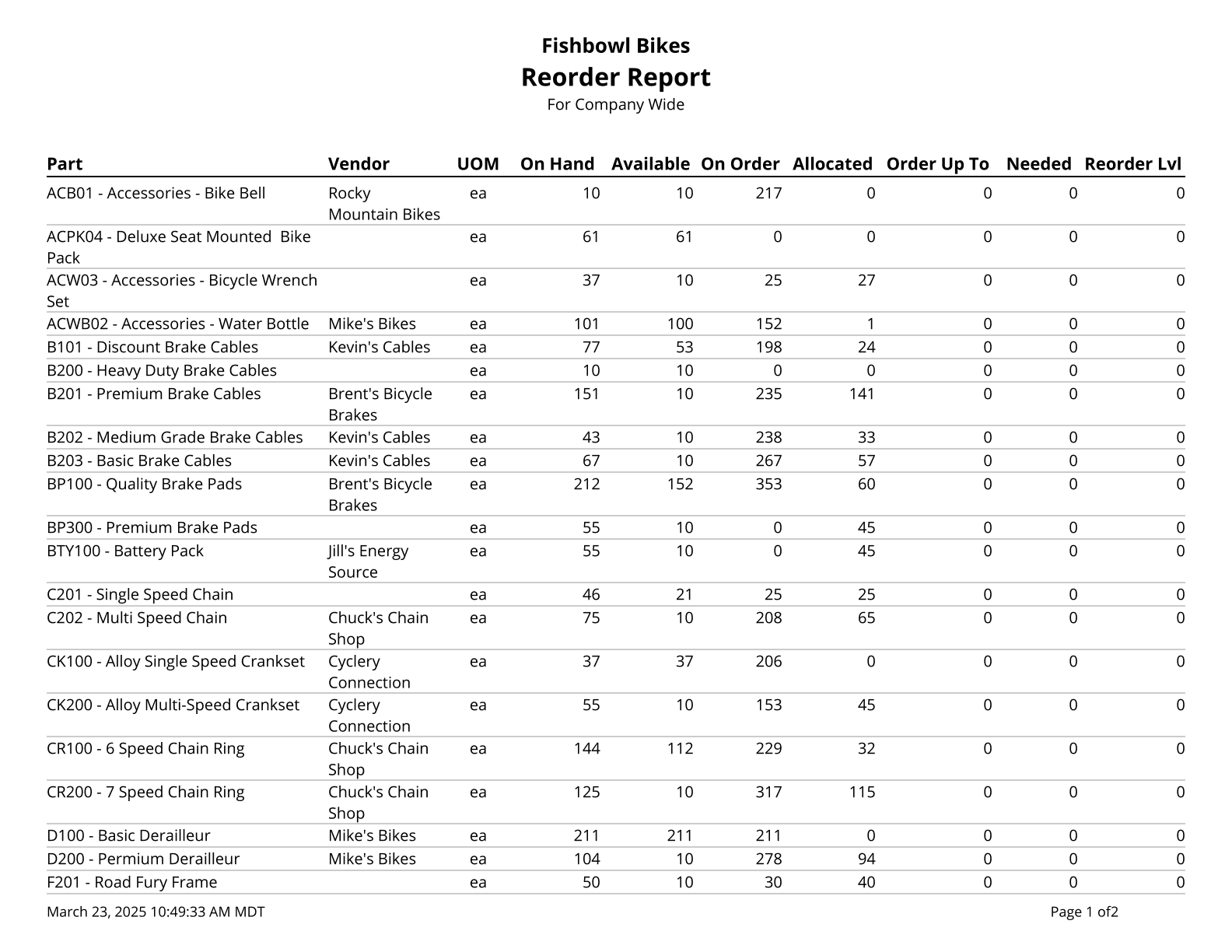
| | {{Report|Reorder Report|Prints a list of parts below reorder tolerance}} |
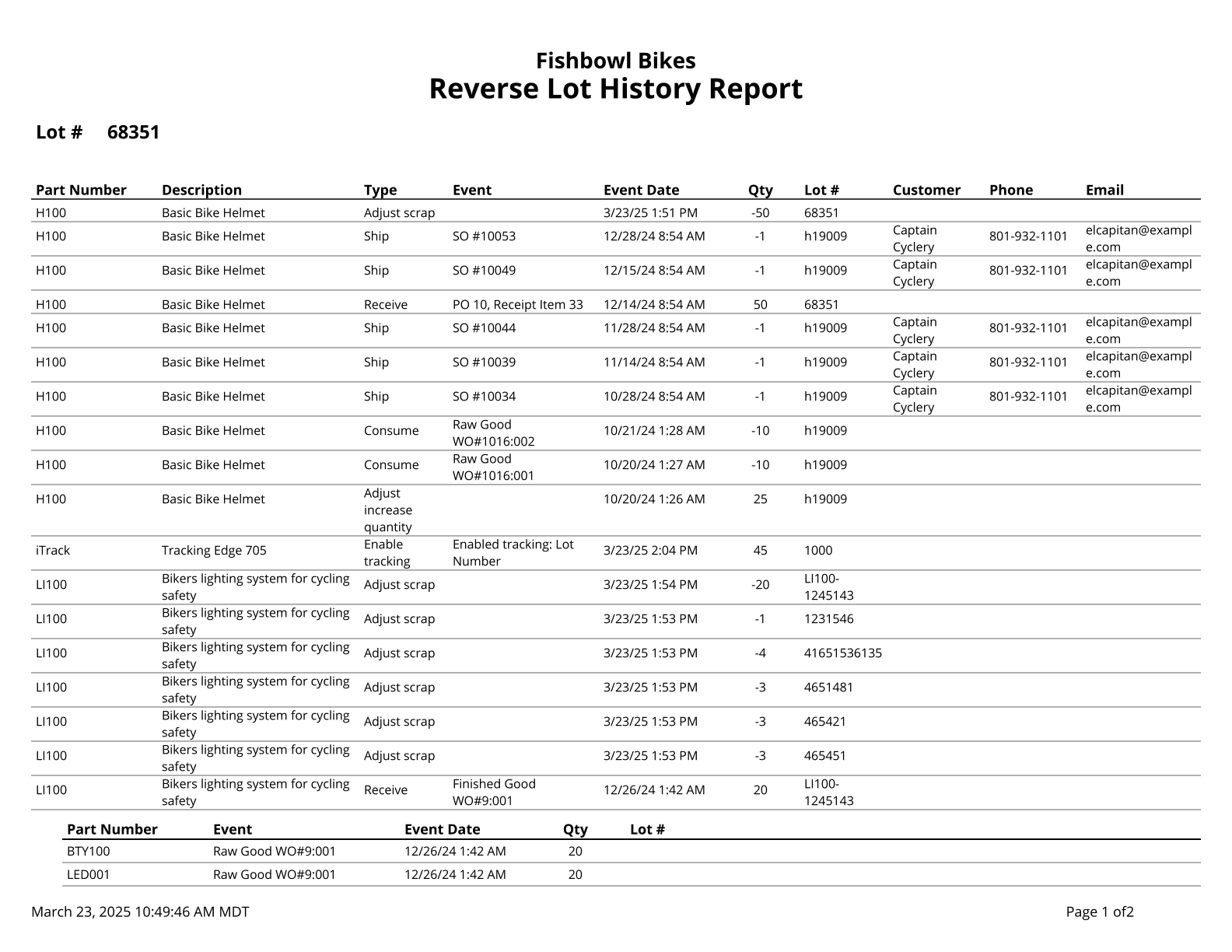
| | {{Report|Reverse Lot History|Traces the history of a lot number from the present time to when it entered the system}} |
| | {{Report|Turnover Report|Displays the number of times inventory is turned over during the given date range}} |
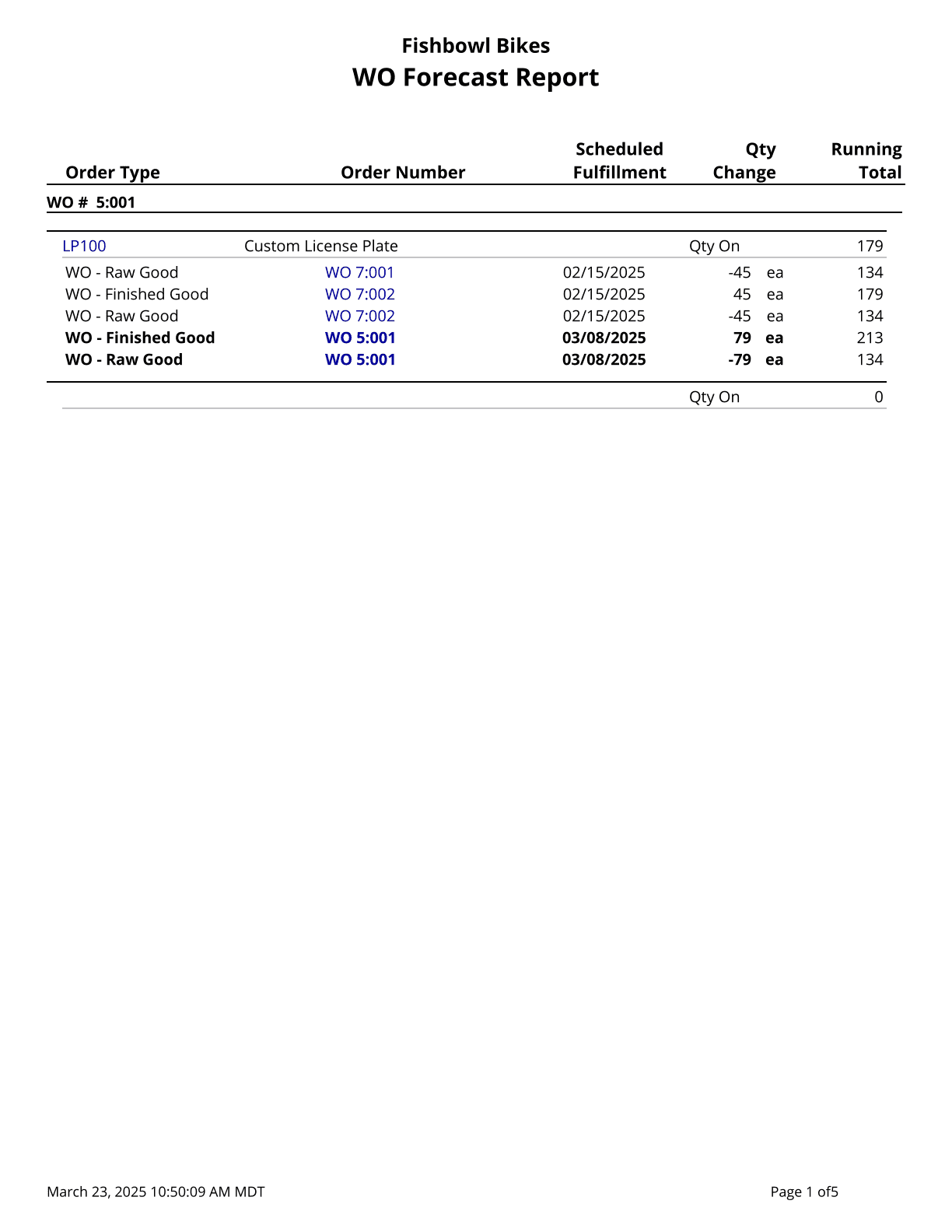
| | {{Report|Work Order Forecast Report|Calculates a running total of allocated parts on orders separated out by work orders}} |
|
| |
|
| ==Default Account Mapping== | | ==Labels== |
| [[File:Report-Default Account Mapping.png|right|border|400px|link={{filepath:Report-Default Account Mapping.png}}]] This report displays a list of the Fishbowl Accounts and the default account they tie to in the accounting system.
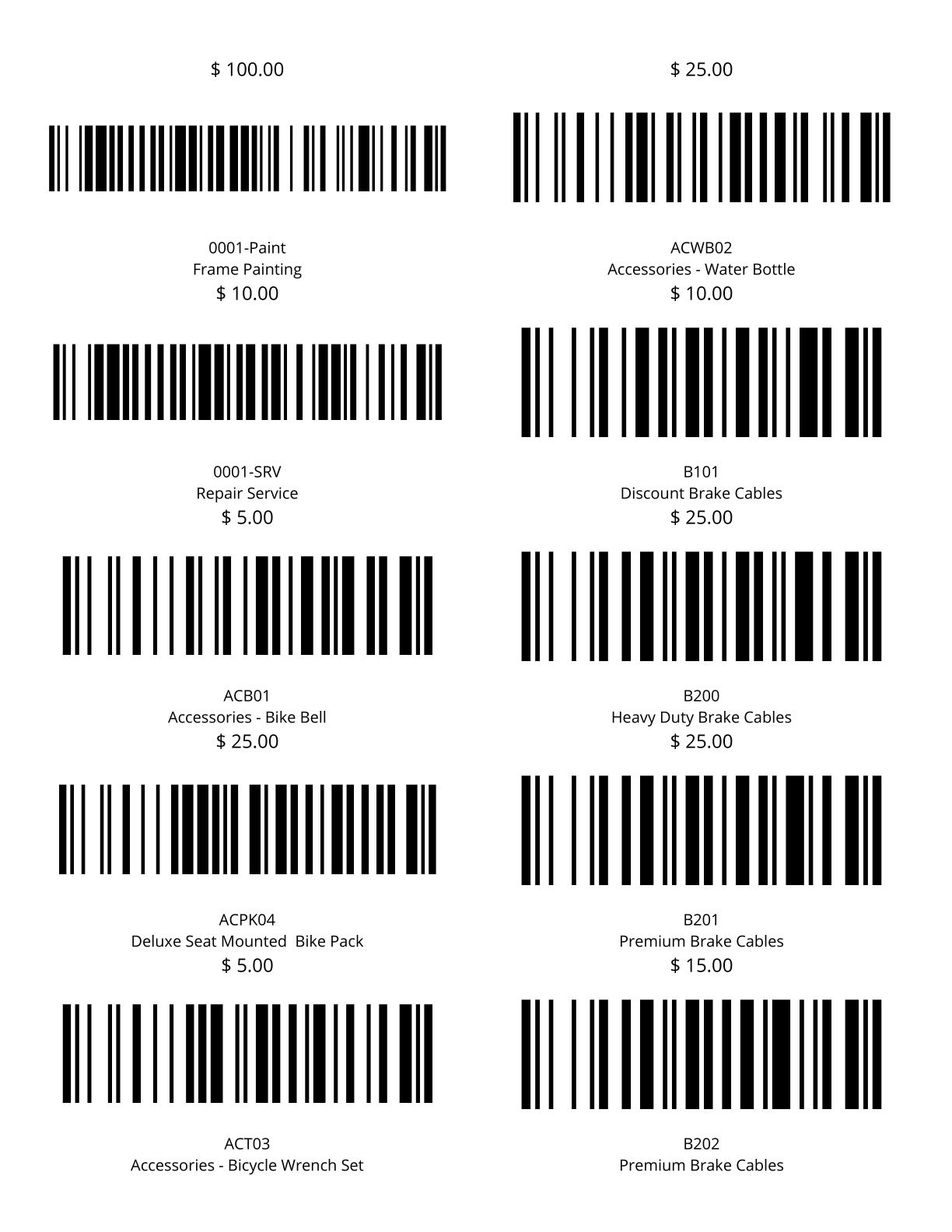
| | {{Report|2x4 Location Barcode Avery|Location barcodes (Code 128) for 2x4 Avery 8163 Labels}} |
| The {{Button|Modify Report}} allows the following report filters to be customized:<br>
| | {{Report|2x4 Location Barcode One Off|Location barcodes (Code 128) for 2x4 One Off Labels}} |
| {{Spacer}}'''OPTIONAL TAB''' | | {{Report|2x4 Part Barcodes Avery|Part barcodes (Code 128) for 2x4 Avery 8163 Labels}} |
| ::* '''Format Report for Exporting''' - Removes the page breaks and displays the report on one long page for exporting to CSV, Excel, and other formats.
| | {{Report|2x4 Part Barcodes One Off|Part barcodes (Code 128) for 2x4 One Off Labels}} |
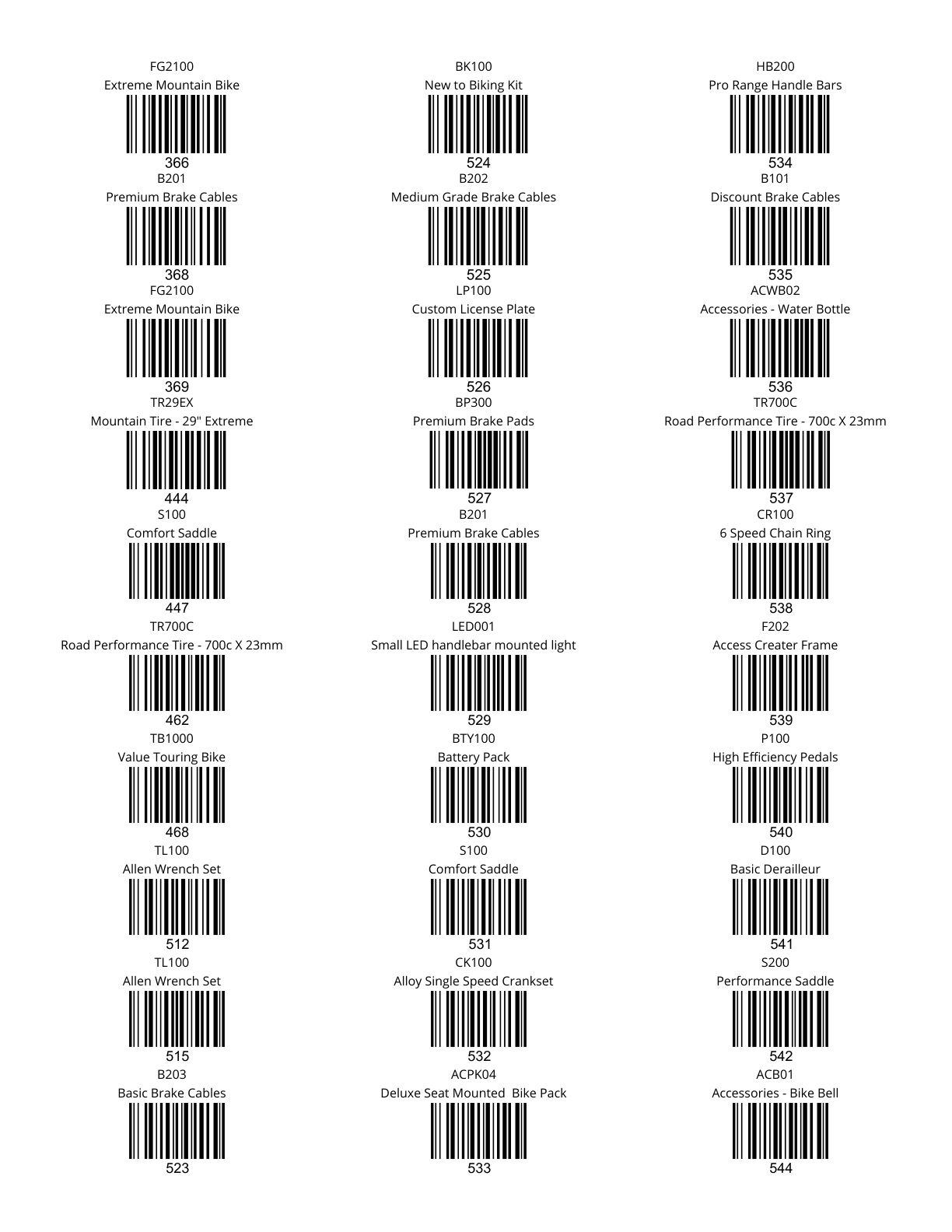
| {{Spacer}}'''PRINTER TAB''' - Allows a default printer to be specified for the report in each location group. | | {{Report|2x4 Product Barcodes Avery|Product barcodes (Code 128) for 2x4 Avery 8163 Labels}} |
| {{Clear}} | | {{Report|2x4 Product Barcodes One Off|Product barcodes (Code 128) for 2x4 One Off Labels}} |
| | {{Report|4x6 Location Barcode One Off|Location barcodes (Code 128) for 4x6 One Off Labels}} |
| | {{Report|4x6 Part Barcodes One Off|Part barcodes (Code 128) for 4x6 One Off Labels}} |
| | {{Report|4x6 Product Barcodes One Off|Product barcodes (Code 128) for 4x6 One Off Labels}} |
| | {{Report|Customer Address Labels|Customer Address Labels for Avery Labels}} |
| | {{Report|Location Barcode|Location barcodes (Code 128) for Avery 8160 Labels}} |
| | {{Report|Location Barcode One Off|Location barcodes (Code 128) for Avery 8160 Labels}} |
| | {{Report|New Tags|New Tags for Avery 8160 Labels}} |
| | {{Report|New Tags One Off|New tags for one off labels}} |
| | {{Report|New Tracking|New tracking labels for Avery 8160 Labels}} |
| | {{Report|New Tracking Incremental|New Incremental Tracking for Avery 8160 Labels}} |
| | {{Report|New Tracking Incremental One Off|New Incremental Tracking one off Labels}} |
| | {{Report|New Tracking One Off|New tracking for one off labels}} |
| | {{anchor|Packing Slip}} |
| | {{Report|Packing Slip 4x6|Prints 4x6 Packing Slip Labels}} |
| | {{Report|Part Barcodes Avery|Part barcodes (Code 128) for Avery 8160 Labels}} |
| | {{Report|Part Barcodes By PO Avery|Prints All Product barcodes (Code 128) for a given PO. Formatted for Avery 8160 Labels}} |
| | {{Report|Part Barcodes By PO One Off|Prints All Product barcodes (Code 128) for a given PO. Formatted for One Off 2 x 1 labels}} |
| | {{Report|Part Barcodes One Off|Part barcodes (Code 128) for one off Labels}} |
| | {{Report|Part Barcodes With Tracking One Off|Part Barcodes for one off Labels. One label will print for each primary part tracking number (or quantity if no tracking exists) from a specific location}} |
| | {{Report|PO Part Barcodes With Tracking One Off|Part barcodes (Code 128) for one off Labels. Prints one label for each part and distinct tracking value received in a specified Purchase Order. Requires a primary tracking}} |
| | {{Report|Product Barcodes Avery|Product barcodes (Code 128) for Avery 8160 Labels}} |
| | {{Report|Product Barcodes By Receipt Avery|Prints Product barcodes (Code 128) for items received on a specific date. Formatted for Avery 8160 Labels}} |
| | {{Report|Product Barcodes By Receipt One Off|Prints Product barcodes (Code 128) for items received on a specific date. Formatted for One Off 2 x 1 labels}} |
| | {{Report|Product Barcodes By SO Avery|Prints All Product barcodes (Code 128) for a given PO. Formatted for Avery 8160 Labels}} |
| | {{Report|Product Barcodes By SO One Off|Prints All Product barcodes (Code 128) for a given PO. Formatted for One Off 2 x 1 labels}} |
| | {{Report|Product Barcodes One Off|Product barcodes (Code 128) for one off Labels}} |
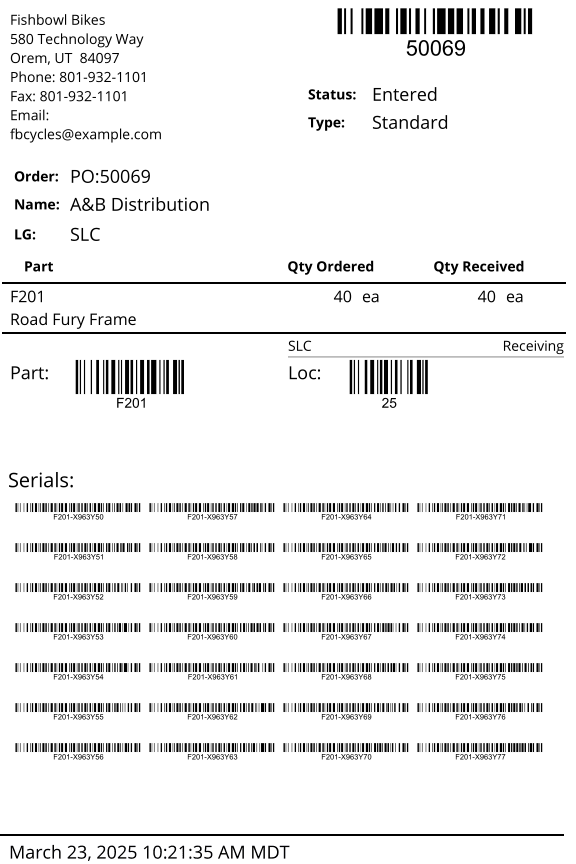
| | {{Report|Receiving Label|Prints a label for all parts received with their tracking information}} |
| | {{Report|Single Part Barcodes Avery|Part barcodes (Code 128) for Avery 8160 Labels}} |
| | {{Report|Single Product Barcodes Avery|Product barcodes (Code 128) for Avery 8160 Labels}} |
| | {{Report|Tag Barcodes Avery|Tag barcodes (Code 128) for Avery 8160 Labels}} |
| | {{Report|Tag Barcodes One Off|Tag barcodes (Code 128) for one off Labels}} |
| | {{Report|UPS Label|Tracking Label for UPS}} |
| | {{Report|UPS Return Label|Return Tracking Label for UPS}} |
| | {{Report|Vendor Address Labels|Vendor Address Labels for Avery Labels}} |
| | {{Report|Vendor Part Barcodes|Part barcodes (Code 128) for Avery Labels}} |
| | {{Report|Vendor Part Barcodes One Off|Part barcodes (Code 128) for one off Labels}} |
| | {{Report|Walmart Label|Standard Walmart shipping label. This label will check for a "Store #" custom field on the SO, or you can override this by entering a store number in the Modify Report section}} |
| | {{Report|WO Part Barcodes With Tracking One Off|Part barcodes (Code 128) for one off Labels. Prints one label for each part and distinct tracking value manufactured in a specified Work Order. Requires a primary tracking method}} |
|
| |
|
| ==Export Summary== | | ==Manufacture Order== |
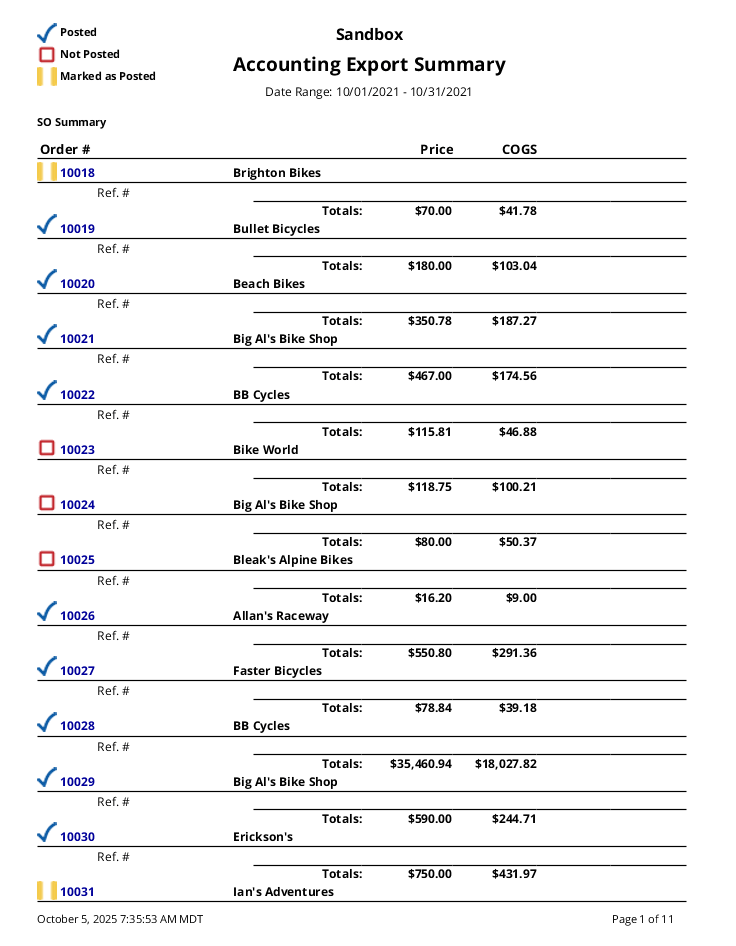
| [[File:Report-Export Summary.png|right|border|400px|link={{filepath:Report-Export Summary.png}}]] This report displays a list of PO, SO, and WO transactions that have been exported (or are pending export) to the accounting system. Work Order amounts reflect the total adjustments made, not the final cost of the work order. It groups by SO, PO, and WO. It will display the Customer, Vendor, total price, and total COGS per order. It will also display the Ref. # if the order has been exported to the accounting system.
| | {{Report|Available to Build|Shows the quantity of finished goods available to build based on raw good inventory levels}} |
| The {{Button|Modify Report}} allows the following report filters to be customized:<br>
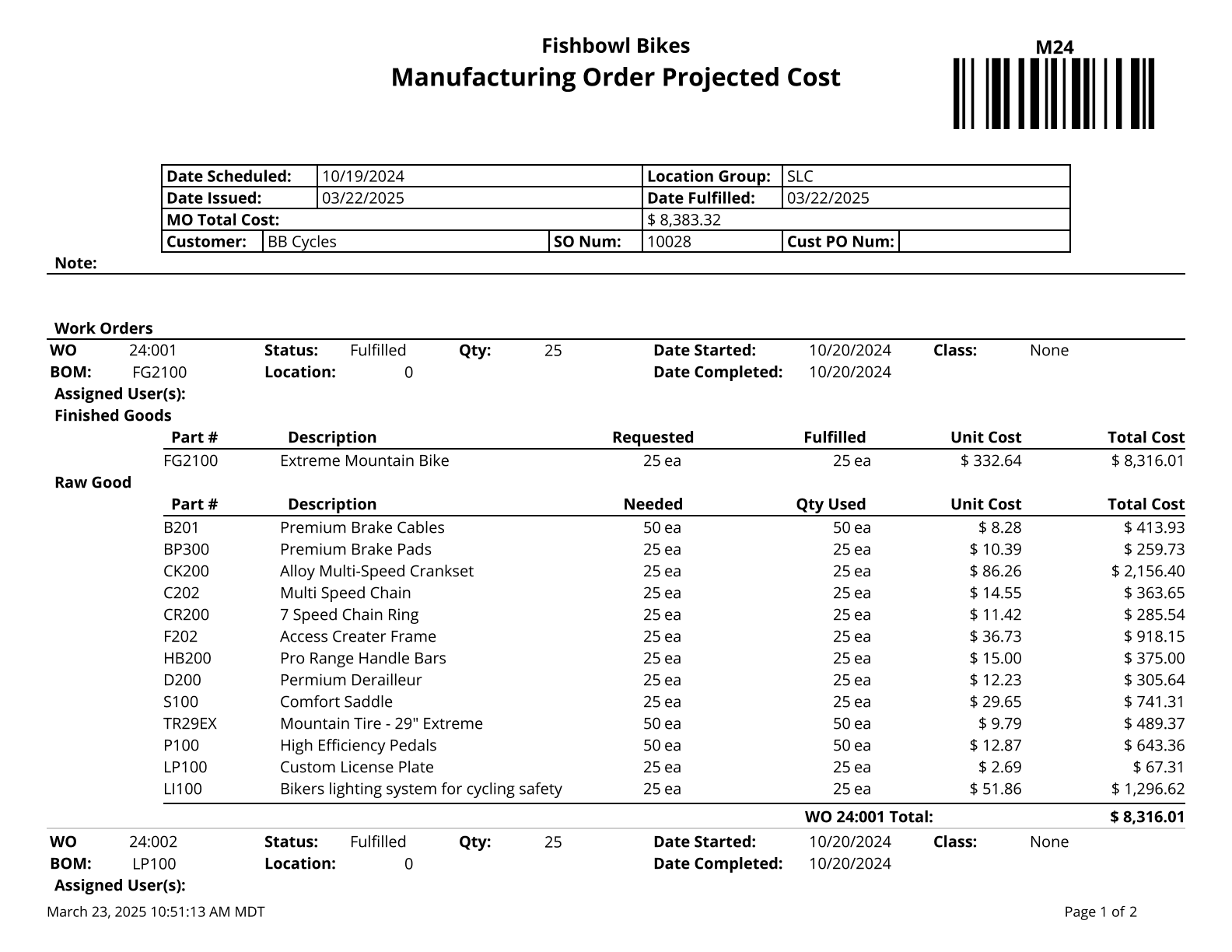
| | {{Report|Manufacture Order Projected Cost|Displays the manufacture order cost amounts and manufacture order items. Cost of unfulfilled work orders is based on your database costing method. Fulfilled work order costs are your historical cost for the work order}} |
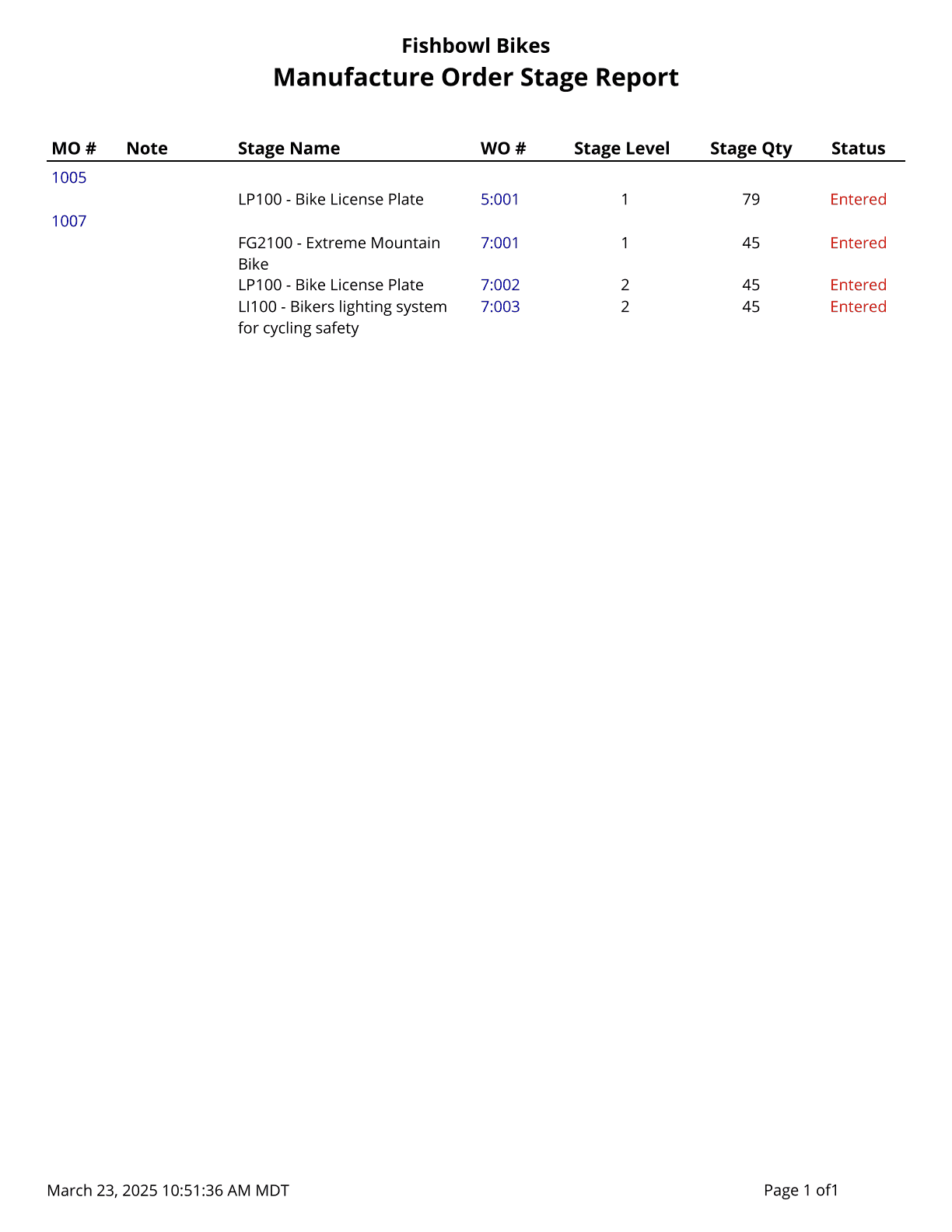
| {{Spacer}}'''REQUIRED TAB''' | | {{Report|Manufacture Order Stage|Shows the various stages for open work orders. Use % for a wildcard search}} |
| ::* '''Date Range''' - Choose the Date Range to run the report for. This date looks at the PostDate for the Sales Order on the POSTSO table in the database, meaning the date the order is shipped, even if you backdate the shipment. It also looks at the PostDate for the Purchase Order on the POSTPO table in the database, meaning the date the order is received (before being reconciled) or the date reconciled/fulfilled, even if you backdate the receipt/reconcile. And finally, it also looks at the PostDate for the Work Order on the POSTWO table in the database, meaning the date the order is finished/fulfilled, even if you backdate the order. Partial shipments, partial receipts/reconciles, or partial finishes of work orders will show up as separate line items, but all parts on the sales order/purchase order/work order will use the first date fulfilled.
| | {{Report|Manufacture Order Traveler|Basic Report for Manufacture Orders}} |
| {{Spacer}}'''OPTIONAL TAB''' | | {{Report|Production Demand|Shows current demand (allocated to an order) for finished goods in a given date range. It shows demand for each order and also includes a summary by Part Number helping you know exactly what needs to be produced in manufacturing}} |
| ::* '''Apply Date Filter To''' - In addition to the date posted as detailed above, the report can be run using the item date fulfilled.
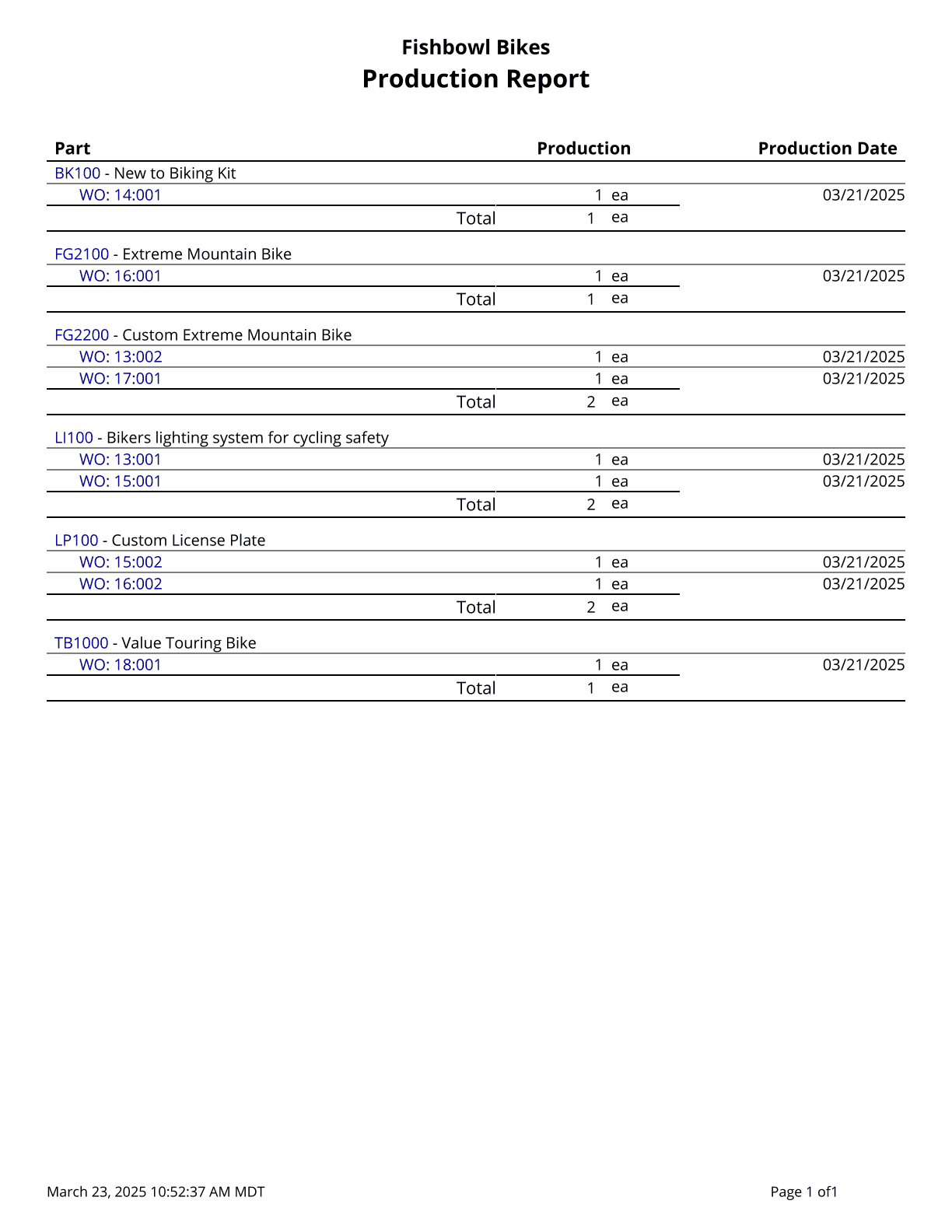
| | {{Report|Production Report|Shows the parts built in completed work orders}} |
| ::* '''BOM Number''' - Choose a specific bill of materials number to run the report for. Leave this field blank to run for all BOMs.
| |
| ::* '''SO Product''' - Select a specific product number to run the report for. Leave this field blank to run for all products.
| |
| ::* '''PO Number''' - Enter a specific purchase order number to run the report for. Leave this field blank to run for all purchase orders.
| |
| ::* '''SO Number''' - Enter a specific sales order number to run the report for. Leave this field blank to run for all sales orders.
| |
| ::* '''WO Number''' - Enter a specific work order number to run the report for. Leave this field blank to run for all work orders.
| |
| ::* '''PO Part''' - Choose a specific part to run the report for. Leave this field blank to run for all parts.
| |
| ::* '''Report Title''' - This allows the title of the report to be customized.
| |
| ::* '''Format Report for Exporting''' - Removes the page breaks and displays the report on one long page for exporting to CSV, Excel, and other formats.
| |
| ::* '''Show Details''' - Choose to show/hide the order details by checking/unchecking this checkbox.
| |
| ::* '''Show Not Posted''' - Choose to show/hide orders that have not exported to the accounting system by checking/unchecking this checkbox.
| |
| ::* '''Show Posted''' - Choose to show/hide orders that have exported to the accounting system by checking/unchecking this checkbox.
| |
| ::* '''Show Purchase Orders''' - Choose to show/hide purchase orders on the report by checking/unchecking this checkbox.
| |
| ::* '''Show Sales Orders''' - Choose to show/hide sales orders on the report by checking/unchecking this checkbox.
| |
| ::* '''Show Work Orders''' - Choose to show/hide work orders on the report by checking/unchecking this checkbox.
| |
| {{Spacer}}'''PRINTER TAB''' - Allows a default printer to be specified for the report in each location group. | |
| {{Clear}}
| |
|
| |
|
| =BATCH= | | ==Other== |
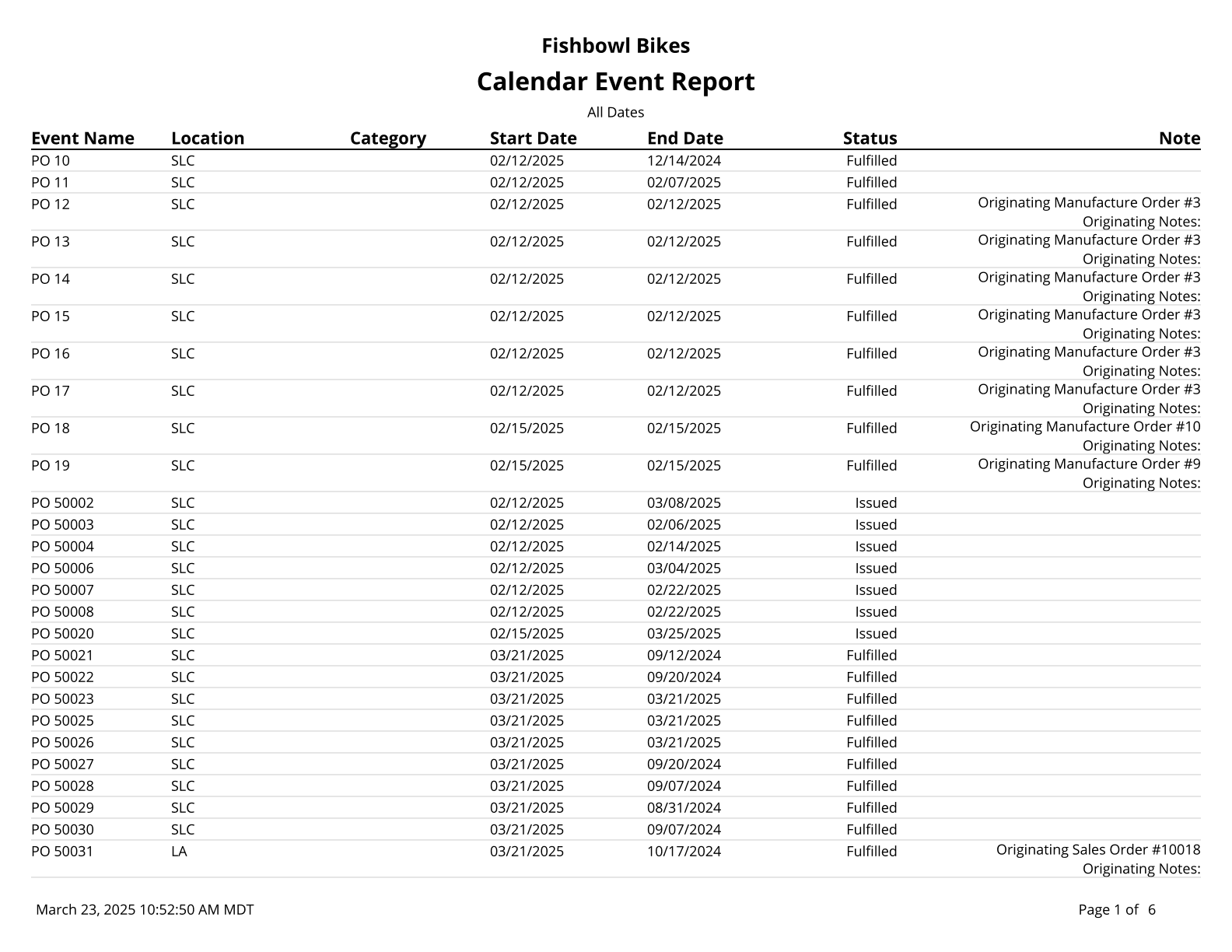
| | {{Report|Calendar Report|Report will show all calendar events for a specified date range}} |
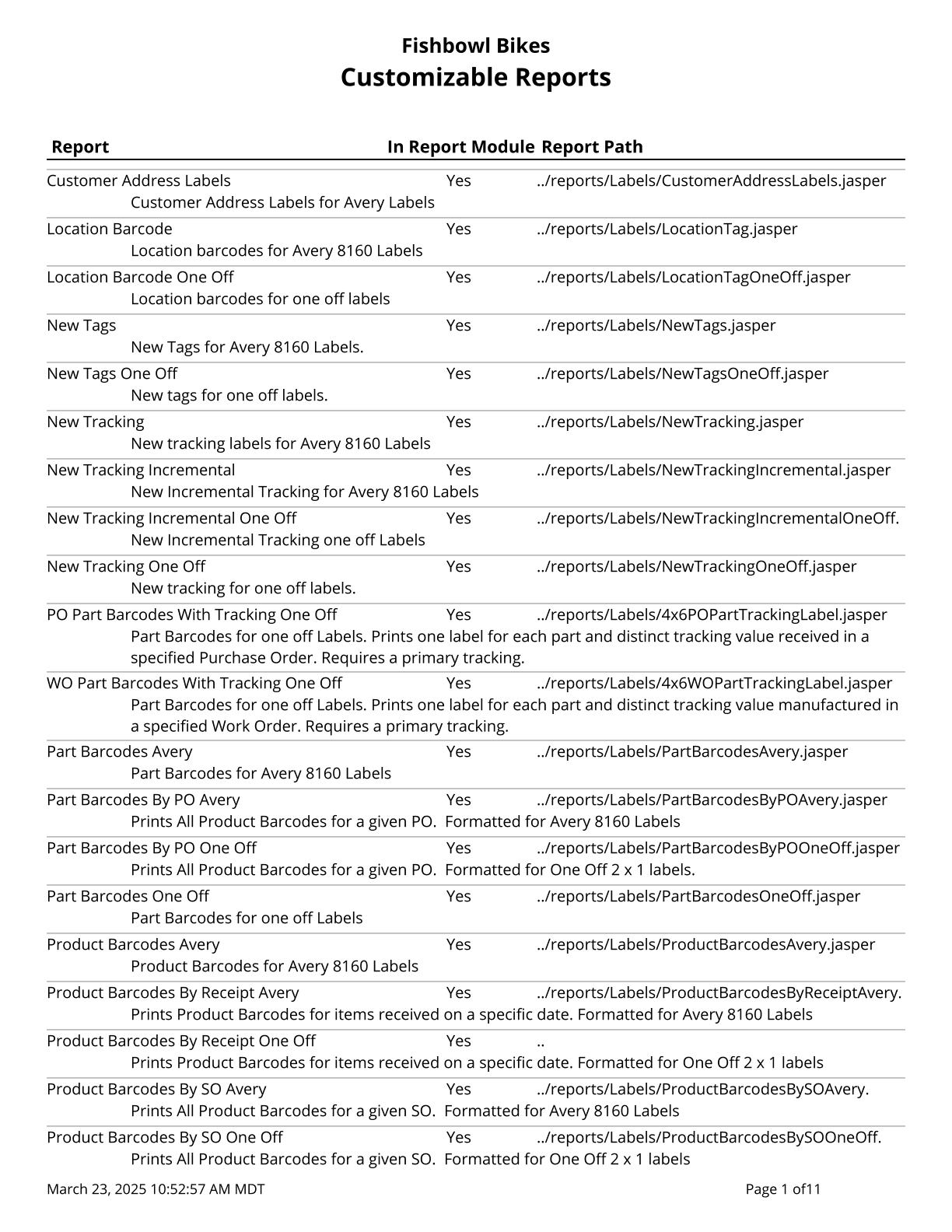
| | {{Report|Reports|A list of all Customizable Reports}} |
| | {{Report|Tracking|Find Parts attached to Tracking Information on Work Orders, Purchase Orders, and Sales Orders}} |
| | {{Report|Tracking Detail|Find Parts attached to Tracking Information on Work Orders, Purchase Orders, and Sales Orders}} |
|
| |
|
| ==Batch By Date - Packing List== | | ==Part== |
| [[File:Report-Packing List.png|right|border|400px|link={{filepath:Report-Packing List.png}}]]
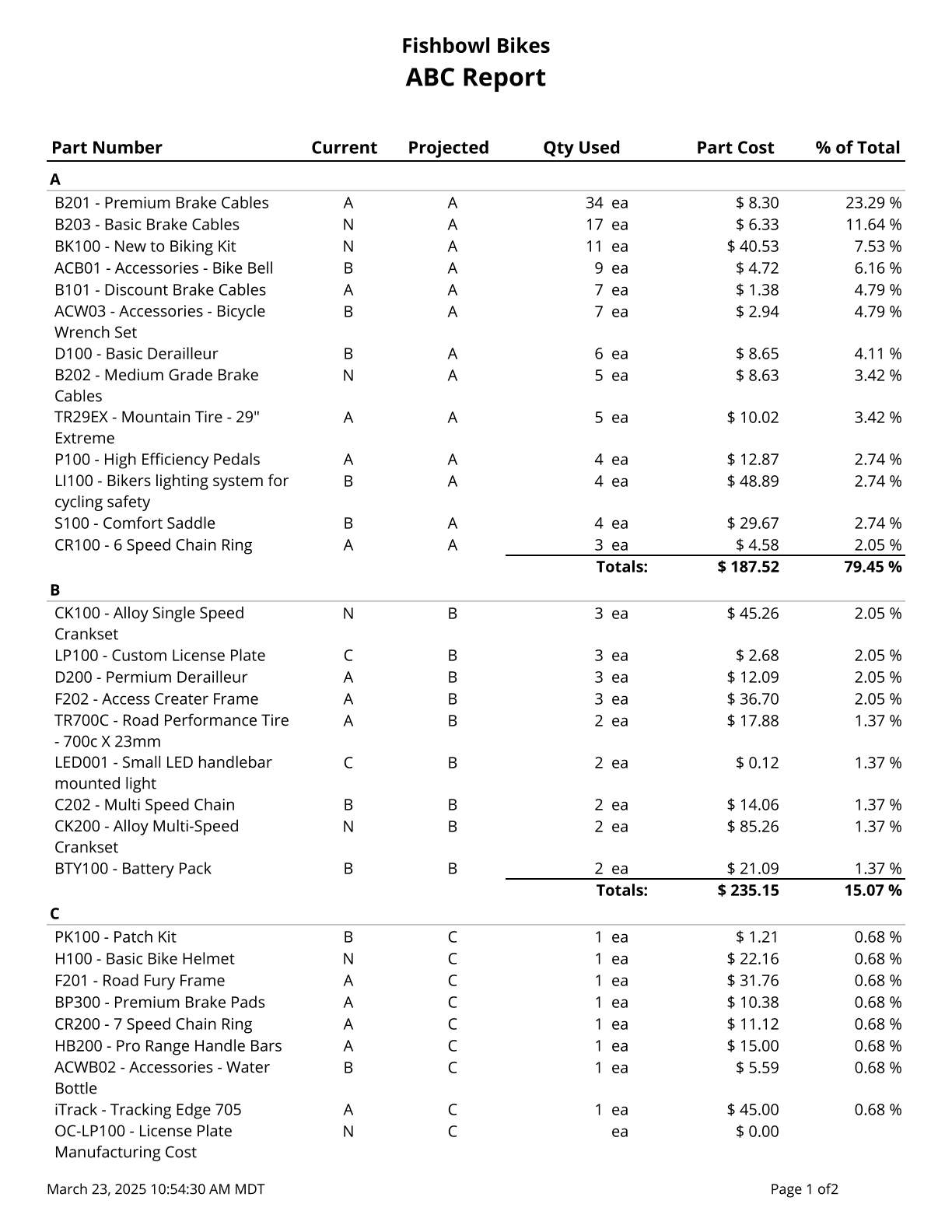
| | {{Report|ABC Report|Prints a list of parts, their current ABC Code, and their Projected ABC Code. Cost values are based on today's costs}} |
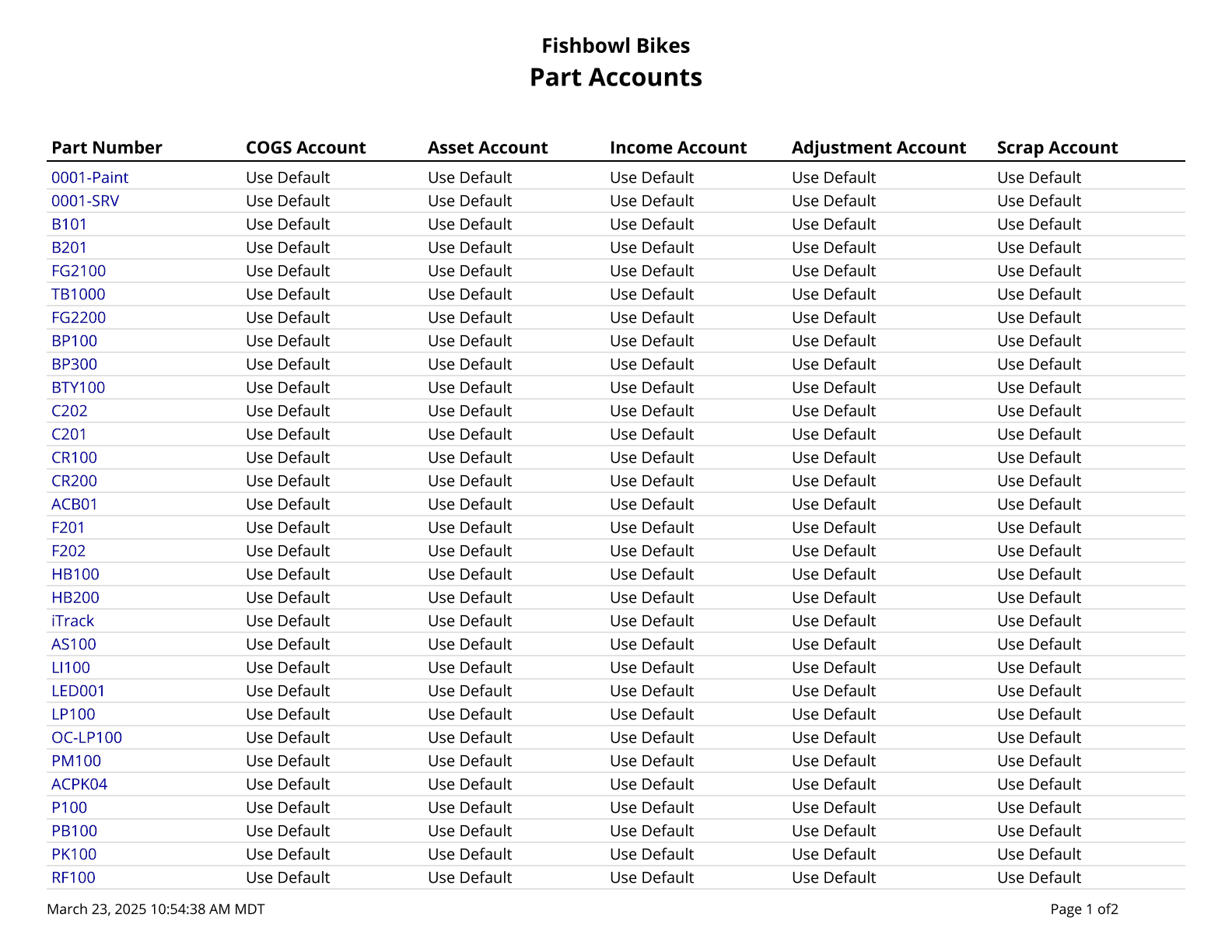
| | {{Report|Part Accounts|Prints a list of parts and their associated accounts if they have been assigned}} |
| | {{Report|Part Activity Report|Shows the activity history for a part or all parts. Note: UOM changes only show correctly when all Location Groups are selected}} |
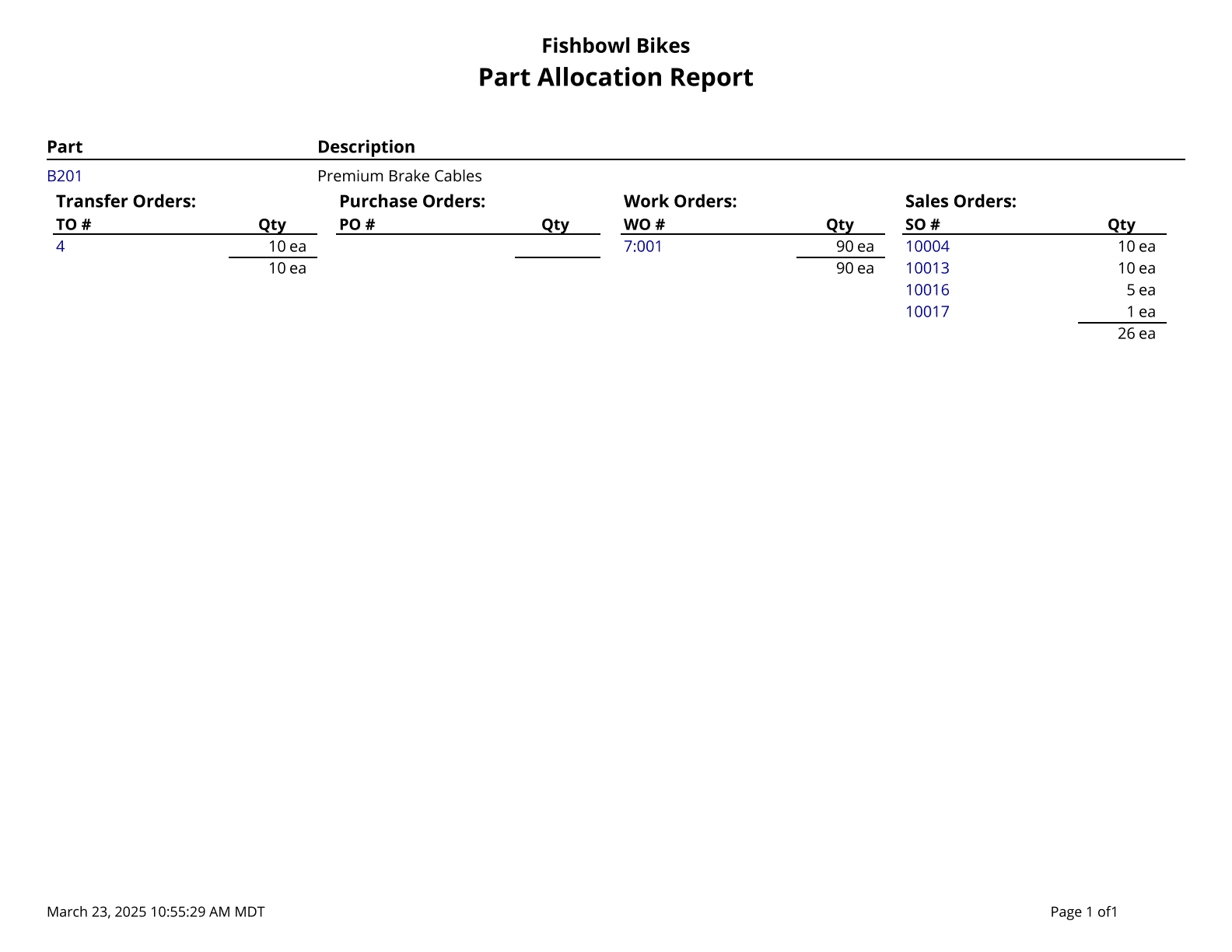
| | {{Report|Part Allocated|Parts allocated to sales orders, work orders, purchase orders, and transfer orders}} |
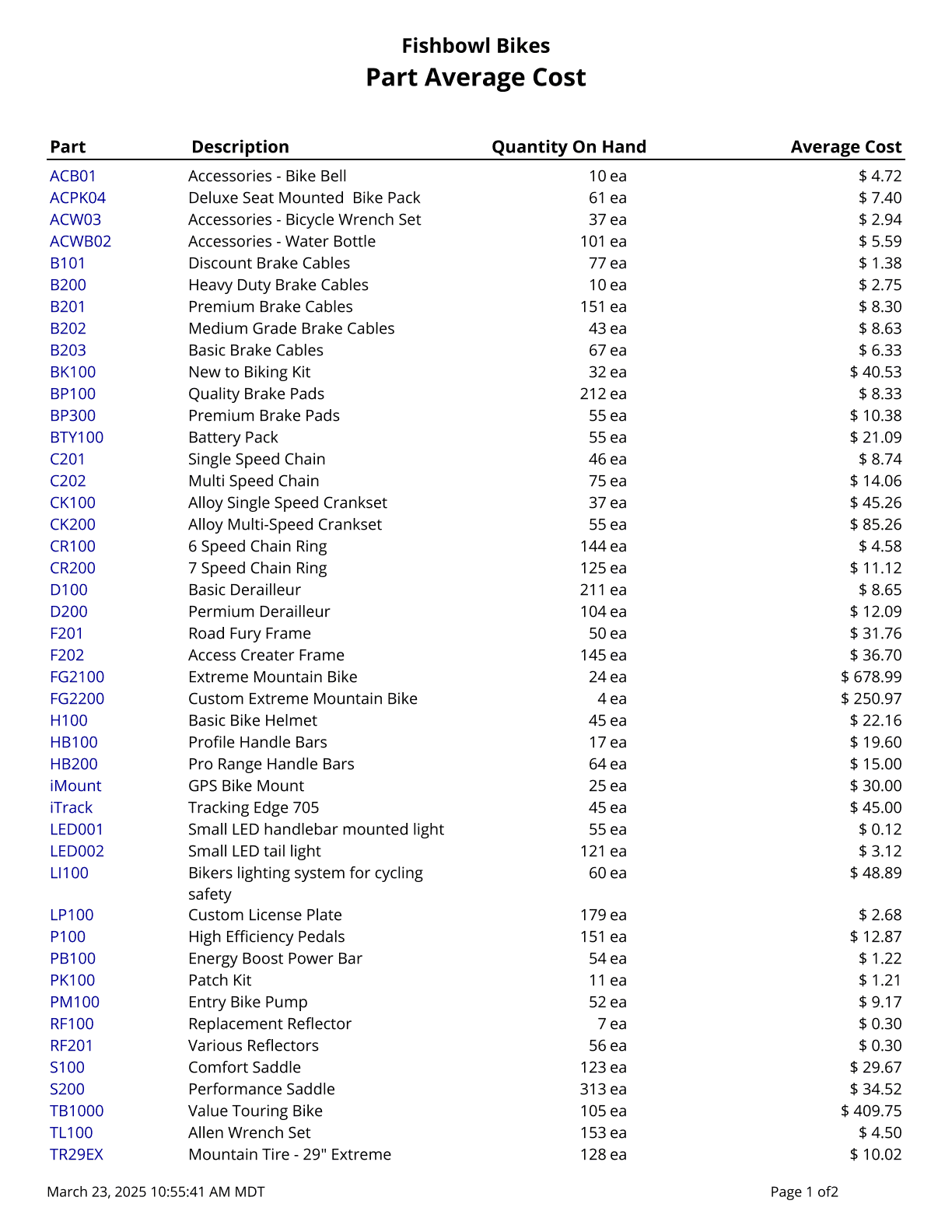
| | {{Report|Part Average Cost|List all parts and their Average Cost}} |
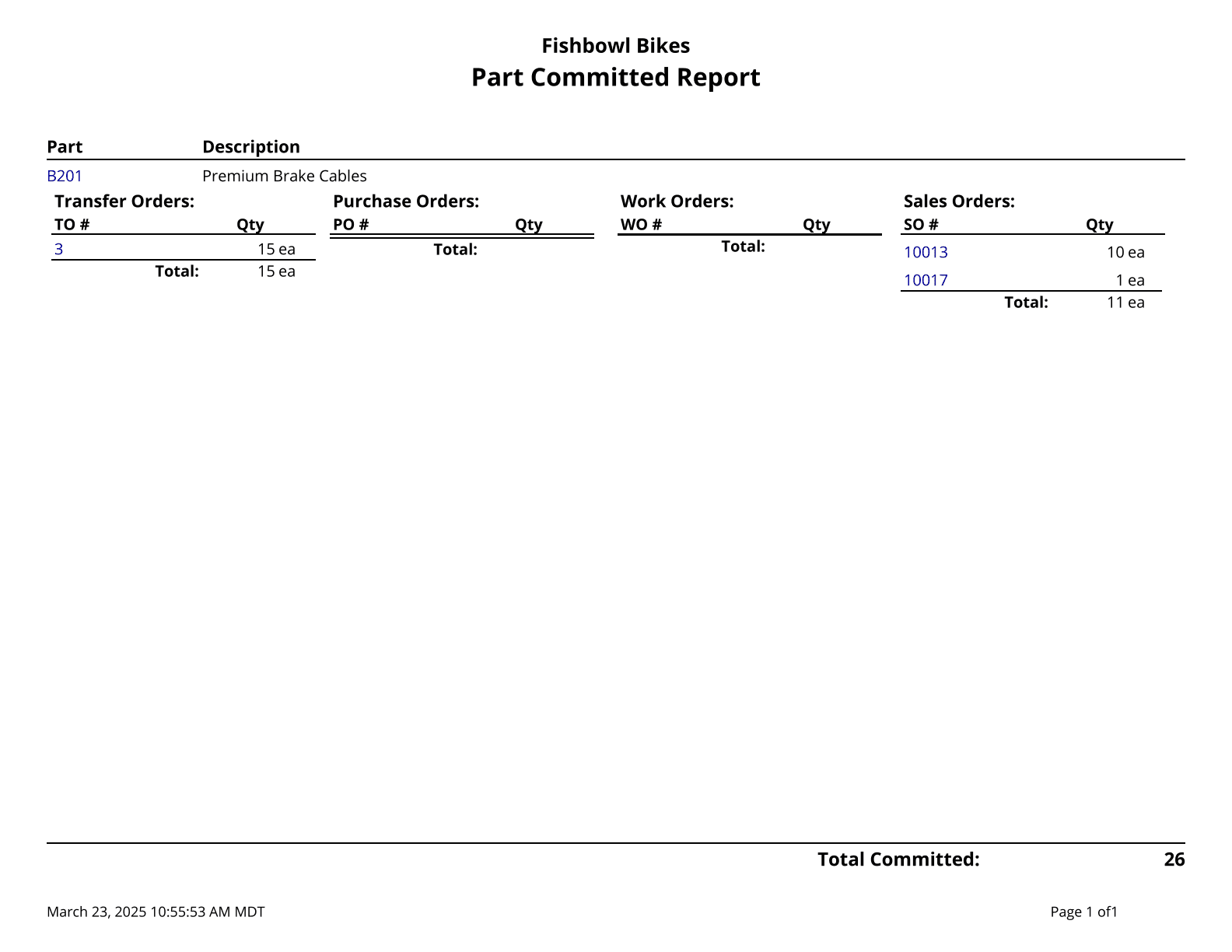
| | {{Report|Part Committed Report|Shows where parts are committed}} |
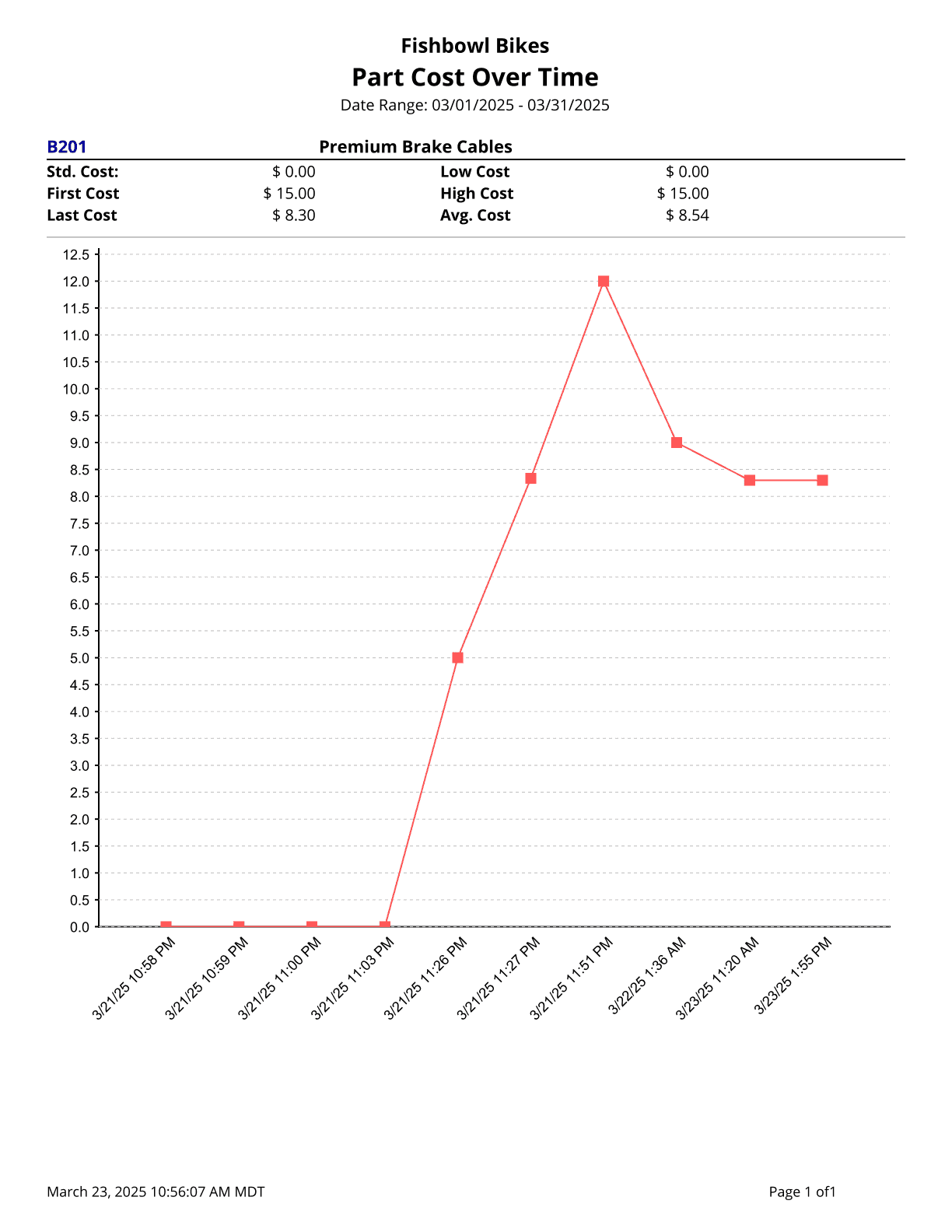
| | {{Report|Part Cost Over Time|Lists all parts and their Costs. The Average cost is calculated over the specified date range}} |
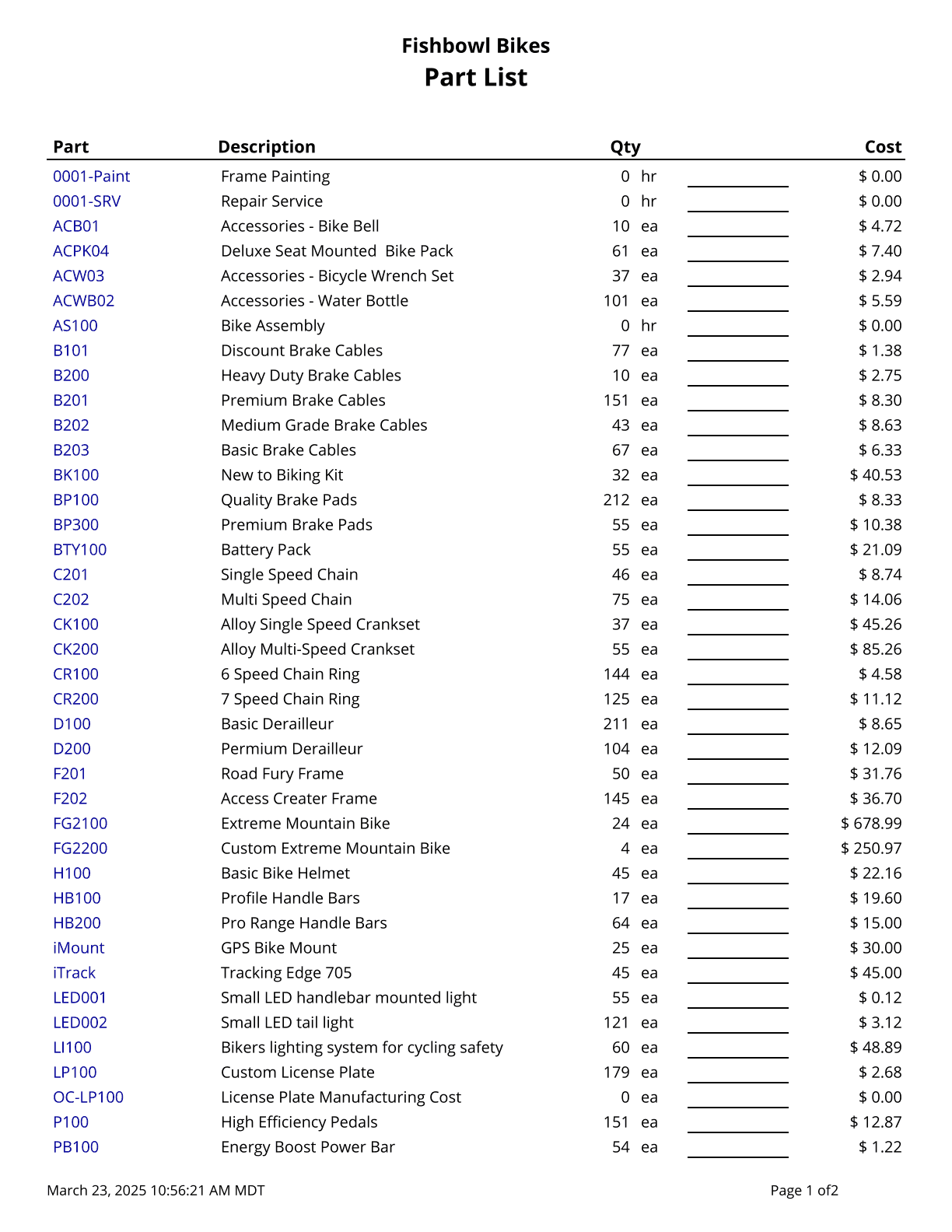
| | {{Report|Part List|Part list. Use % for a wildcard search. Cost values are based on today's costs}} |
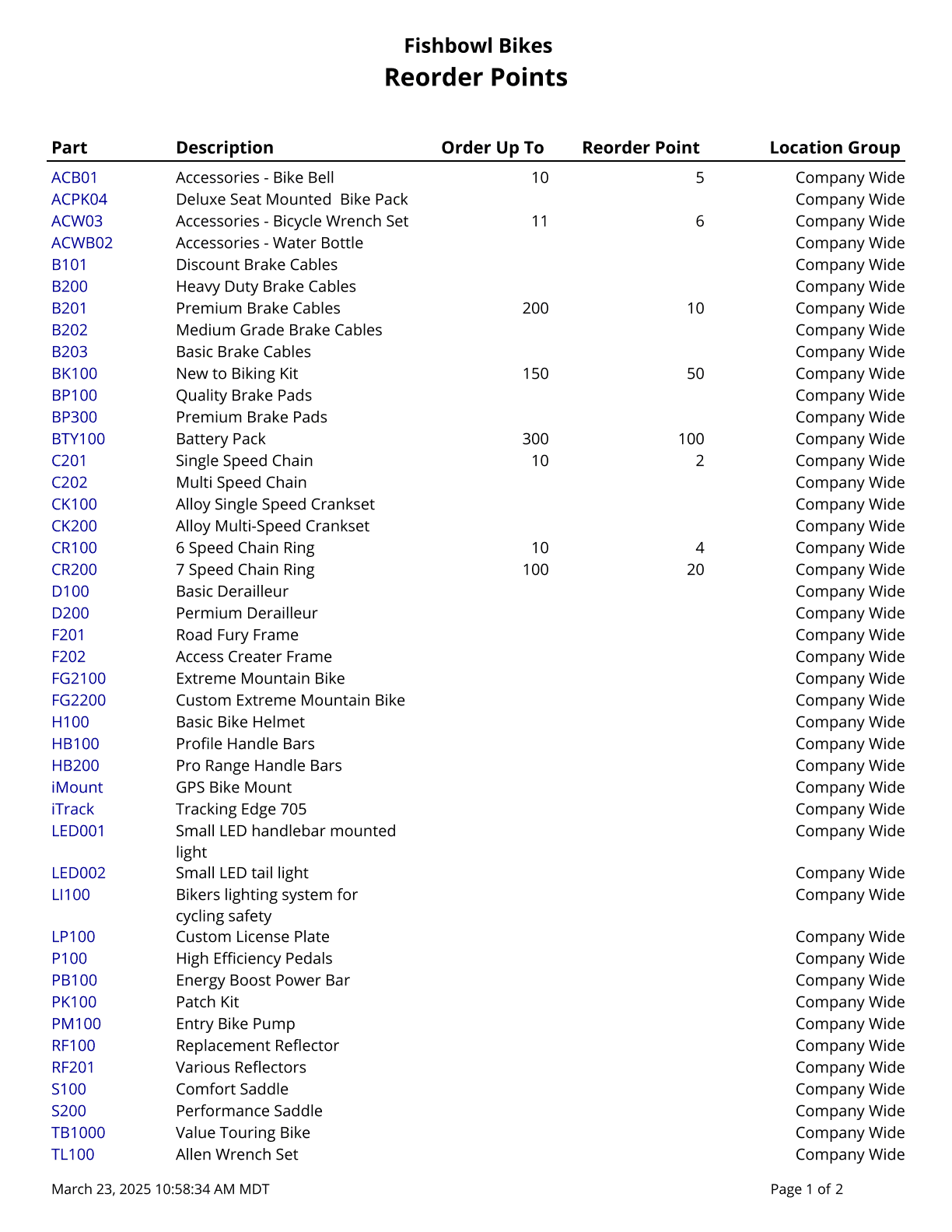
| | {{Report|Reorder Points|Shows Reorder Points by Location Group or Company Wide}} |
|
| |
|
| This report displays the [[#Packing List|Packing List]] report for multiple orders.
| | ==Picking== |
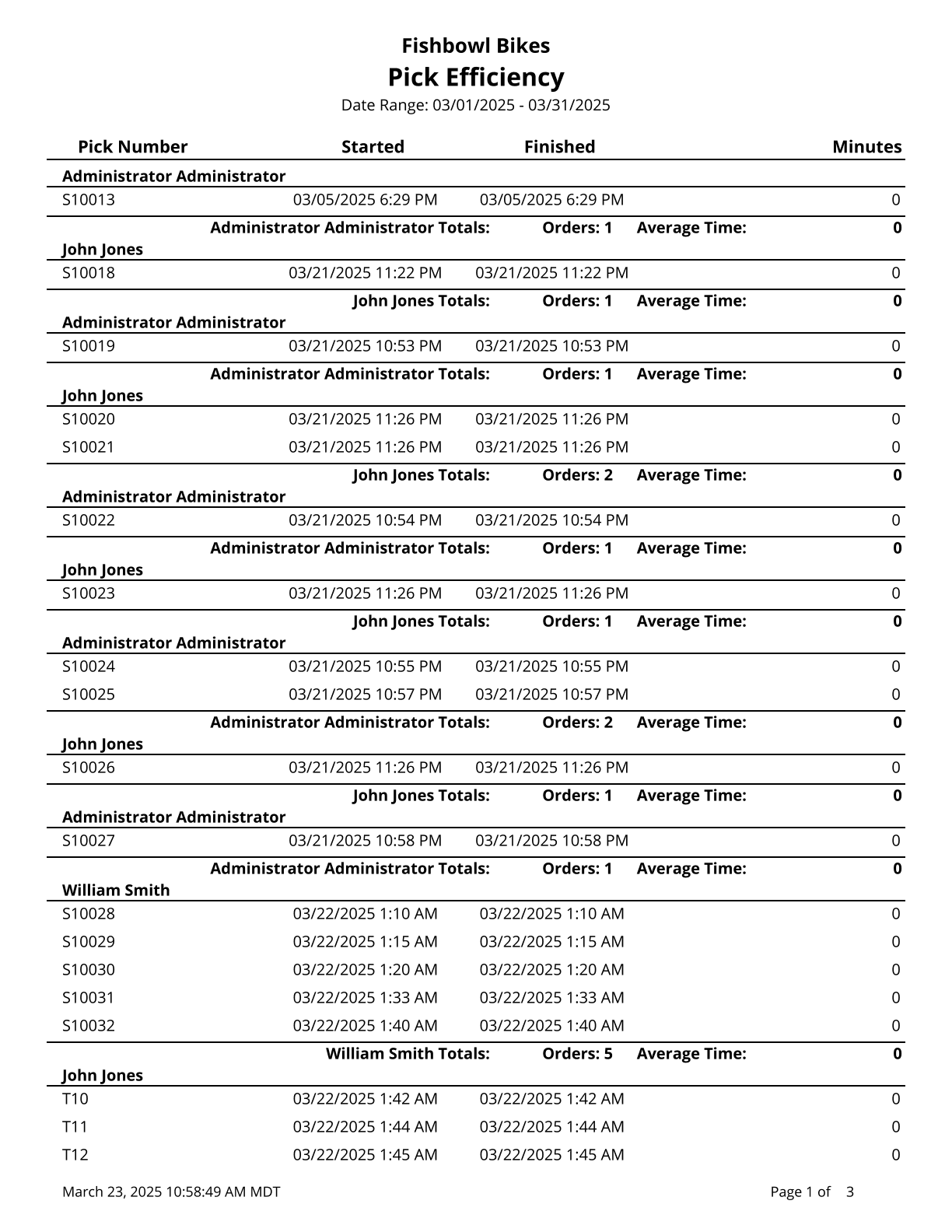
| | {{Report|Pick Efficiency|Displays the efficiency of each pick order, grouped by user}} |
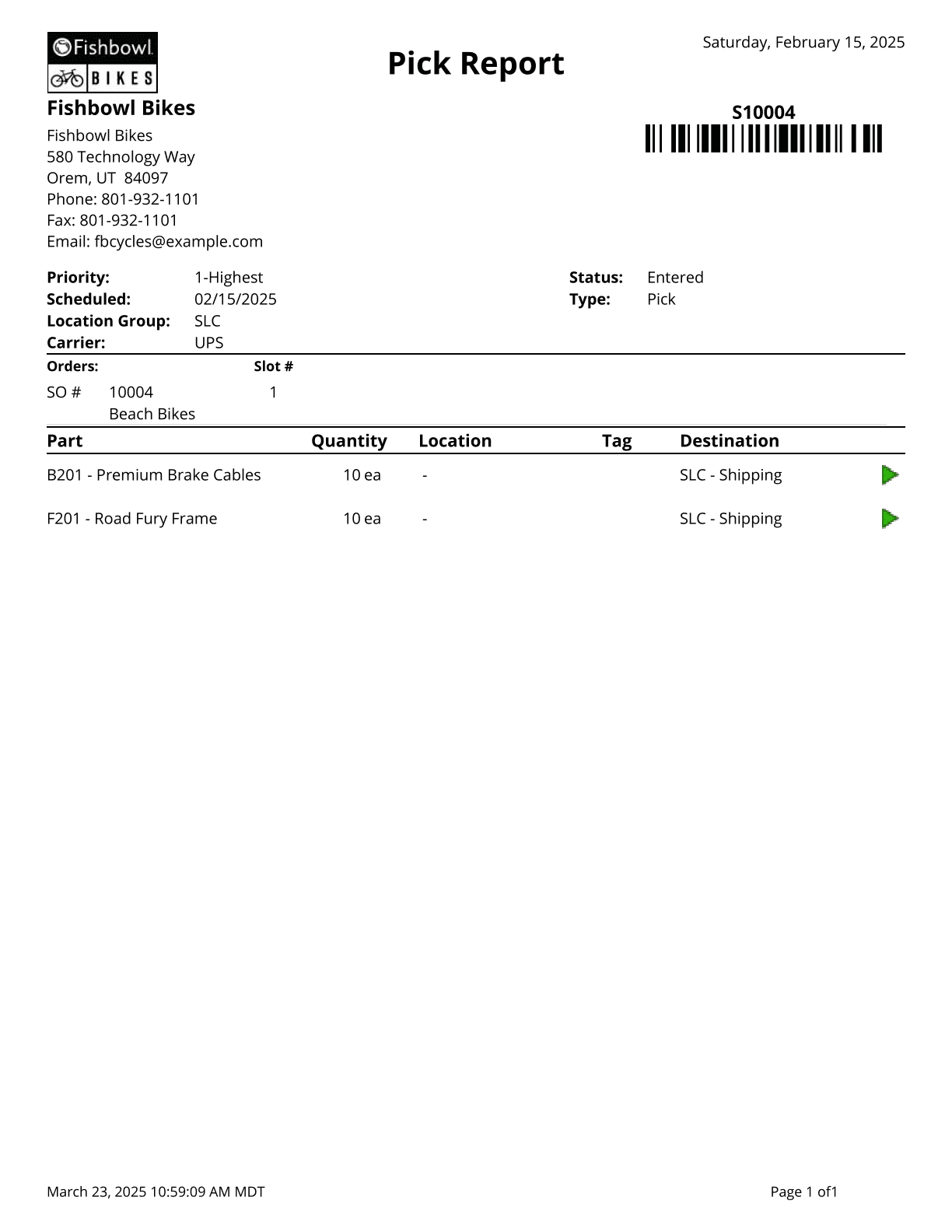
| | {{Report|Pick Report|A complete list of ALL items on the Pick and their status}} |
| | {{Report|Pick Ticket|A list of Parts to Pick, where to get them, and where to put them after picking}} |
|
| |
|
| ==Batch By Date - Pick Ticket== | | ==Product== |
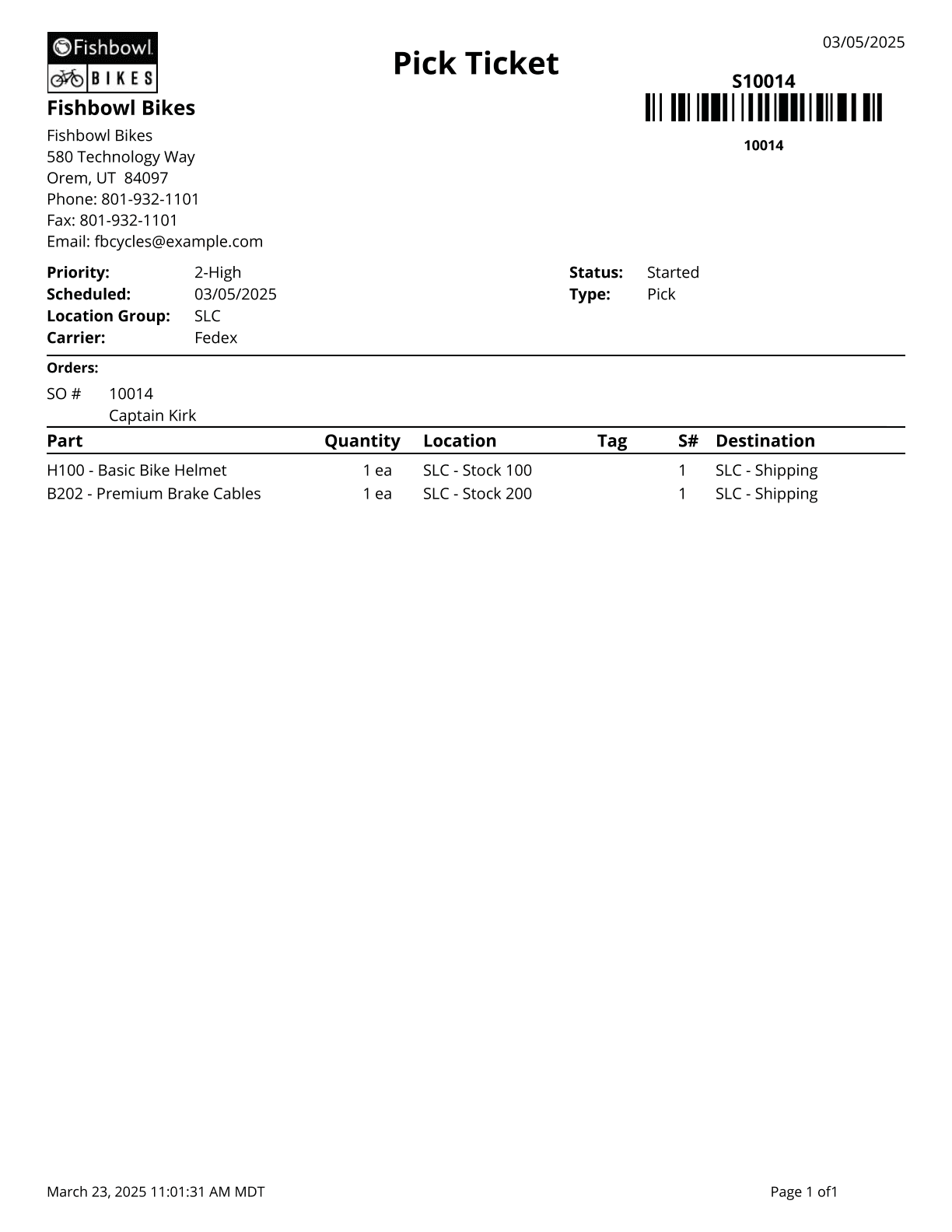
| [[File:Report-Pick Ticket.png|right|border|400px|link={{filepath:Report-Pick Ticket.png}}]]
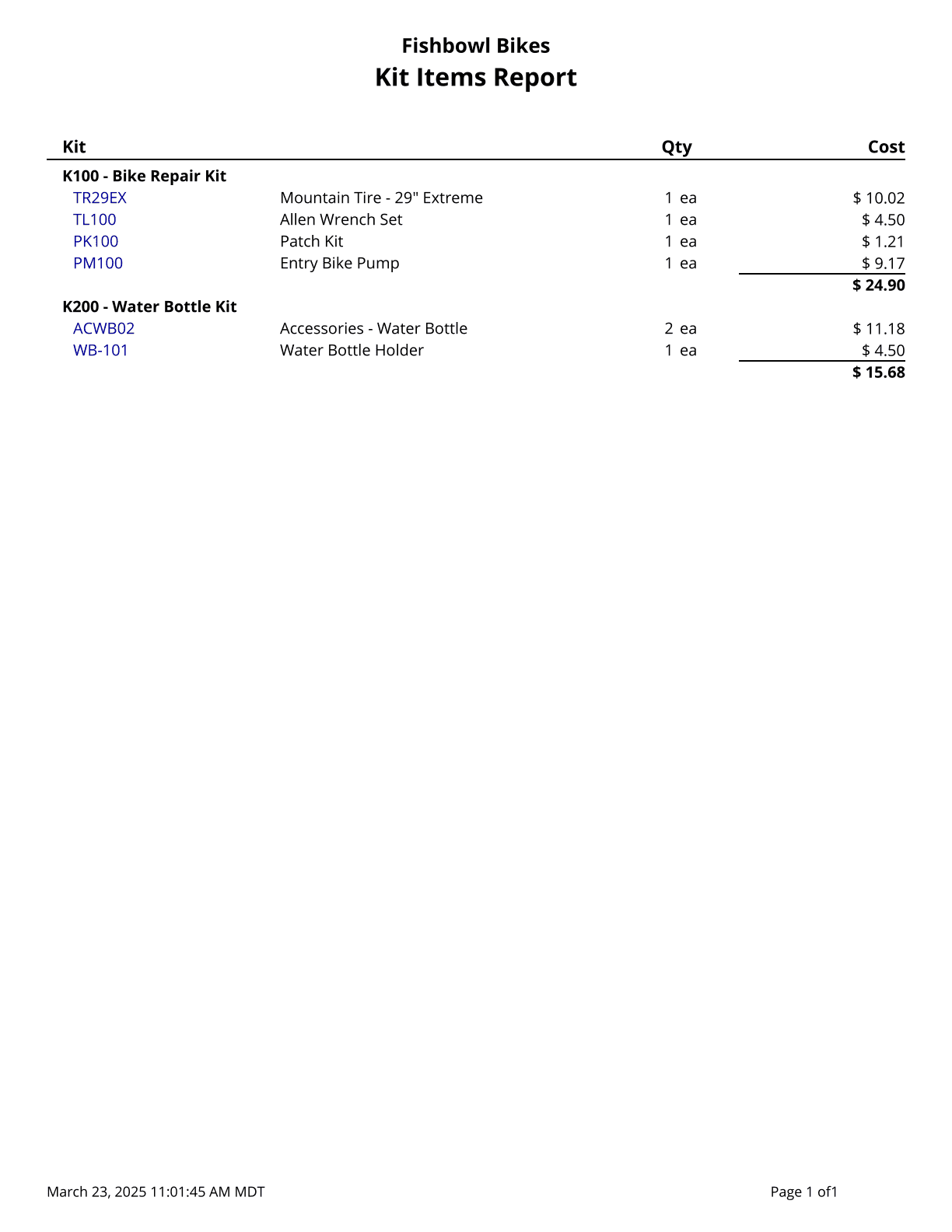
| | {{Report|Kit Report|Displays list of kits and items within. Cost values are based on today's costs. Starred (*) items are the default of an optional or variable-optional item. Items that are not default do not display quantity or cost}} |
| | {{Report|Product Catalog|Prints a list of products with pictures and barcodes}} |
| | {{Report|Product Catalog V2|Prints a list of products with pictures and barcodes}} |
| | {{Report|Product Price List|Product Price List that pulls directly from the price listed on the product. Pricing rules are not applied on this report. Use % for a wildcard search}} |
|
| |
|
| This report displays the [[#Pick Ticket|Pick Ticket]] report for multiple orders. | | ==Purchase Order== |
| | {{Report|Advanced Purchasing By Sales Order|Looks at the fulfillment date on an SO and then looks at the lead time on the individual BOM items. Based on the fulfillment date of the SO and the lead time of the item, the report shows you what day to place your PO}} |
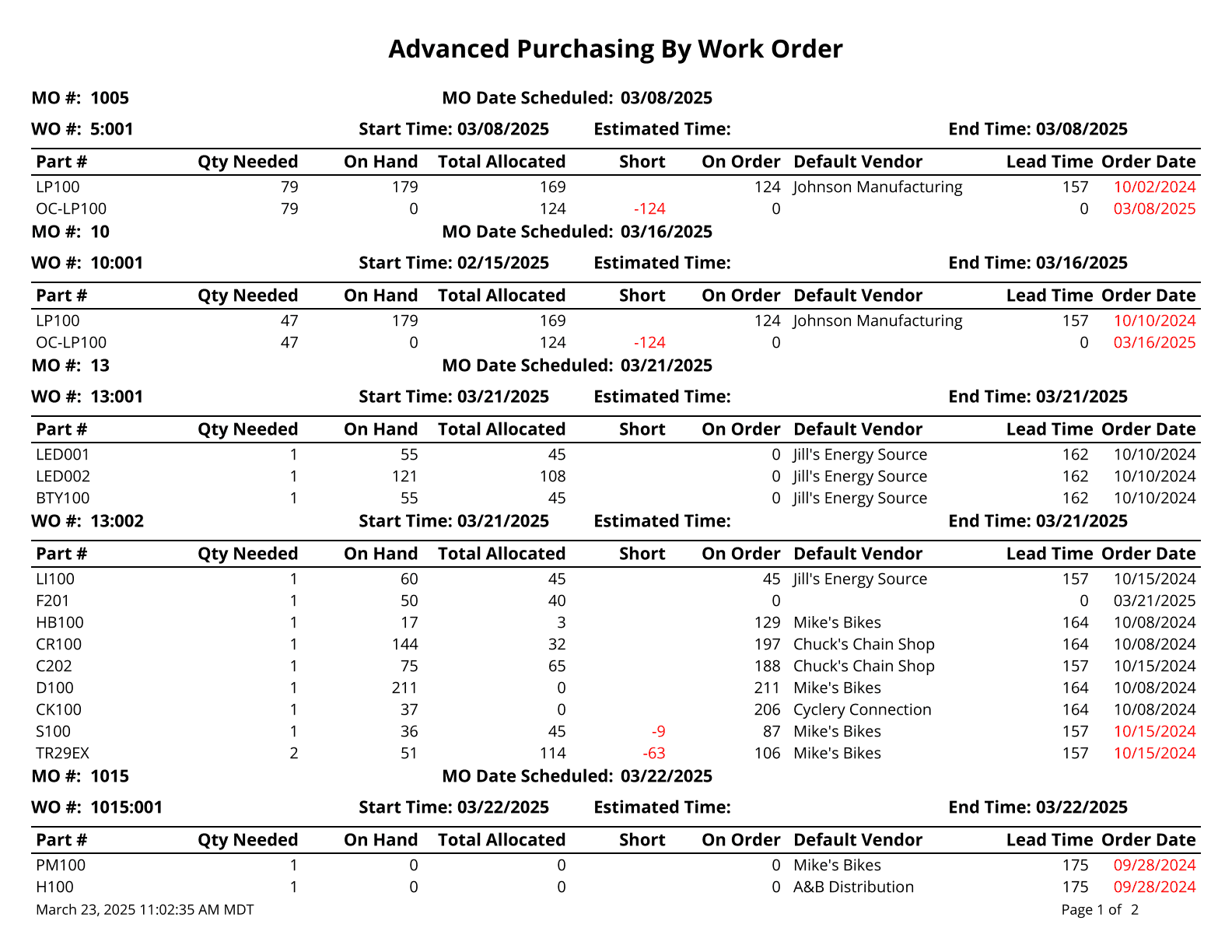
| | {{Report|Advanced Purchasing By Work Order|Looks at the fulfillment date on a WO and then looks at the lead time on the individual BOM items. Based on the fulfillment date of the WO and the lead time of the item, the report shows you what day to place your PO}} |
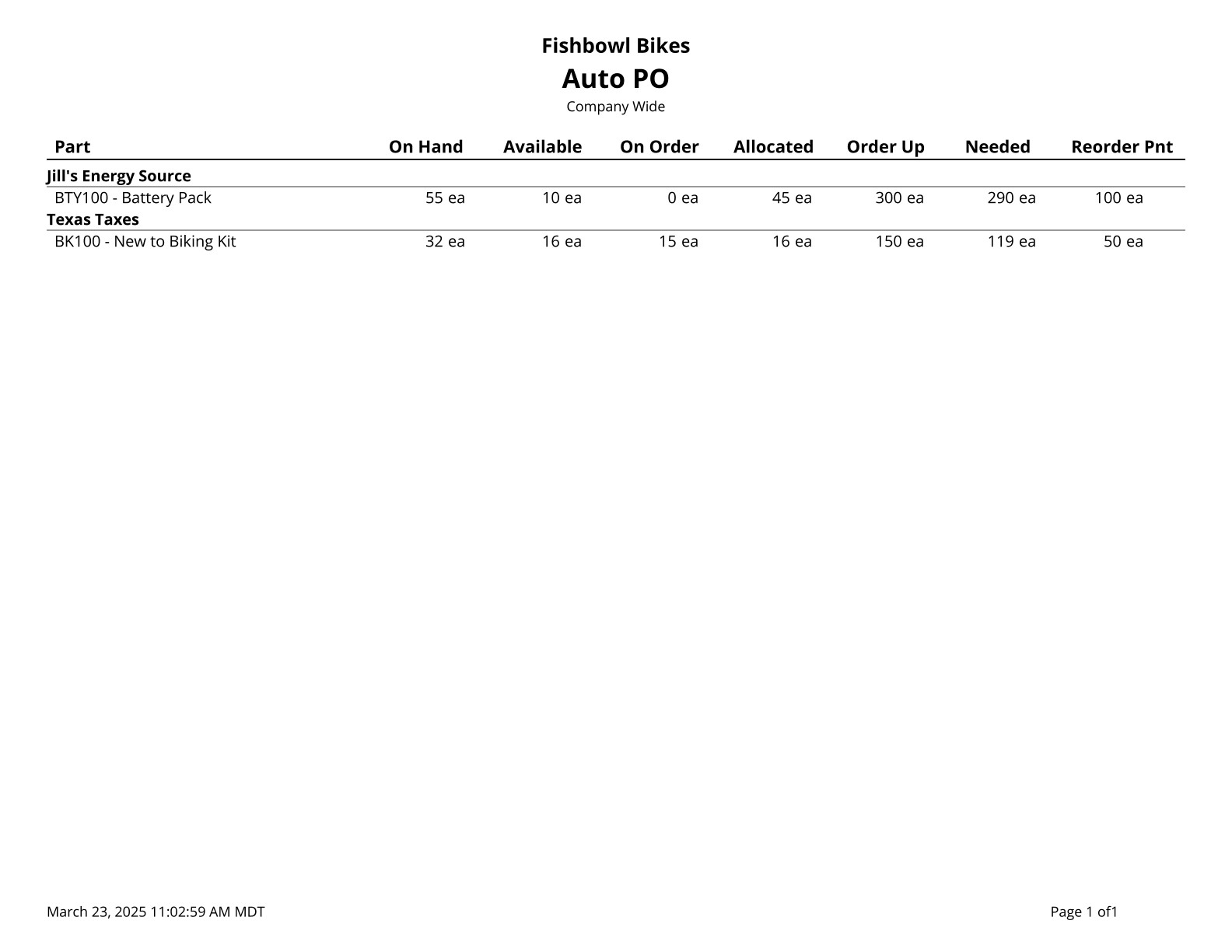
| | {{Report|Auto PO|Prints a list of parts below reorder tolerance. This report runs the Auto-PO code and can take a few minutes to generate. Only includes parts without a default BOM or a BOM set to never auto-create}} |
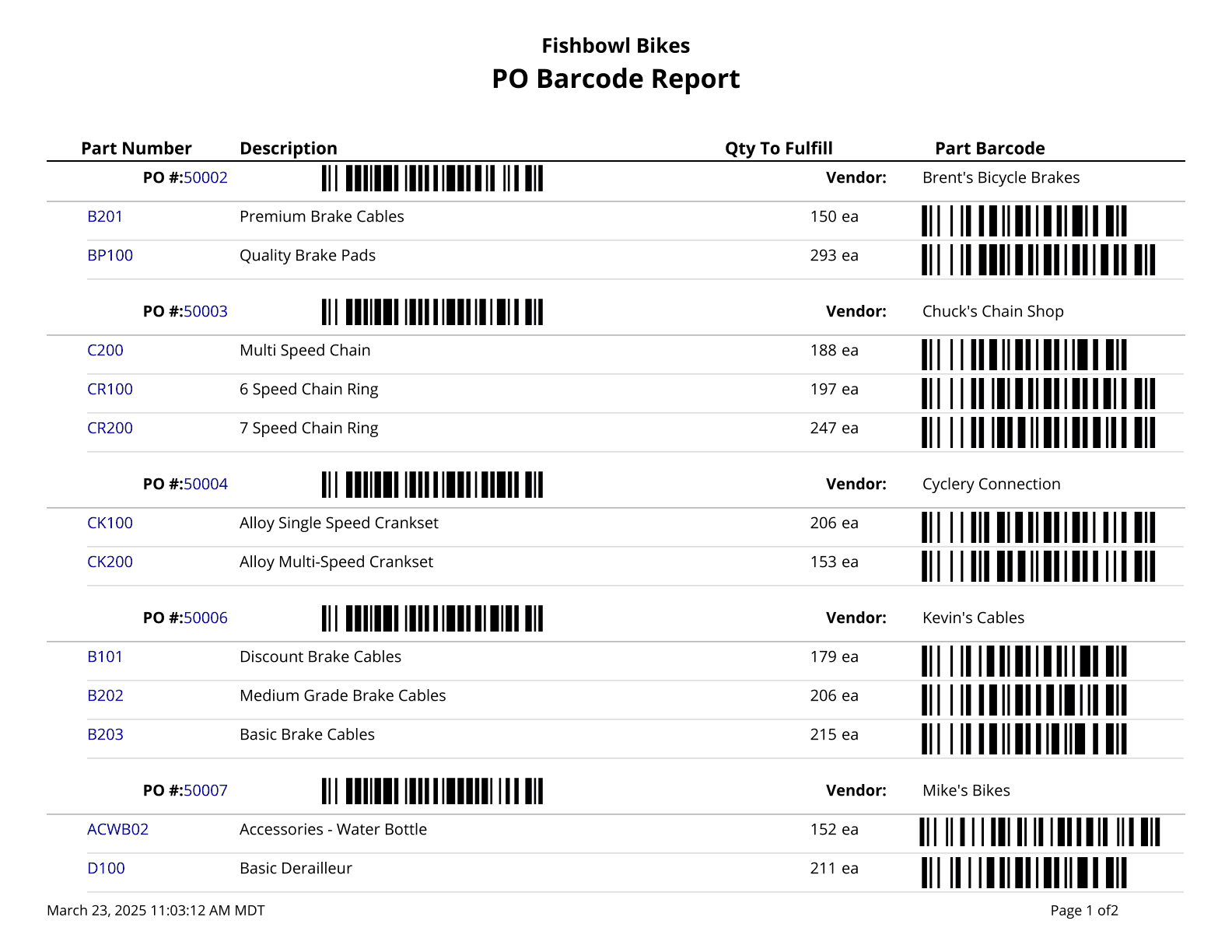
| | {{Report|Purchase Order Barcode|Prints PO number and PO item barcodes}} |
| | {{Report|Purchase Order Report|Purchase Order Details}} |
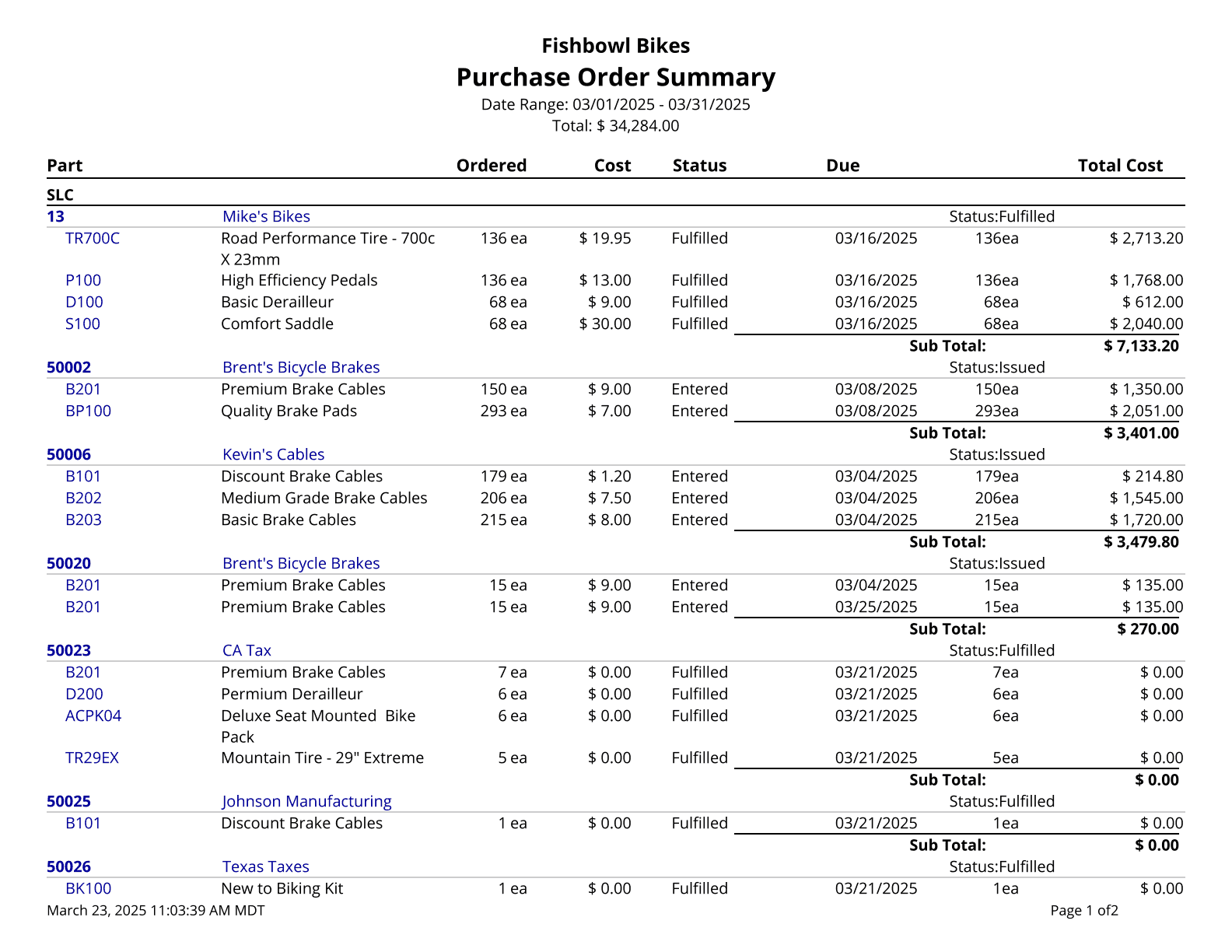
| | {{Report|Purchase Order Summary|Lists parts on outstanding purchase orders by location group and either part number or purchase order number}} |
| | {{Report|Purchase Order Summary Export|This report is formatted for exporting and displays a summary of purchase orders issued during the time window given}} |
|
| |
|
| ==Batch By Date - Sales Order Invoice== | | ==Receiving== |
| [[File:Report-Sales Order Report.png|right|border|400px|link={{filepath:Report-Sales Order Report.png}}]]
| | {{Report|Receiving History|Prints a list of all receipts over a date range, filtered by location group, vendor, and/or part}} |
| | {{Report|Receiving List|A list of Parts to be Received}} |
| | {{Report|Receiving Summary|Shows an overview of orders that are in receiving and their status. It can show which orders have items that have been received but not reconciled which can help accountants}} |
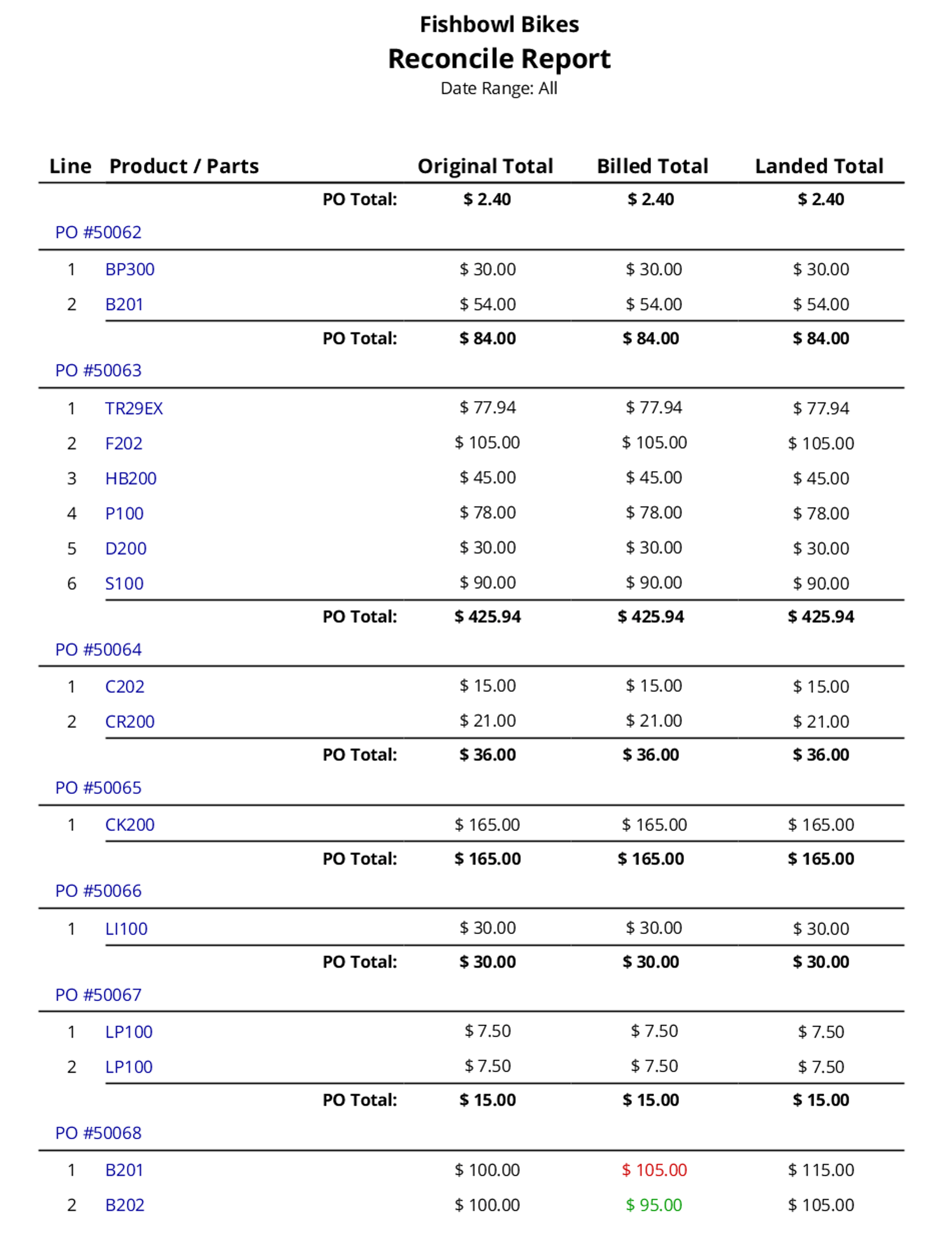
| | {{Report|Reconcile Report|Shows the detail of PO exports to the accounting system}} |
|
| |
|
| This report displays the [[#Sales Order Report|Sales Order Report]] report for multiple orders.
| | ==RMA== |
| | {{Report|RMA Report|A list of Products being returned on a Return Merchandise Authorization ticket}} |
| | {{Report|RMA Summary|Prints a summary of RMAs issued during the time window given; no taxes or shipping fees are included}} |
|
| |
|
| ==Batch By Order - Manufacture Order Traveler== | | ==Sales Order== |
| [[File:Report-Manufacture Order Traveler.png|right|border|400px|link={{filepath:Report-Manufacture Order Traveler.png}}]] | | {{Report|Compare Sales By Month|Compares Gross Sales By Month}} |
| | {{Report|Customer Purchase History|Prints the purchase history for a customer or product in a given date range}} |
| | {{Report|Discount Summary|A list of all discount line items on fulfilled sales orders in the system, totaled by discount}} |
| | {{Report|Gross Sales By Product|Prints the gross sales for the date range specified, ordered from greatest to least. An empty date range will report on gross sales to date}} |
| | {{Report|Gross Sales By Product Tree|Returns gross sales for a specific product tree or all product tree nodes in a specified timeframe. Returns product tree sales as a percentage of total sales and single product sales as a percentage of the respective tree the product belongs to}} |
| | {{Report|Gross Sales By Salesperson|Prints the gross sales for the date range specified, ordered from greatest to least. An empty date range will report on gross sales to date}} |
| | {{Report|Inventory Allocated To Sales Orders|Creates a list of all inventory currently allocated to sales orders. Cost values are based on today's cost}} |
| | {{Report|Margins By Sales Order|Provides a list of Sales Orders' price, profit, and cost. The date filter is based on the date created}} |
| | {{Report|Margins Report|Provides a list of Sales Orders' price, profit, and cost}} |
| | {{Report|MTD Sales|Prints a graph of gross sales for the date range specified. An empty date range will report on gross sales to date}} |
| | {{Report|Outstanding Items|Prints a list of outstanding exchange items. Can be filtered by due date and/or customer}} |
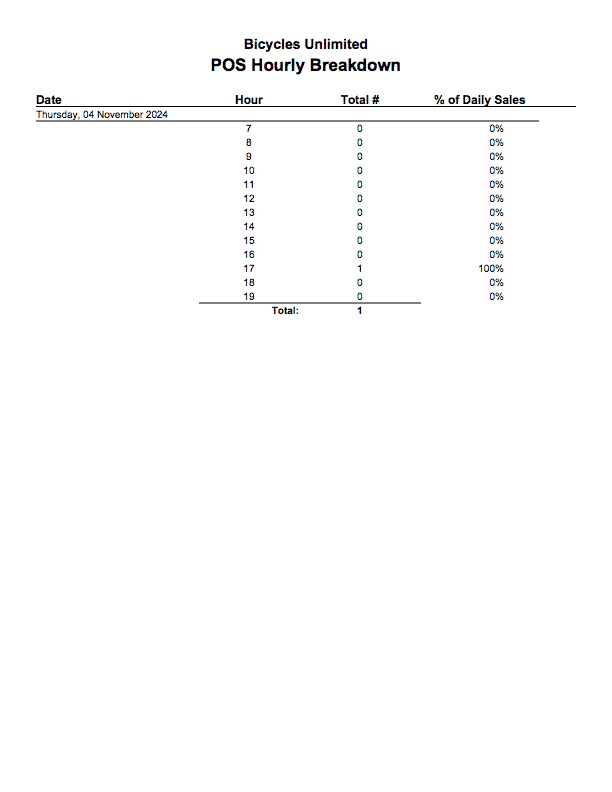
| | {{Report|POS Hourly Breakdown|Pulls all sales made with [[Fishbowl Checkout]] and shows how many sales were made per hour in a given date range. Shows a graph of the average amount of sales per hour}} |
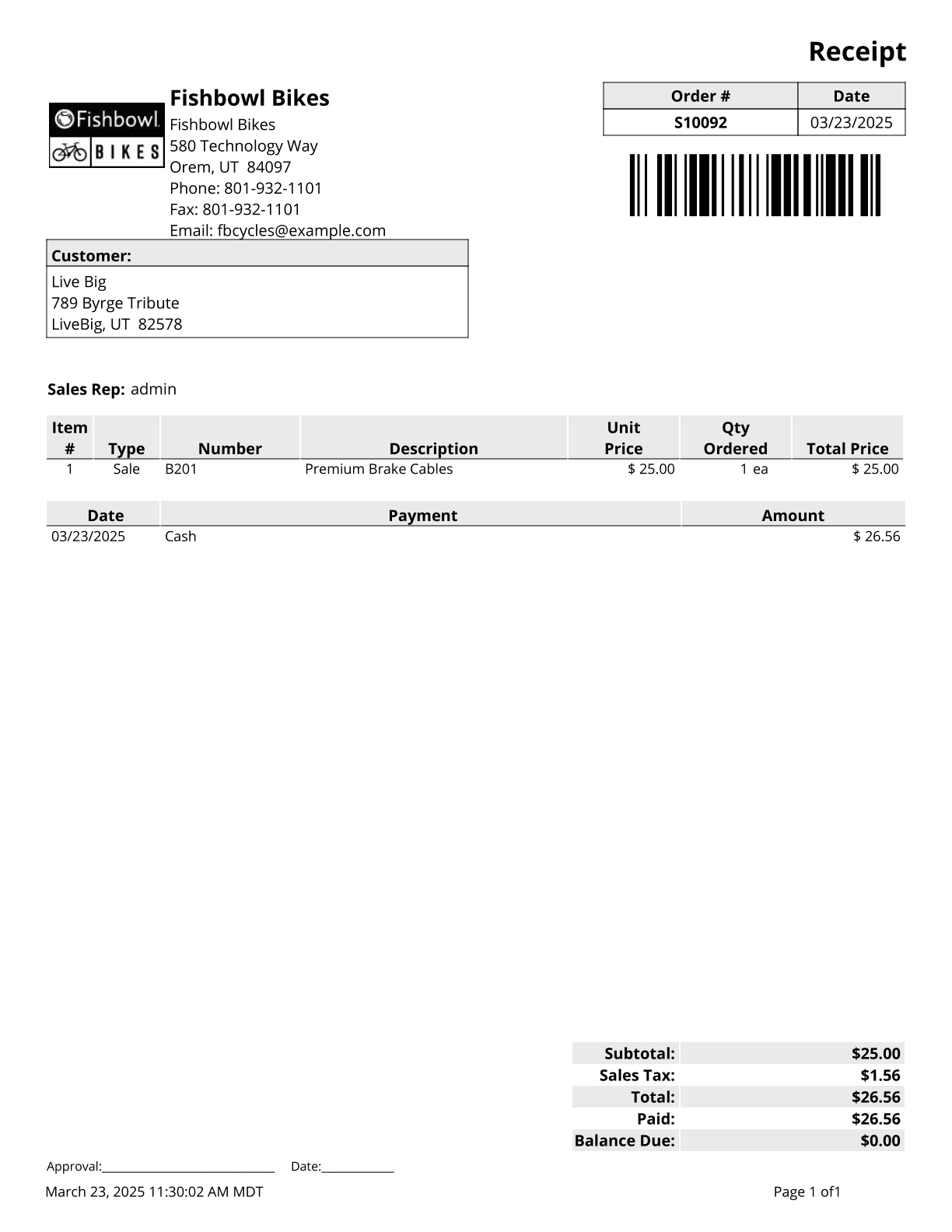
| | {{Report|POS Receipt|Common Receipt for Customers}} |
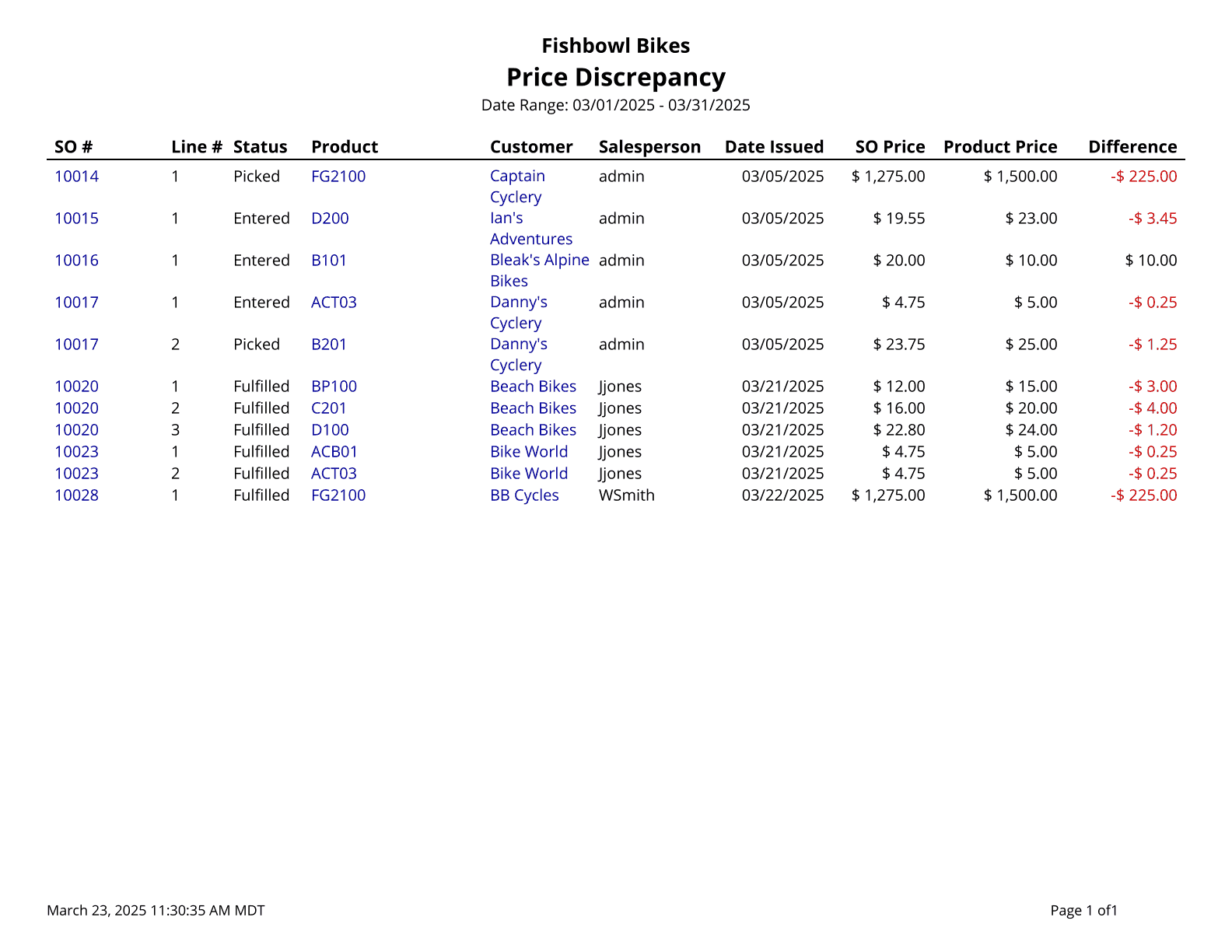
| | {{Report|Price Discrepancy|A list of all SO Items in the system that have a price different than the list price}} |
| | {{Report|Pricing Rules|Provides a list of pricing rules set up in the system}} |
| | {{Report|Products On Order|Shows which products customers have on order}} |
| | {{Report|Receipt 2in|Common Receipt for Customers}} |
| | {{Report|Receipt 3in|Common Receipt for Customers}} |
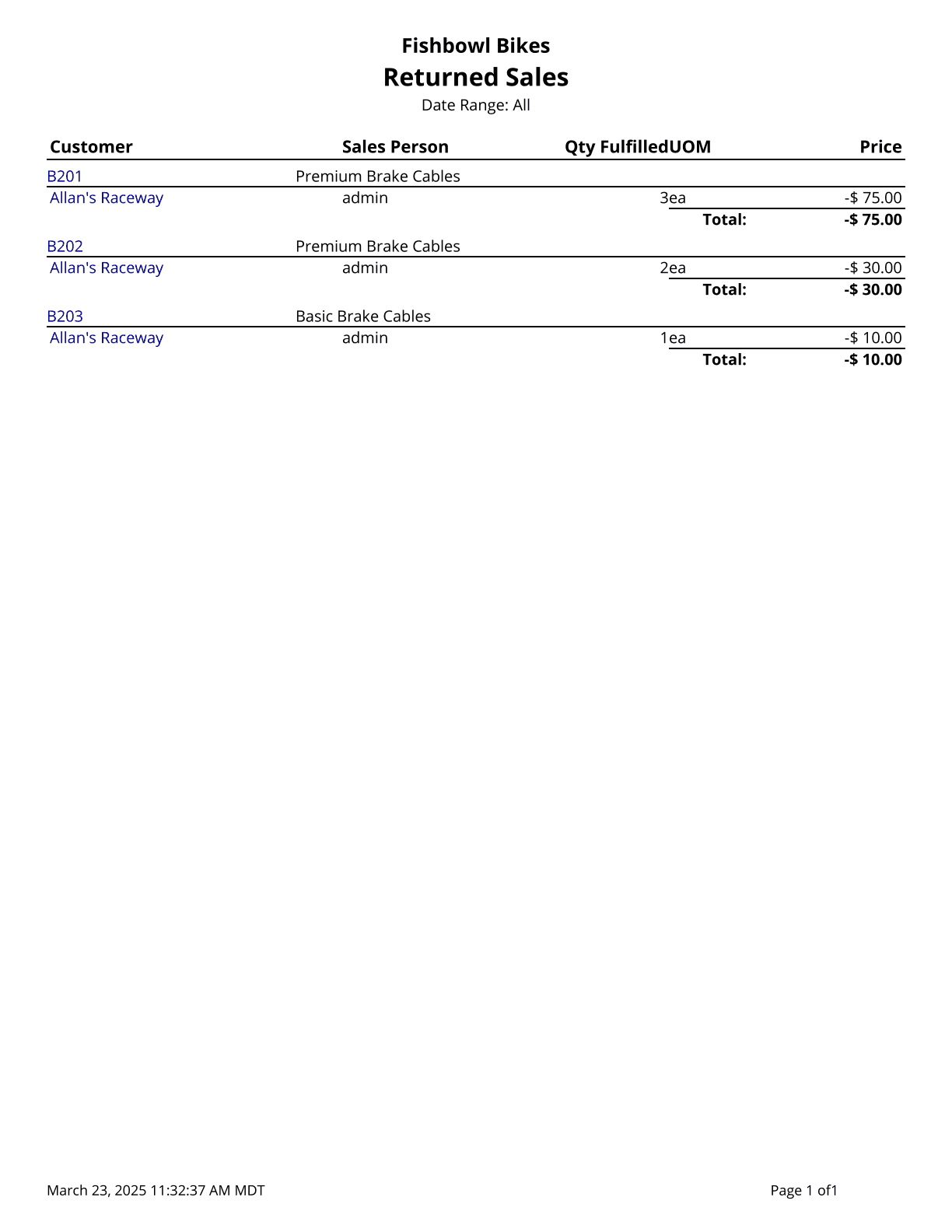
| | {{Report|Returned Sales|Prints a list of returned sales items by count for the date range specified}} |
| | {{Report|Sales Backorder Report|Displays Sales Orders that are fulfillable or on Backorder. The quantity shown is the quantity on hand without quantity in not-available locations}} |
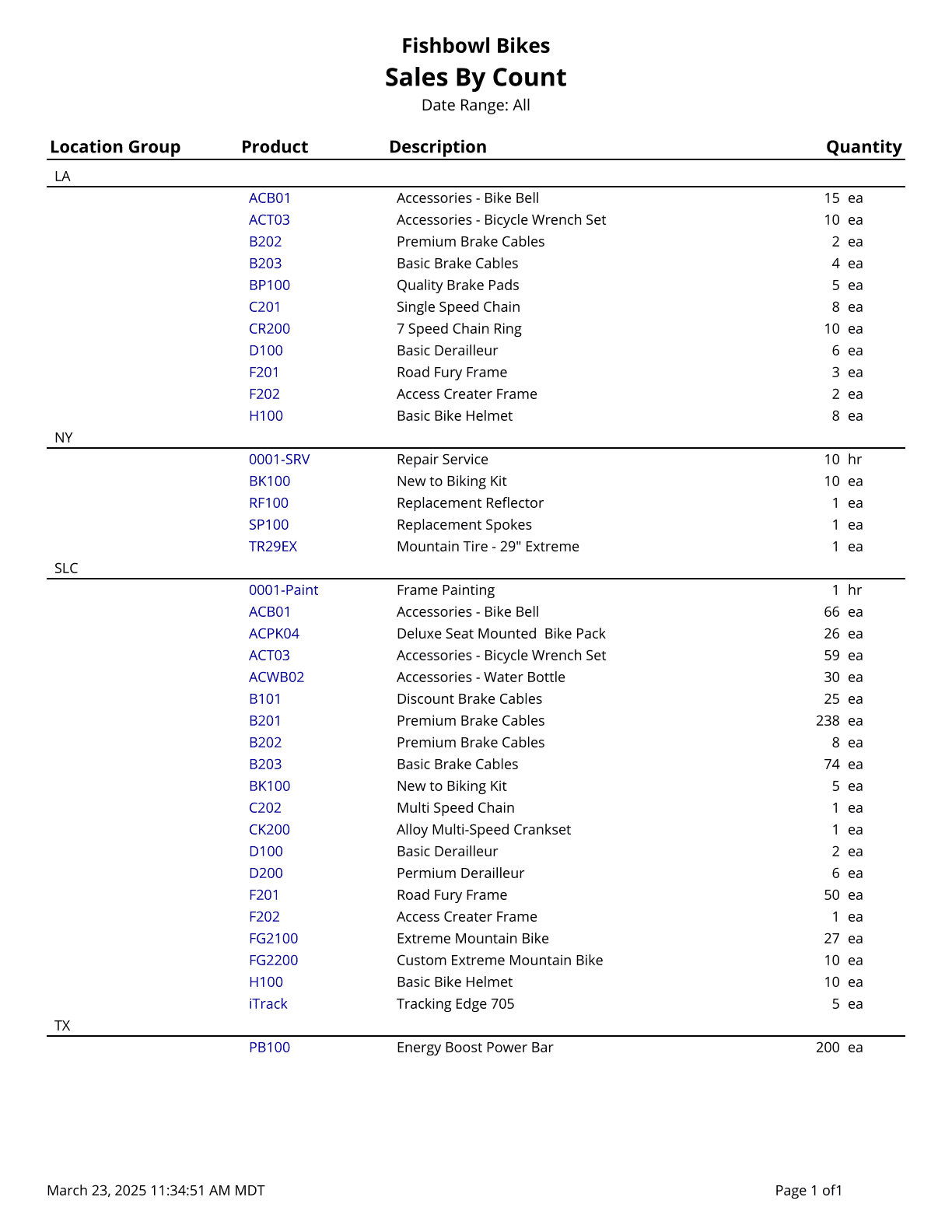
| | {{Report|Sales By Count|Prints a list of sales by count for orders that have items shipped during the date range specified}} |
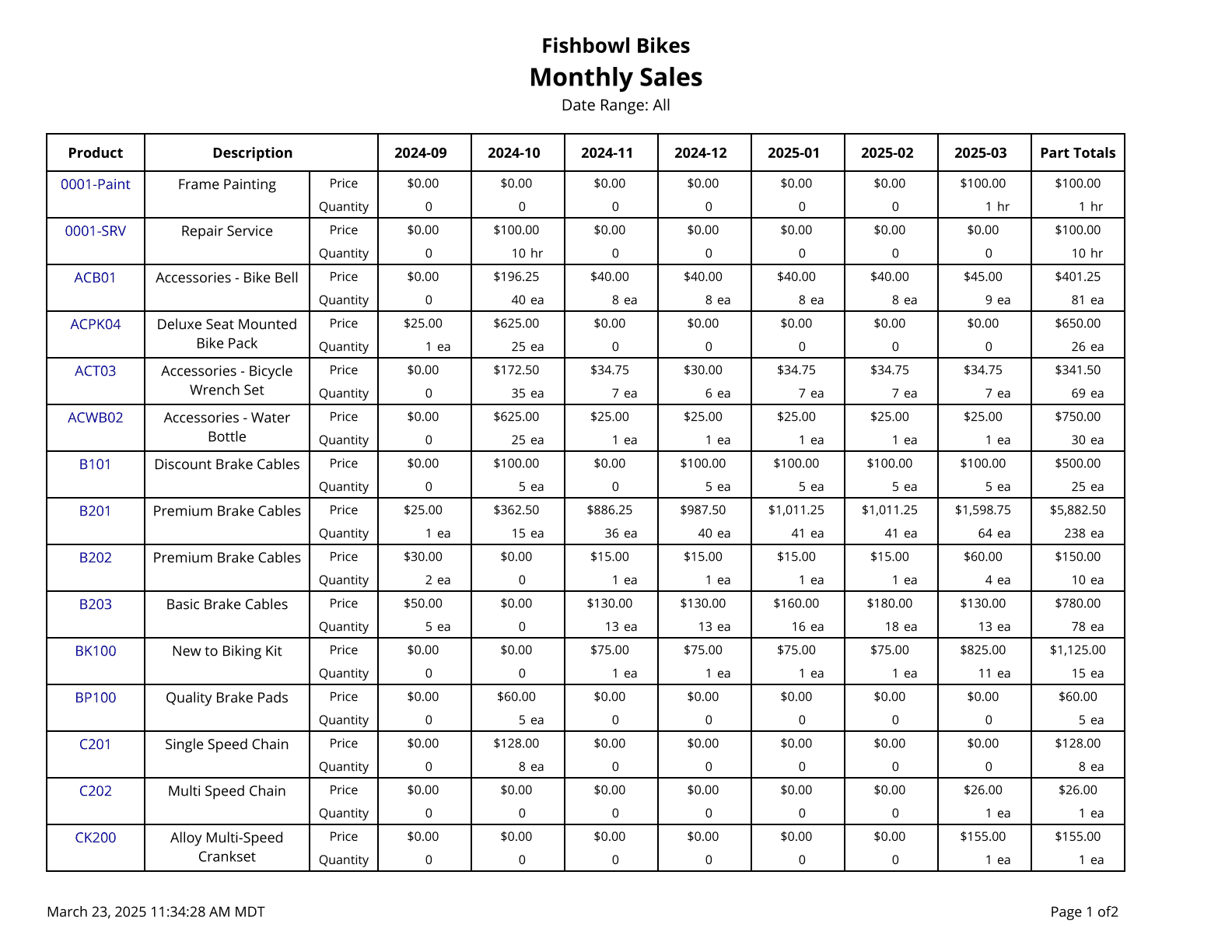
| | {{Report|Sales By Month|Shows product sales broken out by month}} |
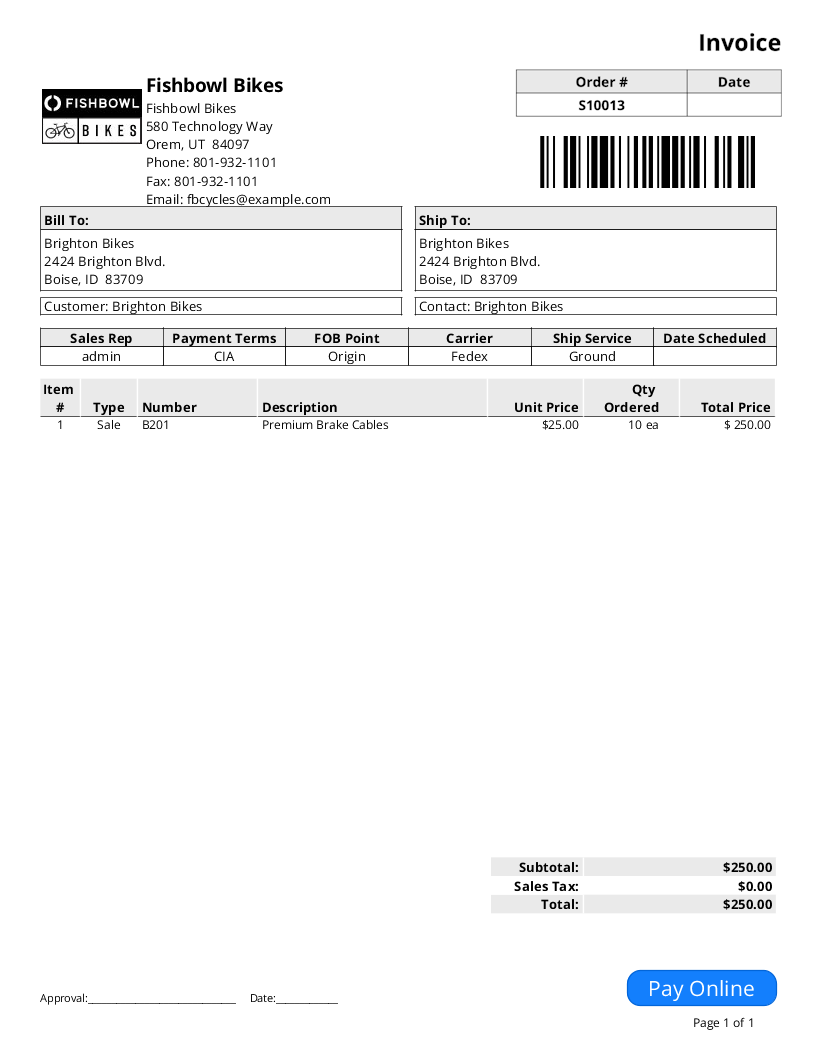
| | {{Report|Sales Invoice|Sales Order Report with '''Invoice''' displayed at the top of the report}} |
| | {{Report|Sales Order Report|Basic Report for Sales Orders}} |
| | {{Report|Sales Order Summary|Prints a summary of sales orders issued during the time window given; no taxes are included}} |
| | {{Report|Sales Order Summary Export|Exports a summary of sales orders issued during the time window given; no taxes are included}} |
| | {{Report|Sales Order Taxes|Prints the tax rate and total tax on a list of sales orders}} |
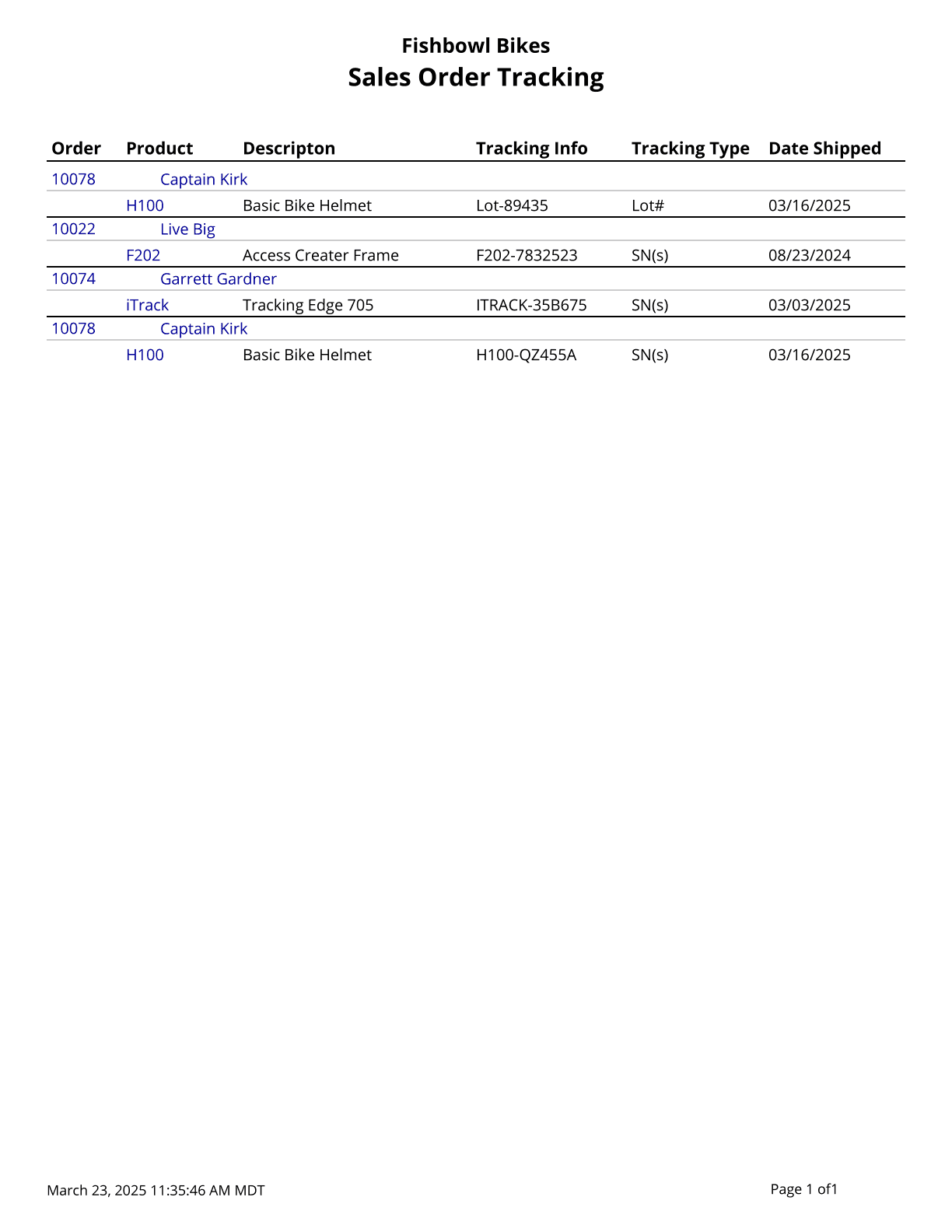
| | {{Report|Sales Order Tracking|A list of tracking values associated with items on a sales order}} |
| | {{Report|Sales Production Demand|Shows the time and inventory demand generated by open sales orders}} |
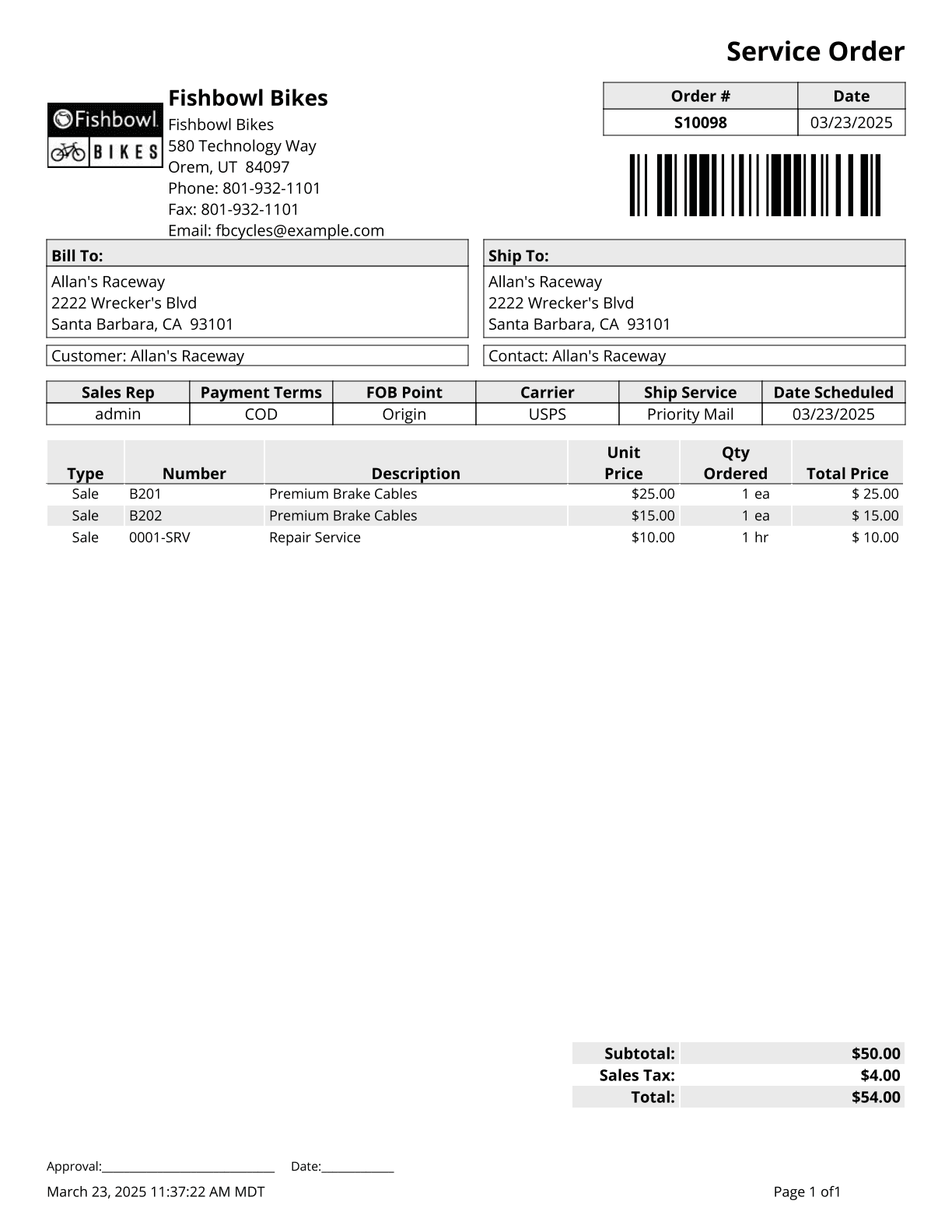
| | {{Report|Service Order|Service Order Report shows sales order information with a section for service parts used on the order}} |
| | {{Report|SO To PO Margin|Shows the margins of Sales Orders where a Purchase Order is associated with a Sales Order}} |
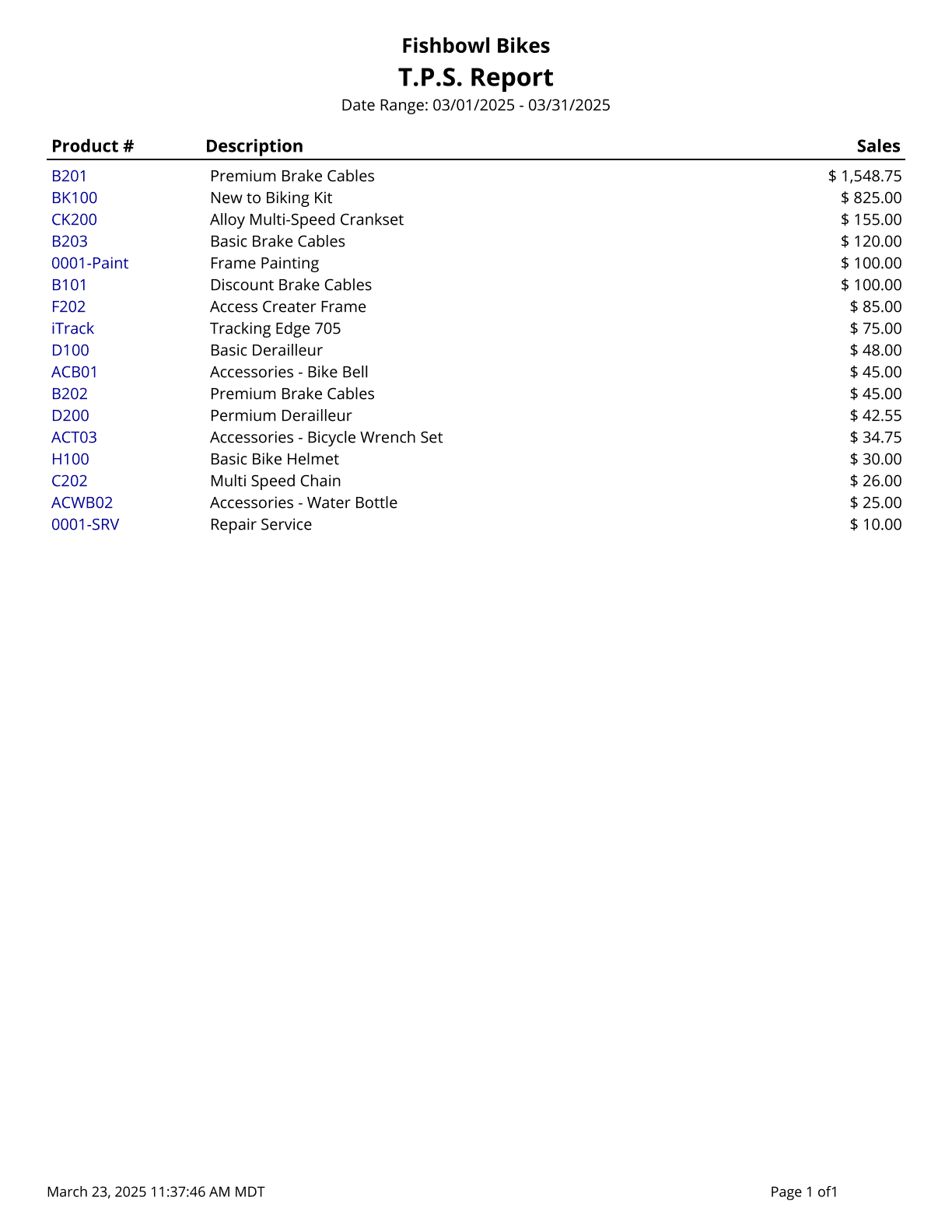
| | {{Report|TPS Report|Total Product Sales. Prints a list of gross sales for the date range specified, ordered from greatest to least. An empty date range will report on gross sales to date}} |
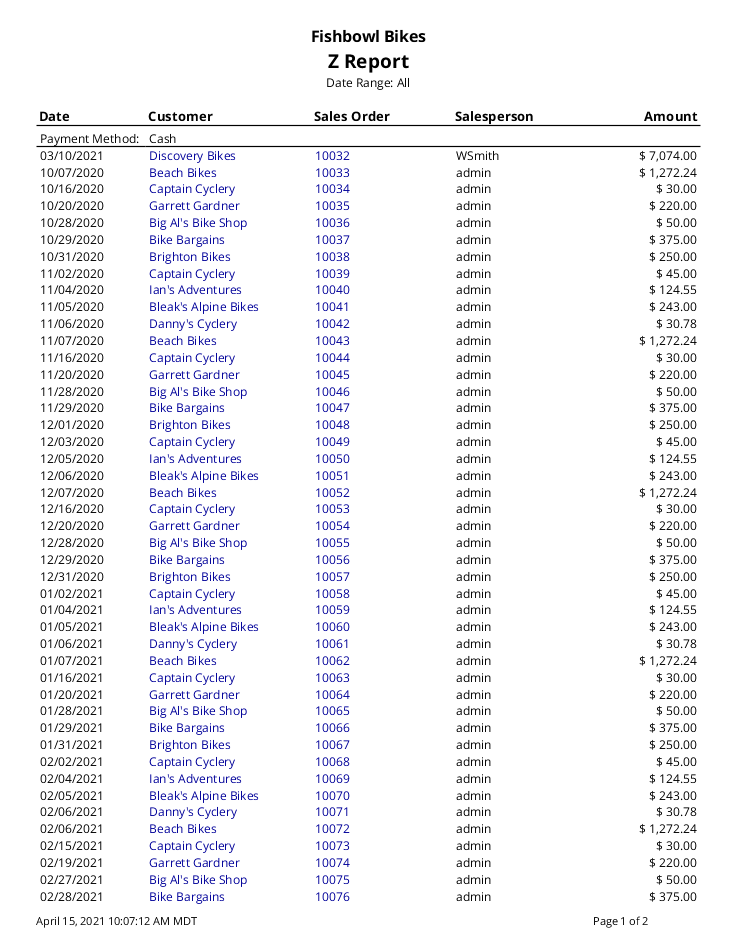
| | {{Report|Z Report|Prints all payments posted in Fishbowl for the date range specified}} |
|
| |
|
| This report displays the [[#Manufacture Order Traveler|Manufacture Order Traveler]] report for multiple orders. In the '''Order Numbers''' field, enter multiple order numbers separated by commas and no spaces. 14,15,16
| | ==Ship== |
| | {{Report|Bill Of Lading|A Bill of Lading Form to be filled out when needed for shipping}} |
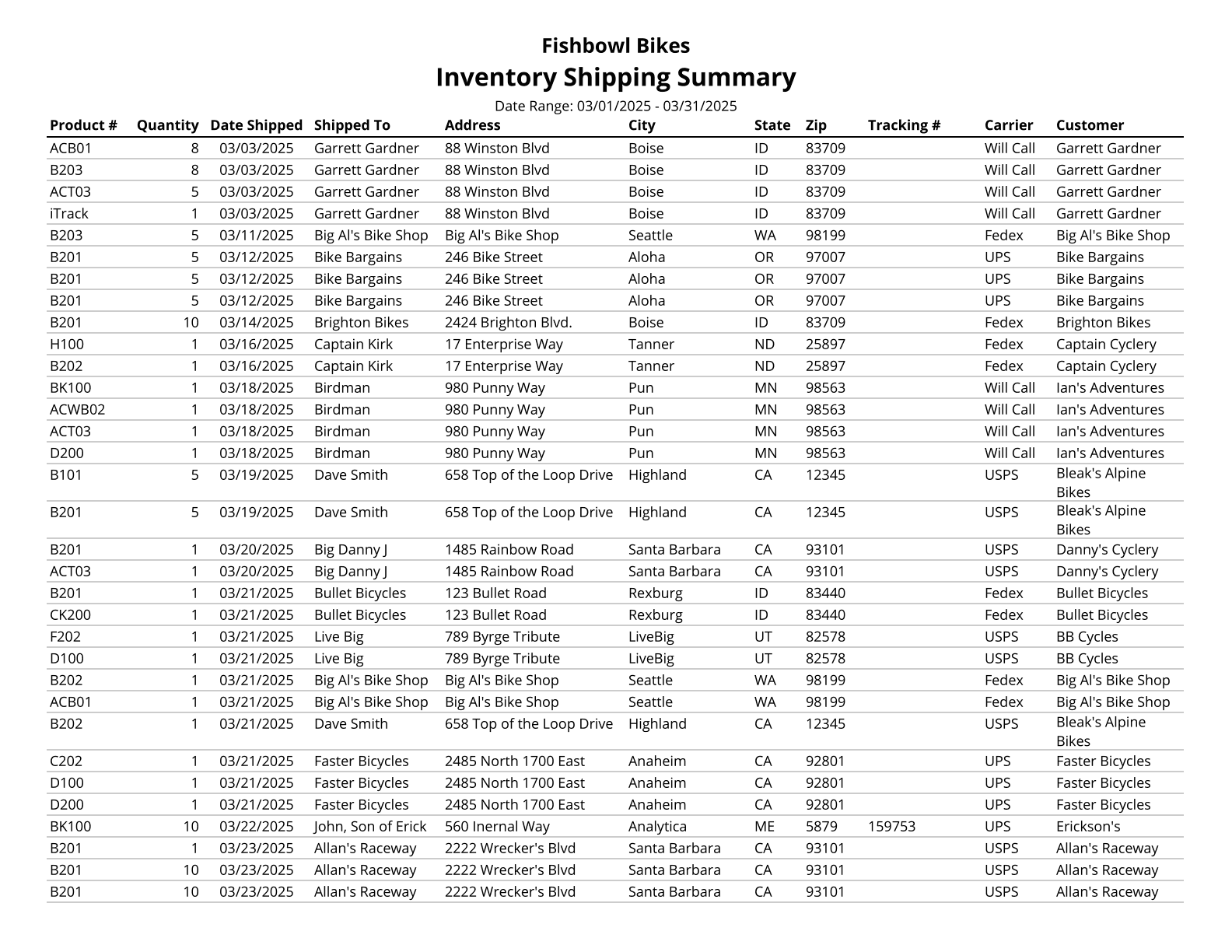
| | {{Report|Inventory Shipping Summary|Report will show inventory that has been shipped within a specified date range}} |
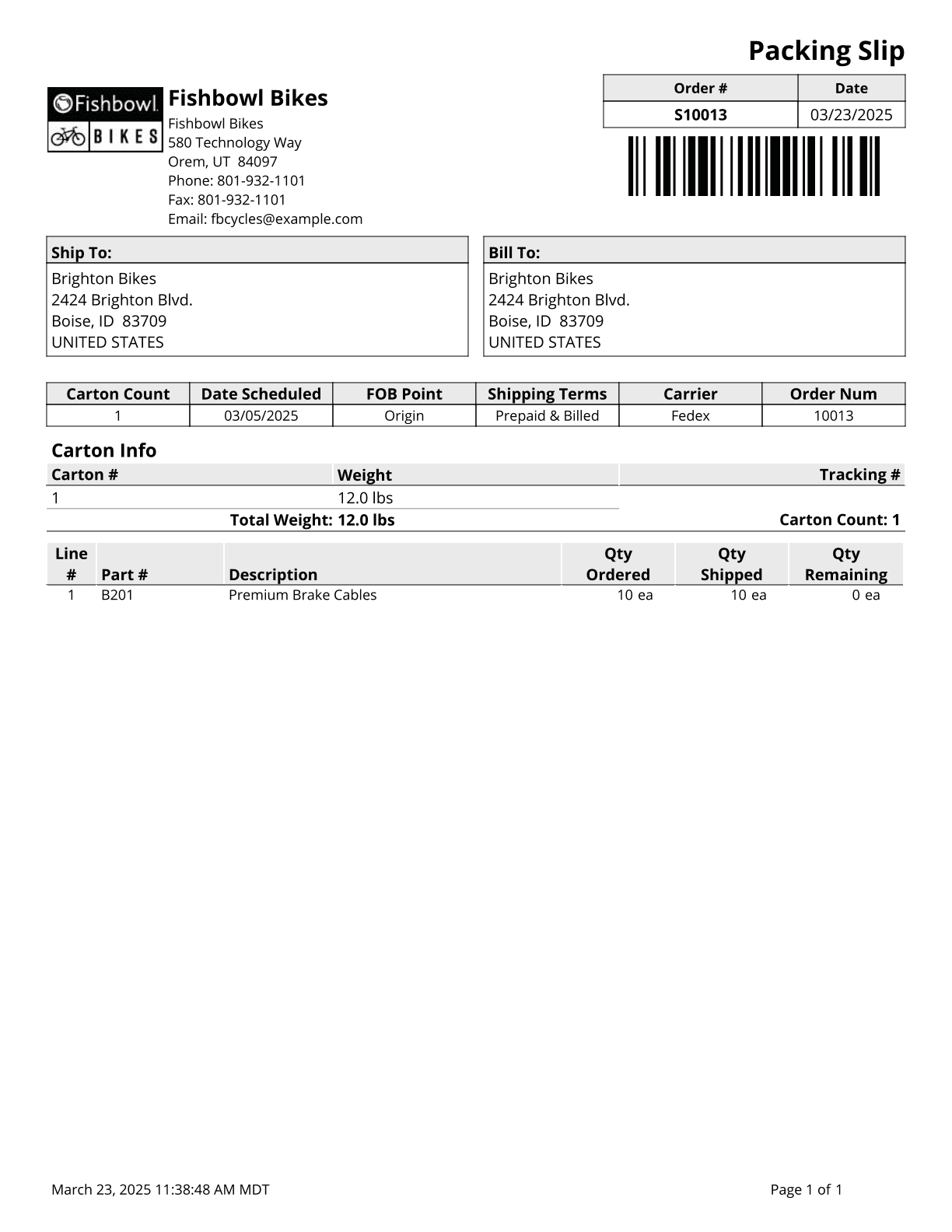
| | {{Report|Packing List|Packing List for a selected order. Selecting Standard or By Location layouts will include backorder items}} |
| | {{Report|Shipment History|Prints a list of all shipments made in the specified time period}} |
| | {{Report|Shipping Invoice|Displays shipped products and their prices. Also includes other items on the order, such as discounts, tax rates, miscellaneous items, and subtotals}} |
| | {{Report|UPS High Value Report|High Value report for shipments with a declared value over $1,000}} |
|
| |
|
| ==Batch By Order - Pick Ticket== | | ==Transfer Order== |
| [[File:Report-Pick Ticket.png|right|border|400px|link={{filepath:Report-Pick Ticket.png}}]]
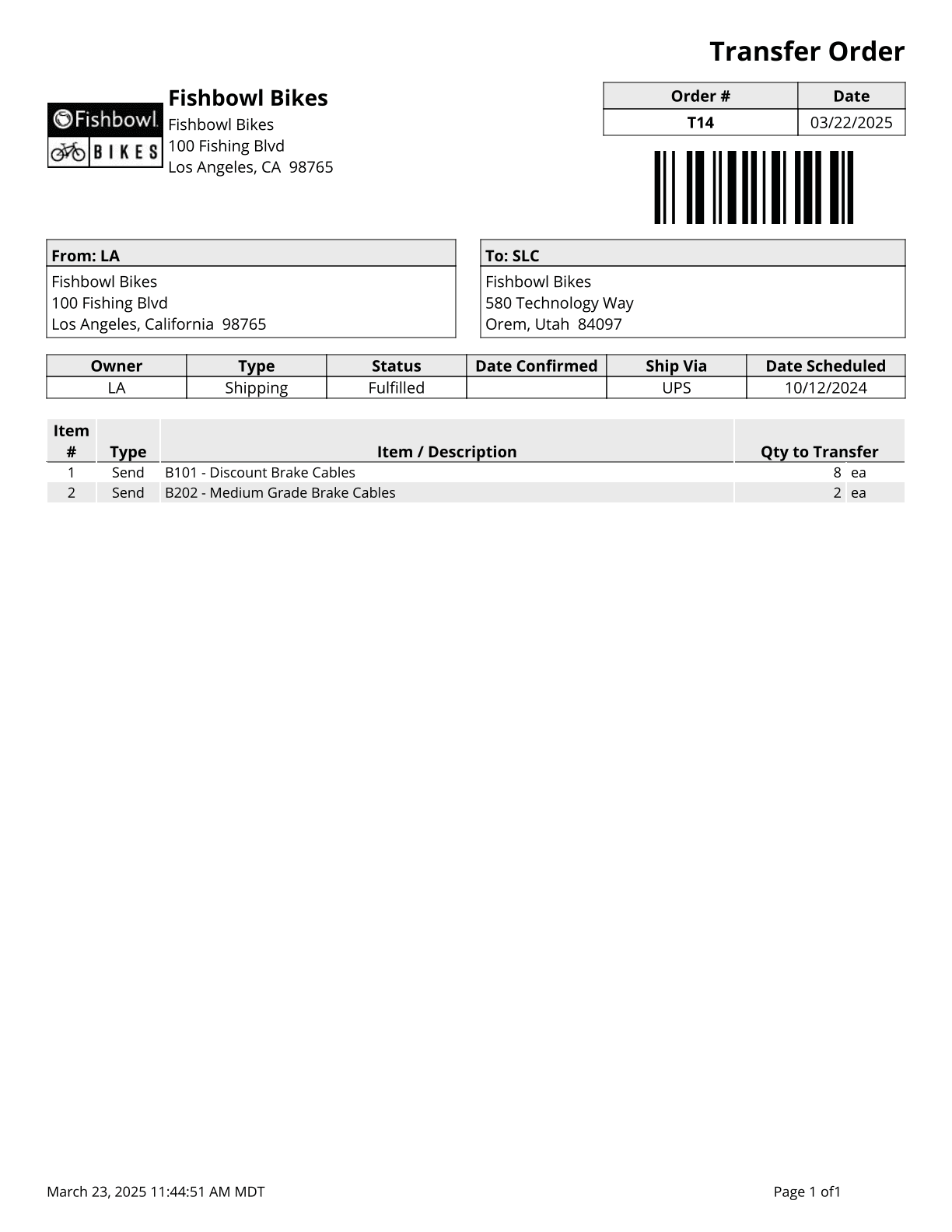
| | {{Report|Transfer Order Report|Basic Report for Transfer Orders}} |
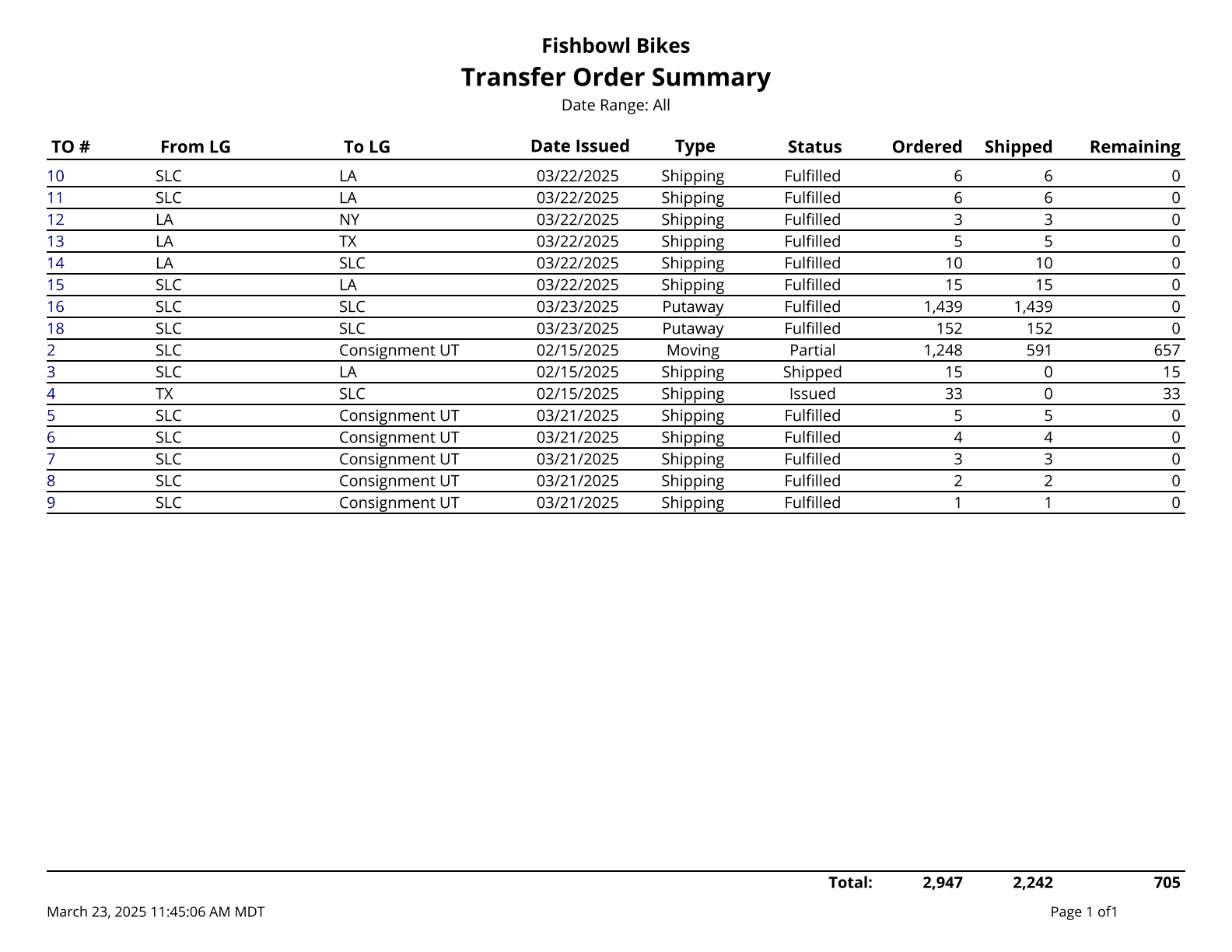
| | {{Report|Transfer Order Summary|Prints a summary of transfer orders during the time window given}} |
|
| |
|
| This report displays the [[#Pick Ticket|Pick Ticket]] report for multiple orders. In the '''Pick Numbers''' field, enter multiple order numbers separated by commas and no spaces. S14,S15,S16
| | ==User== |
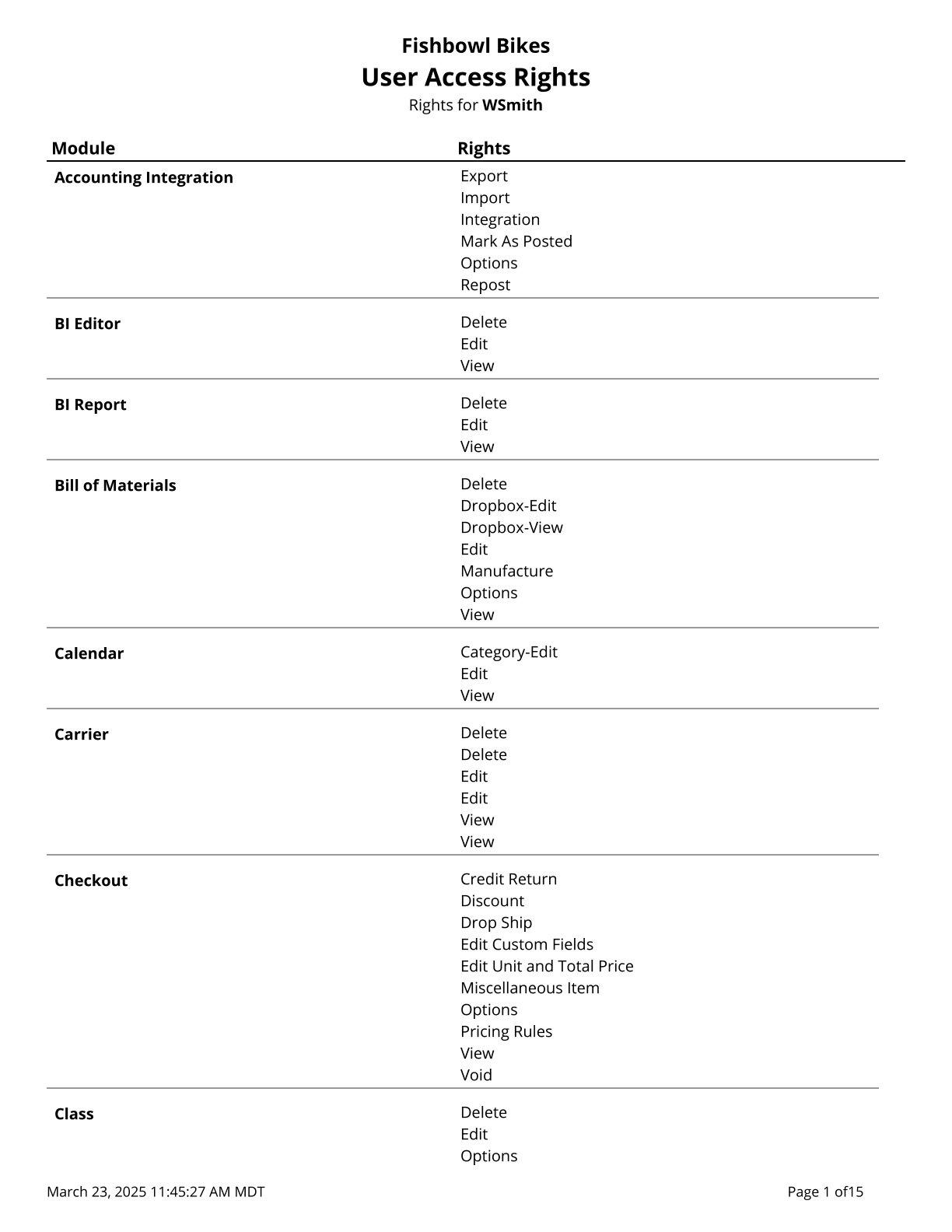
| | {{Report|User Access Rights|List of access rights for a specified user}} |
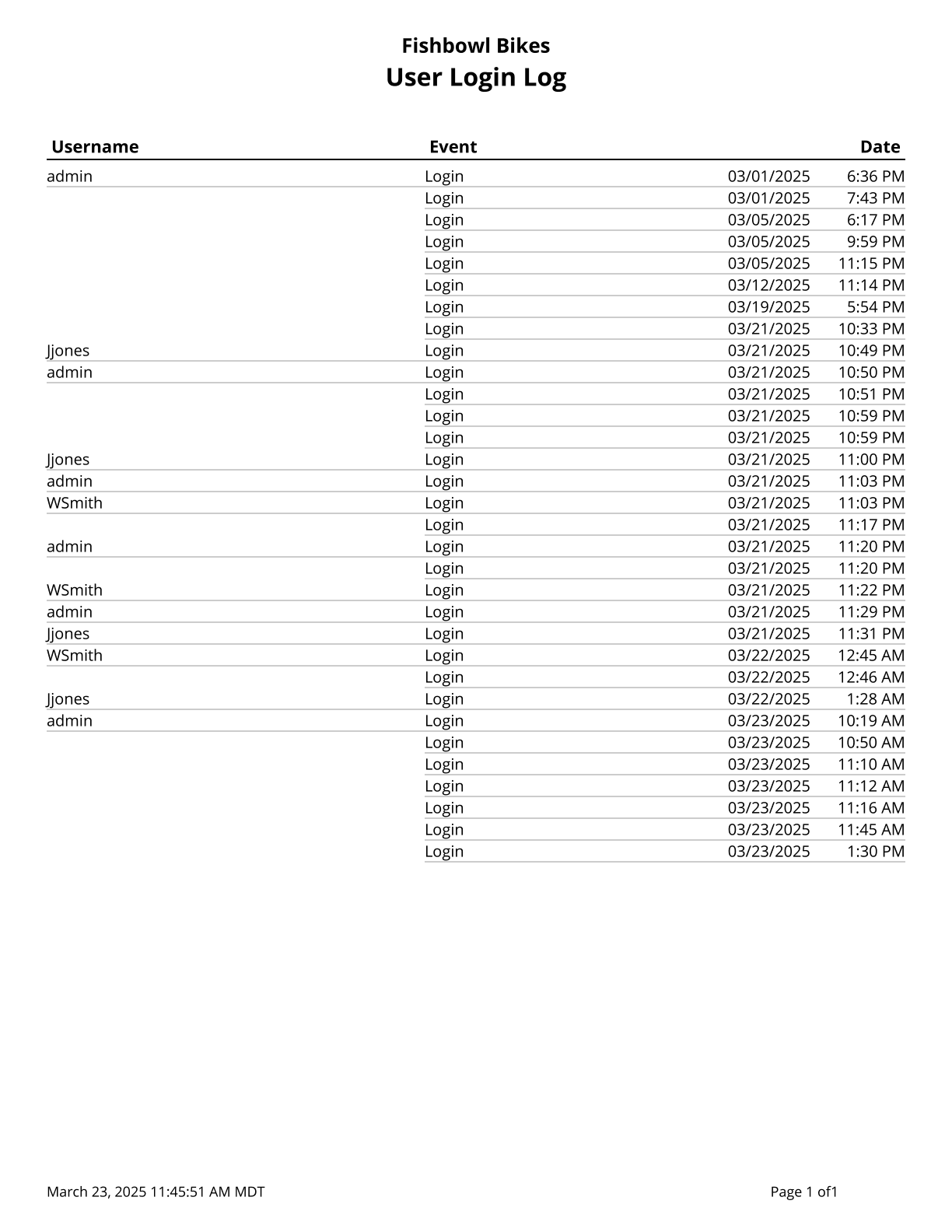
| | {{Report|User Login Log|List of logins and logouts made be users to the Fishbowl system}} |
|
| |
|
| ==Batch By Order - Sales Order Invoice== | | ==Vendor== |
| [[File:Report-Sales Order Report.png|right|border|400px|link={{filepath:Report-Sales Order Report.png}}]]
| | {{Report|Part Vendor List|Lists all vendors who sell a part, as well as the date and unit cost of the last purchase made}} |
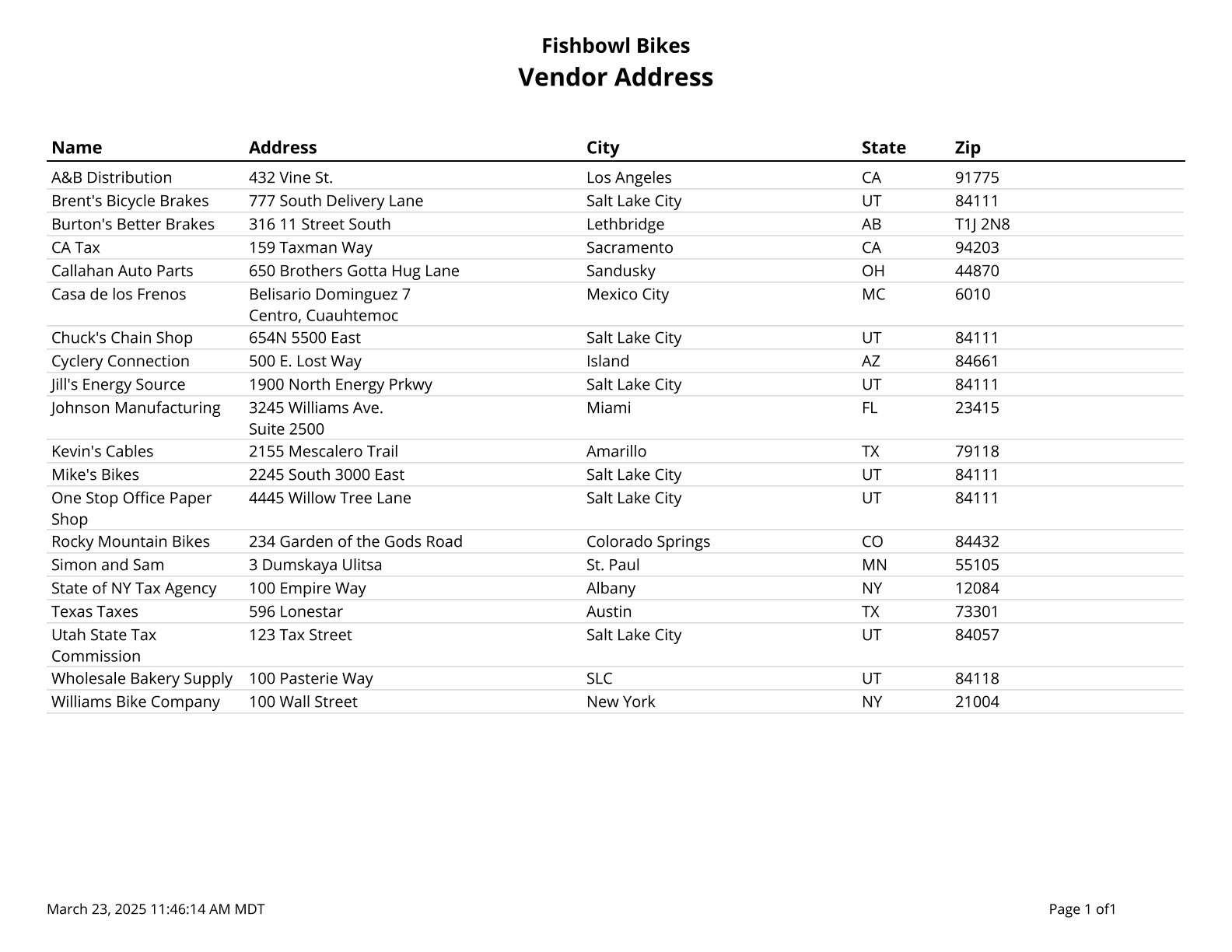
| | {{Report|Vendor Address|A list of Vendors and Addresses}} |
| | {{Report|Vendor Address List|Prints a list of vendors with addresses of a given type}} |
| | {{Report|Vendor Backorder Report|Prints a list of parts where the scheduled fulfillment date has passed. Filtered by vendor, part, and/or date range. Grouped by vendor, part, or PO number}} |
| | {{Report|Vendor Fulfillment History|A part-by-part list of vendor fulfillments on purchase orders. Filtered by location group, vendor, and/or part}} |
| | {{Report|Vendor Part List|Lists all parts sold by a vendor, as well as the date and unit cost of the last purchase made}} |
| | {{Report|Vendor Performance Report|Gives a part-by-part list of vendor fulfillments on purchase orders received during a date range, vendor, and/or part}} |
|
| |
|
| This report displays the [[#Sales Order Report|Sales Order Report]] report for multiple orders. In the '''Order Numbers''' field, enter multiple order numbers separated by commas and no spaces. 14,15,16
| | ==Work Order== |
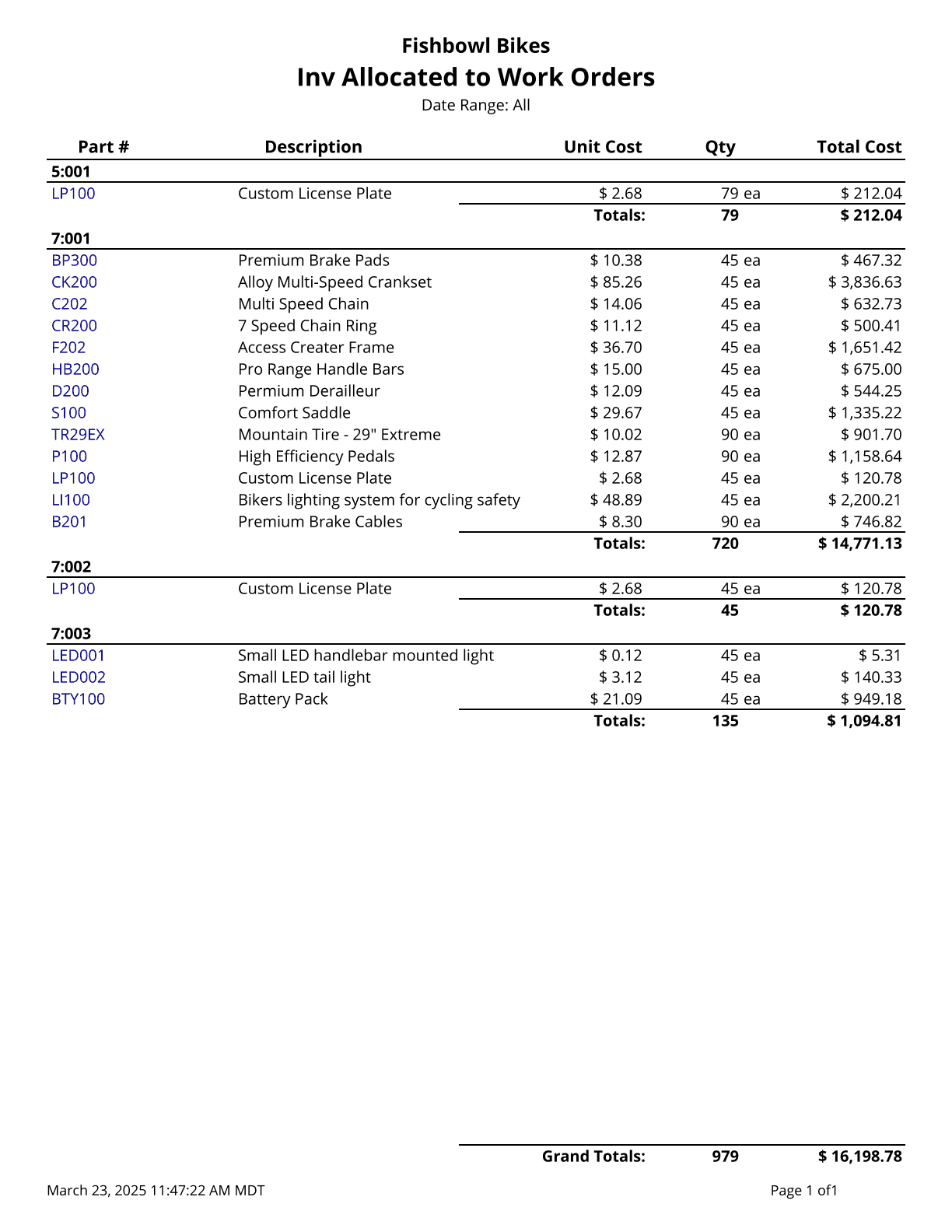
| | | {{Report|Inventory Allocated To Work Orders|Creates a list of all inventory currently allocated to outstanding work orders. Cost values are based on today's costs}} |
| ==Batch By Order - Work Order Traveler== | | {{Report|Outstanding Work Orders|Prints a list of all outstanding work orders, along with their associated sales order number and customer (if any)}} |
| [[File:Report-Work Order Traveler.png|right|border|400px|link={{filepath:Report-Work Order Traveler.png}}]]
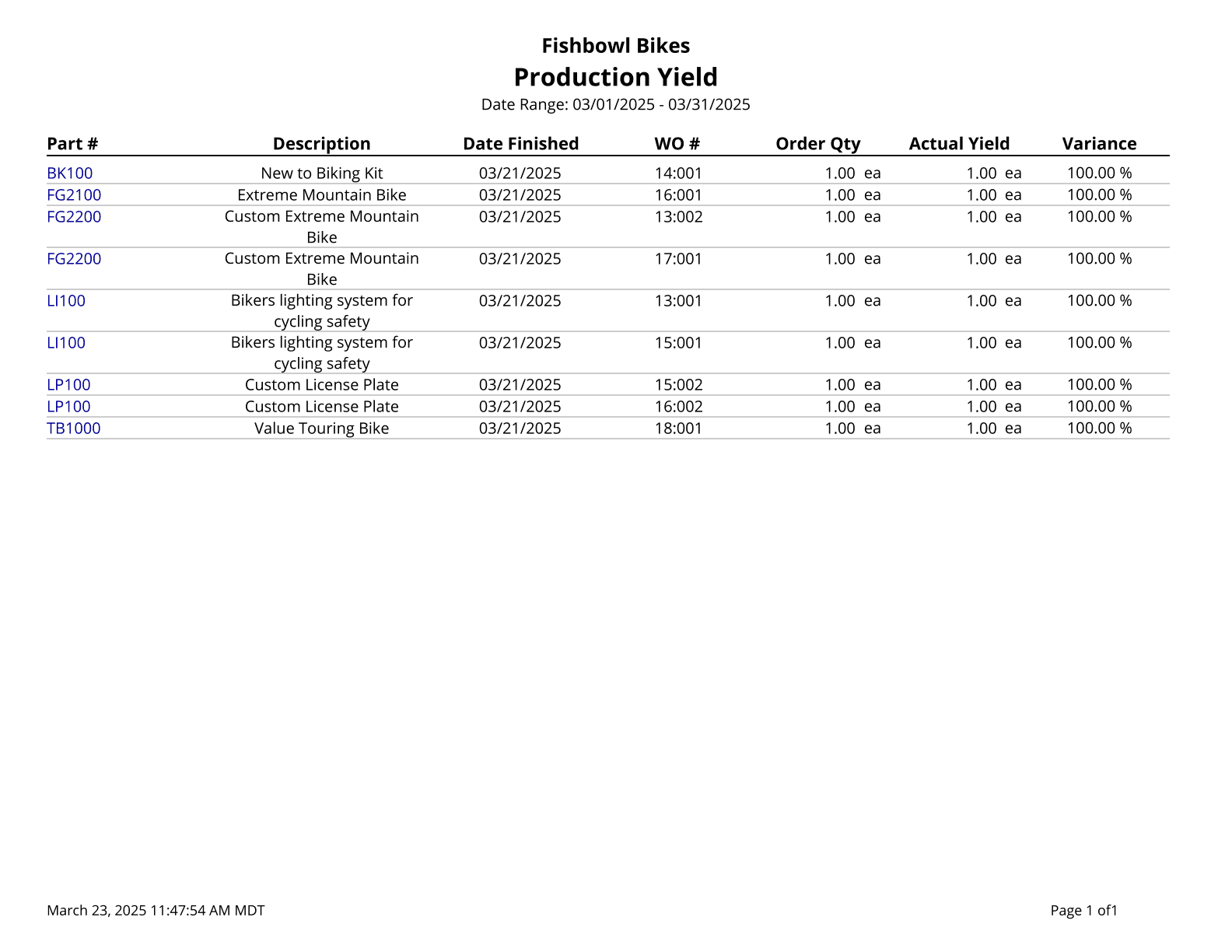
| | {{Report|Production Yield|Shows a list of parts manufactured with the yield percentage per work order}} |
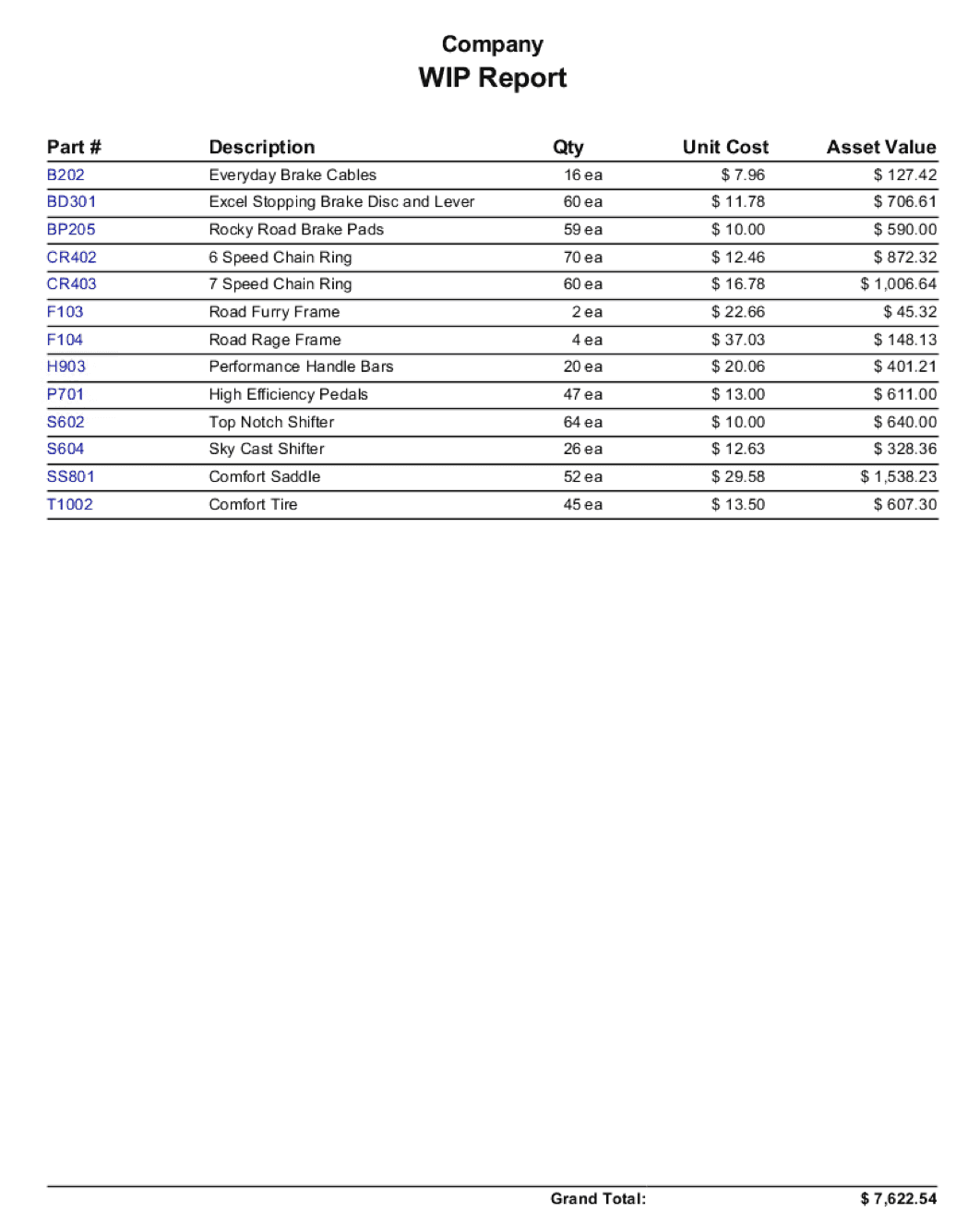
| | | {{Report|Work In Progress|Generates a WIP summary of the quantity and value of all parts currently in manufacturing locations. Cost values are based on today's costs}} |
| This report displays the [[#Work Order Traveler|Work Order Traveler]] report for multiple orders. In the '''Order Numbers''' field, enter multiple order numbers separated by commas and no spaces. 14:001,15:001,16:001
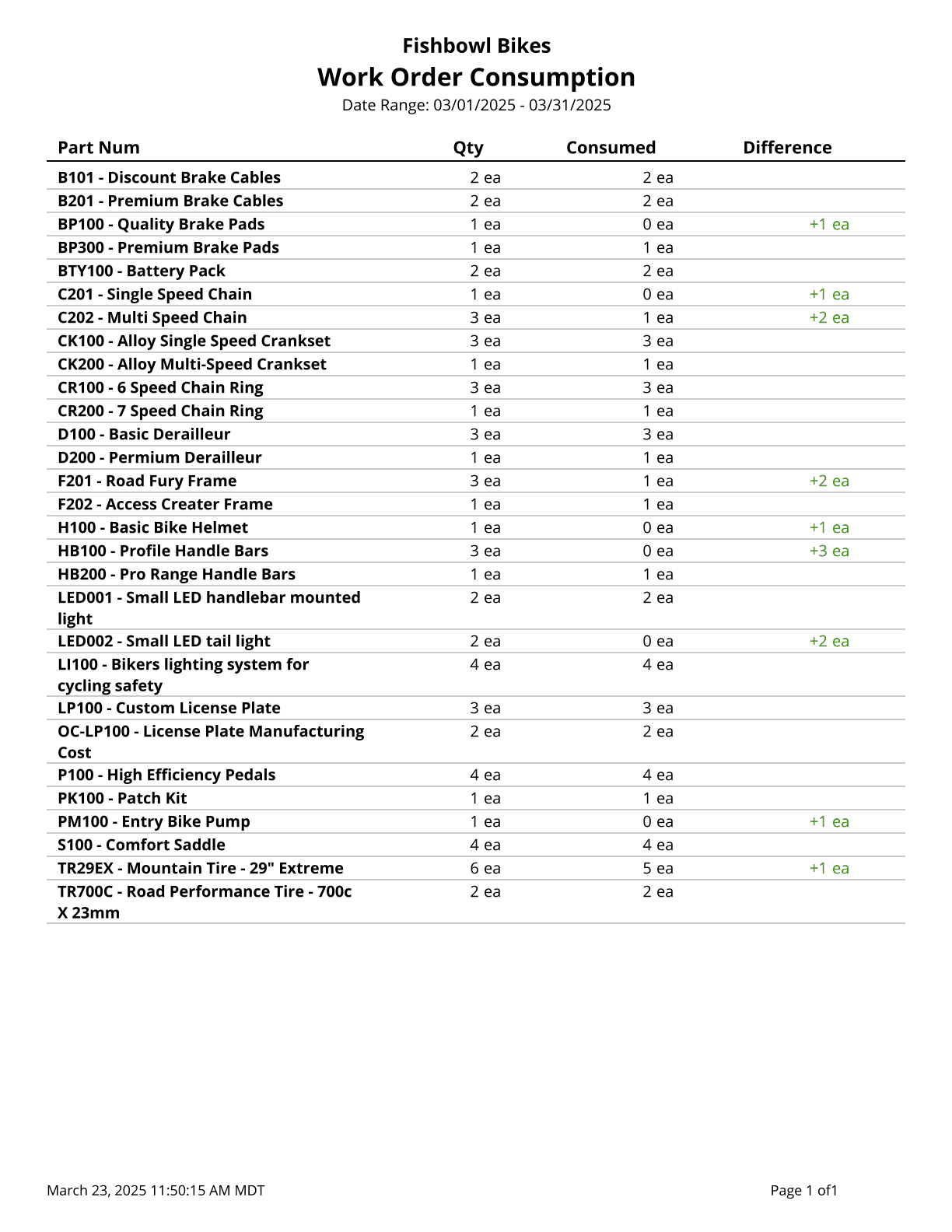
| | {{Report|Work Order Consumption|Prints out the consumption of fulfilled work orders}} |
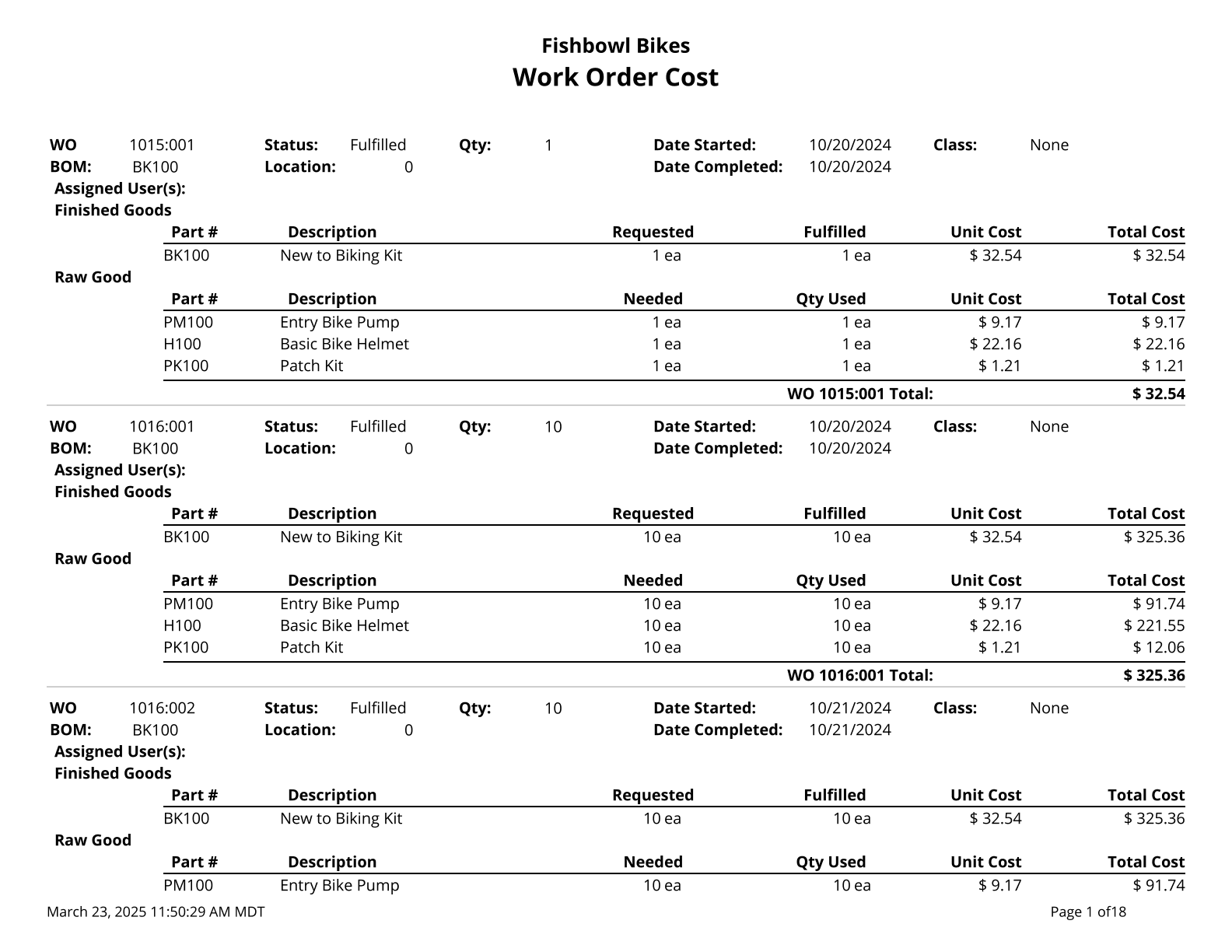
| | | {{Report|Work Order Cost|Displays the work order cost amounts and work order items. The cost of unfulfilled work orders is based on your database costing method. Fulfilled work order costs are your historical cost for the work order}} |
| =BILL OF MATERIALS=
| | {{Report|Work Order Flag|Prints a list of work orders that have been issued and not started. Use % for a wildcard search}} |
| | | {{Report|Work Order Instructions|Prints a list of instructions for completing a WO}} |
| ==Bill of Materials Report==
| | {{Report|Work Order Report|Printout of Work Order Details}} |
| [[File:Report-Bill of Materials Report.png|right|border|400px|link={{filepath:Report-Bill of Materials Report.png}}]] This report displays a bill of materials with its default options, stages, raw goods, and finished goods. The reports calculates an estimated cost of finished goods based on the average cost of either the lowest level raw material or top level sub-assembly cost. The total rollup cost at the top will equal the sum of all the costs displayed in green below it.
| | {{Report|Work Order Summary|Lists parts on outstanding work orders by location group and work order number}} |
| The {{Button|Modify Report}} allows the following report filters to be customized:<br>
| | {{Report|Work Order Traveler|Basic Report for Work Orders}} |
| {{Spacer}}'''REQUIRED TAB''' | |
| ::* '''BOM Number''' - Select the bill of materials to display in the report.
| |
| {{Spacer}}'''OPTIONAL TAB'''
| |
| ::* '''Costing Method''' - Choose the costing method to run the report for. Options are: Average, Standard, FIFO, or LIFO.
| |
| ::* '''Sort By''' - Choose whether to sort by BOM Configuration or BOM Instructions.
| |
| ::* '''Format Report for Exporting''' - Removes the page breaks and displays the report on one long page for exporting to CSV, Excel, and other formats.
| |
| {{Spacer}}'''PRINTER TAB''' - Allows a default printer to be specified for the report in each location group. | |
| {{Clear}} | |
| | |
| ==BOM Instructions==
| |
| [[File:Report-BOM Instructions.png|right|border|400px|link={{filepath:Report-BOM Instructions.png}}]] This report displays the instructions from the [[Bill of Materials#Instructions tab|<span title="Instructions tab in the Bill of Materials module">{{#if:|{{{3}}}]]|<b>Instructions</b> tab of the</span>]] {{Module|Bill of Materials|Instructions tab}}}}.
| |
| The {{Button|Modify Report}} allows the following report filters to be customized:<br>
| |
| {{Spacer}}'''REQUIRED TAB'''
| |
| ::* '''BOM Number''' - Choose the bill of materials number to run the report for.
| |
| {{Spacer}}'''OPTIONAL TAB'''
| |
| ::* '''Format Report for Exporting''' - Removes the page breaks and displays the report on one long page for exporting to CSV, Excel, and other formats.
| |
| {{Spacer}}'''PRINTER TAB''' - Allows a default printer to be specified for the report in each location group.
| |
| {{Clear}}
| |
| | |
| =CUSTOMER=
| |
| | |
| ==Customer Address List==
| |
| [[File:Report-Customer Address List.png|right|border|400px|link={{filepath:Report-Customer Address List.png}}]] This report displays customer addresses. If a customer has multiple addresses, they will all show.
| |
| The {{Button|Modify Report}} allows the following report filters to be customized:<br>
| |
| {{Spacer}}'''OPTIONAL TAB'''
| |
| ::* '''Address Type''' - Choose what types of addresses to show: All, Main Office, Home, Remit To, Bill To, or Ship To.
| |
| ::* '''Contact Type''' - Choose what type of contact to show: Home, Work, Mobile, Fax, Main, Email, Pager, Other, or Web.
| |
| ::* '''Customer Group''' - Choose a specific customer group to run the report for. Leave this field blank to run for all customer groups.
| |
| ::* '''State''' - Enter the state abbreviation to see addresses for a specific state. Leave this field blank to run for all states.
| |
| ::* '''Zip Code''' - Enter the zip code to see addresses for a specific zip code. Leave this field blank to run for all zip codes.
| |
| ::* '''Show Country''' - Choose to show/hide the country on the addresses by checking/unchecking this checkbox.
| |
| ::* '''Show Groups''' - Choose to show/hide customer groups on the report by checking/unchecking this checkbox.
| |
| ::* '''Format Report for Exporting''' - Removes the page breaks and displays the report on one long page for exporting to CSV, Excel, and other formats.
| |
| {{Spacer}}'''PRINTER TAB''' - Allows a default printer to be specified for the report in each location group.
| |
| {{Clear}}
| |
| | |
| ==Customer Details List==
| |
| [[File:Report-Customer Details List.png|right|border|400px|link={{filepath:Report-Customer Details List.png}}]] This report shows a detailed list of all customers with all of their addresses and contacts per address. This report groups by customer.
| |
| The {{Button|Modify Report}} allows the following report filters to be customized:<br>
| |
| {{Spacer}}'''OPTIONAL TAB'''
| |
| ::* '''Address Type''' - Choose what types of addresses to show: All, Main Office, Home, Remit To, Bill To, or Ship To.
| |
| ::* '''Customer''' - Choose a specific customer to run the report for. Leave this field blank to run for all customers.
| |
| ::* '''Format Report for Exporting''' - Removes the page breaks and displays the report on one long page for exporting to CSV, Excel, and other formats.
| |
| ::* '''Include Jobs''' - Choose to show/hide customer jobs by checking/unchecking this checkbox.
| |
| ::* '''Show Contact Info''' - Choose to show/hide customer contact info by checking/unchecking this checkbox.
| |
| ::* '''Show Country''' - Choose to show/hide the country on the addresses by checking/unchecking this checkbox.
| |
| {{Spacer}}'''PRINTER TAB''' - Allows a default printer to be specified for the report in each location group.
| |
| {{Clear}}
| |
| | |
| ==Customer Price List==
| |
| [[File:Report-Customer Price List.png|right|border|400px|link={{filepath:Report-Customer Price List.png}}]] This report displays a product price list for a specific customer. It takes pricing rules that apply to that customer into account to determine the price.
| |
| The {{Button|Modify Report}} allows the following report filters to be customized:<br>
| |
| {{Spacer}}'''REQUIRED TAB'''
| |
| ::* '''Customer''' - Choose a specific customer to run the report for.
| |
| {{Spacer}}'''OPTIONAL TAB'''
| |
| ::* '''Group By''' - Choose whether to group by Product Tree or None.
| |
| ::* '''Product Tree''' - Choose the product tree category to run the report for. Leave this field blank to run for all product trees.
| |
| ::* '''Product Number''' - Choose a specific product to run the report for. Leave this field blank to run for all products.
| |
| ::* '''SKU Search''' - Enter a specific SKU to run the report for. Leave this field blank to run for all SKUs.
| |
| ::* '''UPC Search''' - Enter a specific UPC to run the report for. Leave this field blank to run for all UPCs.
| |
| ::* '''Format Report for Exporting''' - Removes the page breaks and displays the report on one long page for exporting to CSV, Excel, and other formats.
| |
| ::* '''Show Original Price''' - Choose to show/hide the products original price by checking/unchecking this checkbox.
| |
| ::* '''Show SKU''' - Choose to show/hide the SKU by checking/unchecking this checkbox.
| |
| ::* '''Show UPC''' - Choose to show/hide the UPC by checking/unchecking this checkbox.
| |
| {{Spacer}}'''PRINTER TAB''' - Allows a default printer to be specified for the report in each location group.
| |
| {{Clear}}
| |
| | |
| ==Customer Statement==
| |
| [[File:Report-Customer Statement.png|right|border|400px|link={{filepath:Report-Customer Statement.png}}]] This report displays a statement for one or more customers showing all unpaid sales orders, payments made, and balances remaining.
| |
| The {{Button|Modify Report}} allows the following report filters to be customized:<br>
| |
| {{Spacer}}'''OPTIONAL TAB'''
| |
| ::* '''Add Net Days To''' - This option modifies which date is used when the '''Due Date Includes Net Days''' option is enabled. Options include Creation Date, Date Scheduled, Date Issued, and Date Completed.
| |
| ::* '''Apply Date Filter To''' - Choose the date for the date range to look at: Date Completed, Date Issued, Date Paid, or Date Scheduled.
| |
| ::* '''Customer''' - Choose a specific customer to run the report for. Leave this field blank to run for all customers.
| |
| ::* '''Closed Short''' - Choose to show/hide this type of order by checking/unchecking this checkbox.
| |
| ::* '''Fulfilled''' - Choose to show/hide this type of order by checking/unchecking this checkbox.
| |
| ::* '''In Progress''' - Choose to show/hide this type of order by checking/unchecking this checkbox.
| |
| ::* '''Issued''' - Choose to show/hide this type of order by checking/unchecking this checkbox.
| |
| ::* '''Show Customers With 0 Balance''' - Choose to show/hide customers that have a zero balance by checking/unchecking this checkbox.
| |
| ::* '''Due Date Includes Net Days''' - This option will add the '''Net Days''' from the [[Payment Terms|payment terms]] to the '''Date Due''' column on the report. To modify which date is used with this option, see the '''Add Net Days To''' option listed above.
| |
| ::* '''Format Report for Exporting''' - Removes the page breaks and displays the report on one long page for exporting to CSV, Excel, and other formats.
| |
| ::* '''Show Payment Terms''' - Choose to show/hide the payment terms that were selected on the order by checking/unchecking this checkbox.
| |
| {{Spacer}}'''PRINTER TAB''' - Allows a default printer to be specified for the report in each location group.
| |
| {{Clear}}
| |
| | |
| ==Dormant Customers==
| |
| [[File:Report-Dormant Customers.png|right|border|400px|link={{filepath:Report-Dormant Customers.png}}]] This report displays a list of customers who have not made a purchase within the specified number of days, with the ability to exclude customers who have been dormant for an extended period of time.
| |
| The {{Button|Modify Report}} allows the following report filters to be customized:<br>
| |
| {{Spacer}}'''OPTIONAL TAB'''
| |
| ::* '''Dormant period''' - Customers who haven't ordered in this many days will be included on the report. The report will look back the number of days entered from the current date.
| |
| ::* '''Last Order Limit (Days)''' - Customers who haven't ordered in this many days will <u>not</u> be included on the report. This is a way of excluding customers who have been dormant for an extended period of time.
| |
| ::* '''Last Ordered''' - Choose the sales order date field used to determine the last order: Created, Issued, Scheduled, or Completed.
| |
| ::* '''Sort By''' - Choose which column will be used to sort the report.
| |
| ::* '''Order''' - Choose if the report should be sorted in ascending or descending order.
| |
| ::* '''Filter by Customer Custom Field''' - Choose a custom field to filter the report. Only customers who match the search entered in the '''Enter filter data''' will be included on the report.
| |
| ::* '''Enter filter data''' - Enter the value of the custom field or enter a search query. Use '''%''' for wildcard searches. If the selected custom field is a checkbox, type '''true''' or '''false'''.
| |
| ::* '''Filters''' - The order can also be filtered by '''State/Province''', '''Customer Group''', '''Sales Person''', '''Customer''', '''Number of orders''', or '''Total amount spent'''.
| |
| ::* '''Report Title''' - This option allows the title at the top of the report to be customized.
| |
| ::* '''Show Inactive Customers''' - Customers that are not marked as '''Active''' in the <span class="nowrap">{{#ifeq: {{PAGENAME}} | Customer | [[File:Icon.Customer.png|x24px|middle]] [[Customer|<b>Customer</b>]] module | [[File:Icon.Customer.png|x24px|link=Customer#|middle]] [[Customer#|<span title="{{#if:|{{{2}}} in the}} {{#if:Customer|Customer|{{PAGENAME}}}} module"><b>Customer</b> module</span>]]}}</span> can be included or excluded from the report.
| |
| ::* '''Format Report for Exporting''' - Removes the page breaks and displays the report on one long page for exporting to CSV, Excel, and other formats.
| |
| {{Spacer}}'''CUSTOM FIELDS TAB''' - This report can display a Customer custom fields. Enter a title for the field, and select if it should be displayed on the report.
| |
| {{Spacer}}'''HIDE/SHOW TAB''' - Choose which columns to show/hide on the report by checking/unchecking the checkbox next to each column name.
| |
| {{Spacer}}'''PRINTER TAB''' - Allows a default printer to be specified for the report in each location group.
| |
| {{Clear}}
| |
| | |
| =GADGETS=
| |
| | |
| ==Gross Sales By Product Bar Graph==
| |
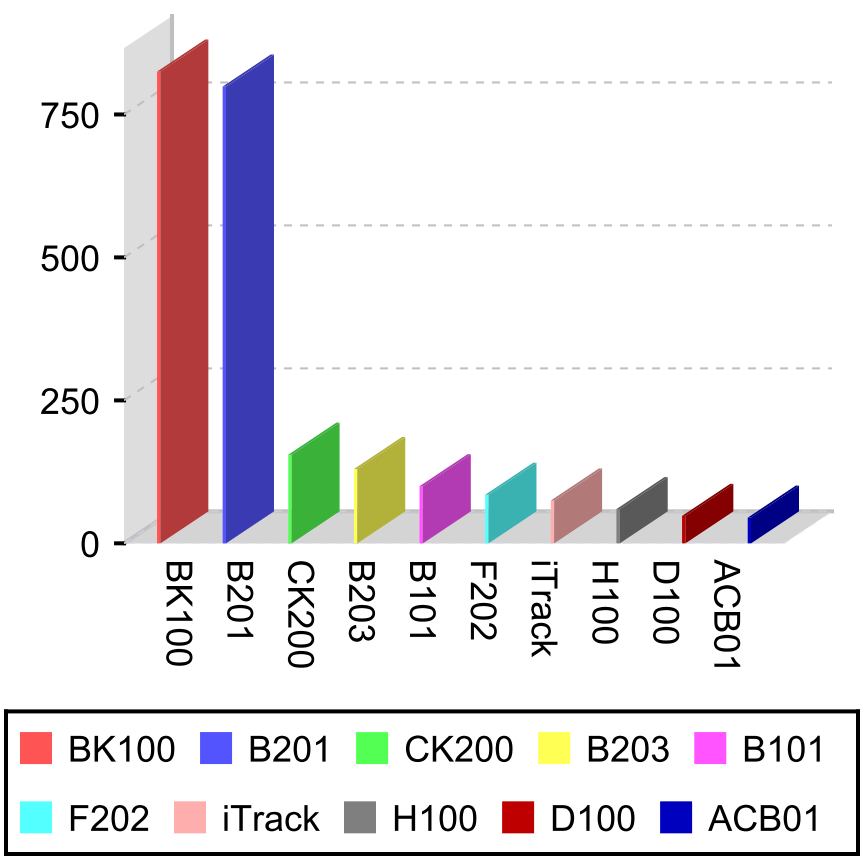
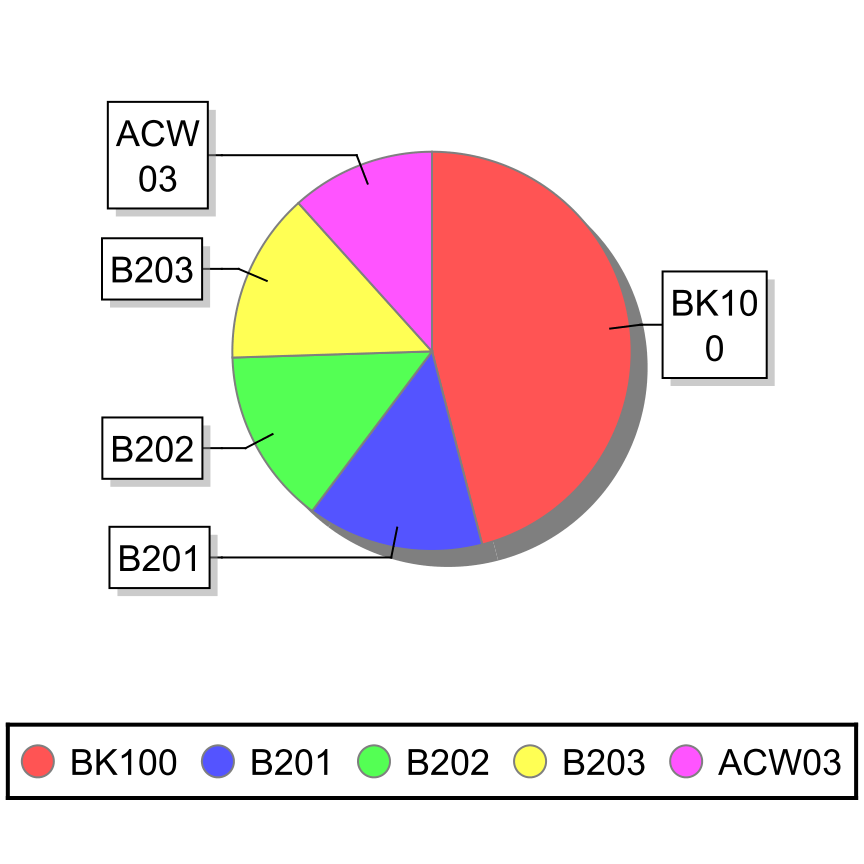
| [[File:Report-Gross Sales By Product Bar Graph.png|right|border|400px|link={{filepath:Report-Gross Sales By Product Bar Graph.png}}]] This report displays a bar graph of gross sales for a date range specified, ordered from greatest to least. By default, this report runs for the current month. This report is most commonly used in the Reports gadget in the Dashboard module.
| |
| The {{Button|Modify Report}} allows the following report filters to be customized:<br>
| |
| {{Spacer}}'''OPTIONAL TAB'''
| |
| ::* '''Parts to Show''' - Enter the number of parts to show in the graph.
| |
| ::* '''Date Range''' - Enter the desired date range to see sales numbers for. The date range looks at the DateLastFulfillment on the SOITEM table in the database, meaning, if a line item with a quantity greater than 1 is partially shipped, the most recent fulfilled date (when a partial quantity was shipped) is what will be used for all quantity fulfilled so far.
| |
| ::* '''Format Report for Exporting''' - Removes the page breaks and displays the report on one long page for exporting to CSV, Excel, and other formats.
| |
| {{Spacer}}'''PRINTER TAB''' - Allows a default printer to be specified for the report in each location group.
| |
| {{Clear}}
| |
| | |
| ==Gross Sales By Product Pie Chart==
| |
| [[File:Report-Gross Sales By Product Pie Chart.png|right|border|400px|link={{filepath:Report-Gross Sales By Product Pie Chart.png}}]] This report displays a pie chart of gross sales for a date range specified, ordered from greatest to least. By default, this report runs for the current month. This report is most commonly used in the Reports gadget in the Dashboard module.
| |
| The {{Button|Modify Report}} allows the following report filters to be customized:<br>
| |
| {{Spacer}}'''OPTIONAL TAB'''
| |
| ::* '''Parts to Show''' - Enter the number of parts to show in the chart.
| |
| ::* '''Date Range''' - Enter the desired date range to see sales numbers for. The date range looks at the DateLastFulfillment on the SOITEM table in the database, meaning, if a line item with a quantity greater than 1 is partially shipped, the most recent fulfilled date (when a partial quantity was shipped) is what will be used for all quantity fulfilled so far.
| |
| ::* '''Format Report for Exporting''' - Removes the page breaks and displays the report on one long page for exporting to CSV, Excel, and other formats.
| |
| {{Spacer}}'''PRINTER TAB''' - Allows a default printer to be specified for the report in each location group.
| |
| {{Clear}}
| |
| | |
| ==Gross Sales By Salesperson Bar Graph==
| |
| [[File:Report-Gross Sales By Salesperson Bar Graph.png|right|border|400px|link={{filepath:Report-Gross Sales By Salesperson Bar Graph.png}}]] This report displays a bar graph of gross sales by sales person for a date range specified, ordered from greatest to least. By default, this report runs for the current month. This report is most commonly used in the Reports gadget in the Dashboard module.
| |
| The {{Button|Modify Report}} allows the following report filters to be customized:<br>
| |
| {{Spacer}}'''OPTIONAL TAB'''
| |
| ::* '''Parts to Show''' - Enter the number of parts to show in the graph.
| |
| ::* '''Date Range''' - Enter the desired date range to see sales numbers for. The date range looks at the DateLastFulfillment on the SOITEM table in the database, meaning, if a line item with a quantity greater than 1 is partially shipped, the most recent fulfilled date (when a partial quantity was shipped) is what will be used for all quantity fulfilled so far.
| |
| ::* '''Format Report for Exporting''' - Removes the page breaks and displays the report on one long page for exporting to CSV, Excel, and other formats.
| |
| {{Spacer}}'''PRINTER TAB''' - Allows a default printer to be specified for the report in each location group.
| |
| {{Clear}}
| |
| | |
| ==Gross Sales By Salesperson Pie Chart==
| |
| [[File:Report-Gross Sales By Salesperson Pie Chart.png|right|border|400px|link={{filepath:Report-Gross Sales By Salesperson Pie Chart.png}}]] This report displays a pie chart of gross sales by sales person for a date range specified, ordered from greatest to least. By default, this report runs for the current month. This report is most commonly used in the Reports gadget in the Dashboard module.
| |
| The {{Button|Modify Report}} allows the following report filters to be customized:<br>
| |
| {{Spacer}}'''OPTIONAL TAB'''
| |
| ::* '''Parts to Show''' - Enter the number of parts to show in the chart.
| |
| ::* '''Date Range''' - Enter the desired date range to see sales numbers for. The date range looks at the DateLastFulfillment on the SOITEM table in the database, meaning, if a line item with a quantity greater than 1 is partially shipped, the most recent fulfilled date (when a partial quantity was shipped) is what will be used for all quantity fulfilled so far.
| |
| ::* '''Format Report for Exporting''' - Removes the page breaks and displays the report on one long page for exporting to CSV, Excel, and other formats.
| |
| {{Spacer}}'''PRINTER TAB''' - Allows a default printer to be specified for the report in each location group.
| |
| {{Clear}}
| |
| | |
| ==MTD Cumulative Sales==
| |
| [[File:Report-MTD Cumulative Sales.png|right|border|400px|link={{filepath:Report-MTD Cumulative Sales.png}}]] This report displays a line graph of total cumulative gross sales for the current month. This report is most commonly used in the Reports gadget in the Dashboard module.
| |
| The {{Button|Modify Report}} allows the following report filters to be customized:<br>
| |
| {{Spacer}}'''OPTIONAL TAB'''
| |
| ::* '''Format Report for Exporting''' - Removes the page breaks and displays the report on one long page for exporting to CSV, Excel, and other formats.
| |
| {{Spacer}}'''PRINTER TAB''' - Allows a default printer to be specified for the report in each location group.
| |
| {{Clear}}
| |
| | |
| ==MTD Sales Bar Graph==
| |
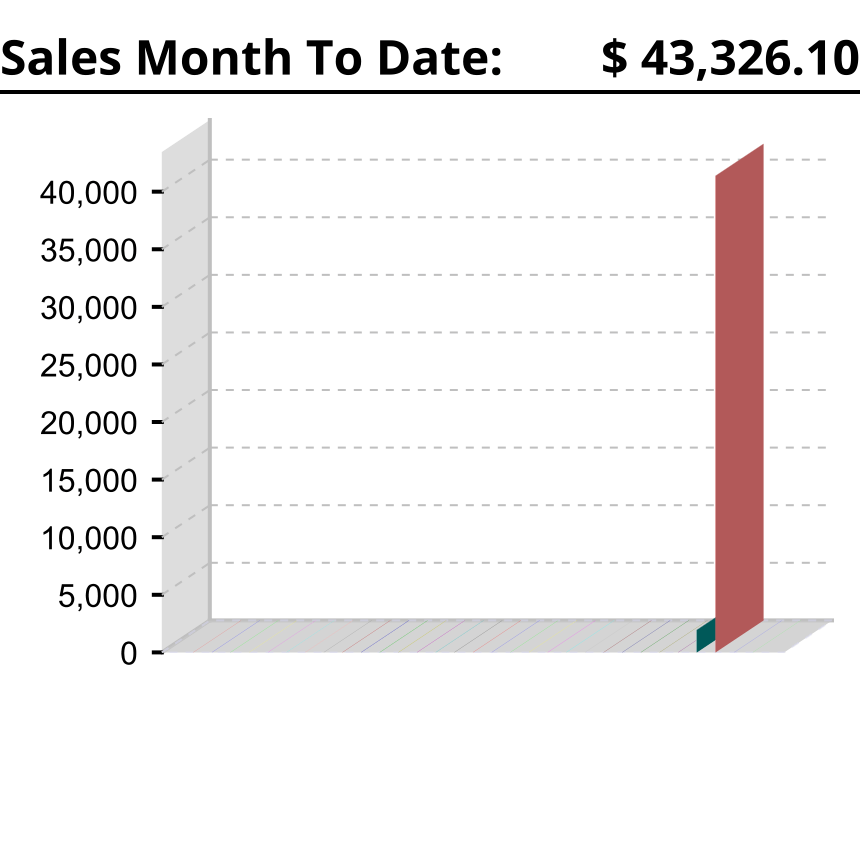
| [[File:Report-MTD Sales Bar Graph.png|right|border|400px|link={{filepath:Report-MTD Sales Bar Graph.png}}]] This report displays a bar graph of total gross sales for the current month. This report is most commonly used in the Reports gadget in the Dashboard module.
| |
| The {{Button|Modify Report}} allows the following report filters to be customized:<br>
| |
| {{Spacer}}'''OPTIONAL TAB'''
| |
| ::* '''Format Report for Exporting''' - Removes the page breaks and displays the report on one long page for exporting to CSV, Excel, and other formats.
| |
| {{Spacer}}'''PRINTER TAB''' - Allows a default printer to be specified for the report in each location group.
| |
| {{Clear}}
| |
| | |
| ==Turnover Bar Graph==
| |
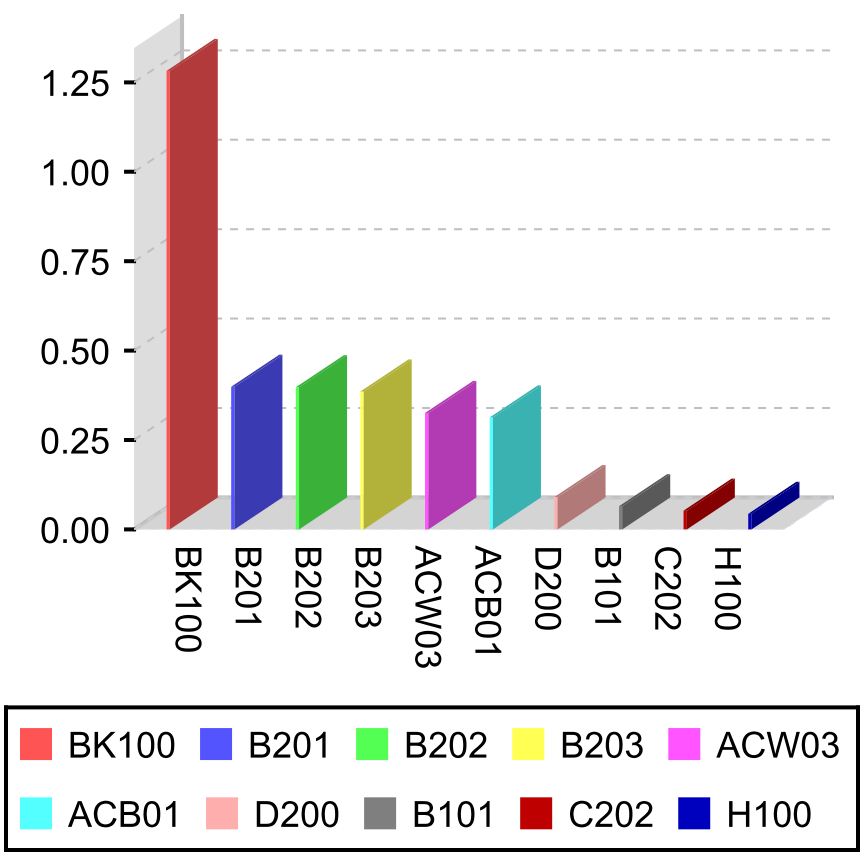
| [[File:Report-Turnover Bar Graph.png|right|border|400px|link={{filepath:Report-Turnover Bar Graph.png}}]] This report displays a bar graph that shows how many times inventory is turned over during the given date range. Products are displayed from greatest turnover to least turnover.
| |
| The {{Button|Modify Report}} allows the following report filters to be customized:<br>
| |
| {{Spacer}}'''OPTIONAL TAB'''
| |
| ::* '''Location Group''' - Choose a location group to view turnover for. Leave this field blank to view data for all location groups.
| |
| ::* '''Part Number''' - Choose a part number to view turnover for. Leave this field blank to view data for all parts.
| |
| ::* '''Parts To Show''' - Enter the number of parts to show in the bar graph.
| |
| ::* '''Date Range''' - Enter the desired date range to see turnover information for. The date range looks at the DateLastFulfillment on the SOITEM table in the database, meaning, if a line item with a quantity greater than 1 is partially shipped, the most recent fulfilled date (when a partial quantity was shipped) is what will be used for all quantity fulfilled so far. It also looks at the EventDate on the INVENTORYLOG table in the database, meaning the date an inventory transaction occurred such as a receipt, cycle or scrap.
| |
| ::* '''Format Report for Exporting''' - Removes the page breaks and displays the report on one long page for exporting to CSV, Excel, and other formats.
| |
| {{Spacer}}'''PRINTER TAB''' - Allows a default printer to be specified for the report in each location group.
| |
| {{Clear}}
| |
| | |
| ==Turnover Pie Chart==
| |
| [[File:Report-Turnover Pie Chart.png|right|border|400px|link={{filepath:Report-Turnover Pie Chart.png}}]] This report displays a pie chart that shows how many times inventory is turned over during the given date range. Products are displayed from greatest turnover to least turnover.
| |
| The {{Button|Modify Report}} allows the following report filters to be customized:<br>
| |
| {{Spacer}}'''OPTIONAL TAB'''
| |
| ::* '''Location Group''' - Choose a location group to view turnover for. Leave this field blank to view data for all location groups.
| |
| ::* '''Part Number''' - Choose a part number to view turnover for. Leave this field blank to view data for all parts.
| |
| ::* '''Parts To Show''' - Enter the number of parts to show in the bar graph.
| |
| ::* '''Date Range''' - Enter the desired date range to see turnover information for. The date range looks at the DateLastFulfillment on the SOITEM table in the database, meaning, if a line item with a quantity greater than 1 is partially shipped, the most recent fulfilled date (when a partial quantity was shipped) is what will be used for all quantity fulfilled so far. It also looks at the EventDate on the INVENTORYLOG table in the database, meaning the date an inventory transaction occurred, such as a receipt, cycle, or scrap.
| |
| ::* '''Format Report for Exporting''' - Removes the page breaks and displays the report on one long page for exporting to CSV, Excel, and other formats.
| |
| {{Spacer}}'''PRINTER TAB''' - Allows a default printer to be specified for the report in each location group.
| |
| {{Clear}}
| |
| | |
| =INVENTORY=
| |
| | |
| ==Aging Report==
| |
| [[File:Report-Aging Report.png|right|border|400px|link={{filepath:Report-Aging Report.png}}]] This report displays the age of inventory. It will show the part number, description, tracking, quantity, and the date the locations inventory were created, then giving a number of days old.
| |
| The {{Button|Modify Report}} allows the following report filters to be customized:<br>
| |
| {{Spacer}}'''OPTIONAL TAB'''
| |
| ::* '''Group By''' - Choose to group by Location Group or by Part. If grouped by Location Group, it sorts inventory by Location Group first, then location. If by Part is chosen, inventory is grouped by Part.
| |
| ::* '''Location Group''' - Choose a specific location group to run the report for. Leave this field blank to run for all location groups.
| |
| ::* '''Location''' - Choose a specific location to run the report for. Leave this field blank to run for all locations.
| |
| ::* '''Part Number''' - Choose a specific part number to run the report for. Leave this field blank to run for all part numbers.
| |
| ::* '''Show Location Details''' - Choose to show/hide the location details by checking/unchecking this checkbox. When Group By Location Group is selected, this will show/hide the grouping of parts per location under that location group.
| |
| ::* '''Format Report for Exporting''' - Removes the page breaks and displays the report on one long page for exporting to CSV, Excel, and other formats.
| |
| {{Spacer}}'''PRINTER TAB''' - Allows a default printer to be specified for the report in each location group.
| |
| {{Clear}}
| |
| | |
| ==Asset Valuation By Account==
| |
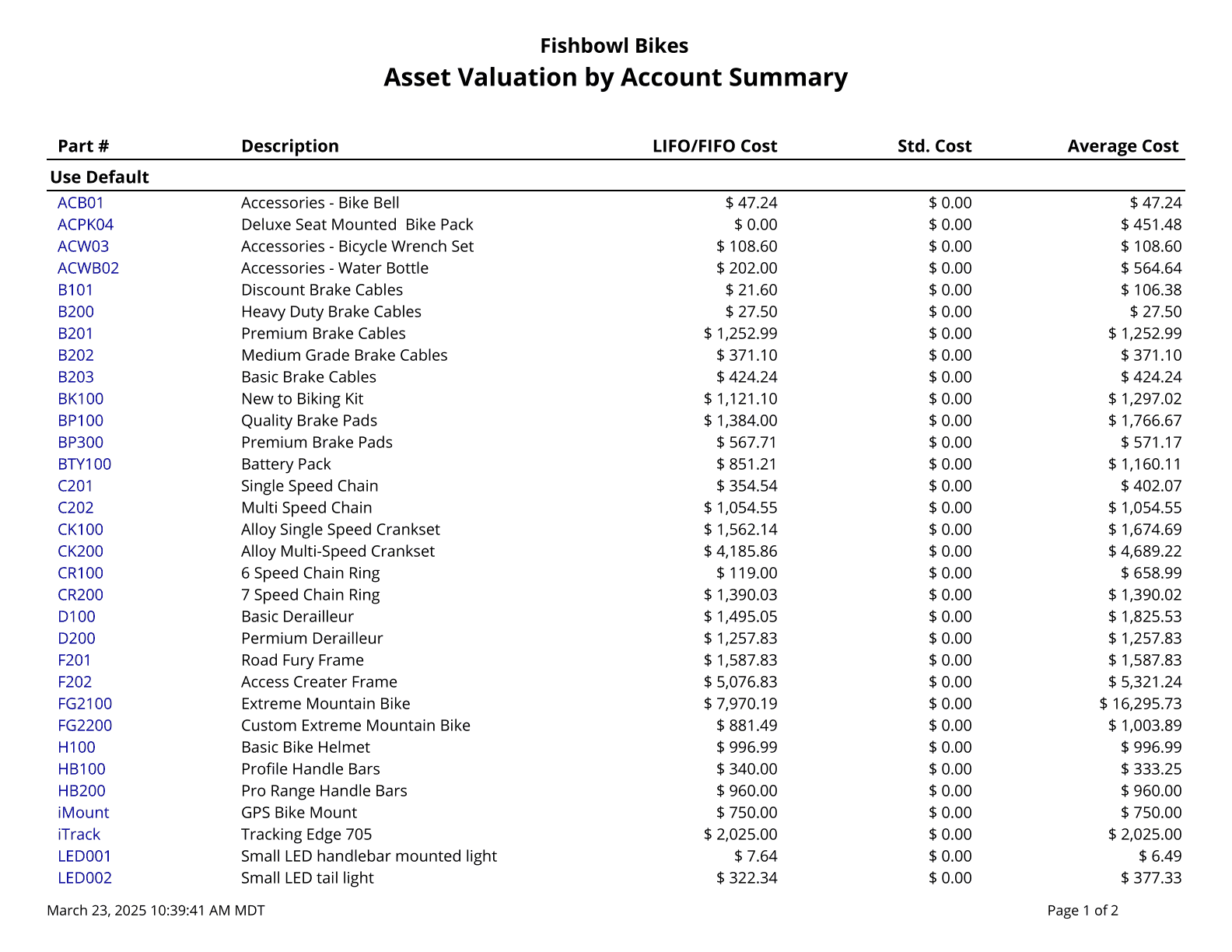
| [[File:Report-Asset Valuation By Account.png|right|border|400px|link={{filepath:Report-Asset Valuation By Account.png}}]] This report generates a summary of the quantity and total value of all parts currently on hand, broken down, and grouped by Inventory Asset account. This report lists costs for each costing method (FIFO, LIFO, Average, and Standard).
| |
| The {{Button|Modify Report}} allows the following report filters to be customized:<br>
| |
| {{Spacer}}'''OPTIONAL TAB'''
| |
| ::* '''Part Number''' - Choose a specific part number to run the report for. Leave this field blank to run for all part numbers.
| |
| ::* '''Asset Account''' - Enter the Inventory Asset account to run the report for. Leave this field blank to run for all asset accounts.
| |
| ::* '''Format Report for Exporting''' - Removes the page breaks and displays the report on one long page for exporting to CSV, Excel, and other formats.
| |
| ::* '''Show Part Details''' - Choose to show/hide part details by checking/unchecking this checkbox. Unchecking this will list totals per asset account, removing all part references.
| |
| {{Spacer}}'''PRINTER TAB''' - Allows a default printer to be specified for the report in each location group.
| |
| {{Clear}}
| |
| | |
| ==Consumption Report==
| |
| [[File:Report-Consumption Report.png|right|border|400px|link={{filepath:Report-Consumption Report.png}}]] This report displays inventory that has been consumed using the Scrap function.
| |
| The {{Button|Modify Report}} allows the following report filters to be customized:<br>
| |
| {{Spacer}}'''OPTIONAL TAB'''
| |
| ::* '''Apply Date Filter''' - The report can use the actual date when inventory was scrapped, or the date the user entered.
| |
| ::* '''Group By''' - The report can be grouped by part, location group, or username.
| |
| ::* '''Summary Options''' - By default, a summary is displayed at the end of the report.
| |
| ::* '''User''' - Filter the report to only show inventory that was scrapped by the specified user.
| |
| ::* '''Location Group''' - Filter the report to only show data for the specified location group.
| |
| ::* '''Location''' - Filter the report to only show data for the specified location.
| |
| ::* '''Customer/Job''' - Filter the report to only show data for the specified customer or job.
| |
| ::* '''Part Number''' - Filter the report to only show the specified part.
| |
| ::* '''Report Title''' - This option allows the title listed near the top of the report to be customized.
| |
| ::* '''Date Range''' - Choose the date range to use on the report.
| |
| ::* '''Show Active''' - Choose to show/hide parts that have an Active status by checking/unchecking this checkbox.
| |
| ::* '''Show Inactive''' - Choose to show/hide parts that have an Inactive status by checking/unchecking this checkbox.
| |
| ::* '''Format Report for Exporting''' - Removes the page breaks and displays the report on one long page for exporting to CSV, Excel, and other formats.
| |
| ::* '''Show Time Stamp''' - Choose to show/hide the time stamp showing when inventory was scrapped by checking/unchecking this checkbox.
| |
| ::* '''Show Total''' - Choose to show/hide the total at the end of each group by checking/unchecking this checkbox.
| |
| {{Spacer}}'''HIDE/SHOW TAB''' - Choose which columns to show/hide on the report by checking/unchecking the checkbox next to each column name.
| |
| {{Spacer}}'''PRINTER TAB''' - Allows a default printer to be specified for the report in each location group.
| |
| {{Clear}}
| |
| | |
| ==Costing Layer Valuation==
| |
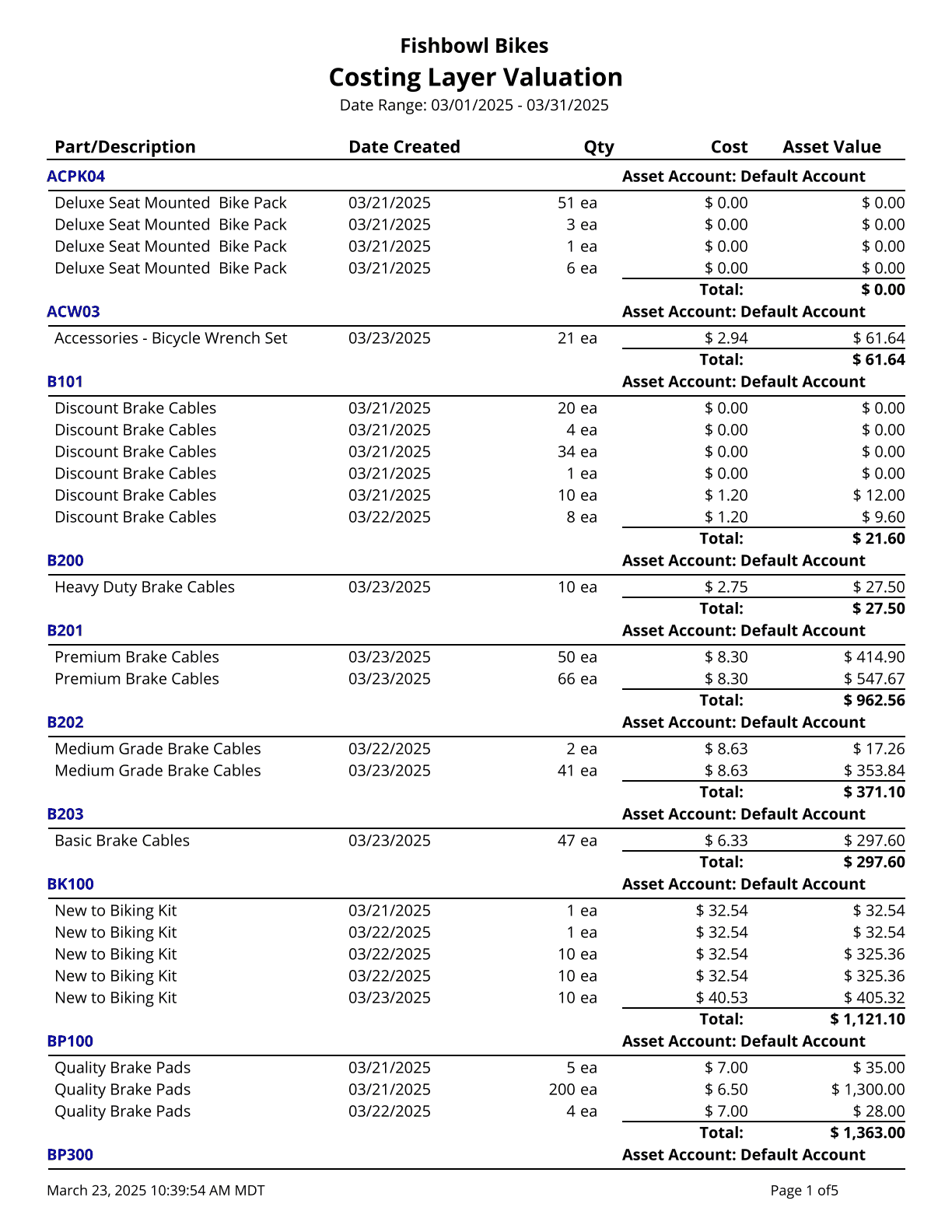
| [[File:Report-Costing Layer Valuation.png|right|border|400px|link={{filepath:Report-Costing Layer Valuation.png}}]] This report generates a summary of the quantity and value of all parts currently on hand. This is a LIFO/FIFO based report. Use this report to compare inventory asset value between Fishbowl and the accounting system when running a FIFO or LIFO costing method in Fishbowl.
| |
| The {{Button|Modify Report}} allows the following report filters to be customized:<br>
| |
| {{Spacer}}'''OPTIONAL TAB'''
| |
| ::* '''Part Number''' - Choose a part number to run the report for. Leave this field blank to run for all parts.
| |
| ::* '''Asset Account''' - Enter a specific asset account to view information for. Leave this field blank to run for all asset accounts.
| |
| ::* '''Date Range''' - Enter the desired date range to see costing layer information for. This date looks at the DateCreated on the COSTLAYER table in the database, meaning the date the costing layer was created by adding initial inventory with a cost or receiving parts in, etc.
| |
| ::* '''Show Active Costing Layers''' - Choose to show/hide active costing layers by checking/unchecking this checkbox. This means any costing layers that still have quantity still available.
| |
| ::* '''Show Fulfilled Costing Layers''' - Choose to show/hide fulfilled costing layers by checking/unchecking this checkbox. This means any costing layers that have been completely depleted of quantity.
| |
| ::* '''Show Voided Costing Layers''' - Choose to show/hide voided costing layers by checking/unchecking this checkbox. This means any costing layer that was created but voided. An example would be receiving inventory in but then voiding the receipt.
| |
| ::* '''Format Report for Exporting''' - Removes the page breaks and displays the report on one long page for exporting to CSV, Excel, and other formats.
| |
| ::* '''Show Historical Data''' - Choose to show/hide historical data by checking/unchecking this checkbox. This option will show the original quantity and cost when the costing layer was created.
| |
| {{Spacer}}'''PRINTER TAB''' - Allows a default printer to be specified for the report in each location group.
| |
| {{Clear}}
| |
| | |
| ==Cycle Count List==
| |
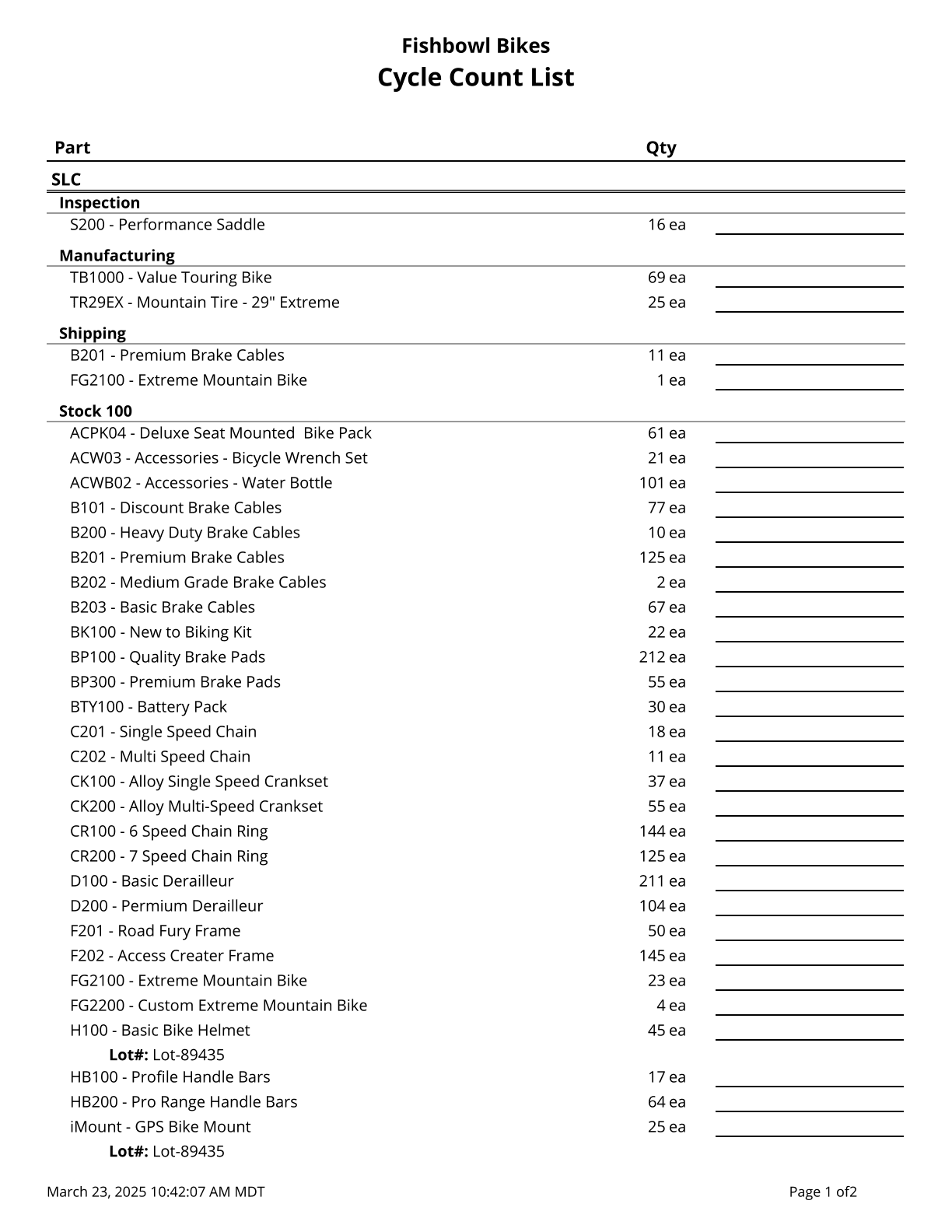
| [[File:Report-Cycle Count List.png|right|border|400px|link={{filepath:Report-Cycle Count List.png}}]] This report generates a list of all parts and current quantities organized by location group and location. There is a blank line to write in the actual part quantities during a physical count of inventory. This is also known as a Physical Inventory Worksheet. Items are grouped by Location Group then Location.
| |
| The {{Button|Modify Report}} allows the following report filters to be customized:<br>
| |
| {{Spacer}}'''OPTIONAL TAB'''
| |
| ::* '''ABC Code''' - Choose what part ABC code to run the report for. Choose the All option to run for all.
| |
| ::* '''Location Group''' - Choose a specific location group to run the report for. Leave this field blank to run for all location groups.
| |
| ::* '''Location''' - Choose a specific location to run the report for. Leave this field blank to run for all locations.
| |
| ::* '''Part Number''' - Choose a specific part number to run the report for. Leave this field blank to run for all part numbers.
| |
| ::* '''Format Report for Exporting''' - Removes the page breaks and displays the report on one long page for exporting to CSV, Excel, and other formats.
| |
| ::* '''Show Items Not In Inventory''' - Choose to show/hide parts that are not in inventory by checking/unchecking this checkbox.
| |
| ::* '''Show Qty''' - Choose to show/hide the quantity listing by checking/unchecking this checkbox.
| |
| ::* '''Show Serial Numbers''' - Choose to show/hide serial numbers by checking/unchecking this checkbox.
| |
| {{Spacer}}'''PRINTER TAB''' - Allows a default printer to be specified for the report in each location group.
| |
| {{Clear}}
| |
| | |
| ==Forecast Report==
| |
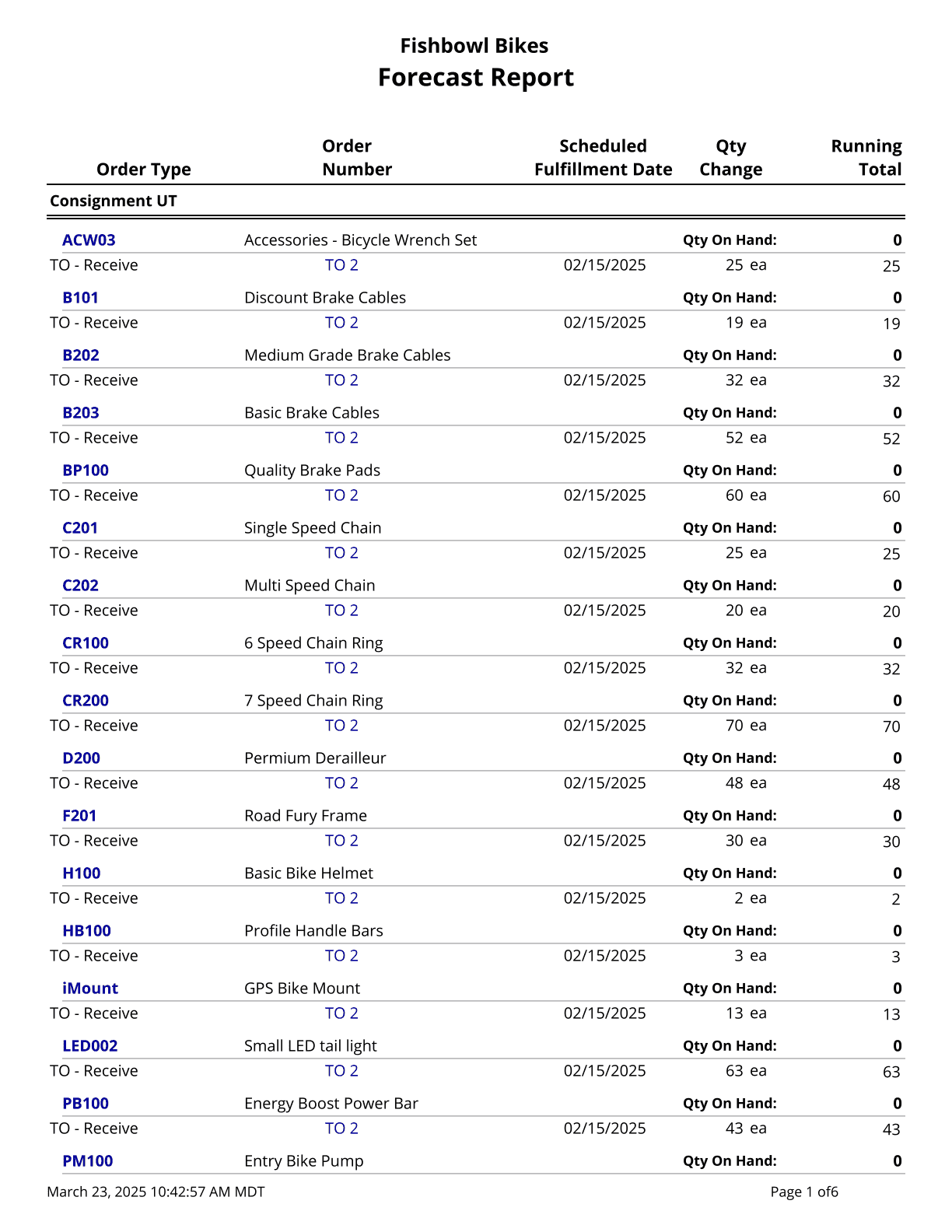
| [[File:Report-Forecast Report.png|right|border|400px|link={{filepath:Report-Forecast Report.png}}]] This report calculates a running total of allocated parts based on issued Sales Orders, Transfer Orders, Work Orders, and Purchase Orders. Allocated numbers are grouped by Location Group then by Part Number.
| |
| The {{Button|Modify Report}} allows the following report filters to be customized:<br>
| |
| {{Spacer}}'''OPTIONAL TAB'''
| |
| ::* '''Location Group''' - Choose a specific location group to run the report for. Leave this field blank to run for all location groups.
| |
| ::* '''Part Number''' - Choose a specific part number to run the report for. Leave this field blank to run for all part numbers.
| |
| ::* '''Format Report for Exporting''' - Removes the page breaks and displays the report on one long page for exporting to CSV, Excel, and other formats.
| |
| {{Spacer}}'''PRINTER TAB''' - Allows a default printer to be specified for the report in each location group.
| |
| {{Clear}}
| |
| | |
| ==Historical Part Cost Report==
| |
| [[File:Report-Historical Part Cost Report.png|right|border|400px|link={{filepath:Report-Historical Part Cost Report.png}}]] This report displays the historical cost of parts on a specific day. It shows the quantity, unit cost, and the total cost, with an option to select which costing method is displayed. This report requires the [[Inventory#Module_Options_General_tab|snapshot feature]] to be enabled.
| |
| The {{Button|Modify Report}} allows the following report filters to be customized:<br>
| |
| {{Spacer}}'''OPTIONAL TAB'''
| |
| ::* '''Report On Date''' - Select the date that will be used to display historical costs. This report pulls data from the PARTCOSTHISTORY table.
| |
| ::* '''Costing Method''' - Choose the costing method to run the report for. Options are: Average, Standard, FIFO, or LIFO.
| |
| ::* '''Vendor''' - Choose the vendor to run the report for. This will only show parts that have that vendor set as the default vendor. The default vendor can be assigned on the [[Part#Vendors tab|<span title="Vendors tab in the Part module">{{#if:|{{{3}}}]]|<b>Vendors</b> tab of the</span>]] {{Module|Part|Vendors tab}}}} or the [[Vendor#Parts tab|<span title="Parts tab in the Vendor module">{{#if:|{{{3}}}]]|<b>Parts</b> tab of the</span>]] {{Module|Vendor|Parts tab}}}}.
| |
| ::* '''Part Number''' - Choose a specific part number to run the report for. Leave this field blank to run for all part numbers.
| |
| ::* '''Show Inactive Parts''' - Choose to show/hide inactive parts by checking/unchecking this checkbox.
| |
| ::* '''Show Parts Created After Date''' - Choose to show/hide parts that didn't exist on the specified date by checking/unchecking this checkbox.
| |
| ::* '''Format Report for Exporting''' - Removes the page breaks and displays the report on one long page for exporting to CSV, Excel, and other formats.
| |
| {{Spacer}}'''PRINTER TAB''' - Allows a default printer to be specified for the report in each location group.
| |
| {{Clear}}
| |
| | |
| ==Inventory Availability==
| |
| [[File:Report-Inventory Availability.png|right|border|400px|link={{filepath:Report-Inventory Availability.png}}]] This report is a consolidated report of the Inventory module. It shows a part's quantity that is On Hand, Allocated, Not Available, Drop Ship, Available, On Order, Committed, and Backordered.
| |
| The {{Button|Modify Report}} allows the following report filters to be customized:<br>
| |
| {{Spacer}}'''OPTIONAL TAB'''
| |
| ::* '''Filter by Part Custom Field''' - Filter the report based on a custom field, select the custom field, and then type a value to filter by. Use '''%''' for wildcard searches. If the custom field is a checkbox, use '''true''' or '''false'''.
| |
| ::* '''Location Group''' - Choose a specific location group to run the report for. Leave this field blank to run for all location groups.
| |
| ::* '''Part Number''' - Choose a specific part number to run the report for. Leave this field blank to run for all part numbers.
| |
| ::* '''Count''' - Enter the number of parts to print out at one time.
| |
| ::* '''Report Title''' - Allows the '''Inventory Availability''' title at the top of the report to be replaced with custom text.
| |
| ::* '''Skip''' - Enter the number of parts to skip. This is most commonly used to print out the report in batches if the report is very large.
| |
| ::* '''Format Report for Exporting''' - Removes the page breaks and displays the report on one long page for exporting to CSV, Excel, and other formats.
| |
| ::* '''Show Parts With Zero Quantity''' - Choose to show/hide parts with zero quantity by checking/unchecking this checkbox.
| |
| ::* '''Show Time Stamp''' - Choose to show/hide the time stamp by checking/unchecking this checkbox.
| |
| {{Spacer}}'''CUSTOM FIELDS TAB''' - This report can display 3 part custom fields. Enable '''Display field''' for each field that should be displayed on the report.
| |
| {{Spacer}}'''COLUMNS TAB''' - Choose which columns to show/hide on the report by checking/unchecking the checkbox next to each column name.
| |
| {{Spacer}}'''PRINTER TAB''' - Allows a default printer to be specified for the report in each location group.
| |
| {{Clear}}
| |
| | |
| ==Inventory Availability By LG==
| |
| [[File:Report-Inventory Availability By LG.png|right|border|400px|link={{filepath:Report-Inventory Availability By LG.png}}]] This report is a consolidated report of the Inventory module. It shows a part's quantity that is On Hand, Allocated, Not Available, Drop Ship, Available, On Order, Committed, and Backordered by Location Group.
| |
| The {{Button|Modify Report}} allows the following report filters to be customized:<br>
| |
| {{Spacer}}'''REQUIRED TAB'''
| |
| ::* '''Location Group''' - Choose the location group to run the report for.
| |
| {{Spacer}}'''OPTIONAL TAB'''
| |
| ::* '''Part Number''' - Choose a specific part number to run the report for. Leave this field blank to run for all part numbers.
| |
| ::* '''Count''' - Enter the number of parts to print out at one time.
| |
| ::* '''Skip''' - Enter the number of parts to skip. This is most commonly used to print out the report in batches if the report is very large.
| |
| ::* '''Format Report for Exporting''' - Removes the page breaks and displays the report on one long page for exporting to CSV, Excel, and other formats.
| |
| ::* '''Show Parts With Zero Quantity''' - Choose to show/hide parts with zero quantity by checking/unchecking this checkbox.
| |
| {{Spacer}}'''PRINTER TAB''' - Allows a default printer to be specified for the report in each location group.
| |
| {{Clear}}
| |
| | |
| ==Inventory Valuation Summary==
| |
| [[File:Report-Inventory Valuation Summary.png|right|border|400px|link={{filepath:Report-Inventory Valuation Summary.png}}]] This report generates a summary of the quantity and value of all parts currently on hand. Cost values are based on today's costs. Use this report to compare inventory asset value between Fishbowl and the accounting system when running a Standard or Average costing method in Fishbowl.
| |
| The {{Button|Modify Report}} allows the following report filters to be customized:<br>
| |
| {{Spacer}}'''OPTIONAL TAB'''
| |
| ::* '''Costing Method''' - Choose the costing method to run the report for.
| |
| ::* '''Group By''' - Choose how the report is grouped. Choose by Location Group or by Part.
| |
| ::* '''Location Group''' - Choose a specific location group to run the report for. Leave this field blank to run for all location groups.
| |
| ::* '''Location''' - Choose a specific location to run the report for. Leave this field blank to run for all locations.
| |
| ::* '''Part Number''' - Choose a specific part number to run the report for. Leave this field blank to run for all part numbers.
| |
| ::* '''Asset Account''' - Enter a specific asset account to view information for. Leave this field blank to run for all asset accounts.
| |
| ::* '''Show Location Details''' - Choose to add/remove the location grouping by checking/unchecking this checkbox.
| |
| ::* '''Format Report for Exporting''' - Removes the page breaks and displays the report on one long page for exporting to CSV, Excel, and other formats.
| |
| {{Spacer}}'''PRINTER TAB''' - Allows a default printer to be specified for the report in each location group.
| |
| {{Clear}}
| |
| | |
| ==Inventory Variance==
| |
| [[File:Report-Inventory Variance.png|right|border|400px|link={{filepath:Report-Inventory Variance.png}}]] This report shows the shipping and receiving history for a part or all parts.
| |
| The {{Button|Modify Report}} allows the following report filters to be customized:<br>
| |
| {{Spacer}}'''REQUIRED TAB'''
| |
| ::* '''Location Group''' - Choose the location group to run the report for.
| |
| ::* '''Date Range''' - Choose the date range to see transactions for. The date range looks at the EventDate on the INVENTORYLOG table in the database, meaning the date the transaction happened, in this case when the item was shipped or received into inventory. Partial shipments and receipts show separately and correctly.
| |
| {{Spacer}}'''OPTIONAL TAB'''
| |
| ::* '''Part Number''' - Choose a specific part number to run the report for. Leave this field blank to run for all part numbers.
| |
| ::* '''Adjustment Types''' - Select the checkboxes for the type of adjustments that should be included in the report.
| |
| ::* '''Format Report for Exporting''' - Removes the page breaks and displays the report on one long page for exporting to CSV, Excel, and other formats.
| |
| {{Spacer}}'''PRINTER TAB''' - Allows a default printer to be specified for the report in each location group.
| |
| {{Clear}}
| |
| | |
| ==Item History==
| |
| [[File:Report-Item History.png|right|border|400px|link={{filepath:Report-Item History.png}}]] This report displays information about an item, and historical activity within a location group.
| |
| The {{Button|Modify Report}} allows the following report filters to be customized:<br>
| |
| {{Spacer}}'''REQUIRED TAB'''
| |
| ::* '''Location Group''' - Choose a location group. This field is required.
| |
| {{Spacer}}'''OPTIONAL TAB'''
| |
| ::* '''Part Number''' - Select a part number to run the report for. Leave this field blank to run for all parts.
| |
| ::* '''Date Range''' - Choose the date range to use on the report.
| |
| ::* '''Format Report for Exporting''' - Removes the page breaks and displays the report on one long page for exporting to CSV, Excel, and other formats.
| |
| ::* '''Show Inventory Adjustment History''' - Choose to show/hide inventory adjustment history by checking/unchecking this checkbox.
| |
| ::* '''Show Purchase History''' - Choose to show/hide purchase history by checking/unchecking this checkbox.
| |
| ::* '''Show Sales History''' - Choose to show/hide sales history by checking/unchecking this checkbox.
| |
| {{Spacer}}'''PRINTER TAB''' - Allows a default printer to be specified for the report in each location group.
| |
| {{Clear}}
| |
| | |
| ==Lot History==
| |
| [[File:Report-Lot History.png|right|border|400px|link={{filepath:Report-Lot History.png}}]] This report shows the history for the specified lot number.
| |
| The {{Button|Modify Report}} allows the following report filters to be customized:<br>
| |
| {{Spacer}}'''REQUIRED TAB'''
| |
| ::* '''Part Number''' - Choose a specific part number to run the report for.
| |
| ::* '''Lot Number''' - Enter a lot number to show in the report.
| |
| {{Spacer}}'''OPTIONAL TAB'''
| |
| ::* '''Inc Cycle Dec''' - Includes cycle count decreases in the history.
| |
| ::* '''Inc Cycle Inc''' - Includes cycle count increases in the history.
| |
| ::* '''Inc Scrap''' - Includes scrap adjustments in the history.
| |
| ::* '''Format Report for Exporting''' - Removes the page breaks and displays the report on one long page for exporting to CSV, Excel, and other formats.
| |
| {{Spacer}}'''PRINTER TAB''' - Allows a default printer to be specified for the report in each location group.
| |
| {{Clear}}
| |
| | |
| ==On Hand==
| |
| [[File:Report-On Hand.png|right|border|400px|link={{filepath:Report-On Hand.png}}]] This report displays a list of parts with the current quantity on hand.
| |
| The {{Button|Modify Report}} allows the following report filters to be customized:<br>
| |
| {{Spacer}}'''OPTIONAL TAB'''
| |
| ::* '''Filter by Part Custom Field''' - Filter the report based on a custom field, select the custom field, and then type a value to filter by. Use '''%''' for wildcard searches. If the custom field is a checkbox, use '''true''' or '''false'''.
| |
| ::* '''Order By''' - Select how the parts are ordered: Part Num or Location.
| |
| ::* '''Location Group''' - Choose a specific location group to run the report for. Leave this field blank to run for all location groups.
| |
| ::* '''Location''' - Choose a specific location to run the report for. Leave this field blank to run for all locations.
| |
| ::* '''Part Number''' - Choose a specific part number to run the report for. Leave this field blank to run for all part numbers.
| |
| ::* '''Report Title''' - Allows the '''On Hand''' title at the top of the report to be replaced with custom text.
| |
| ::* '''Tracking''' - Show only parts with matching tracking. *Accepts all tracking except for serial number type tracking.
| |
| ::* '''Show Parts With Zero Quantity''' - Choose to show/hide parts with zero quantity by checking/unchecking this checkbox.
| |
| ::* '''Show Parts Without Tracking''' - Choose to show/hide parts without tracking by checking/unchecking this checkbox.
| |
| ::* '''Format Report for Exporting''' - Removes the page breaks and displays the report on one long page for exporting to CSV, Excel, and other formats.
| |
| ::* '''Show Serial Numbers''' - Choose to show/hide serial numbers by checking/unchecking this checkbox..
| |
| {{Spacer}}'''CUSTOM FIELDS TAB''' - This report can display 3 part custom fields. Enable '''Display field''' for each field that should be displayed on the report.
| |
| {{Spacer}}'''COLUMNS TAB''' - Choose which columns to show/hide on the report by checking/unchecking the checkbox next to each column name.
| |
| {{Spacer}}'''PRINTER TAB''' - Allows a default printer to be specified for the report in each location group.
| |
| {{Clear}}
| |
| | |
| ==On Hand By Date==
| |
| [[File:Report-On Hand By Date.png|right|border|400px|link={{filepath:Report-On Hand By Date.png}}]] This report lists inventory quantities on hand at the end of a given day. Optional estimated total values may be included. Note: Deleted and renamed parts, as well as parts that had not been stocked before the report date, will not be reported. Cost values are based on today's cost. For actual historical costs, see the [[#Historical_Part_Cost|'''Historical Part Cost''' report]].
| |
| The {{Button|Modify Report}} allows the following report filters to be customized:<br>
| |
| {{Spacer}}'''REQUIRED TAB'''
| |
| ::* '''Report On Date''' - Choose the date to view inventory on hand information for. This date looks at the EventDate on the INVENTORYLOG table in the database, meaning the date an inventory transaction occurred.
| |
| {{Spacer}}'''OPTIONAL TAB'''
| |
| ::* '''Costing Method''' - Choose the costing method to run the report for. Options are: Average, Standard, FIFO, or LIFO.
| |
| ::* '''Location Group''' - Choose a specific location group to run the report for. Leave this field blank to run for all location groups.
| |
| ::* '''Vendor''' - Choose the vendor to run the report for. This will only show parts that have that vendor set as the default vendor in the Part module, Vendor Tab.
| |
| ::* '''Part Number''' - Choose a specific part number to run the report for. Leave this field blank to run for all part numbers.
| |
| ::* '''Show Inactive Parts''' - Choose to show/hide inactive parts by checking/unchecking this checkbox.
| |
| ::* '''Format Report for Exporting''' - Removes the page breaks and displays the report on one long page for exporting to CSV, Excel, and other formats.
| |
| ::* '''Include Zero Quantities''' - Choose to show/hide parts with zero quantities by checking/unchecking this checkbox.
| |
| ::* '''Show Cost''' - Choose to show/hide cost by checking/unchecking this checkbox. Costs are based on today’s cost.
| |
| ::* '''Show Only Zero Quantities''' - Choose to show only parts with zero quantities by checking this checkbox.
| |
| {{Spacer}}'''PRINTER TAB''' - Allows a default printer to be specified for the report in each location group.
| |
| {{Clear}}
| |
| | |
| ==On Hand By Expiration Date==
| |
| [[File:Report-On Hand By Expiration Date.png|right|border|400px|link={{filepath:Report-On Hand By Expiration Date.png}}]] This report lists on hand inventory that has an expiration date.
| |
| The {{Button|Modify Report}} allows the following report filters to be customized:<br>
| |
| {{Spacer}}'''OPTIONAL TAB'''
| |
| ::* '''Order By''' - Select how the parts are ordered: Part Num or Location.
| |
| ::* '''Status''' - Choose which expiration date statuses to show. '''Valid'''=Expiration date is at least 30 days away. '''Expiring'''=Expiration date is less than 30 days away. '''Expired'''=Expiration date has passed. '''All'''=Shows all of the statuses.
| |
| ::* '''Location Group''' - Choose a specific location group to run the report for. Leave this field blank to run for all location groups.
| |
| ::* '''Location''' - Choose a specific location to run the report for. Leave this field blank to run for all locations.
| |
| ::* '''Part Number''' - Choose a specific part number to run the report for. Leave this field blank to run for all part numbers.
| |
| ::* '''Date Range''' - Enter an expiration date range to run the report for. This date range looks at the expiration date of the item. If the expiration date is not in the date range, the inventory will not be listed on the report.
| |
| ::* '''Format Report for Exporting''' - Removes the page breaks and displays the report on one long page for exporting to CSV, Excel, and other formats.
| |
| {{Spacer}}'''HIDE/SHOW TAB''' - Choose which columns to show/hide on the report by checking/unchecking the checkbox next to each column name.
| |
| {{Spacer}}'''PRINTER TAB''' - Allows a default printer to be specified for the report in each location group.
| |
| {{Clear}}
| |
| | |
| ==On Hand By Product Tree==
| |
| [[File:Report-On Hand By Product Tree.png|right|border|400px|link={{filepath:Report-On Hand By Product Tree.png}}]] This report generates an On Hand report that is organized by Product Tree.
| |
| The {{Button|Modify Report}} allows the following report filters to be customized:<br>
| |
| {{Spacer}}'''OPTIONAL TAB'''
| |
| ::* '''Product Tree''' - Select the product tree to run the report for. Leave this field blank to run for all product trees.
| |
| ::* '''Location Group''' - Choose a specific location group to run the report for. Leave this field blank to run for all location groups.
| |
| ::* '''Location''' - Choose a specific location to run the report for. Leave this field blank to run for all locations.
| |
| ::* '''Tracking''' - Enter the tracking number to see information for. Accepts all tracking except for serial number type tracking.
| |
| ::* '''Show Inactive Parts''' - Choose to show/hide inactive parts by checking/unchecking this checkbox.
| |
| ::* '''Show Parts With Zero Quantity''' - Choose to show/hide parts with zero quantity by checking/unchecking this checkbox.
| |
| ::* '''Format Report for Exporting''' - Removes the page breaks and displays the report on one long page for exporting to CSV, Excel, and other formats.
| |
| {{Spacer}}'''PRINTER TAB''' - Allows a default printer to be specified for the report in each location group.
| |
| {{Clear}}
| |
| | |
| ==Reorder Report==
| |
| [[File:Report-Reorder Report.png|right|border|400px|link={{filepath:Report-Reorder Report.png}}]] This report generates a list of parts below their reorder points. '''Available''' and '''Needed''' are calculated using the following formulas.
| |
| :'''Available''' = On Hand - Allocated - Not Available + Drop Ship
| |
| :'''Needed''' = Order Up To Level - On Hand + On Order - Allocated - Not Available
| |
| The {{Button|Modify Report}} allows the following report filters to be customized:<br>
| |
| {{Spacer}}'''OPTIONAL TAB'''
| |
| ::* '''Location Group''' - Choose a specific location group to run the report for. Leave this field blank to run for all location groups.
| |
| ::* '''Part Number''' - Choose a specific part number to run the report for. Leave this field blank to run for all part numbers.
| |
| ::* '''Include No ROP/OUL''' - Choose to show/hide parts that do not have reorder points or order up to levels set by checking/unchecking this checkbox.
| |
| ::* '''Show Inactive Parts''' - Choose to show/hide inactive parts by checking/unchecking this checkbox.
| |
| ::* '''Format Report for Exporting''' - Removes the page breaks and displays the report on one long page for exporting to CSV, Excel, and other formats.
| |
| ::* '''Show All Items''' - Choose to show all items, even if they don’t need to be reordered, by checking this checkbox. To only show parts that need to be reordered, leave this checkbox unchecked.
| |
| ::* '''Show Default Vendor''' - Choose to show/hide a part's default vendor by checking/unchecking this checkbox.
| |
| {{Spacer}}'''PRINTER TAB''' - Allows a default printer to be specified for the report in each location group.
| |
| {{Clear}}
| |
| | |
| ==Reverse Lot History==
| |
| [[File:Report-Reverse Lot History.png|right|border|400px|link={{filepath:Report-Reverse Lot History.png}}]] This report traces the history of a lot number from the current time to when it entered the system.
| |
| The {{Button|Modify Report}} allows the following report filters to be customized:<br>
| |
| {{Spacer}}'''REQUIRED TAB'''
| |
| ::* '''Lot''' - Enter a lot number to show in the report.
| |
| {{Spacer}}'''OPTIONAL TAB'''
| |
| ::* '''Part Number''' - Choose a specific part number to run the report for. Leave this field blank to run for all part numbers.
| |
| ::* '''Format Report for Exporting''' - Removes the page breaks and displays the report on one long page for exporting to CSV, Excel, and other formats.
| |
| {{Spacer}}'''PRINTER TAB''' - Allows a default printer to be specified for the report in each location group.
| |
| {{Clear}}
| |
| | |
| ==Turnover Report==
| |
| [[File:Report-Turnover Report.png|right|border|400px|link={{filepath:Report-Turnover Report.png}}]] This report displays the number of times inventory is turned over during the given date range. The Total Units should display as Total Units Sold. It lists the total units sold in the date range specified on the report. The Avg QOH is the Average Qty on hand for that part in inventory. It adds up all the on hand quantity per day and divides that total by the number of transactions in the date range. Average TO is the number of days it will take you to turn over your current inventory, given the date range selected. It is calculated as the Turnover quantity divided by the number of days in the date range. The Turnover is the turnover rate in that date range specified. It is calculated as the Total Qty Sold divided by the Avg QOH.
| |
| The {{Button|Modify Report}} allows the following report filters to be customized:<br>
| |
| {{Spacer}}'''OPTIONAL TAB'''
| |
| ::* '''Group By''' - Choose to group by Location Group or by Part Number
| |
| ::* '''Location Group''' - Choose a specific location group to run the report for. Leave this field blank to run for all location groups.
| |
| ::* '''Part Number''' - Choose a specific part number to run the report for. Leave this field blank to run for all part numbers.
| |
| ::* '''Date Range''' - Enter the desired date range to see turnover information for. The date range looks at the DateLastFulfillment on the SOITEM table in the database, meaning, if a line item with a quantity greater than 1 is partially shipped, the most recent fulfilled date (when a partial quantity was shipped) is what will be used for all quantity fulfilled so far. It also looks at the EventDate on the INVENTORYLOG table in the database, meaning the date an inventory transaction occurred such as a receipt, cycle, or scrap.
| |
| ::* '''Format Report for Exporting''' - Removes the page breaks and displays the report on one long page for exporting to CSV, Excel, and other formats.
| |
| {{Spacer}}'''PRINTER TAB''' - Allows a default printer to be specified for the report in each location group.
| |
| {{Clear}}
| |
| | |
| ==Work Order Forecast Report==
| |
| [[File:Report-Work Order Forecast Report.png|right|border|400px|link={{filepath:Report-Work Order Forecast Report.png}}]] This report calculates a running total of allocated parts on orders separated out by work orders. In the WO lists under a part, the order that is bolded is the WO the report is displaying info for.
| |
| The {{Button|Modify Report}} allows the following report filters to be customized:<br>
| |
| {{Spacer}}'''OPTIONAL TAB'''
| |
| ::* '''Location Group''' - Choose a specific location group to run the report for. Leave this field blank to run for all location groups.
| |
| ::* '''WO Number''' - Enter a work order number to run the report for. Leave this field blank to run for all work orders.
| |
| ::* '''Format Report for Exporting''' - Removes the page breaks and displays the report on one long page for exporting to CSV, Excel, and other formats.
| |
| {{Spacer}}'''PRINTER TAB''' - Allows a default printer to be specified for the report in each location group.
| |
| {{Clear}}
| |
| | |
| =LABELS=
| |
| | |
| ==2x4 Location Barcode Avery==
| |
| [[File:Report-2x4 Location Barcode Avery.png|right|border|400px|link={{filepath:Report-2x4 Location Barcode Avery.png}}]] This report prints location barcodes (Code 128) for 2x4 Avery 8163 Labels.
| |
| The {{Button|Modify Report}} allows the following report filters to be customized:<br>
| |
| {{Spacer}}'''OPTIONAL TAB'''
| |
| ::* '''Sort By''' - Choose whether to sort by Location Name, Tag Number, or Location Group.
| |
| ::* '''Location Group''' - Choose a specific location group to run the report for. Leave this field blank to run for all location groups.
| |
| ::* '''Location''' - Choose a specific location to run the report for. Leave this field blank to run for all locations.
| |
| ::* '''Start At Label''' - Enter the position number for the labels to start printing on. It numbers top to bottom then left to right.
| |
| ::* '''Format Report for Exporting''' - Removes the page breaks and displays the report on one long page for exporting to CSV, Excel, and other formats.
| |
| ::* '''Show Tag''' - Choose to show/hide the tag by checking/unchecking this checkbox.
| |
| {{Spacer}}'''PRINTER TAB''' - Allows a default printer to be specified for the report in each location group.
| |
| {{Clear}}
| |
| | |
| ==2x4 Location Barcode One Off==
| |
| [[File:Report-2x4 Location Barcode One Off.png|right|border|400px|link={{filepath:Report-2x4 Location Barcode One Off.png}}]] This report prints location barcodes (Code 128) for 2x4 One Off Labels.
| |
| The {{Button|Modify Report}} allows the following report filters to be customized:<br>
| |
| {{Spacer}}'''OPTIONAL TAB'''
| |
| ::* '''Sort By''' - Choose whether to sort by Location Name, Tag Number, or Location Group.
| |
| ::* '''Location Group''' - Choose a specific location group to run the report for. Leave this field blank to run for all location groups.
| |
| ::* '''Location''' - Choose a specific location to run the report for. Leave this field blank to run for all locations.
| |
| ::* '''Format Report for Exporting''' - Removes the page breaks and displays the report on one long page for exporting to CSV, Excel, and other formats.
| |
| ::* '''Show Tag''' - Choose to show/hide the tag by checking/unchecking this checkbox.
| |
| {{Spacer}}'''PRINTER TAB''' - Allows a default printer to be specified for the report in each location group.
| |
| {{Clear}}
| |
| | |
| ==2x4 Part Barcodes Avery==
| |
| [[File:Report-2x4 Part Barcodes Avery.png|right|border|400px|link={{filepath:Report-2x4 Part Barcodes Avery.png}}]] This report prints part barcodes (Code 128) for 2x4 Avery 8163 Labels.
| |
| The {{Button|Modify Report}} allows the following report filters to be customized:<br>
| |
| {{Spacer}}'''OPTIONAL TAB'''
| |
| ::* '''Part Number''' - Choose a specific part number to run the report for. Leave this field blank to run for all part numbers.
| |
| ::* '''Count''' - Enter the number of parts to print out at one time.
| |
| ::* '''Skip''' - Enter the number of parts to skip. This is most commonly used to print out the report in batches if the report is very large.
| |
| ::* '''Format Report for Exporting''' - Removes the page breaks and displays the report on one long page for exporting to CSV, Excel, and other formats.
| |
| ::* '''Show Description''' - Choose to show/hide the part description by checking/unchecking this checkbox.
| |
| {{Spacer}}'''PRINTER TAB''' - Allows a default printer to be specified for the report in each location group.
| |
| {{Clear}}
| |
| | |
| ==2x4 Part Barcodes One Off==
| |
| [[File:Report-2x4 Part Barcodes One Off.png|right|border|400px|link={{filepath:Report-2x4 Part Barcodes One Off.png}}]] This report prints part barcodes (Code 128) for 2x4 One Off Labels.
| |
| The {{Button|Modify Report}} allows the following report filters to be customized:<br>
| |
| {{Spacer}}'''OPTIONAL TAB'''
| |
| ::* '''Part Number''' - Choose a specific part number to run the report for. Leave this field blank to run for all part numbers.
| |
| ::* '''Count''' - Enter the number of parts to print out at one time.
| |
| ::* '''Skip''' - Enter the number of parts to skip. This is most commonly used to print out the report in batches if the report is very large.
| |
| ::* '''Format Report for Exporting''' - Removes the page breaks and displays the report on one long page for exporting to CSV, Excel, and other formats.
| |
| ::* '''Show Description''' - Choose to show/hide the part description by checking/unchecking this checkbox.
| |
| {{Spacer}}'''PRINTER TAB''' - Allows a default printer to be specified for the report in each location group.
| |
| {{Clear}}
| |
| | |
| ==2x4 Product Barcodes Avery==
| |
| [[File:Report-2x4 Product Barcodes Avery.png|right|border|400px|link={{filepath:Report-2x4 Product Barcodes Avery.png}}]] This report prints product barcodes (Code 128) for 2x4 Avery 8163 Labels.
| |
| The {{Button|Modify Report}} allows the following report filters to be customized:<br>
| |
| {{Spacer}}'''OPTIONAL TAB'''
| |
| ::* '''Product Number''' - Choose a specific product number to run the report for. Leave this field blank to run for all product numbers.
| |
| ::* '''Count''' - Enter the number of products to print out at one time.
| |
| ::* '''Skip''' - Enter the number of products to skip. This is most commonly used to print out the report in batches if the report is very large.
| |
| ::* '''Format Report for Exporting''' - Removes the page breaks and displays the report on one long page for exporting to CSV, Excel, and other formats.
| |
| ::* '''Show Description''' - Choose to show/hide the product description by checking/unchecking this checkbox.
| |
| ::* '''Show Price''' - Choose to show/hide the product price by checking/unchecking this checkbox.
| |
| {{Spacer}}'''PRINTER TAB''' - Allows a default printer to be specified for the report in each location group.
| |
| {{Clear}}
| |
| | |
| ==2x4 Product Barcodes One Off==
| |
| [[File:Report-2x4 Product Barcodes One Off.png|right|border|400px|link={{filepath:Report-2x4 Product Barcodes One Off.png}}]] This report prints product barcodes (Code 128) for 2x4 One Off Labels.
| |
| The {{Button|Modify Report}} allows the following report filters to be customized:<br>
| |
| {{Spacer}}'''OPTIONAL TAB'''
| |
| ::* '''Product Number''' - Choose a specific product number to run the report for. Leave this field blank to run for all product numbers.
| |
| ::* '''Count''' - Enter the number of products to print out at one time.
| |
| ::* '''Skip''' - Enter the number of products to skip. This is most commonly used to print out the report in batches if the report is very large.
| |
| ::* '''Format Report for Exporting''' - Removes the page breaks and displays the report on one long page for exporting to CSV, Excel, and other formats.
| |
| ::* '''Show Description''' - Choose to show/hide the product description by checking/unchecking this checkbox.
| |
| ::* '''Show Price''' - Choose to show/hide the product price by checking/unchecking this checkbox.
| |
| {{Spacer}}'''PRINTER TAB''' - Allows a default printer to be specified for the report in each location group.
| |
| {{Clear}}
| |
| | |
| ==4x6 Location Barcode One Off==
| |
| [[File:Report-4x6 Location Barcode One Off.png|right|border|400px|link={{filepath:Report-4x6 Location Barcode One Off.png}}]] This report prints location barcodes (Code 128) for 4x6 One Off Labels.
| |
| The {{Button|Modify Report}} allows the following report filters to be customized:<br>
| |
| {{Spacer}}'''OPTIONAL TAB'''
| |
| ::* '''Sort By''' - Choose whether to sort by Location Name, Tag Number, or Location Group.
| |
| ::* '''Location Group''' - Choose a specific location group to run the report for. Leave this field blank to run for all location groups.
| |
| ::* '''Location''' - Choose a specific location to run the report for. Leave this field blank to run for all locations.
| |
| ::* '''Format Report for Exporting''' - Removes the page breaks and displays the report on one long page for exporting to CSV, Excel, and other formats.
| |
| ::* '''Show Tag''' - Choose to show/hide the tag by checking/unchecking this checkbox.
| |
| {{Spacer}}'''PRINTER TAB''' - Allows a default printer to be specified for the report in each location group.
| |
| {{Clear}}
| |
| | |
| ==4x6 Part Barcodes One Off==
| |
| [[File:Report-4x6 Part Barcodes One Off.png|right|border|400px|link={{filepath:Report-4x6 Part Barcodes One Off.png}}]] This report prints part barcodes (Code 128) for 4x6 One Off Labels.
| |
| The {{Button|Modify Report}} allows the following report filters to be customized:<br>
| |
| {{Spacer}}'''OPTIONAL TAB'''
| |
| ::* '''Part Number''' - Choose a specific part number to run the report for. Leave this field blank to run for all part numbers.
| |
| ::* '''Count''' - Enter the number of parts to print out at one time.
| |
| ::* '''Skip''' - Enter the number of parts to skip. This is most commonly used to print out the report in batches if the report is very large.
| |
| ::* '''Format Report for Exporting''' - Removes the page breaks and displays the report on one long page for exporting to CSV, Excel, and other formats.
| |
| ::* '''Show Description''' - Choose to show/hide the part description by checking/unchecking this checkbox.
| |
| {{Spacer}}'''PRINTER TAB''' - Allows a default printer to be specified for the report in each location group.
| |
| {{Clear}}
| |
| | |
| ==4x6 Product Barcodes One Off==
| |
| [[File:Report-4x6 Product Barcodes One Off.png|right|border|400px|link={{filepath:Report-4x6 Product Barcodes One Off.png}}]] This report prints product barcodes (Code 128) for 4x6 One Off Labels.
| |
| The {{Button|Modify Report}} allows the following report filters to be customized:<br>
| |
| {{Spacer}}'''OPTIONAL TAB'''
| |
| ::* '''Product Number''' - Choose a specific product number to run the report for. Leave this field blank to run for all product numbers.
| |
| ::* '''Count''' - Enter the number of products to print out at one time.
| |
| ::* '''Skip''' - Enter the number of products to skip. This is most commonly used to print out the report in batches if the report is very large.
| |
| ::* '''Format Report for Exporting''' - Removes the page breaks and displays the report on one long page for exporting to CSV, Excel, and other formats.
| |
| ::* '''Show Description''' - Choose to show/hide the product description by checking/unchecking this checkbox.
| |
| ::* '''Show Price''' - Choose to show/hide the product price by checking/unchecking this checkbox.
| |
| {{Spacer}}'''PRINTER TAB''' - Allows a default printer to be specified for the report in each location group.
| |
| {{Clear}}
| |
| | |
| ==Customer Address Labels==
| |
| [[File:Report-Customer Address Labels.png|right|border|400px|link={{filepath:Report-Customer Address Labels.png}}]] This report prints out customer address labels on an Avery 8160 label sheet.
| |
| The {{Button|Modify Report}} allows the following report filters to be customized:<br>
| |
| {{Spacer}}'''OPTIONAL TAB'''
| |
| ::* '''Address Type''' - Choose what address types to include on the report: All, Ship To, Bill To, Remit To, Home, or Main Office.
| |
| ::* '''Customer Group''' - Choose what customer group to run the report for. Leave this field blank to run for all customer groups.
| |
| ::* '''Start At Label''' - Enter the position number for the labels to start printing on. It numbers top to bottom then left to right.
| |
| ::* '''Only In Group''' - Choose to show only customers who are tied to the customer group specified by checking this checkbox. Uncheck this checkbox to show all customers.
| |
| ::* '''Show Country''' - Choose to show/hide the country on the address by checking/unchecking this checkbox.
| |
| ::* '''Format Report for Exporting''' - Removes the page breaks and displays the report on one long page for exporting to CSV, Excel, and other formats.
| |
| {{Spacer}}'''PRINTER TAB''' - Allows a default printer to be specified for the report in each location group.
| |
| {{Clear}}
| |
| | |
| ==Location Barcode==
| |
| [[File:Report-Location Barcode.png|right|border|400px|link={{filepath:Report-Location Barcode.png}}]] This report prints out location barcodes on an Avery 8160 label sheet.
| |
| The {{Button|Modify Report}} allows the following report filters to be customized:<br>
| |
| {{Spacer}}'''OPTIONAL TAB'''
| |
| ::* '''Sort By''' - Choose whether to sort by Location Name, Tag Number, or Location Group.
| |
| ::* '''Location Group''' - Choose a specific location group to run the report for. Leave this field blank to run for all location groups.
| |
| ::* '''Location''' - Choose a specific location to run the report for. Leave this field blank to run for all locations.
| |
| ::* '''Start At Label''' - Enter the position number for the labels to start printing on. It numbers top to bottom then left to right.
| |
| ::* '''Format Report for Exporting''' - Removes the page breaks and displays the report on one long page for exporting to CSV, Excel, and other formats.
| |
| ::* '''Show Tag''' - Choose to show/hide the tag by checking/unchecking this checkbox.
| |
| {{Spacer}}'''PRINTER TAB''' - Allows a default printer to be specified for the report in each location group.
| |
| {{Clear}}
| |
| | |
| ==Location Barcode One Off==
| |
| [[File:Report-Location Barcode One Off.png|right|border|400px|link={{filepath:Report-Location Barcode One Off.png}}]] This report prints out location barcodes in a one off format. The label size is 2x1.
| |
| The {{Button|Modify Report}} allows the following report filters to be customized:<br>
| |
| {{Spacer}}'''OPTIONAL TAB'''
| |
| ::* '''Sort By''' - Choose whether to sort by Location Name, Tag Number, or Location Group.
| |
| ::* '''Location Group''' - Choose a specific location group to run the report for. Leave this field blank to run for all location groups.
| |
| ::* '''Location''' - Choose a specific location to run the report for. Leave this field blank to run for all locations.
| |
| ::* '''Format Report for Exporting''' - Removes the page breaks and displays the report on one long page for exporting to CSV, Excel, and other formats.
| |
| ::* '''Show Tag''' - Choose to show/hide the tag by checking/unchecking this checkbox.
| |
| {{Spacer}}'''PRINTER TAB''' - Allows a default printer to be specified for the report in each location group.
| |
| {{Clear}}
| |
| | |
| ==New Tags==
| |
| [[File:Report-New Tags.png|right|border|400px|link={{filepath:Report-New Tags.png}}]] This report prints new tag barcodes in an Avery 8160 label sheet.
| |
| The {{Button|Modify Report}} allows the following report filters to be customized:<br>
| |
| {{Spacer}}'''OPTIONAL TAB'''
| |
| ::* '''Print Tags Using''' - Choose how the tags are to be created: Next Available, Repeat Tag, or Tag Starting Point.
| |
| ::* '''Qty''' - Enter the number of tags to print out. There are 30 labels per page.
| |
| ::* '''Repeat Tag''' - Enter the tag number to print out. The report will print this tag number only and only if Repeat Tag is selected in the Print Tags Using dropdown.
| |
| ::* '''Start At Label''' - Enter the position number for the labels to start printing on. It numbers top to bottom then left to right.
| |
| ::* '''Tag Starting Point''' - Enter the number to start the sequence with. This field is only used if Tag Starting Point is selected in the Print Tags Using dropdown.
| |
| ::* '''Format Report for Exporting''' - Removes the page breaks and displays the report on one long page for exporting to CSV, Excel, and other formats.
| |
| {{Spacer}}'''PRINTER TAB''' - Allows a default printer to be specified for the report in each location group.
| |
| {{Clear}}
| |
| | |
| ==New Tags One Off==
| |
| [[File:Report-New Tags One Off.png|right|border|400px|link={{filepath:Report-New Tags One Off.png}}]] This report prints new tag barcodes in a one off format. The label size is 2x1.
| |
| The {{Button|Modify Report}} allows the following report filters to be customized:<br>
| |
| {{Spacer}}'''OPTIONAL TAB'''
| |
| ::* '''Print Tags Using''' - Choose how the tags are to be created: Next Available, Repeat Tag, or Tag Starting Point.
| |
| ::* '''Qty''' - Enter the number of tags to print out. There are 30 labels per page.
| |
| ::* '''Repeat Tag''' - Enter the tag number to print out. The report will print this tag number only and only if Repeat Tag is selected in the Print Tags Using dropdown.
| |
| ::* '''Starting Point''' - Enter the number to start the sequence with. This field is only used if Tag Starting Point is selected in the Print Tags Using dropdown.
| |
| ::* '''Format Report for Exporting''' - Removes the page breaks and displays the report on one long page for exporting to CSV, Excel, and other formats.
| |
| {{Spacer}}'''PRINTER TAB''' - Allows a default printer to be specified for the report in each location group.
| |
| {{Clear}}
| |
| | |
| ==New Tracking==
| |
| [[File:Report-New Tracking.png|right|border|400px|link={{filepath:Report-New Tracking.png}}]] This report prints out new tracking labels for a single number on an Avery 8160 label sheet.
| |
| The {{Button|Modify Report}} allows the following report filters to be customized:<br>
| |
| {{Spacer}}'''REQUIRED TAB'''
| |
| ::* '''Tracking Value''' - Enter the number/value to print out with the barcode.
| |
| ::* '''Number To Print''' - Enter the number of labels to print out.
| |
| {{Spacer}}'''OPTIONAL TAB'''
| |
| ::* '''Start At Label''' - Enter the position number for the labels to start printing on. It numbers top to bottom then left to right.
| |
| ::* '''Format Report for Exporting''' - Removes the page breaks and displays the report on one long page for exporting to CSV, Excel, and other formats.
| |
| {{Spacer}}'''PRINTER TAB''' - Allows a default printer to be specified for the report in each location group.
| |
| {{Clear}}
| |
| | |
| ==New Tracking Incremental==
| |
| [[File:Report-New Tracking Incremental.png|right|border|400px|link={{filepath:Report-New Tracking Incremental.png}}]] This report prints out incremental new tracking labels on an Avery 8160 label sheet.
| |
| The {{Button|Modify Report}} allows the following report filters to be customized:<br>
| |
| {{Spacer}}'''REQUIRED TAB'''
| |
| ::* '''First Value''' - Enter the number/value to start with.
| |
| ::* '''Number To Print''' - Enter the number of labels to print out.
| |
| {{Spacer}}'''OPTIONAL TAB'''
| |
| ::* '''Start At Label''' - Enter the position number for the labels to start printing on. It numbers top to bottom then left to right.
| |
| ::* '''Format Report for Exporting''' - Removes the page breaks and displays the report on one long page for exporting to CSV, Excel, and other formats.
| |
| {{Spacer}}'''PRINTER TAB''' - Allows a default printer to be specified for the report in each location group.
| |
| {{Clear}}
| |
| | |
| ==New Tracking Incremental One Off==
| |
| [[File:Report-New Tracking Incremental One Off.png|right|border|400px|link={{filepath:Report-New Tracking Incremental One Off.png}}]] This report prints out incremental new tracking labels in a one off format. The label size is 2x1.
| |
| The {{Button|Modify Report}} allows the following report filters to be customized:<br>
| |
| {{Spacer}}'''REQUIRED TAB'''
| |
| ::* '''First Value''' - Enter the number/value to start with.
| |
| ::* '''Number To Print''' - Enter the number of labels to print out.
| |
| {{Spacer}}'''OPTIONAL TAB'''
| |
| ::* '''Format Report for Exporting''' - Removes the page breaks and displays the report on one long page for exporting to CSV, Excel, and other formats.
| |
| {{Spacer}}'''PRINTER TAB''' - Allows a default printer to be specified for the report in each location group.
| |
| {{Clear}}
| |
| | |
| ==New Tracking One Off==
| |
| [[File:Report-New Tracking One Off.png|right|border|400px|link={{filepath:Report-New Tracking One Off.png}}]] This report prints out new tracking labels in a one off format. The label size is 2x1.
| |
| The {{Button|Modify Report}} allows the following report filters to be customized:<br>
| |
| {{Spacer}}'''REQUIRED TAB'''
| |
| ::* '''Tracking Value''' - Enter the number/value to print out with the barcode.
| |
| ::* '''Number To Print''' - Enter the number of labels to print out.
| |
| {{Spacer}}'''OPTIONAL TAB'''
| |
| ::* '''Format Report for Exporting''' - Removes the page breaks and displays the report on one long page for exporting to CSV, Excel, and other formats.
| |
| {{Spacer}}'''PRINTER TAB''' - Allows a default printer to be specified for the report in each location group.
| |
| {{Clear}}
| |
| | |
| ==Packing Slip 4x6==
| |
| [[File:Report-Packing Slip 4x6.png|right|border|400px|link={{filepath:Report-Packing Slip 4x6.png}}]] This report prints packing slips on 4x6 labels.
| |
| {{Spacer}}'''REQUIRED TAB'''
| |
| ::* '''Shipping Number''' - Enter the order number to run the report for.
| |
| {{Spacer}}'''OPTIONAL TAB'''
| |
| ::* '''Contact To Show''' - Choose which contact to show on the report. The choices are Address Name or SO Contact.
| |
| ::* '''Layout Format''' - Choose which packing list layout to print. The choices are Standard or By Carton.
| |
| ::* '''Order Number''' - Choose whether to show the Customer PO Number or the SO Number as the Order Number on the report.
| |
| ::* '''Show Back Order Items''' - Choose to show/hide back order items by checking/unchecking this checkbox.
| |
| ::* '''Show Country''' - Choose to show/hide the country on the Ship To and Bill To addresses by checking/unchecking this checkbox.
| |
| ::* '''Show Kit Headers''' - Choose to show/hide the Kit products' headers by checking/unchecking this checkbox.
| |
| ::* '''Format Report for Exporting''' - Removes the page breaks and displays the report on one long page for exporting to CSV, Excel, and other formats.
| |
| ::* '''Show Barcode''' - Choose to show/hide the barcode on the report by checking/unchecking this checkbox.
| |
| ::* '''Show Tracking''' - Choose to show/hide part tracking information by checking/unchecking this checkbox.
| |
| ::* '''Show Unique Ship Numbers''' - Choose to show/hide unique ship numbers (from partial shipping) by checking/unchecking this checkbox.
| |
| {{Spacer}}'''PRINTER TAB''' - Allows a default printer to be specified for the report in each location group.
| |
| {{Clear}}
| |
| | |
| ==Part Barcodes Avery==
| |
| [[File:Report-Part Barcodes Avery.png|right|border|400px|link={{filepath:Report-Part Barcodes Avery.png}}]] This report prints out part barcodes on an Avery 8160 label sheet.
| |
| The {{Button|Modify Report}} allows the following report filters to be customized:<br>
| |
| {{Spacer}}'''OPTIONAL TAB'''
| |
| ::* '''Part Number''' - Choose a specific part number to run the report for. Leave this field blank to run for all part numbers.
| |
| ::* '''Count''' - Enter the number of parts to print out at one time.
| |
| ::* '''Skip''' - Enter the number of parts to skip. This is most commonly used to print out the report in batches if the report is very large.
| |
| ::* '''Format Report for Exporting''' - Removes the page breaks and displays the report on one long page for exporting to CSV, Excel, and other formats.
| |
| ::* '''Show Description''' - Choose to show/hide the part description by checking/unchecking this checkbox.
| |
| {{Spacer}}'''PRINTER TAB''' - Allows a default printer to be specified for the report in each location group.
| |
| {{Clear}}
| |
| | |
| ==Part Barcodes By PO Avery==
| |
| [[File:Report-Part Barcodes By PO Avery.png|right|border|400px|link={{filepath:Report-Part Barcodes By PO Avery.png}}]] This report prints out part barcodes based on a given PO on an Avery 8160 label sheet. The number of barcodes printed per part will match the quantity on the PO.
| |
| The {{Button|Modify Report}} allows the following report filters to be customized:<br>
| |
| {{Spacer}}'''REQUIRED TAB'''
| |
| ::* '''PO Number''' - Select the purchase order number to print out part barcodes (Code 128) for.
| |
| {{Spacer}}'''OPTIONAL TAB'''
| |
| ::* '''Order By''' - Select how to order parts: Part Num or Line Item.
| |
| ::* '''Format Report for Exporting''' - Removes the page breaks and displays the report on one long page for exporting to CSV, Excel, and other formats.
| |
| ::* '''Show Description''' - Choose to show/hide the part description by checking/unchecking this checkbox.
| |
| {{Spacer}}'''PRINTER TAB''' - Allows a default printer to be specified for the report in each location group.
| |
| {{Clear}}
| |
| | |
| ==Part Barcodes By PO One Off==
| |
| [[File:Report-Part Barcodes By PO One Off.png|right|border|400px|link={{filepath:Report-Part Barcodes By PO One Off.png}}]] This report prints out part barcodes based on a given PO in a one off format. The label size is 2x1. The number of barcodes printed per part will match the quantity on the PO.
| |
| The {{Button|Modify Report}} allows the following report filters to be customized:<br>
| |
| {{Spacer}}'''REQUIRED TAB'''
| |
| ::* '''PO Number''' - Select the purchase order number to print out part barcodes (Code 128) for.
| |
| {{Spacer}}'''OPTIONAL TAB'''
| |
| ::* '''Order By''' - Select how to order parts: Part Num or Line Item.
| |
| ::* '''Format Report for Exporting''' - Removes the page breaks and displays the report on one long page for exporting to CSV, Excel, and other formats.
| |
| ::* '''Show Description''' - Choose to show/hide the part description by checking/unchecking this checkbox.
| |
| {{Spacer}}'''PRINTER TAB''' - Allows a default printer to be specified for the report in each location group.
| |
| {{Clear}}
| |
| | |
| ==Part Barcodes One Off==
| |
| [[File:Report-Part Barcodes One Off.png|right|border|400px|link={{filepath:Report-Part Barcodes One Off.png}}]] This report prints out part barcodes in a one off format. The label size is 2x1.
| |
| The {{Button|Modify Report}} allows the following report filters to be customized:<br>
| |
| {{Spacer}}'''OPTIONAL TAB'''
| |
| ::* '''Part Number''' - Choose a specific part number to run the report for. Leave this field blank to run for all part numbers.
| |
| ::* '''Count''' - Enter the number of parts to print out at one time.
| |
| ::* '''Skip''' - Enter the number of parts to skip. This is most commonly used to print out the report in batches if the report is very large.
| |
| ::* '''Format Report for Exporting''' - Removes the page breaks and displays the report on one long page for exporting to CSV, Excel, and other formats.
| |
| ::* '''Show Description''' - Choose to show/hide the part description by checking/unchecking this checkbox.
| |
| {{Spacer}}'''PRINTER TAB''' - Allows a default printer to be specified for the report in each location group.
| |
| {{Clear}}
| |
| | |
| ==Part Barcodes With Tracking One Off==
| |
| [[File:Report-Part Barcodes With Tracking One Off.png|right|border|400px|link={{filepath:Report-Part Barcodes With Tracking One Off.png}}]] Part Barcodes for one off Labels. One label will print for each primary part tracking number (or quantity if no tracking exists) from a specific location.
| |
| The {{Button|Modify Report}} allows the following report filters to be customized:<br>
| |
| {{Spacer}}'''REQUIRED TAB'''
| |
| ::* '''Location''' - Enter the location for the inventory included in the report.
| |
| {{Spacer}}'''OPTIONAL TAB'''
| |
| ::* '''Part Number''' - Choose a specific part number to run the report for. Leave this field blank to run for all part numbers.
| |
| ::* '''Count''' - Enter the number of labels to print out at one time.
| |
| ::* '''Quantity Per Part Tracking Override''' - By default, parts without tracking will print a label for each and every part in the location. For example, if there are 10 B201s in the location, 10 B201 labels would be printed. To limit the number of labels per part, enter a value in this field or enter 0 for the default behavior.
| |
| ::* '''Skip''' - Enter the number of parts to skip. This is most commonly used to print out the report in batches if the report is very large.
| |
| ::* '''Format Report for Exporting''' - Removes the page breaks and displays the report on one long page for exporting to CSV, Excel, and other formats.
| |
| {{Spacer}}'''PRINTER TAB''' - Allows a default printer to be specified for the report in each location group.
| |
| {{Clear}}
| |
| | |
| ==PO Part Barcodes With Tracking One Off==
| |
| [[File:Report-PO Part Barcodes With Tracking One Off.png|right|border|400px|link={{filepath:Report-PO Part Barcodes With Tracking One Off.png}}]] Part barcodes (Code 128) for one off Labels. Prints one label for each part and distinct tracking value received in a specified Purchase Order. Requires a primary tracking.
| |
| The {{Button|Modify Report}} allows the following report filters to be customized:<br>
| |
| {{Spacer}}'''REQUIRED TAB'''
| |
| ::* '''PO Number''' - Enter the purchase order number to print part barcodes (Code 128) for.
| |
| {{Spacer}}'''OPTIONAL TAB'''
| |
| ::* '''Part Number''' - Choose a specific part number to run the report for. Leave this field blank to run for all part numbers.
| |
| ::* '''Format Report for Exporting''' - Removes the page breaks and displays the report on one long page for exporting to CSV, Excel, and other formats.
| |
| {{Spacer}}'''PRINTER TAB''' - Allows a default printer to be specified for the report in each location group.
| |
| {{Clear}}
| |
| | |
| ==Product Barcodes Avery==
| |
| [[File:Report-Product Barcodes Avery.png|right|border|400px|link={{filepath:Report-Product Barcodes Avery.png}}]] This report prints out product barcodes on an Avery 8160 label sheet.
| |
| The {{Button|Modify Report}} allows the following report filters to be customized:<br>
| |
| {{Spacer}}'''OPTIONAL TAB'''
| |
| ::* '''Product Number''' - Choose a specific product number to run the report for. Leave this field blank to run for all product numbers.
| |
| ::* '''Count''' - Enter the number of products to print out at one time.
| |
| ::* '''Skip''' - Enter the number of products to skip. This is most commonly used to print out the report in batches if the report is very large.
| |
| ::* '''Format Report for Exporting''' - Removes the page breaks and displays the report on one long page for exporting to CSV, Excel, and other formats.
| |
| ::* '''Show Description''' - Choose to show/hide the product description by checking/unchecking this checkbox.
| |
| ::* '''Show Price''' - Choose to show/hide the product price by checking/unchecking this checkbox.
| |
| {{Spacer}}'''PRINTER TAB''' - Allows a default printer to be specified for the report in each location group.
| |
| {{Clear}}
| |
| | |
| ==Product Barcodes By Receipt Avery==
| |
| [[File:Report-Product Barcodes By Receipt Avery.png|right|border|400px|link={{filepath:Report-Product Barcodes By Receipt Avery.png}}]] This report prints out product barcodes (Code 128) for items received on a specific date on an Avery 8160 label sheet. The number of barcodes printed product part will match the quantity on the PO.
| |
| The {{Button|Modify Report}} allows the following report filters to be customized:<br>
| |
| {{Spacer}}'''REQUIRED TAB'''
| |
| ::* '''Date Range''' - Enter a date range to run the report for. This date range looks at the DateReceived on the RECEIPTITEM table in the database, meaning the date the items were received in.
| |
| {{Spacer}}'''OPTIONAL TAB'''
| |
| ::* '''PO Number''' - Select the purchase order number to print out part barcodes (Code 128) for. Leave this field blank to run for all POs.
| |
| ::* '''Start At Label''' - Enter the position number for the labels to start printing on. It numbers top to bottom then left to right.
| |
| ::* '''Format Report for Exporting''' - Removes the page breaks and displays the report on one long page for exporting to CSV, Excel, and other formats.
| |
| ::* '''Show Description''' - Choose to show/hide the part description by checking/unchecking this checkbox.
| |
| ::* '''Show Price''' - Choose to show/hide the product price by checking/unchecking this checkbox.
| |
| {{Spacer}}'''PRINTER TAB''' - Allows a default printer to be specified for the report in each location group.
| |
| {{Clear}}
| |
| | |
| ==Product Barcodes By Receipt One Off==
| |
| [[File:Report-Product Barcodes By Receipt One Off.png|right|border|400px|link={{filepath:Report-Product Barcodes By Receipt One Off.png}}]] This report prints out product barcodes (Code 128) for items received on a specific date in a one off format. The label size is 2x1. The number of barcodes printed product part will match the quantity on the PO.
| |
| The {{Button|Modify Report}} allows the following report filters to be customized:<br>
| |
| {{Spacer}}'''REQUIRED TAB'''
| |
| ::* '''Date Range''' - Select the date range for which items were received in. This date range looks at the DateReceived on the RECEIPTITEM table in the database, meaning the date the items were received in.
| |
| {{Spacer}}'''OPTIONAL TAB'''
| |
| ::* '''PO Number''' - Select the purchase order number to print out part barcodes (Code 128) for. Leave this field blank to run for all POs.
| |
| ::* '''Format Report for Exporting''' - Removes the page breaks and displays the report on one long page for exporting to CSV, Excel, and other formats.
| |
| ::* '''Show Description''' - Choose to show/hide the part description by checking/unchecking this checkbox.
| |
| ::* '''Show Price''' - Choose to show/hide the product price by checking/unchecking this checkbox.
| |
| {{Spacer}}'''PRINTER TAB''' - Allows a default printer to be specified for the report in each location group.
| |
| {{Clear}}
| |
| | |
| ==Product Barcodes By SO Avery==
| |
| [[File:Report-Product Barcodes By SO Avery.png|right|border|400px|link={{filepath:Report-Product Barcodes By SO Avery.png}}]] This report prints out all of the product barcodes (Code 128) for a given SO on an Avery 8160 label sheet. The number of barcodes printed product part will match the quantity on the SO.
| |
| The {{Button|Modify Report}} allows the following report filters to be customized:<br>
| |
| {{Spacer}}'''REQUIRED TAB'''
| |
| ::* '''SO Number''' - Enter the sales order number to print product barcodes (Code 128) for.
| |
| {{Spacer}}'''OPTIONAL TAB'''
| |
| ::* '''Order By''' - Select how to order parts: Part Num or Line Item.
| |
| ::* '''Start At Label''' - Enter the position number for the labels to start printing on. It numbers top to bottom then left to right.
| |
| ::* '''Format Report for Exporting''' - Removes the page breaks and displays the report on one long page for exporting to CSV, Excel, and other formats.
| |
| ::* '''Show Description''' - Choose to show/hide the part description by checking/unchecking this checkbox.
| |
| ::* '''Show Price''' - Choose to show/hide the product price by checking/unchecking this checkbox.
| |
| {{Spacer}}'''PRINTER TAB''' - Allows a default printer to be specified for the report in each location group.
| |
| {{Clear}}
| |
| | |
| ==Product Barcodes By SO One Off==
| |
| [[File:Report-Product Barcodes By SO One Off.png|right|border|400px|link={{filepath:Report-Product Barcodes By SO One Off.png}}]] This report prints out all of the product barcodes (Code 128) for a given SO on one off format. The label size is 2x1. The number of barcodes printed product part will match the quantity on the SO.
| |
| The {{Button|Modify Report}} allows the following report filters to be customized:<br>
| |
| {{Spacer}}'''REQUIRED TAB'''
| |
| ::* '''SO Number''' - Enter the sales order number to print product barcodes (Code 128) for.
| |
| {{Spacer}}'''OPTIONAL TAB'''
| |
| ::* '''Order By''' - Select how to order parts: Part Num or Line Item.
| |
| ::* '''Format Report for Exporting''' - Removes the page breaks and displays the report on one long page for exporting to CSV, Excel, and other formats.
| |
| ::* '''Show Description''' - Choose to show/hide the part description by checking/unchecking this checkbox.
| |
| ::* '''Show Price''' - Choose to show/hide the product price by checking/unchecking this checkbox.
| |
| {{Spacer}}'''PRINTER TAB''' - Allows a default printer to be specified for the report in each location group.
| |
| {{Clear}}
| |
| | |
| ==Product Barcodes One Off==
| |
| [[File:Report-Product Barcodes One Off.png|right|border|400px|link={{filepath:Report-Product Barcodes One Off.png}}]] This report prints out product barcodes in a one off format. The label size is 2x1.
| |
| The {{Button|Modify Report}} allows the following report filters to be customized:<br>
| |
| {{Spacer}}'''OPTIONAL TAB'''
| |
| ::* '''Product Number''' - Choose a specific product number to run the report for. Leave this field blank to run for all product numbers.
| |
| ::* '''Count''' - Enter the number of products to print out at one time.
| |
| ::* '''Skip''' - Enter the number of products to skip. This is most commonly used to print out the report in batches if the report is very large.
| |
| ::* '''Format Report for Exporting''' - Removes the page breaks and displays the report on one long page for exporting to CSV, Excel, and other formats.
| |
| ::* '''Show Description''' - Choose to show/hide the product description by checking/unchecking this checkbox.
| |
| ::* '''Show Price''' - Choose to show/hide the product price by checking/unchecking this checkbox.
| |
| {{Spacer}}'''PRINTER TAB''' - Allows a default printer to be specified for the report in each location group.
| |
| {{Clear}}
| |
| | |
| ==Receiving Label==
| |
| [[File:Report-Receiving Label.png|right|border|400px|link={{filepath:Report-Receiving Label.png}}]] This report prints a label for all parts received with their tracking information.
| |
| The {{Button|Modify Report}} allows the following report filters to be customized:<br>
| |
| {{Spacer}}'''REQUIRED TAB'''
| |
| ::* '''Receiving''' - Select the order to display in the report.
| |
| {{Spacer}}'''OPTIONAL TAB'''
| |
| ::* '''Default Location Barcode''' - Choose to show/hide a barcode for the item's default location by checking/unchecking this checkbox.
| |
| ::* '''Format Report for Exporting''' - Removes the page breaks and displays the report on one long page for exporting to CSV, Excel, and other formats.
| |
| ::* '''Include Item Barcode''' - Choose to show/hide a barcode containing the item number by checking/unchecking this checkbox.
| |
| ::* '''Include Received Items''' - Choose to show/hide items that have already been received by checking/unchecking this checkbox.
| |
| {{Spacer}}'''PRINTER TAB''' - Allows a default printer to be specified for the report in each location group.
| |
| {{Clear}}
| |
| | |
| ==Single Part Barcodes Avery==
| |
| [[File:Report-Single Part Barcodes Avery.png|right|border|400px|link={{filepath:Report-Single Part Barcodes Avery.png}}]] This report prints out part barcodes on an Avery 8160 label sheet. Print one barcode each for multiple parts or multiple barcodes (Code 128) for a single part.
| |
| The {{Button|Modify Report}} allows the following report filters to be customized:<br>
| |
| {{Spacer}}'''OPTIONAL TAB'''
| |
| ::* '''Part Number''' - Choose a specific part number to run the report for. Leave this field blank to run for all part numbers.
| |
| ::* '''Count''' - Enter the number of parts to print out at one time. If the Part Number field is left blank, this number signifies how many parts to print starting from the beginning of the part list. If the Part Number field has a part selected, the count field signifies the number of barcode labels to print for that single part.
| |
| ::* '''Start At Label''' - Enter the position number for the labels to start printing on. It numbers top to bottom then left to right.
| |
| ::* '''Format Report for Exporting''' - Removes the page breaks and displays the report on one long page for exporting to CSV, Excel, and other formats.
| |
| ::* '''Show Description''' - Choose to show/hide the part description by checking/unchecking this checkbox.
| |
| {{Spacer}}'''PRINTER TAB''' - Allows a default printer to be specified for the report in each location group.
| |
| {{Clear}}
| |
| | |
| ==Single Product Barcodes Avery==
| |
| [[File:Report-Single Product Barcodes Avery.png|right|border|400px|link={{filepath:Report-Single Product Barcodes Avery.png}}]] This report prints out product barcodes on an Avery 8160 label sheet. Prints out one barcode each for multiple products or multiple barcodes (Code 128) for a single product.
| |
| The {{Button|Modify Report}} allows the following report filters to be customized:<br>
| |
| {{Spacer}}'''OPTIONAL TAB'''
| |
| ::* '''Product Number''' - Choose a specific product number to run the report for. Leave this field blank to run for all product numbers.
| |
| ::* '''Count''' - Enter the number of parts to print out at one time. If the Product Number field is left blank, this number signifies how many products to print starting from the beginning of the product list. If the Product Number field has a product selected, the count field signifies the number of barcode labels to print for that single product.
| |
| ::* '''Start At Label''' - Enter the position number for the labels to start printing on. It numbers top to bottom then left to right.
| |
| ::* '''Format Report for Exporting''' - Removes the page breaks and displays the report on one long page for exporting to CSV, Excel, and other formats.
| |
| ::* '''Show Description''' - Choose to show/hide the product description by checking/unchecking this checkbox.
| |
| ::* '''Show Price''' - Choose to show/hide the product price by checking/unchecking this checkbox.
| |
| {{Spacer}}'''PRINTER TAB''' - Allows a default printer to be specified for the report in each location group.
| |
| {{Clear}}
| |
| | |
| ==Tag Barcodes Avery==
| |
| [[File:Report-Tag Barcodes Avery.png|right|border|400px|link={{filepath:Report-Tag Barcodes Avery.png}}]] This report prints out inventory tag barcodes on an Avery 8160 label sheet.
| |
| The {{Button|Modify Report}} allows the following report filters to be customized:<br>
| |
| {{Spacer}}'''REQUIRED TAB'''
| |
| ::* '''Date Range''' - Enter the desire date range to see tags created in that range.
| |
| {{Spacer}}'''OPTIONAL TAB'''
| |
| ::* '''Barcode''' - Choose whether the barcode signifies the Tag # or the Part #.
| |
| ::* '''Location''' - Choose a location to run the report for. Leave this field blank to run for all locations.
| |
| ::* '''Part Number''' - Choose a part number to run the report for. Leave this field blank to run for all parts.
| |
| ::* '''Tag''' - Enter the desire tag number to run the report for. Leave this field blank to run for all tags.
| |
| ::* '''Format Report for Exporting''' - Removes the page breaks and displays the report on one long page for exporting to CSV, Excel, and other formats.
| |
| ::* '''Show Description''' - Choose to show/hide the part description by checking/unchecking this checkbox.
| |
| {{Spacer}}'''PRINTER TAB''' - Allows a default printer to be specified for the report in each location group.
| |
| {{Clear}}
| |
| | |
| ==Tag Barcodes One Off==
| |
| [[File:Report-Tag Barcodes One Off.png|right|border|400px|link={{filepath:Report-Tag Barcodes One Off.png}}]] This report prints out inventory tag barcodes in a one off format. The label size is 2x1.
| |
| The {{Button|Modify Report}} allows the following report filters to be customized:<br>
| |
| {{Spacer}}'''REQUIRED TAB'''
| |
| ::* '''Date Range''' - Enter the desire date range to see tags created in that range.
| |
| {{Spacer}}'''OPTIONAL TAB'''
| |
| ::* '''Barcode''' - Choose whether the barcode signifies the Tag # or the Part #.
| |
| ::* '''Part Number''' - Choose a part number to run the report for. Leave this field blank to run for all parts.
| |
| ::* '''Tag''' - Enter the desire tag number to run the report for. Leave this field blank to run for all tags.
| |
| ::* '''Format Report for Exporting''' - Removes the page breaks and displays the report on one long page for exporting to CSV, Excel, and other formats.
| |
| ::* '''Show Description''' - Choose to show/hide the part description by checking/unchecking this checkbox.
| |
| {{Spacer}}'''PRINTER TAB''' - Allows a default printer to be specified for the report in each location group.
| |
| {{Clear}}
| |
| | |
| ==UPS Label==
| |
| [[File:Report-UPS Label.png|right|border|400px|link={{filepath:Report-UPS Label.png}}]] This report prints out a UPS label if the UPS Setup has been completed and a quote has been accepted for the shipment.
| |
| The {{Button|Modify Report}} allows the following report filters to be customized:<br>
| |
| {{Spacer}}'''REQUIRED TAB'''
| |
| ::* '''Shipping Number''' - Enter the shipping number to run the report for.
| |
| {{Spacer}}'''OPTIONAL TAB'''
| |
| ::* '''Format Report for Exporting''' - Removes the page breaks and displays the report on one long page for exporting to CSV, Excel, and other formats.
| |
| {{Spacer}}'''PRINTER TAB''' - Allows a default printer to be specified for the report in each location group.
| |
| {{Clear}}
| |
| | |
| ==UPS Return Label==
| |
| [[File:Report-UPS Return Label.png|right|border|400px|link={{filepath:Report-UPS Return Label.png}}]] This report prints out a UPS return label if a UPS account number has been registered and the shipment has been shipped.
| |
| The {{Button|Modify Report}} allows the following report filters to be customized:<br>
| |
| {{Spacer}}'''REQUIRED TAB'''
| |
| ::* '''Shipping Number''' - Enter the shipping number to run the report for.
| |
| {{Spacer}}'''OPTIONAL TAB'''
| |
| ::* '''Format Report for Exporting''' - Removes the page breaks and displays the report on one long page for exporting to CSV, Excel, and other formats.
| |
| {{Spacer}}'''PRINTER TAB''' - Allows a default printer to be specified for the report in each location group.
| |
| {{Clear}}
| |
| | |
| ==Vendor Address Labels==
| |
| [[File:Report-Vendor Address Labels.png|right|border|400px|link={{filepath:Report-Vendor Address Labels.png}}]] This report prints out vendor address labels on an Avery 8160 sheet label.
| |
| The {{Button|Modify Report}} allows the following report filters to be customized:<br>
| |
| {{Spacer}}'''OPTIONAL TAB'''
| |
| ::* '''Start At Label''' - Enter the position number for the labels to start printing on. It numbers top to bottom then left to right.
| |
| ::* '''Show Country''' - Choose to show/hide the country by checking/unchecking this checkbox.
| |
| ::* '''Format Report for Exporting''' - Removes the page breaks and displays the report on one long page for exporting to CSV, Excel, and other formats.
| |
| {{Spacer}}'''PRINTER TAB''' - Allows a default printer to be specified for the report in each location group.
| |
| {{Clear}}
| |
| | |
| ==Vendor Part Barcodes==
| |
| [[File:Report-Vendor Part Barcodes.png|right|border|400px|link={{filepath:Report-Vendor Part Barcodes.png}}]] This report prints out part barcodes with the vendor part number as the part number on the barcode on an Avery 8160 label sheet.
| |
| The {{Button|Modify Report}} allows the following report filters to be customized:<br>
| |
| {{Spacer}}'''OPTIONAL TAB'''
| |
| ::* '''Vendor''' - Choose a specific vendor to run the report for. Leave this field blank in for to run the report for all vendors.
| |
| ::* '''Part Number''' - Choose a part number to run the report for. Leave this field blank to run for all parts.
| |
| ::* '''Count''' - Enter the number of parts to print out at one time.
| |
| ::* '''Skip''' - Enter the number of parts to skip. This is most commonly used to print out the report in batches if the report is very large.
| |
| ::* '''Format Report for Exporting''' - Removes the page breaks and displays the report on one long page for exporting to CSV, Excel, and other formats.
| |
| ::* '''Show Description''' - Choose to show/hide the part description by checking/unchecking this checkbox.
| |
| {{Spacer}}'''PRINTER TAB''' - Allows a default printer to be specified for the report in each location group.
| |
| {{Clear}}
| |
| | |
| ==Vendor Part Barcodes One Off==
| |
| [[File:Report-Vendor Part Barcodes One Off.png|right|border|400px|link={{filepath:Report-Vendor Part Barcodes One Off.png}}]] This report prints out part barcodes with the vendor part number as the part number on the barcode in a one off format.
| |
| The {{Button|Modify Report}} allows the following report filters to be customized:<br>
| |
| {{Spacer}}'''OPTIONAL TAB'''
| |
| ::* '''Vendor''' - Choose a specific vendor to run the report for. Leave this field blank in for to run the report for all vendors.
| |
| ::* '''Part Number''' - Choose a part number to run the report for. Leave this field blank to run for all parts.
| |
| ::* '''Count''' - Enter the number of parts to print out at one time.
| |
| ::* '''Skip''' - Enter the number of parts to skip. This is most commonly used to print out the report in batches if the report is very large.
| |
| ::* '''Format Report for Exporting''' - Removes the page breaks and displays the report on one long page for exporting to CSV, Excel, and other formats.
| |
| ::* '''Show Description''' - Choose to show/hide the part description by checking/unchecking this checkbox.
| |
| {{Spacer}}'''PRINTER TAB''' - Allows a default printer to be specified for the report in each location group.
| |
| {{Clear}}
| |
| | |
| ==Walmart Label==
| |
| [[File:Report-Walmart Label.png|right|border|400px|link={{filepath:Report-Walmart Label.png}}]] This report prints out a standard Walmart shipping label. This label will check for a "Store #" custom field on the SO or you can override this by entering a store number in the modify report section. The WM PO# field pulls from the Vendor PO field on the Sales Order.
| |
| The {{Button|Modify Report}} allows the following report filters to be customized:<br>
| |
| {{Spacer}}'''REQUIRED TAB'''
| |
| ::* '''SO Number''' - Enter the sales order number to run the report for.
| |
| {{Spacer}}'''OPTIONAL TAB'''
| |
| ::* '''Store Number''' - Enter the Store Number to show on the report if the Sales Order Custom Field isn’t set up already.
| |
| ::* '''Format Report for Exporting''' - Removes the page breaks and displays the report on one long page for exporting to CSV, Excel, and other formats.
| |
| ::* '''Show Logo''' - Choose to show/hide your company logo by checking/unchecking this checkbox.
| |
| {{Spacer}}'''PRINTER TAB''' - Allows a default printer to be specified for the report in each location group.
| |
| {{Clear}}
| |
| | |
| ==WO Part Barcodes With Tracking One Off==
| |
| [[File:Report-WO Part Barcodes With Tracking One Off.png|right|border|400px|link={{filepath:Report-WO Part Barcodes With Tracking One Off.png}}]] Part barcodes (Code 128) for one off labels. Prints one label for each part and distinct tracking value manufactured in a specified Work Order. Requires a primary tracking method.
| |
| The {{Button|Modify Report}} allows the following report filters to be customized:<br>
| |
| {{Spacer}}'''REQUIRED TAB'''
| |
| ::* '''WO Number''' - Enter the WO number to print part barcodes (Code 128) for.
| |
| {{Spacer}}'''OPTIONAL TAB'''
| |
| ::* '''Part Number''' - Choose a specific part number to run the report for. Leave this field blank to run for all part numbers.
| |
| ::* '''Format Report for Exporting''' - Removes the page breaks and displays the report on one long page for exporting to CSV, Excel, and other formats.
| |
| {{Spacer}}'''PRINTER TAB''' - Allows a default printer to be specified for the report in each location group.
| |
| {{Clear}}
| |
| | |
| =MANUFACTURE ORDER=
| |
| | |
| ==Available To Build==
| |
| [[File:Report-Available to Build.png|right|border|400px|link={{filepath:Report-Available to Build.png}}]] This report shows the quantity of finished goods available to build based on raw good inventory levels. It is designed to give information about which finished goods can be produced using the current materials in inventory.
| |
| The {{Button|Modify Report}} allows the following report filters to be customized:<br>
| |
| {{Spacer}}'''OPTIONAL TAB'''
| |
| ::* '''BOM Number''' - Choose a specific bill of materials number to run the report for. Leave this field blank to run for all BOMs.
| |
| ::* '''Location Group''' - Choose a specific location group to run the report for. Leave this field blank to run for all location groups.
| |
| ::* '''Format Report for Exporting''' - Removes the page breaks and displays the report on one long page for exporting to CSV, Excel, and other formats.
| |
| {{Spacer}}'''PRINTER TAB''' - Allows a default printer to be specified for the report in each location group.
| |
| {{Clear}}
| |
| | |
| ==Manufacture Order Projected Cost==
| |
| [[File:Report-Manufacture Order Projected Cost.png|right|border|400px|link={{filepath:Report-Manufacture Order Projected Cost.png}}]] This report displays the manufacture order cost amounts and manufacture order items. Unfulfilled work order costs are based on the database costing method. Fulfilled work order costs are historical costs for the work order.
| |
| The {{Button|Modify Report}} allows the following report filters to be customized:<br>
| |
| {{Spacer}}'''REQUIRED TAB'''
| |
| ::* '''MO Number''' - Select the Manufacture Order number to run the report for.
| |
| {{Spacer}}'''OPTIONAL TAB'''
| |
| ::* '''Format Report for Exporting''' - Removes the page breaks and displays the report on one long page for exporting to CSV, Excel, and other formats.
| |
| ::* '''Show Barcode''' - Choose to show/hide the barcode on the report by checking/unchecking this checkbox.
| |
| ::* '''Show Details''' - Choose to show/hide the raw goods on the work order by checking/unchecking this checkbox.
| |
| {{Spacer}}'''PRINTER TAB''' - Allows a default printer to be specified for the report in each location group.
| |
| {{Clear}}
| |
| | |
| ==Manufacture Order Stage==
| |
| [[File:Report-Manufacture Order Stage.png|right|border|400px|link={{filepath:Report-Manufacture Order Stage.png}}]] This report shows the various stages for open work orders. Use % for wild card search in the MO Number field.
| |
| The {{Button|Modify Report}} allows the following report filters to be customized:<br>
| |
| {{Spacer}}'''OPTIONAL TAB'''
| |
| ::* '''MO Number''' - Enter a Manufacture Order number to run the report for. Leave this field blank to run the report for all Manufacture Orders.
| |
| ::* '''Date Range''' - Enter a date range to run the report for. This date range looks at the DateIssued on the MO table in the database, meaning the date the manufacture order was issued.
| |
| ::* '''Closed Short''' - Choose to show/hide manufacture orders with this status by checking/unchecking this checkbox.
| |
| ::* '''Entered''' - Choose to show/hide manufacture orders with this status by checking/unchecking this checkbox.
| |
| ::* '''Fulfilled''' - Choose to show/hide manufacture orders with this status by checking/unchecking this checkbox.
| |
| ::* '''Issued''' - Choose to show/hide manufacture orders with this status by checking/unchecking this checkbox.
| |
| ::* '''Partial''' - Choose to show/hide manufacture orders with this status by checking/unchecking this checkbox.
| |
| ::* '''Picking''' - Choose to show/hide manufacture orders with this status by checking/unchecking this checkbox.
| |
| ::* '''Void''' - Choose to show/hide manufacture orders with this status by checking/unchecking this checkbox.
| |
| ::* '''Working''' - Choose to show/hide manufacture orders with this status by checking/unchecking this checkbox.
| |
| ::* '''Format Report for Exporting''' - Removes the page breaks and displays the report on one long page for exporting to CSV, Excel, and other formats.
| |
| {{Spacer}}'''PRINTER TAB''' - Allows a default printer to be specified for the report in each location group.
| |
| {{Clear}}
| |
| | |
| ==Manufacture Order Traveler==
| |
| [[File:Report-Manufacture Order Traveler.png|right|border|400px|link={{filepath:Report-Manufacture Order Traveler.png}}]] This report generates a basic report for Manufacture Orders. This report gives a listing of each Work Order on the Manufacture Order and the Finished Good and quantity being built, along with other status and order information.
| |
| The {{Button|Modify Report}} allows the following report filters to be customized:<br>
| |
| {{Spacer}}'''REQUIRED TAB'''
| |
| ::* '''MO Number''' - Enter a Manufacture Order number to run the report for.
| |
| {{Spacer}}'''OPTIONAL TAB'''
| |
| ::* '''Order By''' - Choose the sort order for the report.
| |
| ::* '''MO Report Title''' - Allows the '''Manufacture Order Traveler''' title at the top of the report to be replaced with custom text.
| |
| ::* '''WO Report Title''' - Allows the '''Work Order Traveler''' title to be replaced with custom text if '''Display WO Travelers''' is enabled.
| |
| ::* '''Display WO Travelers''' - Choose to show/hide the Work Order Traveler report for each work order by checking/unchecking this checkbox.
| |
| ::* '''Format Report for Exporting''' - Removes the page breaks and displays the report on one long page for exporting to CSV, Excel, and other formats.
| |
| ::* '''Show Assigned Users''' - This option will display a table that shows the [[Work_Order#General_tab|users assigned to the work order]].
| |
| ::* '''Show BOM Instructions''' - Choose to show/hide the bill of materials instructions by checking/unchecking this checkbox.
| |
| ::* '''Show Barcode''' - Choose to show/hide the barcode on the report by checking/unchecking this checkbox.
| |
| ::* '''Show Category''' - Will show the name of the [[Calendar#Categories|calendar category]].
| |
| ::* '''Show Category Color''' - Will show the color of the [[Calendar#Categories|calendar category]] if '''Show Category''' is enabled.
| |
| ::* '''Show Finished Goods''' - Choose to show/hide the work orders finished good by checking/unchecking this checkbox.
| |
| ::* '''Show Labor''' - Choose to show/hide the field that shows the work order labor by checking/unchecking this checkbox.
| |
| {{Spacer}}'''HIDE/SHOW TAB''' - Choose which columns to show/hide on the report by checking/unchecking the checkbox next to each column name.
| |
| {{Spacer}}'''PRINTER TAB''' - Allows a default printer to be specified for the report in each location group.
| |
| {{Clear}}
| |
| | |
| ==Production Demand==
| |
| [[File:Report-Production Demand.png|right|border|400px|link={{filepath:Report-Production Demand.png}}]] This report shows the current demand (allocated to an order) for finished goods in a given date range. It shows demand for each order and also includes a summary by Part Number helping you know exactly what needs to be produced in manufacturing.
| |
| The {{Button|Modify Report}} allows the following report filters to be customized:<br>
| |
| {{Spacer}}'''OPTIONAL TAB'''
| |
| ::* '''Location Group''' - Select a location group or leave blank to include all location groups in the report.
| |
| ::* '''Customer''' - Select a customer or leave blank to include all customers in the report.
| |
| ::* '''WO Number''' - Select a work order or leave blank to include all work orders in the report.
| |
| ::* '''Part Number''' - Select a part or leave blank to include all parts in the report.
| |
| ::* '''Date Range''' - Enter the desired date range to see production information for.
| |
| ::* '''Format Report for Exporting''' - Removes the page breaks and displays the report on one long page for exporting to CSV, Excel, and other formats.
| |
| ::* '''Show Raw Goods''' - Choose to show/hide the raw goods by checking/unchecking this checkbox.
| |
| {{Spacer}}'''PRINTER TAB''' - Allows a default printer to be specified for the report in each location group.
| |
| {{Clear}}
| |
| | |
| ==Production Report==
| |
| [[File:Report-Production Report.png|right|border|400px|link={{filepath:Report-Production Report.png}}]] This report shows the parts built in completed work orders, grouped by part number along with the Production Date.
| |
| The {{Button|Modify Report}} allows the following report filters to be customized:<br>
| |
| {{Spacer}}'''OPTIONAL TAB'''
| |
| ::* '''Part Number''' - Choose a part number to run the report for. Leave this field blank to run for all parts.
| |
| ::* '''Date Range''' - Enter the desired date range to see production information for. This date range looks at the DateFinished on the WO table in the database, meaning it looks at the date the work order was finished/fulfilled. Partial fulfillments will show up separately and correctly.
| |
| ::* '''Format Report for Exporting''' - Removes the page breaks and displays the report on one long page for exporting to CSV, Excel, and other formats.
| |
| ::* '''Show Data''' - Choose to show/hide specific work order quantities and date information by checking/unchecking this checkbox.
| |
| {{Spacer}}'''PRINTER TAB''' - Allows a default printer to be specified for the report in each location group.
| |
| {{Clear}}
| |
| | |
| =OTHER=
| |
| | |
| ==Calendar Report==
| |
| [[File:Report-Calendar Report.png|right|border|400px|link={{filepath:Report-Calendar Report.png}}]] This report prints out all calendar events for a specified date range.
| |
| The {{Button|Modify Report}} allows the following report filters to be customized:<br>
| |
| {{Spacer}}'''OPTIONAL TAB'''
| |
| ::* '''Order By''' - Choose how to order the events. Options are: Event Name, Start Date, End Date, Note, or Location.
| |
| ::* '''Date Range''' - Enter the desired date range to see events for. Depending on the statuses you choose, this date range will choose between the following fields on the WO table in the database: DateStarted, DateScheduleToStart, DateFinished, and DateScheduled.
| |
| ::* '''WO Entered''' - Choose to show/hide this work order status by checking/unchecking this checkbox.
| |
| ::* '''WO Fulfilled''' - Choose to show/hide this work order status by checking/unchecking this checkbox.
| |
| ::* '''WO Started''' - Choose to show/hide this work order status by checking/unchecking this checkbox.
| |
| ::* '''Format Report for Exporting''' - Removes the page breaks and displays the report on one long page for exporting to CSV, Excel, and other formats.
| |
| ::* '''Show Time''' - Choose to show/hide time by checking/unchecking this checkbox.
| |
| {{Spacer}}'''HIDE/SHOW TAB''' - Choose which columns to show/hide on the report by checking/unchecking the checkbox next to each column name.
| |
| {{Spacer}}'''PRINTER TAB''' - Allows a default printer to be specified for the report in each location group.
| |
| {{Clear}}
| |
| | |
| ==Reports==
| |
| [[File:Report-Reports.png|right|border|400px|link={{filepath:Report-Reports.png}}]] This report prints out a list of all of the reports inside of Fishbowl along with a description of the report and where the report file is located.
| |
| The {{Button|Modify Report}} allows the following report filters to be customized:<br>
| |
| {{Spacer}}'''OPTIONAL TAB'''
| |
| ::* '''Format Report for Exporting''' - Removes the page breaks and displays the report on one long page for exporting to CSV, Excel, and other formats.
| |
| {{Spacer}}'''PRINTER TAB''' - Allows a default printer to be specified for the report in each location group.
| |
| {{Clear}}
| |
| | |
| ==Tracking==
| |
| [[File:Report-Tracking.png|right|border|400px|link={{filepath:Report-Tracking.png}}]] This report displays parts attached to Tracking Information on Work Orders, Purchase Orders, and Sales Orders.
| |
| The {{Button|Modify Report}} allows the following report filters to be customized:<br>
| |
| {{Spacer}}'''OPTIONAL TAB'''
| |
| ::* '''Tracking Value''' - Enter the tracking number/value to view in the report. Leave this field blank to run for all tracking values.
| |
| ::* '''Format Report for Exporting''' - Removes the page breaks and displays the report on one long page for exporting to CSV, Excel, and other formats.
| |
| {{Spacer}}'''PRINTER TAB''' - Allows a default printer to be specified for the report in each location group.
| |
| {{Clear}}
| |
| | |
| ==Tracking Detail==
| |
| [[File:Report-Tracking Detail.png|right|border|400px|link={{filepath:Report-Tracking Detail.png}}]] This report displays a specific Tracking Value and all of the transaction activity attached to it from Work Orders, Purchase Orders, and Sales Orders.
| |
| The {{Button|Modify Report}} allows the following report filters to be customized:<br>
| |
| {{Spacer}}'''REQUIRED TAB'''
| |
| ::* '''Tracking Value''' - Enter the tracking number/value to view in the report.
| |
| {{Spacer}}'''OPTIONAL TAB'''
| |
| ::* '''Format Report for Exporting''' - Removes the page breaks and displays the report on one long page for exporting to CSV, Excel, and other formats.
| |
| {{Spacer}}'''PRINTER TAB''' - Allows a default printer to be specified for the report in each location group.
| |
| {{Clear}}
| |
| | |
| =PART=
| |
| | |
| ==ABC Report==
| |
| [[File:Report-ABC Report.png|right|border|400px|link={{filepath:Report-ABC Report.png}}]] This report prints a list of parts, their current ABC Code, and their Projected ABC Code. Cost values are based on today’s cost. The Qty Used column shows the quantity used in manufacturing and/or sales activity for the given date range.
| |
| The {{Button|Modify Report}} allows the following report filters to be customized:<br>
| |
| {{Spacer}}'''OPTIONAL TAB'''
| |
| ::* '''Costing Method''' - Choose the costing method to see costs based on. (Match this with the method the database is using.)
| |
| ::* '''Date Range''' - Enter a date range to run the report for. The date range looks at the EventDate on the INVENTORYLOG table in the database, meaning the date the transaction happened. In particular, this report looks for ship (sales) and consume (manufacturing) transactions.
| |
| ::* '''Use Manufacture Activity''' - Choose to include/exclude manufacturing activity in the projected ABC code calculation by checking/unchecking this checkbox.
| |
| ::* '''Use Sales Activity''' - Choose to include/exclude sales activity in the projected ABC code calculation by checking/unchecking this checkbox.
| |
| ::* '''Format Report for Exporting''' - Removes the page breaks and displays the report on one long page for exporting to CSV, Excel, and other formats.
| |
| ::* '''Show Group Header''' - Choose to show/hide the group header by checking/unchecking this checkbox.
| |
| ::* '''Show Time Stamp''' - Choose to show/hide the time stamp by checking/unchecking this checkbox.
| |
| ::* '''Show Totals''' - Choose to show/hide totals by checking/unchecking this checkbox.
| |
| {{Spacer}}'''PRINTER TAB''' - Allows a default printer to be specified for the report in each location group.
| |
| {{Clear}}
| |
| | |
| ==Part Accounts==
| |
| [[File:Report-Part Accounts.png|right|border|400px|link={{filepath:Report-Part Accounts.png}}]] This report prints a list of parts and their associated accounts in the accounting system if they have been assigned. If a part has multiple products tied to it, it will be listed multiple times.
| |
| The {{Button|Modify Report}} allows the following report filters to be customized:<br>
| |
| {{Spacer}}'''OPTIONAL TAB'''
| |
| ::* '''Part Number''' - Select a part number to run the report for. Leave this field blank to run for all parts.
| |
| ::* '''Format Report for Exporting''' - Removes the page breaks and displays the report on one long page for exporting to CSV, Excel, and other formats.
| |
| {{Spacer}}'''PRINTER TAB''' - Allows a default printer to be specified for the report in each location group.
| |
| {{Clear}}
| |
| | |
| ==Part Activity Report==
| |
| [[File:Report-Part Activity Report.png|right|border|400px|link={{filepath:Report-Part Activity Report.png}}]] This report prints a report that shows the activity history for a part or all parts, as well as which user performed the activity. Note: UOM changes only show correctly when all Location Groups are selected.
| |
| The {{Button|Modify Report}} allows the following report filters to be customized:<br>
| |
| {{Spacer}}'''OPTIONAL TAB'''
| |
| ::* '''Date Range''' - Enter the desired dates to see activity for. The date range looks at the EventDate on the INVENTORYLOG table in the database, meaning the date the transaction happened.
| |
| ::* '''Group By''' - Select whether to group the report information by Location Group or by Part Number.
| |
| ::* '''Order By''' - Select whether to order the report information by Order of Events or Event Date.
| |
| ::* '''User''' - Select a user to see transactions for. Leave this field blank to run for all users.
| |
| ::* '''Location Group''' - Choose a specific location group to run the report for. Leave this field blank to run for all location groups.
| |
| ::* '''Location''' - Choose a location to run the report for. Leave this field blank to run for all parts.
| |
| ::* '''Part Number''' - Choose a part number to run the report for. Leave this field blank to run for all parts.
| |
| ::* '''Tag Number''' - Enter a specific tag number to see activity for. Leave this field blank to run for all tags.
| |
| ::* '''Tracking Info''' - Enter a specific tracking number (serial #, lot #, etc.) to see activity for. Leave this field blank to run for all tracking.
| |
| ::* '''Adj Decrease''' - Choose to show/hide cycle count transactions that decreased quantity by checking/unchecking this checkbox.
| |
| ::* '''Adj Increase''' - Choose to show/hide cycle count transactions that increased quantity by checking/unchecking this checkbox.
| |
| ::* '''Adj Scrap''' - Choose to show/hide scrap inventory transactions by checking/unchecking this checkbox.
| |
| ::* '''Adj Tracking''' - Choose to show/hide part tracking adjustments (for example, changing a Lot # from 5 to 6) by checking/unchecking this checkbox.
| |
| ::* '''Adj UOM''' - Choose to show/hide UOM changes on parts by checking/unchecking this checkbox.
| |
| ::* '''Adjust''' - Choose to show/hide transactions of changing the location group assigned on a specific location by checking/unchecking this checkbox.
| |
| ::* '''Consume''' - Choose to show/hide transactions of raw good consumption on a work order by checking/unchecking this checkbox.
| |
| ::* '''Disable Tracking''' - Choose to show/hide disable part tracking transactions by checking/unchecking this checkbox. Only shows on the report if the part has inventory quantity.
| |
| ::* '''Enable Tracking''' - Choose to show/hide enable part tracking transactions by checking/unchecking this checkbox. Only shows on the report if the part has inventory quantity.
| |
| ::* '''Receiving''' - Choose to show/hide purchase order receipt transactions by checking/unchecking this checkbox.
| |
| ::* '''Shipping''' - Choose to show/hide sales order ship transactions by checking/unchecking this checkbox.
| |
| ::* '''Show Active''' - Choose to show/hide parts that have an Active status by checking/unchecking this checkbox.
| |
| ::* '''Show Inactive''' - Choose to show/hide parts that have an Inactive status by checking/unchecking this checkbox.
| |
| ::* '''Transfer''' - Choose to show/hide inventory move transactions from the Consignment module with "Transfer" selected as the type by checking/unchecking this checkbox.
| |
| ::* '''Void Receipt''' - Choose to show/hide void receipt transactions by checking/unchecking this checkbox.
| |
| ::* '''Yield''' - Choose to show/hide inventory move transactions from the Inventory module by checking/unchecking this checkbox. If Yield shows '''Yield S50004''' this means the items were moved by the picking transaction.
| |
| ::* '''Format Report for Exporting''' - Removes the page breaks and displays the report on one long page for exporting to CSV, Excel, and other formats.
| |
| {{Spacer}}'''PRINTER TAB''' - Allows a default printer to be specified for the report in each location group.
| |
| {{Clear}}
| |
| | |
| ==Part Allocated==
| |
| [[File:Report-Part Allocated.png|right|border|400px|link={{filepath:Report-Part Allocated.png}}]] This report generates a list of orders a specific part is allocated to. Includes Sales Orders, Work Orders, Purchase Orders, and Transfer Orders.
| |
| The {{Button|Modify Report}} allows the following report filters to be customized:<br>
| |
| {{Spacer}}'''REQUIRED TAB'''
| |
| ::* '''Part Number''' - Select a part number to run the report for.
| |
| {{Spacer}}'''OPTIONAL TAB'''
| |
| ::* '''Format Report for Exporting''' - Removes the page breaks and displays the report on one long page for exporting to CSV, Excel, and other formats.
| |
| {{Spacer}}'''PRINTER TAB''' - Allows a default printer to be specified for the report in each location group.
| |
| {{Clear}}
| |
| | |
| ==Part Average Cost==
| |
| [[File:Report-Part Average Cost.png|right|border|400px|link={{filepath:Report-Part Average Cost.png}}]] This report generates a list of all parts and their current Average Costs along with current quantity on hand.
| |
| The {{Button|Modify Report}} allows the following report filters to be customized:<br>
| |
| {{Spacer}}'''OPTIONAL TAB'''
| |
| ::* '''Cost Value''' - Select whether to see costs greater than (>), less than (<), or equal to (=) the cost entered in the Cost field below.
| |
| ::* '''Part Number''' - Choose a part number to run the report for. Leave this field blank to run for all parts.
| |
| ::* '''Cost''' - Enter the desired cost to see based on the selection made in the Cost Value dropdown above.
| |
| ::* '''Format Report for Exporting''' - Removes the page breaks and displays the report on one long page for exporting to CSV, Excel, and other formats.
| |
| {{Spacer}}'''PRINTER TAB''' - Allows a default printer to be specified for the report in each location group.
| |
| {{Clear}}
| |
| | |
| ==Part Committed Report==
| |
| [[File:Report-Part Committed Report.png|right|border|400px|link={{filepath:Report-Part Committed Report.png}}]] This report generates a list of orders a specific part is committed to. Includes Sales Orders, Work Orders, Purchase Orders, and Transfer Orders.
| |
| The {{Button|Modify Report}} allows the following report filters to be customized:<br>
| |
| {{Spacer}}'''REQUIRED TAB'''
| |
| ::* '''Part Number''' - Select a part number to run the report for.
| |
| {{Spacer}}'''OPTIONAL TAB'''
| |
| ::* '''Format Report for Exporting''' - Removes the page breaks and displays the report on one long page for exporting to CSV, Excel, and other formats.
| |
| {{Spacer}}'''PRINTER TAB''' - Allows a default printer to be specified for the report in each location group.
| |
| {{Clear}}
| |
| | |
| ==Part Cost Over Time==
| |
| [[File:Report-Part Cost Over Time.png|right|border|400px|link={{filepath:Report-Part Cost Over Time.png}}]] This report generates a part’s costing information over a specified date range.
| |
| The {{Button|Modify Report}} allows the following report filters to be customized:<br>
| |
| {{Spacer}}'''REQUIRED TAB'''
| |
| ::* '''Part Number''' - Select a part number to run the report for.
| |
| {{Spacer}}'''OPTIONAL TAB'''
| |
| ::* '''Date Range''' - Select the date range to see information for. This date looks at the DateCreated on the COSTLAYER table in the database, meaning the date the costing layer was created by adding initial inventory with a cost or receiving parts in, etc.
| |
| ::* '''Format Report for Exporting''' - Removes the page breaks and displays the report on one long page for exporting to CSV, Excel, and other formats.
| |
| {{Spacer}}'''PRINTER TAB''' - Allows a default printer to be specified for the report in each location group.
| |
| {{Clear}}
| |
| | |
| ==Part List==
| |
| [[File:Report-Part List.png|right|border|400px|link={{filepath:Report-Part List.png}}]] This report generates a part list with current quantity on hand and current cost. Cost values are based on today’s costs. Use % for a wild card search for the description field.
| |
| The {{Button|Modify Report}} allows the following report filters to be customized:<br>
| |
| {{Spacer}}'''OPTIONAL TAB'''
| |
| ::* '''Costing Method''' - Choose a costing method to use when running the report: Average Cost, Standard Cost, LIFO, or FIFO.
| |
| ::* '''Part Number''' - Choose a part number to run the report for. Leave this field blank to run for all parts.
| |
| ::* '''Description''' - Enter the desired part description to search for. Use the % sign for a wild card search. Leave this field blank to run for all parts descriptions.
| |
| ::* '''Show Active''' - Choose to show/hide active parts by checking/unchecking this checkbox.
| |
| ::* '''Show Inactive''' - Choose to show/hide inactive parts by checking/unchecking this checkbox.
| |
| ::* '''Format Report for Exporting''' - Removes the page breaks and displays the report on one long page for exporting to CSV, Excel, and other formats.
| |
| ::* '''Show Description''' - Choose to show/hide parts descriptions by checking/unchecking this checkbox.
| |
| ::* '''Show Cost''' - Choose to show/hide part costs by checking/unchecking this checkbox.
| |
| ::* '''Show Qty On Hand''' - Choose to show/hide parts' quantity on hand by checking/unchecking this checkbox.
| |
| {{Spacer}}'''PRINTER TAB''' - Allows a default printer to be specified for the report in each location group.
| |
| {{Clear}}
| |
| | |
| ==Reorder Points==
| |
| [[File:Report-Reorder Points.png|right|border|400px|link={{filepath:Report-Reorder Points.png}}]] This report generates a list of parts along with the part's Order Up To, as well as Reorder Point by Location Group or Company Wide.
| |
| The {{Button|Modify Report}} allows the following report filters to be customized:<br>
| |
| {{Spacer}}'''OPTIONAL TAB'''
| |
| ::* '''Part Number''' - Choose a part number to run the report for. Leave this field blank to run for all parts.
| |
| ::* '''Show Parts Without Reorder Points''' - Choose to show/hide parts that do not have reorder points set by checking/unchecking this checkbox.
| |
| ::* '''Format Report for Exporting''' - Removes the page breaks and displays the report on one long page for exporting to CSV, Excel, and other formats.
| |
| {{Spacer}}'''PRINTER TAB''' - Allows a default printer to be specified for the report in each location group.
| |
| {{Clear}}
| |
| | |
| =PICKING=
| |
| | |
| ==Pick Efficiency==
| |
| [[File:Report-Pick Efficiency.png|right|border|400px|link={{filepath:Report-Pick Efficiency.png}}]] This report displays the efficiency of each pick order, grouped by user.
| |
| The {{Button|Modify Report}} allows the following report filters to be customized:<br>
| |
| {{Spacer}}'''OPTIONAL TAB'''
| |
| ::* '''User''' - Enter the username of the user to run the report for. Leave this field blank to run for all users.
| |
| ::* '''Date Finished In the Date Range''' - Select the date range to see information for. This date range looks at the DateFinished on the PICK table in the database, meaning the date the pick was finished.
| |
| ::* '''Format Report for Exporting''' - Removes the page breaks and displays the report on one long page for exporting to CSV, Excel, and other formats.
| |
| ::* '''Show Details''' - Choose to show/hide specific picking order information by checking/unchecking this checkbox.
| |
| {{Spacer}}'''PRINTER TAB''' - Allows a default printer to be specified for the report in each location group.
| |
| {{Clear}}
| |
| | |
| ==Pick Report==
| |
| [[File:Report-Pick Report.png|right|border|400px|link={{filepath:Report-Pick Report.png}}]] This report displays a complete list of ALL items on the Pick and their status.
| |
| The {{Button|Modify Report}} allows the following report filters to be customized:<br>
| |
| {{Spacer}}'''REQUIRED TAB'''
| |
| ::* '''Pick Number''' - Enter the pick order to run the report for. Any status of pick order is allowed.
| |
| {{Spacer}}'''OPTIONAL TAB'''
| |
| ::* '''Format Report for Exporting''' - Removes the page breaks and displays the report on one long page for exporting to CSV, Excel, and other formats.
| |
| ::* '''Show Address''' - Choose to show/hide the customers' ship to address by checking/unchecking this checkbox.
| |
| ::* '''Show Barcode''' - Choose to show/hide the barcode on the report by checking/unchecking this checkbox.
| |
| ::* '''Show Country''' - Choose to show/hide the country on the addresses by checking/unchecking this checkbox.
| |
| {{Spacer}}'''PRINTER TAB''' - Allows a default printer to be specified for the report in each location group.
| |
| {{Clear}}
| |
| | |
| ==Pick Ticket==
| |
| [[File:Report-Pick Ticket.png|right|border|400px|link={{filepath:Report-Pick Ticket.png}}]] This report generates a list of parts to pick, where to get them from, and where to put them after picking. The pick must be '''Started''' to display on this report.
| |
| The {{Button|Modify Report}} allows the following report filters to be customized:<br>
| |
| {{Spacer}}'''REQUIRED TAB'''
| |
| ::* '''Pick Number''' - Enter the pick order to run the report for. Only '''Started''' picks will populate this report.
| |
| {{Spacer}}'''OPTIONAL TAB'''
| |
| ::* '''Show Barcode As''' - Choose whether the Order Num or Pick Num is the number for the barcode.
| |
| ::* '''Sort By''' - Choose to reorder the items on the report by Line Item or by Part.
| |
| ::* '''Show Committed''' - Choose to show/hide parts in committed status by checking/unchecking this checkbox.
| |
| ::* '''Combine Like Items''' - This option will combine line items if they are the same part, location, and destination.
| |
| ::* '''Sort By Location''' - If this option is checked, items will be sorted according to the [[Location#Location_sort_order|location sort order]]. If this option is unchechecked, items will be sorted by the order line number.
| |
| ::* '''Format Report for Exporting''' - Removes the page breaks and displays the report on one long page for exporting to CSV, Excel, and other formats.
| |
| ::* '''Show Address''' - Choose to show/hide the address by checking/unchecking this checkbox.
| |
| ::* '''Show Barcode''' - Choose to show/hide the barcode on the report by checking/unchecking this checkbox.
| |
| ::* '''Show Country''' - Choose to show/hide the country on the addresses by checking/unchecking this checkbox.
| |
| {{Spacer}}'''PRINTER TAB''' - Allows a default printer to be specified for the report in each location group.
| |
| {{Clear}}
| |
| | |
| =PRODUCT=
| |
| | |
| ==Kit Report==
| |
| [[File:Report-Kit Report.png|right|border|400px|link={{filepath:Report-Kit Report.png}}]] This report generates a list of kits and items within each kit. Cost values are based on today's costs. Starred (*) items are the default of an optional or variable-optional item. Items that are not default do not display quantity or cost.
| |
| The {{Button|Modify Report}} allows the following report filters to be customized:<br>
| |
| {{Spacer}}'''OPTIONAL TAB'''
| |
| ::* '''Costing Method''' - Choose the costing method to use when running the report: Average Cost, Standard Cost, LIFO, or FIFO.
| |
| ::* '''Kit Number''' - Select a specific kit number to run the report for. Leave this field blank to run for all kits.
| |
| ::* '''Format Report for Exporting''' - Removes the page breaks and displays the report on one long page for exporting to CSV, Excel, and other formats.
| |
| {{Spacer}}'''PRINTER TAB''' - Allows a default printer to be specified for the report in each location group.
| |
| {{Clear}}
| |
| | |
| ==Product Catalog==
| |
| [[File:Report-Product Catalog.png|right|border|400px|link={{filepath:Report-Product Catalog.png}}]] This report generates a list of barcodes with pictures and barcodes in a product catalog format.
| |
| The {{Button|Modify Report}} allows the following report filters to be customized:<br>
| |
| {{Spacer}}'''OPTIONAL TAB'''
| |
| ::* '''Product Tree''' - Select a product tree category to run the report for. Leave this field blank to run for all.
| |
| ::* '''Product Number''' - Choose a specific product to run the report for. Leave this field blank to run for all products.
| |
| ::* '''Show Product Tree''' - Choose to show/hide the product tree categories by checking/unchecking this checkbox.
| |
| ::* '''Format Report for Exporting''' - Removes the page breaks and displays the report on one long page for exporting to CSV, Excel, and other formats.
| |
| ::* '''Show Image''' - Choose to show/hide the product image by checking/unchecking this checkbox.
| |
| ::* '''Show Price''' - Choose to show/hide the product price by checking/unchecking this checkbox.
| |
| ::* '''Show Product Barcode''' - Choose to show/hide the product barcode by checking/unchecking this checkbox.
| |
| ::* '''Show SKU''' - Choose to show/hide the product SKU by checking/unchecking this checkbox.
| |
| ::* '''Show SKU Barcode''' - Choose to show/hide the product SKU barcode by checking/unchecking this checkbox.
| |
| ::* '''Show UPC''' - Choose to show/hide the product UPC by checking/unchecking this checkbox.
| |
| ::* '''Show UPC Barcode''' - Choose to show/hide the product UPC barcode by checking/unchecking this checkbox.
| |
| {{Spacer}}'''PRINTER TAB''' - Allows a default printer to be specified for the report in each location group.
| |
| {{Clear}}
| |
| | |
| ==Product Catalog V2==
| |
| [[File:Report-Product Catalog V2.png|right|border|400px|link={{filepath:Report-Product Catalog V2.png}}]] This report generates a list of barcodes with pictures and barcodes in a product catalog format.
| |
| The {{Button|Modify Report}} allows the following report filters to be customized:<br>
| |
| {{Spacer}}'''OPTIONAL TAB'''
| |
| ::* '''Barcode''' - Choose whether each barcode in the report signifies the Product Number, UPC, or SKU.
| |
| ::* '''Uncategorized Products''' - Select whether or not to include products that have no category assigned to them.
| |
| ::* '''Product Tree''' - Select a product tree category to run the report for. Leave this field blank to run for all.
| |
| ::* '''Product Number''' - Choose a specific product to run the report for. Leave this field blank to run for all products.
| |
| ::* '''Alternate Report Title''' - Enter a new title that will replace "Product Catalog" on the cover page and table of contents of the report. This only applies if one or both of those checkboxes are checked below.
| |
| ::* '''Cover Page Image URL''' - Enter the hyperlink of an image to put on the cover page of the report. This only applies if '''Show Cover Page''' is checked below.
| |
| ::* '''Include Non Inventory Items''' - Choose to show/hide items that are categorized as Non Inventory by checking/unchecking this checkbox.
| |
| ::* '''Include Service Items''' - Choose to show/hide items that are categorized as Services by checking/unchecking this checkbox.
| |
| ::* '''Exclude Cover From Page Numbering''' - Choose to show/hide a page number on the cover page by checking/unchecking this checkbox. This only applies if '''Show Cover Page''' is checked below.
| |
| ::* '''Hide Footer Information''' - Choose to show/hide information at the bottom of each page of the report by checking/unchecking this checkbox.
| |
| ::* '''Format Report for Exporting''' - Remove the page breaks and display the report on one long page for exporting to CSV, Excel, and other formats by checking this checkbox.
| |
| ::* '''Show Barcode''' - Choose to show/hide each product's barcode on the report by checking/unchecking this checkbox.
| |
| ::* '''Show Cover Page''' - Choose to show/hide a cover page at the start of the report by checking/unchecking this checkbox.
| |
| ::* '''Show Inactive Products''' - Choose to show/hide products that have been marked as Inactive by checking/unchecking this checkbox.
| |
| ::* '''Show Order Sheet''' - Choose to show/hide a summary page at the end of the report containing a list of all of the products by checking/unchecking this checkbox.
| |
| ::* '''Show Product Price''' - Choose to show/hide each product's price under its name and above its barcode, if applicable, by checking/unchecking this checkbox.
| |
| ::* '''Show Table of Contents''' - Choose to show/hide the table of contents for the report after the cover page, if applicable, by checking/unchecking this checkbox.
| |
| {{Spacer}}'''PRINTER TAB''' - Allows a default printer to be specified for the report in each location group.
| |
| {{Clear}}
| |
| | |
| ==Product Price List==
| |
| [[File:Report-Product Price List.png|right|border|400px|link={{filepath:Report-Product Price List.png}}]] This report generates a product price list. The product price is pulled directly from the product module.
| |
| The {{Button|Modify Report}} allows the following report filters to be customized:<br>
| |
| {{Spacer}}'''OPTIONAL TAB'''
| |
| ::* '''Group By''' - Choose whether to group the report by Product Tree or None.
| |
| ::* '''Product Tree''' - Select a product tree category to run the report for. Leave this field blank to run for all.
| |
| ::* '''Product Number''' - Choose a specific product to run the report for. Leave this field blank to run for all products.
| |
| ::* '''SKU Search''' - Enter a SKU number to run the report for. Use % as a wild card search. Leave this field blank to run for all.
| |
| ::* '''UPC Search''' - Enter a UPC number to run the report for. Use % as a wild card search. Leave this field blank to run for all.
| |
| ::* '''Format Report for Exporting''' - Removes the page breaks and displays the report on one long page for exporting to CSV, Excel, and other formats.
| |
| ::* '''SKU''' - Choose to show/hide the product SKU by checking/unchecking this checkbox.
| |
| ::* '''UPC''' - Choose to show/hide the product UPC by checking/unchecking this checkbox.
| |
| {{Spacer}}'''PRINTER TAB''' - Allows a default printer to be specified for the report in each location group.
| |
| {{Clear}}
| |
| | |
| =PURCHASE ORDER=
| |
| | |
| ==Advanced Purchasing By Sales Order==
| |
| [[File:Report-Advanced Purchasing By Sales Order.png|right|border|400px|link={{filepath:Report-Advanced Purchasing By Sales Order.png}}]] This report looks at the fulfillment date on a sales order and then looks at the lead time on the individual BOM items. Based on the fulfillment date of the SO and the lead time of the item, the report shows you what day to place your PO.
| |
| The {{Button|Modify Report}} allows the following report filters to be customized:<br>
| |
| {{Spacer}}'''OPTIONAL TAB'''
| |
| ::* '''SO Number''' - Select a specific sales order to include on the report. Leave blank to include all matching orders.
| |
| ::* '''Date Created''' - Include sales orders that were created during the specified date range.
| |
| ::* '''Closed Short''' - Choose to show/hide sales orders with this status by checking/unchecking this checkbox.
| |
| ::* '''Estimate''' - Choose to show/hide sales orders with this status by checking/unchecking this checkbox.
| |
| ::* '''Fulfilled''' - Choose to show/hide sales orders with this status by checking/unchecking this checkbox.
| |
| ::* '''In Progress''' - Choose to show/hide sales orders with this status by checking/unchecking this checkbox.
| |
| ::* '''Issued''' - Choose to show/hide sales orders with this status by checking/unchecking this checkbox.
| |
| ::* '''Voided''' - Choose to show/hide sales orders with this status by checking/unchecking this checkbox.
| |
| ::* '''Format Report for Exporting''' - Removes the page breaks and displays the report on one long page for exporting to CSV, Excel, and other formats.
| |
| {{Spacer}}'''PRINTER TAB''' - Allows a default printer to be specified for the report in each location group.
| |
| {{Clear}}
| |
| | |
| ==Advanced Purchasing By Work Order==
| |
| [[File:Report-Advanced Purchasing By Work Order.png|right|border|400px|link={{filepath:Report-Advanced Purchasing By Work Order.png}}]] This report looks at the fulfillment date on a work order and then looks at the lead time on the individual BOM items. Based on the fulfillment date of the WO and the lead time of the item, the report shows you what day to place your PO.
| |
| The {{Button|Modify Report}} allows the following report filters to be customized:<br>
| |
| {{Spacer}}'''OPTIONAL TAB'''
| |
| ::* '''MO Number''' - Select a specific manufacture order to include on the report. Leave blank to include all matching orders.
| |
| ::* '''Date Scheduled''' - Include orders that are scheduled during the specified date range.
| |
| ::* '''Closed Short''' - Choose to show/hide manufacture orders with this status by checking/unchecking this checkbox.
| |
| ::* '''Fulfilled''' - Choose to show/hide manufacture orders with this status by checking/unchecking this checkbox.
| |
| ::* '''Issued''' - Choose to show/hide manufacture orders with this status by checking/unchecking this checkbox.
| |
| ::* '''Partial''' - Choose to show/hide manufacture orders with this status by checking/unchecking this checkbox.
| |
| ::* '''Picking''' - Choose to show/hide manufacture orders with this status by checking/unchecking this checkbox.
| |
| ::* '''Voided''' - Choose to show/hide manufacture orders with this status by checking/unchecking this checkbox.
| |
| ::* '''Working''' - Choose to show/hide manufacture orders with this status by checking/unchecking this checkbox.
| |
| ::* '''Format Report for Exporting''' - Removes the page breaks and displays the report on one long page for exporting to CSV, Excel, and other formats.
| |
| {{Spacer}}'''PRINTER TAB''' - Allows a default printer to be specified for the report in each location group.
| |
| {{Clear}}
| |
| | |
| ==Auto PO==
| |
| [[File:Report-Auto PO.png|right|border|400px|link={{filepath:Report-Auto PO.png}}]] This report generates a list of parts below reorder tolerance. This report runs the Auto-PO code and can take a few minutes to generate. The '''Needed''' column is calculated using the numbers in the other columns as follows. '''Needed=Order Up To – On Order – On Hand + Allocated'''
| |
| The {{Button|Modify Report}} allows the following report filters to be customized:<br>
| |
| {{Spacer}}'''OPTIONAL TAB'''
| |
| ::* '''Class''' - Select a class to run the report for. Leave this field blank to run for all classes.
| |
| ::* '''Location Group''' - Choose a specific location group to run the report for. Leave this field blank to run for all location groups.
| |
| ::* '''Vendor''' - Choose a specific vendor to run the report for. Leave this field blank in for to run the report for all vendors.
| |
| ::* '''Date Range''' - Select the date range to run the report for. This date range looks the DateScheduledFulfillment on the POITEM, XOITEM, SOITEM tables in the database, meaning the fulfillment date set per line item. It also looks at the DateScheduled on the WO table, meaning the date the work order is scheduled for.
| |
| ::* '''Format Report for Exporting''' - Removes the page breaks and displays the report on one long page for exporting to CSV, Excel, and other formats.
| |
| ::* '''Include No ROP/OUL''' - Choose to show/hide parts that do not have Reorder Points or Order Up To Levels set by checking/unchecking this checkbox.
| |
| ::* '''Include When Short/Always Create/Build To Order''' - Choose to show/hide parts with attached BOMs that have an auto create status of When Short, Always Create, or Build To Order by checking/unchecking this checkbox.
| |
| ::* '''Show Vendor Part Number''' - Choose to show/hide the vendor part number by checking/unchecking this checkbox.
| |
| {{Spacer}}'''PRINTER TAB''' - Allows a default printer to be specified for the report in each location group.
| |
| {{Clear}}
| |
| | |
| ==Purchase Order Barcode==
| |
| [[File:Report-Purchase Order Barcode.png|right|border|400px|link={{filepath:Report-Purchase Order Barcode.png}}]] This report displays a PO Number and the items on the PO along with a barcode for the order and each item on the order.
| |
| The {{Button|Modify Report}} allows the following report filters to be customized:<br>
| |
| {{Spacer}}'''OPTIONAL TAB'''
| |
| ::* '''Status''' - Choose what PO status to run the report for.
| |
| ::* '''PO Number''' - Select a purchase order to run the report for. Leave this field blank to run for all purchase orders.
| |
| ::* '''Format Report for Exporting''' - Removes the page breaks and displays the report on one long page for exporting to CSV, Excel, and other formats.
| |
| {{Spacer}}'''PRINTER TAB''' - Allows a default printer to be specified for the report in each location group.
| |
| {{Clear}}
| |
| | |
| ==Purchase Order Report==
| |
| [[File:Report-Purchase Order Report.png|right|border|400px|link={{filepath:Report-Purchase Order Report.png}}]] This report displays a basic purchase order to be sent to a vendor. If [[Currency|currency conversion]] is enabled, the costs can be displayed in the vendor's default currency.
| |
| The {{Button|Modify Report}} allows the following report filters to be customized:<br>
| |
| {{Spacer}}'''REQUIRED TAB'''
| |
| ::* '''PO Number''' - Select a purchase order to run the report for.
| |
| {{Spacer}}'''OPTIONAL TAB'''
| |
| ::* '''Logo Alignment''' - Select whether your company logo is displayed above your address or to the left of your address.
| |
| ::* '''Format Report for Exporting''' - Removes the page breaks and displays the report on one long page for exporting to CSV, Excel, and other formats.
| |
| ::* '''Show Barcode''' - Choose to show the barcode on the report by checking this box.
| |
| ::* '''Show Status''' - Choose to show the orders status under the report title by checking this box.
| |
| ::* '''Show Total Qty''' - Choose to show the sum of the quantity ordered column by checking this box.
| |
| ::* '''Show Totals''' - Choose to show totals on the report by checking this box.
| |
| ::* '''Show Line Item Notes''' - Choose to show line item notes by checking this box.
| |
| ::* '''Show Part Number''' - Choose to show the Fishbowl part number by checking this box.
| |
| ::* '''Show Memos''' - Choose to show memos by checking this box.
| |
| ::* '''Show Notes''' - Choose to show order notes by checking this box.
| |
| ::* '''Show Outsource Return As''' - Choose to show the returning as part on outsourced items by checking this box. Displaying the number/description combined column is required.
| |
| {{Spacer}}'''ADDRESS TAB'''
| |
| ::* '''Show Bill To Email''' - Choose to show the bill to email on the bill to address by checking this box.
| |
| ::* '''Show Bill To Fax''' - Choose to show the bill to fax on the bill to address by checking this box.
| |
| ::* '''Show Bill To Phone''' - Choose to show the bill to phone on the bill to address by checking this box.
| |
| ::* '''Show Company Address''' - Choose to show your company address in the top-left corner of the report by checking this box.
| |
| ::* '''Show Company Name''' - Choose to show the company name at the top of the report by checking this box.
| |
| ::* '''Show Country''' - Choose to show the country on all addresses by checking this box.
| |
| ::* '''Show Vendor Account Number''' - Choose to show the vendors account number in the vendor address box by checking this box.
| |
| ::* '''Show Vendor Name''' - Choose to show the vendor contact by checking this box.
| |
| ::* '''Use Vendor Name In Address''' - Check this box to show the vendor name in the vendor address instead of the vendor contact.
| |
| {{Spacer}}'''FIELD TITLES TAB''' - This tab allows several fields to be renamed on the report. For example, '''Total''' could be changed to '''Amount'''.
| |
| {{Spacer}}'''HIDE/SHOW TAB''' - Choose which columns to show/hide on the report by checking/unchecking the checkbox next to each column name.
| |
| {{Spacer}}'''PRINTER TAB''' - Allows a default printer to be specified for the report in each location group.
| |
| {{Clear}}
| |
| | |
| ==Purchase Order Summary==
| |
| [[File:Report-Purchase Order Summary.png|right|border|400px|link={{filepath:Report-Purchase Order Summary.png}}]] This report lists parts on purchase orders by location group and either part number or purchase order number.
| |
| The {{Button|Modify Report}} allows the following report filters to be customized:<br>
| |
| {{Spacer}}'''OPTIONAL TAB'''
| |
| ::* '''Apply Date Filter To''' - Choose the date for the date range to look at. Options are: Scheduled Fulfillment Date, Date Created, Date Issued, Date Completed, or Date Last Changed.
| |
| ::* '''Group By''' - Choose whether to group by PO or by Part.
| |
| ::* '''Show Qty''' - Choose whether to show the Total, Remaining, or Received quantities.
| |
| ::* '''Show Vendor''' - Choose whether to show the vendor name or the vendor contact.
| |
| ::* '''Class''' - Choose a class to run the report for. Leave this field blank to run for all classes.
| |
| ::* '''Location Group''' - Choose a specific location group to run the report for. Leave this field blank to run for all location groups.
| |
| ::* '''Vendor''' - Choose a specific vendor to run the report for. Leave this field blank in for to run the report for all vendors.
| |
| ::* '''Part Number''' - Choose a part number to run the report for. Leave this field blank to run for all parts.
| |
| ::* '''Report Title''' - This allows the title of the report to be customized.
| |
| ::* '''Date Range''' - Choose a date range to run the report for. This correlates with the Apply Date Filter selection above.
| |
| ::* '''Bid Request''' - Choose to show/hide purchase orders with this status by checking/unchecking this checkbox.
| |
| ::* '''Closed Short''' - Choose to show/hide purchase orders with this status by checking/unchecking this checkbox.
| |
| ::* '''Fulfilled''' - Choose to show/hide purchase orders with this status by checking/unchecking this checkbox.
| |
| ::* '''Issued''' - Choose to show/hide purchase orders with this status by checking/unchecking this checkbox.
| |
| ::* '''Partial''' - Choose to show/hide purchase orders with this status by checking/unchecking this checkbox.
| |
| ::* '''Voided''' - Choose to show/hide purchase orders with this status by checking/unchecking this checkbox.
| |
| ::* '''Format Report for Exporting''' - Removes the page breaks and displays the report on one long page for exporting to CSV, Excel, and other formats.
| |
| ::* '''Show Cost''' - Choose to show/hide the purchase orders cost by checking/unchecking this checkbox.
| |
| ::* '''Show Sales Orders''' - Choose to show/hide sales orders by checking/unchecking this checkbox.
| |
| ::* '''Show Work Orders''' - Choose to show/hide work orders by checking/unchecking this checkbox.
| |
| {{Spacer}}'''PRINTER TAB''' - Allows a default printer to be specified for the report in each location group.
| |
| {{Clear}}
| |
| | |
| ==Purchase Order Summary Export==
| |
| [[File:Report-Purchase Order Summary Export.png|right|border|400px|link={{filepath:Report-Purchase Order Summary Export.png}}]] This report is formatted for exporting. It is too wide to be printed on standard paper. It includes a summary of purchase orders issued during the time window given. No taxes are included.
| |
| * This report is similar to the [[Advanced Reports#Purchase Order Summary|'''Purchase Order Summary''' report]], but in a wide format that exports nicely to Excel.
| |
| * The report has additional columns for '''Vendor SO''', '''Customer SO''', '''Buyer''', '''Class''', '''Location Group''', '''Qty Received''', and '''Qty Remaining'''. These are in addition to the '''Part''', '''Description''', '''Vendor''', '''Qty''' '''Ordered''', '''Unit Cost''', and '''Total Cost''' fields.
| |
| * The report can be saved in '''CSV''', '''XLS''', or various other formats by clicking the <span class="nowrap">[[File:Save Button.png|middle]] '''Save'''</span> button in the <span class="nowrap">{{#ifeq: {{PAGENAME}} | Reports | [[File:Icon.Reports.png|x24px|middle]] [[Reports|<b>Reports</b>]] module | [[File:Icon.Reports.png|x24px|link=Reports#|middle]] [[Reports#|<span title="{{#if:|{{{2}}} in the}} {{#if:Reports|Reports|{{PAGENAME}}}} module"><b>Reports</b> module</span>]]}}</span>.
| |
| * The exported report file can also be automated and emailed in the <span class="nowrap">{{#ifeq: {{PAGENAME}} | Schedule | [[File:Icon.Schedule.png|x24px|middle]] [[Schedule|<b>Schedule</b>]] module | [[File:Icon.Schedule.png|x24px|link=Schedule#|middle]] [[Schedule#|<span title="{{#if:|{{{2}}} in the}} {{#if:Schedule|Schedule|{{PAGENAME}}}} module"><b>Schedule</b> module</span>]]}}</span>.
| |
| The {{Button|Modify Report}} allows the following report filters to be customized:<br>{{Spacer}}'''OPTIONAL TAB'''
| |
| ::* '''Apply Date Filter To''' - Choose the date for the date range to look at. Options are: Item Date Scheduled, Order Date Created, Order Date Issued, Order Date Completed, Order Date Last Modified, Order Date Confirmed, and Order Date Scheduled.
| |
| ::* '''Group By''' - Choose whether to group by PO or by Part.
| |
| ::* '''Show Qty''' - Choose whether to show the Total, Remaining, or Received quantities.
| |
| ::* '''Show Vendor''' - Choose whether to show the vendor name or the vendor contact.
| |
| ::* '''Class''' - Choose a class to run the report for. Leave this field blank to run for all classes.
| |
| ::* '''Location Group''' - Choose a specific location group to run the report for. Leave this field blank to run for all location groups.
| |
| ::* '''Vendor''' - Choose a specific vendor to run the report for. Leave this field blank in for to run the report for all vendors.
| |
| ::* '''Part Number''' - Choose a part number to run the report for. Leave this field blank to run for all parts.
| |
| ::* '''Report Title''' - This allows the title of the report to be customized.
| |
| ::* '''Date Range''' - Choose a date range to run the report for. This correlates with the Apply Date Filter selection above.
| |
| ::* '''Bid Request''' - Choose to show/hide purchase orders with this status by checking/unchecking this checkbox.
| |
| ::* '''Closed Short''' - Choose to show/hide purchase orders with this status by checking/unchecking this checkbox.
| |
| ::* '''Fulfilled''' - Choose to show/hide purchase orders with this status by checking/unchecking this checkbox.
| |
| ::* '''Issued''' - Choose to show/hide purchase orders with this status by checking/unchecking this checkbox.
| |
| ::* '''Partial''' - Choose to show/hide purchase orders with this status by checking/unchecking this checkbox.
| |
| ::* '''Voided''' - Choose to show/hide purchase orders with this status by checking/unchecking this checkbox.
| |
| ::* '''Format Report for Exporting''' - Removes the page breaks and displays the report on one long page for exporting to CSV, Excel, and other formats.
| |
| ::* '''Show Cost''' - Choose to show/hide the purchase orders cost by checking/unchecking this checkbox.
| |
| ::* '''Show Sales Orders''' - Choose to show/hide sales orders by checking/unchecking this checkbox.
| |
| ::* '''Show Work Orders''' - Choose to show/hide work orders by checking/unchecking this checkbox.
| |
| {{Spacer}}'''PRINTER TAB''' - Allows a default printer to be specified for the report in each location group.
| |
| {{Clear}}
| |
| | |
| =RECEIVING=
| |
| | |
| ==Receiving History==
| |
| [[File:Report-Receiving History.png|right|border|400px|link={{filepath:Report-Receiving History.png}}]] This report generates a list of all receipts over a date range, filtered by location group, vendor, and/or part.
| |
| The {{Button|Modify Report}} allows the following report filters to be customized:<br>
| |
| {{Spacer}}'''REQUIRED TAB'''
| |
| ::* '''Group1''' - Choose how to group first by choosing either Location Group or Class.
| |
| ::* '''Group2''' - Choose how to group second by choosing either Vendor or Part.
| |
| {{Spacer}}'''OPTIONAL TAB'''
| |
| ::* '''Cost''' - Choose whether to have the cost on the report show as the Item Cost (billed cost from PO) or Landed Cost (cost after reconcile).
| |
| ::* '''Class''' - Choose a class to run the report for. Leave this field blank to run for all classes.
| |
| ::* '''Location Group''' - Choose a specific location group to run the report for. Leave this field blank to run for all location groups.
| |
| ::* '''Customer''' - Choose to run the report for a specific customer. Leave this field blank to run for all customers.
| |
| ::* '''Vendor''' - Choose a specific vendor to run the report for. Leave this field blank in for to run the report for all vendors.
| |
| ::* '''Part Number''' - Choose a part number to run the report for. Leave this field blank to run for all parts.
| |
| ::* '''Date Received''' - Choose a date range to run the report for. This date range looks at the DateReceived on the RECEIPTITEM table in the database, mean the date the item was received. Back dated receipts and partial receipts will show up correctly.
| |
| ::* '''Include Misc Items''' - Choose to show/hide miscellaneous items by checking/unchecking this checkbox.
| |
| ::* '''Format Report for Exporting''' - Removes the page breaks and displays the report on one long page for exporting to CSV, Excel, and other formats.
| |
| ::* '''Show Customer Receipts''' - Choose to show/hide customer returns (credit return sales orders) by checking/unchecking this checkbox.
| |
| ::* '''Show Quantity Totals''' - Choose to show/hide the quantity totals by checking/unchecking this checkbox.
| |
| ::* '''Show Vendor Receipts''' - Choose to show/hide vendor receipts (regular purchase order receipts) by checking/unchecking this checkbox.
| |
| {{Spacer}}'''PRINTER TAB''' - Allows a default printer to be specified for the report in each location group.
| |
| {{Clear}}
| |
| | |
| ==Receiving List==
| |
| [[File:Report-Receiving List.png|right|border|400px|link={{filepath:Report-Receiving List.png}}]] This report generates a list of items to be received for a specific order.
| |
| The {{Button|Modify Report}} allows the following report filters to be customized:<br>
| |
| {{Spacer}}'''REQUIRED TAB'''
| |
| ::* '''Receiving''' - Select an order to run the report for.
| |
| {{Spacer}}'''OPTIONAL TAB'''
| |
| ::* '''Format Report for Exporting''' - Removes the page breaks and displays the report on one long page for exporting to CSV, Excel, and other formats.
| |
| ::* '''Include Item Barcode''' - Choose to show/hide the item barcode by checking/unchecking this checkbox.
| |
| ::* '''Include Received Items''' - Choose to show/hide items that have already been received by checking/unchecking this checkbox.
| |
| ::* '''Show Barcode''' - Choose to show/hide the barcode on the report by checking/unchecking this checkbox.
| |
| {{Spacer}}'''PRINTER TAB''' - Allows a default printer to be specified for the report in each location group.
| |
| {{Clear}}
| |
| | |
| ==Receiving Summary==
| |
| [[File:Report-Receiving Summary.png|right|border|400px|link={{filepath:Report-Receiving Summary.png}}]] This report shows an overview of orders that are in receiving and their status. It can show which orders have items that have been received but not reconciled which can help accountants.
| |
| The {{Button|Modify Report}} allows the following report filters to be customized:<br>
| |
| {{Spacer}}'''OPTIONAL TAB'''
| |
| ::* '''Apply Date Filter''' - Choose the date type to use for the report: Bill Date, Date Last Changed, Date Received, Date Reconciled, Order Date Issued.
| |
| ::* '''Date Range''' - Choose a date range to run the report for. The date type used is the one selected above.
| |
| ::* '''Receiving''' - Select an order to run the report for or leave blank to include all orders.
| |
| ::* '''Location Group''' - Select a location group or leave blank to include all location groups in the report.
| |
| ::* '''Customer''' - Select a customer or leave blank to include all customers in the report.
| |
| ::* '''Vendor''' - Select a vendor or leave blank to include all vendors in the report.
| |
| ::* '''Part Number''' - Select a part or leave blank to include all parts in the report.
| |
| ::* '''Report Title''' - This option allows the title displayed at the top of the report to be customized.
| |
| ::* '''Show Purchase Orders''' - Choose to show/hide purchase orders on the report by checking/unchecking this checkbox.
| |
| ::* '''Show Sales Orders''' - Choose to show/hide sales orders on the report by checking/unchecking this checkbox.
| |
| ::* '''Show Transfer Orders''' - Choose to show/hide transfer orders on the report by checking/unchecking this checkbox.
| |
| ::* '''Format Report for Exporting''' - Removes the page breaks and displays the report on one long page for exporting to CSV, Excel, and other formats.
| |
| {{Spacer}}'''ORDER STATUS TAB''' - Choose the order status to include in the report: Entered, Fulfilled, Received, Reconciled.
| |
| {{Spacer}}'''COLUMNS TAB''' - Choose which columns to show/hide on the report by checking/unchecking the checkbox next to each column name.
| |
| {{Spacer}}'''PRINTER TAB''' - Allows a default printer to be specified for the report in each location group.
| |
| {{Clear}}
| |
| | |
| ==Reconcile Report==
| |
| [[File:Report-Reconcile Report.png|right|border|400px|link={{filepath:Report-Reconcile Report.png}}]] This report generates a list of POs that have been reconciled, and it displays the original cost, the billed cost, and the landed cost. The '''Billed Total''' will be {{r|red}} if it is more than the '''Original Total''' and {{g|green}} if it is less than '''Original Total'''. If [[Currency|currency conversion]] is enabled, the costs can be displayed in the vendor's default currency.
| |
| The {{Button|Modify Report}} allows the following report filters to be customized:<br>
| |
| {{Spacer}}'''OPTIONAL TAB'''
| |
| ::* '''PO Number''' - Select a Purchase Order number to run the report for. Leave this field blank to run for all Purchase Orders.
| |
| ::* '''Part Number''' - Choose a part number to run the report for. Leave this field blank to run for all parts.
| |
| ::* '''Date Range''' - Choose a date range to run the report for. This date range looks at the DateReconciled on the RECEIPTITEM table in the database, meaning the date the item was reconciled.
| |
| {{Spacer}}'''HIDE/SHOW TAB''' - Choose which columns to show/hide on the report by checking/unchecking the checkbox next to each column name.
| |
| ::* '''Format Report for Exporting''' - Removes the page breaks and displays the report on one long page for exporting to CSV, Excel, and other formats.
| |
| {{Spacer}}'''PRINTER TAB''' - Allows a default printer to be specified for the report in each location group.
| |
| {{Clear}}
| |
| | |
| =RMA=
| |
| | |
| ==RMA Report==
| |
| [[File:Report-RMA Report.png|right|border|400px|link={{filepath:Report-RMA Report.png}}]] This report generates a list of products being returned on a Return Merchandise Authorization ticket.
| |
| The {{Button|Modify Report}} allows the following report filters to be customized:<br>
| |
| {{Spacer}}'''REQUIRED TAB'''
| |
| ::* '''RMA Number''' - Select an RMA number to run the report for.
| |
| {{Spacer}}'''OPTIONAL TAB'''
| |
| ::* '''Format Report for Exporting''' - Removes the page breaks and displays the report on one long page for exporting to CSV, Excel, and other formats.
| |
| ::* '''Show Barcode''' - Choose to show/hide the barcode on the report by checking/unchecking this checkbox.
| |
| {{Spacer}}'''PRINTER TAB''' - Allows a default printer to be specified for the report in each location group.
| |
| {{Clear}}
| |
| | |
| ==RMA Summary==
| |
| [[File:Report-RMA Summary.png|right|border|400px|link={{filepath:Report-RMA Summary.png}}]] This report generates a summary of RMAs issued during the given date range. Taxes and shipping fees are not included.
| |
| The {{Button|Modify Report}} allows the following report filters to be customized:<br>
| |
| {{Spacer}}'''OPTIONAL TAB'''
| |
| ::* '''Item Type''' - Choose what return item types to show on the report: All, Credit, Replacement, Substitution, or Repair.
| |
| ::* '''RMA Number''' - Select an RMA number to run the report for. Leave this field blank to run for all RMAs.
| |
| ::* '''Location Group''' - Choose a specific location group to run the report for. Leave this field blank to run for all location groups.
| |
| ::* '''Customer''' - Choose to run the report for a specific customer. Leave this field blank to run for all customers.
| |
| ::* '''Product Number''' - Choose a product number to run the report for. Leave this field blank to run for all products.
| |
| ::* '''Item Issue''' - Enter the issue the part is being return for to search for items with that issue selected. Leave this field blank to run for all issues.
| |
| ::* '''Date Range''' - Select a date range to run the report for. This date range looks at the DateCreated in the RMA table of the database, meaning the date the RMA was created.
| |
| ::* '''Order By Customer''' - Choose to order the RMAs by customer by checking this checkbox.
| |
| ::* '''Order Status Expired''' - Choose to show/hide orders that have a status of expired by checking/unchecking this checkbox.
| |
| ::* '''Order Status Fulfilled''' - Choose to show/hide orders that have a status of fulfilled by checking/unchecking this checkbox.
| |
| ::* '''Order Status Open''' - Choose to show/hide orders that have a status of opened by checking/unchecking this checkbox.
| |
| ::* '''Format Report for Exporting''' - Removes the page breaks and displays the report on one long page for exporting to CSV, Excel, and other formats.
| |
| ::* '''Show RMA Details''' - Choose to show/hide specific product details on the RMA listing by checking/unchecking this checkbox.
| |
| {{Spacer}}'''PRINTER TAB''' - Allows a default printer to be specified for the report in each location group.
| |
| {{Clear}}
| |
| | |
| =SALES ORDER=
| |
| | |
| ==Compare Sales By Month==
| |
| [[File:Report-Compare Sales By Month.png|right|border|400px|link={{filepath:Report-Compare Sales By Month.png}}]] This report generates a report to compare sales by month per item. This report includes products that are inventory, non-inventory, shipping, and service type products. The price listed is total price the product has been sold for on all orders in that date range. Sales tax is not included.
| |
| The {{Button|Modify Report}} allows the following report filters to be customized:<br>
| |
| {{Spacer}}'''OPTIONAL TAB'''
| |
| ::* '''Location Group''' - Choose a specific location group to run the report for. Leave this field blank to run for all location groups.
| |
| ::* '''Last Month''' - Select the first month date range to use in the comparison. This date looks at the PostDate for the Sales Order on the POSTSO table in the database, meaning the date the order is shipped. If you backdate the shipment, it will show up on that date. Partial shipments will show up as separate line items but all parts on the sales order will use the first date shipped.
| |
| ::* '''This Month''' - Select the second month date range to user in the comparison. This date looks at the PostDate for the Sales Order on the POSTSO table in the database, meaning the date the order is shipped. If you backdate the shipment, it will show up on that date. Partial shipments will show up as separate line items but all parts on the sales order will use the first date shipped.
| |
| ::* '''Format Report for Exporting''' - Removes the page breaks and displays the report on one long page for exporting to CSV, Excel, and other formats.
| |
| {{Spacer}}'''PRINTER TAB''' - Allows a default printer to be specified for the report in each location group.
| |
| {{Clear}}
| |
| | |
| ==Customer Purchase History==
| |
| [[File:Report-Customer Purchase History.png|right|border|400px|link={{filepath:Report-Customer Purchase History.png}}]] This report generates the purchase history for a customer or product in a given date range. Credit return orders are not included on this report. It also has options to include/exclude shipping and misc sales. Sales Tax is not included.
| |
| The {{Button|Modify Report}} allows the following report filters to be customized:<br>
| |
| {{Spacer}}'''REQUIRED TAB'''
| |
| ::* '''Group By''' - Choose whether to group the report by Product or by Customer.
| |
| {{Spacer}}'''OPTIONAL TAB'''
| |
| ::* '''Apply Date Filter To''' - Choose the date for the date range to look at. Below are the options and the corresponding field in the database.
| |
| ***'''Item Fulfillment Date'''=soitem.datescheduledfulfillment
| |
| ***'''SO Fulfillment Date'''=so.datefirstship
| |
| ***'''Date Created'''=so.datecreated
| |
| ***'''Date Issued'''=so.dateissued
| |
| ***'''Item Date Fulfilled'''=soitem.datelastfulfillment
| |
| ***'''SO Date Fulfilled'''=so.datecompleted
| |
| ***'''Date Last Changed'''=so.datelastmodified
| |
| ::* '''Customer Group''' - Choose a specific customer group to run the report for. Leave this field blank to run the report for all customer groups.
| |
| ::* '''Product Tree''' - Choose the product tree category to run the report for. Leave this field blank to run for all product trees.
| |
| ::* '''Sales Person''' - Choose which sales person to run the report for. Leave this field blank to run for all sales people.
| |
| ::* '''Class''' - Select a class to run the report for. Leave this field blank to run for all classes.
| |
| ::* '''Location Group''' - Choose a specific location group to run the report for. Leave this field blank to run for all location groups.
| |
| ::* '''Customer''' - Choose to run the report for a specific customer. Leave this field blank to run for all customers.
| |
| ::* '''Product Number''' - Choose a specific product to run the report for. Leave this field blank to run for all products.
| |
| ::* '''Date Range''' - Choose a date range to run the report for. This date range uses what is selected in the Apply Date Filter option above.
| |
| ::* '''Closed Short''' - Choose to show/hide this order status by checking/unchecking this checkbox.
| |
| ::* '''Estimate''' - Choose to show/hide this order status by checking/unchecking this checkbox.
| |
| ::* '''Fulfilled''' - Choose to show/hide this order status by checking/unchecking this checkbox.
| |
| ::* '''In Progress''' - Choose to show/hide this order status by checking/unchecking this checkbox.
| |
| ::* '''Issued''' - Choose to show/hide this order status by checking/unchecking this checkbox.
| |
| ::* '''Order By Customer''' - Choose to order the report by customer by checking this checkbox. This option is used when the Group By dropdown on the Required tab is set to Product.
| |
| ::* '''Show Misc Sales''' - Choose to show/hide miscellaneous sales by checking/unchecking this checkbox.
| |
| ::* '''Show Shipping Items''' - Choose to show/hide shipping product items by checking/unchecking this checkbox.
| |
| ::* '''Voided''' - Choose to show/hide this order status by checking/unchecking this checkbox.
| |
| ::* '''Format Report for Exporting''' - Removes the page breaks and displays the report on one long page for exporting to CSV, Excel, and other formats.
| |
| ::* '''Show Details''' - Choose to show/hide specific product or sales order details by checking/unchecking this checkbox.
| |
| {{Spacer}}'''PRINTER TAB''' - Allows a default printer to be specified for the report in each location group.
| |
| {{Clear}}
| |
| | |
| ==Discount Summary==
| |
| [[File:Report-Discount Summary.png|right|border|400px|link={{filepath:Report-Discount Summary.png}}]] This report generates a list of all discount line items on fulfilled sales orders in the system, totaled and grouped by discount.
| |
| The {{Button|Modify Report}} allows the following report filters to be customized:<br>
| |
| {{Spacer}}'''OPTIONAL TAB'''
| |
| ::* '''Customer''' - Choose to run the report for a specific customer. Leave this field blank to run for all customers.
| |
| ::* '''SO Number''' - Select the sales order number to run the report for. Leave this field blank to run for all sales orders.
| |
| ::* '''Discount Name''' - Enter the discount name to run the report for. Leave this field blank to run for all discounts.
| |
| ::* '''Date Range''' - Choose a date range to run the report for. The date range looks at the DateLastFulfillment on the SOITEM table in the database, meaning, the date the discount line item was fulfilled on the sales order.
| |
| ::* '''Format Report for Exporting''' - Removes the page breaks and displays the report on one long page for exporting to CSV, Excel, and other formats.
| |
| ::* '''Show Detail''' - Choose to show/hide the specific order details per discount by checking/unchecking this checkbox.
| |
| {{Spacer}}'''PRINTER TAB''' - Allows a default printer to be specified for the report in each location group.
| |
| {{Clear}}
| |
| | |
| ==Gross Sales By Product==
| |
| [[File:Report-Gross Sales By Product.png|right|border|400px|link={{filepath:Report-Gross Sales By Product.png}}]] This report generates the gross sales for the date range specified, ordered from greatest to least. An empty date range will report on gross sales to date. The last page of this report is a pie graph of the sales data. This report only displays inventory, non-inventory, and service type products. Sales tax is not included.
| |
| The {{Button|Modify Report}} allows the following report filters to be customized:<br>
| |
| {{Spacer}}'''OPTIONAL TAB'''
| |
| ::* '''Report Title''' - The value in the field will replace the title of the report. To return to the original title, delete the contents of this field.
| |
| ::* '''Parts To Show''' - Enter the number of parts to show on the report.
| |
| ::* '''Date Range''' - Choose a date range to run the report for. The date range looks at the DateLastFulfillment on the SOITEM table in the database, meaning, if a line item with a quantity greater than 1 is partially shipped, the most recent fulfilled date (when a partial quantity was shipped) is what will be used for all quantity fulfilled so far. Backdated shipments will show up correctly. Partial shipments of a specific product will show up on the latest fulfilled/shipped date for that item.
| |
| ::* '''Include Returns''' - Check this box to include credit return values.
| |
| ::* '''Format Report for Exporting''' - Removes the page breaks and displays the report on one long page for exporting to CSV, Excel, and other formats.
| |
| ::* '''Show Data''' - Check this box to show a product summary at the top of the report.
| |
| ::* '''Show Dollar Graphs''' - Check this box to show graphs/charts based on dollars sold.
| |
| ::* '''Show Quantity Graphs''' - Check this box to show graphs/charts based on quantity sold.
| |
| ::* '''Show Quantity Sold''' - Check this box to show the qty column in the product summary.
| |
| ::* '''Show Timestamp''' - Check this box to show a timestamp in the footer.
| |
| ::* '''Show Totals''' - Check this box to show totals at the bottom of the product summary.
| |
| {{Spacer}}'''PRINTER TAB''' - Allows a default printer to be specified for the report in each location group.
| |
| {{Clear}}
| |
| | |
| ==Gross Sales By Product Tree==
| |
| [[File:Report-Gross Sales By Product Tree.png|right|border|400px|link={{filepath:Report-Gross Sales By Product Tree.png}}]] This report displays gross sales for a specific product tree or all product tree nodes in a specified timeframe. Returns product tree sales as a percentage of total sales and single product sales as a percentage of the respective tree the product belongs to. This report will only show products that are assigned a product tree category. Inventory, non-inventory, service, and shipping type products will be displayed. Sales tax not included.
| |
| The {{Button|Modify Report}} allows the following report filters to be customized:<br>
| |
| {{Spacer}}'''OPTIONAL TAB'''
| |
| ::* '''Product Tree''' - Select the product tree category to run the report for. Leave this field blank to run for all product tree categories.
| |
| ::* '''Date Range''' - Choose a date range to run the report for. This date looks at the PostDate for the Sales Order on the POSTSO table in the database, meaning the date the order is shipped. If you backdate the shipment, it will show up on that date. Partial shipments will show up as separate line items but all parts on the sales order will use the first date shipped.
| |
| ::* '''Include Credit Return Items''' - Choose to show/hide credit return items by checking/unchecking this checkbox.
| |
| ::* '''Show Each Product Once''' - Choose to only show a product once even if it is in the Product Tree multiple times.
| |
| ::* '''Format Report for Exporting''' - Removes the page breaks and displays the report on one long page for exporting to CSV, Excel, and other formats.
| |
| ::* '''Show Data''' - Choose to show/hide the data page by checking/unchecking this checkbox.
| |
| ::* '''Show Graphs''' - Choose to show/hide the graphs page by checking/unchecking this checkbox.
| |
| {{Spacer}}'''PRINTER TAB''' - Allows a default printer to be specified for the report in each location group.
| |
| {{Clear}}
| |
| | |
| ==Gross Sales By Salesperson==
| |
| [[File:Report-Gross Sales By Salesperson.png|right|border|400px|link={{filepath:Report-Gross Sales By Salesperson.png}}]] This report displays the gross sales per salesperson for the date range specified, ordered from greatest to least. An empty date range will report on gross sales to date. This report includes regular sales and credit returns in the total. Sales tax not included.
| |
| The {{Button|Modify Report}} allows the following report filters to be customized:<br>
| |
| {{Spacer}}'''OPTIONAL TAB'''
| |
| ::* '''Number To Show''' - Enter the number of sales people to show on the report.
| |
| ::* '''Date Range''' - Choose a date range to run the report for. The date range looks at the DateLastFulfillment on the SOITEM table in the database, meaning, if a line item with a quantity greater than 1 is partially shipped, the most recent fulfilled date (when a partial quantity was shipped) is what will be used for all quantity fulfilled so far. Backdated shipments will show up correctly. Partial shipments of a specific product will show up on the latest fulfilled/shipped date for that item.
| |
| ::* '''Format Report for Exporting''' - Removes the page breaks and displays the report on one long page for exporting to CSV, Excel, and other formats.
| |
| ::* '''Show Data''' - Choose to show/hide the data page by checking/unchecking this checkbox.
| |
| ::* '''Show Graphs''' - Choose to show/hide the graphs page by checking/unchecking this checkbox.
| |
| {{Spacer}}'''PRINTER TAB''' - Allows a default printer to be specified for the report in each location group.
| |
| {{Clear}}
| |
| | |
| ==Inventory Allocated To Sales Orders==
| |
| [[File:Report-Inventory Allocated To Sales Orders.png|right|border|400px|link={{filepath:Report-Inventory Allocated To Sales Orders.png}}]] This report generates a list of all inventory currently allocated to sales orders. Cost values are based on today's cost.
| |
| The {{Button|Modify Report}} allows the following report filters to be customized:<br>
| |
| {{Spacer}}'''OPTIONAL TAB'''
| |
| ::* '''Costing Method''' - Choose which costing method to use when running the report: Average Cost, Standard Cost, LIFO, FIFO.
| |
| ::* '''Group By''' - Choose how the report is grouped. Choose by SO or by Product.
| |
| ::* '''Product Number''' - Choose a specific product to run the report for. Leave this field blank to run for all products.
| |
| ::* '''Date Range''' - Choose the date range to run the report for. The type of date used in the date range depends on what is selected in the Apply Date Filter selection.
| |
| ::* '''Format Report for Exporting''' - Removes the page breaks and displays the report on one long page for exporting to CSV, Excel, and other formats.
| |
| ::* '''Show Details''' - Choose to show/hide the specific SO or product details (depending on what option is selected in the Group By dropdown) by checking/unchecking this checkbox.
| |
| {{Spacer}}'''PRINTER TAB''' - Allows a default printer to be specified for the report in each location group.
| |
| {{Clear}}
| |
| | |
| ==Margins By Sales Order==
| |
| [[File:Report-Margins By Sales Order.png|right|border|400px|link={{filepath:Report-Margins By Sales Order.png}}]] This report generates a list of Sales Orders with price, cost, and margins per order. This report has options to include/exclude shipping products and credit returns. Sales tax not included.
| |
| The {{Button|Modify Report}} allows the following report filters to be customized:<br>
| |
| {{Spacer}}'''OPTIONAL TAB'''
| |
| ::* '''Sales Person''' - Choose which sales person to run the report for. Leave this field blank to run for all sales people.
| |
| ::* '''Location Group''' - Choose a specific location group to run the report for. Leave this field blank to run for all location groups.
| |
| ::* '''Customer''' - Choose to run the report for a specific customer. Leave this field blank to run for all customers.
| |
| ::* '''SO Number''' - Select the sales order number to run the report for. Leave this field blank to run for all sales orders.
| |
| ::* '''Date Range''' - Choose a date range to run the report for. he date range first looks at the DateLastFulfillment on the SOITEM table in the database, meaning, if a line item with a quantity greater than 1 is partially shipped, the most recent fulfilled date (when a partial quantity was shipped) is what will be used for all quantity fulfilled so far. Backdated shipments will show up correctly. Partial shipments of a specific product will show up on the latest fulfilled/shipped date for that item. If there are not any items with a fulfilled status on the order, the report looks at the Date Created on the SO table of the database, meaning the date the sales order was created.
| |
| ::* '''Include Returns''' - Choose to include/exclude credit return sales orders by checking/unchecking this checkbox.
| |
| ::* '''Include Shipping''' - Choose to include/exclude shipping type products on the sales orders by checking/unchecking this checkbox.
| |
| ::* '''Show Closed Short''' - Choose to show/hide orders with this status by checking/unchecking this checkbox.
| |
| ::* '''Show Details''' - Choose to show/hide the specific product details per sales order by checking/unchecking this checkbox.
| |
| ::* '''Show Estimate''' - Choose to show/hide orders with this status by checking/unchecking this checkbox.
| |
| ::* '''Show Fulfilled''' - Choose to show/hide orders with this status by checking/unchecking this checkbox.
| |
| ::* '''Show In Progress''' - Choose to show/hide orders with this status by checking/unchecking this checkbox.
| |
| ::* '''Show Issued''' - Choose to show/hide orders with this status by checking/unchecking this checkbox.
| |
| ::* '''Show Voided''' - Choose to show/hide orders with this status by checking/unchecking this checkbox.
| |
| ::* '''Format Report for Exporting''' - Removes the page breaks and displays the report on one long page for exporting to CSV, Excel, and other formats.
| |
| ::* '''Show COGS''' - Choose to show/hide the COGS information on the orders by checking/unchecking this checkbox.
| |
| ::* '''Show Margins''' - Choose to show/hide the Margins columns by checking/unchecking this checkbox.
| |
| {{Spacer}}'''PRINTER TAB''' - Allows a default printer to be specified for the report in each location group.
| |
| {{Clear}}
| |
| | |
| ==Margins Report==
| |
| [[File:Report-Margins Report.png|right|border|400px|link={{filepath:Report-Margins Report.png}}]] This report generates a list of products on sales orders and their prices, costs, and margins. This report does not include taxes. It also has options to include/exclude shipping and returns.
| |
| The {{Button|Modify Report}} allows the following report filters to be customized:<br>
| |
| {{Spacer}}'''REQUIRED TAB'''
| |
| ::* '''Group By''' - Choose whether to group the report by Product, by Product Tree or by Customer.
| |
| {{Spacer}}'''OPTIONAL TAB'''
| |
| ::* '''Product Tree''' - Choose the product tree category to run the report for. Leave this field blank to run for all product trees.
| |
| ::* '''Sales Person''' - Choose which sales person to run the report for. Leave this field blank to run for all sales people.
| |
| ::* '''Location Group''' - Choose a specific location group to run the report for. Leave this field blank to run for all location groups.
| |
| ::* '''Customer''' - Choose to run the report for a specific customer. Leave this field blank to run for all customers.
| |
| ::* '''Product Number''' - Choose a specific product to run the report for. Leave this field blank to run for all products.
| |
| ::* '''SO Number''' - Select the sales order number to run the report for. Leave this field blank to run for all sales orders.
| |
| ::* '''Date Range''' - Choose a date range to run the report for. This date range looks at the DateCreated on the POSTSOITEM table in the database, meaning the item on the sales order is fulfilled. Back dated shipments will show on the actual date shipped instead of the back dated date chosen when shipping the order. Partial shipments will show up on the separate dates each were fulfilled on.
| |
| ::* '''Include Returns''' - Choose to include/exclude credit return sales orders by checking/unchecking this checkbox.
| |
| ::* '''Include Shipping''' - Choose to include/exclude shipping type products on the sales orders by checking/unchecking this checkbox.
| |
| ::* '''Format Report for Exporting''' - Removes the page breaks and displays the report on one long page for exporting to CSV, Excel, and other formats.
| |
| {{Spacer}}'''HIDE/SHOW TAB''' - Choose which columns to show/hide on the report by checking/unchecking the checkbox next to each column name.
| |
| {{Spacer}}'''PRINTER TAB''' - Allows a default printer to be specified for the report in each location group.
| |
| {{Clear}}
| |
| | |
| ==MTD Sales==
| |
| [[File:Report-MTD Sales.png|right|border|400px|link={{filepath:Report-MTD Sales.png}}]] This report generates a graph of sales for the month and year of the date specified. Credit returns amounts are subtracted from the daily total.
| |
| The {{Button|Modify Report}} allows the following report filters to be customized:<br>
| |
| {{Spacer}}'''REQUIRED TAB'''
| |
| {{Spacer}}'''OPTIONAL TAB'''
| |
| ::* '''Date''' - Select a day in the month to run the report for. The specific day chosen does not affect the report, only the month and year are used. This date range looks at the DateCreated on the POSTSOITEM table in the database, meaning the item on the sales order is fulfilled. Back dated shipments will show on the actual date shipped instead of the back dated date chosen when shipping the order. Partial shipments will show up on the separate dates each were fulfilled on.
| |
| ::* '''Report Title''' - The value in the field will replace the title of the report. To return to the original title, delete the contents of this field.
| |
| ::* '''Format Report for Exporting''' - Removes the page breaks and displays the report on one long page for exporting to CSV, Excel, and other formats.
| |
| {{Spacer}}'''PRINTER TAB''' - Allows a default printer to be specified for the report in each location group.
| |
| {{Clear}}
| |
| | |
| ==Outstanding Items==
| |
| [[File:Report-Outstanding Items.png|right|border|400px|link={{filepath:Report-Outstanding Items.png}}]] This report generates a list of sales orders with outstanding credit return items.
| |
| The {{Button|Modify Report}} allows the following report filters to be customized:<br>
| |
| {{Spacer}}'''OPTIONAL TAB'''
| |
| ::* '''Sort By''' - Choose whether to sort the report by Customer or by Fulfillment Date.
| |
| ::* '''Customer''' - Choose to run the report for a specific customer. Leave this field blank to run for all customers.
| |
| ::* '''Fulfillment Date''' - Select the date range to find items on orders that have a fulfillment date in that range. This date range looks at the DateScheduledFulfillment on the SOITEM table the items fulfillment date on the order.
| |
| ::* '''Format Report for Exporting''' - Removes the page breaks and displays the report on one long page for exporting to CSV, Excel, and other formats.
| |
| {{Spacer}}'''PRINTER TAB''' - Allows a default printer to be specified for the report in each location group.
| |
| {{Clear}}
| |
| | |
| ==POS Hourly Breakdown==
| |
| [[File:Report-POS Hourly Breakdown.png|right|border|400px|link={{filepath:Report-POS Hourly Breakdown.png}}]] This report generates a list of all Sales made with Fishbowl Checkout and shows how many sales were made per hour in a given date range. Shows a graph of the average amount of sales per hour.
| |
| The {{Button|Modify Report}} allows the following report filters to be customized:<br>
| |
| {{Spacer}}'''OPTIONAL TAB'''
| |
| ::* '''Date Range''' - Enter a date range to run the report for. This date range looks at the Date Completed on the SO table of the database, meaning the date and time the order was completely fulfilled.
| |
| ::* '''Sales Person''' - Choose which sales person to run the report for. Leave this field blank to run for all sales people.
| |
| ::* '''Location Group''' - Choose a specific location group to run the report for. Leave this field blank to run for all location groups.
| |
| ::* '''Customer''' - Choose to run the report for a specific customer. Leave this field blank to run for all customers.
| |
| ::* '''Register Name''' - Enter a register name to see sales made at that register. Leave this field blank to run for all registers.
| |
| ::* '''Begin Work Day''' - Enter the hour that begins the work day. Time formatting is not needed. Use 24 hour clock (military time).
| |
| ::* '''End Work Day''' - Enter the hour that ends the work day. Time formatting is not needed. Use 24 hour clock (military time).
| |
| ::* '''1 Sunday''' - Choose to show/hide this day of the week by checking/unchecking this checkbox.
| |
| ::* '''2 Monday''' - Choose to show/hide this day of the week by checking/unchecking this checkbox.
| |
| ::* '''3 Tuesday''' - Choose to show/hide this day of the week by checking/unchecking this checkbox.
| |
| ::* '''4 Wednesday''' - Choose to show/hide this day of the week by checking/unchecking this checkbox.
| |
| ::* '''5 Thursday''' - Choose to show/hide this day of the week by checking/unchecking this checkbox.
| |
| ::* '''6 Friday''' - Choose to show/hide this day of the week by checking/unchecking this checkbox.
| |
| ::* '''7 Saturday''' - Choose to show/hide this day of the week by checking/unchecking this checkbox.
| |
| ::* '''Format Report for Exporting''' - Removes the page breaks and displays the report on one long page for exporting to CSV, Excel, and other formats.
| |
| {{Spacer}}'''PRINTER TAB''' - Allows a default printer to be specified for the report in each location group.
| |
| {{Clear}}
| |
| | |
| ==POS Receipt==
| |
| [[File:Report-POS Receipt.png|right|border|400px|link={{filepath:Report-POS Receipt.png}}]] This report generates a common 8.5 by 11 point of sale receipt for customers.
| |
| The {{Button|Modify Report}} allows the following report filters to be customized:<br>
| |
| {{Spacer}}'''REQUIRED TAB'''
| |
| ::* '''SO Number''' - Select the sales order number to run the report for. Leave this field blank to run for all sales orders.
| |
| {{Spacer}}'''OPTIONAL TAB'''
| |
| ::* '''Display Seller''' - Select whether to display the sellers name as their username, first name or full name.
| |
| ::* '''Format Report for Exporting''' - Removes the page breaks and displays the report on one long page for exporting to CSV, Excel, and other formats.
| |
| ::* '''Include Customer Part Numbers''' - Choose to show/hide customer part numbers by checking/unchecking this checkbox.
| |
| ::* '''Show Barcode''' - Choose to show/hide the barcode on the report by checking/unchecking this checkbox.
| |
| ::* '''Show Bill To Email''' - Choose to show/hide the bill to email on the bill to address by checking/unchecking this checkbox.
| |
| ::* '''Show Bill To Fax''' - Choose to show/hide the bill to fax on the bill to address by checking/unchecking this checkbox.
| |
| ::* '''Show Bill To Phone Number''' - Choose to show/hide the bill to phone on the bill to address by checking/unchecking this checkbox.
| |
| ::* '''Show Company Address''' - Choose to show/hide your company address in the top left hand corner of the report by checking/unchecking this checkbox.
| |
| ::* '''Show Country''' - Choose to show/hide the country on all addresses by checking/unchecking this checkbox.
| |
| ::* '''Show Items''' - Choose to show/hide the items on the order by checking/unchecking this checkbox.
| |
| ::* '''Show Memos''' - Choose to show/hide memos by checking/unchecking this checkbox.
| |
| ::* '''Show Revision''' - Choose to show/hide the revision number of the order by checking/unchecking this checkbox. The revision number is pulled from the [[Sales Order#Details tab|<span title="Details tab in the Sales Order module">{{#if:|{{{3}}}]]|<b>Details</b> tab of the</span>]] {{Module|Sales Order|Details tab}}}}.
| |
| ::* '''Show Status''' - Choose to show/hide the orders status under the report title by checking/unchecking this checkbox.
| |
| {{Spacer}}'''HIDE/SHOW TAB''' - Choose which columns to show/hide on the report by checking/unchecking the checkbox next to each column name.
| |
| {{Spacer}}'''PRINTER TAB''' - Allows a default printer to be specified for the report in each location group.
| |
| {{Clear}}
| |
| | |
| ==Price Discrepancy==
| |
| [[File:Report-Price Discrepancy.png|right|border|400px|link={{filepath:Report-Price Discrepancy.png}}]] This report generates a list of all SO Items in the system that have a price different than the list price. List price means the product price from the Product module.
| |
| The {{Button|Modify Report}} allows the following report filters to be customized:<br>
| |
| {{Spacer}}'''OPTIONAL TAB'''
| |
| ::* '''Sales Person''' - Choose which sales person to run the report for. Leave this field blank to run for all sales people.
| |
| ::* '''Customer''' - Choose to run the report for a specific customer. Leave this field blank to run for all customers.
| |
| ::* '''SO Number''' - Select the sales order number to run the report for. Leave this field blank to run for all sales orders.
| |
| ::* '''Date Range''' - Choose a date range to run the report for. This date range looks at the Date Issued on the SO table, meaning the date the sales order is issued.
| |
| ::* '''Format Report for Exporting''' - Removes the page breaks and displays the report on one long page for exporting to CSV, Excel, and other formats.
| |
| {{Spacer}}'''PRINTER TAB''' - Allows a default printer to be specified for the report in each location group.
| |
| {{Clear}}
| |
| | |
| ==Pricing Rules==
| |
| [[File:Report-Pricing Rules.png|right|border|400px|link={{filepath:Report-Pricing Rules.png}}]] This report generates a list of pricing rules set up in the system.
| |
| The {{Button|Modify Report}} allows the following report filters to be customized:<br>
| |
| {{Spacer}}'''OPTIONAL TAB'''
| |
| ::* '''Pricing Name''' - Enter the pricing rule name to run the report for. Leave this field blank to run for all pricing rules.
| |
| ::* '''Format Report for Exporting''' - Removes the page breaks and displays the report on one long page for exporting to CSV, Excel, and other formats.
| |
| {{Spacer}}'''PRINTER TAB''' - Allows a default printer to be specified for the report in each location group.
| |
| {{Clear}}
| |
| | |
| ==Products On Order==
| |
| [[File:Report-Products On Order.png|right|border|400px|link={{filepath:Report-Products On Order.png}}]] This report generates a list of products that customers have on order.
| |
| The {{Button|Modify Report}} allows the following report filters to be customized:<br>
| |
| {{Spacer}}'''OPTIONAL TAB'''
| |
| ::* '''Customer''' - Choose to run the report for a specific customer. Leave this field blank to run for all customers.
| |
| ::* '''Product Number''' - Choose a specific product to run the report for. Leave this field blank to run for all products.
| |
| ::* '''Date Due''' - Choose a date range to run the report for. This date range looks at the Date Scheduled Fulfillment on the SOITEM table in the database, meaning it looks at the fulfillment date per line item on the sales order.
| |
| ::* '''Format Report for Exporting''' - Removes the page breaks and displays the report on one long page for exporting to CSV, Excel, and other formats.
| |
| {{Spacer}}'''PRINTER TAB''' - Allows a default printer to be specified for the report in each location group.
| |
| {{Clear}}
| |
| | |
| ==Receipt 2in==
| |
| [[File:Report-Receipt 2in.png|right|border|288px|link={{filepath:Report-Receipt 2in.png}}]] This report generates a common 2in receipt for customers.
| |
| The {{Button|Modify Report}} allows the following report filters to be customized:<br>
| |
| {{Spacer}}'''REQUIRED TAB'''
| |
| ::* '''SO Number''' - Select the sales order number to run the report for.
| |
| {{Spacer}}'''OPTIONAL TAB'''
| |
| ::* '''Format Report for Exporting''' - Removes the page breaks and displays the report on one long page for exporting to CSV, Excel, and other formats.
| |
| ::* '''Show Country''' - Choose to show/hide the country on the address by checking/unchecking this checkbox.
| |
| {{Spacer}}'''PRINTER TAB''' - Allows a default printer to be specified for the report in each location group.
| |
| {{Clear}}
| |
| | |
| ==Receipt 3in==
| |
| [[File:Report-Receipt 3in.png|right|border|400px|link={{filepath:Report-Receipt 3in.png}}]] This report generates a common 3in receipt for customers.
| |
| The {{Button|Modify Report}} allows the following report filters to be customized:<br>
| |
| {{Spacer}}'''REQUIRED TAB'''
| |
| ::* '''SO Number''' - Select the sales order number to run the report for.
| |
| {{Spacer}}'''OPTIONAL TAB'''
| |
| ::* '''Gift Receipt''' - Choose to convert the receipt to a Gift Receipt by checking this checkbox.
| |
| ::* '''Format Report for Exporting''' - Removes the page breaks and displays the report on one long page for exporting to CSV, Excel, and other formats.
| |
| ::* '''Show Country''' - Choose to show/hide the country on the address by checking/unchecking this checkbox.
| |
| {{Spacer}}'''PRINTER TAB''' - Allows a default printer to be specified for the report in each location group.
| |
| {{Clear}}
| |
| | |
| ==Returned Sales==
| |
| [[File:Report-Returned Sales.png|right|border|400px|link={{filepath:Report-Returned Sales.png}}]] This report generates a list of returned sales items by count for a specific date range.
| |
| The {{Button|Modify Report}} allows the following report filters to be customized:<br>
| |
| {{Spacer}}'''OPTIONAL TAB'''
| |
| ::* '''Sales Person''' - Choose which sales person to run the report for. Leave this field blank to run for all sales people.
| |
| ::* '''Customer''' - Choose to run the report for a specific customer. Leave this field blank to run for all customers.
| |
| ::* '''Product Number''' - Choose a specific product to run the report for. Leave this field blank to run for all products.
| |
| ::* '''Date Range''' - Choose a date range to run the report for. This date range looks at the DateCompleted on the SO table of the database, meaning the date and time the order was completely fulfilled.
| |
| ::* '''Format Report for Exporting''' - Removes the page breaks and displays the report on one long page for exporting to CSV, Excel, and other formats.
| |
| {{Spacer}}'''PRINTER TAB''' - Allows a default printer to be specified for the report in each location group.
| |
| {{Clear}}
| |
| | |
| ==Sales Backorder Report==
| |
| [[File:Report-Sales Backorder Report.png|right|border|400px|link={{filepath:Report-Sales Backorder Report.png}}]] This report generates a list of SOs that are able to be fulfilled or on Backorder. The quantity shown is the quantity on hand without quantity in not-available locations.
| |
| The {{Button|Modify Report}} allows the following report filters to be customized:<br>
| |
| {{Spacer}}'''OPTIONAL TAB'''
| |
| ::* '''Sort By''' - Choose whether to sort by Part Number, Part Description, Customer, SO Number, Date To Fulfill, Quantity Needed or Quantity On Hand. Add additional sorts that apply in sequence by clicking on the green '''Add More Sorting Options''' button. Also, choose Ascending or Descending order by clicking on the blue arrow icon.
| |
| ::* '''Location Group''' - Choose a specific location group to run the report for. Leave this field blank to run for all location groups.
| |
| ::* '''Customer''' - Choose to run the report for a specific customer. Leave this field blank to run for all customers.
| |
| ::* '''Product Number''' - Choose a specific product to run the report for. Leave this field blank to run for all products.
| |
| ::* '''SO Number''' - Select the sales order number to run the report for. Leave this field blank to run for all sales orders.
| |
| ::* '''Date Range''' - Choose a date range to run the report for. This date range looks at the DateScheduledFulfillment on the SOITEM table in the database, meaning it looks at the fulfillment date per line item on the sales order.
| |
| ::* '''Estimate''' - Choose to show/hide orders with this status by checking/unchecking this checkbox.
| |
| ::* '''In Progress''' - Choose to show/hide orders with this status by checking/unchecking this checkbox.
| |
| ::* '''Issued''' - Choose to show/hide orders with this status by checking/unchecking this checkbox.
| |
| ::* '''Format Report for Exporting''' - Removes the page breaks and displays the report on one long page for exporting to CSV, Excel, and other formats.
| |
| ::* '''Show Backorders Only''' - Choose to only show orders with backorders by checking this checkbox. To show all orders, uncheck this checkbox.
| |
| ::* '''Show PO For Short Items''' - Choose to show/hide the PO number for short items by checking/unchecking this checkbox.
| |
| {{Spacer}}'''HIDE/SHOW TAB''' - Choose which columns to show/hide on the report by checking/unchecking the checkbox next to each column name.
| |
| {{Spacer}}'''PRINTER TAB''' - Allows a default printer to be specified for the report in each location group.
| |
| {{Clear}}
| |
| | |
| ==Sales By Count==
| |
| [[File:Report-Sales By Count.png|right|border|400px|link={{filepath:Report-Sales By Count.png}}]] This report generates a list of sales by count for orders that have items shipped during the date range specified.
| |
| The {{Button|Modify Report}} allows the following report filters to be customized:<br>
| |
| {{Spacer}}'''OPTIONAL TAB'''
| |
| ::* '''Group By''' - Choose whether to group the report by Location Group, by Class , by Sales Person or by Customer Group.
| |
| ::* '''Sort By''' - Choose whether to sort by Product Number, Product Description or Quantity. Add additional sorts that apply in sequence by clicking on the green '''Add More Sorting Options''' button. Also, choose Ascending or Descending order by clicking on the blue arrow icon.
| |
| ::* '''Sales Person''' - Choose which sales person to run the report for. Leave this field blank to run for all sales people.
| |
| ::* '''Class''' - Select a class to run the report for. Leave this field blank to run for all classes.
| |
| ::* '''Location Group''' - Choose a specific location group to run the report for. Leave this field blank to run for all location groups.
| |
| ::* '''Customer Group''' - Choose to run the report for a specific customer group. Leave this field blank to run for all customer groups.
| |
| ::* '''Date Range''' - Choose a date range to run the report for. The date range looks at the DateLastFulfillment on the SOITEM table in the database, meaning, if a line item with a quantity greater than 1 is partially shipped, the most recent fulfilled date (when a partial quantity was shipped) is what will be used for all quantity fulfilled so far. Backdated shipments will show up correctly. Partial shipments of a specific product will show up on the latest fulfilled/shipped date for that item.
| |
| ::* '''Format Report for Exporting''' - Removes the page breaks and displays the report on one long page for exporting to CSV, Excel, and other formats.
| |
| {{Spacer}}'''PRINTER TAB''' - Allows a default printer to be specified for the report in each location group.
| |
| {{Clear}}
| |
| | |
| ==Sales By Month==
| |
| [[File:Report-Sales By Month.png|right|border|400px|link={{filepath:Report-Sales By Month.png}}]] This report displays product sales broken out by month. This report does not include credit return sales. Sales tax not included.
| |
| The {{Button|Modify Report}} allows the following report filters to be customized:<br>
| |
| {{Spacer}}'''OPTIONAL TAB'''
| |
| ::* '''Product Number''' - Choose a specific product to run the report for. Leave this field blank to run for all products.
| |
| ::* '''Date Range''' - Choose a date range to run the report for. This date range looks at the POSTDATE on the POSTSO table in the database, meaning when the shipment for the sales order is fulfilled. Back dated shipments will show correctly. Partial shipments will show up on the separate dates each were fulfilled on.
| |
| ::* '''Format Report for Exporting''' - Removes the page breaks and displays the report on one long page for exporting to CSV, Excel, and other formats.
| |
| {{Spacer}}'''PRINTER TAB''' - Allows a default printer to be specified for the report in each location group.
| |
| {{Clear}}
| |
| | |
| ==Sales Invoice==
| |
| [[File:Report-Sales Invoice.png|right|border|400px|link={{filepath:Report-Sales Invoicezzz.png}}]] This report is nearly identical to the [[#Sales_Order_Report|Sales Order Report]] except that '''Invoice''' is displayed at the top of the report. If [[Currency|currency conversion]] is enabled, the prices can be displayed in the alternate currency. The title displayed on the report can be [[Sales_Order#Module_Options_Custom_tab|customized]] for orders with an '''Estimate''' status.
| |
| The {{Button|Modify Report}} allows the following report filters to be customized:<br>
| |
| {{Spacer}}'''REQUIRED TAB'''
| |
| ::* '''SO Number''' - Select the sales order number to run the report for.
| |
| {{Spacer}}'''OPTIONAL TAB'''
| |
| ::* '''Show Payments''' - Choose to show payments received for this order by checking this box.
| |
| ::* '''Show Credit Card Number''' - Choose to show the last 4 digits of the credit card number by checking this box. This option requires "Show Payments" to be checked.
| |
| ::* '''Show Pay Online button''' - If [[Payment_Gateway#Payment_links|payment links are enabled]], customers can click the '''Pay Online''' button at the bottom of the report to immediately pay for an order. The text on the button can also be customized on the '''Field Titles''' tab.
| |
| ::* '''Show Tax Rate Name''' - Choose to show the tax rate name in place of "Sales Tax" by checking this box.
| |
| ::* '''Add Tax Integration Estimated Tax To Total''' - This option will include the estimated tax in the total. An integration with a tax service is required.
| |
| ::* '''Show Barcode''' - Choose to show the barcode on the report by checking this box.
| |
| ::* '''Show Contact''' - Choose to show the contact below the Ship To address by checking this box.
| |
| ::* '''Show Memos''' - Choose to show memos by checking this box.
| |
| ::* '''Show Order Notes''' - Choose to show order notes by checking this box. These notes are pulled from the Details tab of the Sales Order module.
| |
| ::* '''Show Revision''' - Choose to show the revision number of the order by checking this checkbox. This revision number is pulled from the Details tab of the Sales Order module.
| |
| ::* '''Show Status''' - Choose to show the order status under the report title by checking this box.
| |
| ::* '''Show Totals''' - Choose to show totals on the report by checking this box.
| |
| ::* '''Display Seller''' - Select whether to display the seller's name as their username, first name, or full name.
| |
| ::* '''Logo Alignment''' - Select whether your company logo is displayed above your address or to the left of your address.
| |
| ::* '''Show Date''' - Select what should be displayed in the Date field at the top right.
| |
| ::* '''Format Report for Exporting''' - Removes the page breaks and displays the report on one long page for exporting to CSV, Excel, and other formats.
| |
| ::* '''Include Customer Part Numbers''' - Displays the customer part numbers when checked. Customer part numbers will be in parenthesis.
| |
| ::* '''Show Line Item Notes''' - Choose to show line item notes by checking this box.
| |
| ::* '''Show Zero Price Items''' - Choose to show items that have a $0 price by checking this box.
| |
| {{Spacer}}'''ADDRESS TAB'''
| |
| ::* '''Show Bill To Email''' - Choose to show the Bill To email on the Bill To address by checking this box.
| |
| ::* '''Show Bill To Fax''' - Choose to show the Bill To fax on the Bill To address by checking this box.
| |
| ::* '''Show Bill To Phone Number''' - Choose to show the Bill To phone number on the Bill To address by checking this box.
| |
| ::* '''Show Customer Name In Address''' - With this option enabled, the customer name will be displayed instead of the customer contact.
| |
| ::* '''Show Company Address''' - Choose to show your company address in the top-left corner of the report by checking this box.
| |
| ::* '''Show Company Name''' - Choose to show the company name at the top of the report by checking this box.
| |
| ::* '''Show Country''' - Choose to show the country on all addresses by checking this box.
| |
| {{Spacer}}'''BOM TAB'''
| |
| ::* '''Show BOM On WO Items''' - Choose to show the bill of materials of items being manufactured by checking this box. This option requires that the "Item Number and Description" combined column be displayed.
| |
| ::* '''Show Description On WO Items''' - Choose to show the description of raw goods by checking this box. This option requires that "Show BOM on WO Items" be checked.
| |
| ::* '''Show Adjustment Amounts''' - Choose to show the adjustment amounts for items with a BOM by checking this checkbox. This option requires that "Show BOM on WO Items" be checked.
| |
| ::* '''Only Show BOM Price Adjustments''' - Choose to show only items on the BOM that have price adjustments by checking this box. Uncheck this box to show all items. This option correlates with the "Show BOM on WO Items" checkbox.
| |
| <span class="anchor" id="Custom Fields"></span>
| |
| {{Spacer}}'''CUSTOM FIELDS TAB'''
| |
| ::* The Sales Invoice can display up to 6 order custom fields and 3 line item custom fields. To see a custom field, open the '''Modify Report''' window and enable '''Show SO Custom Fields''' at the top and '''Display field''' for each field that should be displayed on the report.<br>[[File:Report Custom Fields.png]]
| |
| {{Spacer}}'''FIELD TITLES TAB''' - This tab allows several fields to be renamed on the report. For example, '''Total''' could be changed to '''Amount'''.
| |
| {{Spacer}}'''HIDE/SHOW TAB''' - Choose which columns to show/hide on the report by checking/unchecking the checkbox next to each column name. For example, you can show or hide the custom footer text.
| |
| {{Spacer}}'''PRINTER TAB''' - Allows a default printer to be specified for the report in each location group.
| |
| {{Clear}}
| |
| | |
| ==Sales Order Report==
| |
| [[File:Report-Sales Order Report.png|right|border|400px|link={{filepath:Report-Sales Order Report.png}}]] This report generates a basic report for sales orders to be sent to customers. If [[Currency|currency conversion]] is enabled, the prices can be displayed in the alternate currency. The title displayed on the report can be [[Sales_Order#Module_Options_Custom_tab|customized]] for orders with an '''Estimate''' status.
| |
| The {{Button|Modify Report}} allows the following report filters to be customized:<br>
| |
| {{Spacer}}'''REQUIRED TAB'''
| |
| ::* '''SO Number''' - Select the sales order number to run the report for.
| |
| {{Spacer}}'''OPTIONAL TAB'''
| |
| ::* '''Show Payments''' - Choose to show payments received for this order by checking this box.
| |
| ::* '''Show Credit Card Number''' - Choose to show the last 4 digits of the credit card number by checking this box. This option requires "Show Payments" to be checked.
| |
| ::* '''Show Pay Online button''' - If [[Payment_Gateway#Payment_links|payment links are enabled]], customers can click the '''Pay Online''' button at the bottom of the report to immediately pay for an order. The text on the button can also be customized on the '''Field Titles''' tab.
| |
| ::* '''Show Tax Rate Name''' - Choose to show the tax rate name in place of "Sales Tax" by checking this box.
| |
| ::* '''Add Tax Integration Estimated Tax To Total''' - This option will include the estimated tax in the total. An integration with a tax service is required.
| |
| ::* '''Is Invoice''' - When this checkbox is checked, the title of the report will be changed to "Invoice".
| |
| ::* '''Show Barcode''' - Choose to show the barcode on the report by checking this box.
| |
| ::* '''Show Contact''' - Choose to show the contact below the Ship To address by checking this box.
| |
| ::* '''Show Memos''' - Choose to show memos by checking this box.
| |
| ::* '''Show Order Notes''' - Choose to show order notes by checking this box. These notes are pulled from the Details tab of the Sales Order module.
| |
| ::* '''Show Revision''' - Choose to show the revision number of the order by checking this checkbox. This revision number is pulled from the Details tab of the Sales Order module.
| |
| ::* '''Show Status''' - Choose to show the order status under the report title by checking this box.
| |
| ::* '''Show Totals''' - Choose to show totals on the report by checking this box.
| |
| ::* '''Display Seller''' - Select whether to display the seller's name as their username, first name, or full name.
| |
| ::* '''Logo Alignment''' - Select whether your company logo is displayed above your address or to the left of your address.
| |
| ::* '''Show Date''' - Select what should be displayed in the Date field at the top right.
| |
| ::* '''Format Report for Exporting''' - Removes the page breaks and displays the report on one long page for exporting to CSV, Excel, and other formats.
| |
| ::* '''Include Customer Part Numbers''' - Displays the customer part numbers when checked. Customer part numbers will be in parenthesis.
| |
| ::* '''Show Line Item Notes''' - Choose to show line item notes by checking this box.
| |
| ::* '''Show Zero Price Items''' - Choose to show items that have a $0 price by checking this box.
| |
| {{Spacer}}'''ADDRESS TAB'''
| |
| ::* '''Show Bill To Email''' - Choose to show the Bill To email on the Bill To address by checking this box.
| |
| ::* '''Show Bill To Fax''' - Choose to show the Bill To fax on the Bill To address by checking this box.
| |
| ::* '''Show Bill To Phone Number''' - Choose to show the Bill To phone number on the Bill To address by checking this box.
| |
| ::* '''Show Customer Name In Address''' - With this option enabled, the customer name will be displayed instead of the customer contact.
| |
| ::* '''Show Company Address''' - Choose to show your company address in the top-left corner of the report by checking this box.
| |
| ::* '''Show Company Name''' - Choose to show the company name at the top of the report by checking this box.
| |
| ::* '''Show Country''' - Choose to show the country on all addresses by checking this box.
| |
| {{Spacer}}'''BOM TAB'''
| |
| ::* '''Show BOM On WO Items''' - Choose to show the bill of materials of items being manufactured by checking this box. This option requires that the "Item Number and Description" combined column be displayed.
| |
| ::* '''Show Description On WO Items''' - Choose to show the description of raw goods by checking this box. This option requires that "Show BOM on WO Items" be checked.
| |
| ::* '''Show Adjustment Amounts''' - Choose to show the adjustment amounts for items with a BOM by checking this checkbox. This option requires that "Show BOM on WO Items" be checked.
| |
| ::* '''Only Show BOM Price Adjustments''' - Choose to show only items on the BOM that have price adjustments by checking this box. Uncheck this box to show all items. This option correlates with the "Show BOM on WO Items" checkbox.
| |
| <span class="anchor" id="Custom Fields"></span>
| |
| {{Spacer}}'''CUSTOM FIELDS TAB'''
| |
| ::* The Sales Order Report can display up to 6 order custom fields and 3 line item custom fields. To see a custom field, open the '''Modify Report''' window and enable '''Show SO Custom Fields''' at the top and '''Display field''' for each field that should be displayed on the report.<br>[[File:Report Custom Fields.png]]
| |
| {{Spacer}}'''FIELD TITLES TAB''' - This tab allows several fields to be renamed on the report. For example, '''Total''' could be changed to '''Amount'''.
| |
| {{Spacer}}'''HIDE/SHOW TAB''' - Choose which columns to show/hide on the report by checking/unchecking the checkbox next to each column name. For example, you can show or hide the custom footer text.
| |
| {{Spacer}}'''PRINTER TAB''' - Allows a default printer to be specified for the report in each location group.
| |
| {{Clear}}
| |
| | |
| ==Sales Order Summary==
| |
| [[File:Report-Sales Order Summary.png|right|border|400px|link={{filepath:Report-Sales Order Summary.png}}]] This report generates a summary of sales orders for the filters and date range specified. Include shipping and credit return type items. Sales tax not included.
| |
| The {{Button|Modify Report}} allows the following report filters to be customized:<br>
| |
| {{Spacer}}'''OPTIONAL TAB'''
| |
| ::* '''Ship To State/Province''' - Select the Ship To state or province to include in the report, or select All.
| |
| ::* '''Sales Person''' - Choose which sales person to run the report for. Leave this field blank to run for all sales people.
| |
| ::* '''Class''' - Select a class to run the report for. Leave this field blank to run for all classes.
| |
| ::* '''Location Group''' - Choose a specific location group to run the report for. Leave this field blank to run for all location groups.
| |
| ::* '''Customer''' - Choose to run the report for a specific customer. Leave this field blank to run for all customers.
| |
| ::* '''Product Number''' - Choose a specific product to run the report for. Leave this field blank to run for all products.
| |
| ::* '''Filter by SO Custom Field Number''' - Filter orders based on a custom field, select the custom field and then type a value to filter by. Use '''%''' for wildcard searches. If the custom field is a checkbox, use '''true''' or '''false'''.
| |
| ::* '''Apply Date Filter To''' - Choose the date for the date range to look at: Scheduled Fulfillment Date, Date Created, Date Issued, SO Date Completed, Date Last Changed, or SO Item Date Fulfilled.
| |
| ::* '''Date Range''' - Choose a date range to run the report for. This date range uses the date selection made in the Apply Date Filter To dropdown.
| |
| ::* '''Group By''' - Choose whether to group the report by Location Group, Class, Sales Person, or Ship To State/Province.
| |
| ::* '''Include Returns''' - Check this box to include credit return values.
| |
| ::* '''Order By Customer''' - Choose to order the report by customer by checking this checkbox.
| |
| ::* '''Show Historical Product Number''' - When unchecked, items will show the current product name, even it was changed after the item was placed on the order.
| |
| ::* '''Show SO Details''' - Choose to show/hide specific product information on each sales order by checking/unchecking this checkbox.
| |
| ::* '''Report Title''' - The value in the field will replace the title of the report. To return to the original title, delete the contents of this field.
| |
| ::* '''Format Report for Exporting''' - Removes the page breaks and displays the report on one long page for exporting to CSV, Excel, and other formats. This information is also available in the [[#Sales Order Summary Export|'''Sales Order Summary Export''' report]].
| |
| {{Spacer}}'''CUSTOM FIELDS TAB''' - The Sales Order Summary report can display 3 order custom fields. To see a custom field, open the '''Modify Report''' window and enable '''Display field''' for each field that should be displayed on the report.
| |
| {{Spacer}}'''SO STATUS TAB''' - Choose which statuses to show/hide on the report by checking/unchecking the checkbox next to each status.
| |
| {{Spacer}}'''COLUMNS TAB''' - Choose which columns to show/hide on the report by checking/unchecking the checkbox next to each column name.
| |
| {{Spacer}}'''PRINTER TAB''' - Allows a default printer to be specified for the report in each location group.
| |
| {{Clear}}
| |
| | |
| ==Sales Order Summary Export==
| |
| [[File:Report-Sales Order Summary Export.png|right|border|400px|link={{filepath:Report-Sales Order Summary Export.png}}]] This report is formatted for exporting. It is too wide to be printed on standard paper. It includes a summary of sales orders issued during the time window given; no taxes are included.
| |
| * This report is similar to the [[#Sales Order Summary|'''Sales Order Summary''' report]], but in a wide format that exports nicely to Excel.
| |
| * The report has additional columns for '''Ordered Qty''', '''Shipped Qty''', and '''Remaining Qty'''. These are in addition to the '''Ordered Price''', '''Shipped Price''', and '''Remaining Price''' fields.
| |
| * The report can be saved in '''CSV''', '''XLS''', or various other formats by clicking the <span class="nowrap">[[File:Save Button.png|middle]] '''Save'''</span> button in the <span class="nowrap">{{#ifeq: {{PAGENAME}} | Reports | [[File:Icon.Reports.png|x24px|middle]] [[Reports|<b>Reports</b>]] module | [[File:Icon.Reports.png|x24px|link=Reports#|middle]] [[Reports#|<span title="{{#if:|{{{2}}} in the}} {{#if:Reports|Reports|{{PAGENAME}}}} module"><b>Reports</b> module</span>]]}}</span>.
| |
| * The exported report file can also be automated and emailed in the <span class="nowrap">{{#ifeq: {{PAGENAME}} | Schedule | [[File:Icon.Schedule.png|x24px|middle]] [[Schedule|<b>Schedule</b>]] module | [[File:Icon.Schedule.png|x24px|link=Schedule#|middle]] [[Schedule#|<span title="{{#if:|{{{2}}} in the}} {{#if:Schedule|Schedule|{{PAGENAME}}}} module"><b>Schedule</b> module</span>]]}}</span>.
| |
| The {{Button|Modify Report}} allows the following report filters to be customized:<br>
| |
| {{Spacer}}'''OPTIONAL TAB'''
| |
| ::* '''Ship To State/Province''' - Select the Ship To state or province to include in the report, or select All.
| |
| ::* '''Sales Person''' - Choose which sales person to run the report for. Leave this field blank to run for all sales people.
| |
| ::* '''Class''' - Select a class to run the report for. Leave this field blank to run for all classes.
| |
| ::* '''Location Group''' - Choose a specific location group to run the report for. Leave this field blank to run for all location groups.
| |
| ::* '''Customer''' - Choose to run the report for a specific customer. Leave this field blank to run for all customers.
| |
| ::* '''Product Number''' - Choose a specific product to run the report for. Leave this field blank to run for all products.
| |
| ::* '''Filter by SO Custom Field Number''' - Filter orders based on a custom field, select the custom field and then type a value to filter by. Use '''%''' for wildcard searches. If the custom field is a checkbox, use '''true''' or '''false'''.
| |
| ::* '''Apply Date Filter To''' - Choose the date for the date range to look at: Scheduled Fulfillment Date, Date Created, Date Issued, SO Date Completed, Date Last Changed, or SO Item Date Fulfilled.
| |
| ::* '''Date Range''' - Choose a date range to run the report for. This date range uses the date selection made in the Apply Date Filter To dropdown.
| |
| ::* '''Group By''' - Choose whether to group the report by Location Group, Class, Sales Person, or Ship To State/Province.
| |
| ::* '''Include Returns''' - Check this box to include credit return values.
| |
| ::* '''Order By Customer''' - Choose to order the report by customer by checking this checkbox.
| |
| ::* '''Show Historical Product Number''' - When unchecked, items will show the current product name, even it was changed after the item was placed on the order.
| |
| ::* '''Show SO Details''' - Choose to show/hide specific product information on each sales order by checking/unchecking this checkbox.
| |
| ::* '''Report Title''' - The value in the field will replace the title of the report. To return to the original title, delete the contents of this field.
| |
| ::* '''Format Report for Exporting''' - Removes the page breaks and displays the report on one long page for exporting to CSV, Excel, and other formats.
| |
| {{Spacer}}'''CUSTOM FIELDS TAB''' - The Sales Order Summary report can display 3 order custom fields. To see a custom field, open the '''Modify Report''' window and enable '''Display field''' for each field that should be displayed on the report.
| |
| {{Spacer}}'''SO STATUS TAB''' - Choose which statuses to show/hide on the report by checking/unchecking the checkbox next to each status.
| |
| {{Spacer}}'''COLUMNS TAB''' - Choose which columns to show/hide on the report by checking/unchecking the checkbox next to each column name.
| |
| {{Spacer}}'''PRINTER TAB''' - Allows a default printer to be specified for the report in each location group.
| |
| {{Clear}}
| |
| | |
| ==Sales Order Taxes==
| |
| [[File:Report-Sales Order Taxes.png|right|border|400px|link={{filepath:Report-Sales Order Taxes.png}}]] This report displays the tax rate and total tax on a list of sales orders.
| |
| The {{Button|Modify Report}} allows the following report filters to be customized:<br>
| |
| {{Spacer}}'''OPTIONAL TAB'''
| |
| ::* '''Group By''' - Choose whether to group the report by Location Group, by Customer or by Tax Rate Name.
| |
| ::* '''Apply Date Filter To''' - Choose the date for the date range to look at: SO Date Scheduled, SO Date Created, SO Date Issued, SO Date Completed, SO Date Last Modified, or SO Item Date Fulfilled.
| |
| ::* '''Sales Person''' - Choose which sales person to run the report for. Leave this field blank to run for all sales people.
| |
| ::* '''Class''' - Select a class to run the report for. Leave this field blank to run for all classes.
| |
| ::* '''Location Group''' - Choose a specific location group to run the report for. Leave this field blank to run for all location groups.
| |
| ::* '''Customer''' - Choose to run the report for a specific customer. Leave this field blank to run for all customers.
| |
| ::* '''Tax Rate''' - Enter the tax rate name to run the report for. Leave this field blank to run for all tax rates.
| |
| ::* '''Date Range''' - Choose a date range to run the report for. This date looks at the DateIssued on the SO table in the database, meaning it looks at the date the sales order was issued.
| |
| ::* '''Closed Short''' - Choose to show/hide orders with this status by checking/unchecking this checkbox.
| |
| ::* '''Estimate''' - Choose to show/hide orders with this status by checking/unchecking this checkbox.
| |
| ::* '''Fulfilled''' - Choose to show/hide orders with this status by checking/unchecking this checkbox.
| |
| ::* '''In Progress''' - Choose to show/hide orders with this status by checking/unchecking this checkbox.
| |
| ::* '''Include Line Item Tax''' - Choose to include/exclude tax rates that were added as line items on the sales order by checking/unchecking this checkbox.
| |
| ::* '''Issued''' - Choose to show/hide orders with this status by checking/unchecking this checkbox.
| |
| ::* '''Voided''' - Choose to show/hide orders with this status by checking/unchecking this checkbox.
| |
| ::* '''Format Report for Exporting''' - Removes the page breaks and displays the report on one long page for exporting to CSV, Excel, and other formats.
| |
| ::* '''Show SO Line Items''' - Choose to show/hide product line items on the sales order by checking/unchecking this checkbox.
| |
| {{Spacer}}'''PRINTER TAB''' - Allows a default printer to be specified for the report in each location group.
| |
| {{Clear}}
| |
| | |
| ==Sales Order Tracking==
| |
| [[File:Report-Sales Order Tracking.png|right|border|400px|link={{filepath:Report-Sales Order Tracking.png}}]] This report generates a list of tracking values associated with items on a sales order.
| |
| The {{Button|Modify Report}} allows the following report filters to be customized:<br>
| |
| {{Spacer}}'''OPTIONAL TAB'''
| |
| ::* '''Search Type''' - Choose whether the Tracking Value field searches in Lot/Revision/Serial type tracking or Expiration tracking. When Lot/Revision/Serial is selected, use the Tracking Value field to filter the report by a specific lot number, revision level or serial number. When Expiration is selected, use the Tracking Date field to filter the report by a specific expiration date.
| |
| ::* '''Customer''' - Choose to run the report for a specific customer. Leave this field blank to run for all customers.
| |
| ::* '''SO Number''' - Select the sales order number to run the report for. Leave this field blank to run for all sales orders.
| |
| ::* '''Tracking Value''' - Enter the number/value to run the report for. This field correlates with the Search Type dropdown above; it is only used if Lot/Revision/Serial is selected. Leave this field blank to run for all.
| |
| ::* '''Date Range''' - Choose a date range to run the report for. The date range looks at the DateLastFulfillment on the SOITEM table in the database, meaning, if a line item with a quantity greater than 1 is partially shipped, the most recent fulfilled date (when a partial quantity was shipped) is what will be used for all quantity fulfilled so far. Backdated shipments will show up correctly. Partial shipments of a specific product will show up on the latest fulfilled/shipped date for that item.
| |
| ::* '''Tracking Date''' - Enter the expiration date to filter the report by. This field correlates with the Search Type dropdown above; it is only used if Expiration is selected. Leave this field blank to run for all.
| |
| ::* '''Format Report for Exporting''' - Removes the page breaks and displays the report on one long page for exporting to CSV, Excel, and other formats.
| |
| {{Spacer}}'''PRINTER TAB''' - Allows a default printer to be specified for the report in each location group.
| |
| {{Clear}}
| |
| | |
| ==Sales Production Demand==
| |
| [[File:Report-Sales Production Demand.png|right|border|400px|link={{filepath:Report-Sales Production Demand.png}}]] This report shows the time and inventory demand generated by open sales orders.
| |
| The {{Button|Modify Report}} allows the following report filters to be customized:<br>
| |
| {{Spacer}}'''OPTIONAL TAB'''
| |
| ::* '''Location Group''' - Choose a specific location group to run the report for. Leave this field blank to run for all location groups.
| |
| ::* '''Customer''' - Choose a specific customer to run the report for. Leave this field blank to run for all customers.
| |
| ::* '''SO Number''' - Select the sales order number to run the report for. Leave this field blank to run for all sales orders.
| |
| ::* '''Part Number''' - Choose a specific part number to run the report for. Leave this field blank to run for all part numbers.
| |
| ::* '''Date Range''' - Choose the date range to use on the report.
| |
| ::* '''Show Raw Goods''' - Choose to show/hide the raw goods by checking/unchecking this checkbox.
| |
| ::* '''Format Report for Exporting''' - Removes the page breaks and displays the report on one long page for exporting to CSV, Excel, and other formats.
| |
| {{Spacer}}'''PRINTER TAB''' - Allows a default printer to be specified for the report in each location group.
| |
| {{Clear}}
| |
| | |
| ==Service Order==
| |
| [[File:Report-Service Order.png|right|border|400px|link={{filepath:Report-Service Order.png}}]] This report is similar to the Sales Order report with the addition of a section for service parts used on the order. If a product on the sales order has a $0 price, it will be placed in the '''Parts Used''' section.
| |
| The {{Button|Modify Report}} allows the following report filters to be customized:<br>
| |
| {{Spacer}}'''REQUIRED TAB'''
| |
| ::* '''SO Number''' - Select the sales order number to run the report for.
| |
| {{Spacer}}'''OPTIONAL TAB'''
| |
| ::* '''Display Seller''' - Select whether to display the sellers name as their username, first name or full name.
| |
| ::* '''Show Date''' - Select the date that should be displayed on the order. Options include '''Issued, Completed, Created, First Ship, Last Modified, Revision,''' and '''Today'''.
| |
| ::* '''Format Report for Exporting''' - Removes the page breaks and displays the report on one long page for exporting to CSV, Excel, and other formats.
| |
| ::* '''Include Customer Part Numbers''' - Choose to show/hide customer part numbers by checking/unchecking this checkbox.
| |
| ::* '''Only Show BOM Price Adjustments''' - Choose to show only items on the BOM that have price adjustments by checking this checkbox. Uncheck this checkbox to show all items. This option correlates with the Show BOM On WO Items checkbox.
| |
| ::* '''Show Adjustment Amounts''' - Choose to show/hide the adjustment amounts for items with a BOM by checking/unchecking this checkbox. This option requires that '''Show BOM on WO Items''' be checked.
| |
| ::* '''Show BOM On WO Items''' - Choose to show/hide the bill of materials of items being manufactured by checking/unchecking this checkbox.
| |
| ::* '''Show Barcode''' - Choose to show/hide the barcode on the report by checking/unchecking this checkbox.
| |
| ::* '''Show Bill To Email''' - Choose to show/hide the bill to email on the bill to address by checking/unchecking this checkbox.
| |
| ::* '''Show Bill To Fax''' - Choose to show/hide the bill to fax on the bill to address by checking/unchecking this checkbox.
| |
| ::* '''Show Bill To Phone Number''' - Choose to show/hide the bill to phone on the bill to address by checking/unchecking this checkbox.
| |
| ::* '''Show Company Address''' - Choose to show/hide your company address in the top left hand corner of the report by checking/unchecking this checkbox.
| |
| ::* '''Show Country''' - Choose to show/hide the country on all addresses by checking/unchecking this checkbox.
| |
| ::* '''Show Credit Card Number''' - Choose to show/hide the last 4 digits of the credit card number by checking/unchecking this checkbox. This option requires that '''Show Payments''' be checked.
| |
| ::* '''Show Currency Totals''' - Choose to show/hide the totals in the order's currency by checking/unchecking this checkbox.
| |
| ::* '''Show Description on WO Items''' - Choose to show/hide the description of raw goods by checking/unchecking this checkbox. This option requires that '''Show BOM on WO Items''' be checked.
| |
| ::* '''Show Home Currency''' - Choose to show/hide the home currency rate for payments by checking/unchecking this checkbox.
| |
| ::* '''Show Home Currency Totals''' - Choose to show/hide the totals in the home currency by checking/unchecking this checkbox.
| |
| ::* '''Show Line Item Notes''' - Choose to show/hide line item notes by checking/unchecking this checkbox.
| |
| ::* '''Show Memos''' - Choose to show/hide memos by checking/unchecking this checkbox.
| |
| ::* '''Show Payments''' - Choose to show/hide payments received for this order by checking/unchecking this checkbox.
| |
| ::* '''Show Products With Zero Dollar Value''' - This option will add a section for service parts used on the order. If a product on the sales order has a $0 price, it will be placed in the '''Parts Used''' section.
| |
| ::* '''Show Revision''' - Choose to show/hide the revision number of the order by checking/unchecking this checkbox. This revision number is pulled from the [[Sales Order#Details tab|<span title="Details tab in the Sales Order module">{{#if:|{{{3}}}]]|<b>Details</b> tab of the</span>]] {{Module|Sales Order|Details tab}}}}.
| |
| ::* '''Show Status''' - Choose to show/hide the orders status under the report title by checking/unchecking this checkbox.
| |
| {{Spacer}}'''HIDE/SHOW TAB''' - Choose which columns to show/hide on the report by checking/unchecking the checkbox next to each column name.
| |
| {{Spacer}}'''PRINTER TAB''' - Allows a default printer to be specified for the report in each location group.
| |
| {{Clear}}
| |
| | |
| ==SO To PO Margin==
| |
| [[File:Report-SO To PO Margin.png|right|border|400px|link={{filepath:Report-SO To PO Margin.png}}]] This report displays the margins of Sales Orders where a Purchase Order is associated with a Sales Order. Sales tax is included in the total Sale amount.
| |
| The {{Button|Modify Report}} allows the following report filters to be customized:<br>
| |
| {{Spacer}}'''OPTIONAL TAB'''
| |
| ::* '''Sort By''' - Choose whether to sort by SO, Customer, Sales Order Date, Sales Person, PO or PO Date. Add additional sorts that apply in sequence by clicking on the green '''Add More Sorting Options''' button. Also, choose Ascending or Descending order by clicking on the blue arrow icon.
| |
| ::* '''Sales Person''' - Choose which sales person to run the report for. Leave this field blank to run for all sales people.
| |
| ::* '''SO Number''' - Select the sales order number to run the report for. Leave this field blank to run for all sales orders.
| |
| ::* '''Date Range''' - Choose a date range to run the report for. This date range looks at the DateCreated on the SO table in the database, meaning the date the sales order is created.
| |
| ::* '''Closed Short''' - Choose to show/hide orders with this status by checking/unchecking this checkbox.
| |
| ::* '''Estimate''' - Choose to show/hide orders with this status by checking/unchecking this checkbox.
| |
| ::* '''Fulfilled''' - Choose to show/hide orders with this status by checking/unchecking this checkbox.
| |
| ::* '''In Progress''' - Choose to show/hide orders with this status by checking/unchecking this checkbox.
| |
| ::* '''Issued''' - Choose to show/hide orders with this status by checking/unchecking this checkbox.
| |
| ::* '''Void''' - Choose to show/hide orders with this status by checking/unchecking this checkbox.
| |
| ::* '''Format Report for Exporting''' - Removes the page breaks and displays the report on one long page for exporting to CSV, Excel, and other formats.
| |
| {{Spacer}}'''PRINTER TAB''' - Allows a default printer to be specified for the report in each location group.
| |
| {{Clear}}
| |
| | |
| ==TPS Report==
| |
| [[File:Report-TPS Report.png|right|border|400px|link={{filepath:Report-TPS Report.png}}]] This report generates a list of gross sales for the date range specified, ordered from greatest to least. An empty date range will report on gross sales to date. T.P.S. stands for Total Product Sales.
| |
| The {{Button|Modify Report}} allows the following report filters to be customized:<br>
| |
| {{Spacer}}'''OPTIONAL TAB'''
| |
| ::* '''Date Range''' - Choose a date range to run the report for. The date range looks at the DateLastFulfillment on the SOITEM table in the database, meaning, if a line item with a quantity greater than 1 is partially shipped, the most recent fulfilled date (when a partial quantity was shipped) is what will be used for all quantity fulfilled so far. Backdated shipments will show up correctly. Partial shipments of a specific product will show up on the latest fulfilled/shipped date for that item.
| |
| ::* '''Format Report for Exporting''' - Removes the page breaks and displays the report on one long page for exporting to CSV, Excel, and other formats.
| |
| ::* '''Include Cover Sheet''' - Choose to show/hide the cover sheet by checking/unchecking this checkbox.
| |
| {{Spacer}}'''PRINTER TAB''' - Allows a default printer to be specified for the report in each location group.
| |
| {{Clear}}
| |
| | |
| ==Z Report==
| |
| [[File:Report-Z Report.png|right|border|400px|link={{filepath:Report-Z Report.png}}]] This report generates a list of all payments posted in Fishbowl for the date range specified.
| |
| The {{Button|Modify Report}} allows the following report filters to be customized:<br>
| |
| {{Spacer}}'''OPTIONAL TAB'''
| |
| ::* '''Sort By''' - Choose to sort by Date, Customer, Sales Order, or Salesperson.
| |
| ::* '''Payment Method''' - Choose which payment method to run the report for. Choose All for all types.
| |
| ::* '''Sales Person''' - Choose which sales person to run the report for. Leave this field blank to run for all sales people.
| |
| ::* '''Class''' - Select a class to run the report for. Leave this field blank to run for all classes.
| |
| ::* '''Location Group''' - Choose a specific location group to run the report for. Leave this field blank to run for all location groups.
| |
| ::* '''Customer''' - Choose to run the report for a specific customer. Leave this field blank to run for all customers.
| |
| ::* '''Register''' - Enter a register name to see payments made at that register. Leave this field blank to run for all registers.
| |
| ::* '''Date Range''' - Enter a date range to run the report for. This date range looks at the DATETIME field on the POSTRANSACTION table in the database, meaning the date and time the payment was taken.
| |
| ::* '''Format Report for Exporting''' - Removes the page breaks and displays the report on one long page for exporting to CSV, Excel, and other formats.
| |
| {{Spacer}}'''PRINTER TAB''' - Allows a default printer to be specified for the report in each location group.
| |
| {{Clear}}
| |
| | |
| =SHIP=
| |
| | |
| ==Bill Of Lading==
| |
| [[File:Report-Bill Of Lading.png|right|border|400px|link={{filepath:Report-Bill Of Lading.png}}]] This report prints out a Bill of Lading Form to be filled out when needed for shipping.
| |
| The {{Button|Modify Report}} allows the following report filters to be customized:<br>
| |
| {{Spacer}}'''REQUIRED TAB'''
| |
| ::* '''Shipping Number''' - Enter the order number to run the report for.
| |
| {{Spacer}}'''OPTIONAL TAB'''
| |
| ::* '''3rd Party Address''' - Address for the third party freight charges
| |
| ::* '''3rd Party Address Line2''' - Additional address line for the third party freight charges
| |
| ::* '''3rd Party Address State Zip''' - Enter the state and zip code for third party freight charges
| |
| ::* '''3rd Party Country''' - Enter the country for third party freight charges
| |
| ::* '''3rd Party Name ''' - Enter the name for third party freight charges
| |
| ::* '''Class''' - Enter a class to display on the report
| |
| ::* '''NMFC #''' - Enter the NMFC # to display on the report
| |
| ::* '''Pro Number''' - Enter a pro number to display on the report
| |
| ::* '''Report Title''' - This allows the title of the report to be customized.
| |
| ::* '''Serial Number(s)''' - Enter any serial numbers to display on the report
| |
| ::* '''Trailer Number''' - Enter the trailer number to display on the report
| |
| ::* '''Hazardous Materials''' - If this checkbox is selected, an X will be displayed in the '''H.M.''' column
| |
| ::* '''Format Report for Exporting''' - Removes the page breaks and displays the report on one long page for exporting to CSV, Excel, and other formats.
| |
| ::* '''Show BOL Barcode''' - Choose to show/hide the barcode for the bill of lading number by checking/unchecking this checkbox.
| |
| ::* '''Show Country''' - Choose to show/hide the country field by checking/unchecking this checkbox.
| |
| ::* '''Show Pro Num Barcode''' - Choose to show/hide the barcode for pro number by checking/unchecking this checkbox.
| |
| ::* '''Show Total Qty''' - Choose to show/hide the quantity field by checking/unchecking this checkbox.
| |
| ::* '''Show Total Weight''' - Choose to show/hide the weight field by checking/unchecking this checkbox.
| |
| ::* '''Show Barcode''' - Choose to show/hide the barcode on the report by checking/unchecking this checkbox.
| |
| ::* '''Show Country''' - Choose to show/hide the country on the Ship To addresses by checking/unchecking this checkbox.
| |
| {{Spacer}}'''PRINTER TAB''' - Allows a default printer to be specified for the report in each location group.
| |
| {{Clear}}
| |
| | |
| ==Inventory Shipping Summary==
| |
| [[File:Report-Inventory Shipping Summary.png|right|border|400px|link={{filepath:Report-Inventory Shipping Summary.png}}]] This report shows inventory that has been shipped within a specified date range.
| |
| The {{Button|Modify Report}} allows the following report filters to be customized:<br>
| |
| {{Spacer}}'''OPTIONAL TAB'''
| |
| ::* '''Carrier''' - Enter a specific carrier name to run the report for. Leave this field blank to run the report for all carriers.
| |
| ::* '''Customer''' - Choose a specific customer to run the report for. Leave this field blank to run for all customers.
| |
| ::* '''Product Number''' - Choose a specific product to run the report for. Leave this field blank to run for all products.
| |
| ::* '''Address''' - Filter the report to only show shipments to a specific city, state, etc.
| |
| ::* '''Date Range''' - Enter a date range to run the report for. This date range looks at the date the order was shipped.
| |
| ::* '''Show items with no state''' - Allows orders to be displayed even if they are missing the State in the shipping address.
| |
| ::* '''Format Report for Exporting''' - Removes the page breaks and displays the report on one long page for exporting to CSV, Excel, and other formats.
| |
| {{Spacer}}'''HIDE/SHOW TAB''' - Choose which columns to show/hide on the report by checking/unchecking the checkbox next to each column name.
| |
| {{Spacer}}'''PRINTER TAB''' - Allows a default printer to be specified for the report in each location group.
| |
| {{Clear}}
| |
| | |
| ==Packing List==
| |
| [[File:Report-Packing List.png|right|border|400px|link={{filepath:Report-Packing List.png}}]] This report prints out a Packing List for a selected order. This packing list includes backordered items.
| |
| The {{Button|Modify Report}} allows the following report filters to be customized:<br>
| |
| {{Spacer}}'''REQUIRED TAB'''
| |
| ::* '''Shipping Number''' - Enter the order number to run the report for.
| |
| {{Spacer}}'''OPTIONAL TAB'''
| |
| ::* '''Contact To Show''' - Choose which contact to show on the report. The choices are Address Name or SO Contact.
| |
| ::* '''Layout Format''' - Choose which packing list layout to print. The choices are Standard, By Carton or By Location.
| |
| ::* '''Logo Alignment''' - Select whether your company logo is displayed above your address or to the left of your address.
| |
| ::* '''Order Number''' - Choose whether to show the Customer PO Number or the SO Number as the Order Number on the report.
| |
| ::* '''Show Back Order Items''' - Choose to show back order items are displayed by checking this box.
| |
| ::* '''Show Kit Headers''' - Choose to show the Kit products headers by checking this box.
| |
| ::* '''Show Historical Qty Remaining''' - Choose to show historical qty remaining by checking this box.
| |
| ::* '''Show Total Qty''' - Choose to show a total quantity column.
| |
| ::* '''Show Tracking''' - Choose to show part tracking information by checking this box.
| |
| ::* '''Show Country''' - Choose to show the country on the Ship To and Bill To addresses by checking this box.
| |
| ::* '''Show Carton Info''' - Choose to show the carton information by checking this box.
| |
| ::* '''Show Delivery Signature''' - Choose to show the delivery signature by checking this box.
| |
| ::* '''Show Order Notes''' - Choose to show the order notes by checking this box.
| |
| ::* '''Blind Shipment''' - Choose to hide The company logo, name, and address at the top of the report by checking this box.
| |
| ::* '''Show Barcode''' - Choose to show the barcode on the report by checking this box.
| |
| ::* '''Show Company Name''' - Choose to show the company name at the top of the report by checking this box.
| |
| ::* '''Show Unique Ship Numbers''' - Choose to show unique ship numbers (from partial shipping) by checking this box.
| |
| ::* '''Format Report for Exporting''' - Removes the page breaks and displays the report on one long page for exporting to CSV, Excel, and other formats.
| |
| {{Spacer}}'''CUSTOM FIELDS TAB'''
| |
| ::* The Packing List Report can display up to 6 order custom fields and 3 line item custom fields. To see a custom field, open the '''Modify Report''' window and enable '''Show SO Custom Fields''' at the top and '''Display field''' for each field that should be displayed on the report.<br>[[File:Report Custom Fields.png]]
| |
| {{Spacer}}'''FIELD TITLES TAB''' - This tab allows several fields to be renamed on the report. For example, '''Total''' could be changed to '''Amount'''.
| |
| {{Spacer}}'''HIDE/SHOW TAB''' - Choose which columns to show/hide on the report by checking/unchecking the checkbox next to each column name.
| |
| {{Spacer}}'''PRINTER TAB''' - Allows a default printer to be specified for the report in each location group.
| |
| {{Clear}}
| |
| | |
| ==Shipment History==
| |
| [[File:Report-Shipment History.png|right|border|400px|link={{filepath:Report-Shipment History.png}}]] This report generates a list of all shipments made in the specified time period.
| |
| The {{Button|Modify Report}} allows the following report filters to be customized:<br>
| |
| {{Spacer}}'''OPTIONAL TAB'''
| |
| ::* '''Sort By''' - Choose whether to sort by Order Type, Order Num, Ship To, Order Date, Date Shipped or Carrier. Add additional sorts that apply in sequence by clicking on the green '''Add More Sorting Options''' button. Also, choose Ascending or Descending order by clicking on the blue arrow icon.
| |
| ::* '''Carrier''' - Enter a specific carrier name to run the report for. Leave this field blank to run the report for all carriers.
| |
| ::* '''Report Title''' - This option allows the title displayed at the top of the report to be customized.
| |
| ::* '''Date Shipped''' - Enter a date range to run the report for. This date range looks at the DateShipped on the SHIP table in the database, meaning the date the order was shipped. Back dated shipments show up correctly.
| |
| ::* '''Issue Date''' - Enter a date range to run the report for. This date range looks at the DateIssued on the PO, SO or XO tables in the database depending on which type of order you are shipping. This means, the date the order was issued.
| |
| ::* '''Format Report for Exporting''' - Removes the page breaks and displays the report on one long page for exporting to CSV, Excel, and other formats.
| |
| ::* '''Include Purchase Orders''' - Choose to show/hide purchase orders by checking/unchecking this checkbox.
| |
| ::* '''Include Sales Orders''' - Choose to show/hide sales orders by checking/unchecking this checkbox.
| |
| ::* '''Include Transfer Orders''' - Choose to show/hide transfer orders by checking/unchecking this checkbox.
| |
| {{Spacer}}'''PRINTER TAB''' - Allows a default printer to be specified for the report in each location group.
| |
| {{Clear}}
| |
| | |
| ==Shipping Invoice==
| |
| [[File:Report-Shipping Invoice.png|right|border|400px|link={{filepath:Report-Shipping Invoice.png}}]] If the order has not yet been shipped, the report will display '''Proforma'''. Otherwise, the report displays shipped products and their prices. It also displays all other items (discounts, subtotals, credits, etc.) that are fulfilled at the time of the shipment. This is especially useful for partial shipments because it allows the customer to be accurately invoiced for just the items that have shipped. For example, if a $100 order (2 items for $50) has a 10% discount, a $5 discount will be displayed on the first shipping invoice, and the remaining $5 will be applied when the second item ships. If [[Currency|currency conversion]] is enabled, the prices can be displayed in the alternate currency.
| |
| The {{Button|Modify Report}} allows the following report filters to be customized:<br>
| |
| {{Spacer}}'''REQUIRED TAB'''
| |
| ::* '''Shipping Number''' - Enter a fulfilled order number to run the report for.
| |
| {{Spacer}}'''OPTIONAL TAB'''
| |
| ::* '''Logo Alignment''' - Select whether your company logo is displayed above your address or to the left of your address.
| |
| ::* '''Order Number''' - Choose whether to show the Customer PO Number or the SO Number as the Order Number on the report.
| |
| ::* '''Show Pay Online button''' - If [[Payment_Gateway#Payment_links|payment links are enabled]], customers can click the '''Pay Online''' button at the bottom of the report to immediately pay for an order. The text on the button can also be customized on the '''Field Titles''' tab.
| |
| ::* '''Format Report for Exporting''' - Removes the page breaks and displays the report on one long page for exporting to CSV, Excel, and other formats.
| |
| ::* '''Include Kits In Item Numbering''' - Kits will not be included in line item numbering when this box is checked.
| |
| ::* '''Show Carton Info''' - Choose to show the carton information by checking this box.
| |
| ::* '''Show Delivery Signature''' - Choose to show the delivery signature by checking this box.
| |
| ::* '''Show Note''' - Choose to show the order notes by checking this box.
| |
| ::* '''Show Barcode''' - Choose to show the barcode on the report by checking this box.
| |
| ::* '''Show Company Name''' - Choose to show the company name at the top of the report by checking this box.
| |
| ::* '''Format Report for Exporting''' - Removes the page breaks and displays the report on one long page for exporting to CSV, Excel, and other formats.
| |
| ::* '''Show Bill To Email''' - Choose to show the bill to email on the bill to address by checking this box.
| |
| ::* '''Show Bill To Fax''' - Choose to show the bill to fax on the bill to address by checking this box
| |
| ::* '''Show Bill To Phone''' - Choose to show the bill to phone on the bill to address by checking this box
| |
| ::* '''Show Country''' - Choose to show the country on the Ship To and Bill To addresses by checking this checkbox
| |
| ::* '''Show Total Qty''' - Choose to show the sum of the qty ordered column by checking this box
| |
| ::* '''Show Totals''' - Choose to show totals on the report by checking this box
| |
| {{Spacer}}'''CUSTOM FIELDS TAB'''
| |
| ::* The Shipping Invoice report can display up to 6 order custom fields and 3 line item custom fields. To see a custom field, open the '''Modify Report''' window and enable '''Show SO Custom Fields''' at the top and '''Display field''' for each field that should be displayed on the report.<br>[[File:Report Custom Fields.png]]
| |
| {{Spacer}}'''FIELD TITLES TAB''' - This tab allows several fields to be renamed on the report. For example, '''Total''' could be changed to '''Amount'''.
| |
| {{Spacer}}'''HIDE/SHOW TAB''' - Choose which columns to show/hide on the report by checking/unchecking the checkbox next to each column name. For example, you can show or hide the custom footer text.
| |
| {{Spacer}}'''PRINTER TAB''' - Allows a default printer to be specified for the report in each location group.
| |
| {{Clear}}
| |
| | |
| ==UPS High Value Report==
| |
| [[File:Report-UPS High Value Report.png|right|border|400px|link={{filepath:Report-UPS High Value Report.png}}]] This report prints out a UPS High Value Report if the UPS Setup has been completed, a quote has been accepted, and the shipment has a declared value over $1,000.
| |
| The {{Button|Modify Report}} allows the following report filters to be customized:<br>
| |
| {{Spacer}}'''REQUIRED TAB'''
| |
| ::* '''Shipping Number''' - Enter the shipping number to run the report for.
| |
| {{Spacer}}'''OPTIONAL TAB'''
| |
| ::* '''Format Report for Exporting''' - Removes the page breaks and displays the report on one long page for exporting to CSV, Excel, and other formats.
| |
| {{Spacer}}'''PRINTER TAB''' - Allows a default printer to be specified for the report in each location group.
| |
| {{Clear}}
| |
| | |
| =TRANSFER ORDER=
| |
| | |
| ==Transfer Order Report==
| |
| [[File:Report-Transfer Order Report.png|right|border|400px|link={{filepath:Report-Transfer Order Report.png}}]] This report prints a basic report for a transfer order. This report includes the items being transferred, location groups affected, addresses (if shipping type), and the type and status of the order.
| |
| The {{Button|Modify Report}} allows the following report filters to be customized:<br>
| |
| {{Spacer}}'''REQUIRED TAB'''
| |
| ::* '''TO Number''' - Enter the transfer order number to run the report for.
| |
| {{Spacer}}'''OPTIONAL TAB'''
| |
| ::* '''Show Country''' - Choose to show/hide the country on the From: or To: addresses by checking/unchecking this checkbox.
| |
| ::* '''Format Report for Exporting''' - Removes the page breaks and displays the report on one long page for exporting to CSV, Excel, and other formats.
| |
| ::* '''Show Barcode''' - Choose to show/hide the barcode on the report by checking/unchecking this checkbox.
| |
| ::* '''Show Revision''' - Choose to show/hide the revision number of the order by checking/unchecking this checkbox. The revision number is pulled from the Details tab in the Transfer Order module.
| |
| {{Spacer}}'''PRINTER TAB''' - Allows a default printer to be specified for the report in each location group.
| |
| {{Clear}}
| |
| | |
| ==Transfer Order Summary==
| |
| [[File:Report-Transfer Order Summary.png|right|border|400px|link={{filepath:Report-Transfer Order Summary.png}}]] This report prints a summary of transfer orders during the date range given.
| |
| The {{Button|Modify Report}} allows the following report filters to be customized:<br>
| |
| {{Spacer}}'''OPTIONAL TAB'''
| |
| ::* '''Apply Date Filter To''' - Choose the date for the date range to look at: Fulfillment Date, Date Created, Date Issued, Date Fulfilled or Date Last Changed.
| |
| ::* '''Group By''' - Choose how the report is grouped. Choose by TO Number or by Part Number. (Choosing the Part Number option is only effective with the Show Details checkbox checked.)
| |
| ::* '''Sort By''' - Choose how to sort information on the report. Choose by Order Number, by From LG, by To LG, by Date Issued, by Status.
| |
| ::* '''From Location Group''' - Choose the location group to see that are listed on orders in the From location group. Leave this field blank to run for all.
| |
| ::* '''To Location Group''' - Choose the location group to see that are listed on orders in the To location group. Leave this field blank to run for all.
| |
| ::* '''Date Range''' - Choose the date range to see orders for. This correlates with the Apply Date Filter To option above.
| |
| ::* '''Closed Short''' - Choose to show/hide orders with this status by checking/unchecking this checkbox.
| |
| ::* '''Entered''' - Choose to show/hide orders with this status by checking/unchecking this checkbox.
| |
| ::* '''Estimate''' - Choose to show/hide orders with this status by checking/unchecking this checkbox.
| |
| ::* '''Fulfilled''' - Choose to show/hide orders with this status by checking/unchecking this checkbox.
| |
| ::* '''In Progress''' - Choose to show/hide orders with this status by checking/unchecking this checkbox.
| |
| ::* '''Issued''' - Choose to show/hide orders with this status by checking/unchecking this checkbox.
| |
| ::* '''Partial''' - Choose to show/hide orders with this status by checking/unchecking this checkbox.
| |
| ::* '''Picked''' - Choose to show/hide orders with this status by checking/unchecking this checkbox.
| |
| ::* '''Picking''' - Choose to show/hide orders with this status by checking/unchecking this checkbox.
| |
| ::* '''Request''' - Choose to show/hide orders with this status by checking/unchecking this checkbox.
| |
| ::* '''Shipped''' - Choose to show/hide orders with this status by checking/unchecking this checkbox.
| |
| ::* '''Voided''' - Choose to show/hide orders with this status by checking/unchecking this checkbox.
| |
| ::* '''Format Report for Exporting''' - Removes the page breaks and displays the report on one long page for exporting to CSV, Excel, and other formats.
| |
| ::* '''Show Details''' - Choose to show/hide part or order details by checking/unchecking this checkbox.
| |
| ::* '''Show Quantity Ordered''' - Choose to show/hide the quantity ordered by checking/unchecking this checkbox.
| |
| ::* '''Show Quantity Remaining''' - Choose to show/hide the quantity remaining by checking/unchecking this checkbox.
| |
| ::* '''Show Quantity Shipped''' - Choose to show/hide the quantity shipped by checking/unchecking this checkbox.
| |
| {{Spacer}}'''PRINTER TAB''' - Allows a default printer to be specified for the report in each location group.
| |
| {{Clear}}
| |
| | |
| =USER=
| |
| | |
| ==User Access Rights==
| |
| [[File:Report-User Access Rights.png|right|border|400px|link={{filepath:Report-User Access Rights.png}}]] This report displays a list of access rights, per module, for a specified user.
| |
| The {{Button|Modify Report}} allows the following report filters to be customized:<br>
| |
| {{Spacer}}'''REQUIRED TAB'''
| |
| ::* '''User''' - Choose the user to see rights for.
| |
| {{Spacer}}'''OPTIONAL TAB'''
| |
| ::* '''Format Report for Exporting''' - Removes the page breaks and displays the report on one long page for exporting to CSV, Excel, and other formats.
| |
| {{Spacer}}'''PRINTER TAB''' - Allows a default printer to be specified for the report in each location group.
| |
| {{Clear}}
| |
| | |
| ==User Login Log==
| |
| [[File:Report-User Login Log.png|right|border|400px|link={{filepath:Report-User Login Log.png}}]] This report allows you to see a list of logins and logouts made by users in the Fishbowl system.
| |
| The {{Button|Modify Report}} allows the following report filters to be customized:<br>
| |
| {{Spacer}}'''OPTIONAL TAB'''
| |
| ::* '''Sort By''' - Choose to sort the results by Event Date or by Username. The Event Date option lists activity in order of time. The Username option groups activity by user.
| |
| ::* '''User''' - Choose a specific user to run the report for. Leave this dropdown blank to run the report for all users.
| |
| ::* '''Date Range''' - Choose the date range to see activity for. This date range looks at the EventDate on the USERLOG table in the database, meaning the date and time the user logged in or out.
| |
| ::* '''Format Report for Exporting''' - Removes the page breaks and displays the report on one long page for exporting to CSV, Excel, and other formats.
| |
| {{Spacer}}'''PRINTER TAB''' - Allows a default printer to be specified for the report in each location group.
| |
| {{Clear}}
| |
| | |
| =VENDOR=
| |
| | |
| ==Part Vendor List==
| |
| [[File:Report-Part Vendor List.png|right|border|400px|link={{filepath:Report-Part Vendor List.png}}]] This report lists all vendors who sell a part, as well as the date and unit cost of the last purchase made.
| |
| The {{Button|Modify Report}} allows the following report filters to be customized:<br>
| |
| {{Spacer}}'''REQUIRED TAB'''
| |
| ::* '''Part''' - Select the part to run the report for.
| |
| {{Spacer}}'''OPTIONAL TAB'''
| |
| ::* '''Format Report for Exporting''' - Removes the page breaks and displays the report on one long page for exporting to CSV, Excel, and other formats.
| |
| {{Spacer}}'''PRINTER TAB''' - Allows a default printer to be specified for the report in each location group.
| |
| {{Clear}}
| |
| | |
| ==Vendor Address==
| |
| [[File:Report-Vendor Address.png|right|border|400px|link={{filepath:Report-Vendor Address.png}}]] This report generates a list of vendors and all of their addresses.
| |
| The {{Button|Modify Report}} allows the following report filters to be customized:<br>
| |
| {{Spacer}}'''OPTIONAL TAB'''
| |
| ::* '''Sort By''' - Choose whether to sort by Name, Address, City, Zip Code, State, Country. Add additional sorts that apply in sequence by clicking on the green '''Add More Sorting Options''' button. Also, choose Ascending or Descending order by clicking on the blue arrow icon.
| |
| ::* '''Format Report for Exporting''' - Removes the page breaks and displays the report on one long page for exporting to CSV, Excel, and other formats.
| |
| ::* '''Show Country''' - Choose to show/hide the country for each address by checking/unchecking this checkbox.
| |
| {{Spacer}}'''PRINTER TAB''' - Allows a default printer to be specified for the report in each location group.
| |
| {{Clear}}
| |
| | |
| ==Vendor Address List==
| |
| [[File:Report-Vendor Address List.png|right|border|400px|link={{filepath:Report-Vendor Address List.png}}]] This report generates a list of vendors with addresses and contacts of a specified type.
| |
| The {{Button|Modify Report}} allows the following report filters to be customized:<br>
| |
| {{Spacer}}'''OPTIONAL TAB'''
| |
| ::* '''Address Type''' - Choose the address type to run the report for. The choices are: Main Office, Home, Remit To, Bill To, Ship To.
| |
| ::* '''Contact Type''' - Choose the contact type to display on the report. The choices are: Home, Work, Mobile, Fax, Main, Email, Pager, Other, Web.
| |
| ::* '''State''' - Enter a state to run the report for. Leave this field blank to display all states.
| |
| ::* '''Zip Code''' - Enter a zip code to run the report for. Leave this field blank to display all zip codes.
| |
| ::* '''Format Report for Exporting''' - Removes the page breaks and displays the report on one long page for exporting to CSV, Excel, and other formats.
| |
| ::* '''Show Country''' - Choose to show/hide the country for each address by checking/unchecking this checkbox.
| |
| {{Spacer}}'''PRINTER TAB''' - Allows a default printer to be specified for the report in each location group.
| |
| {{Clear}}
| |
| | |
| ==Vendor Backorder Report==
| |
| [[File:Report-Vendor Backorder Report.png|right|border|400px|link={{filepath:Report-Vendor Backorder Report.png}}]] This report generates a list of parts where the scheduled fulfillment date has passed. Filtered by vendor, part, and/or date range. Grouped by vendor, part, or PO number.
| |
| The {{Button|Modify Report}} allows the following report filters to be customized:<br>
| |
| {{Spacer}}'''REQUIRED TAB'''
| |
| ::* '''Group By''' - Choose whether to group the report by Vendor, Part or PO Number.
| |
| {{Spacer}}'''OPTIONAL TAB'''
| |
| ::* '''Vendor''' - Choose a specific vendor to run the report for. Leave this field blank in for to run the report for all vendors.
| |
| ::* '''Part Number''' - Choose a specific part number to run the report for. Leave this field blank to run for all part numbers.
| |
| ::* '''Date Range''' - Choose the date range to pull information for. This date range looks the DateScheduledFulfillment on the POITEM table in the database, meaning the fulfillment date set per line item.
| |
| ::* '''Format Report for Exporting''' - Removes the page breaks and displays the report on one long page for exporting to CSV, Excel, and other formats.
| |
| {{Spacer}}'''PRINTER TAB''' - Allows a default printer to be specified for the report in each location group.
| |
| {{Clear}}
| |
| | |
| ==Vendor Fulfillment History==
| |
| [[File:Report-Vendor Fulfillment History.png|right|border|400px|link={{filepath:Report-Vendor Fulfillment History.png}}]] This report generates a part-by-part list of vendor fulfillments on purchase orders.
| |
| The {{Button|Modify Report}} allows the following report filters to be customized:<br>
| |
| {{Spacer}}'''OPTIONAL TAB'''
| |
| ::* '''Group By''' - Choose to group by Class or Location Group.
| |
| ::* '''Sort By''' - Choose whether to sort by Part Number or Part Description. Add additional sorts that apply in sequence by clicking on the green '''Add More Sorting Options''' button. Also, choose Ascending or Descending order by clicking on the blue arrow icon.
| |
| ::* '''Class''' - Select a class to run the report for. Leave this field blank to run for all classes.
| |
| ::* '''Location Group''' - Choose a location group to view turnover for. Leave this field blank to view data for all location groups.
| |
| ::* '''Vendor''' - Choose a specific vendor to run the report for. Leave this field blank in for to run the report for all vendors.
| |
| ::* '''Part Number''' - Choose a specific part number to run the report for. Leave this field blank to run for all part numbers.
| |
| ::* '''Closed Short''' - Choose to show/hide orders with this status by checking/unchecking this checkbox.
| |
| ::* '''Fulfilled''' - Choose to show/hide orders with this status by checking/unchecking this checkbox.
| |
| ::* '''Partial''' - Choose to show/hide orders with this status by checking/unchecking this checkbox.
| |
| ::* '''Format Report for Exporting''' - Removes the page breaks and displays the report on one long page for exporting to CSV, Excel, and other formats.
| |
| {{Spacer}}'''PRINTER TAB''' - Allows a default printer to be specified for the report in each location group.
| |
| {{Clear}}
| |
| | |
| ==Vendor Part List==
| |
| [[File:Report-Vendor Part List.png|right|border|400px|link={{filepath:Report-Vendor Part List.png}}]] This report generates a list of all parts sold by a vendor, as well as the date and unit cost of the last purchase made.
| |
| The {{Button|Modify Report}} allows the following report filters to be customized:<br>
| |
| {{Spacer}}'''REQUIRED TAB'''
| |
| ::* '''Vendor''' - Choose a specific vendor to run the report for.
| |
| {{Spacer}}'''OPTIONAL TAB'''
| |
| ::* '''Format Report for Exporting''' - Removes the page breaks and displays the report on one long page for exporting to CSV, Excel, and other formats.
| |
| {{Spacer}}'''PRINTER TAB''' - Allows a default printer to be specified for the report in each location group.
| |
| {{Clear}}
| |
| | |
| ==Vendor Performance Report==
| |
| [[File:Report-Vendor Performance Report.png|right|border|400px|link={{filepath:Report-Vendor Performance Report.png}}]] This report generates a part-by-part list of vendor fulfillments on purchase orders received during a date range, vendor, and/or part. This report shows the date scheduled for receipt and the date actually received.
| |
| The {{Button|Modify Report}} allows the following report filters to be customized:<br>
| |
| {{Spacer}}'''OPTIONAL TAB'''
| |
| ::* '''Apply Date Filter''' - Choose Date Scheduled or Date Received.
| |
| ::* '''Vendor''' - Choose a specific vendor to run the report for. Leave this field blank to run for all vendors.
| |
| ::* '''Part Number''' - Choose a specific part number to run the report for. Leave this field blank to run for all part numbers.
| |
| ::* '''Date Range''' - Choose the date range to pull information for. This date range looks at orders with scheduled or received dates in that range depending on what option is selected in the Apply Date Filter dropdown.
| |
| ::* '''Format Report for Exporting''' - Removes the page breaks and displays the report on one long page for exporting to CSV, Excel, and other formats.
| |
| {{Spacer}}'''PRINTER TAB''' - Allows a default printer to be specified for the report in each location group.
| |
| {{Clear}}
| |
| | |
| =WORK ORDER=
| |
| | |
| ==Inventory Allocated To Work Orders==
| |
| [[File:Report-Inventory Allocated To Work Orders.png|right|border|400px|link={{filepath:Report-Inventory Allocated To Work Orders.png}}]] This report creates a list of all inventory currently allocated to outstanding work orders. Cost values are based on today's costs.
| |
| The {{Button|Modify Report}} allows the following report filters to be customized:<br>
| |
| {{Spacer}}'''OPTIONAL TAB'''
| |
| ::* '''Costing Method''' - Choose the costing method to display part costs in on the report: Average Cost, Standard Cost, LIFO, FIFO.
| |
| ::* '''Group By''' - Choose whether to group by WO or Part.
| |
| ::* '''Location Group''' - Choose a location group to view turnover for. Leave this field blank to view data for all location groups.
| |
| ::* '''WO Number''' - Choose a specific WO Number to run the report for. Leaving it blank will run the report for all WOs.
| |
| ::* '''Part Number''' - Choose a specific part number to run the report for. Leave this field blank to run for all part numbers.
| |
| ::* '''Date Range''' - Choose the date range to pull information for. This date range looks at the DateScheduled on the WO table of the database, meaning the date the work order is schedule for.
| |
| ::* '''Building''' - Choose to show/hide orders with this status by checking/unchecking this checkbox.
| |
| ::* '''Entered''' - Choose to show/hide orders with this status by checking/unchecking this checkbox.
| |
| ::* '''Fulfilled''' - Choose to show/hide orders with this status by checking/unchecking this checkbox.
| |
| ::* '''Issued''' - Choose to show/hide orders with this status by checking/unchecking this checkbox.
| |
| ::* '''Show Disassemble''' - Choose to show/hide disassemble type manufacture order on the report by checking/unchecking this checkbox.
| |
| ::* '''Show Maintenance''' - Choose to show/hide maintenance type manufacture orders by checking/unchecking this checkbox.
| |
| ::* '''Show Manufacture''' - Choose to show/hide manufacture type manufacture orders by checking/unchecking this checkbox.
| |
| ::* '''Show Repair''' - Choose to show/hide repair type manufacture order on the report by checking/unchecking this checkbox.
| |
| ::* '''Show Service''' - Choose to show/hide service type manufacture order on the report by checking/unchecking this checkbox.
| |
| ::* '''Format Report for Exporting''' - Removes the page breaks and displays the report on one long page for exporting to CSV, Excel, and other formats.
| |
| {{Spacer}}'''PRINTER TAB''' - Allows a default printer to be specified for the report in each location group.
| |
| {{Clear}}
| |
| | |
| ==Outstanding Work Orders==
| |
| [[File:Report-Outstanding Work Orders.png|right|border|400px|link={{filepath:Report-Outstanding Work Orders.png}}]] This report generates a list of all outstanding, past due, work orders along with each one's associated sales order number and customer (if any).
| |
| The {{Button|Modify Report}} allows the following report filters to be customized:<br>
| |
| {{Spacer}}'''OPTIONAL TAB'''
| |
| ::* '''Sort''' - Choose how to sort the information on the report: Location Group, WO Number, SO Number, Part Number, Start Date, Due Date or Customer.
| |
| ::* '''Location Group''' - Choose a location group to view turnover for. Leave this field blank to view data for all location groups.
| |
| ::* '''Date Due''' - Choose the date range to pull information for. This date range looks at the DateScheduled on the WO table of the database, meaning the date the work order is schedule for.
| |
| ::* '''Format Report for Exporting''' - Removes the page breaks and displays the report on one long page for exporting to CSV, Excel, and other formats.
| |
| {{Spacer}}'''PRINTER TAB''' - Allows a default printer to be specified for the report in each location group.
| |
| {{Clear}}
| |
| | |
| ==Production Yield==
| |
| [[File:Report-Production Yield.png|right|border|400px|link={{filepath:Report-Production Yield.png}}]] This report shows a list of parts manufactured with the yield percentage per work order.
| |
| The {{Button|Modify Report}} allows the following report filters to be customized:<br>
| |
| {{Spacer}}'''OPTIONAL TAB'''
| |
| ::* '''WO Number''' - Enter a WO number to use on the report. Leave the field blank to run for all WOs.
| |
| ::* '''Part Number''' - Choose a specific part number to use on the report. Leave the field blank to run for all part numbers.
| |
| ::* '''Date Range''' - Choose the date range to use on the report.
| |
| ::* '''Format Report for Exporting''' - Removes the page breaks and displays the report on one long page for exporting to CSV, Excel, and other formats.
| |
| {{Spacer}}'''PRINTER TAB''' - Allows a default printer to be specified for the report in each location group.
| |
| {{Clear}}
| |
| | |
| ==Work In Progress==
| |
| [[File:Report-Work In Progress.png|right|border|400px|link={{filepath:Report-Work In Progress.png}}]] This report generates a WIP summary of the quantity and value of all parts currently in manufacturing locations. Cost values are based on today's costs.
| |
| The {{Button|Modify Report}} allows the following report filters to be customized:<br>
| |
| {{Spacer}}'''OPTIONAL TAB'''
| |
| ::* '''Costing Method''' - Choose the costing method to run the report for.
| |
| ::* '''Location Group''' - Choose a specific location group to run the report for. Leave this field blank to run for all location groups.
| |
| ::* '''Location''' - Choose a specific location to run the report for. Leave this field blank to run for all locations.
| |
| ::* '''Part Number''' - Choose a specific part number to run the report for. Leave this field blank to run for all part numbers.
| |
| ::* '''Format Report for Exporting''' - Removes the page breaks and displays the report on one long page for exporting to CSV, Excel, and other formats.
| |
| ::* '''Show Details''' - Choose to show/hide specific WO details by checking/unchecking this checkbox.
| |
| {{Spacer}}'''PRINTER TAB''' - Allows a default printer to be specified for the report in each location group.
| |
| {{Clear}}
| |
| | |
| ==Work Order Consumption==
| |
| [[File:Report-Work Order Consumption.png|right|border|400px|link={{filepath:Report-Work Order Consumption.png}}]] This report generates a list of parts consumed by fulfilled work orders, within a date range.
| |
| The {{Button|Modify Report}} allows the following report filters to be customized:<br>
| |
| {{Spacer}}'''OPTIONAL TAB'''
| |
| ::* '''Location Group''' - Choose a location group to view turnover for. Leave this field blank to view data for all location groups.
| |
| ::* '''WO Number''' - Enter a WO number to run the report for. Leave this field blank to run for all WOs.
| |
| ::* '''Part Number''' - Choose a specific part number to run the report for. Leave this field blank to run for all part numbers.
| |
| ::* '''Date Range''' - Choose the date range to pull information for. This date range looks at the DateFinished on the WO table in the database, meaning the date the work order is finished/fulfilled.
| |
| ::* '''Format Report for Exporting''' - Removes the page breaks and displays the report on one long page for exporting to CSV, Excel, and other formats.
| |
| ::* '''Show Details''' - Choose to show/hide specific WO details by checking/unchecking this checkbox.
| |
| {{Spacer}}'''PRINTER TAB''' - Allows a default printer to be specified for the report in each location group.
| |
| {{Clear}}
| |
| | |
| ==Work Order Cost==
| |
| [[File:Report-Work Order Cost.png|right|border|400px|link={{filepath:Report-Work Order Cost.png}}]] This report displays the work order cost amounts and work order items. Costs of unfulfilled work orders are based on your database costing method. Fulfilled work order costs are your historical cost for the work order.
| |
| The {{Button|Modify Report}} allows the following report filters to be customized:<br>
| |
| {{Spacer}}'''REQUIRED TAB'''
| |
| ::* '''WO Status''' - Choose the status of WOs to display on the report: All, Fulfilled, Started, Issued or Entered.
| |
| {{Spacer}}'''OPTIONAL TAB'''
| |
| ::* '''Apply Date Range To''' - Choose the date desired for the date range to look at for information: Date Scheduled, Date Started or Date Finished.
| |
| ::* '''Location Group''' - Choose a location group to view turnover for. Leave this field blank to view data for all location groups.
| |
| ::* '''WO Number''' - Choose a specific WO Number to run the report for. Leaving it blank will run the report for all WOs.
| |
| ::* '''Date Range''' - Choose the date range to pull information for. This date range looks at orders with dates in the option that is selected in the Apply Date Filter To dropdown.
| |
| ::* '''Format Report for Exporting''' - Removes the page breaks and displays the report on one long page for exporting to CSV, Excel, and other formats.
| |
| ::* '''Show Details''' - Choose to show/hide the BOM raw goods information by checking/unchecking this checkbox.
| |
| {{Spacer}}'''PRINTER TAB''' - Allows a default printer to be specified for the report in each location group.
| |
| {{Clear}}
| |
| | |
| ==Work Order Flag==
| |
| [[File:Report-Work Order Flag.png|right|border|400px|link={{filepath:Report-Work Order Flag.png}}]] This report generates a list of work orders that have been issued and not started. Use % for wild card search in the WO Number field.
| |
| The {{Button|Modify Report}} allows the following report filters to be customized:<br>
| |
| {{Spacer}}'''OPTIONAL TAB'''
| |
| ::* '''Sort By''' - Choose whether to sort by WO Number, Date Scheduled, or [[Calendar#Categories|Calendar Category]]. Add additional sorts that apply in sequence by clicking on the green '''Add More Sorting Options''' button. Also, choose Ascending or Descending order by clicking on the blue arrow icon.
| |
| ::* '''Location Group''' - Choose a location group to view turnover for. Leave this field blank to view data for all location groups.
| |
| ::* '''WO Number''' - Enter a WO number to run the report for. Leave this field blank to run for all WOs.
| |
| ::* '''Add Header''' - Enter text to display at the top of the report.
| |
| ::* '''Calendar Category''' - Choose to only show matching [[Calendar#Categories|calendar categories]]. The '''%''' symbol can be used as a wildcard for any characters. For example, entering '''%al%''' in the '''Calendar Category''' field would match '''Al'''abama, '''Al'''aska, C'''al'''ifornia.
| |
| ::* '''Report Title''' - Allows the '''Work Order Flag Report''' title at the top of the report to be replaced with custom text.
| |
| ::* '''Date Range''' - Choose the date range to pull information for. This date range looks at the DateScheduled on the WO table of the database, meaning the date the work order is schedule for.
| |
| ::* '''Show Category''' - Will show the name of the [[Calendar#Categories|calendar category]].
| |
| ::* '''Show Category Color''' - Will show the color of the [[Calendar#Categories|calendar category]] if '''Show Category''' is enabled.
| |
| ::* '''Show Purchase Order''' - Adds a '''PO''' column for associated purchase orders.
| |
| ::* '''Format Report for Exporting''' - Removes the page breaks and displays the report on one long page for exporting to CSV, Excel, and other formats.
| |
| {{Spacer}}'''PRINTER TAB''' - Allows a default printer to be specified for the report in each location group.
| |
| {{Clear}}
| |
| | |
| ==Work Order Instructions==
| |
| [[File:Report-Work Order Instructions.png|right|border|400px|link={{filepath:Report-Work Order Instructions.png}}]] This report displays the [[Work_Order#General_tab|instructions]] for the selected work order. If the [[Bill_of_Materials#Module_Options_General_tab|Instruction name]] has been changed, the report name will also be updated. By default, many of the fields will be empty so that a blank report can be printed and filled in while completing the work order.
| |
| The {{Button|Modify Report}} allows the following report filters to be customized:<br>
| |
| {{Spacer}}'''REQUIRED TAB'''
| |
| ::* '''WO Number''' - Enter a WO number to run the report for.
| |
| {{Spacer}}'''OPTIONAL TAB'''
| |
| ::* '''Display Time''' - This option will display the time next to the '''Scheduled Start''' and '''Scheduled Finish''' fields.
| |
| ::* '''Format Report for Exporting''' - Removes the page breaks and displays the report on one long page for exporting to CSV, Excel, and other formats.
| |
| ::* '''Show Assigned Users''' - This option will display a table at the top of the report that shows the [[Work_Order#General_tab|users assigned to the work order]].
| |
| ::* '''Show Barcode''' - Choose to show/hide the barcode on the report by checking/unchecking this checkbox.
| |
| ::* '''Show Completed''' - Choose to show/hide the number of completed items by checking/unchecking this checkbox.
| |
| ::* '''Show Details''' - Choose to show/hide the details of the instruction step by checking/unchecking this checkbox.
| |
| ::* '''Show Status''' - Choose to show/hide the status of the instruction step by checking/unchecking this checkbox.
| |
| {{Spacer}}'''HIDE/SHOW TAB''' - Choose which columns to show/hide on the report by checking/unchecking the checkbox next to each column name.
| |
| {{Spacer}}'''PRINTER TAB''' - Allows a default printer to be specified for the report in each location group.
| |
| {{Clear}}
| |
| | |
| ==Work Order Report==
| |
| [[File:Report-Work Order Report.png|right|border|400px|link={{filepath:Report-Work Order Report.png}}]] This report displays specific detailed information for a specified Work Order, such as the customer, SO #, quantity used, and quantity available in inventory.
| |
| The {{Button|Modify Report}} allows the following report filters to be customized:<br>
| |
| {{Spacer}}'''REQUIRED TAB'''
| |
| ::* '''WO Number''' - Enter a WO number to run the report for.
| |
| {{Spacer}}'''OPTIONAL TAB'''
| |
| ::* '''Format Report for Exporting''' - Removes the page breaks and displays the report on one long page for exporting to CSV, Excel, and other formats.
| |
| ::* '''Show Barcode''' - Choose to show/hide the barcode on the report by checking/unchecking this checkbox.
| |
| {{Spacer}}'''HIDE/SHOW TAB''' - Choose which columns to show/hide on the report by checking/unchecking the checkbox next to each column name.
| |
| {{Spacer}}'''PRINTER TAB''' - Allows a default printer to be specified for the report in each location group.
| |
| {{Clear}}
| |
| | |
| ==Work Order Summary==
| |
| [[File:Report-Work Order Summary.png|right|border|400px|link={{filepath:Report-Work Order Summary.png}}]] This report displays a summary of work orders with their status, date scheduled, date started, and date finished.
| |
| The {{Button|Modify Report}} allows the following report filters to be customized:<br>
| |
| {{Spacer}}'''OPTIONAL TAB'''
| |
| ::* '''Apply Date Range To''' - Choose the date desired for the date range to look at for information: Fulfillment Date, Date Created, Date Started, Date Completed or Date Last Changed.
| |
| ::* '''Group By''' - Choose to group by Location Group or [[Calendar#Categories|Calendar category]].
| |
| ::* '''Search Part Type''' - Choose Any, Finished Good, Raw Good or Repair. This correlates with the Part Number selection below. If you choose a part to run the report for, choose whether it’s a Finished Good, Raw Good or Repair type on the Work Order. This will then pull up all work orders with that part on it as the type that was chosen.
| |
| ::* '''Class''' - Select a class to run the report for. Leave this field blank to run for all classes.
| |
| ::* '''Location Group''' - Choose a location group to view turnover for. Leave this field blank to view data for all location groups.
| |
| ::* '''Part Number''' - Choose a specific part number to run the report for. Leave this field blank to run for all part numbers.
| |
| ::* '''Calendar Category''' - Choose to only show matching [[Calendar#Categories|calendar categories]]. The '''%''' symbol can be used as a wildcard for any characters. For example, entering '''%al%''' in the '''Calendar Category''' field would match '''Al'''abama, '''Al'''aska, C'''al'''ifornia.
| |
| ::* '''Report Title''' - Allows the '''Work Order Summary''' title at the top of the report to be replaced with custom text.
| |
| ::* '''Date Range''' - Choose the date range to pull information for. This date range looks at orders with dates in the option that is selected in the Apply Date Filter To dropdown.
| |
| ::* '''Entered''' - Choose to show/hide orders with this status by checking/unchecking this checkbox.
| |
| ::* '''Fulfilled''' - Choose to show/hide orders with this status by checking/unchecking this checkbox.
| |
| ::* '''Issued''' - Choose to show/hide orders with this status by checking/unchecking this checkbox.
| |
| ::* '''Started''' - Choose to show/hide orders with this status by checking/unchecking this checkbox.
| |
| ::* '''Format Report for Exporting''' - Removes the page breaks and displays the report on one long page for exporting to CSV, Excel, and other formats.
| |
| ::* '''Show Category Color''' - Will show the color of the [[Calendar#Categories|calendar category]] next to the name of the category.
| |
| {{Spacer}}'''HIDE/SHOW TAB''' - Choose which columns to show/hide on the report by checking/unchecking the checkbox next to each column name.
| |
| {{Spacer}}'''PRINTER TAB''' - Allows a default printer to be specified for the report in each location group.
| |
| {{Clear}}
| |
| | |
| ==Work Order Traveler==
| |
| [[File:Report-Work Order Traveler.png|right|border|400px|link={{filepath:Report-Work Order Traveler.png}}]] This report displays a basic work order worksheet displaying the finished good(s), raw good(s), and quantity information.
| |
| The {{Button|Modify Report}} allows the following report filters to be customized:<br>
| |
| {{Spacer}}'''REQUIRED TAB'''
| |
| ::* '''WO Number''' - Enter a WO number to run the report for.
| |
| {{Spacer}}'''OPTIONAL TAB'''
| |
| ::* '''Report Title''' - Allows the '''Work Order Traveler''' title at the top of the report to be replaced with custom text.
| |
| ::* '''Display Time''' - Displays the scheduled times next to the '''Scheduled Start''' and '''Scheduled Finish''' dates.
| |
| ::* '''Format Report for Exporting''' - Removes the page breaks and displays the report on one long page for exporting to CSV, Excel, and other formats.
| |
| ::* '''Show BOM Instructions''' - Choose to show/hide the bill of materials instructions by checking/unchecking this checkbox.
| |
| ::* '''Show Barcode''' - Choose to show/hide the barcode on the report by checking/unchecking this checkbox.
| |
| ::* '''Show Category''' - Will show the name of the [[Calendar#Categories|calendar category]].
| |
| ::* '''Show Category Color''' - Will show the color of the [[Calendar#Categories|calendar category]] if '''Show Category''' is enabled.
| |
| {{Spacer}}'''HIDE/SHOW TAB''' - Choose which columns to show/hide on the report by checking/unchecking the checkbox next to each column name.
| |
| {{Spacer}}'''PRINTER TAB''' - Allows a default printer to be specified for the report in each location group.
| |
| {{Clear}}
| |